When I was young, I studied German, History and English at Essen University in Germany. I worked in computer support for several years at the time to help other computer users when they ran into issues.
Writing started out as a passion project, as I wanted to help more users and not just the ones that I handled in support.
This lead to the founding of Ghacks Technology News in 2005. First, as a side-project, but shortly thereafter as a full-time project as the site's popularity exploded.
I sold Ghacks to Softonic some years ago, but stayed on as Editor. You can still read my articles on the site. I do publish on Betanews as well. In recent years, I started to write and publish technology books, including my latest book "Windows 11 From Beginner to Advanced", which is available on Amazon.
I'm also a freelance writer for the German publisher Gamestar.
Chipp.in is my newest project. I want to use it to talk about my book projects, sell my books directly, and write about technology, as this is what interests me.
Windows Search is an integral part of the Windows operating system. Its main purpose is to help users find files and folders on the system.
Some time ago, Microsoft decided to introduce Internet search functionality to the search in Windows. Search suddenly returned local files and Internet resources. To make matters worse, Microsoft made it difficult to turn off the Internet part of search.
The Windows 11 Insider Experimental Preview Build 26300.8493 changes this, according to Microsoft:
We’ve started making changes to make Windows Search Box more relevant, starting with making it easier to find your files and apps:
Files and apps more reliably appear ahead of web suggestions when your content is a stronger match
What does it mean? Initial tests show that local results are prioritized in certain cases. When? When Windows Search computes that the local files are a stronger match.
This does not mean that Internet-based search is gone. Far from it. Microsoft adjusted the search parameters in favor of local files, but that is about it.
While that is certainly welcome for millions of users who do not know how to turn off Internet search results in Windows, as the focus shifts to local files again, critics might argue, that this is not enough, as there is still no option to turn off Internet search easily.
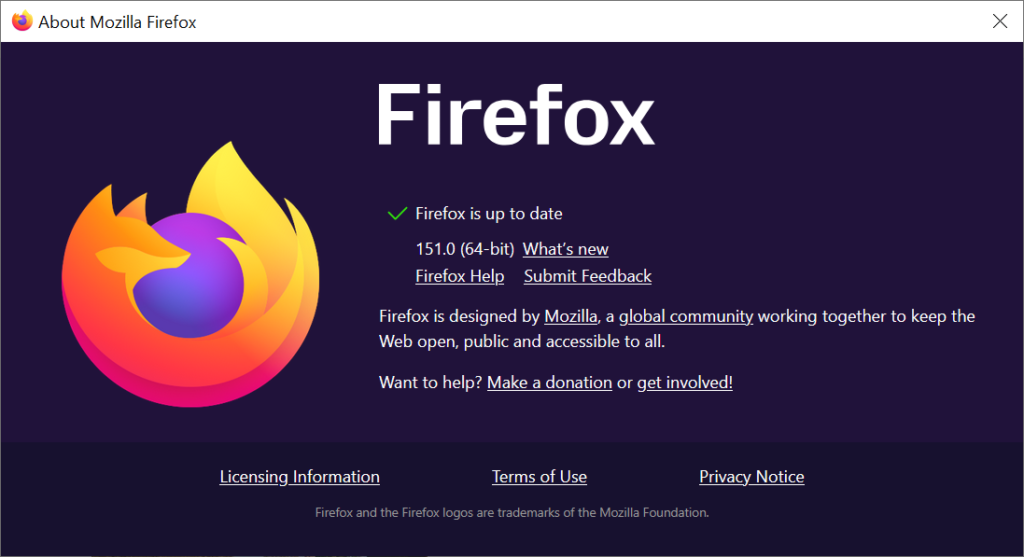
Mozilla released a new major stable version of its open source Firefox web browser on May 19th, 2026. Firefox 151 includes several new features and changes, including a new Firefox Home page (new tab page), an option to clear all data in private sessions, and more.
Most Firefox users should receive the update automatically via the built-in updating functionality. Those who do not want to wait can launch the browser and go to Menu > Help > About Firefox to run a manual check for updates. The update to version 151.0 should be picked up at that point and installed automatically.
The very first thing you may — or may not — notice after the mandatory restart is the new home page of the browser. Mozilla says that this is just the first step in a wider redesign of the new tab page. For now, you can play around with new wallpapers by clicking on the pencil icon on the page to customize what you see.
On the privacy front, there are two main changes:
A new button in private sessions. Activate the fire-button in the taskbar to get an option to clear all data in the private session and start anew. Previously, you had to close the session and start a new one to do that. Mozilla reveals that this will delete the history, cookies, and all other site data when executed.
Protection against fingerprinting. The standard enhanced tracking protection feature of the open source browser now protects against fingerprinting attempts as well. This limits the data that scripts and sites may retrieve about the device and browser by up to 49 percent. Standard is the default mode. Previously, this was limited to the strict tracking protection setting.
Other than that, Linux users may now also back up Firefox profiles locally, just like Windows users. Best of all, these backed up profiles can be restored across platforms. The built-in browsing proxy, which Mozilla calls a VPN for marketing reasons, now supports choosing a location rather than connecting to one that Mozilla picks automatically.
While the selection is limited in comparison to many standalone VPN tools and the rollout is happening over time, it is a welcome addition that should improve the feature for some Firefox users.
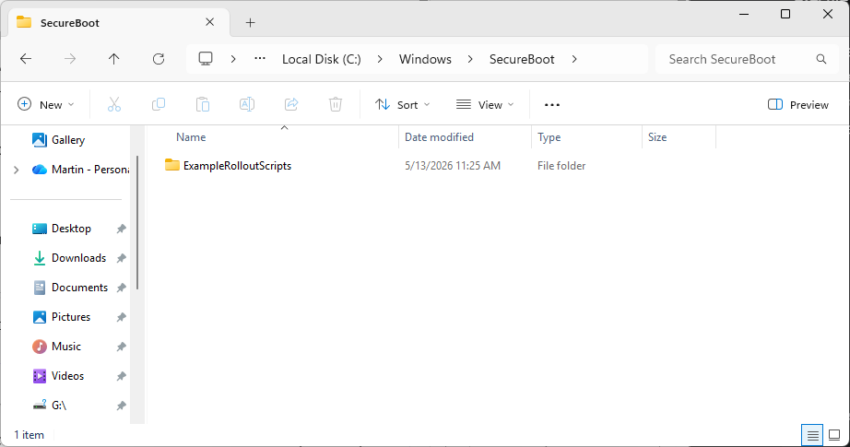
If you’ve noticed a mysterious new SecureBoot folder sitting in your C:/Windows directory following the May 2026 Patch Tuesday, you are not alone.
The folder, which has a subfolder named ExampleRolloutScripts that contains several PowerShell scripts, is a harmless administrative helper introduced in the latest security updates for Windows 10 and Windows 11.
According to official Microsoft guidance, these scripts are designed primarily for enterprise IT administrators to monitor the status of the upcoming UEFI CA 2023 Secure Boot certificate updates and to safely automate their deployment across Active Directory environments.
While essential for corporate networks preparing for this critical security transition, average users can safely ignore this tiny 450 KB folder for now.
The transition to the new UEFI CA 2023 Secure Boot certificates mark a critical security change for the Windows ecosystem. It is made necessary by the impending expiration of current certificates that were issued a long time ago.
Secure Boot acts as the fundamental gatekeeper against bootkits and rootkits by ensuring that only trusted, digitally signed firmware and operating system loaders can execute during startup.
Microsoft is employing a highly controlled, phased rollout strategy—which is exactly why administrative validation tools and scripts are currently being deployed.
Why Microsoft is rolling out the folder to anyone is anyone’s guess. It seems that the folder is pushed to all devices running Windows 11, even unmanaged Windows 11 Home systems.
It only took half a decade for Microsoft to remember how to build a functional user interface. On May 15, 2026, the tech giant took to the Windows Insider Blog to announce Preview Build 26300, a supposedly major update designed to give users “more flexibility” over their Taskbar and Start menu.
However, beneath the marketing spin, these groundbreaking additions—like the ability to finally shrink the taskbar, move it to the side or top of the screen, and independently toggle off intrusive file recommendations—are nothing more than basic features Microsoft stripped out of Windows years ago.
Rather than pushing the operating system forward, this long-overdue update rolling out to the Experimental channel feels less like innovation and more like a reluctant apology to power users who have been fighting a restrictive, dumbed-down user interface since 2021.
This is what build 26300 brings back from the dead
Let’s look exactly at what Preview Build 26300 actually brings to the table. The headline “feature” of this update is the reinstatement of taskbar mobility. After years of being glued to the bottom of the screen, users can once again click and drag the taskbar to the left, right, or top edges of their monitors—a decades-old Windows function that was axed during the initial jump to Windows 11.
Accompanying this is the return of taskbar resizing, allowing users to finally shrink the increasingly bloated bar to save precious vertical screen real estate, or expand it for better touch visibility.
Meanwhile, the Start menu receives what is arguably the most highly requested fix: a dedicated, single-click toggle to permanently disable the “Recommended” section. Instead of being forced to look at a useless blank void or unwanted cloud documents, users can now reclaim that entire bottom half of the menu for their own pinned applications.
Pavan Davuluri, Microsoft’s head of Windows and Surface, championed these tweaks on X as a testament to the company “deeply listening to Insiders” and “empowering personalized workflows.”
Personalization and customization is in Windows' DNA. It always has been. Reading through your feedback and meeting with Windows Insiders over the past few months reminded us just how deeply people care about this. You wanted more control, more customization with taskbar and… https://t.co/YpexnoDyGD
But celebrating the restoration of basic functionality as a triumph of active listening is a massive stretch. While it is undoubtedly a relief to have these customization options back where they belong, packaging them as a bold new step forward highlights a recurring, frustrating cycle in Microsoft’s development ethos: breaking something that works perfectly fine, ignoring the immediate community outcry, and then expecting applause when they finally patch it back together five years later.
If you thought your web browser was just a quiet, lightweight tool for surfing the internet, Microsoft is here to aggressively change your mind.
On Monday, the tech giant rolled out a massive, AI-centric update to its Edge browser across desktop and mobile platforms, that is shifting the focus to an AI that is heavily integrated in the browser.
The Copilot update promises productivity perks – like the AI ability to run tasks across multiple open tabs at once – but it is also making significant changes for all users, even those who don’t plan on using the AI features.
AI is growing up
Microsoft is moving AI away from being just a standard chat box and turning it into a functional browsing assistant. Core practical additions include, according to Microsoft:
Multi-Tab Reasoning: This is arguably the standout feature. Instead of manually cross-referencing information, Copilot can now read across multiple open tabs (e.g., comparing hotel prices, reading different product reviews) and summarize the differences for you.
Mobile Parity: Complex AI features like multi-tab reasoning, screen sharing (“Vision”), and hands-free voice interactions are coming to the Edge mobile app, making on-the-go research much easier.
“Journeys” Tackles Tab Hoarding: Instead of leaving dozens of tabs open forever, Edge will now automatically group your browsing history into topic cards (e.g., “Camping Trip Plan”), summarizing where you left off so you can easily resume projects later.
Accessibility & Study Tools: The ability to turn your open tabs into an audio Podcast, alongside built-in study modes that generate quizzes from webpages, are fantastic additions for students, auditory learners, or people looking to consume content while multitasking.
The “Critical” Take
While the features sound useful, the update doubles down on Microsoft’s controversial strategy of making Edge less of a web browser and more of an AI system.
Massive Data Ingestion: Copilot now has “long-term memory,” analyzes your past chats, reads your browsing history, and actively scans multiple open tabs at once. While Microsoft insists this is done “with your permission” and protects your privacy, the sheer amount of personal data being fed into the AI to make these features work will undoubtedly make privacy-conscious users uncomfortable.
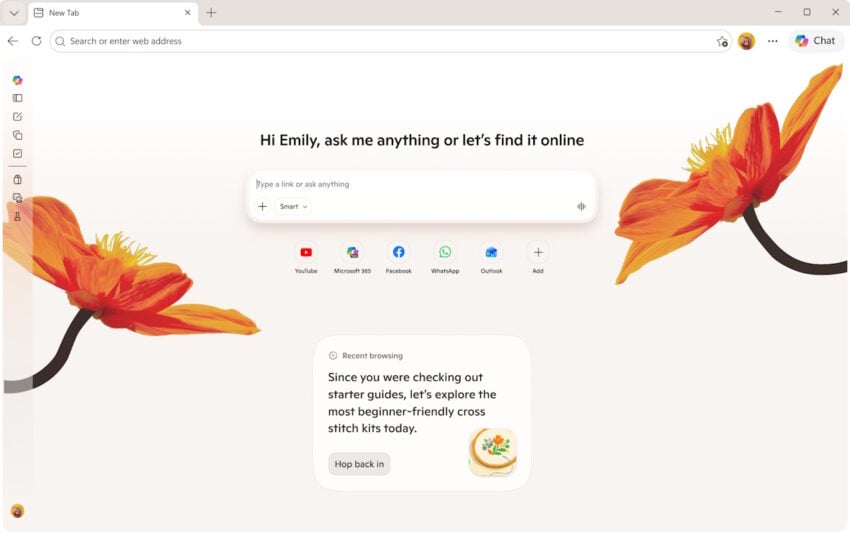
Escalating Browser Bloat: Edge has faced heavy criticism for feeling cluttered. Adding interactive quizzes, writing assistants, podcast generators, and an AI-heavy redesigned “New Tab” page risks making the browser feel even heavier and more resource-intensive.
The Illusion of Choice: Microsoft notes they are “retiring Copilot Mode” in favor of building these features directly into Edge. This essentially means AI is no longer a separate mode you enter, but a baked-in layer of your everyday browsing that you have to actively dodge if you don’t want to use it.
The Fine Print (Regional Locks & Subscriptions): The blog heavily promotes these features, but the footnotes reveal a heavily fragmented rollout. “Journeys” on mobile and the “Writing Assistant” are currently US-only. Furthermore, features like generating podcasts or the new “Browse with Copilot” actions have usage limits that push users toward paying for Microsoft 365 Premium subscriptions.
The Verdict
To be fair to Microsoft, features like multi-tab reasoning and turning articles into podcasts are clever, practical uses of AI that solve actual user pain points. However, critically speaking, this update continues the trend of forcing AI into every corner of the Edge browser.
If you love AI, Edge is becoming the ultimate productivity powerhouse; if you just want a fast, lightweight, and private web browser, this update might push you further away.
If April 2026 was an avalanche of patches, May brings a welcome breather from zero-days but keeps the critical severity count high.
Microsoft’s fifth Patch Tuesday of 2026 has arrived, addressing 120 vulnerabilities in total. While it breaks a long-standing streak by featuring zero publicly disclosed or actively exploited zero-day flaws, the sheer volume of severe remote code execution (RCE) bugs demands attention.
The update contains 17 critical flaws affecting a wide range of enterprise products, including Windows Netlogon, DNS Client, Azure DevOps, and Microsoft Word.
Here is the breakdown of what you need to know, what to patch first, and what might break.
You can download an Excel spreadsheet with information about the patches that Microsoft released:
Key Action Item: Administrators must prioritize patching network-exposed infrastructure, specifically domain controllers affected by the Netlogon vulnerability (CVE-2026-41089) and systems running the Windows DNS Client. Simultaneously, Microsoft Office installations need immediate updates to mitigate several highly critical Remote Code Execution vulnerabilities that can be triggered simply via the Windows Preview Pane.
Important Patches
CVE-2026-41089 — Windows Netlogon Remote Code Execution Vulnerability
CVE-2026-41096 — Windows DNS Client Remote Code Execution Vulnerability
CVE-2026-42826 — Azure DevOps Information Disclosure Vulnerability
CVE-2026-40364 — Microsoft Office Word Remote Code Execution Vulnerability
CVE-2026-40402 — Windows Hyper-V Elevation of Privilege Vulnerability
Security updates addressing OS-level RCEs in Netlogon, DNS Client, and Windows Graphics components (Win32k). Also resolves various Elevation of Privilege flaws across the Windows Kernel.
Deep Dive: The Critical Vulnerabilities
Microsoft confirmed that it patched zero 0-day vulnerabilities this Patch Day, but addressed a heavy enterprise focus of critical remote code execution and information disclosure flaws.
A critical stack-based buffer overflow flaw (CVSS 9.8) affecting Windows Netlogon. A remote, unauthenticated attacker could exploit this by sending a crafted network request to a Windows server running as a domain controller. If successful, this causes the Netlogon service to improperly handle the request, allowing the attacker to execute malicious code without requiring any prior access or credentials.
CVE-2026-41096 (Windows DNS Client Remote Code Execution Vulnerability)
This critical heap-based buffer overflow vulnerability (CVSS 9.8) affects the Windows DNS service. It allows remote code execution over the network and can be exploited by sending a malicious DNS response, triggering memory corruption within the Windows DNS client. Depending on the configuration, an unauthenticated attacker can achieve full RCE.
CVE-2026-42826 (Azure DevOps Information Disclosure Vulnerability)
This is the highest-rated flaw this month, boasting a perfect CVSS score of 10.0. While Microsoft withheld specific exploitation details, a perfect severity score indicates that unauthenticated attackers could potentially access highly sensitive enterprise data, credentials, and source code stored or handled in Azure DevOps.
A cluster of critical vulnerabilities in Microsoft Word (CVSS 8.4) that allow an unauthorized attacker to execute code locally. Notably, these flaws can be triggered through the Windows Preview Pane, meaning a user only needs to preview a specially crafted document to be compromised, without ever fully opening the file.
CVE-2026-40402 (Windows Hyper-V Elevation of Privilege Vulnerability)
A severe flaw (CVSS 9.3) allowing for a guest-to-host escape in Windows Hyper-V. By targeting certain hardware device registers, an attacker operating from within a guest virtual machine can escape the isolated environment and gain SYSTEM privileges on the underlying host system.
First Steps: Your Patch Tuesday Strategy
Prioritize Domain Controllers (Netlogon) and DNS Client services
Mozilla releases a new stable version of its open source Firefox web browser every four weeks. This new version introduces new features, bug and security fixes. Up until now, smaller updates were released between two major releases.
These point updates do not include new features usually but fix security issues and/or non-security issues. The releases were not predictable up until now. While you could almost be certain that a point update would be released, it was never really certain when.
This changes with the release of Firefox 151. Mozilla is switching to the same point update release rhythm that Google uses for its Chrome web browser currently.
Put simply, Mozilla plans to release a point update every week going forward. This means three Firefox point releases at the very same day of the week in-between major releases. Three point updates will follow the release of Firefox 151 and any other major browser release that follows.
Starting with Fx151, we now have 3 weekly dot releases for Desktop and Android Release calendar updates will be live shortly
Other than that, there is no explanation from Mozilla regarding the change yet. Considering that Google announced recently to shorten Chrome release cycles to two weeks, it is likely an attempt to stay ahead of major developments and push out fixes faster to the user base.
With AI helping Mozilla find security issues in Firefox, it is probably one reason why the organization decided to push out more updates to get these fixes on user systems as soon as possible.
This is going to be a rather personal look at the past couple of months and how things have evolved since then.
As you may know, Softonic, the Spanish company that acquired Ghacks years ago, sold it in a rather hasty deal. The writing was on the wall for some time, especially since the budget for the site was cut in half more or less. This meant less articles written and it fueled the spiral downwards.
We, the writers, were not in the loop. One day in December, we were told that the site had been sold. Our access was cut immediately and the entire team was fired passively. Later, I was asked if I wanted to write a good-bye article, but it was already too late for that in my opinion.
Anyway, this meant that I stopped writing for Ghacks after nearly 20 years of doing so more or less every day. It was tough for Ashwin as well, who lost his main source of income.
There is little chance that the Ghacks situation is going to change in the future.
For now, these are the places that you can find my articles or takes at:
Chipp.in, my personal blog: No ads, no tracking, tech news, some tutorials. I do not post as frequently as I’d like to.
Weekly Tech Insights: a newsletter published once a week. I recently started to integrate longer takes on certain tech news, also has tutorials and other nice stuff. Totally free.
Ask Woody Newsletter: I was approached by Will from the Ask Woody Newsletter some time ago and became a contributor. My plan is to submit articles to the newsletter regularly. Ashwin also started contributing.
Gamestar Tech: This is the online tech section of one of the biggest German gaming magazines. Contribute daily tech news in German.
Windows 11 Book: I have started working on the next revision of the book. Much has changed since 2024 and the book is in dire need of updating.
As far as personal sites are concerned, it is getting incredibly difficult to maintain them. AI tools are taking over, whether you like it or do not. More and more users will ask AI on search engine sites and elsewhere when they run into a problem or need an opinion or advice. This means less traffic to sites, which make less money as a consequence.
Many of my favorite tech news sites have vanished in the past couple of years. Google is changing its algorithm constantly and that usually means less visits. Yes, there are some holdouts, but even these face the problems.
You need to offer something that the competition or AI can’t bring to the table. And that is what I plan to do here. This site will never grow to Ghacks levels, as it is niche, not really indexed well in search engines. Means: only a handful of people will ever find it, unless an article gets suddenly pushed via a major Internet site.
My plan: grow slowly by word of mouth only, ignore search engines or AI, they are unpredictable. Build trust, never falter, never change. We will see how this goes.
The time to go brew a coffee whenever you start a taxing program on Windows could soon be a thing of the past. Reports by Windows Central and other sources suggest that Microsoft is testing a new Low Latency Profile feature that could speed up the start of apps by up to 70 percent.
The idea behind the feature is straightforward: Boost the processors frequency for certain taxing tasks on the system to speed them up. Examples are the opening of apps, system flyouts, or the display of menus on the system.
According to Windows Central, app starts could be boosted by up to 40 percent while the launch times of interfaces could be boosted up to 70 percent.
Depending on the PC that you are using, these things may happen near instantly already all the time. Deskmodder tested the feature in an Insider build recently and concluded that it does not really help, if the PC in question is modern.
However, when a PC is older, it could indeed speed up certain options noticeably.
The new feature is part of Microsoft’s effort to improve the performance and stability of the operating system. It is but one of the changes that Microsoft is testing currently. Others include optimizing apps or code, or switching to modern interfaces.
The new Low Latency Profile feature runs in the background automatically. Whether there will be an option in Settings or elsewhere to disable the feature remains to be seen. It is likely that there will be at least a Group Policy and Regedit option to manage that.
If you want to try out Low Latency Profile in recent Insider builds and see if it makes any difference, enable these feature IDs:
Mobile devices and web browsers support the sharing of the current location. This gives apps, websites and services access to a user’s location in the world. Ideally, to provide custom information, such as zooming to that location on a map, showing businesses nearby, providing directions, or loading specific information on a website.
While useful in that regard, location does reveal information about the user. The feature is usually locked behind a permission, but some apps may not start at all without it or block access to features.
Google announced on its official The Keyword blog that it is introducing approximate location sharing in Chrome. The feature lands in Chrome for Android first before it will also be introduced in the desktop versions of the browser.
Here is what it does: Google Chrome’s new Approximate Location Sharing feature enhances privacy by giving users a third option when websites request their whereabouts: sharing a general regional area rather than the exact coordinates. While users can still grant precise location access for tasks that genuinely need it—such as getting turn-by-turn navigation, placing a delivery order, or finding a nearby ATM—everyday browsing activities like checking local weather or reading regional news can now function perfectly well with just a neighborhood or city-level location.
In other words, websites and apps get information about a region a user is in and not the precise location. This new permission is intended for services that do not require accurate information and for users who do not want to share their exact location.
When a location prompt pops up on the mobile, users can now pick between “precise” and “approximate” and the usual options to “never allow”, “allow this time”, or “allow while visiting the site” options. Google says that the feature will land on desktop in Chrome in the coming months as well. For now, it is only available in Chrome for Android.
How useful is it for privacy? It can be used to share less-exact information about ones location. That is useful, especially for services that do not require it to function. If you want to get local news or weather, it does not really matter if the service that is providing the information knows the exact location or not. In that regard, it is a useful addition for users who share location but prefer it to be less exact whenever possible.