When Microsoft announced Smart App Control, a feature designed to make Windows more secure by blocking processes the moment they are started, it limited the feature to new systems. You either had to install Windows 11 from scratch or start with a new PC altogether to even get the feature. Worse, once deactivated, you’d never be able to reactivate it.
This changes with the latest updates for Windows 11. Now, Smart App Control can be turned on or off under Settings > Privacy & Security > Windows Security > App & Browser Control > Smart App Control.
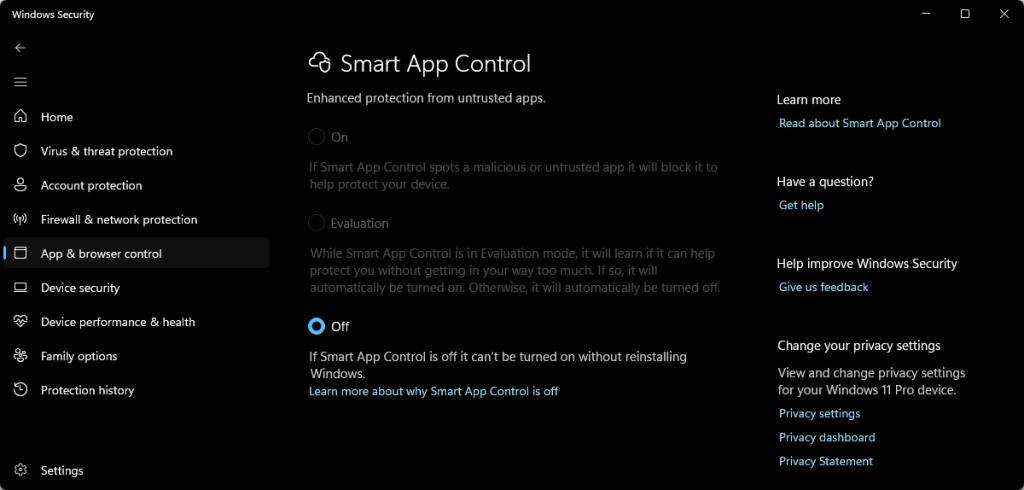
This change is likely coming in a few days when Microsoft releases the February 2026 cumulative updates for the operating system.
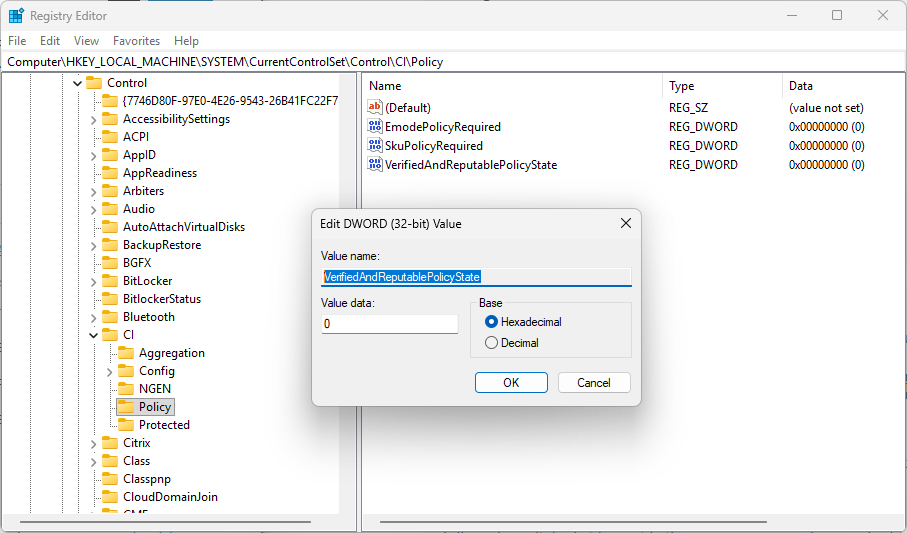
Pro Tip: You can force-enable Smart App Control in the following way:
- Open the Start menu.
- Type regedit.exe and press the Enter-key.
- Confirm the security prompt.
- Go to HKEY_LOCAL_MACHINE\SYSTEM\CurrentControlSet\Control\CI\Policy
- Double-click on VerifiedAndReputablePolicyState.
- Set the value to 1.
- Restart the PC.
What is Smart App Control?
Microsoft describes the security feature in the following way:
Smart App Control is an app execution control feature that combines Microsoft’s app intelligence services and Windows’ code integrity features to protect users from untrusted or potentially dangerous code
Here is how it works: when you run an executable file on Windows, Smart App Control checks first with Microsoft’s “intelligent cloud-powered security service” to determine if the app is safe. If Microsoft has no record, Smart App Control checks for a valid digital signature and allows it to run, if it is signed by a trusted developer.
Executable files that are not signed and unknown to the cloud are blocked.
Smart App Control offers some advantages and also some weaknesses in comparison to traditional antivirus solutions and protections. Here is the breakdown.
Smart App Control: The Pros
- Proactive Defense: Blocks threats before they can run.
- AI & Cloud Intelligence: Uses data from millions of users and Microsoft’s cloud-based AI to determine the safety of an app in real-time.
- Lighter Performance: Less resource-intensive than antivirus solutions that scan continuously.
- Blocks Potentially unwanted Programs.
Smart App Control: The Cons
- No Exceptions: Smart App Control either runs or it does not. If it makes a decision, that decision is final. There is no “allow anyway” option.
- Privacy: Windows 11 checks online whether an executable is safe.
To Microsoft’s credit, it is removing the limit to even use the feature with this month’s update, which has been a major con up until now.
While Smart App Control may have its uses, especially on PCs of users who might run into launching executable files that they shouldn’t, it is a nightmare for developers and power users. If Microsoft would introduce a bypass option, that might change.
I assume if it blocks something you want to run, you can turn it off (reboot…) and the app you want will run? Also, what happens if the internet is down and you’re working – will it block everything? Even regedit?
Let windows call home every time I start a program so some stranger can decide if I can run it on my PC based on some secret rules?
🙄
“Smart App Control checks first with Microsoft’s “intelligent cloud-powered security service” to determine if the app is safe”
———————————————————————————–
I’ve always disabled this every time I install Windows, because I suspected it was just another form of spyware. Indeed it does seem that way based on the article. Ever notice how it takes multiple steps to disable this and the “check files and apps” option in Defender? You’re keeping them from that precious data!
Wondering–which feature shows a window nearly every time I attempt to run an open-source program downloaded from GitHub; typically, I have to click “More Info” and then “Run Anyway”?
[AI’d it–it’s Smart Screen–as welcome as it is, it’s somewhat of a nuisance.]
The feature tends to “Block Potentially unwanted Programs and Executable files that are not signed and unknown to the cloud are blocked.”
My Smart App is currently in Evaluation Mode and says if I turn it off, I will have to reinstall Windows.
“… Smart App Control checks for a valid digital signature and allows it to run, if it is signed by a trusted developer.”
Which probably means that all small software developers are immediately ruled out because they cannot afford the exorbitant fees for obtaining a “valid digital signature” or becoming a “trusted developer”…