When I was young, I studied German, History and English at Essen University in Germany. I worked in computer support for several years at the time to help other computer users when they ran into issues.
Writing started out as a passion project, as I wanted to help more users and not just the ones that I handled in support.
This lead to the founding of Ghacks Technology News in 2005. First, as a side-project, but shortly thereafter as a full-time project as the site's popularity exploded.
I sold Ghacks to Softonic some years ago, but stayed on as Editor. You can still read my articles on the site. I do publish on Betanews as well. In recent years, I started to write and publish technology books, including my latest book "Windows 11 From Beginner to Advanced", which is available on Amazon.
I'm also a freelance writer for the German publisher Gamestar.
Chipp.in is my newest project. I want to use it to talk about my book projects, sell my books directly, and write about technology, as this is what interests me.
The writing was on the wall for some time. Meta-owned WhatsApp is rolling out a paid subscription service called WhatsApp Plus to a first batch of users of the messaging app.
For a price of 2.50 Euro per month (roughly 2.94 US Dollar), the price is not know for all regions), users get a range of extra features. WhatsApp reassures users that all core features remain free.
So, what do Plus users get? WABetaInfo has created a detailed post about the features that subscribers do get currently.
Send premium stickers – exclusive stickers that recipients also see, but can’t use.
Change your app’s theme – get 18 new colors options.
Choose a custom app icon – change the default icon of the app.
Pin extra chats – pin up to 20 chats.
Get premium ringtones – ten exclusive ringtones.
Upgrade your chat lists – enables options to update chats in bulk.
Interestingly enough, this does not change anything else. No removal of ads or improved usability features, which is often part of such a deal.
The main question is, how many users of WhatsApp will find this selection of exclusive features worth the price? Will be interesting to see how this evolves over time. Maybe Meta is planning to take a cue from Google’s playback by moving some features into the paid plan or introducing an ad-free experience.
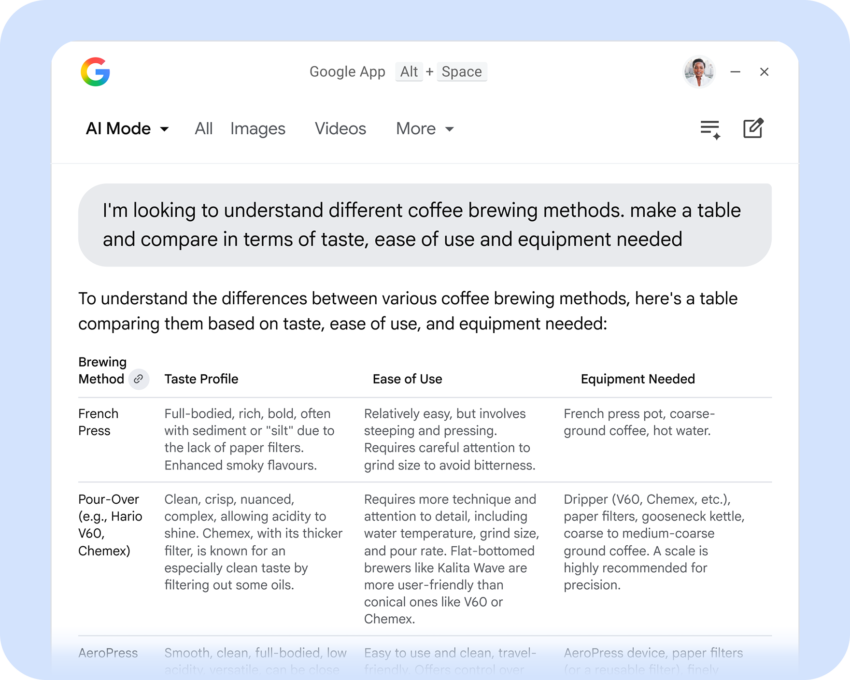
Interact with AI right from the desktop. That is the main idea of Microsoft’s integration of Copilot in Windows and now also of the new Google App for Desktop.
Google released the app officially for Windows; other desktop systems are not supported right now. It is only available in English and works under Windows 10 and Windows 11. The app’s main slogan is “Ask anything with the Google app for desktop” and that is exactly what you get: direct access to the Gemini AI from the desktop.
Once installed, you may bring up the Gemini prompt with the shortcut Alt-Space. Clearly, this requires an active Internet connection as all the processing happens remotely on Google servers.
You may wonder why you’d consider using the app when all the AIs are just a browser-click away on the World Wide Web. Google has added screen sharing and Lens into the app. This means you can share part of the screen or the entire screen with the AI.
While that is also possible online, by taking a screenshot first, it is more convenient this way. The built-in search feature covers local files and files on Google Drive, according to the description. Google claims that the index that it uses for file searches is stored locally and not on Google servers.
The battle for desktop supremacy
Google is invading Microsoft’s “turf” with the release of Google’s new desktop tool. Up until now, Microsoft had little competition for its Copilot AI that it added to the operating system.
Both AI tools have several things in common, but there are also differences.
The Similarities
AI access: Generative AI that supports conversations, follow-ups and some extra features, like summarizing documents or drafting emails.
Keyboard-Shortcut: The Google App maps to the Alt + Space shortcut, while Windows Copilot may be summoned via Windows Key + C or the dedicated hardware Copilot key on newer keyboards. However, starting with Windows 11 version 24H2, Microsoft allows users to map the Copilot key to other applications.
Screen-Access: Both AI tools can get access to the desktop.
Unified Search: Both offer local and Internet search capabilities, especially for cloud-storage files.
Access: While Copilot used to be integrated deeply into Windows, it is now a standalone app just like Google’s app. This means that both apps can’t make changes to the system anymore.
The Differences
AI Models: Copilot or Gemini, that is the main difference between the two services.
Ecosystem: This one is obvious. The AIs are tied heavily to the Google or Microsoft ecosystem. For example, Google’s App can access Google Drive content while Microsoft’s app integrates with OneDrive and Microsoft 365.
Installation: Microsoft Copilot is built directly into Windows 11. Google’s app needs to be installed.
Closing Words
Google is making an offer to Windows users: here is our AI app, which you may use instead of Copilot. Users who already use Gemini may find that offer attractive enough to give it a try.
Windows users who prefer Copilot will stick to the AI, especially if Microsoft is introducing new useful functionality that Google can’t replicate with its desktop app.
As for those who do not use AI, they won’t use the Google App anyway. Since it is a manual install, there are no precautions to take.
When Microsoft introduced the two-tier context menu of Windows 11 it claimed that one reason for the change was to streamline the context menu of the operating system. This did not turn out too well, considering that users juggle between the new and the classic menu regularly since the release of Windows 11.
Apps may still add entries to the Windows context menu and since there is no central editor to manage all entries, it is either done through the app itself — if it offers such an option — or the Registry Editor.
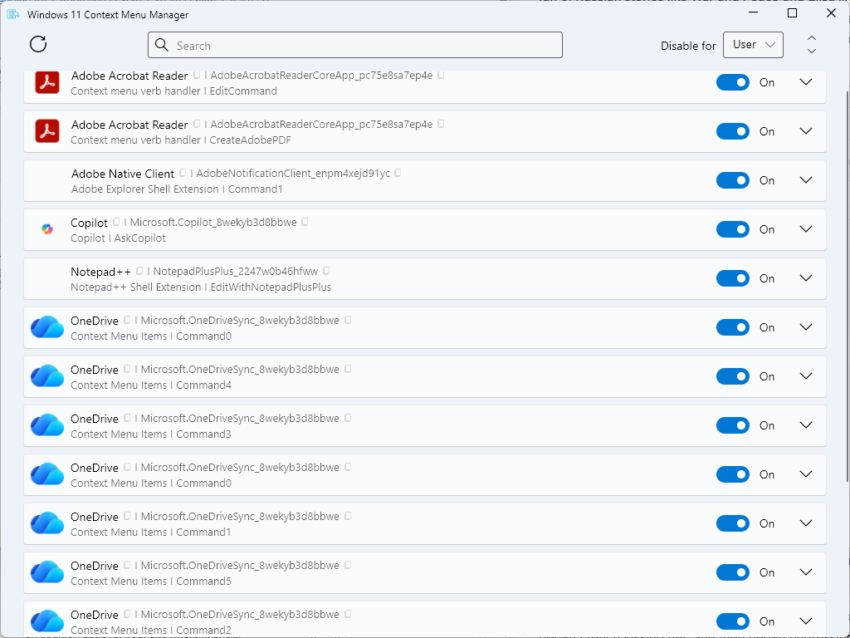
Windows 11 Context Menu Manager is a free open source tool that offers another option. It focuses on items added by apps and not the Microsoft entries.
When you launch it, you see all context menu items in a list. The default scenario is to remove them for the user. You can also remove them machine-wide, but that requires running the app with elevated rights.
Each entry is listed with its name and some information. To be honest, this is not super useful, but it becomes useful when you expand the entry. There, you find information about file types.
To give you one example. The program listed two entries for Adobe Acrobat Reader. One was for PDF files, the other for any other file type that Acrobat Reader supported.
Even this advanced view is limited. The seven OneDrive entries did not reveal any information about their purpose when I expanded them. They were labeled command0, command1 and so on, and listed a wildcard under file and no directory.
With that in mind, you get an option to toggle the items off or on again. Other actions become available when you expand an item. There you find options to uninstall, open the file location, the settings of the app, or the Microsoft Store.
With those caveats, it is still a handy tool to hide certain items from the Windows 11 context menu, especially if the app does not provide options to do so in its preferences. (via Deskmodder)
If March 2026 was a marathon of infrastructure updates, April is a massive avalanche of patches.
Microsoft’s fourth Patch Tuesday of 2026 has arrived, addressing a massive 165 vulnerabilities in total. The sheer volume demands attention. It contains two 0-day vulnerabilities — one of which is actively exploited in the wild — and eight critical flaws affecting a wide range of products, including Office, SharePoint, Microsoft Defender, and Azure.
Here is the breakdown of what you need to know, what to patch first, and what might break.
The April 2026 Patch Day overview
Executive Summary
Release Date: April 14, 2026
Total Vulnerabilities: 165
Critical Vulnerabilities: 8
Zero-Days: 2 (SharePoint [Actively Exploited], Microsoft Defender [Publicly Disclosed])
Key Action Item: Administrators must prioritize patching internet-facing SharePoint servers due to the actively exploited spoofing zero-day. Simultaneously, network infrastructure and Active Directory components need immediate updates to mitigate several highly critical Remote Code Execution vulnerabilities.
Important Patches
CVE-2026-32201 — Microsoft Office SharePoint Spoofing Vulnerability
CVE-2026-33825 — Microsoft Defender Elevation of Privilege Vulnerability
CVE-2026-33824 — Windows Internet Key Exchange (IKE) Extension Remote Code Execution Vulnerability
CVE-2026-33827 — Windows TCP/IP Remote Code Execution Vulnerability
CVE-2026-33826 — Windows Active Directory Remote Code Execution Vulnerability
Security updates addressing OS-level RCEs in TCP/IP, IKE, and Active Directory components. Also resolves numerous Elevation of Privilege (EoP) flaws across Windows Kernel, Boot Loader, and BitLocker.
Microsoft SharePoint Server
Patches for SharePoint 2016, 2019, and Subscription Edition to address the actively exploited CVE-2026-32201 spoofing flaw.
Microsoft Office
Security updates addressing multiple Critical Use-After-Free and Untrusted Pointer Dereference vulnerabilities resulting in local code execution
Deep Dive: The Critical Vulnerabilities
Microsoft confirmed that it patched two 0-day vulnerabilities this Patch Day and several critical remote code execution flaws.
This actively exploited zero-day allows an unauthorized attacker to perform spoofing over a network due to improper input validation in Microsoft Office SharePoint. An attacker who successfully exploits this can view sensitive information and make changes to disclosed information.
CVE-2026-33825 (Microsoft Defender Elevation of Privilege Vulnerability)
A publicly disclosed zero-day flaw in Microsoft Defender that allows privilege escalation to SYSTEM privileges. Microsoft has addressed the flaw in the Microsoft Defender Antimalware Platform update version 4.18.26050.3011, which should be downloaded to (most) systems automatically.
CVE-2026-33824 (Windows Internet Key Exchange (IKE) Extension RCE)
A critical double-free vulnerability in the Windows IKE extension. An unauthenticated attacker can send specially crafted packets to a Windows machine with IKE version 2 enabled to potentially achieve remote code execution. If IKE is not in use, blocking inbound traffic on UDP ports 500 and 4500 acts as a mitigation.
A critical race condition vulnerability in Windows TCP/IP that can result in remote code execution. An unauthenticated actor can send specially crafted IPv6 packets to a Windows node where IPSec is enabled to potentially achieve RCE.
CVE-2026-33826 (Windows Active Directory Remote Code Execution)
A critical improper input validation flaw in Windows Active Directory. It allows an authenticated attacker to execute code over an adjacent network.
Firefox fans have long heralded the browser’s Multi-Account Containers feature as an exclusive that users of Chromium-based browsers did not have. Soon, Brave Brower users may also make use of a Containers feature, ending Firefox’s exclusivity.
Brave has begun rolling out native Container support as an experimental flag in its desktop browser as of April 2026. It allows users of the browser to isolate web sessions better and even get options to open multiple accounts of the same site in a single browser window without using clunky workarounds or third-party extensions.
The Core Concept: Session Isolation
At its core, the Containers feature creates isolated islands within a single browser window. Each container acts as a separate, sandboxed environment. Data, including cookies, local storage, or cached files, can’t be seen or accessed by tabs in another container or by the default container-less environment.
Since data is sandboxed, it is possible to sign-in to the same site in different containers in the same browser window using a single profile, or to open a site with an account and without one at the same time. Furthermore, since data is separate, tracking becomes less effective as the trackers can only see what is going on in a single container and not the entire browser.
Containers works with tab groups and all core features of the browser, including browser extensions.
The feature is available in Brave Nightly only at the time. You need to load brave://flags, search for Enable Containers, and toggle the feature to Enabled to start using it. A restart of the browser is required as usual before it becomes available.
Since this feature is in Nightly, it may have bugs and may not be as polished as the stable version that Brave Software plans to ship in a later version of the browser.
Say goodbye to the rigid weak week-timers that have long dictated your PC’s maintenance schedule. Microsoft is currently testing a significant overhaul to its update system in the latest Windows 11 Insider builds, replacing the clunky dropdown menu with a user-friendly calendar picker.
First spotted by researcher PhantomOfEarth, this new feature allows users to select a specific date to resume updates. A much needed improvement as it is giving Windows users granular control when they machines reboot and install updates for the operating system.
First look at changes coming to Windows 11's pause updates option!
The button/dropdown menu are being replaced with a button for a calendar view, which lets you choose a specific date to pause until (instead of 1 week, 2 weeks, etc. and having to manually resume early). pic.twitter.com/mv6yw76cNL
The Pause Updates feature of the Settings app is not the only option that Windows administrators have regarding updates, but it is the most visible.
Here is a quick overview of what is available:
1. The Standard Settings Method (Temporary)
The most common way is through the built-in settings, though it currently lacks the granular “pick a date” flexibility coming in the update.
How to do it: Go to Settings > Windows Update and look for Pause updates.
The Limitation: Currently, you can only choose from preset increments (1 week, 2 weeks, etc.) up to a maximum of 5 weeks. Once that time expires, you must install the pending updates before you can pause again.
2. Set as “Metered Connection” (Passive Pause)
Windows will not automatically download most updates if it thinks you are on a data-capped connection.
How to do it: Go to Settings > Network & internet > Wi-Fi (or Ethernet), select your network properties, and toggle Metered connection to “On.”
Effect: This delays large updates indefinitely, though critical security patches may still bypass this setting.
3. Disable the Windows Update Service (Semi-Permanent)
You can stop the background service that checks for updates entirely.
How to do it: Press Win + R, type services.msc, and find Windows Update. Right-click it, select Properties, set the “Startup type” to Disabled, and click Stop.
Note: Windows may eventually restart this service on its own during system maintenance.
4. Group Policy Editor (For Pro & Enterprise Users)
If you have a Pro or Enterprise version of Windows, you can use the Group Policy Editor for more control.
How to do it: Press Win + R, type gpedit.msc, and navigate to:Computer Configuration > Administrative Templates > Windows Components > Windows Update > Manage end user experience.
The Fix: Double-click Configure Automatic Updates and set it to Disabled. This stops the automatic check entirely until you turn it back on.
5. Registry Editor (The “Home” Edition Workaround)
Since Home users don’t have the Group Policy Editor, they can achieve the same result via the Registry.
How to do it: Navigate to HKEY_LOCAL_MACHINE\SOFTWARE\Policies\Microsoft\Windows.
The Fix: Create a new key called WindowsUpdate, then a sub-key named AU. Inside AU, create a DWORD (32-bit) value named NoAutoUpdate and set its value to 1.
6. Third-Party Tools
There are several lightweight, community-trusted tools designed specifically to “kill” Windows updates with one click, such as Windows Update Blocker (WUB) or WuMgr. These are popular for users who want to prevent updates without digging through system menus.
If you’ve ever felt completely lost in the web of Windows testing tiers or frustrated by slow A/B feature rollouts, relief may finally have arrived.
Microsoft announced a big overhaul of the Windows Insider Program this week designed to simplify how users test development builds of the operating system.
The company is cutting down the channel list to just two primary ones — Beta and Experimental — and is finally changing how experimental features land on test systems.
Here is a breakdown of the major changes:
Two Streamlined Channels: The previously confusing multi-tier system is being condensed into just two primary tracks: Experimental (which replaces the Dev and Canary channels) and Beta (for features that are closer to being ready for the public).
The End of A/B Testing: Microsoft is officially dropping its Controlled Feature Rollout (CFR) system for Beta channel participants. This means no more waiting in the dark while other testers randomly receive new features before you do.
Manual Feature Flags: You are finally getting direct control over your testing experience. Moving forward, Insiders can manually toggle new features on or off directly within Windows Settings as soon as they are documented in the changelogs.
No More “Clean Install” Trap: Historically, leaving the Insider program or dropping down to a more stable channel often required a complete, data-wiping OS reinstall. Microsoft is fixing this by allowing in-place upgrades (IPU), meaning you can transition channels or exit the program while keeping your files and apps intact.
Clearer Communication: Release notes and documentation will be much more explicit about who features are for and which channel they belong to, giving IT admins, developers, and enthusiasts a much more transparent roadmap of what to expect.
From a testing perspective, Microsoft is launching several improvements. First, Beta users get access to features directly. No more waiting or using of third-party tools like ViVeTool to enable them.
Second, users in the experimental channel get options to turn certain features on, if they are not already enabled.
Third, switching between channels should get easier and less cumbersome.
Last but not least, more documentation is always welcome, as Microsoft’s attempts have been lackluster at best until now.
While the announcement may instill hope in Windows testers who have been disappointed by Microsoft so far, it is clear that Microsoft has to deliver. If the company does, it could improve its Windows Insider program significantly in the process.
Just a few weeks later, it is Google that is quietly raising prices for YouTube Premium subscriptions in the United States.
Here is what is changing:
Individual Plan: Increased from $13.99 to $15.99 per month
Family Plan: Increased from $22.99 to $26.99 per month
Annual Plan: Increased from $139.99 to $159.99 per year
Premium Lite: Increased from $7.99 to $8.99 per month
So, users pay between $1 to $4 more per month, or $20 when they pay yearly. The change affects Apple users as well. Users who subscribe through the Apple App Store or an iOS device pay a premium, and this remains. The individual plan costs $20.99 per month when subscribed this way.
That is why it is advised to subscribe using a web browser to get the lower rate.
The new price is already shown to users who open the official YouTube Premium subscription page on the website. Google, however, has not announced the price increase officially on any of its official blogs.
Premium subscribers may stream videos without ads on YouTube. They do get access to YouTube Music and some other — mostly artificially limited — features, including background play or continue watching.
Good content blockers continue to work in browsers and apps like NewPipe or SmartTube continue to work on Android TVs as well, albeit with frequent interruptions caused by changes on YouTube.
If you use the popular messaging service WhatsApp, you know that you can only add contacts to the service with a phone number. Don’t have the number registered to a WhatsApp account? Then you can’t add the contact to the app.
Clearly, having to share your phone number is not always a good idea. While you may not have any issues sharing it with close friends or family, giving it to others is another matter.
It is a privacy and security issue. Other messengers support usernames, which do not reveal critical information to a third-party.
WhatsApp started to work on usernames about three years ago, but the Meta-owned app is just about to start rolling the feature out to a first batch of users, reports WABetaInfo.
You can add a username in the settings. Once you do, you may share the username with others to get them to add you to the messenger. Good news is that you can further protect the username with a code, which others need to provide when they try to add you.
However, there are quite a few limitations regarding usernames. Here are noteworthy ones:
The username can be between 3 and 23 characters in length.
It needs to start with a letter, and can only contain letters, numbers, underscore, and a period.
It can’t be a domain name or start with www.
It can’t be taken, if someone on Instagram or Facebook picked it already. The user who picked it can get it on WhatsApp.
Support for usernames is a welcome addition. While some Internet users prefer to use other messaging clients, those who offer more privacy, WhatsApp’s users will certainly benefit from the feature.
No official ETA or confirmation by Meta at this point though. Might take months or even longer before the feature lands for most users.
VeraCrypt is a popular cross-platform encryption software that is available for Windows, Linux and macOS. It is one of the successors of TrueCrypt and can be used to encrypt hard drives, including system drives, and to create data containers on drive that are encrypted.
The developer of the application, Mounir Idrassi, published a project update on Sourceforge a few days ago. There, he explained why the project had been silent for the past few months.
According to his description, Microsoft terminated the account that he used to sign Windows drivers and the bootloader. This affects the Windows version of the encryption software, as updates can’t be signed anymore because of this. The Linux and macOS versions of the software are not affected by this.
To make matters worse, a screenshot with a message by Microsoft suggests that an appeal is not available. It is unclear what that means for the project. While a solution may be found eventually, likely through enough outside pressure to get a Microsoft representative to look at the case, it is certainly problematic when a company that operates its own encryption software — Microsoft with BitLocker — is blocking a competitor from releasing updates for his.