
In an era where tech giants are racing to weave artificial intelligence into every corner of the browsing experience, Mozilla is handing the controls back to the user.
In a few weeks, the organization plans to launch Firefox 148 to the stable channel. It will include the “AI kill switch” that Mozilla executives hinted at earlier. With it, users of Firefox may block existing and new AI features in the browser either entirely or selectively.
Support of AI features
Firefox supports several AI features at the time off writing. This includes the option to interact with AI chatbots in the sidebar, get link preview summaries and tab suggestions, or help with tab group labeling.
In summary (as of Firefox 147):
- Translations
- Image alt text in Nightly PDF viewer
- Tab group suggestions
- Key points in link previews
- Chatbot providers in sidebar
Not all features are available for all Firefox users. Some are limited to users who use the open source browser in English.
A detailed look at Firefox’s AI Kill Switch
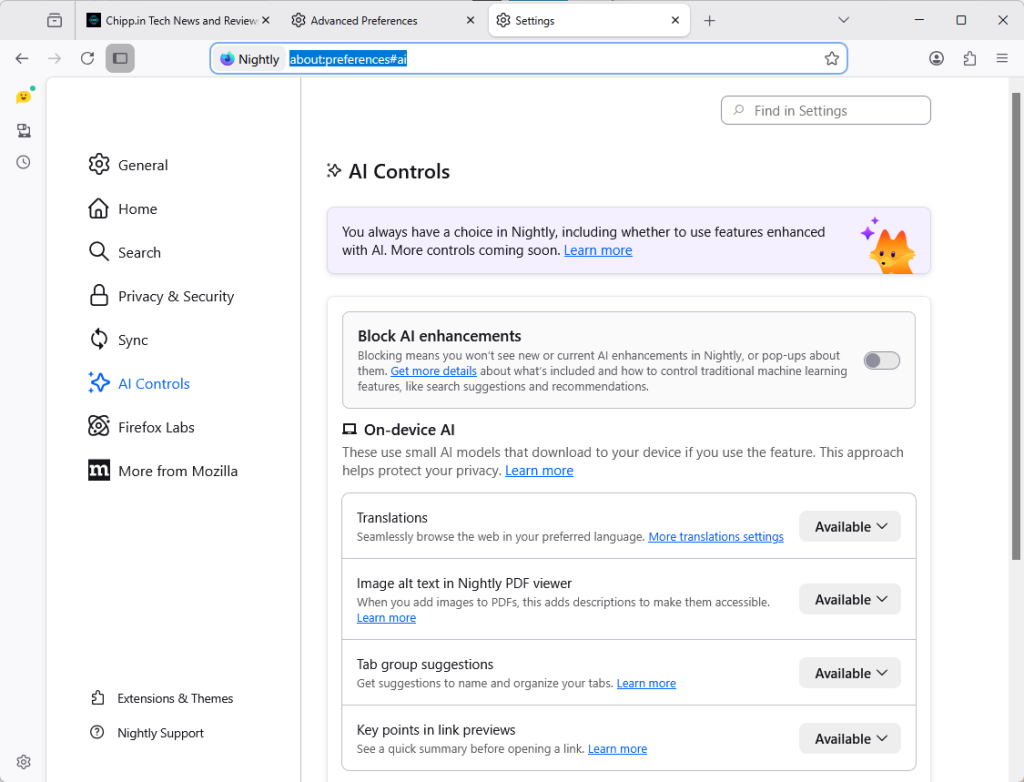
Starting in Firefox 148, out next month and available as a preview already, Firefox will include the option to block AI functions.
Mozilla added an AI Controls section to the preferences of the browser. You can launch Menu > Settings > AI Controls, or load about:preferences#ai directly to manage AI features in the browser.
Note: The preference browser.preferences.aiControls controls the entry in the preferences. Toggle it to True to enable it, or to False to disable it. This impacts only the display in Settings.
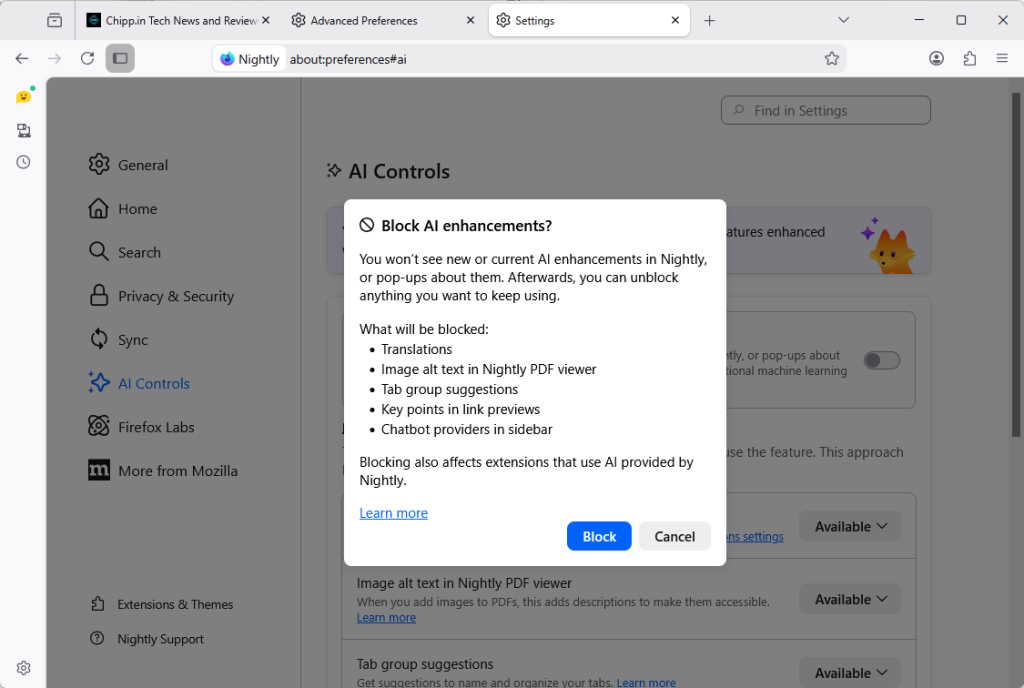
How to disable all AI in Firefox? Just toggle “Block AI enhancements” to Off. You get a prompt that explains what is going to happen. Activate “block” here to disable all AI features in the browser.
Instead of blocking everything, Firefox users may also block specific features only.
The AI Controls page divides the functions into two sections: On-device AI and AI chatbot providers in sidebar.
Each AI feature is listed with its name, a short description, and an action button. You can switch a feature from “Available” or “Enabled” to “Blocked”.
- Available means that it can be used, but has not been up until now.
- Enabled means that the user opted-in to use the AI feature.
- Blocked that it is not active in the Firefox browser.
Here are the features that you can manage individually right now:
- Translations
- Image alt text in Nightly PDF viewer
- Tab group suggestions
- Key points in link previews
- Chatbot in sidebar
Closing Words
Ultimately, Mozilla’s introduction of a global block toggle for all AI features highlights the organization’s awareness of the deep-seated skepticism toward AI among its user base. With it, it is giving Firefox users control over AI. Those who do not want it can make sure that it is disabled entirely in the browser, while everyone else may keep some or even all AI features enabled to make use of them.
By providing a clear, centralized way to opt out of AI—and ensuring that local data is purged when those features are disabled—Firefox 148 sets a high standard for how browser developers should respect individual choice. (source: Sören Hentzschel)
Ok, waiting for the official 148 rollout and will try this. Brave is my default browser of choice but Firefox is a close and dear friend as long as ublock, tampermonkey and others keep it behaving.
An AI Opt-out will be helpful.
If Windows 11 had a similar switch, no third party tools required. I’ll probably update my supported systems.
This is a very rational approach. The ability to enable or block on a feature-by-feature basis is ideal. This tweakability is why I use FF in the first place.
At least someone is listening. AI can be useful but I don’t want it forced on me at every turn.
Where do I get the preview (with AI kill switch)? It’s not in Beta 9 and not in the latest Nightly. Your screenshot shows you got it from somewhere. Where?
Sam, you may need to set the preference browser.preferences.aiControls to TRUE in about:config.
I wish they would add support for Openrouter. There are many more good AI models available than just the default set Moz is supporting.