Chipp.in Tech News and Reviews

Windows, Security & Privacy, Open Source and more

Menu
  • Home
  • Windows
  • Security & Privacy
  • Gaming
  • Guides
  • Windows 11 Book
  • Contact
  • RSS Feed
Menu

Tag: brave

Brave Accounts and Email Aliases launch

Posted on August 28, 2026 by Martin Brinkmann

Brave Software, maker of Brave Browser, announced the launch of Brave Accounts yesterday. While the main idea of introducing native accounts is similar to how other browsers handle user accounts, that is, allowing users to sync data and use other services associated with the account, Brave Software uses technology that is vastly different.

Instead of sending hashes or encrypted passwords to remote servers, Brave Software says that passwords never leave the browser in the first place. It is “never transmitted”, which eliminates the need to trust a company securely storing password data in the first place.

Brave writes:

Here’s the short version: when you sign in to a service built on Brave Accounts, your password itself is never sent to our servers: not encrypted, not hashed, nor “briefly held in memory and then discarded”. The password is never transmitted, so you don’t have to “trust” that we are keeping it safe for you. We don’t know it at sign-up, we don’t know it at login, and if someone were to steal our entire password database tomorrow, with high probability they still wouldn’t know it.

Brave uses OPAQUE, “an augmented password-authenticated key exchange” for that. The underlying idea is that it allows the client — the browser in this case — to prove that the password is known without revealing it.

Technically the system relies on an Oblivious Pseudorandom Function.

This means that: you blind your password with a random value and send the blinded version of it; the server applies a secret key it holds and sends the result back; then, your device unblinds it. The output is a value derived from both your password and our server-side secret (the secret key), but the server learned nothing about your password, and you learned nothing about the key.

There are three advantages to using this method instead of the traditional password-hash checking according to Brave Software:

  • Passwords are never transmitted.
  • Attackers can’t use password dictionaries in their attacks.
  • The export key can be used for other tasks, such as end-to-end encryption.

Email Aliases

One of the first features to make use of the new account system is email aliases. It allows Brave users to keep their personal email addresses private by creating aliases.

Sites communicate only with the alias, which forwards messages to your “real” email address.

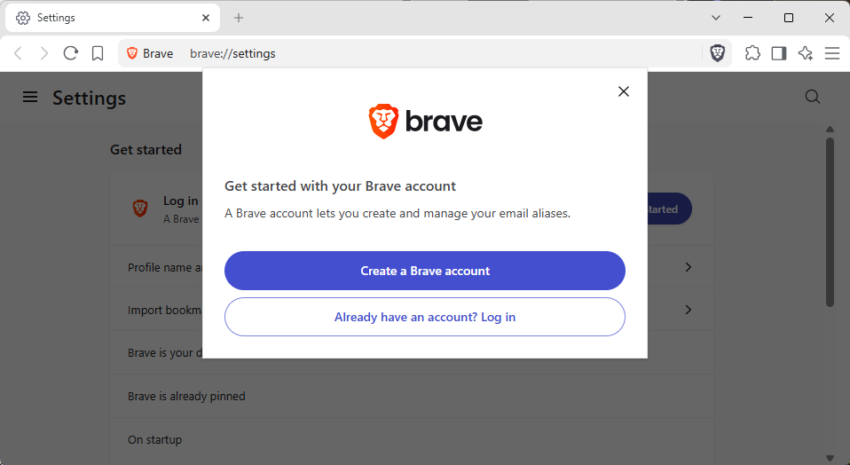
After you create a new Brave account, you get the option to use email aliases right in settings or while signing up for a new account on any website.

The main new address seems to be bravealias.com, which should work for the time being on most sites. Eventually, some sites will start to block and it would be a good idea to get additional options regarding the alias domain that one can pick for the alias.

All users get five free email aliases once they have set up a Brave account. Brave Software plans to introduce a paid upgrade option in the future, but has not revealed any details on that at the time of writing. It is very likely that it will feature higher limits, if any, and maybe also other alias options.

Brave Search features a Google Maps alternative now

Posted on July 17, 2026 by Martin Brinkmann

One of the search engines that I use regularly is Brave Search. I have several reasons for that: it is fast, uses its own search index that is fully independent from Google Search and Bing Search, and often good at uncovering results that are burried deep under pages of “what the search algorithms believe is better content”.

For Maps, I do rely on Google Maps. While there are other maps services out there, I found most of them lacking in one way or another. However, in some countries, like Korea or China, I do use different map apps as Google Maps does not work well there or at all, or because they are better.

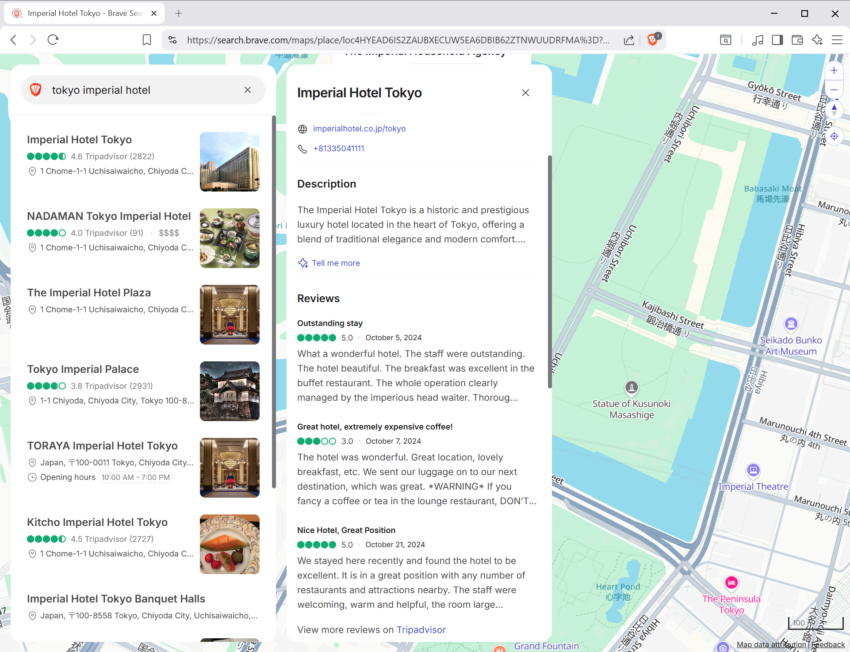
I stumbled upon Brave Maps just recently. It is not brand new, but Brave does not appear to advertise or link to it much at this point. From what I can tell, it appears to be based on OpenStreeMap for the most part.

You can run searches for places and get information, descriptions and reviews taken from TripAdvisor. One downside is that directions is not baked in but redirects to Google, Bing or OpenStreetMap route planners. That is somewhat of a let-down and will hopefully get addressed in future updates.

Another issue is that reviews are not fully baked in. You get some for a location, but they may be cut off and after three or so, a link to Tripadvisor points to the rest of the reviews. This is a main issue, as you can’t use Brave Maps to search all of the reviews for certain information.

All in all, it is good to see that Brave is adding a Maps feature to its growing list of services. However, at its current stage, it lacks essential features and that reduces its usefulness quite a lot. It is probably one of the reasons why Brave is not heavily advertising the feature yet.

Still, if you are looking for non-mainstream maps services, this is one to keep an eye on to see how it evolves in the coming years.

Brave Browser reveals how (some) Manifest V2 extensions continue to work

Posted on July 8, 2026July 8, 2026 by Martin Brinkmann

With Google terminating support for Manifest V2 extensions in Chromium and thus most Chromium-based browsers, only some companies have announced solutions to keep support for select extensions.

The latest version of Brave Browser addresses one of the main problems with the migration from MV2 to MV3: the removal of MV2 extensions from the Chrome Store.

What happens when you need to install a classic extension on a new PC or new browser profile? Unless you happen to have a local copy or know how to download it from GitHub or other repositories — if it is provided there — you may be out of options.

Brave Software implemented an option in the browser to replace “known Web Store MV2 extensions with Brave-hosted equivalents”. Up until that point, users had to walk through the process manually. This also meant that settings were not carried over.

With the new process, at least for “known extensions”, Brave is automating things for the user. A benefit of this is that Settings are carried over, which means that you do not have to reconfigure the entire extensions.

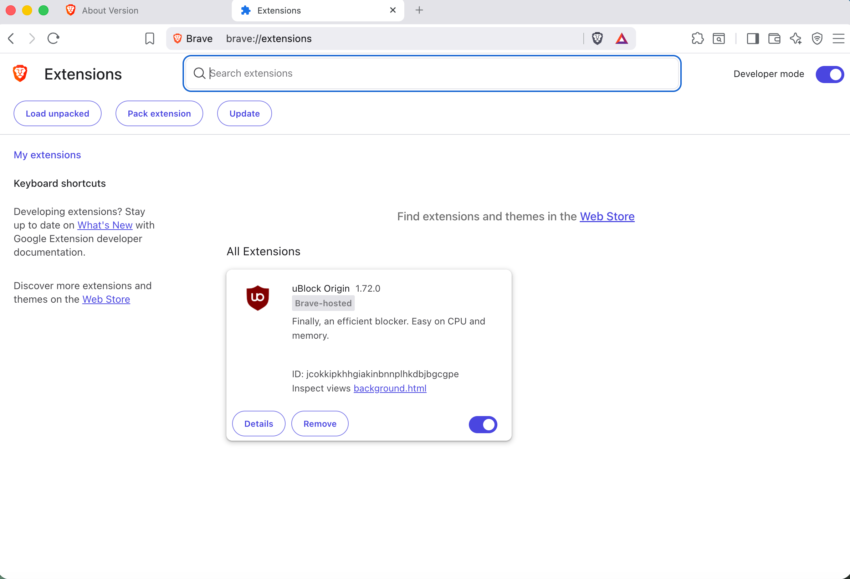
There does not seem to be a list of extensions that get the treatment, but a screenshot highlights uBlock Origin, NoScript, uMatrix and AdGuard.

Brave 1.92 launches with support for Containers

Posted on July 3, 2026July 3, 2026 by Martin Brinkmann

Brave Software announced that the latest version of Brave Browser supports the Containers feature now. The main idea behind it is to isolate website data. When you load a website in one container, its data and any third-party data is only accessible in that container. Think of a sandbox for sites.

Containers is not a new feature, as it was originally developed and launched by Mozilla in Firefox. The Brave integration is built-in. I had to enable the feature under chrome://flags/#containers first, but it should be available without that in the coming days.

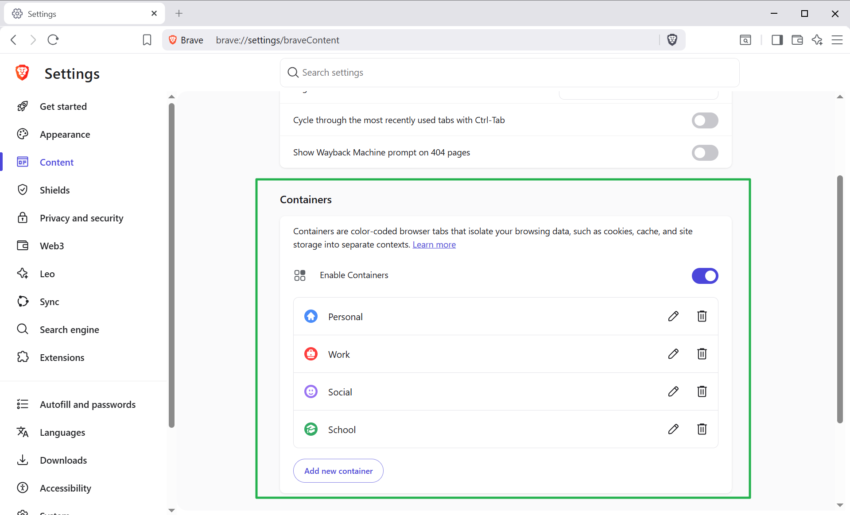
Visit brave://settings/braveContent then to toggle “Enable Containers” there. This turns the feature on so that it is ready for use in the browser.

Like Firefox, Brave includes a set of default containers — personal, work, social and school — but you can add new containers, remove the defaults or rename them.

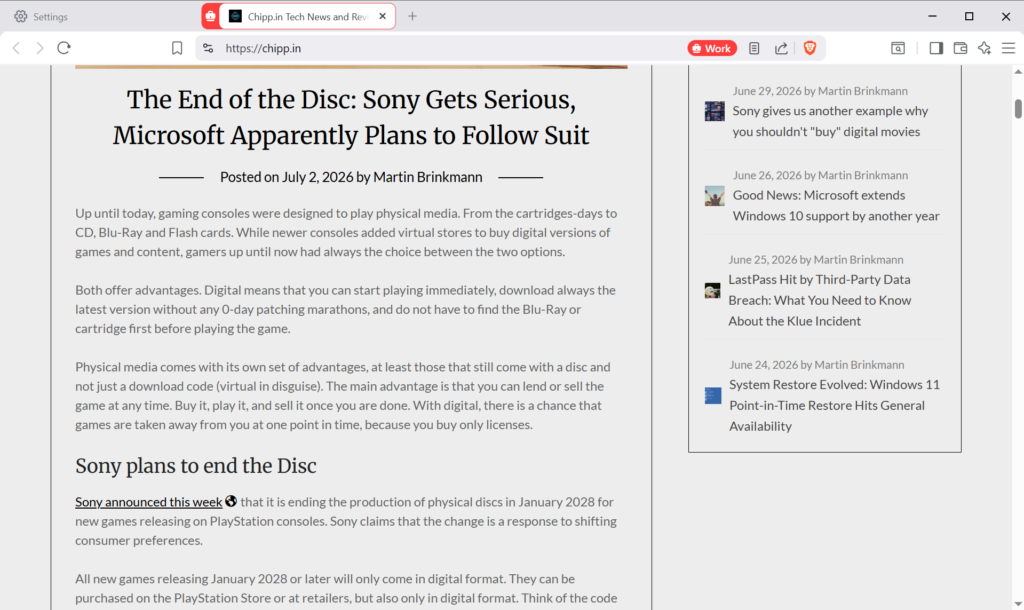
Once done, right-click on any link or tab and select “Open in Container”. You get the option to pick one of the existing containers and Brave highlights this with a new container icon in front of the tab and also in the address bar.

You may also right-click on the new tab icon to create a new container directly and without opening another website first.

Last but not least, you may also create temporary containers. Regular containers offer the same functionality as open tabs. Means, unless you close the sites or the container, they persist over sessions and you can restore tabs in them using restore functionality.

The main difference to temporary tabs is that they can’t be restored. When you close them, they are gone for good and tab or session restore options do not work for them.

You can now block automatic extension updates in Brave Browser

Posted on June 7, 2026June 7, 2026 by Martin Brinkmann

Most modern browsers install extension updates automatically. The developers claim that this improves security, and this is true to a degree. However, automatic extension updates do open a whole new can of worms, as problematic updates do get installed automatically as well.

Consider this: when an extension gets bought, the new owner may push updates and these will get installed on user systems, often without users knowing about the change in owner. The same is true for extensions that get hijacked or when a developer introduces features that are unwanted.

Firefox is the gold standard when it comes to controlling extensions. Users of the browser can block automatic updates for extensions entirely or for specific add-ons installed in the browser.

Chromium-based browsers do not have these native capabilities. The workaround until now was to install an extension through sideloading. These bypassed the entire updating mechanics, but it also meant that the browser might show a reminder that developer extensions are running.

The most recent update of Brave Browser introduces native support to it. This sets it apart from other Chromium-based browsers, which do not offer this feature.

Here is what it does: Once enabled, Brave browser stops updating extensions in the background. You can run the update process at any time from the extensions page of the browser, which makes it comfortable compared to the sideloaded extensions bypass. The main downside is that it is an all or nothing approach, but there is a workaround.

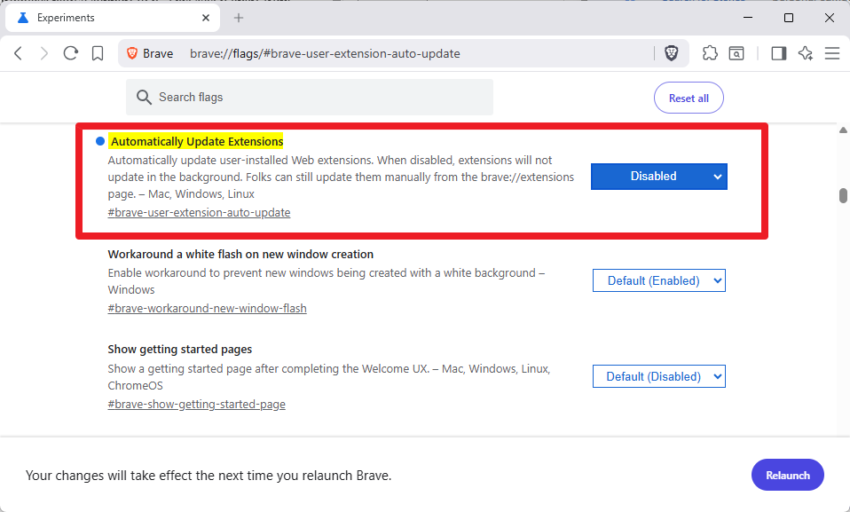
To enable it, it is necessary to configure an experimental flag in the browser.

  1. Load chrome://flags/#brave-user-extension-auto-update in the address bar.
  2. Set the flag to Disabled.
  3. Restart the web browser.

To update all extensions, do the following:

  1. Open the Extensions page in Brave: brave://extensions/
  2. Check the Developer Mode toggle at the top right corner.
  3. Click on the update button that appears.

This runs the update check for all installed extensions and will download and install any update found during the process.

There is no direct option to run a check for individual extensions, it is an all-or-nothing approach. There is a workaround though, but it requires manual steps and it has disadavantages.

If you want to update a highly trusted tool (like a password manager) but want to keep a smaller utility frozen on its current version, you can manually force a single update by refreshing it.

  1. Go to brave://extensions.
  2. Click Remove on the specific extension you want to update.
  3. Head to the Chrome Web Store, search for it, and click Add to Brave.

This installs the latest version in the browser. Note that uninstalling an extension will remove its data. Any custom configurations or personal data is removed in the process. Works best for extensions that do not have any of that.

Brave has not revealed much about the feature at this stage. Since it is experimental, there is the possibility that it will get more comfortable in the future. For now, Firefox remains the gold standard for users who want to stay in full control over extension updates.

About Brave Browser’s Shred Button on Android

Posted on April 28, 2026April 28, 2026 by Martin Brinkmann

Back in late 2024, Brave introduced a Shred button for its mobile browser on iOS. Now, that same function is finally coming to Android as part of the Brave 1.89 release.

What does Shred do? Shred is a privacy feature that deletes site data that could be used to identify users across visits.

The main idea is to visit a site and, before you leave, hit the shred button to remove potentially identifiable information. It is designed to remove stored data from a single website.

Brave describes it in a new post on its website:

Shred lets you instantly erase any data a site stores on your device. Shred on Android offers the same easy and site-specific data erasure as Shred on iOS. This means you can instantly wipe one website’s stored data without being forcibly logged out of all websites, eliminating the need for complex site-by-site exceptions. This sets Shred apart from similar features in other privacy-focused browsers.

But the manual option is not the only one available. You can also set up shred to automatically delete data on specific websites. Have a site that you visit frequently but want to know as little as possible about you and your activity? The Auto Shred may be the option for you then.

Brave highlights that Shred has other applications, other than protecting against tracking. For instance, it may help with visits to sites that limit access to content artificially for a period, like three free articles per week or month.

Here is how you use the new Shred feature:

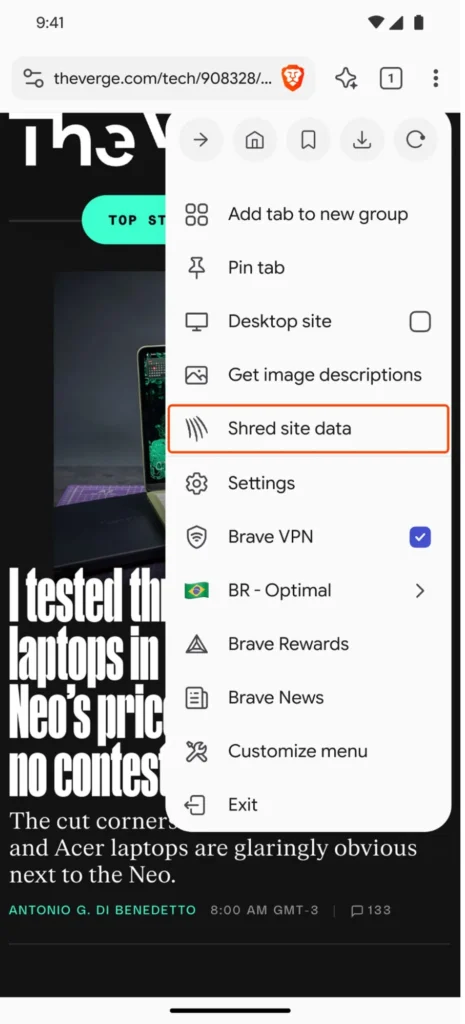
  • Open the main menu of the browser and pick Shred site data.
  • Open the tab switcher and tap on the Shred icon.
  • Open the Shields icon and select the Shred option.

To configure auto-shredding, do the following:

  1. Open the Shields icon on the site that you want to configure Auto Shred for.
  2. Select Advanced Controls > Shred site’s data.
  3. Tap on Auto Shred and set it to “site tab closed” or “app close”.

Brave will then shred the site automatically when you close it or when you close the browser.

Last but not least, you can also configure the behavior for all sites.

  1. Open the Settings.
  2. Go to Brave Shields & privacy.
  3. Tap on Auto Shred.

There you get the same two options (tab close or app close).

Brave Origin is a stripped-down version of the browser that you need to buy

Posted on April 21, 2026April 21, 2026 by Martin Brinkmann

When it comes to browsers, most Internet users expect them to be free. Many times, this means that the developer has found other means of generating revenue to keep the business running. This can mean selling default search engine slots, putting sponsored icons on the new tab page, or using user data for all kinds of things.

Paid browsers are rare and most of the time, they do not seem to work overly well. However, the idea of introducing a free and paid version of a browser is something that Internet users know from other apps and services.

So, Brave Software, maker of the Brave Browser, has introduced Brave Origin. This is a “minimalist version” of the browser that cuts all revenue-generating features and can be purchased by making a one-time payment. There is one exception to that: a Linux version of Brave Origin is available for free.

The features that Brave Origin does not support:

  • Leo
  • News
  • Playlist (currently iOS only)
  • Rewards (which also disables browser-based Brave Ads)
  • Speedreader
  • Stats like the daily usage ping, crash logs, and privacy-preserving product analytics (P3A)
  • Talk
  • Tor
  • VPN
  • Wallet (which also disables Web3 domains)
  • Wayback Machine
  • Web Discovery Project

Some of these were discussed controversially in the past, but others including Tor or the Wayback Machine, not so much.

Note: Brave Origin is available as a standalone deskop app or an upgrade. On mobile, the browser is only available as an upgrade. In other words, you can replace Brave with Brave Origin on all supported systems, but install it next to Brave only on desktop systems.

Once you have downloaded and installed the Brave Origin browser, you need to purchase it, unless you opted-in to use the free version on Linux. The price at the time of writing is $60.

Brave says that this is a one-time purchase that is good for up to 10 activations per license across devices.

Closing Words

Launching a paid version is an interesting approach to diversifying revenue. Users can support development of the browser by making this purchase and may also get some of the features removed from it that they do not use or find problematic. At its core, it is still Brave browser, built on Chromium, with a good integrated content blocker.

It probably won’t convince most critics of the browser, or its founder, but it is still an interesting experiment to look at, as it could be an option for other organizations as well.

Brave is getting Container support and the feature has made a big jump recently

Posted on April 14, 2026April 14, 2026 by Martin Brinkmann

Firefox fans have long heralded the browser’s Multi-Account Containers feature as an exclusive that users of Chromium-based browsers did not have. Soon, Brave Brower users may also make use of a Containers feature, ending Firefox’s exclusivity.

Brave has begun rolling out native Container support as an experimental flag in its desktop browser as of April 2026. It allows users of the browser to isolate web sessions better and even get options to open multiple accounts of the same site in a single browser window without using clunky workarounds or third-party extensions.

The Core Concept: Session Isolation

At its core, the Containers feature creates isolated islands within a single browser window. Each container acts as a separate, sandboxed environment. Data, including cookies, local storage, or cached files, can’t be seen or accessed by tabs in another container or by the default container-less environment.

Since data is sandboxed, it is possible to sign-in to the same site in different containers in the same browser window using a single profile, or to open a site with an account and without one at the same time. Furthermore, since data is separate, tracking becomes less effective as the trackers can only see what is going on in a single container and not the entire browser.

Containers works with tab groups and all core features of the browser, including browser extensions.

The feature is available in Brave Nightly only at the time. You need to load brave://flags, search for Enable Containers, and toggle the feature to Enabled to start using it. A restart of the browser is required as usual before it becomes available.

Since this feature is in Nightly, it may have bugs and may not be as polished as the stable version that Brave Software plans to ship in a later version of the browser.

Brave slashes memory use of its ad-blocker by at least 45 megabytes on all platforms

Posted on January 6, 2026January 6, 2026 by Martin Brinkmann

Brave Browser is one of the few major web browsers that supports native content blocking on all supported platforms that is enabled by default. It should not come as a surprise that the browser is on an upwards trajectory when it comes to users and popularity.

While Brave is not without controversy, it is clear that Brave Software has made several meaningful strategic decisions in the past that has benefitted the business immensely.

Quick Tip: do this, if websites do not react anymore in Brave on first load.

Content blocker improvements

Brave announced today that it has improved the memory usage of its internal content blocker significantly. The company claims that it has reduce memory usage by about 75 percent, which equates to a reduction of about 45 megabytes on all supported platforms.

Brave says that users who have enabled additional filters will see an even larger reduction in memory usage going forward.

How it managed to do that? Brave explains:

..we achieved this major memory milestone by iteratively refactoring the adblock-rust engine to use FlatBuffers, a compact and efficient storage format. This architectural transition allowed us to move the roughly 100,000 adblock filters shipped by default from standard, heap-allocated Rust data structures (such as Vecs, HashMaps, and structs) into a specialized, zero-copy binary format.

Brave notes that it has implemented several optimizations in addition). These are:

  • Memory management: Used stack-allocated vectors to reduce memory allocations by 19% and improved building time by ~15%.
  • Matching speed: Improved filter matching performance by 13% by tokenizing common regex patterns.
  • Sharing resources: Resources are shared between instantiations of adblock engines, saving ~2 MB of memory on desktop.
  • Storage efficiency: Optimized internal resource storage memory by 30%.

The main memory reduction and optimizations landed in Brave 1.85 while additional optimizations will be included in the next release of the browser.

It will be interesting to see how users who have enabled additional filters in Brave benefit from the change.

Adding extra filters in Brave

It is quite easy to add more filters to Brave to extend the content blocking functionality.

Note: Each list that Brave supports natively offers a short description of what it does. Fanboy’s Anti-Newsletter list, for instance, blocks newsletter popups on websites.

  1. Select Menu > Settings, or load brave://settings/ directly in the address bar.
  2. Go to Shields > Content filtering.
  3. Click on “show full list” to display all included filter lists.
  4. Check the lists that you want to enable in Brave.

Note that adding lists will increase the memory usage of the content blocker and thus Brave. It is recommended to keep the list as short as possible.

As for recommendations, it depends largely on your Internet browsing and which annoyances you encounter regularly. YouTuber regulars, for instance, could enable filters for mobile distractions and recommendations, if they use Brave on their mobile devices.

There are also language-specific block lists, which are useful if you visit websites regularly in a specific language.

Cookies

Brave: Quick Tip if websites do not react to input when you load them

Posted on December 26, 2025December 26, 2025 by Martin Brinkmann

Brave Browser includes several convenience features, mostly linked to the built-in content blocker. One of the features deals with cookie prompts automatically.

This works well most of the time. Whenever a cookie prompt appears, it is handled immediately by the browser in the most privacy-respecting manner.

Announced in 2022, it has been a feature of the browser ever since and is enabled for all users since mid-2023.

Here is how Brave describes the feature:

One approach (which Brave uses) is to block cookie banners, and to hide and to modify pages to remove any additional annoyance such systems include (such as overlays, preventing scrolling, etc.). Other Web-privacy tools (such as uBlock Origin) can be configured to use this same approach. This approach provides the strongest privacy guarantees: it doesn’t require trusting that the cookie consent systems will respect your choice, and prevents your browser from needing to communicate with consent-tracking systems at all.

Brave blocks cookie banners and deals with any nuisances related to them, including overlays.

However, while that works well most of the time, you may come upon websites that do not seem to work at all. You do not see a cookie prompt, but you can’t interact with the site. No scrolling, clicking on links, copying text. Nothing works.

This may be related to the script that deals with the cookie banners. It is possible that the site changed its code or that Brave does not support the specific cookie prompt the site uses. Brave’s solution relies on EasyList, a community managed list, which means that it works only when sites use one of the identifiers of the list.

Reloading does not resolve the issue, as the site will get stuck again. In fact, the only option that is working is to allow the cookie banner script to display and deal with it manually.

Sidenote: You could dig in the code and find the references to block them manually. May be worth a short, if you visit the site regularly.

The quick solution: Reject everything, deal with the cookie banner manually, and enable the script-blocking of the browser again for the site.

Granted, this is not ideal, as you allow the site to run all of its scripts and such. You could try and allow certain scripts to run only, which is the better approach, if you have the time to adjust this manually, as you will limit scripts this way.

If you are in a hurry though, you may use the method described above to quickly gain access to the site.

Once you have dealt with the cookie banner script, you should be able to use the site in question normally.

  • 1
  • 2
  • Next

Support This Site

If you like what I do please support me!

Any tip is appreciated. Thanks!
  • August 29, 2026 by Martin Brinkmann Another Windows Issue: Microsoft Defender Antivirus is turned off notification, but it is actually enabled
  • August 28, 2026 by Martin Brinkmann Brave Accounts and Email Aliases launch
  • August 25, 2026 by Martin Brinkmann Microsoft confirms: Latest .NET updates may cause printing issues
  • August 24, 2026 by Martin Brinkmann The Chrome Web Store has a fake VPN extensions problem
  • August 23, 2026 by Martin Brinkmann Microsoft is worsening classic Media Player to get users to upgrade

About

We talk, write and dream about Technology 24/7 here at Chipp.in. The site, created by Martin Brinkmann in 2023, focuses on well-researched tech news, reviews, guides, help and more.

Legal Notice

Our commitment

Many websites write about tech, but chipp.in is special in several ways. All of our guides are unique, and we will never just rehash news that you find elsewhere.

Read the About page for additional information on the site and its founder and author.

Support Us

We don't run advertisement on this site that tracks users. If you see ads, they are static links. Ads, including affiliate links, never affect our writing on this site.

Here is a link to our privacy policy

©2026 Chipp.in Tech News and Reviews