
Back in late 2024, Brave introduced a Shred button for its mobile browser on iOS. Now, that same function is finally coming to Android as part of the Brave 1.89 release.
What does Shred do? Shred is a privacy feature that deletes site data that could be used to identify users across visits.
The main idea is to visit a site and, before you leave, hit the shred button to remove potentially identifiable information. It is designed to remove stored data from a single website.
Brave describes it in a new post on its website:
Shred lets you instantly erase any data a site stores on your device. Shred on Android offers the same easy and site-specific data erasure as Shred on iOS. This means you can instantly wipe one website’s stored data without being forcibly logged out of all websites, eliminating the need for complex site-by-site exceptions. This sets Shred apart from similar features in other privacy-focused browsers.
But the manual option is not the only one available. You can also set up shred to automatically delete data on specific websites. Have a site that you visit frequently but want to know as little as possible about you and your activity? The Auto Shred may be the option for you then.
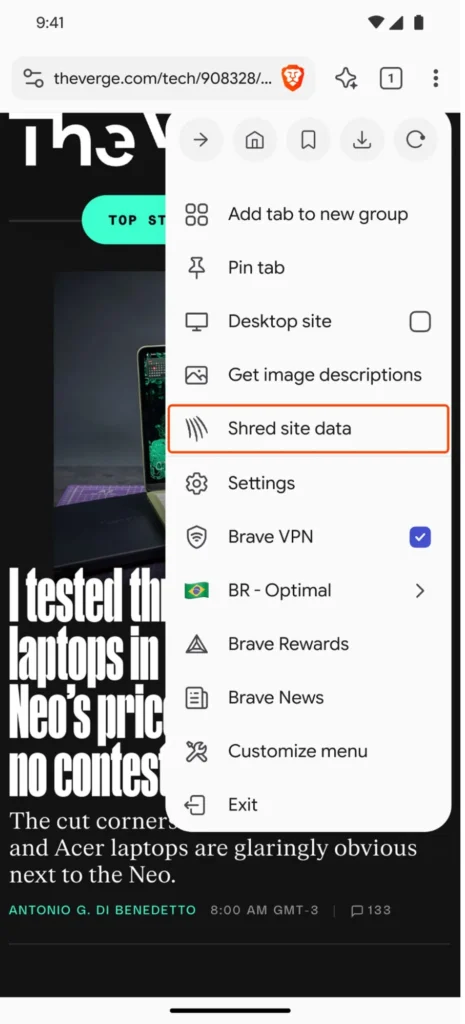
Brave highlights that Shred has other applications, other than protecting against tracking. For instance, it may help with visits to sites that limit access to content artificially for a period, like three free articles per week or month.
Here is how you use the new Shred feature:
- Open the main menu of the browser and pick Shred site data.
- Open the tab switcher and tap on the Shred icon.
- Open the Shields icon and select the Shred option.
To configure auto-shredding, do the following:
- Open the Shields icon on the site that you want to configure Auto Shred for.
- Select Advanced Controls > Shred site’s data.
- Tap on Auto Shred and set it to “site tab closed” or “app close”.
Brave will then shred the site automatically when you close it or when you close the browser.
Last but not least, you can also configure the behavior for all sites.
- Open the Settings.
- Go to Brave Shields & privacy.
- Tap on Auto Shred.
There you get the same two options (tab close or app close).