Chipp.in Tech News and Reviews

Windows, Security & Privacy, Open Source and more

Menu
  • Home
  • Windows
  • Security & Privacy
  • Gaming
  • Guides
  • Windows 11 Book
  • Contact
  • RSS Feed
Menu

Tag: brave

YouTube Shorts

Brave: it takes a few clicks to get rid of YouTube Shorts once and for all

Posted on May 30, 2025May 30, 2025 by Martin Brinkmann

The rise of TikTok has saw established sites and apps like YouTube or Instagram scrambling. On YouTube, one response was the introduction and promotion of Shorts, a short video format that resembles TikTok’s own.

YouTube Shorts seem to split the user base. Some like it, others dislike it with a passion. If you fall into the second group, you may like the idea of removing Shorts from YouTube altogether.

If you use Brave Browser, that is handled with just a few clicks. Note that you can also do that in other browsers, which I explain later as well briefly.

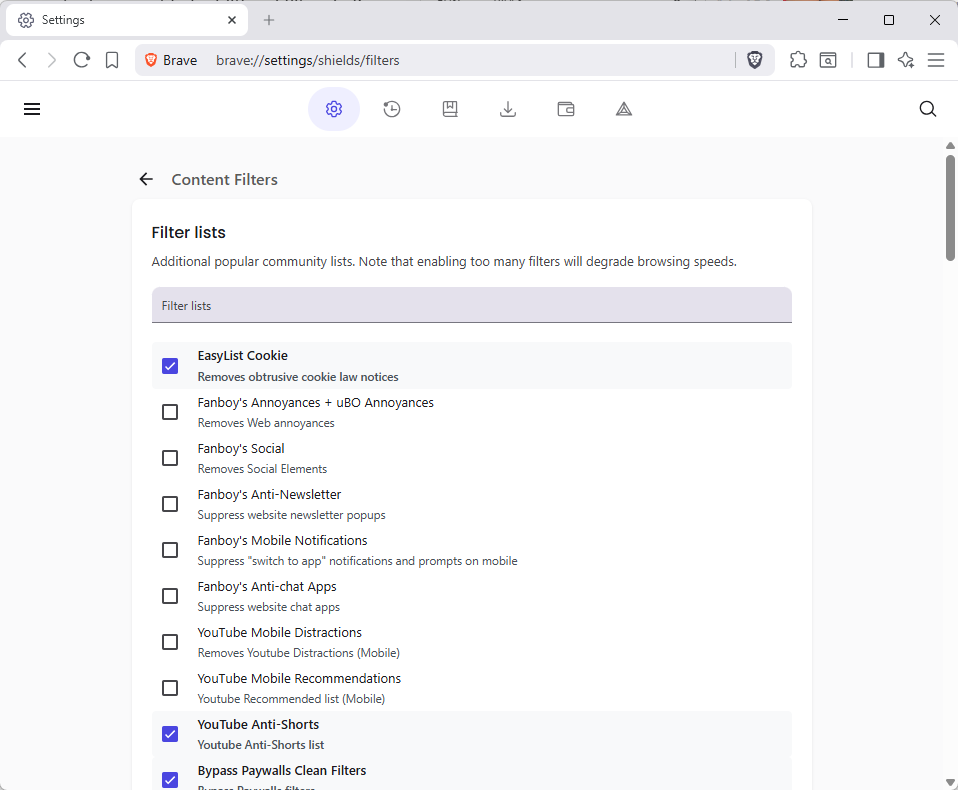
Brave Browser's Anti-Shorts video to block YouTube Shorts

So, if you do use Brave Browser, do the following to get rid of YouTube Shorts:

  1. Load brave://settings/shields/filters in the browser’s address bar.
  2. Click on “show full list” underneath the Filter lists section near the top.
  3. Check “YouTube Anti-Shorts”.

Tip: you can also add more, e.g., YouTube Mobile Distractions or YouTube Mobile Recommendations, or any of the other filter lists displayed on the page.

When you reload YouTube now or open the site, you will notice that Shorts are gone. No more Shorts content when you search for videos on YouTube. Shorts is gone from the sidebar, and when you browse recommendations and suggestions, it is also gone.

Now, if you use a different content blocker, like uBlock Origin, then you may add the instructions that Brave uses to it as well. You find Brave’s list here on GitHub. All you need to do is add the instructions as custom filters in uBlock Origin. Any other ad-blocker that supports this filter syntax will work as well.

Now You: What is your take on Shorts on YouTube? Great entertainment and value, or so mundane that you’d rather watch grass grow? Feel free to leave a comment down below.

Brave Browser gets support for injecting scripts into websites

Posted on February 7, 2025February 7, 2025 by Martin Brinkmann

Remember userscripts? These little scripts are a useful alternative to browser extensions. They can be used for lots of things, most often for changing something on websites, like removing elements.

Brave Software announced support for scriplets in the company’s Brave Browser today. These work similarly to userscripts. Users of the browser may add scriptlets to Brave so that they run on selected sites automatically.

The new feature has landed in Brave 1.75, the current stable version of the browser.

Good to known: the process is fiddly right now. You need to enable developer mode, add the scriptlets yourself, and assign websites to these scriplets using custom filters.

Here is how it works in detail:

  1. Load the Content Filters section of the settings. The easiest option is to load this URL: brave://settings/shields/filters
  2. Toggle Developer Mode to turn it on.
  3. Activate the “add new scriplet” button on the same page after enabling developer mode.
  4. Type a name for the scriptlet. You may want to avoid spaces.
  5. Type or paste the code of the script.
  6. Select the Save button.
  7. Now use the following syntax to assign the scriptlet to specific websites: example.com##+js(name-of-your-scriptlet.js)
  8. Select the save changes button.

Notes:

  • Replace example.com with the hostname of the website, e.g., chipp.in.
  • Replace name-of-your-scriptlet.js with the name that you have specified during creation.

Brave will execute the script whenever the matching domain is visited.

You can check out the technical documentation of the feature here.

Userscripts or Scriptlets?

Userscript extensions offer some advantages. They may load userscripts easily from various sources, and they may also update them. They also work in all browsers, which is great if you use multiple browsers.

Brave’s solution supports pasting scripts, but it is still fiddly to link them to specific sites and maintain them.

With that said, it may be interesting to advanced users who prefer to avoid extensions whenever possible.

I cannot really say how Brave’s integrated solution compares to userscripts. It is more powerful, equally powerful, or less?

What is your take on the integration? Good move by Brave?

Brave Shields Down

Brave: if a loaded webpage does not react to your input, try this

Posted on October 2, 2024October 2, 2024 by Martin Brinkmann

When I use Brave Browser, I sometimes encounter websites that do not react at all after load. Scrolling does not work, clicking on links does nothing, and you cannot even copy text.

The site appears crashed, but the rest of the browser works fine.

Here is one reason for the issue: Brave reacts to cookie and privacy prompts automatically. This works well most of the time, but sometimes, it does not.

Sites stop responding in those cases. You can reload them, but the issue persists. There is a solution though.

  1. Click on the Shield-icon in Brave’s address bar.
  2. Toggle the Shields functionality to Off. Brave reloads the webpage.
  3. You should get a privacy prompt now.
  4. Select Reject all or whichever option you want.
  5. Re-enable Shields. The site reloads.

The webpage works normally from that moment on. It is not locked anymore and you may interact with the site again.

I do not experience the behavior often. Maybe once every 250 or so sites I open and visit.

What about you? Did you notice the odd behavior? Feel free to leave a comment down below.

Brave

Brave Browser may support some Manifest V2 extensions even after Google’s shutdown

Posted on June 30, 2024June 30, 2024 by Martin Brinkmann

There has been a lot of talk about Google replacing the extensions system of the Chromium web browser with an updated version. Chromium is the source for many browsers, including Google Chrome, Brave Browser, Opera, Microsoft Edge, and many more.

While open source, it is Google that controls Chromium to a large degree.

Brave Software, maker of the Brave Browser, has now announced its stance on existing extensions support and the upcoming changes.

Here are the highlights:

  • Classic extensions continue to work until at least June 2025. Brave activated an Enterprise-feature to extend support.
  • Brave Software plans to support a small number of extensions beyond June 2025: AdGuard, NoScript, uBlock Origin, and uMatrix
  • Brave Shields is unaffected.

Brave Software’s plan

Brave Software Manifest V2 Extensions page

All classic extensions will continue to work in Brave Browser until at least June 2025. Brave Software uses an official setting in Chromium to extend support.

Google plans to end support this year, but allows Enterprise customers to extend support by a year.

Come June 2025, Brave Software hopes that it can continue to offer support for four major content blocking extensions.

  • AdGuard
  • NoScript
  • uBlock Origin
  • uMatrix

This requires modification of Chromium code and the developers of the extensions according to Brave Software.

The company notes:

While Brave has no extension store, we have a robust process for customizing (or “patching”) atop the open-source Chromium engine. This will allow us to offer limited MV2 support even after it’s fully removed from the upstream Chromium codebase.

Extensions that become “stale or obsolete” may be removed. One example is the creation of a Manifest V3 extension that offers the same or similar functionality.

Brave users may control the four mentioned extensions, and any that may be added along the way, on the new Extensions page in the Settings.

Just load brave://settings/extensions/v2 to access it. Here users may enable or disable support for the Manifest V2 extensions. Note that this happens automatically, if one of the extensions gets installed in the web browser.

Closing Words

Manifest V2 extensions will eventually go away. While it is commendable that Brave Software plans to extend support for some beyond June 2025, it is clear that this is only a temporary measure.

Content blocking remains possible, even in Chromium-based browsers. The adblockers may not be as effective or feature-rich anymore, but it is likely that most blocking operations continue as before for the majority of users.

Those who want full control may switch to Firefox, as the Mozilla browser will continue to support Manifest V2 next to Manifest V3.

What about you? Do you use a Chromium-based browser and Manifest V2 extensions currently? What will you do when support ends?

Brave signing you out all the time? Here is a fix for that

Posted on June 24, 2024June 24, 2024 by Martin Brinkmann

For several months, I have noticed a rather strange behavior of Brave Browser. Whenever I use it to write articles on WordPress sites, it is logging me out on start or shortly thereafter.

This happens very frequently to the point that it is quite annoying. The following guide may help you resolve the issue. It fixes the issue on my end.

The basics: checking settings

Brave Delete Cookies and site data on exit setting

Brave supports several features that may interfere with accounts you are signed in.

Here is what you want to check first:

  • Click on the Shield icon, expand Advanced Controls, and check that “Forget me when I close that site” is not checked.
  • In the same menu, check that “Block all cookies” is not selected.
  • Load brave://settings/clearBrowserData and verify that “cookies and other site data” is not cleared on exit.
Brave Shields

If these options are set correctly, which they were on my end, then you may proceed to the next section.

Finding the actual culprit

Brave Secure DNS setting

Making a change to the following option resolved the issue on my end. There is a bonus tip at the end, if making the change does not work for you.

  1. Open the Privacy and Security settings page by loading this URL in the address bar: brave://settings/security
  2. Check whether “Use secure DNS is activated”.
    • If it is, disable the feature.

Use Brave as you would normally. If you do not encounter the issue anymore after several days of usage, you have likely fixed it.

I do not know if the problem is caused by specific Secure DNS providers, or if it does not matter which provider you select. Disabling Secure DNS in Brave fixed the issue on my end.

Bonus tip: you may also want to consider disabling Brave’s fingerprinting protection on affected sites, just to see if it resolves the issue. I read user reports on the Internet that claimed that disabling it helped them.

What about you? Have you run into similar problems in the past?

Brave

Brave 1.64 browser update brings more AI and blocks VPN services from installing by default

Posted on March 21, 2024March 21, 2024 by Martin Brinkmann

Brave Software released a new stable version of the company’s Brave browser today. Brave 1.64 continues the AI push in the browser, but it also privacy improvements as well as new features.

Existing installations of the browser should receive it automatically via the integrated updating functionality. Desktop users may speed up the installation of the new version by loading brave://settings/help in the address bar. An alternative to that is to click on Menu > Help > About Brave.

Brave displays the current version when the page opens. It runs a check for updates and will download and install new updates automatically at this point. Note that it is necessary to restart Brave once to complete the installation.

One big change of Brave 1.64 deserves special mention. Brave notes in the changelog that it is no longer installing VPN services automatically. This is only done when users purchase a VPN subscription or enable it.

Tip: check out six Brave features that you may like.

Brave 1.64

Brave 1.64 Browser update

Like Google and Microsoft, Brave Software is also integrating AI into its browser. Called Leo, it is different from Microsoft’s Copilot and Google’s Gemini. A core difference is that Leo gives you access to different large language models. Not all of them are free, but the core service is.

Brave 1.64 introduces a Leo AI Tools right-click context menu entry. Right-click on any text element on the webpage and you may select a diverse range of AI tools. The two main options are to ask the AI to provide context and for help with your creative efforts.

Leo AI Tools

For instance, you could select a few paragraphs of text and ask Leo to summarize or explain it. When you are writing, you could ask Leo to rewrite the entire text, improve it, or change its tone or length.

How well this works depends on the text itself but also on other variables, including the large language model. Selecting the last sentence and asking Brave Leo to extend it resulted in the following three paragraphs of text:

The effectiveness of this method relies heavily on two main factors: the text being analyzed and the specific large language model being utilized. The text itself plays a crucial role, as the more nuanced and well-crafted it is, the better the language model can understand and generate appropriate responses. This, in turn, improves the overall outcome of the process.

However, the text is not the only determinant of success. The large language model chosen for the task also significantly influences the results. Different models have varying strengths and weaknesses, making some more suitable than others for specific tasks. For instance, a language model trained on scientific literature may not perform as well when dealing with colloquial language.

In conclusion, the combination of a well-structured text and a carefully selected language model is essential for achieving optimal results. By focusing on these two aspects, users can expect a more accurate and contextually appropriate response from the language model.

Other changes

The full changelog is long and you may want to check it out on Brave’s website to go through all the changes. Here is a quick overview of changes that are noteworthy:

  • There is a new “Bring all tabs to this window” option in the right-click tab context menu. It moves all tabs of other windows into the active one.
  • There is a new “show scrollbar” option when vertical tabs are enabled. This adds the option to use it for scrolling.
  • Chromium’s storage partitioning is now compatible with Brave’s ephemeral storage implementation.
  • Implemented stream isolation for third-party subresources in Private Windows with Tor to bring it up to par with Tor Browser’s implementation.

Now You: anything that you find interesting? Anything that I missed? Let me know in the comments.

6 Brave Browser features that you may like

Posted on October 6, 2023October 6, 2023 by Martin Brinkmann

Brave Browser is a Chromium-based web browser by Brave Software Inc. It is available for desktop PCs and mobile devices.

While it shares its core with Google Chrome, Microsoft Edge and other Chromium-based browsers, Brave Browser comes with several useful and even unique features.

The following paragraphs list some of these features.

Tor Integration

Brave with Tor integration

Tor promises to anonymize the browsing session. It is started with a click on Menu > New private window with Tor. You may also use the keyboard shortcut Alt-Shift-N instead.

Once Brave establishes the link, it routes the connection through a series of servers. This means, essentially, that the IP address of the user’s device is never revealed to the target website.

This mode includes all the benefits of Incognito Mode, which erases local data accumulated during the browsing session once the mode is terminated.

Performance may be slower than direct browser connections to websites; this is explained by the number of extra servers used while connected to the Tor Network.

Note that there is still a chance that personal data leaks during that browsing mode. You may want to check out this support article for additional information. Use of Tor Browser is recommended if anonymity is of utmost importance.

Force Paste in disabled forms

Force Paste into Forms

Some web forms may prohibit the pasting of data, which is a nuisance. Common examples include preventing the pasting into password fields, email fields or other fields that accept sensitive data.

Brave Browser includes an option to force paste content into forms. The feature bypasses the restriction imposed by the website to allow the pasting of any data into the blocked form field.

To use it, simply right-click on the protected form field and select the Force paste option from the context menu. Note that content needs to be in the Clipboard for the paste option to display.

Speedreader: improve readability

Brave's Speedreader

Speedreader is a readability feature that turns any article in Brave into a readable copy. This conversion puts the focus on the content by removing everything else, e.g., menus, advertisement, comments and other noise.

You may need to enable Speedreader in the Brave Settings (brave://settings/appearance). The option is located near the bottom of the page.

Brave displays the Speedreader icon in the address bar from that moment on. A click displays the active website in the mode.

Note that this feature may not detect all sites correctly. It does not work on this site, for example.

Speedreader supports two options, which you may configure while in the mode:

  • Change font and appearance related settings, e.g., make the font size larger or change the background color.
  • Configure Speedreader to always load articles of the active site or all compatible articles in the mode.

Vertical Tabs

Vertical Tabs in Brave

Browser tabs are displayed in a horizontal bar by default. Only a few browsers support vertical tabs, and Brave Browser is one of them.

Open the Appearance settings in Brave (brave://settings/appearance) and toggle “Use vertical tabs” there to switch to the display mode.

Two additional options, “show title bar” and “expland vertical tabs panel on mouseover when collapsed”, are enabled by default. You can turn these off individually, if you like.

Vertical Tabs may display more open tabs at the same time and free up horizontal space for websites. It is an excellent option on widescreen displays.

Integrated Content Blocker

Brave Browser includes an integrated content blocker. It works well out of the box, but it contains options to add more filter lists to it.

A click on the Shield icon displays information about the active webpage. Brave lists the number of ads, trackers and other contents that it blocked.

A click on Advanced Controls displays additional information and the settings that the browser applied to the site. Here you may make changes right away, such as blocking scripts.

Filter lists are linked here as well, which leads to this page, brave://settings/shields/filters, in the Settings.

New filters from a preset list of filters may be enabled there with a single click. Options to add custom filters are also available.

Delete data automatically when closing a site

Another useful feature of Brave’s Shield feature, which powers the content blocker, is that you may configure the browser to delete site data once you leave a website.

Activate the Shield icon on the site that you want to configure this way and toggle “Forget me when I close this site” to enable the feature.

Brave deletes site data automatically once the site is closed.

  • Previous
  • 1
  • 2

Support This Site

If you like what I do please support me!

Any tip is appreciated. Thanks!
  • August 29, 2026 by Martin Brinkmann Another Windows Issue: Microsoft Defender Antivirus is turned off notification, but it is actually enabled
  • August 28, 2026 by Martin Brinkmann Brave Accounts and Email Aliases launch
  • August 25, 2026 by Martin Brinkmann Microsoft confirms: Latest .NET updates may cause printing issues
  • August 24, 2026 by Martin Brinkmann The Chrome Web Store has a fake VPN extensions problem
  • August 23, 2026 by Martin Brinkmann Microsoft is worsening classic Media Player to get users to upgrade

About

We talk, write and dream about Technology 24/7 here at Chipp.in. The site, created by Martin Brinkmann in 2023, focuses on well-researched tech news, reviews, guides, help and more.

Legal Notice

Our commitment

Many websites write about tech, but chipp.in is special in several ways. All of our guides are unique, and we will never just rehash news that you find elsewhere.

Read the About page for additional information on the site and its founder and author.

Support Us

We don't run advertisement on this site that tracks users. If you see ads, they are static links. Ads, including affiliate links, never affect our writing on this site.

Here is a link to our privacy policy

©2026 Chipp.in Tech News and Reviews