Brave Software announced that the latest version of Brave Browser supports the Containers feature now. The main idea behind it is to isolate website data. When you load a website in one container, its data and any third-party data is only accessible in that container. Think of a sandbox for sites.
Containers is not a new feature, as it was originally developed and launched by Mozilla in Firefox. The Brave integration is built-in. I had to enable the feature under chrome://flags/#containers first, but it should be available without that in the coming days.
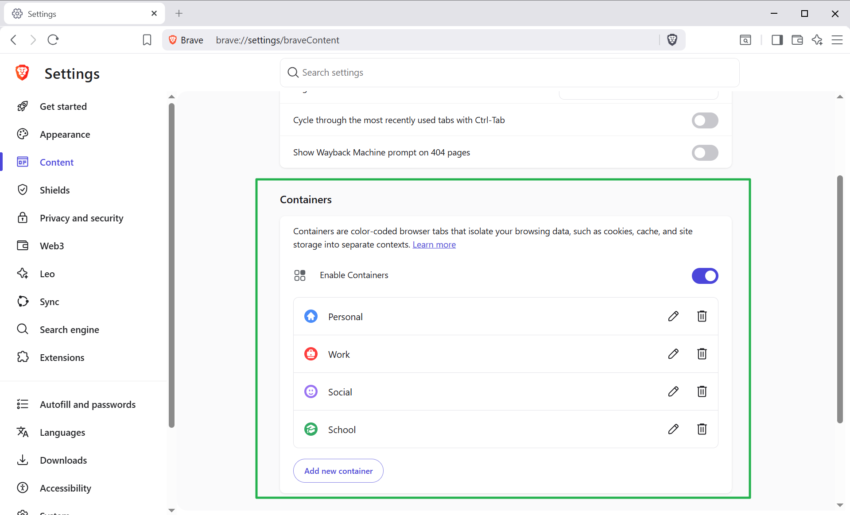
Visit brave://settings/braveContent then to toggle “Enable Containers” there. This turns the feature on so that it is ready for use in the browser.
Like Firefox, Brave includes a set of default containers — personal, work, social and school — but you can add new containers, remove the defaults or rename them.
Once done, right-click on any link or tab and select “Open in Container”. You get the option to pick one of the existing containers and Brave highlights this with a new container icon in front of the tab and also in the address bar.

You may also right-click on the new tab icon to create a new container directly and without opening another website first.
Last but not least, you may also create temporary containers. Regular containers offer the same functionality as open tabs. Means, unless you close the sites or the container, they persist over sessions and you can restore tabs in them using restore functionality.
The main difference to temporary tabs is that they can’t be restored. When you close them, they are gone for good and tab or session restore options do not work for them.