When Microsoft introduced the two-tier context menu of Windows 11 it claimed that one reason for the change was to streamline the context menu of the operating system. This did not turn out too well, considering that users juggle between the new and the classic menu regularly since the release of Windows 11.
Apps may still add entries to the Windows context menu and since there is no central editor to manage all entries, it is either done through the app itself — if it offers such an option — or the Registry Editor.
Windows 11 Context Menu Manager is a free open source tool that offers another option. It focuses on items added by apps and not the Microsoft entries.
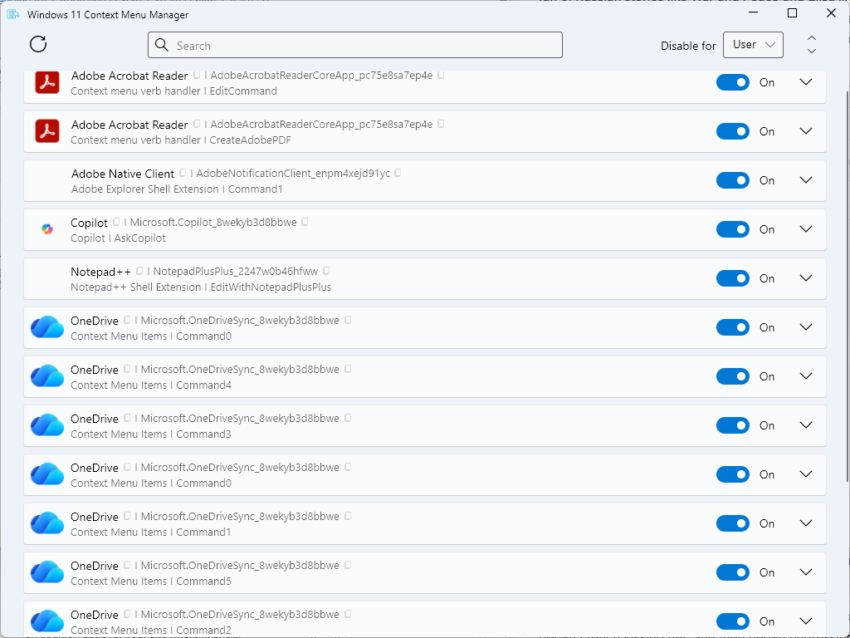
When you launch it, you see all context menu items in a list. The default scenario is to remove them for the user. You can also remove them machine-wide, but that requires running the app with elevated rights.
Each entry is listed with its name and some information. To be honest, this is not super useful, but it becomes useful when you expand the entry. There, you find information about file types.
To give you one example. The program listed two entries for Adobe Acrobat Reader. One was for PDF files, the other for any other file type that Acrobat Reader supported.
Even this advanced view is limited. The seven OneDrive entries did not reveal any information about their purpose when I expanded them. They were labeled command0, command1 and so on, and listed a wildcard under file and no directory.
With that in mind, you get an option to toggle the items off or on again. Other actions become available when you expand an item. There you find options to uninstall, open the file location, the settings of the app, or the Microsoft Store.
With those caveats, it is still a handy tool to hide certain items from the Windows 11 context menu, especially if the app does not provide options to do so in its preferences. (via Deskmodder)
Super limited–Kerish or Glary or Wise or File Menu Tools work better for me.