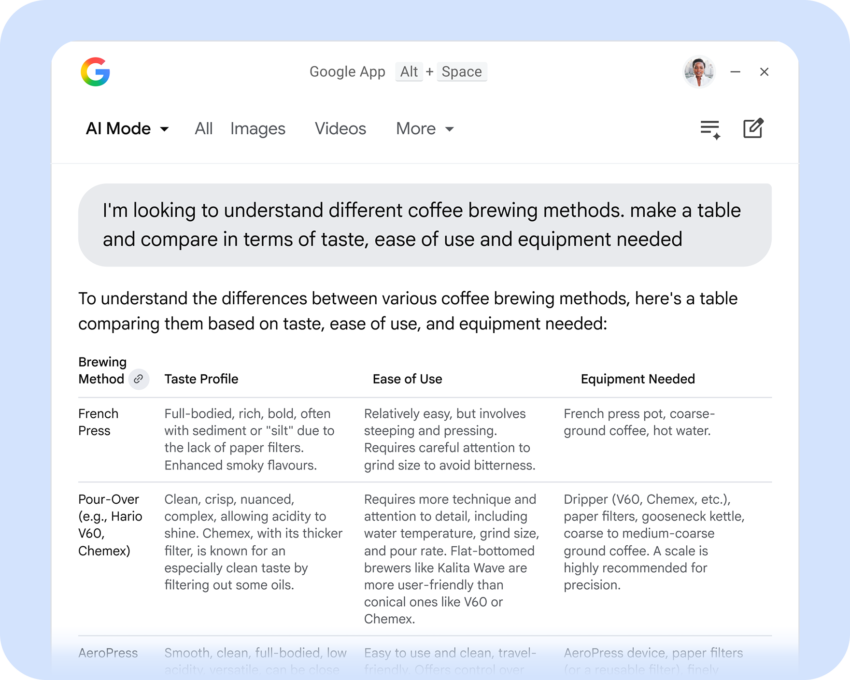
Interact with AI right from the desktop. That is the main idea of Microsoft’s integration of Copilot in Windows and now also of the new Google App for Desktop.
Google released the app officially for Windows; other desktop systems are not supported right now. It is only available in English and works under Windows 10 and Windows 11. The app’s main slogan is “Ask anything with the
Google app for desktop” and that is exactly what you get: direct access to the Gemini AI from the desktop.
Once installed, you may bring up the Gemini prompt with the shortcut Alt-Space. Clearly, this requires an active Internet connection as all the processing happens remotely on Google servers.
You may wonder why you’d consider using the app when all the AIs are just a browser-click away on the World Wide Web. Google has added screen sharing and Lens into the app. This means you can share part of the screen or the entire screen with the AI.
While that is also possible online, by taking a screenshot first, it is more convenient this way. The built-in search feature covers local files and files on Google Drive, according to the description. Google claims that the index that it uses for file searches is stored locally and not on Google servers.
The battle for desktop supremacy
Google is invading Microsoft’s “turf” with the release of Google’s new desktop tool. Up until now, Microsoft had little competition for its Copilot AI that it added to the operating system.
Both AI tools have several things in common, but there are also differences.
The Similarities
- AI access: Generative AI that supports conversations, follow-ups and some extra features, like summarizing documents or drafting emails.
- Keyboard-Shortcut: The Google App maps to the Alt + Space shortcut, while Windows Copilot may be summoned via Windows Key + C or the dedicated hardware Copilot key on newer keyboards. However, starting with Windows 11 version 24H2, Microsoft allows users to map the Copilot key to other applications.
- Screen-Access: Both AI tools can get access to the desktop.
- Unified Search: Both offer local and Internet search capabilities, especially for cloud-storage files.
- Access: While Copilot used to be integrated deeply into Windows, it is now a standalone app just like Google’s app. This means that both apps can’t make changes to the system anymore.
The Differences
- AI Models: Copilot or Gemini, that is the main difference between the two services.
- Ecosystem: This one is obvious. The AIs are tied heavily to the Google or Microsoft ecosystem. For example, Google’s App can access Google Drive content while Microsoft’s app integrates with OneDrive and Microsoft 365.
- Installation: Microsoft Copilot is built directly into Windows 11. Google’s app needs to be installed.
Closing Words
Google is making an offer to Windows users: here is our AI app, which you may use instead of Copilot. Users who already use Gemini may find that offer attractive enough to give it a try.
Windows users who prefer Copilot will stick to the AI, especially if Microsoft is introducing new useful functionality that Google can’t replicate with its desktop app.
As for those who do not use AI, they won’t use the Google App anyway. Since it is a manual install, there are no precautions to take.
Gemini–recently have been using for odds and ends; quite impressive. Haven’t really tried CoPilot; the several times I did, it treated me as if I were in third grade. Perplexity AI has been the most beneficial for copying tables, etc. Its formatting is impeccable. ChatGPT I use to check other AI information; it’s useful in providing explanations for the results that come from other AI output. For writing those difficult emails–Mistral AI Chat, by far the tops!
@Martin
Claude can already do all this and more with MCP extensions via the desktop app. You can also set it as your default “Assistant” on your android phone and let it control the hardware there just like Gemini can.
You can even write your own extensions if your so inclined. (https://claude.com/docs/connectors/custom/desktop-extensions)
You have to manually install each extension and set the permissions levels for each ability it provides (Always allow, ask, don’t allow.)
A few notable extensions.
Windows-MCP
MCP Server that enables Claude to interact directly with Windows OS. 2M users.
Desktop Commander
Build, explore, and automate on your local machine with access to files and terminal. Broader than Windows-MCP.
Filesystem
Let Claude access your filesystem to read and write files directly.
And come on, Anthropic is a service provider, Google is an advertising company, no brainer.
I use both and I can tell you from experience, Gemini hallucinates badly quite often while Claude “knows it shit”. (I don’t actually use any of the extensions myself though. I’ll keep my tinfoil hat in place.)