Microsoft published a new release preview build for its Windows 11 operating system on August 14, 2026. The changes in these builds will find their way into the previews for the September 2026 update for the operating system. Most users will receive them on September 8 or later, as rollouts to stable systems begin on that date.
The big new feature, or should I say old feature, of the release brings back some of the taskbar customizations that Microsoft removed when it released Windows 11 about five years ago.
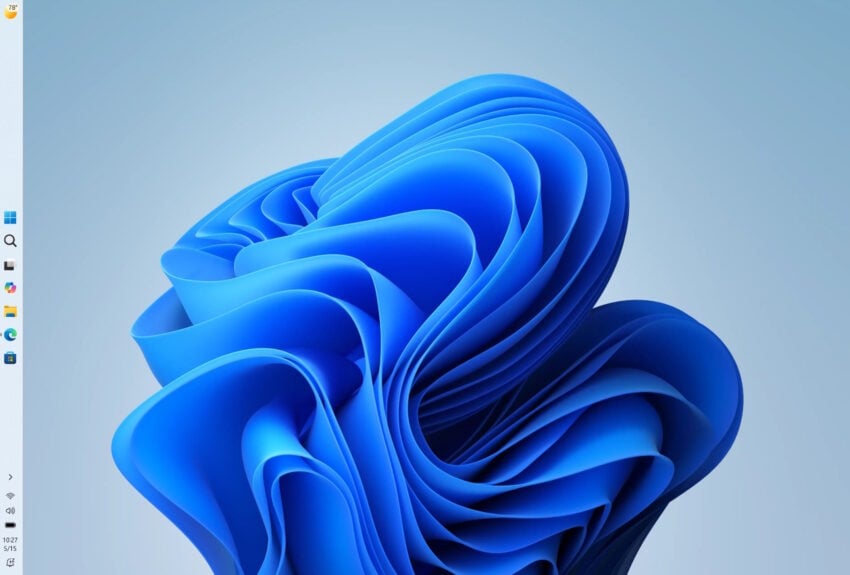
Windows 11 users who install the update on their device will regain the option to snap the taskbar to any screen edge. Up until now, Windows 11 limited this to the bottom position on the screen. Third-party workarounds and hacks offered options to bypass this restriction, but sometimes at the expense of stability.
The second taskbar related change introduces the option to make the entire taskbar slimmer to free up a few pixels for other content on the screen.
To manage these, do the following once the feature becomes available:
The update includes several other changes that are noteworthy:
Start menu: pick between a large and small Start menu under Settings > Personalization > Start > Start menu size.
Start menu Recommended: is renamed to Recent.
Hide the name and profile picture in Start under Settings > Personalization > Start > Hide your name and profile picture on Start.
Hide or show Pinned, Recent and All individually.
Windows Search offers better hints about the type of result, e.g., app, setting, files, or web results.
Option to disable Web and Microsoft Store suggestions in Windows Search under Settings > Privacy & security > Search.
Windows indexes the most used folders automatically, which you can stop under Settings > Privacy & security > Search > Automatically find additional relevant locations.
File Explorer Home should launch faster and is more responsive.
Update progress indicators are shown throughout Windows for a “more consistent and modern experience”.
Administrator Protection is introduced to “protect free-floating admin rights for administrators”.
Switching between virtual desktops is now “smoother and more responsive”.
If you use the official Weather app for Windows, you may have noticed that it is quite hungry when it comes to memory. The app uses between 500 and 600 megabytes right when you open it.
This goes down a bit when it is in the background and up again when you use it actively. Some features, like the weather radar, may shot up RAM usage to 1 gigabyte or more.
Still, even at idle, using hundreds of megabytes of RAM suggests that the app is anything but optimized.
Windows users who want a weather app but prefer one that does not use as much RAM, may want to look at third-party solutions that offer just that and often much more.
Here are a few suggestions:
Fluent Weather: uses less than 60 megabytes, is open source, has no ads or tracking, lacks some of the advanced features, such as the weather radar or adding locations to the favorites.
Skyline Weather: open source Windows store app, supports multiple locations, uses about 50 megabytes.
TrayWeather: open source app, displays weather information in the system tray, less than 30 megabytes of RAM usage.
WeatherWidget: another standalone open source app that displays weather information for up to five locations. Less than 30 megabytes of RAM usage.
While all lack some of the advanced features of the native Windows app, all use a fraction of the RAM of the official app.
When you are hunting for big files on your Windows PC, you may come upon several large system files. One of them may be hiberfil.sys, which Windows uses for its hibernation feature and some other features.
The file has a size that is roughly 40 percent of the system RAM. If you have a PC with 16 gigabytes of RAM, it should have a size of about 6,4 gigabytes. This climbs to more than 12 gigabytes on a 32 GB system.
The file hiberfil.sys is found in the root location of the c: drive on Windows PCs by default.
The main hiberfil.sys functions
1. Hibernation
Windows creates a snapshot of the RAM, including open apps, documents and browser tabs, and writes the data directly to the hibernation file hiberfil.sys.
Once it is saved, Windows shuts down completely and doesn’t need electricity anymore. When the PC is turned on again, Windows reads the file and loads the snapshot back in memory, so that the previous session is restored.
2. Fast Startup (Fast Boot)
Introduced in Windows 8 and active by default in Windows 10 and 11, Fast Startup speeds up the time it takes for a PC to turn on.
When shut down is selected, Windows logs out the user and closes any app that is open. It saves the core Windows system and loaded drivers into the hiberfil.sys file.
The next time Windows is powered on, the operating system loads the file from the drive into RAM, which improves the time it takes to start the system, especially on devices with older or slow hard drives.
3. Hybrid Sleep
This feature is primarily used on desktop computers. When a desktop goes to “Sleep,” it enters a low-power state that keeps the RAM active for instant wake-ups. However, as a safety measure, Windows simultaneously writes a copy of the RAM to hiberfil.sys.
If the PC loses power, Windows can restore the state so that uncompleted work is not lost.
Why you may consider shrinking the file
While hiberfil.sys provides useful power and startup functions, there are several practical reasons users—especially desktop power users and gamers—choose to shrink it or delete it entirely.
1. Reclaiming Significant Storage Space
This is the main reason for most users. You can reclaim gigabytes of storage space by shrinking or eliminating the hiberfil.sys on your system. While that is not a problem on systems with plenty of disk space, every gigabyte counts on systems with 128 GB or, god beware, 64 GB of hard drive space.
High-RAM Systems: On a PC with 32 GB, 64 GB, or 128 GB of RAM, hiberfil.sys can use two-digit gigabytes of space on the main OS drive (C:), even if Hibernation is never used.
Small SSDs: For users running Windows on smaller boot drives (such as 128 GB or 256 GB SSDs), reclaiming that space can make a massive difference in keeping the system running smoothly.
2. Reducing Unnecessary Write Wear on SSDs
Solid-State Drives (SSDs) have a finite lifespan determined by Terabytes Written (TBW). Every time a system hibernates or undergoes Fast Startup shutdowns, Windows dumps gigabytes of data onto the drive.
Disabling or reducing hiberfil.sys eliminates continuous large-file write cycles.
While modern NVMe drives are quite durable, minimizing redundant writes helps maximize drive longevity.
3. Fast SSDs Render “Fast Startup” Obsolete
Windows Fast Startup was designed during the era of slow, mechanical HDDs to speed up boot times.
On modern NVMe SSDs, a cold boot from a completely turned-off state takes just a few seconds.
Because the speed improvement from Fast Startup is practically imperceptible on modern drives, many users prefer to turn it off completely and get their disk space back.
4. Fixing System Bugs & Driver Issues
Fast Startup doesn’t actually shut down Windows—it saves a kernel session state. Over time, this can lead to system instability:
Stale Drivers & Memory Leaks: Unstable device drivers or memory leaks can persist across reboots because the system kernel never truly gets refreshed.
Troubleshooting: System administrators often disable hibernation to force Windows to execute clean full reboots every time.
How to shrink or disable hiberfil.sys on Windows 11
Press the Windows-key.
Type cmd.
Select “run as administrator” to open an elevated terminal window.
Click “yes” when asked for permission.
To completely disable hiberfil.sys on the system, type:
powercfg -h off
To shrink hiberfil.sys instead, type:
powercfg /h /type reduced
To undo the change at any time, type:
powercfg /h /type full
Shrinking vs. disabling: the differences
When deciding how to manage hiberfil.sys, the choice ultimately comes down to one question: Do you still want to use Windows’ “Fast Startup” feature?
Here is exactly how the two options compare:
Feature / Impact
Shrinking (type reduced)
Disabling (off)
File Status
Kept, but shrinks to ~20% of your total RAM
Completely deleted (0 bytes)
Fast Startup
Remains active
Disabled (PC performs a true “cold boot”)
Hibernation (App state)
Disabled
Disabled
Hybrid Sleep
Disabled
Disabled
Space Reclaimed
Moderate (frees ~50-80% of the file’s original size)
Maximum (frees 100% of the file’s footprint)
Which should you choose?
Choose “Shrinking” if:
You have a slower drive: If you are running Windows on a mechanical hard drive (HDD) or an older SATA SSD, Fast Startup noticeably improves your boot times.
You want a compromise: You want to reclaim a few gigabytes of space but don’t want to sacrifice the quick boot speeds you are used to.
Choose “Disabling” if:
You have a modern NVMe SSD: On fast modern drives, a traditional “cold boot” only takes a few seconds longer than Fast Startup. The massive storage savings are usually worth the 3-second longer boot time.
You want a “Clean Slate” shutdown: Because Fast Startup saves the system kernel to the drive, bugs, memory leaks, and driver issues can persist across reboots. Disabling the file forces Windows to load fresh every time you turn on the PC.
You Dual-Boot: If you run Linux alongside Windows, Fast Startup leaves the Windows drive in a locked state. Disabling the file ensures you can safely access your Windows files from your Linux partition.
If you run a recent version of Windows 11 on your PC you may have noticed — or not — that Microsoft installed a new application automatically on the device. Called OneDrive Photos, it brings OneDrive’s gallery view to the operating system. To make things worse, reports suggest that Microsoft is pushing the app to non-managed and managed devices.
As always, Microsoft has not confirmed any of that at the time. However, there are multiple reports on sites like Reddit that confirm the installation of the app on devices. Some Windows administrators have created scripts that remove the app from devices, which shows up as Beta for some.
To make matters even worse, it seems that the app installs itself again after it has been removed. Windows Latest suggests that it is linked to the synchronization of OneDrive, but this has not been confirmed yet.
You can check in Settings > Apps whether the extra OneDrive app is installed, or use other means, such as winget to find out. You could also check the following two locations for the actual app that Microsoft pushed to the system:
So what can you do about it? If you do not use OneDrive, you could remove the app entirely and be done with it. If you do, you might be able to replace it with a dummy file in the directory and write protect it. I did not test this, as I’m still running Windows 10 on my main PC.
Just when you thought that Microsoft might have finally understood what users want, it is falling back to old habits. Seems the company never really learns.
It took Microsoft five years to correct a course that it set when it released the Windows 11 operating system. Back then, Microsoft more or less crippled the taskbar functionality by limiting it to the bottom. Users who were used to displaying the taskbar at the sides or top were left with little options, other than relying on working but sometimes unstable third-party solutions.
This year, Microsoft revealed plans to do better. To focus on quality and to a degree what users of the operating system really want. Turns out, it is not really more AI, but a stable system that gives them the freedom to do whatever they please.
After launching taskbar improvements in the experimental Insider channel earlier this year, Microsoft has now moved the improvements to the beta channel.
The changes allow Windows 11 users to move the taskbar to any edge of the screen, just like it was the case on Windows 10 and earlier versions of Windows. Furthermore, Microsoft is introducing an option to free up more space by changing the taskbar’s size to compact mode.
Microsoft writes:
You can now change the position of taskbar on your screen. In Settings > Personalization > Taskbar > Taskbar Behaviors, you can select the side of the screen you want your taskbar on: bottom, top, left, or right. In these other positions, tooltips, flyouts, and animations will still come from the taskbar, and most customization settings like never combine taskbar icons will work with all locations.
We’re introducing a smaller taskbar for users who want to maximize screen space, especially on smaller devices. While the default taskbar remains unchanged, this setting provides a more compact experience with smaller icons and a reduced taskbar height, giving you more room for your apps. Core elements like Start, Search, and the system tray scale appropriately to stay aligned and consistent.
While the move to Beta is the next step in a wider rollout to all users, Microsoft notes that some features are not finished yet.
Support for touch gestures, Search box, and Ask Copilot in alternate locations is in progress. Auto-hidden taskbar and touch optimized taskbar are not currently supported. Smaller taskbar is currently supported only for top and bottom positions.
It seems likely that these issues will get fixed before the final release. Once you have it, you find the new options under Settings > Personalization > Taskbar > Taskbar Behaviors.
How much RAM should a Windows 11 PC have? Microsoft set the bare minimum to 4 GB of RAM in the official system requirements. Clearly, that is far from ideal and specifically set for ultra-low cost devices.
When Microsoft launched the Copilot+ PC label, it set the minimum to 16 GB of RAM. Now, with exploding memory prices, Microsoft announced plans to optimize the Windows 11 operating system for PCs with 8 GB of RAM and above.
Windows head Pavan Davuluri published a new article on the Windows blog to reiterate Microsoft’s plan to improve Windows quality. Most of the post looks at what Microsoft achieved already, but the final part highlights upcoming changes to the operating system.
Here is the important bit:
Memory optimization for 8GB and above. Reducing Windows memory footprint to deliver a fast and responsive Windows experience across the PCs customers use every day.
Davuluri does not reveal directly how Microsoft plans to reduce the memory footprint of the operating system. However, here is what the company outlined elsewhere:
More Efficient Memory Allocator: Microsoft is updating the core OS memory allocator to lower administrative overhead and manage RAM allocation across system processes and applications more efficiently.
WinUI 3 Optimization & Migration: WinUI 3 (the modern user interface framework) is being tuned to consume less RAM by design. Additionally, Microsoft is rewriting more legacy/hybrid shell elements using WinUI 3—including the Widgets board, the Run dialog, and file/folder properties windows—to improve both RAM efficiency and UI latency.
WebView2 & Chromium Efficiency: Embedded web-based interfaces across Windows 11 rely on WebView2 (Chromium engine), which can be memory-heavy due to background process creation. Microsoft is directly targeting these components to reduce their process count and memory footprint.
Reducing Idle Baseline Consumption: The team is targeting how much RAM the OS claims at initial system startup before any third-party applications (like browsers or game launchers) are opened.
Microsoft has not published exact information about the RAM that it hopes to free up this way nor when the optimizations will find their way into stable versions of the operating system.
Earlier this month, I wrote about a new version of the Windows tweaker Win11Debloat and its new feature to block automatic driver companion app installations on Windows. I also listed native Windows options to remove the LG Monitor App and unwanted installations.
This came after LG was found to push its Monitor App via Microsoft’s cloud to Windows devices with LG monitors. The app gives users some control over monitor features and also popup ads.
The outcry must have been loud enough to reach the higher ups at Microsoft, as the company just posted an official announcement on X:
Thanks again for bringing this to our attention. We’ve connected with the team at LG and as an immediate next step, they have agreed to disable the McAfee pop-up from their app. We appreciate LG working with us toward a shared goal of a better experience for our mutual customers.…
According to the post of Microsoft Executive Vice President, Windows and Devices, Pavan Davuluri’s post, Microsoft has come to an agreement with LG regarding the matter. LG, according to Microsoft, will stop showing the popup ad on Windows devices.
While that is the right thing to do, considering that the app auto-installed and started to show the popup without users knowing what hit them, it does not address the elephant in the room: nothing is keeping LG or any other device maker from doing so again in the future.
At the very least, Microsoft should introduce new regulations that prevents a scenario like this from happening in the future. Should companies be allowed to display ads or popups in their apps? Certainly, but not when they have the power to auto-install software or updates on user devices.
Until that happens, it may be a good idea to block the automatic installation of manufacturer apps on your Windows devices to avoid these scenarios. You may still download and install (most) apps manually from the Microsoft Store or the manufacturer’s website.
Nothing lasts forever and this is especially true for software and products these days. Microsoft products and services are no exception, as several will reach end of servicing later this year.
This overview lists the major products that won’t receive any updates anymore once support ends.
Windows & Operating Systems
Windows 11, Version 24H2 (Home & Pro): Servicing ends October 13, 2026. (Users will need to update to version 25H2 or newer).
Windows 11, Version 23H2 (Enterprise, Education, & IoT Enterprise): Servicing ends November 10, 2026.
Windows 11 SE: Servicing ends October 1, 2026. Product retirement.
Windows 10 2016 LTSB / IoT Enterprise LTSB 2016: Extended Support ends October 13, 2026.
Windows Server 2012 / 2012 R2 (ESU Year 3): The final year of Extended Security Updates concludes on October 13, 2026.
Office & Productivity Suites
Office 2021 & Office LTSC 2021 (Windows & Mac): Support ends on October 13, 2026. This covers individual applications including Word, Excel, PowerPoint, Outlook, Access, OneNote, Visio, and Project 2021.
Microsoft Publisher: Completely retired and removed from Microsoft 365 subscriptions after October 2026.
Servers & Business Applications
SQL Server 2016: Extended Support ends July 14, 2026.
SharePoint Server 2016 & 2019: Extended Support ends July 14, 2026.
Project Server 2016 & 2019: Extended Support ends July 14, 2026.
Exchange Server & Skype for Business Server (ESU Period 2): Final ESU phase expires October 31, 2026.
Dynamics CRM 2016, NAV 2016, GP 2016, & C5 2016: Extended Support ended between January and April 2026.
Microsoft Configuration Manager (Version 2409): Servicing ended June 6, 2026.
Developer Frameworks & Tools
.NET 9 (Standard Term Support): End of servicing on May 12, 2026.
.NET 8 (LTS): End of servicing on November 10, 2026.
PowerShell 7.4 (LTS): End of servicing on November 10, 2026.
Visual Studio 2022 (LTSC 17.10 & 17.12): Servicing ends on January 13, 2026 (17.10) and July 14, 2026 (17.12).
Key Milestone Summary
Product / Service
Milestone Date
Status
Windows 11, v24H2 (Home/Pro)
October 13, 2026
End of Servicing
Windows 11, v23H2 (Enterprise)
November 10, 2026
End of Servicing
Windows Server 2012 / R2 (ESU)
October 13, 2026
Final ESU Year Expiration
Office LTSC 2021 / Office 2021
October 13, 2026
End of Support / Retirement
As always, most of the products will continue to work even after retirement or end of servicing. Microsoft won’t issue security patches or non-security fixes anymore, and will also end technical support. This increases the vulnerability risk.
Windows has this interesting feature that enables OEMs to push software to user devices. This installs the apps automatically on unmanaged devices and supposedly helps get the most out of certain devices, such as monitors or printers.
While that sounds useful in theory, this feature has been abused in the past. The most recent example is LG installing its Monitor App on Windows PCs and using it to display advertisement for McAfee products.
Since this is unwanted by the vast majority of users, it is fair to say that this falls into the misuse of power category.
You can use Win11Debloat, a popular Windows tweaker, to get rid of the app and block LG from installing it again. Or, you could do it manually.
Here are the steps:
Remove the existing LG Monitor App
Because this is packaged as a standard modern Windows app, it can be uninstalled normally without needing to scrub your registry:
Open Windows Settings (Win + I).
Navigate to Apps > Installed apps.
Search for LG Monitor App Installer (or just “LG”).
Click the three dots (…) next to it and select Uninstall.
Prevent Windows from Auto-Installing Device Apps
Windows automatically downloads these OEM companion apps using a feature called “Device Metadata Retrieval.” You can disable this natively in the GUI:
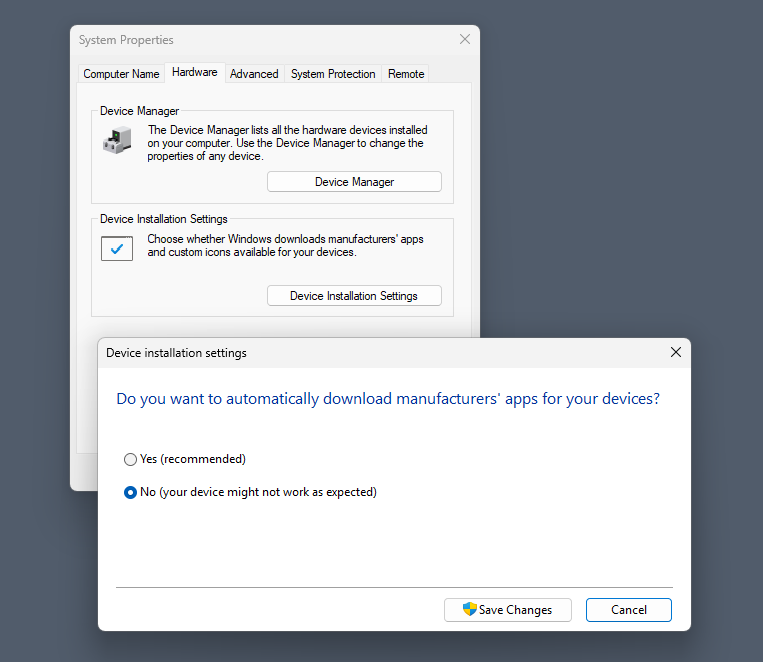
Open System Properties: Press Win + R, type sysdm.cpl, and press Enter.
Navigate to Device Installation Settings:Select the Hardware tab, then click the Device Installation Settings button.
Disable Automatic Downloads:This stops all manufacturer companion apps.Select “No” (your device might not work as expected).
Save Changes:Click Save Changes and restart your PC.
Note that you can also make the change in the Registry or using the Group Policy.
Registry:
Press Win + R, type regedit, and press Enter.
Go to HKEY_LOCAL_MACHINE\SOFTWARE\Microsoft\Windows\CurrentVersion\Device Metadata
Find the DWORD named PreventDeviceMetadataFromNetwork. If it’s missing, right-click an empty space > New > DWORD (32-bit) Value and name it exactly that.
Double-click the key and change its Value data from 0 to 1. Click OK and restart your computer.
Group Policy:
Press Win + R, type gpedit.msc, and press Enter.
Navigate to: Computer Configuration > Administrative Templates > System > Device Installation.
Double-click Prevent device metadata retrieval from the Internet (or Prevent automatic download of applications associated with metadata, depending on your exact Windows build).
Set it to Enabled, click Apply, and restart.
Here is the effect
By disabling this feature, you are shutting the door on all OEMs. This blocks automatic, silent installations of software from ASUS (Armoury Crate), Razer (Razer Synapse), Dell (Alienware Command Center), HP, Logitech, and others.
Importantly, this will not break your hardware. Windows will still automatically load the basic, essential drivers required to make the device function.
Disabling this setting only stops the automatic background installations triggered by Windows. You retain complete control to install whatever you want, whenever you want.
If you decide you actually need an OEM companion app—for example, to configure mouse macros, change RGB lighting, or update hardware firmware—you can easily bypass the restriction manually:
Download directly from the manufacturer: Go to the official support page for your specific hardware (e.g., LG or Razer’s website) and download the driver package or software suite yourself.
Install via the Microsoft Store: Many of these OEM control panels are hosted on the Microsoft Store. You can simply search for the app by name and click install.
Turning off automatic metadata retrieval is highly recommended for keeping a clean OS. It shifts control from Windows back to you, ensuring you only install the companion apps you actually plan to use.
The team behind the open source Thunderbird email client plans to introduce a change in version 154 that changes the default minimize and close behavior on Windows.
Currently, when you close Thunderbird on Windows, the program exits and stops running in the background. When you hit the minimize button, Thunderbird lands in the System Tray area.
Starting in Thunderbird 154, this behavior changes to the following:
Minimize: When you activate the button, Thunderbird’s window is minimized, but no longer moved to the System Tray.
Close: This can be set to minimized to the System Tray and is the default on systems that use the “When Thunderbird is minimized, move it to the tray” preference already.
Thunderbird users may enable “close to tray” to make sure the email client continues to run when the close button is activated. You find the option under Menu > Settings > General > System Integration > When Thunderbird is closed, move it to the tray.
The team says that the option is disabled by default. Users who want the new behavior need to enable the option. There is also an option to start Thunderbird minimized in the System Tray. You find it under System Integration > Start Thunderbird in the tray.