Chipp.in Tech News and Reviews

Windows, Security & Privacy, Open Source and more

Menu
  • Home
  • Windows
  • Security & Privacy
  • Gaming
  • Guides
  • Windows 11 Book
  • Contact
  • RSS Feed
Menu

Category: Windows

MultiDrive: Free Software to Clone, Back Up, Erase and Restore Drives on Windows

Posted on May 26, 2026May 26, 2026 by Martin Brinkmann

Windows users have a wide assortment of backup apps and services at their disposal. Even Windows itself comes with options, but as usually, they lack when compared to professional tools.

MultiDrive is a new contender in the space. It is available as a portable or setup version, and you can use it to perform major disk operations, including backing up, cloning, erasing, or restoring. It is free, has no ads and no payments at the time of writing.

The software is easy to use. It displays the available tasks on the left side and in the main area information about all connected drives, the progress, and completed tasks.

Some configuration options are provided after selection. If you pick backup, you get to pick a format, file type and whether you want to split files or keep one massive file. One interesting option is the ability to pick the source drive range for the backup. You can keep it at “everything”, or pick a range on the drive. Other than that, there is an option to calculate a hash, which is great for verification purposes.

You may notice that you do not get as many options as in comparable backup tools. For example, there is no option to protect the backup with a password or to schedule backups from within the interface.

To get started, pick one of the available options:

  • Backup: This backs up the entire drive to a single file or multiple files.
  • Clone: Copy the contents of an entire drive to another, ideal for migrating to another hard drive.
  • Restore: This restores previously created backups.
  • Erase: Deletes data on a drive.

Other than that, you do get access to a command line interface tool and support for parallel operations. So, what can you actually use the software for? Here are some suggestions:

  • Move all data to a new drive or create a backup drive.
  • Erase all data on a drive or multiple drives before selling, recycling or giving it away.
  • Back up USB Flash Drives.

A WinPE image is available for restoring backups. You need to download it from the developer website and put it on a bootable USB drive.

The program works well for what it does, but it lacks some options and preferences that other apps, including my favorite pick Paragon Backup & Recovery Community Edition, support. Considering that there is a big team behind the app, I’d guess that a premium version is on its way that will have some of these missing options. The developers promise, however, that everything that is free will remain free, even if a premium version is introduced in the future.

Microsoft plans to make Windows Search more relevant

Posted on May 22, 2026May 22, 2026 by Martin Brinkmann

Windows Search is an integral part of the Windows operating system. Its main purpose is to help users find files and folders on the system.

Some time ago, Microsoft decided to introduce Internet search functionality to the search in Windows. Search suddenly returned local files and Internet resources. To make matters worse, Microsoft made it difficult to turn off the Internet part of search.

The Windows 11 Insider Experimental Preview Build 26300.8493 changes this, according to Microsoft:

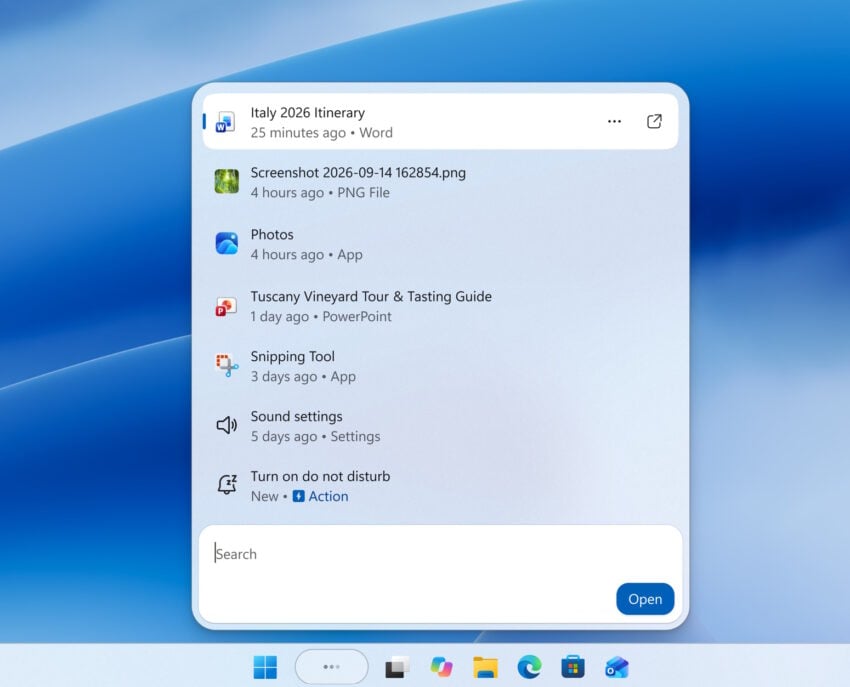
We’ve started making changes to make Windows Search Box more relevant, starting with making it easier to find your files and apps:

Files and apps more reliably appear ahead of web suggestions when your content is a stronger match

What does it mean? Initial tests show that local results are prioritized in certain cases. When? When Windows Search computes that the local files are a stronger match.

This does not mean that Internet-based search is gone. Far from it. Microsoft adjusted the search parameters in favor of local files, but that is about it.

While that is certainly welcome for millions of users who do not know how to turn off Internet search results in Windows, as the focus shifts to local files again, critics might argue, that this is not enough, as there is still no option to turn off Internet search easily.

About that new SecureBoot folder in C:/Windows

Posted on May 19, 2026May 19, 2026 by Martin Brinkmann

If you’ve noticed a mysterious new SecureBoot folder sitting in your C:/Windows directory following the May 2026 Patch Tuesday, you are not alone.

The folder, which has a subfolder named ExampleRolloutScripts that contains several PowerShell scripts, is a harmless administrative helper introduced in the latest security updates for Windows 10 and Windows 11.

According to official Microsoft guidance, these scripts are designed primarily for enterprise IT administrators to monitor the status of the upcoming UEFI CA 2023 Secure Boot certificate updates and to safely automate their deployment across Active Directory environments.

While essential for corporate networks preparing for this critical security transition, average users can safely ignore this tiny 450 KB folder for now.

The transition to the new UEFI CA 2023 Secure Boot certificates mark a critical security change for the Windows ecosystem. It is made necessary by the impending expiration of current certificates that were issued a long time ago.

Secure Boot acts as the fundamental gatekeeper against bootkits and rootkits by ensuring that only trusted, digitally signed firmware and operating system loaders can execute during startup.

Microsoft is employing a highly controlled, phased rollout strategy—which is exactly why administrative validation tools and scripts are currently being deployed.

Why Microsoft is rolling out the folder to anyone is anyone’s guess. It seems that the folder is pushed to all devices running Windows 11, even unmanaged Windows 11 Home systems.

Windows 11 is removing an option to bypass Microsoft account and internet during setup

Innovation or Apology? Microsoft’s “New” Windows Personalization Options Merely Fix Past Mistakes

Posted on May 18, 2026 by Martin Brinkmann

It only took half a decade for Microsoft to remember how to build a functional user interface. On May 15, 2026, the tech giant took to the Windows Insider Blog to announce Preview Build 26300, a supposedly major update designed to give users “more flexibility” over their Taskbar and Start menu.

However, beneath the marketing spin, these groundbreaking additions—like the ability to finally shrink the taskbar, move it to the side or top of the screen, and independently toggle off intrusive file recommendations—are nothing more than basic features Microsoft stripped out of Windows years ago.

Rather than pushing the operating system forward, this long-overdue update rolling out to the Experimental channel feels less like innovation and more like a reluctant apology to power users who have been fighting a restrictive, dumbed-down user interface since 2021.

This is what build 26300 brings back from the dead

Let’s look exactly at what Preview Build 26300 actually brings to the table. The headline “feature” of this update is the reinstatement of taskbar mobility. After years of being glued to the bottom of the screen, users can once again click and drag the taskbar to the left, right, or top edges of their monitors—a decades-old Windows function that was axed during the initial jump to Windows 11.

Accompanying this is the return of taskbar resizing, allowing users to finally shrink the increasingly bloated bar to save precious vertical screen real estate, or expand it for better touch visibility.

Meanwhile, the Start menu receives what is arguably the most highly requested fix: a dedicated, single-click toggle to permanently disable the “Recommended” section. Instead of being forced to look at a useless blank void or unwanted cloud documents, users can now reclaim that entire bottom half of the menu for their own pinned applications.

Pavan Davuluri, Microsoft’s head of Windows and Surface, championed these tweaks on X as a testament to the company “deeply listening to Insiders” and “empowering personalized workflows.”

Personalization and customization is in Windows' DNA. It always has been. Reading through your feedback and meeting with Windows Insiders over the past few months reminded us just how deeply people care about this. You wanted more control, more customization with taskbar and… https://t.co/YpexnoDyGD

— Pavan Davuluri (@pavandavuluri) May 16, 2026

But celebrating the restoration of basic functionality as a triumph of active listening is a massive stretch. While it is undoubtedly a relief to have these customization options back where they belong, packaging them as a bold new step forward highlights a recurring, frustrating cycle in Microsoft’s development ethos: breaking something that works perfectly fine, ignoring the immediate community outcry, and then expecting applause when they finally patch it back together five years later.

Microsoft’s New Edge Update is all about Copilot

Posted on May 15, 2026May 15, 2026 by Martin Brinkmann

If you thought your web browser was just a quiet, lightweight tool for surfing the internet, Microsoft is here to aggressively change your mind.

On Monday, the tech giant rolled out a massive, AI-centric update to its Edge browser across desktop and mobile platforms, that is shifting the focus to an AI that is heavily integrated in the browser.

The Copilot update promises productivity perks – like the AI ability to run tasks across multiple open tabs at once – but it is also making significant changes for all users, even those who don’t plan on using the AI features.

AI is growing up

Microsoft is moving AI away from being just a standard chat box and turning it into a functional browsing assistant. Core practical additions include, according to Microsoft:

  • Multi-Tab Reasoning: This is arguably the standout feature. Instead of manually cross-referencing information, Copilot can now read across multiple open tabs (e.g., comparing hotel prices, reading different product reviews) and summarize the differences for you.
  • Mobile Parity: Complex AI features like multi-tab reasoning, screen sharing (“Vision”), and hands-free voice interactions are coming to the Edge mobile app, making on-the-go research much easier.
  • “Journeys” Tackles Tab Hoarding: Instead of leaving dozens of tabs open forever, Edge will now automatically group your browsing history into topic cards (e.g., “Camping Trip Plan”), summarizing where you left off so you can easily resume projects later.
  • Accessibility & Study Tools: The ability to turn your open tabs into an audio Podcast, alongside built-in study modes that generate quizzes from webpages, are fantastic additions for students, auditory learners, or people looking to consume content while multitasking.

The “Critical” Take

While the features sound useful, the update doubles down on Microsoft’s controversial strategy of making Edge less of a web browser and more of an AI system.

  • Massive Data Ingestion: Copilot now has “long-term memory,” analyzes your past chats, reads your browsing history, and actively scans multiple open tabs at once. While Microsoft insists this is done “with your permission” and protects your privacy, the sheer amount of personal data being fed into the AI to make these features work will undoubtedly make privacy-conscious users uncomfortable.
  • Escalating Browser Bloat: Edge has faced heavy criticism for feeling cluttered. Adding interactive quizzes, writing assistants, podcast generators, and an AI-heavy redesigned “New Tab” page risks making the browser feel even heavier and more resource-intensive.
  • The Illusion of Choice: Microsoft notes they are “retiring Copilot Mode” in favor of building these features directly into Edge. This essentially means AI is no longer a separate mode you enter, but a baked-in layer of your everyday browsing that you have to actively dodge if you don’t want to use it.
  • The Fine Print (Regional Locks & Subscriptions): The blog heavily promotes these features, but the footnotes reveal a heavily fragmented rollout. “Journeys” on mobile and the “Writing Assistant” are currently US-only. Furthermore, features like generating podcasts or the new “Browse with Copilot” actions have usage limits that push users toward paying for Microsoft 365 Premium subscriptions.

The Verdict

To be fair to Microsoft, features like multi-tab reasoning and turning articles into podcasts are clever, practical uses of AI that solve actual user pain points. However, critically speaking, this update continues the trend of forcing AI into every corner of the Edge browser.

If you love AI, Edge is becoming the ultimate productivity powerhouse; if you just want a fast, lightweight, and private web browser, this update might push you further away.

No Zero-Days and High Criticals: The May 2026 Windows Patch Tuesday Breakdown

Posted on May 13, 2026May 13, 2026 by Martin Brinkmann

If April 2026 was an avalanche of patches, May brings a welcome breather from zero-days but keeps the critical severity count high.

Microsoft’s fifth Patch Tuesday of 2026 has arrived, addressing 120 vulnerabilities in total. While it breaks a long-standing streak by featuring zero publicly disclosed or actively exploited zero-day flaws, the sheer volume of severe remote code execution (RCE) bugs demands attention.

The update contains 17 critical flaws affecting a wide range of enterprise products, including Windows Netlogon, DNS Client, Azure DevOps, and Microsoft Word.

Here is the breakdown of what you need to know, what to patch first, and what might break.

You can download an Excel spreadsheet with information about the patches that Microsoft released:

windows-updates-may-2026Download

The May 2026 Patch Day overview

Executive Summary

  • Release Date: May 12, 2026
  • Total Vulnerabilities: 120
  • Critical Vulnerabilities: 17
  • Zero-Days: 0

Key Action Item: Administrators must prioritize patching network-exposed infrastructure, specifically domain controllers affected by the Netlogon vulnerability (CVE-2026-41089) and systems running the Windows DNS Client. Simultaneously, Microsoft Office installations need immediate updates to mitigate several highly critical Remote Code Execution vulnerabilities that can be triggered simply via the Windows Preview Pane.

Important Patches

  • CVE-2026-41089 — Windows Netlogon Remote Code Execution Vulnerability
  • CVE-2026-41096 — Windows DNS Client Remote Code Execution Vulnerability
  • CVE-2026-42826 — Azure DevOps Information Disclosure Vulnerability
  • CVE-2026-40364 — Microsoft Office Word Remote Code Execution Vulnerability
  • CVE-2026-40402 — Windows Hyper-V Elevation of Privilege Vulnerability
  • CVE-2026-32185 — Microsoft Teams Spoofing Vulnerability

Cumulative Updates

Product, VersionLinksNotes
Windows 11 & Windows 10KB5087544 (Windows 10)
KB5089549 (Windows 11)
Security updates addressing OS-level RCEs in Netlogon, DNS Client, and Windows Graphics components (Win32k). Also resolves various Elevation of Privilege flaws across the Windows Kernel.

Deep Dive: The Critical Vulnerabilities

Microsoft confirmed that it patched zero 0-day vulnerabilities this Patch Day, but addressed a heavy enterprise focus of critical remote code execution and information disclosure flaws.

Here is the critical overview:

CVE-2026-41089 (Windows Netlogon Remote Code Execution Vulnerability)

A critical stack-based buffer overflow flaw (CVSS 9.8) affecting Windows Netlogon. A remote, unauthenticated attacker could exploit this by sending a crafted network request to a Windows server running as a domain controller. If successful, this causes the Netlogon service to improperly handle the request, allowing the attacker to execute malicious code without requiring any prior access or credentials.

CVE-2026-41096 (Windows DNS Client Remote Code Execution Vulnerability)

This critical heap-based buffer overflow vulnerability (CVSS 9.8) affects the Windows DNS service. It allows remote code execution over the network and can be exploited by sending a malicious DNS response, triggering memory corruption within the Windows DNS client. Depending on the configuration, an unauthenticated attacker can achieve full RCE.

CVE-2026-42826 (Azure DevOps Information Disclosure Vulnerability)

This is the highest-rated flaw this month, boasting a perfect CVSS score of 10.0. While Microsoft withheld specific exploitation details, a perfect severity score indicates that unauthenticated attackers could potentially access highly sensitive enterprise data, credentials, and source code stored or handled in Azure DevOps.

CVE-2026-40361, CVE-2026-40364, CVE-2026-40366, CVE-2026-40367 (Microsoft Word RCE Vulnerabilities)

A cluster of critical vulnerabilities in Microsoft Word (CVSS 8.4) that allow an unauthorized attacker to execute code locally. Notably, these flaws can be triggered through the Windows Preview Pane, meaning a user only needs to preview a specially crafted document to be compromised, without ever fully opening the file.

CVE-2026-40402 (Windows Hyper-V Elevation of Privilege Vulnerability)

A severe flaw (CVSS 9.3) allowing for a guest-to-host escape in Windows Hyper-V. By targeting certain hardware device registers, an attacker operating from within a guest virtual machine can escape the isolated environment and gain SYSTEM privileges on the underlying host system.

First Steps: Your Patch Tuesday Strategy

  • Prioritize Domain Controllers (Netlogon) and DNS Client services
  • Address high-risk Azure deployments (DevOps, Cloud Shell)
  • Update Office installations immediately to mitigate Preview Pane risks

New Windows 11 feature “Low Latency Profile” may boost app starts by up to 70 percent

Posted on May 8, 2026May 8, 2026 by Martin Brinkmann

The time to go brew a coffee whenever you start a taxing program on Windows could soon be a thing of the past. Reports by Windows Central and other sources suggest that Microsoft is testing a new Low Latency Profile feature that could speed up the start of apps by up to 70 percent.

The idea behind the feature is straightforward: Boost the processors frequency for certain taxing tasks on the system to speed them up. Examples are the opening of apps, system flyouts, or the display of menus on the system.

According to Windows Central, app starts could be boosted by up to 40 percent while the launch times of interfaces could be boosted up to 70 percent.

Depending on the PC that you are using, these things may happen near instantly already all the time. Deskmodder tested the feature in an Insider build recently and concluded that it does not really help, if the PC in question is modern.

However, when a PC is older, it could indeed speed up certain options noticeably.

The new feature is part of Microsoft’s effort to improve the performance and stability of the operating system. It is but one of the changes that Microsoft is testing currently. Others include optimizing apps or code, or switching to modern interfaces.

The new Low Latency Profile feature runs in the background automatically. Whether there will be an option in Settings or elsewhere to disable the feature remains to be seen. It is likely that there will be at least a Group Policy and Regedit option to manage that.

If you want to try out Low Latency Profile in recent Insider builds and see if it makes any difference, enable these feature IDs:

LowLatencyProfile: 60716524
LowLatencyProfileForApplicationLaunch: 61391826 https://t.co/VW4xXmGdEa

— phantomofearth 🌳 (@phantomofearth) May 7, 2026

Phantom of Earth posted the relevant IDs for the feature on X.

If you want to try out Low Latency Profile in recent Insider builds and see if it makes any difference, enable these feature IDs:

LowLatencyProfile: 60716524
LowLatencyProfileForApplicationLaunch: 61391826

Run .\vivetool /enable /id:60716524,61391826 in Terminal (elevated) to enable these.

Windows 11 KB5083769 Update Blocking Macrium Reflect and Backup Apps

Posted on May 2, 2026May 2, 2026 by Martin Brinkmann

Imagine trying to secure your PC’s most important files, only to discover that your trusted backup software has been actively locked out by the operating system itself. That is exactly what is happening to Windows 11 users this week, as Microsoft has officially confirmed in a recently updated support document that its latest patches (KB5083769 and KB5083631) are intentionally blocking popular third-party backup applications like Macrium Reflect.

The Redmond giant explained that this disruptive change is the result of a strict new security hardening measure, which actively adds the psmounterex.sys kernel driver to the Microsoft Vulnerable Driver Blocklist to protect systems from known exploits—leaving affected users dealing with timeout errors and broken disk image mounting.

Microsoft confirms the change and that third-party backup software may be affected on a new support page. However, the company has not added any information about potential issues to the official KB release notes, making it difficult for affected users and also system administrators to investigate the issue.

According to the company, users and IT administrators may observe the following behavior after installing April 2026 or later updates for Windows 11:

What new behavior should I expect?
Users and IT administrators might observe the following behavior after installing the update:

Backup applications that rely on the kernel driver psmounterex.sys might fail to mount backup image files as virtual drives.

Attempting to browse or restore from a backup image might result in errors or timeouts.

Failures might be followed by error messages, such as “The backup has failed because Microsoft VSS has timed out during the snapshot creation” or VSS_E_BAD_STATE.

Event Viewer might show Code Integrity errors indicating that psmounterex.sys was blocked from loading.

Backup creation (full image backups) may still succeed, but image-mount operations will fail.

Microsoft claims that the change is “designed to protect devices against known vulnerabilities in the psmounterex.sys kernel driver. That is exactly the driver that some backup apps, including Macrium Reflect, use for managing and mounting disk images.

The vulnerability that Microsoft mentions was discovered in certain versions of the driver in late 2023 already. If exploited, bad actors can use this flaw to escalate their privileges and execute arbitrary malicious code at the kernel level, completely compromising the system.

The result for users who run backup apps that rely on the driver: When a user tries to mount a backup image, the backup app attempts to load the psmounterex.sys driver. Windows Code Integrity enforcement steps in and actively blocks the driver from loading because it’s on the blacklist. Without the driver, the backup app cannot complete its task, leading to Volume Shadow Copy Service (VSS) timeouts and mounting errors.

In short, Microsoft is deliberately breaking the functionality of these apps to stop a known security loophole from being exploited at the kernel level.

Firefox

Firefox 150.0.1 is out with a Facebook fix and security patches

Posted on April 29, 2026April 29, 2026 by Martin Brinkmann

Mozilla released point updates for its open source Firefox web browser yesterday evening. The updates are available for all three supported stable versions of the browser:

  • Firefox 150.0.1
  • Firefox 140.10.1 ESR
  • Firefox 115.35.1 ESR

However, only the main stable release, Firefox 150.0.1 is getting bug fixes and security patches. The two extended support release versions do get the security fixes only.

Here are the fixed security issues:

  • CVE-2026-7320: Information disclosure due to incorrect boundary conditions in the Audio/Video component
  • CVE-2026-7322: Memory safety bugs fixed in Firefox ESR 115.35.1, Firefox ESR 140.10.1 and Firefox 150.0.1
  • CVE-2026-7323: Memory safety bugs fixed in Firefox ESR 140.10.1 and Firefox 150.0.1
  • CVE-2026-7324: Memory safety bugs fixed in Firefox 150.0.1

The changes in Firefox 150.0.1

Mozilla lists five non-security fixes and a change in the official release notes:

  • Fixed issues accessing Facebook and other unnamed websites on systems with Bitdefender security software installed.
  • Fixed an issue where a geolocation permission prompt would be shown again on a second attempt.
  • Fixed an issue that prevented tabs to be added to older saved tab groups.
  • Fixed a drop-down menu display issue that had them show all list items at once.
  • Fixed a zooming issue on macOS and Windows that caused some borders and outlines on some page elements to disappear.

The change affects Firefox indirectly only. Mozilla increased the email masks limit of its Relay service to 50 for free users. The previous limit was five.

The new versions are available already. Most non-managed systems should get the updates automatically, but you can speed up the installation by selecting Menu > Help > About Firefox.

Copilot key laptops

Microsoft confirms yet another BitLocker Recovery Screen issue in Windows 11

Posted on April 21, 2026April 21, 2026 by Martin Brinkmann

Another one? That could be the reaction of veteran Windows users who read the headline. Microsoft confirmed another BitLocker related issue in Windows 11. This one may be caused by installing the most recent cumulative update for the operating system.

In the Known issues section of the update, Microsoft confirms that devices might boot into the BitLocker Recovery screen and not the desktop.

According to the description, the issue is caused by an “unrecommended BitLocker Group Policy configuration”. Only a “limited number of systems” are affected according to Microsoft. The company says that the issue affects only systems for which all of the following conditions are true:

  • BitLocker is enabled on the OS drive.
  • The Group Policy “Configure TPM platform validation profile for native UEFI firmware configurations” is configured, and PCR7 is included in the validation profile (or the equivalent registry key is set manually).
  • System Information (msinfo32.exe) reports Secure Boot State PCR7 Binding as “Not Possible”.
  • The Windows UEFI CA 2023 certificate is present in the device’s Secure Boot Signature Database (DB), making the device eligible for the 2023‑signed Windows Boot Manager to be made the default.
  • The device is not already running the 2023-signed Windows Boot Manager.

Devices that meet the conditions may boot into recovery mode after installing the KB508376 for Windows 11, versions 24H2 or 25H2.

A workaround is available to remove the Group Policy configuration before installing the update.

  1. Open Group Policy Editor (gpedit.msc) or your Group Policy Management Console.
  2. Navigate to: Computer Configuration > Administrative Templates > Windows Components > BitLocker Drive Encryption > Operating System Drives.
  3. Set “Configure TPM platform validation profile for native UEFI firmware configurations” to “Not Configured“.
  4. Run the following command on affected devices to propagate the policy change: gpupdate /force
  5. Run the following command to suspend BitLocker (where BitLocker is enabled on the C: drive): manage-bde -protectors -disable C: 
  6. Run the following command to resume BitLocker (where BitLocker is enabled on the C: drive): manage-bde -protectors -enable C: 
  7. ​​​​​​​This updates the BitLocker bindings to use the Windows-selected default PCR profile.

Microsoft plans to release a permanent fix in the future to address this. Windows users who use a Microsoft Account can look up the recovery key for BitLocker online.

  • 1
  • 2
  • 3
  • 4
  • …
  • 28
  • Next

Support This Site

If you like what I do please support me!

Any tip is appreciated. Thanks!
  • June 1, 2026 by Martin Brinkmann The Nvidia RTX Spark promises a new Windows PC era, but the price tag may stings
  • May 29, 2026 by Martin Brinkmann Meta is rolling out subscriptions for all of its products, including Facebook, Instagram and WhatsApp
  • May 27, 2026 by Martin Brinkmann Using 7-Zip? Time to update, as your version may be vulnerable
  • May 26, 2026 by Martin Brinkmann MultiDrive: Free Software to Clone, Back Up, Erase and Restore Drives on Windows
  • May 24, 2026 by Martin Brinkmann Vivaldi 8.0 is out with new layout presets and theme improvements

About

We talk, write and dream about Technology 24/7 here at Chipp.in. The site, created by Martin Brinkmann in 2023, focuses on well-researched tech news, reviews, guides, help and more.

Legal Notice

Our commitment

Many websites write about tech, but chipp.in is special in several ways. All of our guides are unique, and we will never just rehash news that you find elsewhere.

Read the About page for additional information on the site and its founder and author.

Support Us

We don't run advertisement on this site that tracks users. If you see ads, they are static links. Ads, including affiliate links, never affect our writing on this site.

Here is a link to our privacy policy

©2026 Chipp.in Tech News and Reviews