File archives serve plenty of purposes. They compress one or multiple files and folders and make them available as a single file; ideal for distribution and storage.
Many backup tools, for instance, support compressing backups to save storage space.
But how do you ensure that the archives are not corrupt? There are several options, including generating hashes and running verifiers.
However, if you have not created hashes in first place or find this too time consuming or unmanageable, you could test the archives directly using archivers.
PeaZip is an open source archiver for several operating systems. Version 11.0 was released recently and it includes a batch testing option.
Throw any number of support archive formats at the app and it will check each archive. It does so automatically and the only exception to that is when it encounters a password protected archive, as it will prompt for the password in that case.
You get a full list of results in the end that you can go through to find any archives that are damaged.
PeaZip supports all major archive formats. To name a few: ZIP, 7z, BR, TAR, ZipX, RAR, APK, CAB, ISO, and ACE.
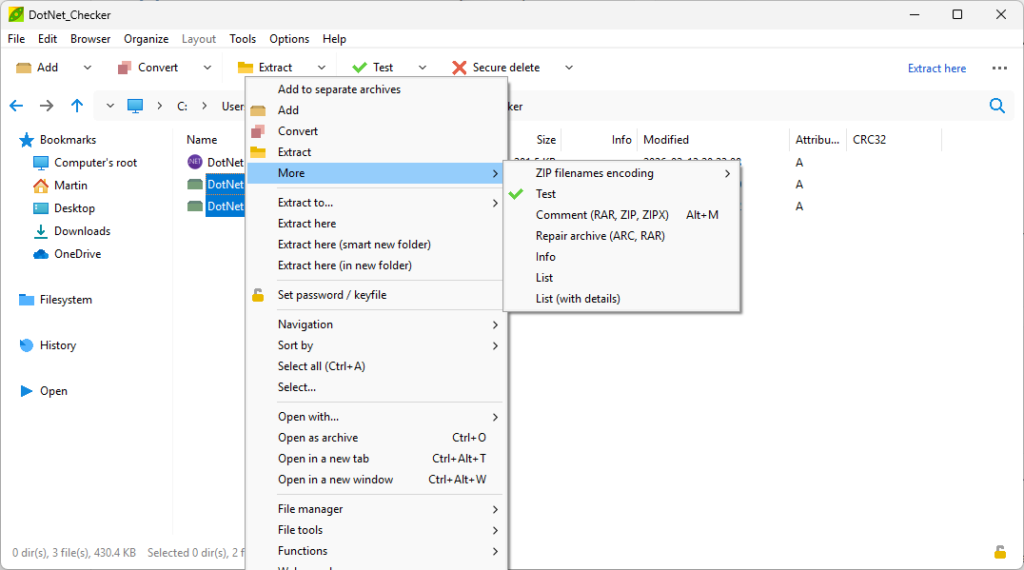
Here is how you run the test:
- Download and install the latest version of the archiver. You can download a portable version or use winget install -e peazip to install it from the command line.
- Open the application and use the file manager to navigate to the folder with the archives that you want to test.
- Select them all, for instance by holding down Ctrl and left-clicking on each archive, using Ctrl-A, or right-clicking and picking “select all” from the context menu.
- Right-click on the selection and select More > Test to start the verification process.
PeaZip tests one archive after another, displaying results in a separate window. You could move all archives into a single folder to make this operation easier, or switch folders to continue testing archives.
All in all, this is a straightforward option to batch test archives on Windows (or any other of the supported operating systems).
Running ‘Total Commander’ here, with a life-time license bought in 1997 🙂 when it was named ‘Windows Explorer’ before being forced to avoid ‘Windows’ by Microsoft …
“The option ‘Test archives’ ((ZIP, ARJ, LZH, RAR, UC2, CAB, ACE, 7Z) will test all selected archives by unpacking them to memory and calculating the CRC checksum. Total Commander will show a message if the CRC doesn’t agree with the checksum stored in the archive, or any other error occurs. Since TAR files aren’t protected by a CRC checksum, they cannot be tested by this function.”
I think I’ve hardly ever used Windows Explorer. ‘Total Commander’ (mind if I share my enthusiasm?) is perhaps the best computer product I’ve even bought and used.
Just correcting a mistake:
“Running ‘Total Commander’ here, with a life-time license bought in 1997 🙂 when it was named ‘Windows Explorer’ before being forced to avoid ‘Windows’ by Microsoft …”
That’s “(…) when it was named ‘Windows Commander'”, not of course ‘Windows Explorer’…
Winrar can do it too.
Open Winrar, navigate to your folder, select as many archives as you like, hit the test button.
There’s also a repair button. I’ve only used it once, to recover the contents of an archive I pulled off a 3.5 floppy.