VeraCrypt is a popular cross-platform encryption software that is available for Windows, Linux and macOS. It is one of the successors of TrueCrypt and can be used to encrypt hard drives, including system drives, and to create data containers on drive that are encrypted.
The developer of the application, Mounir Idrassi, published a project update on Sourceforge a few days ago. There, he explained why the project had been silent for the past few months.
According to his description, Microsoft terminated the account that he used to sign Windows drivers and the bootloader. This affects the Windows version of the encryption software, as updates can’t be signed anymore because of this. The Linux and macOS versions of the software are not affected by this.
To make matters worse, a screenshot with a message by Microsoft suggests that an appeal is not available. It is unclear what that means for the project. While a solution may be found eventually, likely through enough outside pressure to get a Microsoft representative to look at the case, it is certainly problematic when a company that operates its own encryption software — Microsoft with BitLocker — is blocking a competitor from releasing updates for his.
The next Windows Patch Day is just a week away and it is unclear whether it will include a fix for a recently disclosed 0-day vulnerability.
The new security vulnerability has been disclosed on GitHub, including proof of concept code to exploit the issue. However, there is no explanation how the issue works.
Well-known security researcher Will Dormann commented on the issue and confirmed that it is working. He admitted that it “may not be 100%” reliable though. It seems that frustration with MSRC, the Microsoft Security Research Center, and how it operates, was the reason for the public disclosure of the vulnerability. Whether that is true or not can’t be verified though.
So, what do we know about the vulnerability so far?
What it is: “BlueHammer” is an unpatched zero-day Local Privilege Escalation (LPE) vulnerability affecting Microsoft Windows.
Impact: It allows a local attacker with limited, low-level user access to escalate their permissions to SYSTEM or elevated administrator rights. This effectively grants the attacker full control over the compromised machine.
Current Status: Microsoft has not yet released an official patch or mitigation, making it a true zero-day.
Security experts (such as Will Dormann) describe it as a flaw that combines a TOCTOU (Time-of-Check to Time-of-Use) vulnerability with path confusion. At a high level, it appears to weaponize Windows Defender-related interfaces (the leaked source code contains files like windefend.idl and windefend_c.c). By bypassing the system’s original validation, a local attacker can gain access to the Security Account Manager (SAM) database, which stores local account password hashes, ultimately allowing them to spawn SYSTEM-level shells.
Good news is that the flaw is a local privilege escalation, which means that attackers can’t exploit it to hack into Windows PCs remotely. However, if they were to gain access to a Windows system, they could use it to expand access or even take over a system completely.
File archives serve plenty of purposes. They compress one or multiple files and folders and make them available as a single file; ideal for distribution and storage.
Many backup tools, for instance, support compressing backups to save storage space.
But how do you ensure that the archives are not corrupt? There are several options, including generating hashes and running verifiers.
However, if you have not created hashes in first place or find this too time consuming or unmanageable, you could test the archives directly using archivers.
PeaZip is an open source archiver for several operating systems. Version 11.0 was released recently and it includes a batch testing option.
Throw any number of support archive formats at the app and it will check each archive. It does so automatically and the only exception to that is when it encounters a password protected archive, as it will prompt for the password in that case.
You get a full list of results in the end that you can go through to find any archives that are damaged.
PeaZip supports all major archive formats. To name a few: ZIP, 7z, BR, TAR, ZipX, RAR, APK, CAB, ISO, and ACE.
Here is how you run the test:
Download and install the latest version of the archiver. You can download a portable version or use winget install -e peazip to install it from the command line.
Open the application and use the file manager to navigate to the folder with the archives that you want to test.
Select them all, for instance by holding down Ctrl and left-clicking on each archive, using Ctrl-A, or right-clicking and picking “select all” from the context menu.
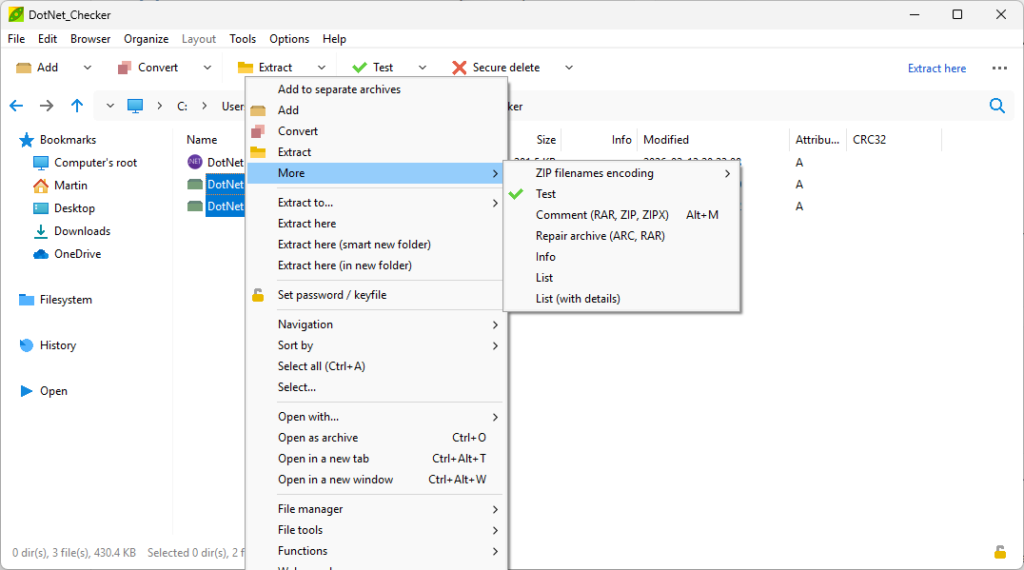
Right-click on the selection and select More > Test to start the verification process.
PeaZip tests one archive after another, displaying results in a separate window. You could move all archives into a single folder to make this operation easier, or switch folders to continue testing archives.
All in all, this is a straightforward option to batch test archives on Windows (or any other of the supported operating systems).
One of the most frustrating experiences as a Windows Insider is the Controlled Rollout feature in my experience. You sign up to beta test Windows 11 versions and instead of getting all features ready for testing, Microsoft is limiting access to new features.
While you can enable the features with the ViVeTool, doing so requires more steps and is not super comfortable. Still, it is the only reliable option to enable features that are on “roll out” immediately on a Windows 11 system.
Serial leaker Phantom of Earth discovered a hidden feature in recent Insider builds of Windows 11 that should make things easier for users.
Microsoft is FINALLY adding a "Feature Flags" page to Windows Insider settings that will let you manually toggle new features on or off without needing to use vivetool or suffering through CFR! (Hidden bits in 26300.8155, not enabled yet) pic.twitter.com/YiP4acx0Nu
Microsoft is apparently working on integrating its own “ViVeTool-like” interface in the Settings. This means that testers can enable certain features, that are on rollout, directly there.
The full functionality is unknown at this point. Will all features be listed there or only handpicked ones by Microsoft? We do not know at this point. There is also the chance that Microsoft is having a change of heart at one point.
Also, it appears that the change targets Insider versions only and not stable builds. Stable Windows 11 users who want to enable some features directly will therefore still have to use the ViVeTool to do so.
If done right, it could improve testing certain Windows 11 features and changes for many testers.
A new team at Microsoft plans to release 100 percent native apps for the Windows operating system. Announced by Rudy Huyn on X, the focus of the apps is a meaningful user experience.
I’m building a new team to work on Windows apps! You don’t need prior experience with the platform, what matters most is strong product thinking and a deep focus on the customer.⁰⁰If you’ve built great apps on any platform and care about crafting meaningful user experiences,…
Hyun does not mention whether the team will work on making existing apps 100 percent native or if it will work on new apps that may ship with the operating system at one point in time.
The development is a major shift from Microsoft’s recent heavy reliance on web-based wrappers and Progressive Web Apps (PWAs).
Here is why this is important:
For years, Microsoft has favored web-based apps over native code. These apps are often seen as slow, memory-hungry, and less-optimized than native apps.
It is another confirmation that Microsoft is trying to steer the wheel around. Apps are fundamental and attempts to make them better could improve the perception of the operating system.
Focus on quality. Hyun mentions that he is looking for developers with “strong product thinking”, regardless of platform that they have experience on. This could be an indicator that Microsoft might work on polishing the user experience.
While little is know about the project, apart from what Huyn mentioned on X, it could be another puzzle piece of Microsoft’s redemption attempt.
Since the information is scarce, pretty much everything surrounding this new project is unknown, including when we can expect the first releases and whether these will replace existing apps that may not be 100 percent native or be entirely new apps.
The distribution of KB5079391, released on March 26, had to be halted by Microsoft to investigate an installation error.
The company writes:
Some devices might encounter the following error while installing this update:
“Some update files are missing or have problems. We’ll try to download the update again later. Error code: (0x80073712)”
The availability of the optional update for Windows 11 has been limited by Microsoft as a consequence to investigate the underlying cause. Microsoft says that it will provide information about the issue once it has discovered the root cause of the error message.
Beta updates
The issue highlights the fragile nature of the operating system. Optional updates, which are beta releases of the following month’s cumulative update, should not be installed by the majority of Windows users.
In fact, there are only a few exceptions to the rule:
Major issues: When a major issue is fixed that affects users significantly.
Testing: When new features need to be evaluated.
Other than that, it is usually better to wait for the release of the cumulative updates, as these are the releases that are considered more stable. However, here, I also advice to wait with the installation, as bugs and issues are common and may affect operations.
In any event, creating a system backup before installing any updates is highly recocmmended.
Another Chromium-based web browser? Samsung has just released the first stable version of its browser for Windows after it launched in Beta in January 2026. The new browser shares the engine with Google Chrome and other Chromium-based browsers, which means that you can expect a similar performance and compatibility.
Samsung’s main intention with the browser is to provide Galaxy-users with a seamless experience between their mobiles and desktop PCs that run Windows. This includes syncing data such as bookmarks or the browsing history between all linked devices, and integrating the password manager Samsung Pass.
It should not come as a surprise that these features need a Samsung account to function at all. However, at the time of writing, the features are limited to the company’s own Galaxy Books series of laptops. More precisely, Galaxy Books 3 to 6 are supported for now. This limits the reach severely.
Samsung has partnered up with Perplexity to drive AI features in the browser. You can expect the usual range, including natural language input for search and the browsing history, the summary of one or multiple webpages, and more.
The AI features are also limited, according to Samsung. Only users from the US and South Korea get the Perplexity-powered AI functions.
Other than that, you may enable an integrated content blocker and get some comfortable features, such as translating webpages.
Since Samsung Browser is Chromium-based, you may install compatible extensions, including from the Chrome Web Store. Installations work exactly as expected: click on the install button and accept the installation prompt to add an extension to Samsung Browser.
Who is Samsung Browser for then? The obvious answer is Samsung Galaxy customers who use one or multiple mobile devices from Samsung and also a Windows PC, preferably one of the Galaxy Books. Everyone else does not really get much out of this, as the main use case — accessing data everywhere — does not apply and because there is not really much in terms of standout features besides that.
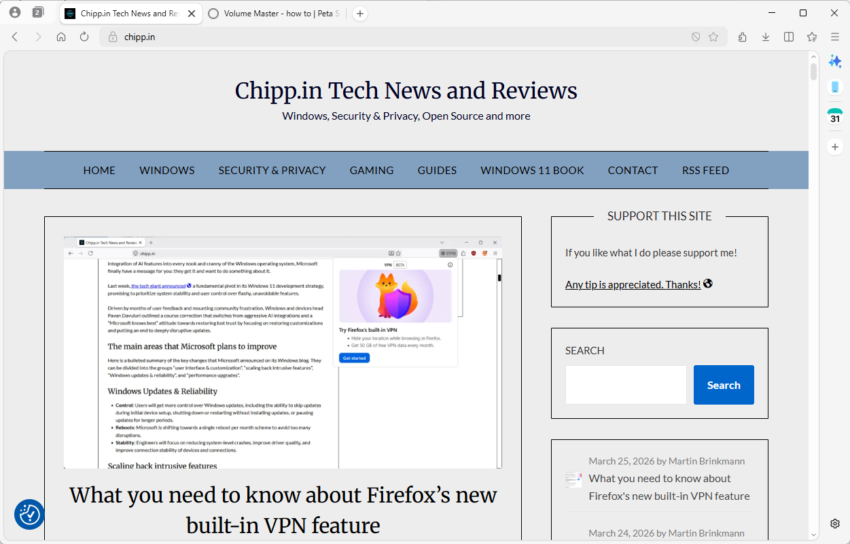
If you’ve ever cursed at your monitor as a forced reboot hijacked your workday or at the massive integration of AI features into every nook and cranny of the Windows operating system, Microsoft finally have a message for you: they get it and want to do something about it.
Last week, the tech giant announced a fundamental pivot in its Windows 11 development strategy, promising to prioritize system stability and user control over flashy, unavoidable features.
Driven by months of user feedback and mounting community frustration, Windows and devices head Pavan Davuluri outlined a course correction that switches from aggressive AI integrations and a “Microsoft knows best” attitude towards restoring lost trust by focusing on restoring customizations and putting an end to deeply disruptive updates.
The main areas that Microsoft plans to improve
Here is a bulleted summary of the key changes that Microsoft announced on its Windows blog. They can be divided into the groups “user interface & customization”, “scaling back intrusive features”, “Windows updates & reliability”, and “performance upgrades”.
Windows Updates & Reliability
Control: Users will get more control over Windows updates, including the ability to skip updates during initial device setup, shutting down or restarting without installing updates, or pausing updates for longer periods.
Reboots: Microsoft is shifting towards a single reboot per month scheme to avoid too many disruptions.
Stability: Engineers will focus on reducing system-level crashes, improve driver quality, and improve connection stability of devices and connections.
Scaling back intrusive features
AI: Microsoft is reducing Copilot entry points in apps and plans to focus on useful integrations only.
Widgets: Quieter defaults and simpler settings to minimize distractions.
Notifications: System notifications will be reduced.
User interface & customizations
Taskbar: Microsoft plans to restore moving the taskbar to the top and sides of the screen. The compact taskbar is also making a comeback.
Start Menu: The recommended section will be more relevant and get clear options to customize or turn off.
Setup: Microsoft promises quieter and more streamlined initial setups that have fewer pages and require less reboots.
Core performance updates
File Explorer: Microsoft plans to improve File Explorer performance significantly, enable faster copying/moving of large files, improve search, and reduce screen flicker.
Responsiveness: Core apps, including the Start menu, move to WinUI3 to improve latency. Performance will be “more consistent”.
Efficiency: Baseline memory footprint will be reduced.
Closing Words
Ultimate, Microsoft’s announcement reads like a long due apology, without actually apologizing. The true test will lie in the execution. Windows Insiders will be among the first to see some of the quality-of-life improvements that Microsoft promised to deliver, while everyday users may have to wait until the end of year or even longer before the changes land on their systems.
If Pavan Davuluri and his engineering team can truly deliver on a faster, cleaner, and less intrusive operating system over the coming year, Microsoft could regain some of the trust that it lost.
Microsoft confirmed a new Windows issue on March 12th, 2026 that prevents access to files on the main c: drive of the system and blocks certain applications from launching.
The issue affects certain Samsung devices that run Windows and have installed the February 2026 security updates or newer updates for Windows 11, version 24H2 or 25H2 systems.
Here are the details:
Affected Windows versions: Windows 11, version 24H2 and 25H2
Affected users may get the error message “C:\ is not accessible – Access denied” after installation of the update on affected devices. This prevents access to files on the drive and will also block some applications from launching. Microsoft mentions Outlook, Office apps, web browsers and system utilities specifically.
The problems do not require specific user actions. They occur during common actions, such as trying to access files, starting programs, or performing administrative tasks. Furthermore, users may also be blocked from elevating privileges, uninstalling, updates, or collecting logs due to permission failures.
Microsoft says that it is investigating the issue and that it suspects that the Samsung Share application is causing the issue. There is no workaround at the time of writing, but uninstalling the update — if possible — may resolve the issue. However, this leaves the system open for potential attacks, as it won’t have the February and March 2026 security issues patched anymore.
Affected users and administrators may want to keep an eye on the Windows 11 release information page. Microsoft will update the page when it has a workaround or a solution.
If February 2026 was the sprint, March is a marathon of essential infrastructure updates.
Microsoft’s third Patch Tuesday of 2026 has arrived, addressing 84 vulnerabilities in total. While the total count is typical, the release demands close attention: it contains two publicly disclosed zero-day vulnerabilities and eight critical flaws affecting a wide range of enterprise products, including SQL Server, Office, and Azure components.
Here is the breakdown of what you need to know, what to patch first, and what might break.
Key Action Item: Administrators must prioritize database and application servers due to the SQL Server elevation of privilege flaw and the .NET denial of service vulnerability. Simultaneously, ensure Office updates are deployed to workstations to prevent potential zero-click remote code execution via the Preview Pane.
Important Patches
CVE-2026-21262 — Microsoft SQL Server Elevation of Privilege Vulnerability
Security updates. Includes a GPU stability fix and Secure Boot updates.
Deep Dive: The Critical Vulnerabilities
Microsoft confirmed two publicly disclosed zero-day vulnerabilities are fixed this month. Furthermore, Microsoft fixed several critical remote code execution (RCE) and elevation of privilege (EoP) flaws.
Attackers may exploit the issues on systems that have not been patched to bypass protections, elevate privileges, or execute malicious payloads remotely.
Here is the critical overview:
CVE-2026-21262 (Microsoft SQL Server Elevation of Privilege)
This publicly disclosed zero-day allows an authorized attacker to elevate privileges over a network. Due to improper access control, a logged-in user can quietly elevate to become a full database administrator (sysadmin). With that level of control, they can read, modify, or delete data without user interaction.
CVE-2026-26127 (.NET Denial of Service)
The second publicly disclosed zero-day is an out-of-bounds read flaw in the .NET platform (versions 9.0 and 10.0). It allows an unauthenticated remote attacker to crash .NET applications over the network, resulting in a denial of service for any app running on the affected runtime libraries.
CVE-2026-21536 (Microsoft Devices Pricing Program Remote Code Execution)
Scoring a critical 9.8 out of 10 on the CVSS scale, this is the most severe flaw of the month. It allows remote attackers to execute arbitrary code over the network without privileges or user interaction. Notably, this flaw was discovered by an autonomous AI penetration testing agent. Microsoft notes that the vulnerability has been fully mitigated on their end, requiring no direct action from users.
These type confusion and untrusted pointer dereference flaws in Microsoft Office enable remote code execution when malicious files are processed. They are particularly dangerous because they can potentially allow zero-click exploitation if a user simply views a booby-trapped document in the Outlook Preview Pane.
CVE-2026-25187 (Windows Winlogon Elevation of Privilege)
Discovered by Google Project Zero, this vulnerability leverages improper link resolution in the Winlogon process. A locally authenticated attacker with low privileges could exploit a link-following condition to effortlessly escalate to SYSTEM privileges.
Significant Changes in the March 2026 updates
Sysmon is now built-in: Previously a manual download from Sysinternals, Sysmon is now included as a native component in Windows 11 for better security auditing and monitoring of malicious activity.
Quick Machine Recovery (QMR) expansion: QMR is now turned on automatically on more hardware. This feature allows administrators to revert endpoints to a working state if a disastrous third-party update takes down the system.
RSAT on Arm64: Remote Server Administration Tools are finally supported on Windows 11 Arm64 devices, allowing administrators to manage Windows Server environments directly from Arm-powered PCs.
First Steps: Your Patch Tuesday Strategy
Prioritize the zero-days: Map your exposure and prioritize the two zero-day vulnerabilities, focusing heavily on SQL Server environments and .NET application servers.
Update Office installations: Deploy Microsoft Office updates to all workstations immediately to mitigate the risk of zero-click remote code execution via the Preview Pane.
Prepare for Secure Boot changes: Ensure your enterprise environment allows the new Secure Boot allowed Key Exchange Key (KEK) updates to install properly to avoid boot issues in the coming months.