Up until now, if you wanted access to Gemini Pro, a version of Google’s AI that is more powerful than the Flash version, you’d have to subscribe to the AI Plus plan at the very least or get a special deal by buying Google hardware.
For about $5 per month, you would gain access to the Flash and Pro modell. Free users, those with just a Google account, gained access to Flash-Lite only.
This is no longer the case. Google changed rather significantly over the weekend. If you have an AI Plus plan, you no longer get access to Gemini Pro. Access is limited to Flash-Lite and Flash only.
Access to Gemini Pro is limited to the Gemini AI Pro plan. That is a huge step up, considering that Gemini Pro costs about $20 per month.
Free users are also limited to Flash-lite. Previously, they had limited access to Pro, but this is removed as well.
Google says that the changes will take place on October 9, 2026. Affected users, those with an AI Plus subscription, will be informed about the change in an email, according to the company.
Here is the overview:
Free: Gemini Flash-lite only
Plus ($5): Gemini Flash-lite and Flash only.
Pro ($20): Gemini Flash-lite, Flash, and Pro.
This is an attempt to push the pricier computations of the Pro model into the plans that pay more. Whether that is an effort to cut costs, which are likely enormous, or an attempt to get more customers to sign-up for plans that are pricier is unclear.
Google added a useful new feature to its Gemini AI recently: the ability to create Microsoft Office documents directly using prompts.
While Gemini could create tables and such already, you had to copy the information manually up until now into a Microsoft Office file, if Microsoft Office is your Office suite of choice.
This changes with the most recent update. Now, you can ask Gemini to create Microsoft Office documents directly and the process could not be simpler.
Just add “export the table to Excel format” or “export the text to Word format” to your prompt to do so. Gemini will then show an attachment at the top that is in the right format and contains the information that you requested.
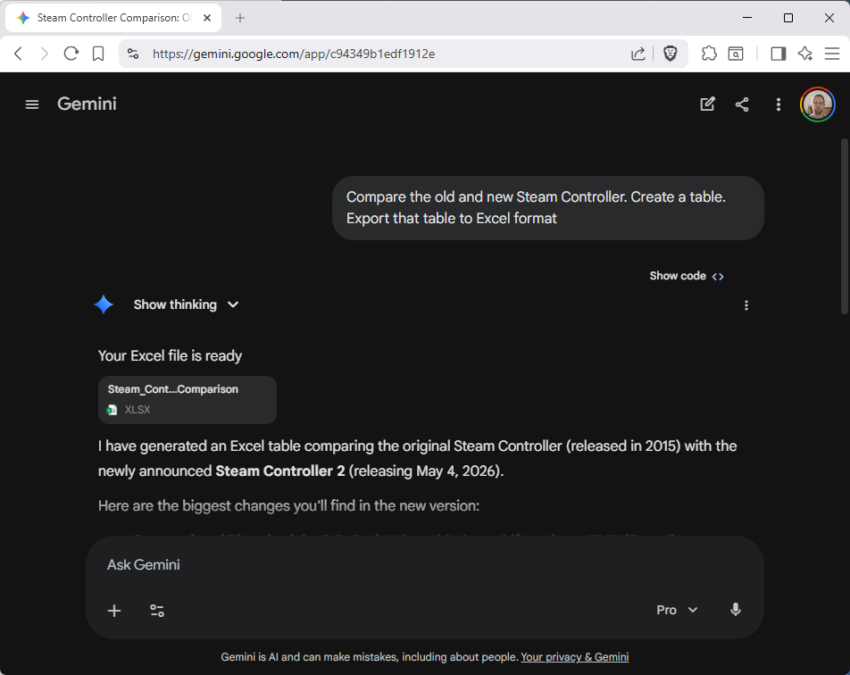
For instance, I used the following prompt to get Gemini to compare the classic Steam Controller to the new gamepad that Valve plans to release in a few days:
Compare the old and new Steam Controller. Create a table. Export that table to Excel format
Gemini displayed the Excel spreadsheet at the top and below that it listed the information that I requested.
All you need to do is click on the attached file to display it right away. This opens options to print it or save it to the local system.
Interestingly enough, the information that Gemini presents to you directly may be different from the information that you requested to be put into the Office document. I guess you can use the instructions to make them identical though, which would be useful to make sure that the Office document has the right information.
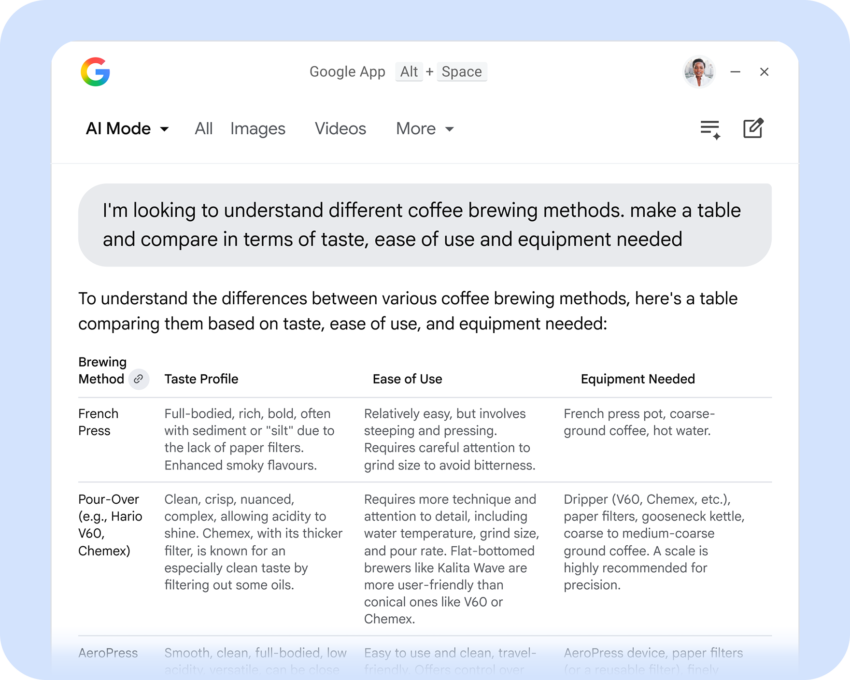
Interact with AI right from the desktop. That is the main idea of Microsoft’s integration of Copilot in Windows and now also of the new Google App for Desktop.
Google released the app officially for Windows; other desktop systems are not supported right now. It is only available in English and works under Windows 10 and Windows 11. The app’s main slogan is “Ask anything with the Google app for desktop” and that is exactly what you get: direct access to the Gemini AI from the desktop.
Once installed, you may bring up the Gemini prompt with the shortcut Alt-Space. Clearly, this requires an active Internet connection as all the processing happens remotely on Google servers.
You may wonder why you’d consider using the app when all the AIs are just a browser-click away on the World Wide Web. Google has added screen sharing and Lens into the app. This means you can share part of the screen or the entire screen with the AI.
While that is also possible online, by taking a screenshot first, it is more convenient this way. The built-in search feature covers local files and files on Google Drive, according to the description. Google claims that the index that it uses for file searches is stored locally and not on Google servers.
The battle for desktop supremacy
Google is invading Microsoft’s “turf” with the release of Google’s new desktop tool. Up until now, Microsoft had little competition for its Copilot AI that it added to the operating system.
Both AI tools have several things in common, but there are also differences.
The Similarities
AI access: Generative AI that supports conversations, follow-ups and some extra features, like summarizing documents or drafting emails.
Keyboard-Shortcut: The Google App maps to the Alt + Space shortcut, while Windows Copilot may be summoned via Windows Key + C or the dedicated hardware Copilot key on newer keyboards. However, starting with Windows 11 version 24H2, Microsoft allows users to map the Copilot key to other applications.
Screen-Access: Both AI tools can get access to the desktop.
Unified Search: Both offer local and Internet search capabilities, especially for cloud-storage files.
Access: While Copilot used to be integrated deeply into Windows, it is now a standalone app just like Google’s app. This means that both apps can’t make changes to the system anymore.
The Differences
AI Models: Copilot or Gemini, that is the main difference between the two services.
Ecosystem: This one is obvious. The AIs are tied heavily to the Google or Microsoft ecosystem. For example, Google’s App can access Google Drive content while Microsoft’s app integrates with OneDrive and Microsoft 365.
Installation: Microsoft Copilot is built directly into Windows 11. Google’s app needs to be installed.
Closing Words
Google is making an offer to Windows users: here is our AI app, which you may use instead of Copilot. Users who already use Gemini may find that offer attractive enough to give it a try.
Windows users who prefer Copilot will stick to the AI, especially if Microsoft is introducing new useful functionality that Google can’t replicate with its desktop app.
As for those who do not use AI, they won’t use the Google App anyway. Since it is a manual install, there are no precautions to take.
It was inevitable. Google is rolling out new AI functionality on its Gmail service to personal Google accounts. Called AI Inbox, it is designed to “help you manage a busy inbox”, says Google.
What that means? AI is scanning emails to identify the ones that require immediate attention. The feature has its own entry point on Gmail. When you activate AI Inbox, you get two different sections:
Suggested To-dos: Here, the AI lists incoming emails that need your immediate attention or action. High-priority tasks are identified and the AI explains to you in bold, what you need to do.
Catch-up Topics: This offers summaries of “important updates across projects and topics”, especially if they are scattered in different email threads or unrelated emails.
Google is limiting the feature currently to English-language users from the United States who are subscribed to Google AI Ultra, which costs 275 Euros per month currently (three month 50 percent introductory offer may be available).
You also need to enable smart features in Gmail to make use of it. Smart Features refers to a bundle of features, including translations, Smart Compose, or personalized search.
The Pros and Cons of letting AI handle your inbox
While there are certain pros to letting AI handle your email inbox, such as saving time, prioritization, or tone and grammar help, there are significant downsides.
Besides privacy and security concerns, there is the risk of missing important emails or of costly mistakes that the AI may make when it starts to hallucinate.
Privacy aside, the best way for users who want to make use of AI to tame their inbox is to use it as a helper, not the ultimate tool on autopilot. This is true for most AI solutions and services nowadays: you always have to verify that the AI did not miss something or introduced something that should not be there or that does not exist in the first place.
Would I use AI Inbox? I would not and the reason could not be simpler: I have no desire to give AI access to my emails because of privacy. Add a medium-sized inbox to that, and I do not have a need for any AI functionality at the time of writing.
I can see AI Inbox as a useful addition in certain cases, for instance, when so many emails arrive in an inbox that humans can’t keep anymore or when someone needs AI because of a packed day and little time to manage emails.
What is your take on this? Would you use AI features on Gmail or your email service? Or do you plant to stay away from them?
In an era where tech giants are racing to weave artificial intelligence into every corner of the browsing experience, Mozilla is handing the controls back to the user.
In a few weeks, the organization plans to launch Firefox 148 to the stable channel. It will include the “AI kill switch” that Mozilla executives hinted at earlier. With it, users of Firefox may block existing and new AI features in the browser either entirely or selectively.
Support of AI features
Firefox supports several AI features at the time off writing. This includes the option to interact with AI chatbots in the sidebar, get link preview summaries and tab suggestions, or help with tab group labeling.
In summary (as of Firefox 147):
Translations
Image alt text in Nightly PDF viewer
Tab group suggestions
Key points in link previews
Chatbot providers in sidebar
Not all features are available for all Firefox users. Some are limited to users who use the open source browser in English.
A detailed look at Firefox’s AI Kill Switch
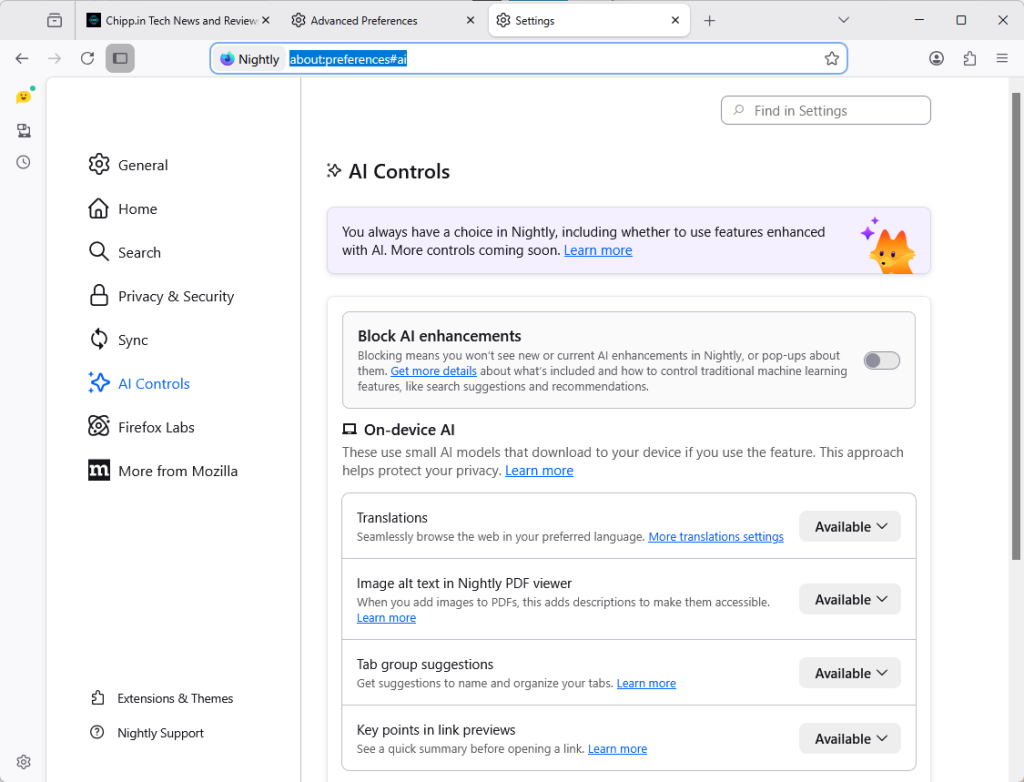
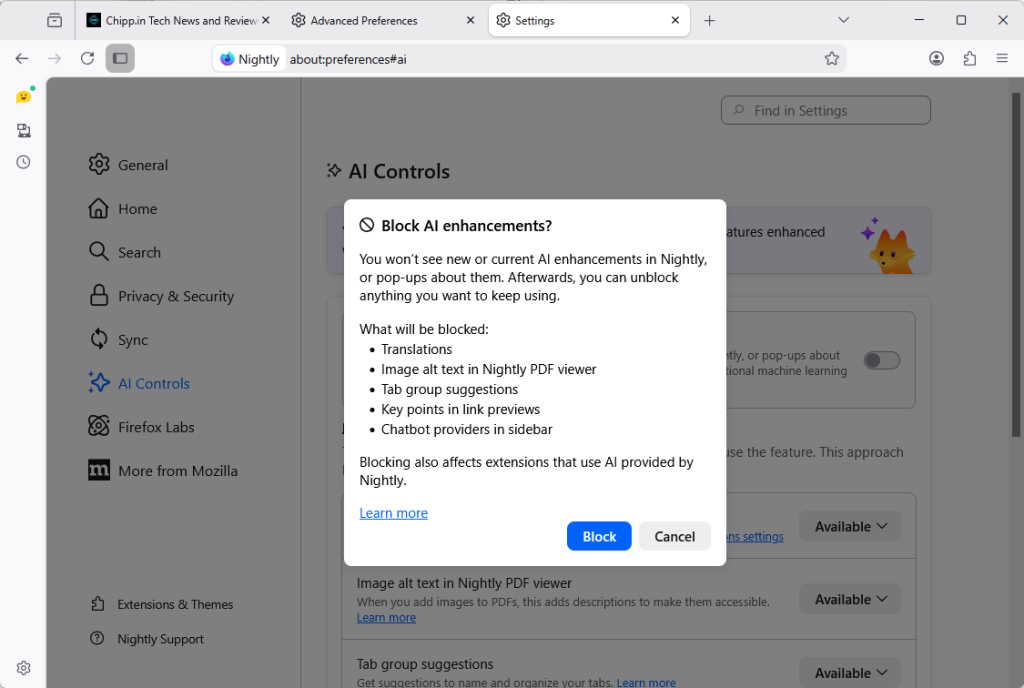
The new AI Controls page of the Firefox Settings.
Starting in Firefox 148, out next month and available as a preview already, Firefox will include the option to block AI functions.
Mozilla added an AI Controls section to the preferences of the browser. You can launch Menu > Settings > AI Controls, or load about:preferences#ai directly to manage AI features in the browser.
Note: The preference browser.preferences.aiControls controls the entry in the preferences. Toggle it to True to enable it, or to False to disable it. This impacts only the display in Settings.
Firefox includes an option to disable all AI features with a single preference.
How to disable all AI in Firefox? Just toggle “Block AI enhancements” to Off. You get a prompt that explains what is going to happen. Activate “block” here to disable all AI features in the browser.
Instead of blocking everything, Firefox users may also block specific features only.
The AI Controls page divides the functions into two sections: On-device AI and AI chatbot providers in sidebar.
Each AI feature is listed with its name, a short description, and an action button. You can switch a feature from “Available” or “Enabled” to “Blocked”.
Available means that it can be used, but has not been up until now.
Enabled means that the user opted-in to use the AI feature.
Blocked that it is not active in the Firefox browser.
Here are the features that you can manage individually right now:
Translations
Image alt text in Nightly PDF viewer
Tab group suggestions
Key points in link previews
Chatbot in sidebar
Closing Words
Ultimately, Mozilla’s introduction of a global block toggle for all AI features highlights the organization’s awareness of the deep-seated skepticism toward AI among its user base. With it, it is giving Firefox users control over AI. Those who do not want it can make sure that it is disabled entirely in the browser, while everyone else may keep some or even all AI features enabled to make use of them.
By providing a clear, centralized way to opt out of AI—and ensuring that local data is purged when those features are disabled—Firefox 148 sets a high standard for how browser developers should respect individual choice. (source: Sören Hentzschel)
Google is officially transforming the web browser from a static tool into an active personal agent with the launch of Gemini 3 and “Auto-Browse” in Chrome, and the push into a personalized AI experience.
Announced yesterday for desktop users, with the exception of Chrome for Linux, this major update integrates Google’s most advanced AI model directly into the browser to handle complex, multi-step tasks.
Google is pushing Gemini with the help of its Chrome browser
Lookout OpenAI, Gemini could get a massive user boost thanks to the integration in the world’s biggest browser.
Here is an overview of the features that Google announced:
Auto-Browse (Agentic Browsing): The flagship feature for AI Pro and Ultra subscribers in the U.S. that performs multi-step “chores” on your behalf. It can research travel costs across dates, fill out complex online forms, file expense reports, or add specific items to a shopping cart based on an image.
Gemini Side Panel: A persistent area in Chrome that supports interactions with the AI without losing focus. It supports the usual AI-features, such as summarizing a page, comparing features across several tabs, or finding time in your calendar.
Integrated “Nano Banana”: The latest version of Google’s image generator is integrated into the browser. Also accessible from the side panel, you can use text prompts for creative tasks, such as turning research data into infographics or manipulating images open in the browser.
Connected Apps Integration: Deeper connectivity with the Google ecosystem, allowing Gemini to pull information from Gmail, Calendar, Maps, and Google Flights to execute workflows (e.g., finding a flight based on an event invitation in your email).
Personal Intelligence: A proactive feature that remembers context from past conversations to provide tailored answers. It learns user preferences over time to transform the browser into a “trusted partner” rather than a general-purpose tool.
Universal Commerce Protocol (UCP) Support: Integration with a new open standard (co-developed with brands like Shopify and Wayfair) that allows AI agents to navigate checkout processes and take commercial actions across different retail sites securely.
Enhanced Security & “Pause and Confirm”: New defenses designed for agentic AI, including a safety mechanism where Auto-Browse must pause and ask for explicit user confirmation before completing sensitive actions.
Closing Words
It is clear that Gemini will get a huge user boost from this. Even if Google limits exposure to certain regions or subscription models at first, it is clear that it will expose as many users as possible to Gemini in Chrome in the long run.
Why? Because it is giving Google an edge over the competition. Plus, when users run into usage limits, they may become paying subscribers, which seems to be on the preferred options right now to increase revenue and compensate expenses.
The benefit for users invested in Google’s ecosystem is there, especially if you connect the AI to other Google services. Whether you really want that, an all-knowing AI that may know more about your desires, life and plans than your closest friends, is up for you to decide.
I see the benefits, but also the dangers. While I do use AI tools for some tasks, such as creating a teaser image for an article here or the weekly newsletter, I do not really see a benefit in letting AI do the shopping for me, even with all safeguards in place.
Imagine if Google Search didn’t just know the internet, but actually understood your context. Scary? Wonderful?
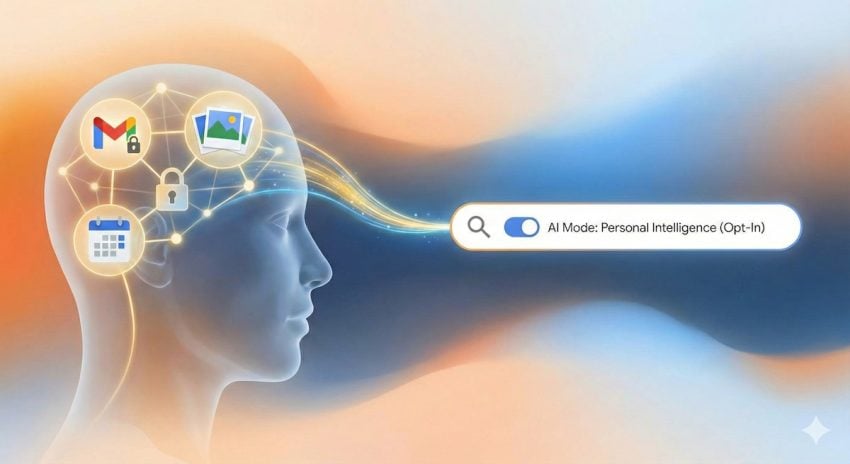
Google is making this a reality for AI Pro and Ultra subscribers with the launch ofPersonal Intelligence in AI Mode, a new feature that lets you securely connect Gmail and Google Photos directly to your search results.
This update is designed to save your time by transforming — often — generic search queries into personalized answers while ensuring your personal data remains private, opt-in, and strictly under your control, according to Google.
This week’s announcement extends Personal Intelligence to Google Search. More precisely, to AI Mode of Google Search.
Personal Intelligence in AI Mode for Search
What it does: It connects Gmail and Google Photos to the AI Mode of Google Search. This allows Gemini to cross-reference information from emails or photos with general search information to provide answers that are specific to the user.
For example, if you ask for an itinerary, it may look up flight or accommodation information in Gmail as well as what you liked to do in past holidays on Google Photos to suggest an itinerary that is personalized.
Who gets it: The feature is rolling out as a Labs experiment. It is only available for Google AI Pro and AI Ultra subscribers in the United States who search in English.
What about privacy? The feature is strictly opt-in. Google claims that it is not using any personal data for training and users may disconnect the feature from Search at any time to end it.
Google’s ultimate goal is to bridge the gap between a search engine that knows “the world” and its users. For some, it is a new level of convenience that makes searching on Google better and faster. For others, it is a nightmare come true.
However, since the feature is opt-in and limited to Google AI Pro and Ultra subscribers, the latter camp is likely very small at this point. This could change with a general rollout to non-paying Google Search users.
The success of the feature will ultimately hinge on trust, not so much on the technology and its effectiveness. While Google implemented important guardrails, including making the feature opt-in and promising that personal emails or photos won’t be used for training, handing over the keys to private memories and information requires a huge leap of faith, especially considering that Google’s main line of business is advertisement.
Artificial Intelligence (AI) has been mostly reactionary up to this point: a user initiates a conversation or asks the AI to do something, and the AI reacts to the input.
It marks a shift towards a deeply integrated AI, including into Android and ChromeOS. Unlike the Gemini app, which is mostly there to provide the user with information or create something for the user, Personal Intelligence is designed to know the user fully to provide a deeply personal experience.
When does it start? It is rolling out for Google AI subscribers in the United States already.
Opt-in or Opt-out? Personal Intelligence is opt-int.
Where can you use it? Across Web, Android, and iOS.
How does it work? The AI creates a local database of a user’s life that is based on emails, photos, calendar entries, messages, and application usage. It pulls data from various sources to know as much as possible about a particular user.
Google reveals that Personal Intelligence runs on Gemini Nano v3, which is optimized heavily for running on the neural processing units of Pixel 9 and Pixel 10 series devices. This allows it to process sensitive data on the device without the data leaving it at any stage of the process.
Unlike Gemini App, which is just a chat window for the most part, Personal Intelligence sees what the user sees on the screen. Furthermore, the AI may act on the user’s behalf with other apps.
Potential benefits for users
The AI you interact with knows as much about your life as you do, at least when it comes to online activity. You can ask it vague questions using natural language.
Personal Intelligence has capabilities to act on information. It can not only retrieve information, but also use information for actions.
A proactive context that anticipates needs. It may recommend to leave early if it notices that traffic is heavier than usually, knowing where you will be based on calendar entries.
Potential points of criticism
While Google emphasizes that sensitive data remains on the device, giving an AI full access to every pixel on the screen and your entire digital life is problematic, especially considering that Google is an advertising company first and foremost.
It remains to be seen how an all-seeing AI impacts a device’s battery life.
Even with access to personal data, AI may hallucinate, which means that it may return information that does not exist or run the wrong actions on the user’s behalf.
Personal Intelligence is also locked into Google’s ecosystem of apps and services for the most part, as functionality with third-party apps is limited at this point.
Closing Words
With Personal Intelligence, Google is offering an interesting and at the same time frightening proposition: a life that is more and more controlled and managed by AI, and in exchange for that, total access to the life of the user.
For now, users have the key in hand. They do not have to enable Personal Intelligence and when they do not, nothing changes. However, when they do, they will effectively allow Google access to their life, connect the dots, and know more about the user than their closest friends or family members.
I want to hear from you: Is on-device processing enough to earn your trust, or does the idea of Google ‘reading’ your screen still feel like a step too far? Let’s discuss in the comments.
Up until very recently, home users had two options when it came to Microsoft 365, Microsoft’s cloud-based Office and storage offering: get the personal plan, for a single user, or the family plan, which allowed up to six users to use the service.
Personal, the cheaper option, gave users several benefits, including access to all Office apps on up to five devices, one terabyte of online space, access to Microsoft Copilot, and more. Family increased the user limit to six, and allowed every user to install the apps on up to five devices. Also, each user got 1 terabyte of cloud data for their files.
Now, Microsoft introduced Microsoft 365 Premium. It is a brand new plan for individuals that costs more than twice as much as the personal plan.
For around $200 per year, with an introductory offer of paying just $100 for the first year, home users gain every benefit of the family plan, plus two additional features exclusive to the premium plan:
Highest usage limits for select Copilot features
Access to Copilot features currently exclusive to Premium
As you can see, premium is all about Microsoft’s Copilot AI. The two main benefits are increased limits and access to features that the cheaper Microsoft 365 plans do not support at all.
In short, Microsoft is combining Microsoft 365 Family with Copilot Pro to form a single subscription: Microsoft 365 Premium.
Here is an overview of what premium plan users get regarding limits and features:
Copilot AI feature
Microsoft 365 Personal
Microsoft 365 Family
Microsoft 365 Premium
Agents
15 Deep Research tasks
15 Deep Research tasks
25 tasks divided between Analyst, Researcher, and Deep Research
Actions (automate tasks)
None
None
10 tasks per month
Audio overview in Notebooks, Podcasts
6 users per day
Extensive use
Extensive use
Copilot in Microsoft 365 apps (Draft, Rewrite, Summarize, Analyze data (Excel)), Image generation and more
60 credits per month
60 credits per month
Extensive usage beyond standard credit limits.
Photos Agent
None
None
Extensive use
Vision
10 minutes per day
10 minutes per day
15 minutes per day
Voice
30 minutes per day
30 minutes per day
60 minutes per day
Exclusive access to Advanced AI features
No
No
Yes
Some notes:
Certain AI features are only available for the account holder. That is bad news for Family plan or Premium plan users who are not, as they may not access these AI features.
Microsoft uses the term “extensive use” several times, but fails to provide specifics. It does not reveal what extensive use means in minutes or tasks.
In another overview, Microsoft reveals that premium plan subscribers gain the highest usage in certain features, including AI image generation. It is again unclear how this differentiates from the limited usage of personal and family plans.
Is Microsoft 365 Premium the right account? It might be, but only if you are heavily interested in AI features, have run into usage limits with a free account or the other two plans, or want access to exclusive features, which gives users access to Copilot Pro and Microsoft 365.
So, if you are subscribed to Copilot Pro already and use Microsoft 365 Personal or Family, you may take advantage of the introductory offer of around $100 for the first year. Note though that this advantage is lost in the second year when the price jumps to $200.
Microsoft continues to increase the number of AI-related features in its Windows 11 operating system. The evolution into an agentic operating system has been announced, which means that the next feature update for Windows 11 will surely introduce more AI-related features.
Not all Windows users welcome the change with open arms. While there are not any meaningful polls out there, many appear indifferent to the changes while some oppose them openly.
If you fall into the category, you may have discovered switches and tweaks here and there that deal with certain AI features. Or, you may have used a program like DoNotSpy11 that handles them.
Remove Windows AI is an open source script that promises to disable all AI features in Windows 11.
The script removes the following features
Note that the script is in constant development. The developer reacts to new features and changes that Microsoft makes and introduces. As such, it is recommended that you check out the homepage over on GitHub for an updated listing.
Disable Registry Keys
Disable Copilot
Disable Recall
Disable Input Insights and typing data harvesting
Copilot in Edge
Image Creator in Paint
Remove AI Fabric Service
Disable AI Actions
Disable AI in Paint
Disable Voice Access
Disable AI Voice Effects
Disable AI in Settings Search
Prevent Reinstall of AI Packages
Installs custom Windows Update package to prevent reinstall of AI packages in the CBS (Component-Based Servicing) store
Disable Copilot policies
Disables policies related to Copilot and Recall in IntegratedServicesRegionPolicySet.json
Remove AI Appx Packages
Removes all AI appx packages including Nonremovable packages and WindowsWorkload
Remove Recall Optional Feature
Remove AI Packages in CBS
This will remove hidden and locked AI packages in the CBS (Component-Based Servicing) store
Remove AI Files
This will do a full system cleanup removing all remaining AI installers, registry keys, and package files
Hide AI Components
This will hide the settings page AI Components
Disable Rewrite AI Feature in Notepad
Remove Recall Tasks
Forceably removes all instances of Recall’s scheduled tasks
How to use the script on a Windows 11 machine
Check or uncheck options in the user interface to customize the output. All AI removal options are enabled by default.
Since this is a PowerShell script, it is necessary to run a command on the Windows machine. Good news is that it will show a user interface with options. This allows you to enable or disable certain features individually.
Recommendation: Create a system backup before you run the script. While I did not run into any issues during testing, it is better to be safe than sorry. Use any Windows backup tool that supports full system backups. My preferred tool is Paragon Backup & Recovery, which is free and excellent, but any other utility will do.
Open the Start menu.
Type PowerShell.
Select “run as administrator” to launch an elevated PowerShell command prompt.
Paste the following line: & ([scriptblock]::Create((irm “https://raw.githubusercontent.com/zoicware/RemoveWindowsAI/main/RemoveWindowsAi.ps1”)))
Press the Enter-key to execute it.
This should launch the user interface. All options are enabled by default, but you can uncheck any that you want to skip. Click on the question mark icon next to an option to get an explanation.
It is recommended to enable backup mode, which is not enabled by default. The developer notes on GitHub that backup mode is the only way to full revert the changes using the script, if the need arises.
Clearly, as is the case with any of these tools that automate the tweaking, you have to trust the developer to a) include all relevant AI bits and b) that the solution is stable. Cautious users may check and edit the script, or turn off AI features in Windows manually instead.
Expect a guide in the near future here on this site.
Now You: have you used AI features in Windows? If so, which and how did it go? Or are you in the disable-camp instead? Feel free to leave a comment down below.