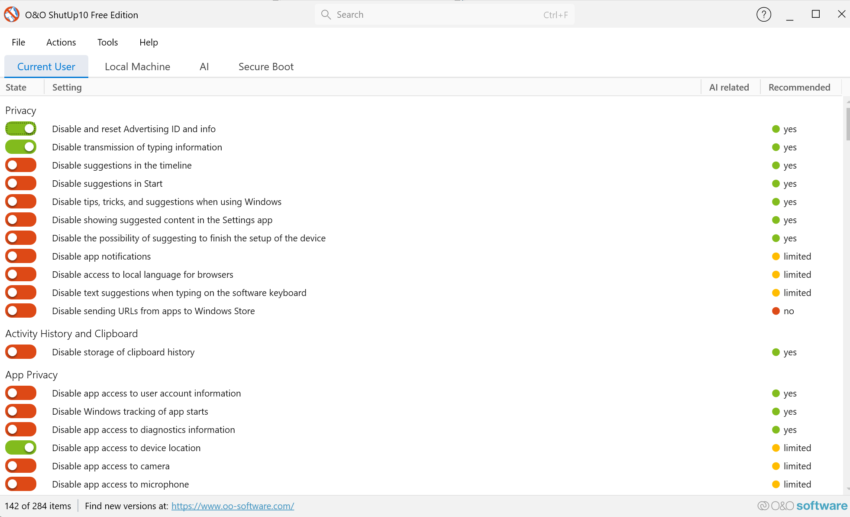
ShutUp10 is one of my favorite tweakers for Windows 10 and 11. The base version is free, it does not need to be installed, and it is super-easy to use but also comes with a good amount of tweaks to turn off features that you don’t need on Windows PCs.
The last version, released yesterday by O&O Software, adds some mighty options to the application’s already impressive arsenal. The new options deal largely with recent Windows changes, like AI in Notepad or File Explorer, denying apps access to generative AI, and taming annoyances, like Windows Search with Bing, Settings app account notifications, or Start menu recommendations.
Here is the full list:
- Disable Click to Do
- Disable the Settings agent
- Disable AI features in Notepad
- Disable AI actions in File Explorer
- Disable Find My Device
- Disable Microsoft account cloud content search (
- Disable work or school cloud content search
- Disable device search history
- Disable Start menu recommendations for tips, shortcuts and new apps
- Disable Start menu account notifications
- Disable Settings app account notifications
- Disable extension of Windows search with Bing
- Deny app access to generative AI
- Deny app access to generative AI
- Deny app access to presence sensing
- Deny app access to presence sensing
- Do not send device name in diagnostic data
- Windows Insider Program conflict detection: when the PC is enrolled in the Windows Insider Program, a notice explains that certain diagnostic-data settings prevent participation, and a dialog offers to disable those settings
Using the app is straightforward. Just download the latest version from the developer website and run it on a Windows machine. The app loads immediately and displays its tweaks in the interface. O&O Software uses colors to distinguish between tweaks that are enabled already and those that aren’t. Furthermore, you gain recommendations for each tweak which range from “yes” to “no”. However, no does not necessarily mean that a tweak is bad, but users should read the description to find out about potential issues that may be experienced after applying it.
“Yes”-Tweaks should be save to apply, but it is always a good idea to read the description to make sure. You can speed things up by selecting Actions to apply all “recommended tweaks”, “recommended and somewhat recommended” or “all tweaks”. I would not recommend doing so unless you are certain that the selection does not cause any issues. If you have the time, it may be better to go through the tweaks one-by-one just to make sure nothing unwanted comes out of it.
The app has a couple of other sections of interest. You can switch to other tabs, e.g. AI, to get a bit of extra control over certain features, or “Secure Boot” to check the status and whether the latest certificates are already used on the system.
Practically sounds like malware with all the caveats:
1. Users should read the description to find out about potential issues that may be experienced after applying it.
2. “Yes”-Tweaks should be safe to apply, but it is always a good idea to read the description to make sure [because the developer didn’t adequately test the program?].
3. Somewhat recommended–as developers, we aren’t really sure about personal preferences of potential issues that may arise by enabling this tweak.
4. I would not recommend doing so unless you are certain that the selection does not cause any issues. And how will the user know unless enabled first?
5. If you have the time, it may be better to go through the tweaks one-by-one just to make sure nothing unwanted comes out of it.
potential issues; read the description; somewhat; would not recommend; go through one-by-one–such language in a review indicates a total lack of trust in “O&O” software which is legend.
It may be easier to say, “Before making any changes to your computer, production or leisure, make a full system backup image because even the best software can hose a system with a simple toggle.”
You misunderstood. I’m not saying, don’t trust O&O, I’m saying, you should know what a setting does and whether it has any implications before applying it.