Chipp.in Tech News and Reviews

Windows, Security & Privacy, Open Source and more

Menu
  • Home
  • Windows
  • Security & Privacy
  • Gaming
  • Guides
  • Windows 11 Book
  • Contact
  • RSS Feed
Menu

Tag: windows 11

System Restore Evolved: Windows 11 Point-in-Time Restore Hits General Availability

Posted on June 24, 2026June 24, 2026 by Martin Brinkmann

Imagine if a bad driver update or a bad update completely trashed your PC setup, but you could instantly roll the entire machine back to exactly how it was yesterday—local user files and all—in just a few minutes.

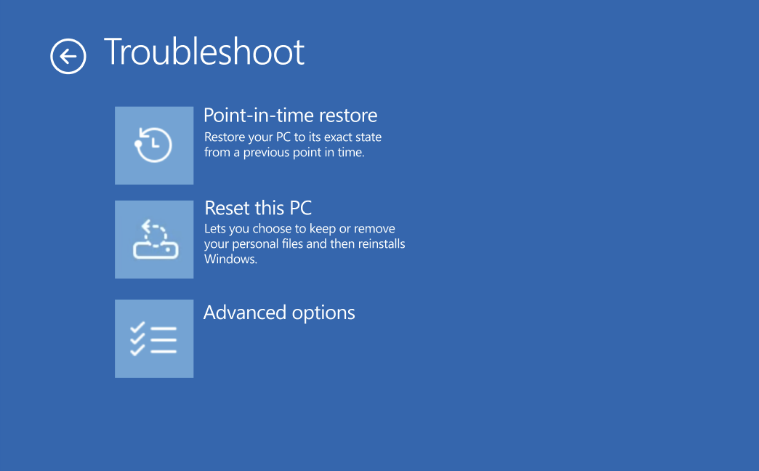
That scenario required use of third-party backup solutions until now. On June 23, 2026, Microsoft announced the general availability of its new, built-in Point-in-Time Restore feature for Windows 11 PCs (versions 24H2 and later).

According to the official release on the Microsoft Windows IT Pro Blog, this native recovery tool automatically captures full-system snapshots every 24 hours, giving Home, Pro, and Enterprise users a safety net to bypass hours of painful troubleshooting when something breaks the PC.

How Point-in-Time Restore works

Point-in-Time Restore acts as a comprehensive safety net for your operating system. Operating quietly in the background, the feature automatically captures full-system snapshots on a recurring schedule—defaulting to every 24 hours—and saves them directly to local storage.

Using it, you can roll back the PC to a previous state in minutes, according to Microsoft. That is excellent when a driver, Windows update or corrupted application affects the machine.

While it sounds similar to the classic “System Restore” tool windows users have known for decades, Microsoft built this version from scratch for modern PC management. The key upgrades include:

  • Inclusion of User Files: Legacy System Restore intentionally ignored personal data. Point-in-Time Restore captures the exact state of your machine, including the Windows OS, system configurations, settings, installed applications, and your local user files.
  • Smart Storage Management: To avoid eating up your hard drive, it integrates directly with Windows’ “reserved storage” (space set aside for updates). It enforces strict cleanup policies and caps its default disk footprint at just 2% of your drive.
  • Native Integration: The interface is cleanly built into the modern Settings app (System > Recovery), making it accessible without digging into the legacy Control Panel.

Here is a table that Microsoft provided to compare it to System Restore:

 Point-in-time restore System Restore 
Restore points Automatic, configurable cadence; user files are included in restore pointEvent-triggered or manual only; user files are excluded from restore point
Reliability Strict retention and cleanup policies No retention limits 
User experience Integrated in system settings Limited to control panel 
Storage impact Minimizes storage impact by integrating with reserved storage* Higher impact to storage space 
Management Will support robust remote management capabilities Limited remote management capabilities 

Default Availability and Rules

The feature is turned on by default on unmanaged Windows 11 Home and Pro devices, provided that the primary drive partition is 200 GB or larger.

If disaster strikes and your PC won’t boot into the main desktop, the recovery process is designed to work securely inside the Windows Recovery Environment (Windows RE).

The feature has its shortcomings though, especially when compared to third-party backup solutions. For one, restore points are kept for up to 72 hours only. That is a big problem in some cases, as issues may occur after the period. There is seemingly no option to store a restore point indefinitely, While Enterprise admins may change the retention period, 72 hours appears to be the longest.

Means: while Point-in-time restore is easier to use and in some cases better than System Restore, it won’t replace traditional backup options due to its 72 hour retention period.


Microsoft confirms Windows 11 version 26H2 officially

Posted on June 20, 2026June 20, 2026 by Martin Brinkmann

Who would have guessed? The next major feature update for Windows 11 is, drum roll, version 26H2. It is a continuation of Microsoft’s current strategy of releasing one major update for its Windows 11 operating system each year.

But what about Windows 11 version 26H1 you may ask? Did not Microsoft release it this year already? Yes and no, actually. While it is true that Microsoft did indeed release Windows 11 version 26h1, it was neither a full-blown feature update nor a widespread release.

First released on February 10, 2026, it was designed specifically to support new hardware. Originally designed for the Qualcomm Snapdragon X2 chip, it will also support Nvidia RTX Spark silicon.

The update is pre-installed exclusively on devices that are powered by these chips. There is no direct upgrade path for existing Windows systems that use hardware from Intel or AMD.

Windows 11, version 26H2 release information

The next feature update for Windows 11 will install as quickly as any other update, as it is based on the same servicing model as Windows 11 versions 24H2 and 25H2. This means, that it will install fast on any device that runs these versions of Windows 11.

The same is not true for older Windows 11 versions or upgrades from Windows 10. These will take longer to install and will require multiple restarts.

Interestingly enough, devices that run Windows 11, version 26H1 won’t receive the feature update. Microsoft will likely release version 27H1 for them in the first half of 2027.

Regarding support, Windows 11, version 26H2 is supported for 24 or 36 months, depending on the version:

  • 24 months of support for Home, Pro, Pro EDU, and Pro for Workstations editions
  • 36 months of support for Enterprise, Education, IoT Enterprise, and Enterprise Multi-session editions

As always, it is a good idea to skip the update in the beginning. The main reason are undiscovered bugs and issues. All previous Windows 11 feature updates had bugs and some of them were discovered after release. So, to reduce the risk of problems while installing the new version or running it on PC, it is recommended to wait.

Microsoft confirms issue with custom folder icons and localized folder names on Windows after June 2026 updates

Posted on June 11, 2026June 11, 2026 by Martin Brinkmann

There are not many good reasons for being first when it comes to installing new updates for the Windows operating system. In fact, being second has the potential of avoiding the usual assortment of bugs that happen to be confirmed regularly after releases.

Take the June 2026 security updates as an example. Microsoft confirmed a new bug just days after releasing the update. It affects Windows 10 and Windows 11 systems that use custom folder icons or localized folder names that are defined by desktop.ini.

First spotted by Deskmodder, the issue is described on a new support page on Microsoft’s website:

After installing a Windows security update released on or after June 9, 2026, you might notice one or both of the following behaviors for some folders:

A custom folder icon defined by desktop.ini no longer appears.

A localized folder display name defined by desktop.ini no longer appears, and the folder shows its original name instead.

This behavior might occur even when the user has not changed an application or folder configuration. ​​​​​​

Microsoft notes that this behavior is expected, as it introduced a security hardening change that affects desktop.ini.

This new behavior is expected. Starting with the Windows security updates released on June 9, 2026, a security hardening change is introduced to desktop.ini handling. When Windows cannot establish that the source of a desktop.ini file is trusted, Windows ignores that file and treats it as if it is not present. However, desktop.ini files from trusted sources continue to work normally.

Microsoft did not first mention this change in the release notes, but has since then added the information.

When is desktop.ini not trusted? When it is downloaded from the Internet and carries the Mark-of-the-Web, copied from “certain” remote locations, or when “files on network paths are not classified as intranet or trusted by zone policy”.

Microsoft has a few workarounds for affected users.

Option 1: Add the source to Trusted Sites (Recommended)

If the affected content is stored on a known internal or managed source, add that source to the Trusted Sites list. Once the source is treated as trusted, Windows processes desktop.ini from that source normally. This keeps the protection in place for other locations and is the lower-risk option.

Option 2: Use policy to restore previous behavior

Organizations that need broader compatibility can enable the policy Allow the use of remote paths in file shortcut icons.Enabling this policy restores the pre-June 2026 behavior for affected remote or untrusted scenarios.

IMPORTANT Using a broad opt-out reduces protection against malicious remote folder-customization content. If you use a workaround, Microsoft recommends trusting only controlled internal sources and keeping trust settings as narrow as possible. ​​​​​​​

Option 3: Check for and remove the Mark of the Web (MotW)

If the desktop.ini file has a Mark of the Web (MotW), Windows may treat it as coming from an untrusted source and block customization. Verify whether MotW is present and, if appropriate, remove it from the desktop.ini file. This can restore expected behavior, but should only be done for trusted content, as it removes the associated security protection.

To remove the MotW tag, open PowerShell and run one of the following commands:

For a single desktop.ini file:

Unblock-File “C:\Your\Folder\Path\desktop.ini”

For all desktop.ini files in a folder:

Get-ChildItem “C:\Your\Folder\Path” -Recurse -Filter desktop.ini -Force | Unblock-File

The Nvidia RTX Spark promises a new Windows PC era, but the price tag may stings

Posted on June 1, 2026June 1, 2026 by Martin Brinkmann

For forty years, you launched apps by clicking and typing—but Nvidia wants your next computer to simply do the work for you and behave more like R2-D2 and C3PO.

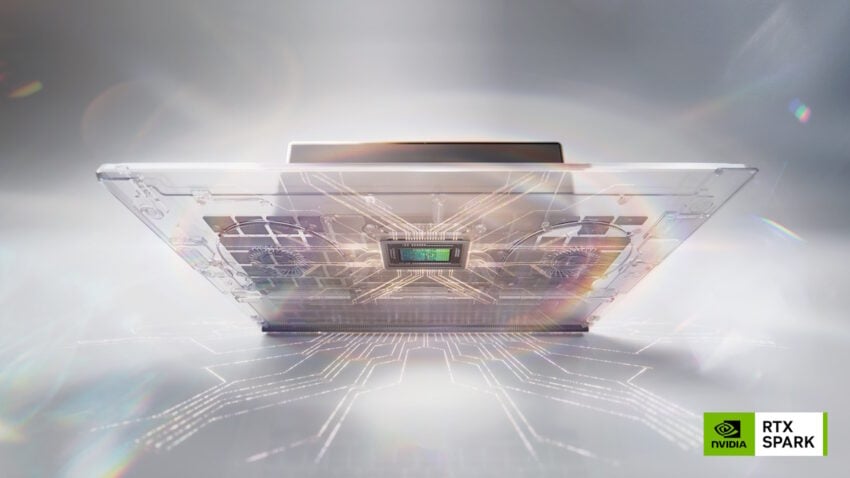
Kicking off Computex 2026 with a high-octane keynote at GTC Taipei, Nvidia CEO Jensen Huang officially unveiled the RTX Spark, a novel 1-petaflop system-on-a-chip designed to completely reinvent the Windows PC for the era of personal AI agents.

Up until now, Nvidia delivered graphics cards to PC users but kept out of the ongoing CPU-battles between AMD and Intel. This changes with the new chip, which is a custom 20-core ARM CPU infused with Nvidia’s Blackwell GPU-architecture and a huge 128 GB of unified memory.

This, according to Nvidia, allows PCs to run massive local AI models and the most taxing tasks. Yet, while Nvidia claims that this will move PCs from basic tools to active teammates, a staggering price tag may limit the audience to the ultra-premium tier.

Under the Hood

The RTX Spark represents a complete architectural split from the traditional x86 platform that Intel and AMD have dominated for years.

By designing a SoC (System on a Chip), Nvidia is bringing ultra-tight hardware integration similar to Apple’s M-series of chips to high-performance Windows PCs, but with the added benefit of a strong graphic processing part.

Based on the technical data revealed during the keynote, here is what is known about the silicon powering the RTX Spark:

  • The Custom ARM CPU: The 20-core processor utilizes a custom architecture optimized specifically for Windows on ARM. It splits workloads efficiently between high-performance cores for demanding tasks and high-efficiency cores to keep background OS processes from draining resources.
  • Blackwell Graphics Pipeline: Rather than relying on a separate graphics card connected via PCIe, desktop-class Blackwell GPU cores are baked directly onto the same die. This eliminates the latency bottleneck between the processor and the graphics card, allowing for instantaneous asset loading and ray-tracing calculations.
  • Next-Gen Unified Memory: The headline-grabbing 128GB of unified memory operates on a massive bus width, allowing both the CPU and GPU to pull from the same pool of lightning-fast RAM.
  • The 1-Petaflop AI Engine: By fusing traditional Tensor cores with a dedicated, next-generation Neural Processing Unit (NPU), the chip delivers unprecedented local AI throughput. This isn’t just for blurring webcam backgrounds; it provides the raw muscle required to generate complex code, render real-time AI upscaling, and drive persistent local operating system agents simultaneously.

Innovation on this scale doesn’t come without structural trade-offs. While ARM architectures are fundamentally praised for their power efficiency, pushing a petaflop of local compute requires advanced cooling solutions.

While Nvidia has kept exact MSRPs under wraps until its hardware partners (such as ASUS, MSI, and Razer) open pre-orders closer to the fall launch, the pricing strategy is premium.

WinFuture notes that the price of the very first N1X-powered device, the Lenovo Yoga Pro 7, starts at around $3000 and goes all the way up to $4600 for the premium version. Cheaper models are planned, but it looks as if these devices will push premium computing on Windows to a whole new level.

Microsoft plans to make Windows Search more relevant

Posted on May 22, 2026May 22, 2026 by Martin Brinkmann

Windows Search is an integral part of the Windows operating system. Its main purpose is to help users find files and folders on the system.

Some time ago, Microsoft decided to introduce Internet search functionality to the search in Windows. Search suddenly returned local files and Internet resources. To make matters worse, Microsoft made it difficult to turn off the Internet part of search.

The Windows 11 Insider Experimental Preview Build 26300.8493 changes this, according to Microsoft:

We’ve started making changes to make Windows Search Box more relevant, starting with making it easier to find your files and apps:

Files and apps more reliably appear ahead of web suggestions when your content is a stronger match

What does it mean? Initial tests show that local results are prioritized in certain cases. When? When Windows Search computes that the local files are a stronger match.

This does not mean that Internet-based search is gone. Far from it. Microsoft adjusted the search parameters in favor of local files, but that is about it.

While that is certainly welcome for millions of users who do not know how to turn off Internet search results in Windows, as the focus shifts to local files again, critics might argue, that this is not enough, as there is still no option to turn off Internet search easily.

About that new SecureBoot folder in C:/Windows

Posted on May 19, 2026May 19, 2026 by Martin Brinkmann

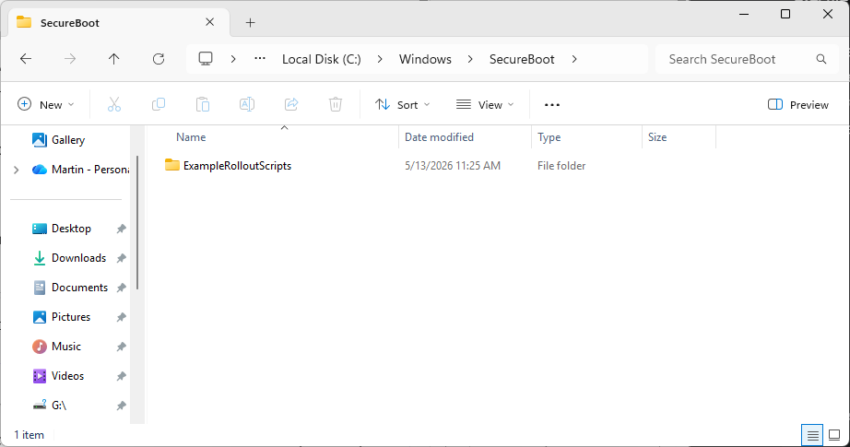
If you’ve noticed a mysterious new SecureBoot folder sitting in your C:/Windows directory following the May 2026 Patch Tuesday, you are not alone.

The folder, which has a subfolder named ExampleRolloutScripts that contains several PowerShell scripts, is a harmless administrative helper introduced in the latest security updates for Windows 10 and Windows 11.

According to official Microsoft guidance, these scripts are designed primarily for enterprise IT administrators to monitor the status of the upcoming UEFI CA 2023 Secure Boot certificate updates and to safely automate their deployment across Active Directory environments.

While essential for corporate networks preparing for this critical security transition, average users can safely ignore this tiny 450 KB folder for now.

The transition to the new UEFI CA 2023 Secure Boot certificates mark a critical security change for the Windows ecosystem. It is made necessary by the impending expiration of current certificates that were issued a long time ago.

Secure Boot acts as the fundamental gatekeeper against bootkits and rootkits by ensuring that only trusted, digitally signed firmware and operating system loaders can execute during startup.

Microsoft is employing a highly controlled, phased rollout strategy—which is exactly why administrative validation tools and scripts are currently being deployed.

Why Microsoft is rolling out the folder to anyone is anyone’s guess. It seems that the folder is pushed to all devices running Windows 11, even unmanaged Windows 11 Home systems.

Windows 11 is removing an option to bypass Microsoft account and internet during setup

Innovation or Apology? Microsoft’s “New” Windows Personalization Options Merely Fix Past Mistakes

Posted on May 18, 2026 by Martin Brinkmann

It only took half a decade for Microsoft to remember how to build a functional user interface. On May 15, 2026, the tech giant took to the Windows Insider Blog to announce Preview Build 26300, a supposedly major update designed to give users “more flexibility” over their Taskbar and Start menu.

However, beneath the marketing spin, these groundbreaking additions—like the ability to finally shrink the taskbar, move it to the side or top of the screen, and independently toggle off intrusive file recommendations—are nothing more than basic features Microsoft stripped out of Windows years ago.

Rather than pushing the operating system forward, this long-overdue update rolling out to the Experimental channel feels less like innovation and more like a reluctant apology to power users who have been fighting a restrictive, dumbed-down user interface since 2021.

This is what build 26300 brings back from the dead

Let’s look exactly at what Preview Build 26300 actually brings to the table. The headline “feature” of this update is the reinstatement of taskbar mobility. After years of being glued to the bottom of the screen, users can once again click and drag the taskbar to the left, right, or top edges of their monitors—a decades-old Windows function that was axed during the initial jump to Windows 11.

Accompanying this is the return of taskbar resizing, allowing users to finally shrink the increasingly bloated bar to save precious vertical screen real estate, or expand it for better touch visibility.

Meanwhile, the Start menu receives what is arguably the most highly requested fix: a dedicated, single-click toggle to permanently disable the “Recommended” section. Instead of being forced to look at a useless blank void or unwanted cloud documents, users can now reclaim that entire bottom half of the menu for their own pinned applications.

Pavan Davuluri, Microsoft’s head of Windows and Surface, championed these tweaks on X as a testament to the company “deeply listening to Insiders” and “empowering personalized workflows.”

Personalization and customization is in Windows' DNA. It always has been. Reading through your feedback and meeting with Windows Insiders over the past few months reminded us just how deeply people care about this. You wanted more control, more customization with taskbar and… https://t.co/YpexnoDyGD

— Pavan Davuluri (@pavandavuluri) May 16, 2026

But celebrating the restoration of basic functionality as a triumph of active listening is a massive stretch. While it is undoubtedly a relief to have these customization options back where they belong, packaging them as a bold new step forward highlights a recurring, frustrating cycle in Microsoft’s development ethos: breaking something that works perfectly fine, ignoring the immediate community outcry, and then expecting applause when they finally patch it back together five years later.

No Zero-Days and High Criticals: The May 2026 Windows Patch Tuesday Breakdown

Posted on May 13, 2026May 13, 2026 by Martin Brinkmann

If April 2026 was an avalanche of patches, May brings a welcome breather from zero-days but keeps the critical severity count high.

Microsoft’s fifth Patch Tuesday of 2026 has arrived, addressing 120 vulnerabilities in total. While it breaks a long-standing streak by featuring zero publicly disclosed or actively exploited zero-day flaws, the sheer volume of severe remote code execution (RCE) bugs demands attention.

The update contains 17 critical flaws affecting a wide range of enterprise products, including Windows Netlogon, DNS Client, Azure DevOps, and Microsoft Word.

Here is the breakdown of what you need to know, what to patch first, and what might break.

You can download an Excel spreadsheet with information about the patches that Microsoft released:

windows-updates-may-2026Download

The May 2026 Patch Day overview

Executive Summary

  • Release Date: May 12, 2026
  • Total Vulnerabilities: 120
  • Critical Vulnerabilities: 17
  • Zero-Days: 0

Key Action Item: Administrators must prioritize patching network-exposed infrastructure, specifically domain controllers affected by the Netlogon vulnerability (CVE-2026-41089) and systems running the Windows DNS Client. Simultaneously, Microsoft Office installations need immediate updates to mitigate several highly critical Remote Code Execution vulnerabilities that can be triggered simply via the Windows Preview Pane.

Important Patches

  • CVE-2026-41089 — Windows Netlogon Remote Code Execution Vulnerability
  • CVE-2026-41096 — Windows DNS Client Remote Code Execution Vulnerability
  • CVE-2026-42826 — Azure DevOps Information Disclosure Vulnerability
  • CVE-2026-40364 — Microsoft Office Word Remote Code Execution Vulnerability
  • CVE-2026-40402 — Windows Hyper-V Elevation of Privilege Vulnerability
  • CVE-2026-32185 — Microsoft Teams Spoofing Vulnerability

Cumulative Updates

Product, VersionLinksNotes
Windows 11 & Windows 10KB5087544 (Windows 10)
KB5089549 (Windows 11)
Security updates addressing OS-level RCEs in Netlogon, DNS Client, and Windows Graphics components (Win32k). Also resolves various Elevation of Privilege flaws across the Windows Kernel.

Deep Dive: The Critical Vulnerabilities

Microsoft confirmed that it patched zero 0-day vulnerabilities this Patch Day, but addressed a heavy enterprise focus of critical remote code execution and information disclosure flaws.

Here is the critical overview:

CVE-2026-41089 (Windows Netlogon Remote Code Execution Vulnerability)

A critical stack-based buffer overflow flaw (CVSS 9.8) affecting Windows Netlogon. A remote, unauthenticated attacker could exploit this by sending a crafted network request to a Windows server running as a domain controller. If successful, this causes the Netlogon service to improperly handle the request, allowing the attacker to execute malicious code without requiring any prior access or credentials.

CVE-2026-41096 (Windows DNS Client Remote Code Execution Vulnerability)

This critical heap-based buffer overflow vulnerability (CVSS 9.8) affects the Windows DNS service. It allows remote code execution over the network and can be exploited by sending a malicious DNS response, triggering memory corruption within the Windows DNS client. Depending on the configuration, an unauthenticated attacker can achieve full RCE.

CVE-2026-42826 (Azure DevOps Information Disclosure Vulnerability)

This is the highest-rated flaw this month, boasting a perfect CVSS score of 10.0. While Microsoft withheld specific exploitation details, a perfect severity score indicates that unauthenticated attackers could potentially access highly sensitive enterprise data, credentials, and source code stored or handled in Azure DevOps.

CVE-2026-40361, CVE-2026-40364, CVE-2026-40366, CVE-2026-40367 (Microsoft Word RCE Vulnerabilities)

A cluster of critical vulnerabilities in Microsoft Word (CVSS 8.4) that allow an unauthorized attacker to execute code locally. Notably, these flaws can be triggered through the Windows Preview Pane, meaning a user only needs to preview a specially crafted document to be compromised, without ever fully opening the file.

CVE-2026-40402 (Windows Hyper-V Elevation of Privilege Vulnerability)

A severe flaw (CVSS 9.3) allowing for a guest-to-host escape in Windows Hyper-V. By targeting certain hardware device registers, an attacker operating from within a guest virtual machine can escape the isolated environment and gain SYSTEM privileges on the underlying host system.

First Steps: Your Patch Tuesday Strategy

  • Prioritize Domain Controllers (Netlogon) and DNS Client services
  • Address high-risk Azure deployments (DevOps, Cloud Shell)
  • Update Office installations immediately to mitigate Preview Pane risks

New Windows 11 feature “Low Latency Profile” may boost app starts by up to 70 percent

Posted on May 8, 2026May 8, 2026 by Martin Brinkmann

The time to go brew a coffee whenever you start a taxing program on Windows could soon be a thing of the past. Reports by Windows Central and other sources suggest that Microsoft is testing a new Low Latency Profile feature that could speed up the start of apps by up to 70 percent.

The idea behind the feature is straightforward: Boost the processors frequency for certain taxing tasks on the system to speed them up. Examples are the opening of apps, system flyouts, or the display of menus on the system.

According to Windows Central, app starts could be boosted by up to 40 percent while the launch times of interfaces could be boosted up to 70 percent.

Depending on the PC that you are using, these things may happen near instantly already all the time. Deskmodder tested the feature in an Insider build recently and concluded that it does not really help, if the PC in question is modern.

However, when a PC is older, it could indeed speed up certain options noticeably.

The new feature is part of Microsoft’s effort to improve the performance and stability of the operating system. It is but one of the changes that Microsoft is testing currently. Others include optimizing apps or code, or switching to modern interfaces.

The new Low Latency Profile feature runs in the background automatically. Whether there will be an option in Settings or elsewhere to disable the feature remains to be seen. It is likely that there will be at least a Group Policy and Regedit option to manage that.

If you want to try out Low Latency Profile in recent Insider builds and see if it makes any difference, enable these feature IDs:

LowLatencyProfile: 60716524
LowLatencyProfileForApplicationLaunch: 61391826 https://t.co/VW4xXmGdEa

— phantomofearth 🌳 (@phantomofearth) May 7, 2026

Phantom of Earth posted the relevant IDs for the feature on X.

If you want to try out Low Latency Profile in recent Insider builds and see if it makes any difference, enable these feature IDs:

LowLatencyProfile: 60716524
LowLatencyProfileForApplicationLaunch: 61391826

Run .\vivetool /enable /id:60716524,61391826 in Terminal (elevated) to enable these.

Windows 11 KB5083769 Update Blocking Macrium Reflect and Backup Apps

Posted on May 2, 2026May 2, 2026 by Martin Brinkmann

Imagine trying to secure your PC’s most important files, only to discover that your trusted backup software has been actively locked out by the operating system itself. That is exactly what is happening to Windows 11 users this week, as Microsoft has officially confirmed in a recently updated support document that its latest patches (KB5083769 and KB5083631) are intentionally blocking popular third-party backup applications like Macrium Reflect.

The Redmond giant explained that this disruptive change is the result of a strict new security hardening measure, which actively adds the psmounterex.sys kernel driver to the Microsoft Vulnerable Driver Blocklist to protect systems from known exploits—leaving affected users dealing with timeout errors and broken disk image mounting.

Microsoft confirms the change and that third-party backup software may be affected on a new support page. However, the company has not added any information about potential issues to the official KB release notes, making it difficult for affected users and also system administrators to investigate the issue.

According to the company, users and IT administrators may observe the following behavior after installing April 2026 or later updates for Windows 11:

What new behavior should I expect?
Users and IT administrators might observe the following behavior after installing the update:

Backup applications that rely on the kernel driver psmounterex.sys might fail to mount backup image files as virtual drives.

Attempting to browse or restore from a backup image might result in errors or timeouts.

Failures might be followed by error messages, such as “The backup has failed because Microsoft VSS has timed out during the snapshot creation” or VSS_E_BAD_STATE.

Event Viewer might show Code Integrity errors indicating that psmounterex.sys was blocked from loading.

Backup creation (full image backups) may still succeed, but image-mount operations will fail.

Microsoft claims that the change is “designed to protect devices against known vulnerabilities in the psmounterex.sys kernel driver. That is exactly the driver that some backup apps, including Macrium Reflect, use for managing and mounting disk images.

The vulnerability that Microsoft mentions was discovered in certain versions of the driver in late 2023 already. If exploited, bad actors can use this flaw to escalate their privileges and execute arbitrary malicious code at the kernel level, completely compromising the system.

The result for users who run backup apps that rely on the driver: When a user tries to mount a backup image, the backup app attempts to load the psmounterex.sys driver. Windows Code Integrity enforcement steps in and actively blocks the driver from loading because it’s on the blacklist. Without the driver, the backup app cannot complete its task, leading to Volume Shadow Copy Service (VSS) timeouts and mounting errors.

In short, Microsoft is deliberately breaking the functionality of these apps to stop a known security loophole from being exploited at the kernel level.

  • Previous
  • 1
  • 2
  • 3
  • 4
  • 5
  • 6
  • …
  • 23
  • Next

Support This Site

If you like what I do please support me!

Any tip is appreciated. Thanks!
  • October 13, 2026 by Martin Brinkmann Mozilla launches Firefox Enterprise and Thunderbird Enterprise
  • October 12, 2026 by Martin Brinkmann Brave Debloater: Remove potentially unwanted features of Brave Browser
  • October 9, 2026 by Martin Brinkmann Microsoft 365 changes: Family and Premium plan storage cuts and new Pro plan
  • October 8, 2026 by Martin Brinkmann Microsoft Trials a Faster, Streamlined Windows Search for Insiders
  • October 7, 2026 by Martin Brinkmann About Chrome's error "This site doesn't support a secure connection"

About

We talk, write and dream about Technology 24/7 here at Chipp.in. The site, created by Martin Brinkmann in 2023, focuses on well-researched tech news, reviews, guides, help and more.

Legal Notice

Our commitment

Many websites write about tech, but chipp.in is special in several ways. All of our guides are unique, and we will never just rehash news that you find elsewhere.

Read the About page for additional information on the site and its founder and author.

Support Us

We don't run advertisement on this site that tracks users. If you see ads, they are static links. Ads, including affiliate links, never affect our writing on this site.

Here is a link to our privacy policy

©2026 Chipp.in Tech News and Reviews