While most Android users rely solely on Google Play to install games and apps on their devices, some prefer less-privacy-invasive markets for that.
F-Droid is a small but popular choice when it comes to that. Once installed, it gives users access to hundreds of apps and games that they can install. While it may look like another store on first glance, it offers several advantages over Google Play:
Strictly free and open source software.
Apps and games are compiled by F-Droid from public source code with manual source code reviews.
Trackers, ads and telemetry are removed, if they exist.
Doesn’t rely on Google Play services.
One of the main downsides is the relatively low number of apps and games offered by F-Droid. Still, it is a good place to look for something before looking elsewhere.
F-Droid 2.0 promises a redesign of the official app, with key components rewritten to integrate better with current Android design patterns.
Existing users will notice that the navigation has been shortened to the three entry points Discover, Search and My Apps. Categories are found in Discover now and My Apps is the place to manage installed apps, updates and such.
Discover, one of the central features of F-Droid, has been redesigned in the new version to improve the experience. From new, smaller, categories to meta categories and a search that works better thanks to the inclusion of app descriptions, categories and translations.
Advanced users find filtering options to better find specific apps or games. Installs are also handled natively now, thanks to the EU’s Digital Market Act and Google’s changed stance on third-party app stores.
Lastly, users who run very old Android devices, Android 6.0 or earlier in particular, can’t use the new version anymore.
If you thought your web browser was just a quiet, lightweight tool for surfing the internet, Microsoft is here to aggressively change your mind.
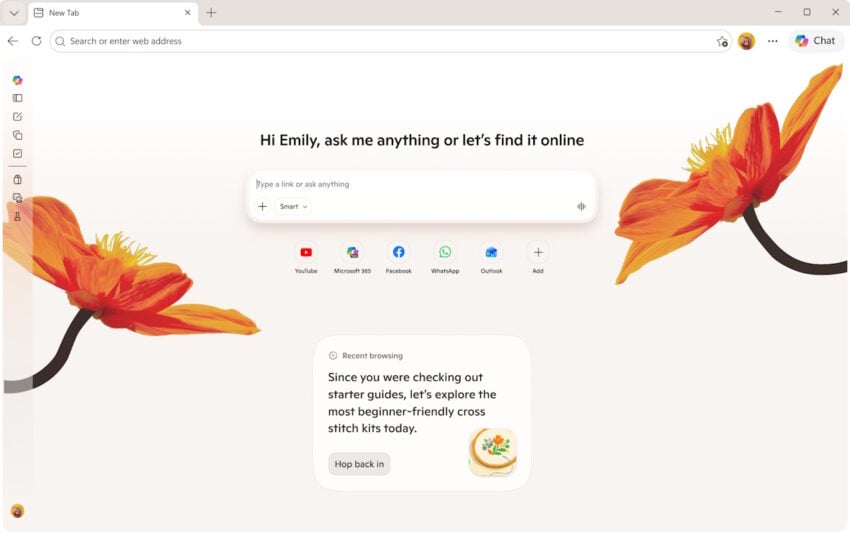
On Monday, the tech giant rolled out a massive, AI-centric update to its Edge browser across desktop and mobile platforms, that is shifting the focus to an AI that is heavily integrated in the browser.
The Copilot update promises productivity perks – like the AI ability to run tasks across multiple open tabs at once – but it is also making significant changes for all users, even those who don’t plan on using the AI features.
AI is growing up
Microsoft is moving AI away from being just a standard chat box and turning it into a functional browsing assistant. Core practical additions include, according to Microsoft:
Multi-Tab Reasoning: This is arguably the standout feature. Instead of manually cross-referencing information, Copilot can now read across multiple open tabs (e.g., comparing hotel prices, reading different product reviews) and summarize the differences for you.
Mobile Parity: Complex AI features like multi-tab reasoning, screen sharing (“Vision”), and hands-free voice interactions are coming to the Edge mobile app, making on-the-go research much easier.
“Journeys” Tackles Tab Hoarding: Instead of leaving dozens of tabs open forever, Edge will now automatically group your browsing history into topic cards (e.g., “Camping Trip Plan”), summarizing where you left off so you can easily resume projects later.
Accessibility & Study Tools: The ability to turn your open tabs into an audio Podcast, alongside built-in study modes that generate quizzes from webpages, are fantastic additions for students, auditory learners, or people looking to consume content while multitasking.
The “Critical” Take
While the features sound useful, the update doubles down on Microsoft’s controversial strategy of making Edge less of a web browser and more of an AI system.
Massive Data Ingestion: Copilot now has “long-term memory,” analyzes your past chats, reads your browsing history, and actively scans multiple open tabs at once. While Microsoft insists this is done “with your permission” and protects your privacy, the sheer amount of personal data being fed into the AI to make these features work will undoubtedly make privacy-conscious users uncomfortable.
Escalating Browser Bloat: Edge has faced heavy criticism for feeling cluttered. Adding interactive quizzes, writing assistants, podcast generators, and an AI-heavy redesigned “New Tab” page risks making the browser feel even heavier and more resource-intensive.
The Illusion of Choice: Microsoft notes they are “retiring Copilot Mode” in favor of building these features directly into Edge. This essentially means AI is no longer a separate mode you enter, but a baked-in layer of your everyday browsing that you have to actively dodge if you don’t want to use it.
The Fine Print (Regional Locks & Subscriptions): The blog heavily promotes these features, but the footnotes reveal a heavily fragmented rollout. “Journeys” on mobile and the “Writing Assistant” are currently US-only. Furthermore, features like generating podcasts or the new “Browse with Copilot” actions have usage limits that push users toward paying for Microsoft 365 Premium subscriptions.
The Verdict
To be fair to Microsoft, features like multi-tab reasoning and turning articles into podcasts are clever, practical uses of AI that solve actual user pain points. However, critically speaking, this update continues the trend of forcing AI into every corner of the Edge browser.
If you love AI, Edge is becoming the ultimate productivity powerhouse; if you just want a fast, lightweight, and private web browser, this update might push you further away.
Back in late 2024, Brave introduced a Shred button for its mobile browser on iOS. Now, that same function is finally coming to Android as part of the Brave 1.89 release.
What does Shred do? Shred is a privacy feature that deletes site data that could be used to identify users across visits.
The main idea is to visit a site and, before you leave, hit the shred button to remove potentially identifiable information. It is designed to remove stored data from a single website.
Brave describes it in a new post on its website:
Shred lets you instantly erase any data a site stores on your device. Shred on Android offers the same easy and site-specific data erasure as Shred on iOS. This means you can instantly wipe one website’s stored data without being forcibly logged out of all websites, eliminating the need for complex site-by-site exceptions. This sets Shred apart from similar features in other privacy-focused browsers.
But the manual option is not the only one available. You can also set up shred to automatically delete data on specific websites. Have a site that you visit frequently but want to know as little as possible about you and your activity? The Auto Shred may be the option for you then.
Brave highlights that Shred has other applications, other than protecting against tracking. For instance, it may help with visits to sites that limit access to content artificially for a period, like three free articles per week or month.
Here is how you use the new Shred feature:
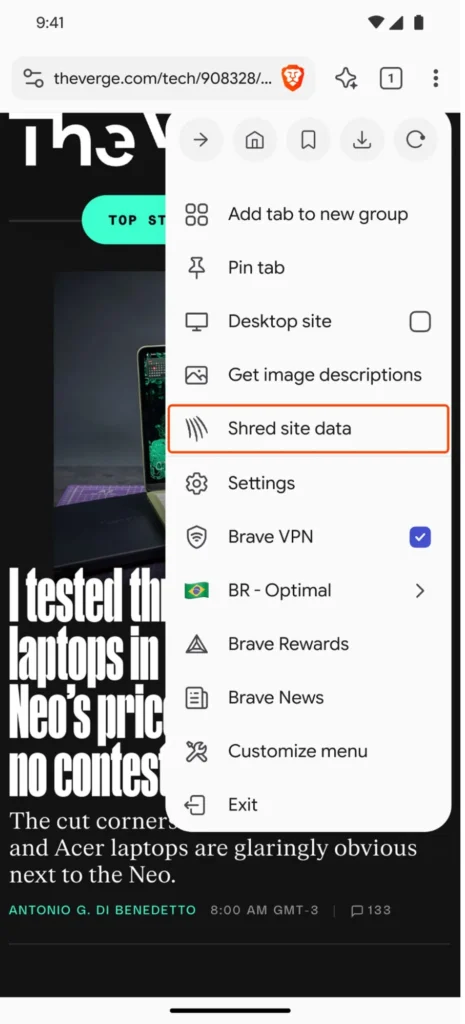
Open the main menu of the browser and pick Shred site data.
Open the tab switcher and tap on the Shred icon.
Open the Shields icon and select the Shred option.
To configure auto-shredding, do the following:
Open the Shields icon on the site that you want to configure Auto Shred for.
Select Advanced Controls > Shred site’s data.
Tap on Auto Shred and set it to “site tab closed” or “app close”.
Brave will then shred the site automatically when you close it or when you close the browser.
Last but not least, you can also configure the behavior for all sites.
Open the Settings.
Go to Brave Shields & privacy.
Tap on Auto Shred.
There you get the same two options (tab close or app close).
Depending on who you ask, sideloading apps is either the best thing ever when it comes to application ecosystems or the worst thing. Those in favor argue that it allows for an open environment that is not limited by a specific store or developer. Opponents point out that sideloading is often used to install malware on devices of unsuspecting users.
To address this issue, Google announced changes to sideloading on Android some time ago. It did not cut off sideloading altogether, something that was on the table, but decided to introduce a new installation flow on devices that run Android.
This new workflow deliberately takes time and effort. Google says that this prevents certain common scenarios where users may be pressured or installations happen remotely.
Here is the new workflow:
Enable Developer Mode: Android users need to enable developer mode before they can sideload apps. Google says that this prevents “prevents accidental triggers or “one-tap” bypasses”.
Confirmation: A check to make sure that no one is asking the owner of the device to make the change.
Restart and reauthentication: This is done to cut-off remote access or active phone calls.
Waiting period: A 24 hour wait period before the owner can confirm that sideloading should be activated.
Installation: Users may enable sideloading for a seven day period or indefinitely, according to Google.
These steps are designed as hurdles that users have to overcome. It may reduce the number of unwanted sideloaded installations on Android. Experienced users still have to complete the necessary steps before they can unlock sideloading on their devices (again). It is annoying, but Google makes it sound as if this could be a one-time process. If that is indeed the case, experienced users might want to complete the necessary steps immediately after the new system is introduced on their devices to avoid any issues later on.
Now it is your turn. What is your take on the changes? Important to protect the masses from unwanted installations or overreach? Feel free to leave a comment down below.
After nearly six years of legal bombshells and courtroom drama, the walled garden of the Android app ecosystem has finally cracked. This week, Google announced a massive, platform-altering overhaul to its Android operating system, officially marking the end of its legal battle with Epic Games.
In a move that will fundamentally reshape the economics of mobile software, the tech giant says it is rolling out a “new era” of openness that drastically alters how the Google Play Store operates.
Google decouples service and billing fees, allows registered third-party app stores, and gives developers choice when it comes to payments.
Here is an overview of the announced changes by Sameer Samat, President of the Android ecosystem:
Expanded Billing Choice: Developers can now use their own billing systems alongside Google Play’s or direct users to their own websites for purchases.
Registered App Stores Program: A new initiative to streamline the installation flow for third-party app stores that meet specific safety and quality benchmarks.
Revised Fee Structure: A new business model that decouples billing fees from service fees, reducing the in-app purchase service fee to 20% (or as low as 15% for those in specific developer programs).
Resolution with Epic Games: The post also notes that these updates officially resolve Google’s long-standing global legal disputes with Epic Games.
The changes are a major shift from the walled-garden approach of Google and also Apple. While it is uncertain how this change affects Apple, if at all, it will open up Android.
The effects for users and developers
The biggest immediate effect is the end of the 30 percent fee that Google is charging for any transaction on the platform. Google replaces it with the following system:
The service fee is dropped to 20 percent as the new baseline.
Developers who participate in the new “App Experience” or “Play Games Level Up” programs pay 15 percent.
Billing fees, if developers want to still use the billing system of Google Play, adds “market-specific fees” to the bill. Google set it to 5 percent in core markets such as US, UK and EEA.
Developers who choose to distribute their apps through their own store and process payments using their own billing system pay nothing to Google under the new system.
Sideloading is changing as well with the official Registered App Stores program. Third-party app stores that are accepted into the program get a “streamlined, friction-free installation process”. Provided that Google allows competitors, like the Epic Games Store, into the program, it will make it easier to install games offered through these stores.
When is this coming?
The rollout will happen in phases.
By June 30, 2026: US, UK, and EEA.
By September 30, 2026: Australia.
By December 31, 2026: Japan and Korea.
By September 30, 2027: The rest of the world.
It remains to be seen how this will all work out and whether it will really be that easy for developers to set up their own store and billing system.
There are few feelings better than unboxing a brand-new smartphone, but that excitement can turn to frustration quickly if your trade-in gets rejected weeks later.
While most people remember to wipe their photos and messages, many overlook the invisible ‘digital locks’—like Factory Reset Protection—that can render a phone useless to a recycler and instantly drop your trade-in value to zero.
Before you seal that shipping box or head to the store, you need to do more than just a quick reset; you need to ensure your Android phone is completely unlocked, secure, and legitimately ready for its next owner.
The Pros and Cons of Trading in your old Android phone
The main benefit of trading in an old smartphone is that you get money for it. This is especially useful if you don’t need the old device anymore. Sometimes, merchants pay you extra when you trade in a device, even if the device is not worth as much anymore.
The downside is that you are giving away a device that you used in the past. Unless you are careful, it may be possible to access personal data or accounts.
Another issue is that you need to make sure that the device is not protected from being reset by the processing company or the new owner. If the trade-in company realizes that the phone is locked, it will reject it.
Here is a quick overview of the pros and cons:
Pros
Cons
Convenience and safety
“Bill Credit” Trap
Inflated prices (sometimes)
Low value without special promotions
Instant discounts
Grading may sometimes disagree with your assessment
Environmental responsible
Delayed gratification
Note that I assume that you have moved the data from the old device to the new already. A good option for that is to connect both devices via an USB cable and start the transfer process this way.
The mandatory steps before sending the old device in
First, make sure that you back up all important data. This includes photos and videos, files, and anything else. It is a good idea to create a full phone backup, but you can also use internal features to create this backup. This ensures that you can restore the data, if the need arises.
Go to Settings > Google > Backup on the device. Note that this backs up essentials, such as contacts or device settings. The location may be different depending on the device manufacturer. Samsung device owners go to Settings > Accounts and backup, and select “back up data” there.
Backing up photos and videos is another story. You could back them up in the cloud, and Google is very pushy about this, or, and this is what I prefer, store them on a local computer instead.
Second, removing the Google account is essential. If you do not, you won’t disable Factory Reset Protection. This is designed to prevent the theft of devices, as the new owner needs the password of the previous owner to start using it.
Go to Settings > Passwords & accounts (or Users & accounts, or Manage accounts). Locate the Google account there and select the remove option. I suggest you do the same for any other account on the device, as this removes them all. The accounts on the new device are not affected by this.
Third, run a factory reset. This restores the original state of the Android device and removes all personal data from it. Go to Settings > System > Reset Options > Erase all Data. On Samsung, you find the setting under Settings > General management > Reset > Factory data reset.
Finally, remove any SIM-cards, eSIMs, or SD cards from the device.
Recommended Steps (good practice, but not mandatory for trading in)
Here is a quick list of tasks that you might want to consider as well:
Unpair any Bluetooth devices.
Remove any network connections.
De-register from chat services.
Save the phone’s IMEI number (dial *#06# to see it on the screen).
Charge the battery to at least 50 percent.
Document the phone’s condition with photos or video, also write down the information).
Ultimately, the difference between a successful trade-in and a rejected one often comes down to these few minutes of preparation. By ensuring your data is backed up and your Google account is fully removed, you’re not just protecting your privacy—you’re securing your payout.
Ah, the yearly phone update. Manufacturers such as Google, Samsung, or Apple release new mobile phones each year. This means that the phone that you buy today is not the hottest piece of hardware after a (maximum) of one year of usage.
That is a problem for users who always want the latest mobile device in their hands.
Google is testing what it calls the Pixel Upgrade Program in India. Announced on the official Google India blog, it sounds like a good deal on first glance: buy a new Pixel device, meet some requirements, and get future Pixel devices automatically while sending back your old devices.
This ensures, according to Google, that you have the latest and greatest Pixel device in your possession at all times.
Is there a catch? Yes, there is one. Google explains how the program works, and here are the caveats:
It is only available for no-cost 24-month EMI (Equated Monthly Installments) plans.
You need to buy the phone using credit cards from Google’s official partners Bajaj Finance or HDFC Bank.
You start a new EMI plan for each new Pixel device you get.
Between the ninth and fifteenth EMI, Pixel-users become eligible to upgrade. They need to trade the current Pixel device through Google’s partner Cashify. Provided that it “powers on and is free of unauthorized repairs”, an amount equal to the remaining loan balance is credited to the user’s bank account. This can be used to close the original loan.
From there, users need to start a new 24-month plan for the brand-new Pixel device.
Pros
Cons
Always have the latest Pixel device.
Long-term renting, owning only if you make all 24 payments.
Predictable costs.
Paying premium for (potentially) underwhelming upgrades
Bonus, e.g., free periods for Google AI Pro or YouTube Premium, restart with each phone.
Limited to EMI and two banks.
Whenever a customer trades the old device in, the cycle begins anew. It is identical to a never-ending rent, with the benefit of getting the newest Pixel device each year.
Would I use it, if it would be rolled out worldwide? No, I would not. I do not buy in installments or on credit, and do not need the latest device each year. It may be different for others, who want or need the latest all the time.
What about you? Would you be tempted to join such a program to get the latest Pixel device each year? Feel free to leave a comment down below.
Google announced plans earlier this year to change a fundamental cornerstone of the Android ecosystem: sideloading. The plan was to force all developers to verify their identity, even those who had no interest in publishing via the Google Play Store.
This was a stark change compared to the status quo. Currently, developers may choose to publish their apps outside Google Play, for instance only on F-Droid, and they can do so unhindered.
Under the new system, they would be forced to verify their identity. Google says that this is for improving security, while third-party stores like F-Droid claim that it is the end of sideloading as we know it.
The main issue, from F-Droid’s perspective, is that Google is dishonest when it states that sideloading is not going away on Android. The reasoning is simple: the definition of sideloading is “the transfer of apps form web sources that are not vendor-approved”. Under the new system, developers need to register an account with Google, pay a fee, provide verification, e.g. with government IDs, accept the terms and conditions, and more.
Google published an update to its plans today on the Android Developers Blog. There, Google explained why it is introducing verification in first place (to keep users safe).
However, Google says that it has listened to feedback and decided to integrate an option for experienced users, students, hobbyists and developers.
It says that it is building “a new advanced flow that allows experienced users to accept the risks of installing software that isn’t verified”. This new flow is designed to ensure that users cannot be forced to bypass the safety checks, even when under pressure from scammers.
Additionally, Google wants to display clear warnings to help users understand the risks involved.
How this is going to work is unclear at this point. Google says that it will share more details in the coming months about this new option.
Still, it could be a good compromise that allows developers and users to install apps from other sources, even if they are not verified by Google.
Now it is your turn. What is your take on this? Is it a good compromise or would you like to see something else entirely? Feel free to leave a comment down below.
Google Messages is a dominant messaging app on Android devices. Installed and enabled on many devices by default, it is used to send messages. It supports several message formats, including SMS, MMS and Rich Communication Services (RCS), with RCS being the default protocol.
Google is rolling out a new protective feature in Google Messages that is designed to detect and blur images of nudity. It is enabled by default for non-adult accounts, but can be enabled for adult accounts as well.
When you receive an image in Google Messages, it may be blurred if the processing determines that it contains nudity and if the feature is enabled on the device.
You have multiple options in that case:
Block the sender’s number.
Open the image and confirm that you want to view the image.
Open a resource page that offers information on “why nude images can be harmful”.
Go back.
Google says that the entire processing of images happens on the local device and that no personal or identifiable information is submitted to Google servers as part of the processing.
Here is how you control the feature on an unmanaged device:
Open Google Messages.
Click on the profile icon.
Select Messages settings.
Tap on Protection & Safety.
Activate Manage sensitive content warnings.
Toggle “Warning in Google Messages” to on or off.
If you set it to on, incoming photos with nudity are blurred. Furthermore, sending a photo with nudity requires an extra step as well.
Is it a useful protective feature? It may blur images with nudity and includes an option to block the sender from sending more. There is a chance for false positives, but it is easy enough to turn off the feature if that is the case.
What is your take on this? Should services like Google, Meta, or Microsoft scan user images to blur, block or report them? Feel free to leave a comment down below.
Mozilla plans to drop support for Android versions older than Android 8. Android 8 was released in 2017, which means that the move will affect users who use Firefox on mobile phones that are nearly a decade old or older.
Current mobile versions of Firefox require at least Android 5.0, which was released in 2014.
Mozilla announced the intention to raise the system requirements for Firefox on Android on the organization’s bug tracking website. And the organization has good reasons for wanting to drop support.
It allows Mozilla to “implement newer technologies” and prevents engineers from “being burdened by fixing bugs that only emerge on a small population of people using old devices”.
Also worth noting is that libraries that Mozilla is using are dropping support for Android 5, which causes additional problems for Mozilla.
With Android 15 (API 35) official release last Oct 15, 2024 (for Pixel devices), we should be considering bumping up the min Android OS version of the Firefox Mobile Browser up to Android 8 (API 26). Doing so allows us to implement newer technologies, and prevents us from being burdened by fixing bugs that only emerge on a small population of people using old devices. By bumping the min Android OS version, users on those devices will no longer receive app updates.
Additionally, we are increasingly finding that libraries we use are dropping support for obsolete versions like Android 5. This causes us big problems for ongoing maintenance of our apps.
Mozilla is not the only browser maker that bumped Android version requirements recently. Google dropped support for Android 7 and 8 recently with the launch of Chrome 139 for Android. Most Chromium-based browsers for Android are likely affected by the change going forward.
So, if you are still using an Android device that is no longer supported, and has not been for a few years at least, you may find yourself without a supported browser as well.
Will there be browsers that continue to support Android 8 or earlier? That remains to be seen. For now, both Vivaldi and Opera support Android 8, as will Firefox going forward.