Chipp.in Tech News and Reviews

Windows, Security & Privacy, Open Source and more

Menu
  • Home
  • Windows
  • Security & Privacy
  • Gaming
  • Guides
  • Windows 11 Book
  • Contact
  • RSS Feed
Menu

Author: Martin Brinkmann

When I was young, I studied German, History and English at Essen University in Germany. I worked in computer support for several years at the time to help other computer users when they ran into issues. Writing started out as a passion project, as I wanted to help more users and not just the ones that I handled in support. This lead to the founding of Ghacks Technology News in 2005. First, as a side-project, but shortly thereafter as a full-time project as the site's popularity exploded. I sold Ghacks to Softonic some years ago, but stayed on as Editor. You can still read my articles on the site. I do publish on Betanews as well. In recent years, I started to write and publish technology books, including my latest book "Windows 11 From Beginner to Advanced", which is available on Amazon. I'm also a freelance writer for the German publisher Gamestar. Chipp.in is my newest project. I want to use it to talk about my book projects, sell my books directly, and write about technology, as this is what interests me.
Why Not Win 11 App

Test your PC’s Windows 11 compatibility with free WhyNotWin11

Posted on October 10, 2025October 10, 2025 by Martin Brinkmann

While Microsoft has its own tool for checking if a PC meets the system requirements of its Windows 11 operating system, it is generally considered rather heavy and not overly useful.

If you have come to the same conclusion, you may prefer an open source alternative that is both free and lightweight.

WhyNotWin11 is developed by serial developer Roby C. Mahel, whom you may know for his work on MSEdgeRedirect and other open source apps already.

The main purpose of WhyNotWin11 is simple: check, if your PC meets the system requirements to find out if you can upgrade without hassles.

All you need to do is download the app and run it. No installation, no ads, nothing that is considered bloat.

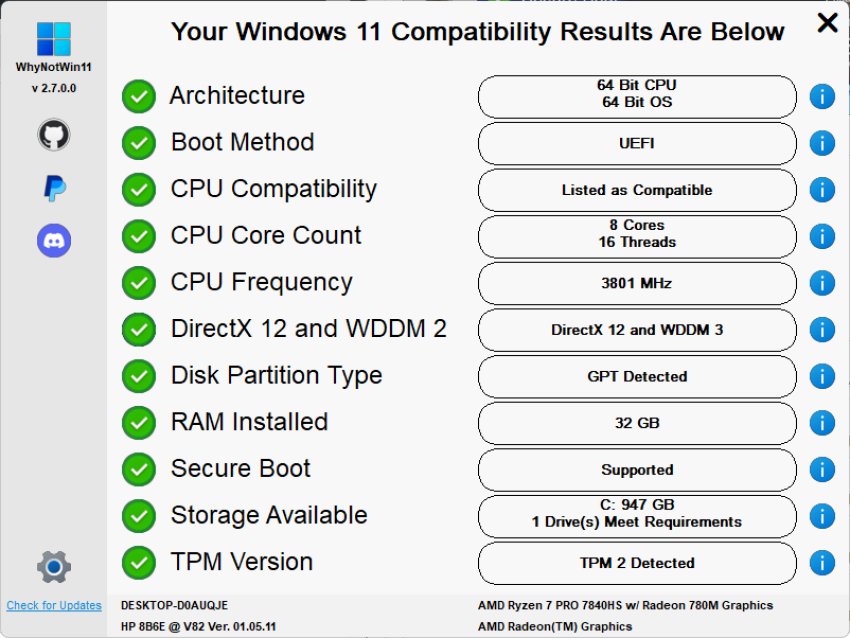
The app runs its checks on start automatically and presents its findings to you in its interface after a short moment.

Note that you can run the app on Windows 11 as well. Handy, if you installed the operating system and used bypasses for certain requirements.

The program color codes results. Green checkmark tell you that everything is fine, but you will also known if a component does not meet Windows 11’s minimum requirements.

WhyNotWin11 does not prioritize certain components over others, which could improve usability. Arguably, some checks are more important than others. For instance, the CPU or TPM version checks, while others, like CPU frequency, may not be as important, at least not for making upgrade decisions.

Still, it is easy enough and you see at a glance if your system fails to meet requirements. You can hover over the i-icon next to an entry to find out more about it.

WhyNotWin11 does not provide suggestions or tips to resolve compatibility issues. You find a few help guides in settings though. These explain how to enable secure boot or the TPM. There is also a link to the official Windows 11 requirements and to skipping some of the checks.

All guides open websites though.

Closing Words

WhyNotWin11 is a handy open source tool to quickly check the Windows 11 compatibility of a PC. It is a portable app, which means that you can run it without installation. Ideal for placing it on a USB tools collection and carrying it around whenever you do some troubleshooting work.

Now You: do you use lightweight open source tools like WhyNotWin11 regularly? Feel free to highlight apps that you recommend in the comments below.

Microsoft breaks more Windows 11 local account creation options

Posted on October 7, 2025October 7, 2025 by Martin Brinkmann

It is clear that Microsoft is pushing Windows 11 users towards using a Microsoft account. While using one has advantages, part of the user base prefers local accounts because they are not tied to a Microsoft account, offer more privacy, and there is no risk of accounts being banned by Microsoft.

Up until now, workarounds existed to create local accounts in Windows 11. These required a bit of magic during setup, but they let users create a local account immediately.

Going forward, it appears that Microsoft is tinkering with Windows setup to make these bypasses go away.

In a recent Insider build, it posted the following announcement:

We are removing known mechanisms for creating a local account in the Windows Setup experience (OOBE). While these mechanisms were often used to bypass Microsoft account setup, they also inadvertently skip critical setup screens, potentially causing users to exit OOBE with a device that is not fully configured for use. 

The consequence, according to Microsoft? “Users will need to complete OOBE with internet and a Microsoft account, to ensure device is setup correctly.”

In other words, Microsoft is forcing users to go through the process of setting up their device and system with a Microsoft account. Even users who have no interest in using one are required to use one during setup.

They can still create a local account after setup ended and remove the Microsoft account, but this requires even more work on their part to set up the operating system.

Microsoft says that it is doing so because setting up using local accounts bypasses “critical setup screens”. The company does not reveal which, but if your first thought is upsells, you are probably not too far off the mark here.

Using a Microsoft account is the first step towards signing up for Microsoft 365 — you need Office and more online space right — or a Game Pass — you play games, right — or towards using Copilot, Edge or other company products.

Bypasses continue to exist, but they require tweaking Windows installation media, something that most users may not be willing to do. It may also lead to more downloads of installation media from third-party sources, which is also increasing the risk of malware infections.

Another option, at least for now, is to set up Windows 11 using an older image. This should work but may require extended upgrades to make sure the system is supported.

Now You: what is your take on this? Should Microsoft give users clear options to use local accounts or a Microsoft account? Feel free to leave a comment down below.

Firefox 143.0.4 fixes Google connection problems

Posted on October 5, 2025October 5, 2025 by Martin Brinkmann

If you use Firefox and have had issues connecting to some Google-owned properties and services, then you may have experienced an issue that Mozilla fixed in Firefox 143.0.4.

The fourth point update for Firefox 143 addresses a single issue. While it is not uncommon for Mozilla to release point updates — smaller updates that fix pressing matters or security issues — it is rarer to see a single issue release.

It has been less than a week that Mozilla released Firefox 143.0.3 to address bugs and security issues in the browser.

Mozilla notes that the release improves “Firefox’ connection fallback behavior to mitigate sporadic slow/failed loads on some Google sites”. The issue affected devices with Firefox with certain third-party software installed.

The release notes do not provide any details, but the bug report over at Bugzilla does.

According to it, users started to note the behavior on Google Drive. Tests with other browsers confirmed that the issue was Firefox-specific. The investigation revealed that HTTP/3 connections were blocked, which forced Firefox to fallback to HTTP/2, but a bug caused these connections to fail to be created.

The update fixes the issue. Firefox users who use the browser to connect to Google services and noticed issues connecting to them should install it right away to fix the issue. Everyone else shouldn’t feel any hurry to install it.

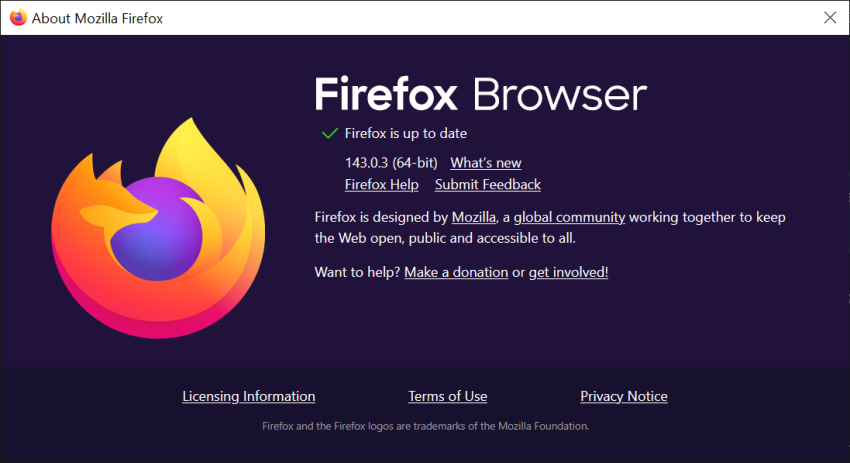
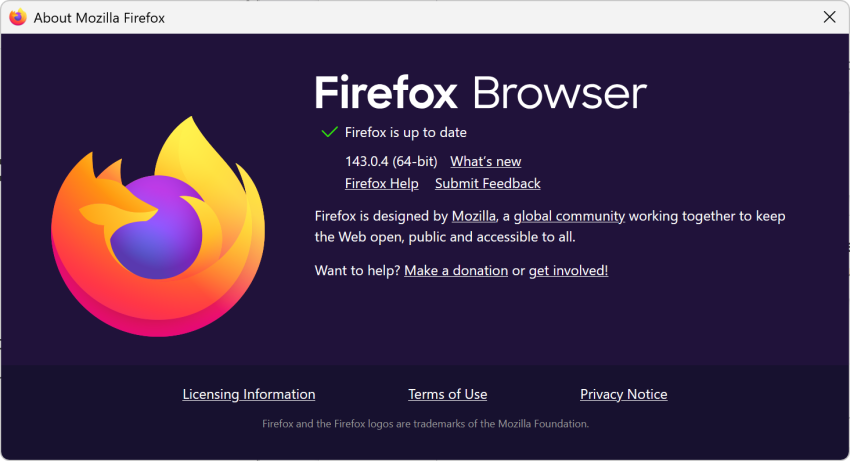
The new version is available already. You can force the installation by selecting Menu > Help > About Firefox in the main menu. This should trigger the download and upgrade.

The next major Firefox release is scheduled for October 14, 2025. It is the same day that Microsoft is ending support for Windows 10 on officially.

You can now try Perplexity’s Comet AI browser for free

Posted on October 3, 2025 by Martin Brinkmann

After launching its Comet AI web browser exclusively for paying subscribers, Perplexity has now made it downloadable for everyone. You can download the browser from the official website for testing, even if you do not have a Perplexity account.

However, Perplexity limits functionality of the browser in that case. First, Comet is a Chromium-based browser. That is good on the one hand, as it offers similar performance and compatibility as Google Chrome. It also means that you can install browser extensions that are compatible with Chrome in the desktop version.

You can import your last browsing session from most other browsers on first start, but can skip it as well. Afterwards, Perplexity displays a few options to you, which most users may want to disable. This includes autostarting the browser with the operating system, making it the default browser, or sending telemetry data to Perplexity.

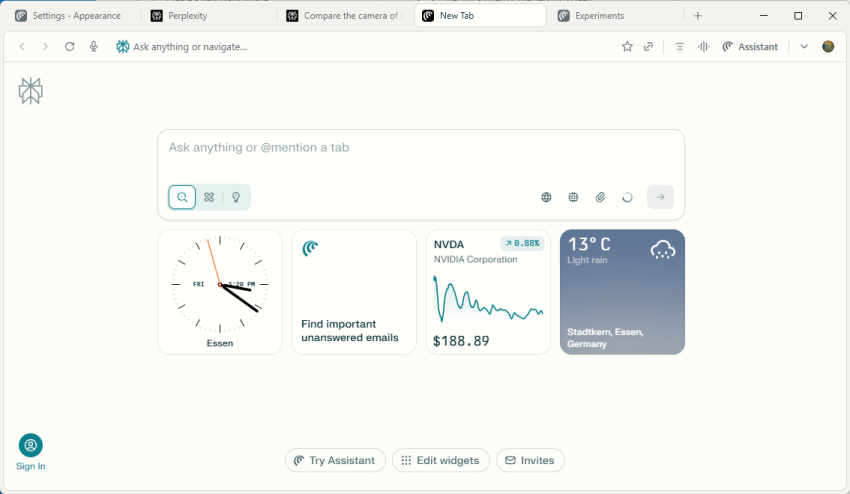
The browser opens and it looks like Chrome for the most part. That is to be expected, as all Chromium-based browsers look pretty much the same. The new tab page displays a few widgets, like the time or Nvidia’s stock price. The star of the show is the text prompt at the top. You may use it to interact with Perplexity’s AI.

Comet Assistant displays a few suggestions when you activate the text field, such as “Find emails from the last 7 days that require replies and draft responses”, or “find top rated noise-cancelling headphones under $300 and open product pages from three major retailers with the lowest prices”.

So, it is basically an AI chat, but this AI has agentic capabilities. It is rather limited for free users, as pro searches and several other features are not available in that case.

The browser displays its results on Perplexity’s website. In fact, you may get similar results when you use the company’s website directly to interact with the AI.

You may also notice that you get constant requests to sign in, if you do not. Open a new tab page, get a request. Similarly, prompts may be displayed on the results page.

If you do not sign-in, you get access to base AI features only. You can’t, for example, change the AI model that the browser uses to process queries. There is also no option to upload files or photos for processing, or run deeper queries.

However, results looked fine in quick tests, even non-Pro searches. Whether the information is accurate is another topic. As is the case with all AI, you should verify important information before you act on it.

Perplexity is Chromium-based. Which is good. You can open chrome://flags to tinker with advanced preferences, and get most of the settings of the browser as well.

Now the big question that I still have regarding all these AI browsers is about the “why” and whether that why warrants paying a monthly subscription fee. Why should I use such a browser? I do not really see the killer-application for it right now. Yes, it can run deep research tasks for you or perform some tasks for you, but how useful is that really, especially if you prefer to stay in control the whole time?

Anyway, you can give Perplexity a try, if you want.

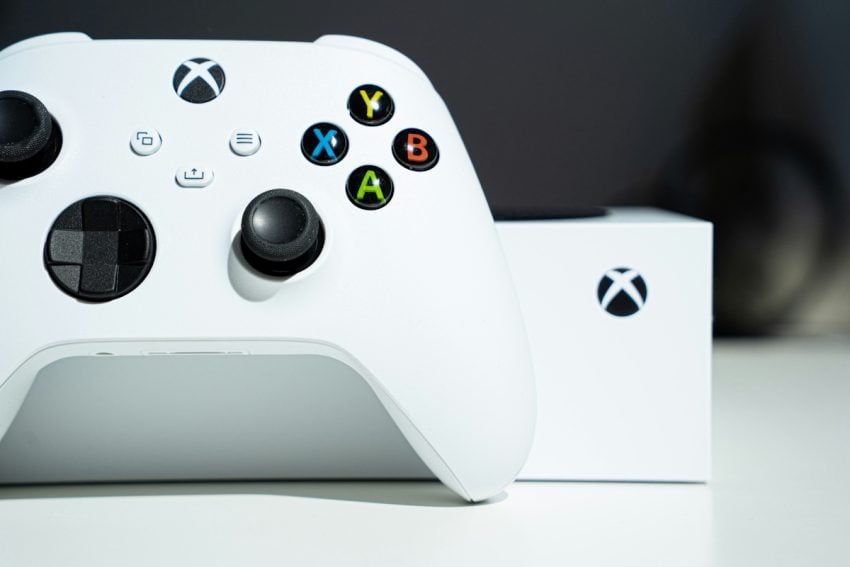
Microsoft makes Game Pass so expensive, that buying games suddenly becomes the cheaper option for some

Posted on October 2, 2025October 2, 2025 by Martin Brinkmann

While companies love subscription-based services, more and more users realize that they are more often than not that beneficial.

Microsoft just announced another price increase for Game Pass, the last dating back just a year. Game Pass Ultimate jumps from $20 to $30 per month once the changes go life. Considering that Game Pass Ultimate cost just $17 in early 2024, it is a massive increase of the most expensive plan.

Furthermore, Microsoft is changing the other Game Pass plans. Game Pass Core subscribers are moved to Game Pass Essential, the lowest tier and Game Pass Standard subscribers are moved to Game Pass Essential. The price of the two plans remains at $10 and $15 per month, for now at last.

Microsoft justifies the price increase by pushing “more day one games than ever before” to Game Pass Ultimate. There is also Fortnite Crew & Ubisoft+ Classics that Ultimate subscribers get access to for the very first time.

Additionally, they get “enhanced Xbox cloud gaming streaming quality up to 1440p, rewards with Xbox, and more” according to the announcement.

It appears that the announcement has pushed subscribers into cancelling their subscriptions. The servers are not responsive at the time and while Microsoft has yet to announce anything regarding the servers, it is clear that some subscribers are not happy about the price increase.

It is quite possible that the inclusion of Ubisoft+ Classics, which Microsoft values at $8 per month, is a reason for the major price increase.

However, at $360 per year, Game Pass Ultimate is not the bargain subscription service that it started out as. With an average price of $60 per game, ex-Ultimate subscribers could purchase six major games per year and own them.

That means the option to resell them or play them whenever they feel like it on as many systems as they like.

Granted, the price may still be worth it for die-hard Xbox and Microsoft fans who want access to games that Microsoft’s gaming division releases throughout the year. For many subscribers, however, it seems that Game Pass has lost its appeal thanks to the recent price hike, and the one that is likely coming next year.

Firefox 143.0.3 is out with security fixes and more

Posted on September 30, 2025September 30, 2025 by Martin Brinkmann

Mozilla released a new point update for its Firefox web browser today. Firefox 143.0.3 is a security update that fixes also some non-security issues in the open source browser.

The new update is available already via the browser’s automatic update feature. Existing users may speed up the installation of the update by selecting Menu > Help > About Firefox. This opens a small window in the browser that displays the current version and a check for updates.

Firefox should pick up the update automatically at this point, but you need to restart the browser once to complete the installation. Opening the page again after installation should reveal the new version.

The official security release notes reveal that Mozilla addressed two security vulnerabilities in the release. Both have a severity rating of high. They affect the JavaScript engine and the Canvas2D component of the browser. Mozilla makes no mention of exploits in the wild, but it is still recommended to update quickly.

The non-security release notes list six issues that Mozilla fixed or improved in the release. Probably the most noteworthy is a fix for extension not updating via the add-ons manager of the browser.

Another issue fixes a Firefox crash that could happen when certain extensions are installed. These caused a storage issue that could lead to Firefox crashing on start of the browser.

Firefox users who noticed long delays when opening certain websites may also see improvements after installing Firefox 143.0.3. Mozilla reduced the delays, which happen on certain websites if the network blocks UDP connections.

The three remaining fixes address minor problems in Firefox, such as Firefox View sections not collapsing or expanding as expected. You can check out the full release notes on Mozilla’s website.

PSA: If you use Windows 11 and Microsoft 365, new apps will be installed automatically starting next month

Posted on September 29, 2025September 29, 2025 by Martin Brinkmann

Nothing is more exciting than new apps that do get installed automatically on your devices, right? That’s probably Microsoft’s official argument for starting to force-install new Microsoft 365 companion apps on Windows 11 devices from next month onward.

Microsoft confirmed the decision to Microsoft 365 administrators, but it has not informed regular customers of its Microsoft 365 service about it to my knowledge.

Here is what is going to happen: Starting in “early October 2025”, Microsoft will install the Companion apps People, Files, and Calendar on any Windows 11 device, provided that Microsoft 365 desktop client apps are installed.

Wonder what those do?

  • People app: Extends search functionality for contacts, option to send messages and start chats, use Copilot, view profile cards and availability.
  • File app: Find cloud and local files, preview file content, share with colleagues, filter using new filters, e.g., by activity, and use Copilot.
  • Calendar app: view agendas or days, open meeting details, find events, edit meetings, use Copilot.

These apps will appear in the Start menu by default. What they have in common is that they introduce even more Copilot AI functionality on the Windows system. The integration focuses on app-specific tasks, for instance to find out what a specific user is working on at the time or drafting a new message to catch up.

Microsoft gives system administrators options to disable the rollout. Means, the apps won’t get installed automatically on managed devices, if the administrator does not allow it.

Home users, on the other hand, are once again kept in the dark by Microsoft. Users may uninstall the apps after they have been installed, according to Microsoft.

While there is a chance that Microsoft is making last-minute changes to its plans, for instance by making the apps install manually only, nothing of the kind has been confirmed officially at this point.

Now You: what is your stance on auto-installing apps on your devices? Feel free to leave a comment down below.

Search image with Google Lens

Firefox is getting visual search capabilities powered by Google Lens

Posted on September 28, 2025September 28, 2025 by Martin Brinkmann

Mozilla is rolling out a new feature in recent versions of the Firefox web browser that introduces visual search functionality. This allows users to run visual searches by right-clicking on images.

Mozilla lists several main applications for the new feature on its Connect website.

  • Find similar products, places, or objects.
  • Copy, translate, or search text from images.
  • Get inspiration for learning, travel, or shopping.

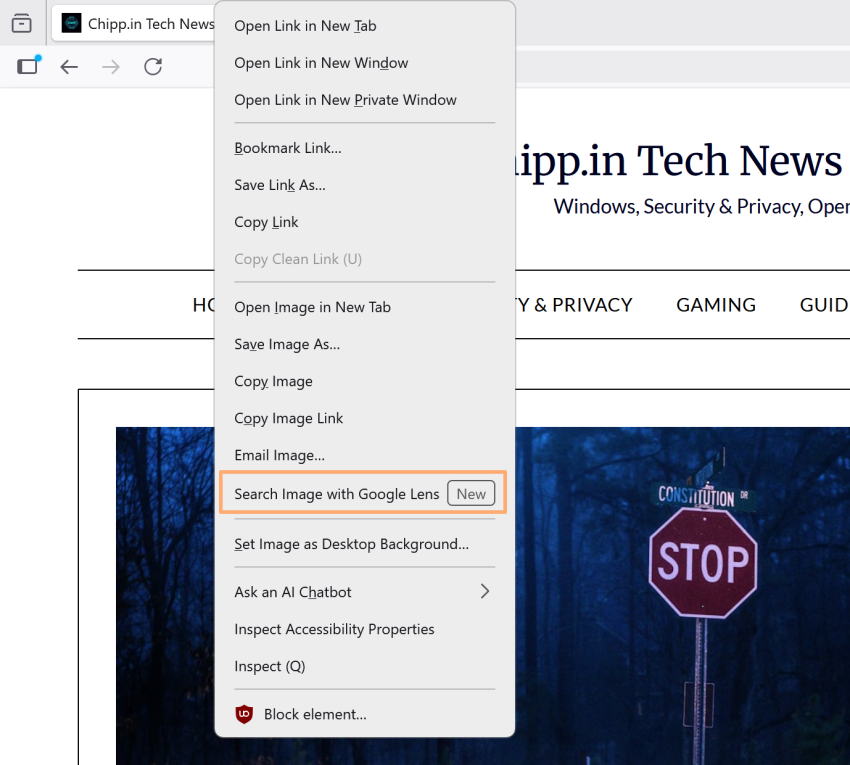
Right-click on any image displayed in the browser and select the new “Search Image with Google Lens” option to start a new search.

The feature is limited to Firefox on the desktop currently and it is rolling out worldwide. Most Firefox users won’t see it right away, but it can be enabled via about:config.

Here is how that is done:

  1. Load about:config in the browser’s address bar.
  2. Search for browser.search.visualSearch.featureGate.
  3. Click on the toggle icon to set the feature to True.
  4. Restart Firefox.

This enables the feature. You can test it by right-clicking on an image in Firefox and selecting the new Google Lens visual search option from the context menu.

Tip: you can turn off the feature at any time by setting the experimental flag to false in about:config. This removes the context menu entry in Firefox.

Here is what happens when you select the option: Firefox redirects the search request to the official Google Lens website. From there it is all Google and you should see similar images and information about the image among other things.

The feature addition will likely see mixed receptions. Some Firefox users may like the ability to run visual searches quicker through the browser’s context menu. Before that, they had to go save and upload the image to Google Lens manually or install a browser extension such as Search on Google Lens.

Others may dislike the additional entry in the context menu, for instance in fear or accidentally sending an image they view in the browser to Google Lens.

To be honest, it is unclear why Mozilla would introduce the feature natively in Firefox if an open source browser extension is already available

Now You: what is your take on this? Useful addition in Firefox or something that you have no use for?

Free Windows 10 ESU has a catch: it auto-expires every 60 days

Posted on September 26, 2025September 26, 2025 by Martin Brinkmann

Many Windows 10 users are eying the Extended Security Updates program for the operating system to extend support by a year. Microsoft announced the program for home users for the first time, and while it decided to limit it to a single year, it may be enough to buy users some time or help them keep on using their trusted PCs.

Microsoft revealed that users had three options to join the ESU program on Windows 10:

  • Pay about $30 to receive updates for another year.
  • Pay with Microsoft Rewards points.
  • Enable the cloud backup functionality of Windows Backup.

While two of the three options do not require any money to change hand, you’d still have to either pay with accumulated points or allow Microsoft to transfer some files to the cloud.

Microsoft announced a new option this week. This one only for users from the EEA region, which includes all EU member states, Norway, Liechtenstein, and Iceland. Microsoft said that users from these countries could join ESU for Windows 10 without completing any of the three options that users from any other region in the world had at their disposal.

This sounded like a great deal on paper for users from the region. However, Microsoft has added another requirement. Users need to sign in with a Microsoft account regularly to stay subscribed.

Here are the details:

  • You need to sign in with a Microsoft account for an opportunity to join ESU and start receiving security updates after October 2025.
  • You need to do this every 60 days. Microsoft stops delivering ESU-updates to a machine, if no Microsoft account sign-in was recorded in that period.
  • Windows 10 users may rejoin ESU by signing in with a Microsoft account again.

This affects Windows 10 users who sign in with local accounts. They need to make sure that they sign in with a Microsoft account every other month to keep on getting the extended security updates.

Microsoft plans to end the program for home users on October 13, 2026. There is a slim possibility that Microsoft might get pressured into extending the program, at least in some regions, but I would not hold my breath.

Now You: Are you using PCs with Windows 10? What is your plan going forward?

Who would have thought? Customers of Samsung fridges are not happy about ads their smart fridges started to show

Posted on September 25, 2025September 25, 2025 by Martin Brinkmann

Do fridges, toasters and other household appliances may come with “smart functionality” or wireless connectivity these days. In the case of some, TVs for instance, the functionality may also be used to display advertisement to users and collect data about users.

Samsung recently announced that its smart fridges would start showing ads. A software update introduced the feature and first reactions of customers are not exactly glowing.

The company introduced the change for some of its Family Hub refrigerators in the United States. This turned the screen of the device into a vehicle for ads. And who does not love ads, especially for items that cost thousands of Dollars?

Techspot reports that the update introduced new Terms of Service and a Privacy Notice that covers the addition of advertisement. Samsung’s smart fridge displays the ads on the fridge’s screen. It appears when the screen is idle, which likely means most of the time and only if users have selected certain themes, including weather, daily board, or color.

Users may enable certain themes to avoid ads for now. If the cover screen is set to art mode, which displays photos, then no ads are shown. A setting to fully disable ads is not provided, but users may block certain ads from reappearing.

You could disconnect the fridge from the network, but might not be able to use most of its functions in that case.

Samsung says that the advertisements “are designed to enhance value for owners”. I’m pretty certain that most owners would beg to differ.

Maybe next time, it would be better to buy a “dumb” fridge or other items, especially if the provided functionality is not adding value or has the chance of being turned into something that is highly annoying or invasive.

  • Previous
  • 1
  • …
  • 9
  • 10
  • 11
  • 12
  • 13
  • 14
  • 15
  • …
  • 69
  • Next

Support This Site

If you like what I do please support me!

Any tip is appreciated. Thanks!
  • March 2, 2026 by Martin Brinkmann Don't Bother with Windows 11's new Speedtest feature
  • February 27, 2026 by Martin Brinkmann Warning! That laptop on Amazon? It comes with temporary storage
  • February 26, 2026 by Martin Brinkmann "If your printer works today, it will continue to work": Microsoft corrects previous announcement
  • February 25, 2026 by Martin Brinkmann YouTube Premium Lite subscribers get background playback and downloads with a big "but"
  • February 24, 2026 by Martin Brinkmann Firefox 148.0 is out with its AI kill switch and support for Windows 7 and 8.1 comes to an end

About

We talk, write and dream about Technology 24/7 here at Chipp.in. The site, created by Martin Brinkmann in 2023, focuses on well-researched tech news, reviews, guides, help and more.

Legal Notice

Our commitment

Many websites write about tech, but chipp.in is special in several ways. All of our guides are unique, and we will never just rehash news that you find elsewhere.

Read the About page for additional information on the site and its founder and author.

Support Us

We don't run advertisement on this site that tracks users. If you see ads, they are static links. Ads, including affiliate links, never affect our writing on this site.

Here is a link to our privacy policy

©2026 Chipp.in Tech News and Reviews