Chipp.in Tech News and Reviews

Windows, Security & Privacy, Open Source and more

Menu
  • Home
  • Windows
  • Security & Privacy
  • Gaming
  • Guides
  • Windows 11 Book
  • Contact
  • RSS Feed
Menu

Tag: microsoft edge

You can now sign in to Microsoft Edge with a Google account

Posted on July 4, 2026July 4, 2026 by Martin Brinkmann

Should you sign in to your browser of choice or use it without linked account? Signing in offers some advantages, notable the syncing of some data, such as passwords or the browsing history, between devices.

However, depending on the browser that you use, it may also provide the company in charge of it with additional information.

Many browsers limits the feature to the account of the organization that produces it. If you use Google Chrome, you can only sign in with a Google account. Firefox users may sign in with a Mozilla account, and Microsoft Edge users, at least until very recently, needed a Microsoft account.

This is changing with the release of Microsoft Edge 150. Microsoft notes the following in the release notes:

Sign in to Edge with a Google account. Users can now sign in to Microsoft Edge using a Google account in addition to a Microsoft account from the profile menu and Edge sign-in screen. Available for Windows and macOS devices. Admins can control availability of this feature using the NonMicrosoftAccountSignInEnabled policy. Note: This is a controlled feature rollout. If you don’t see this feature, check back as we continue our rollout.

So, instead of signing in with a Microsoft account, you can now sign in with a Google account. This comes with advantages, such as access to Google-stored passwords and such.

Whether that move will convince more users to give Edge a try on Windows or Mac remains to be seen. I have my doubts, but it does give Edge users more options when it comes to the company that they trust their data with.

Edge 150 is also the last version to support macOS 12, according to the release notes. Starting with Edge 151, macOS 13 is the minimum required version.

Microsoft’s New Edge Update is all about Copilot

Posted on May 15, 2026May 15, 2026 by Martin Brinkmann

If you thought your web browser was just a quiet, lightweight tool for surfing the internet, Microsoft is here to aggressively change your mind.

On Monday, the tech giant rolled out a massive, AI-centric update to its Edge browser across desktop and mobile platforms, that is shifting the focus to an AI that is heavily integrated in the browser.

The Copilot update promises productivity perks – like the AI ability to run tasks across multiple open tabs at once – but it is also making significant changes for all users, even those who don’t plan on using the AI features.

AI is growing up

Microsoft is moving AI away from being just a standard chat box and turning it into a functional browsing assistant. Core practical additions include, according to Microsoft:

  • Multi-Tab Reasoning: This is arguably the standout feature. Instead of manually cross-referencing information, Copilot can now read across multiple open tabs (e.g., comparing hotel prices, reading different product reviews) and summarize the differences for you.
  • Mobile Parity: Complex AI features like multi-tab reasoning, screen sharing (“Vision”), and hands-free voice interactions are coming to the Edge mobile app, making on-the-go research much easier.
  • “Journeys” Tackles Tab Hoarding: Instead of leaving dozens of tabs open forever, Edge will now automatically group your browsing history into topic cards (e.g., “Camping Trip Plan”), summarizing where you left off so you can easily resume projects later.
  • Accessibility & Study Tools: The ability to turn your open tabs into an audio Podcast, alongside built-in study modes that generate quizzes from webpages, are fantastic additions for students, auditory learners, or people looking to consume content while multitasking.

The “Critical” Take

While the features sound useful, the update doubles down on Microsoft’s controversial strategy of making Edge less of a web browser and more of an AI system.

  • Massive Data Ingestion: Copilot now has “long-term memory,” analyzes your past chats, reads your browsing history, and actively scans multiple open tabs at once. While Microsoft insists this is done “with your permission” and protects your privacy, the sheer amount of personal data being fed into the AI to make these features work will undoubtedly make privacy-conscious users uncomfortable.
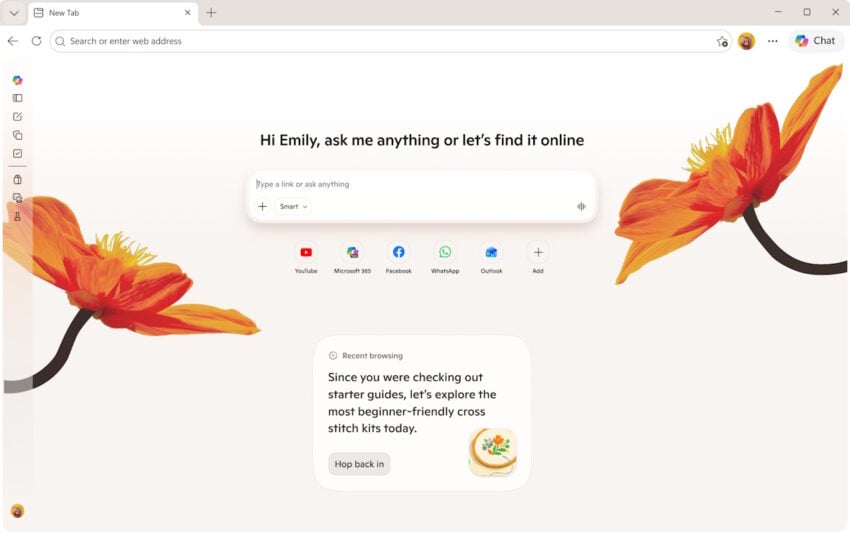
  • Escalating Browser Bloat: Edge has faced heavy criticism for feeling cluttered. Adding interactive quizzes, writing assistants, podcast generators, and an AI-heavy redesigned “New Tab” page risks making the browser feel even heavier and more resource-intensive.
  • The Illusion of Choice: Microsoft notes they are “retiring Copilot Mode” in favor of building these features directly into Edge. This essentially means AI is no longer a separate mode you enter, but a baked-in layer of your everyday browsing that you have to actively dodge if you don’t want to use it.
  • The Fine Print (Regional Locks & Subscriptions): The blog heavily promotes these features, but the footnotes reveal a heavily fragmented rollout. “Journeys” on mobile and the “Writing Assistant” are currently US-only. Furthermore, features like generating podcasts or the new “Browse with Copilot” actions have usage limits that push users toward paying for Microsoft 365 Premium subscriptions.

The Verdict

To be fair to Microsoft, features like multi-tab reasoning and turning articles into podcasts are clever, practical uses of AI that solve actual user pain points. However, critically speaking, this update continues the trend of forcing AI into every corner of the Edge browser.

If you love AI, Edge is becoming the ultimate productivity powerhouse; if you just want a fast, lightweight, and private web browser, this update might push you further away.

Microsoft Edge for Android: more extensions now available, but one group is missing entirely

Posted on March 15, 2025March 15, 2025 by Martin Brinkmann

When Mozilla — finally — introduced support for extensions in Firefox, years to late, but still, it unlocked a whole new world for users of the mobile open source browser.

Up until that time, no major browser supported extensions no mobile. While there were some dedicated projects that supported mobile extensions, all major browsers did not. Imagine having to browse the Web without a content blocker.

The next best thing were browsers with integrated ad blockers. Vivaldi, Opera, or Brave come to mind.

Now that Firefox supports extensions, Microsoft has also moved on that front and integrated support for extensions in Edge for mobile.

Like Mozilla’s offering initially, Microsoft is limiting available extensions right now. Unlike Mozilla, Microsoft is not offering a single content blocker at this point.

Extensions in Edge Stable for Mobile

Once you have upgraded Edge Stable to the latest version on Android, you gain access to extensions with a click on Menu > Extensions. There you find the list of supported extensions. Some good ones are available, including Tampermonkey, Dark Reader, or Bitwarden Password Manager. There is also a video downloader, cookie manager, and some other useful extensions.

What you do not get is a content blocker. Granted, with Google’s decision to stop Manifest V2 extensions from working in Chromium and Chrome, popular choices like uBlock Origin are no longer compatible. But the lite version is also nowhere to be found. The same is true for other content blockers.

Microsoft does not explain why that is the case, only that more extensions “are coming soon”. So, the good news is that Edge is getting support for a wider range of extensions. The bad news is that no extension of, probably, the most popular extension type is available.

Closing Words

Support for extensions is a welcome feature on mobile, as it gives users more options to customize their experience while using the browser. Content blockers are a must, and it is puzzling that Microsoft has not added a single one to the list of supported extensions at this stage.

So, for now at least, you might want to stick to Firefox, the one browser with excellente mobile extensions support. Or, at least a browser with a proper content blocker, like Brave.

Microsoft is finally giving Edge Game Assist a necessary feature

Posted on March 7, 2025March 7, 2025 by Martin Brinkmann

If you do play games on your computer, you may have tabbed out of the game before to launch a web browser and run a search for clues or information. Steam users can use the integrated browser for that, which has been around for a long time.

Game Assist is Microsoft’s universal answer to the Steam browser, at least on Windows. It is an in-game browser that is available as a preview currently. It uses Microsoft Edge to render webpages and browse the Internet without leaving the game.

While that is theoretically also possible without the browser, as you can tab-out of most games to use other programs, some gamers may find the integration useful.

One of the most interesting features up to this point is the ability to display Game Assist information while you are playing. You can watch a video or display guides while playing the game.

One major downside up until now was that Game Assist did not support extensions. This meant that you had to endure ads and other unwanted elements while using it.

This changed with this week’s Game Assist update. The major addition is support for extensions. Install extensions in Edge and you can use them on Game Assist as well. Most extensions should work according to Microsoft.

Microsoft writes:

We heard your feedback that ad blockers are crucial, so we’re thrilled to bring initial support for extensions to Game Assist! Game Assist currently supports many extensions that automatically run on the webpage, like ad blockers. Extensions can be installed and managed using the desktop version of Microsoft Edge.

It is a good addition to Game Assist. The release notes highlight several other features of interest. More games are supported, there is a new menu that offers common browser controls such as opening a new tab, right-click support for certain page elements, an option to pin the current tab, and more.

The list of supported games is still relatively short. To become a truly universal option, Microsoft needs to improve game support significantly.

Edge Extensions performance issue

Microsoft Edge: performance-dragging extension warnings in the works

Posted on September 21, 2024September 21, 2024 by Martin Brinkmann

Browser extensions can be very useful. From the ultra-useful content blocker to extensions designed for specific tasks. They can make your life on the Internet easier or better.

While most extensions may not impact performance noticeable, some may. That is a problem, as it may not always be obvious which one is to blame. Some userrs may even blame the browser, which is not something that browser makers want.

Microsoft is working on integrating warnings in Edge to warn users about extensions that impact the browsing performance.

The details:

  • The feature is available in Edge 130 and newer only.
  • It needs to be enabled.
  • Edge monitors the performance of extensions when enabled.

Note that the feature monitors performance only.

Tip: Microsoft is testing several new features. There is Super Drag & Drop or a RAM limiter that you may try.

How to enable the feature

Starting with Edge 130, some users of the browser will have the new performance detector enabled by default. Most users won’t, but there is an option to turn it on.

Here is how you enable it in Edge

  1. Load edge://flags/#edge-performance-extension-detection in the browser’s address bar.
  2. Change the value of Extension performance detector to Enabled.
  3. Restart Microsoft Edge.

The feature runs in the background from that moment on.

How the extension performance detector works in Edge

Microsoft describes the feature in the following way:

Enables detection and optional disabling of user-added extensions if they impact page load time. Alerts will appear in browser essentials.

This is not too helpful, but Microsoft published a blog post as well that provides additional details.

There, Microsoft says that Edge will alert the user if it notices persistent extension slowdowns that impact the browsing experience.

A click on the browser essentials icon in Edge displays information about extensions that Edge found to slow down browsing consistently.

Each extension is listed with the percentage of slowdown and an option to disable it. Disabling is optional, and you may also select to get a reminder at a later time.

Most users who use extensions will not see the alerts according to Microsoft.

Closing Words

Whether the performance monitor for extensions is useful or not depends on the individual user. It may help users who install lots of extensions in the browser and users who noticed slowdowns after installing extensions.

The alerts may help identify performance issues, which is useful. Still, some extensions may be too valuable even though they may impact the browsing performance or experience.

Do you run extensions in your browser that you would not disable under any circumstances? Feel free to leave a comment down below.

Microsoft Edge

How to disable Rewrite with Copilot in Microsoft Edge

Posted on May 14, 2024May 14, 2024 by Martin Brinkmann

When you type in Microsoft Edge, chance is that you may get a Rewrite with Copilot option displayed at times. This option is part of the browser’s writing assistance feature, which is powered by AI.

In essence, it adds Copilot’s creative writing capabilities to text fields in Edge. It works by selecting text in a text field and activating the Rewrite with Copilot option that pops up.

Rewrite with Copilot in Edge

You may also press the shortcut Alt-I after selecting text in Edge to launch Copilot. Edge loads a small Copilot window to display a new version of the selected text.

Rewritten text

Note the scrollbar on the right. Depending on the height of the popup window, controls may not be displayed above the fold. You find options to change the tone, format, or length of Copilot’s creation there.

A click or tap on the replace button replaces the selected text with the newly created one.

An active Internet connection is required for the functionality, as the selected text is transmitted to Microsoft servers for processing.

Some Edge users may find this useful, others may have no use for it. Good news is that it can be turned off, if it is not something that you may want to use.

Here is how that is done.

Disable Rewrite with Copilot in Edge

Microsoft Edge disable writing assistance
  1. Select Menu > Settings, or load edge://settings/ in the address bar directly.
  2. Switch to the Languages submenu.
  3. Scroll down to Writing Assistance and toggle Use Compose (AI-writing) on the web to off.

The change takes effect immediately. A restart of Microsoft Edge is not required. You can restore the feature by setting the preference to on again.

Closing Words

Rewriting can be a useful feature. It is unclear how many Internet users already use AI to modify or even create texts. Clearly, there is the possibility that the feature is misused. In fact, AI is already used by spammers to create websites and fill these with textual content.

Edge users who do not need the rewriting option can turn it off in the preferences of the browser. The same feature is also accessible directly in Copilot. Many AI tools support rewriting text nowadays, including Google Gemini, DeepL, and Claude AI.

Microsoft introduced a range of features in Edge recently. From Search Suggestions in Edge’s titlebar to an upcoming RAM limiter feature.

Have you tried Edge recently?

Edge PWA Search Suggestions

Microsoft testing Search Suggestions in Edge’s titlebar

Posted on May 1, 2024May 1, 2024 by Martin Brinkmann

Microsoft is testing a new search suggestions feature in Microsoft Edge Canary currently. These are shown in Progressive Web Apps (PWA) windows based on activity.

Sites and services like YouTube, Google Maps, the Financial Times, or Alibaba are available as PWAs. The main idea is to give websites a few features of dedicated apps.

This includes pinning them to the taskbar or start menu, or launching them in a window without browser UI.

How to install PWAs in Edge

Installing a PWA in Edge is simple. The browser displays an icon in the address bar when a PWA is available.

Just click on the icon to display the install prompt. Edge explains the advantages of using the site as a PWA.

Activate install to add it to the system. Here you get options to pin it to various places and auto-start it on device login.

PWA Search Suggestions

Edge PWA Search Suggestions

Microsoft added a new feature to PWAs in Edge. The feature, which is available in the Canary version only, displays search suggestions in the title.

The screenshot of the YouTube PWA visualizes this. A search for Nintendo and the opening of some videos resulted in Edge suggesting to search for Nintendo Switch.

Another video resulted in IndieWorld being suggested by Edge. A click on the suggestion displays Bing search results in the sidebar in Edge.

Edge Search Suggestions results

The suggestions appear to be based on the content that you are viewing in the PWA. The usefulness seems limited, even though you cannot run searches directly from the PWA’s window.

There is a chance that the search suggestions feature won’t make it into Edge Stable.

How to disable Edge PWA Search Suggestions

Microsoft added an option to disable these search suggestions. Not everyone may find them useful. Here is how you disable the feature:

  1. Launch the PWA.
  2. Open the three dots menu at the top (next to the window controls) and select App settings.
  3. Toggle Search Suggestions so that its value is Off.

Microsoft describes the feature in the following way:

Search suggestions. Get suggestions from content that may interest you. Seamlessly search for relevant keywords in the side panel without interrupting your viewing.

Note: you need to repeat the steps for each installed PWA.

Closing Words

First revealed by Leopeva on Twitter, search suggestions in PWA windows seem to better integrate Bing Search functionality into these windows. Functionality is limited, but it may be something that some PWA users might want.

If you do not, and the chance is high, you can disable the feature and stop worrying about it altogether.

What about you? Do you use PWAs on your devices? What is your take on the search suggestions feature?

Surprise: Edge’s Windows 11 Search Bar is not Bing-locked

Posted on April 20, 2024April 20, 2024 by Martin Brinkmann

Search Bar adds a standalone search field to the Windows 11 desktop when enabled. It allows you to run searches from it. The main benefit is that you do not need to open a browser first to run searches.

Microsoft announced this week that the Search Bar is now available on Windows 11. You need Microsoft Edge for it and enable it before it becomes available on the desktop,

From here, it works exactly as you would imagine a desktop search tool to work. Type something, hit enter or click on the go button, and wait for the results to appear in the Edge browser.

Yes, since this is an Edge feature, it requires the browser.

Surprise: search is not locked down to Bing. If you have set a different default search provider in Edge, it is used.

Setting up Microsoft Edge’s Search Bar

Microsoft Edge Search Bar Enable

Here are the steps to launch the Search Bar on Windows 11 systems:

  1. Start Microsoft Edge.
  2. Select Menu > More Tools > Launch search bar.

If you do not see the option under More Tools, check for updates under Menu > Help and feedback > About Microsoft Edge.

Tip: you may hide the permanent sidebar button in Microsoft Edge, if you do not need it.

Using the new search option on Windows 11’s desktop

Search on Windows 11 desktop

The search widget appears on the desktop once you enable it in Edge. You can move it around freely on the desktop.

Type a phrase and you get suggestions from Microsoft Edge’s default search engine. Select any of them or submit the search phrase to launch the results page in Edge.

A click on the menu icon displays a few options. You may switch to guest mode here, which does not associate searches with a Microsoft account.

The desktop widget starts with Windows 11 by default. You may stop this from the menu as well.

Select the close option of the menu to exit.

It may surprise you that Microsoft has not locked down the search provider. Any provider set in Edge powers the searches.

Closing Words

Whether Search Bar is something that is useful to you is up to you. Windows 11 already has a search feature enabled that may run web searches. These are limited to Bing and Edge.

Good news is that it is not locked down and that it is not enabled by default. It is still limited to returning search results in Microsoft Edge. Whether MSEdgeRedirect takes care of that remains to be seen.

It is doubtful that this feature will convince non-Edge users to switch browsers. Those who use Edge and do not have Edge open all the time anyway may find it useful.

Microsoft Copilot app

Microsoft says installation of Copilot app was a bug

Posted on April 17, 2024April 17, 2024 by Martin Brinkmann

Microsoft confirmed that Edge updates may install the Copilot app on Windows devices. The company calls the app “Microsoft chat provider for Copilot in Windows”.

Microsoft added a new known issue on the Windows 11 version 23H2 dashboard. It confirms an issue that was first observed in March 2023.

Some Windows users noticed that Microsoft was installing a Copilot app on their devices. This app appeared after Microsoft Edge updates, including the update to Microsoft Edge 123 at the end of March 2024.

While sporting the Copilot name, it did not power the Copilot feature of the Windows operating system.

How to check if the app is installed: Select Start > Settings > Apps >Installed Apps, and search for Copilot.

Microsoft confirms the bug

Today, Microsoft confirmed that the installation of the application is a bug. The company writes:

Updates to Edge browser version 123.0.2420.65, released on March 28, 2024 and later, might incorrectly install a new package (MSIX) called ‘Microsoft chat provider for Copilot in Windows’ on Windows devices. Resulting from this, the Microsoft Copilot app might appear in the Installed apps in Settings menu.

Microsoft says that the app “does not execute any code or process” and that it “does not acquire, analyze, or transmit device or environment data in any capacity”.

What it does: Microsoft explains that the app is “intended to prepare some Windows devices for future Windows Copilot enablement” and that it is not intended for all devices.

Microsoft plans to remove the Microsoft Copilot app from Windows devices it is not intended for.

The company does not define “devices that it is intended for”, which makes it difficult to figure out if it was installed by error on a particular device. The only hint Microsoft provides is that it is not intended for most Windows Server devices.

How Microsoft plans to rectify the issue: Microsoft plans to release an update for Microsoft Edge to resolve the issue.

This is not the first Edge bug in recent time. Back in January, Microsoft Edge started to import tabs from Chrome automatically on user devices.

Have you used Copilot?

You may soon limit Microsoft Edge’s RAM usage

Posted on March 30, 2024March 30, 2024 by Martin Brinkmann

In the past 20 or so years, browsers have grown significantly. From tools used solely to display webpages to general purpose tools. Yes, you can still open webpages in modern browsers, but that is not all.

Nowadays, browsers are used to watch media streams, play highly demanding games, or do your homework. It comes as no surprise that RAM usage of browser processes has gone up significantly as well.

Browsers can easily use 1 gigabyte of RAM or more these days. Much of it depends on use. If you open a single plain text website only, you will never cross the threshold. Open a stream on Twitch, play a game in another tab, and have dozens or hundreds of tabs open, and you reach that threshold easily.

Microsoft Edge Task Manager

Most Chromium-based browsers may display memory usage of individual tabs. This is a recent feature addition. There is also the option to press Shift-Esc to display the built-in Task Manager, which reveals memory usage of individual browser components.

Microsoft Edge, like other Chromium-based browsers, supports a sleeping tabs feature next to that. The main idea of it is to reduce memory use by putting inactive tabs into sleep mode. Microsoft says that the feature saves an average of 39.1 MB per tab.

Microsoft Edge: control memory usage

Microsoft Edge resource controls

Microsoft is working on another feature to tame the browser’s memory usage. The new resource controls option gives users control over the maximum amount of RAM that Edge may use.

It is disabled by default, which means that Edge may use as much RAM as available. Once activated, options are provided to limit RAM usage always or when playing PC games.

The new preference is found under Settings > System and performance > Resource controls.

Once enabled, you may use a slider to set a RAM limit in gigabyte. The lowest amount selectable is 1 gigabyte, the highest the available RAM of the system. You may increase or decrease the limit in 1 gigabyte steps.

When you enable the new feature, RAM usage is displayed in Browser Essentials under performance.

Browser Essentials RAM usage

You need to run the latest Microsoft Edge Canary release and start the browser with the parameter –enable-features=msEdgeResourceControlsRamLimiter to get access to it.

Here is what happens when Microsoft Edge reaches the designated RAM limit: it puts tabs to sleep in order to reduce Edge’s RAM use.

Closing Words

It is too early to say if the feature will ever make it into Edge stable. If it does, it will likely remain a niche feature. While it may help some users free up RAM for other activities on the PC, most may prefer to close Edge instead, if they do not use the browser actively at the time.

Usefulness depends on how you use your system and Edge. If you use Edge all the time, you may benefit from it. There are downsides, on the other hand. Edge puts tabs to sleep and you get no say in the matter. If you need access to those tabs, you need to wake them up again.

All in all, Edge’s new RAM usage feature is a niche feature. It might grow to something more in organizations and for some edge cases.

Now You: what is your take on limiting RAM usage in browsers? (via Leopeva)

  • 1
  • 2
  • Next

Support This Site

If you like what I do please support me!

Any tip is appreciated. Thanks!
  • July 16, 2026 by Martin Brinkmann Windows Tweaker ShutUp10 updated with new options to disable AI and other potentially unwanted content
  • July 14, 2026 by Martin Brinkmann Microsoft promises improved Windows Search Box and the removal of ads
  • July 13, 2026 by Martin Brinkmann Mozilla moves Firefox to a 2-week release cycle in September
  • July 11, 2026 by Martin Brinkmann Browser extension filters pseudo-brands on Amazon
  • July 10, 2026 by Martin Brinkmann The Tables Have Turned: Why Sony’s All-Digital Future Could Be Microsoft’s Perfect Revenge

About

We talk, write and dream about Technology 24/7 here at Chipp.in. The site, created by Martin Brinkmann in 2023, focuses on well-researched tech news, reviews, guides, help and more.

Legal Notice

Our commitment

Many websites write about tech, but chipp.in is special in several ways. All of our guides are unique, and we will never just rehash news that you find elsewhere.

Read the About page for additional information on the site and its founder and author.

Support Us

We don't run advertisement on this site that tracks users. If you see ads, they are static links. Ads, including affiliate links, never affect our writing on this site.

Here is a link to our privacy policy

©2026 Chipp.in Tech News and Reviews