Chipp.in Tech News and Reviews

Windows, Security & Privacy, Open Source and more

Menu
  • Home
  • Windows
  • Security & Privacy
  • Gaming
  • Guides
  • Windows 11 Book
  • Contact
  • RSS Feed
Menu

Flickr restricting free account downloads to push Pro subscriptions

Posted on May 10, 2025May 10, 2025 by Martin Brinkmann

The photo hosting and community site Flickr has been a popular option for free and paying users from all over the world to back up their photos to online storage, share them with others, find new photos to download, and to interact with other community members.

The site changed its owner years ago and since have been getting worse for free users ever since. First, new owners SmugMug limited free users to 1000 photos, down from 1 terabyte of photo storage, and to 50 non-public photos.

Now, starting May 15th, 2025, free users face another limitation on the site. Their ability to download photos is limited to 1024 pixels and less in resolution. Means: free users can’t download the original resolution of a photo anymore nor the large version of it, including their own uploaded photos.

Why Flickr is making the change: Flickr says that it is implementing the change to address “the misuse of free accounts as cloud storage for original files”. This voilates Flickr’s terms of services and affects the performance for paying customers negatively.

The change does not affect the uploading of photos “of all accepted file sizes to a free account”. Flickr notes that creative commons photos can continue to be downloaded in all available sizes, provided that they are not set to private. Additionally, Flickr Commons members are also exempt from the change.

Photos will display in high quality on the site and “embeds and external links” won’t break either.

Flickr recommends upgrading to a paid Pro account to keep the downloading functionality.

Closing Words

Is Flickr still a popular option for photographers and still going strong community-wise? Many of the recent changes limit free users on the site, likely to push more users into subscribing to a Pro account. I can’t really say how well the strategy works, but the limitations are certainly driving some Flickr users to different photo hosting platforms.

Speaking of which, do you upload photos to online photography sites or photo storage sites? Or do you prefer to keep photos and images on your local devices and systems only? Feel free to leave a comment down below.
Google Maps is getting a new feature that you either love or dislike

Posted on May 8, 2025May 8, 2025 by Martin Brinkmann

Google Maps is quite the handy helper-app in many parts of the world. While it is not excellent everywhere, many use it to find restaurants, shops, places of interest, or for directions.

Soon, Google Maps is getting a new feature that is using Google’s Gemini AI to identify places in screenshots you take so that you can save them to a list.

Here is how Google describes the feature:

If you ever have trouble keeping track of all of the screenshots you take of travel blogs, news articles or social media posts when you’re researching places to go for an upcoming trip, you’ll want to try out this new Google Maps feature. It uses Gemini capabilities to identify places mentioned in your screenshots and helps save them to a list for you, making travel planning a breeze.

Taking screenshots? Identifying the locations of place? Adding them to Google Maps? It may sound like a niche thing for many.

Good news is that you need to enable the feature to start using it. If you do not, none of your screenshots get analyze by Gemini.

Here are Google’s instructions on using the new feature:

  1. Navigate to the You tab.
  2. At the top of the You tab, you’ll see a Screenshots list with a badge that says “Try it out!” Tap the badge. This will open a video showing you how the feature works — you’ll even be able to test it out alongside the video.
  3. You’ll see a request to allow Google Maps access to your photos. Choose when it has access. (There’s also a manual option if you don’t want to give Maps full access, more on that later.)
  4. Next time you take a screenshot that includes location information, head to Google Maps after.
  5. If Maps recognizes a place, a message will pop up telling you that it has places ready for you to review.
  6. Tap “review,” and decide if you want to save the image to your screenshots list or not. (You can add these images to other lists later, too, if you want.)
  7. You also have the option to upload screenshots manually: When you’re in the app select the Screenshots list under the You tab. From there, you can upload screenshots manually. The rest of the process is the same!
  8. You’ll see the saved places directly on your map or can get to the list through You tab to access while you’re on the go.

It sounds as if the image needs to have location information for the feature to work, but Google also says that the feature uses Gemini to identify locations. Google added several safeguards to the process to block users from using the feature unknowingly.

So, who is this feature for? Google gives the answer in the introduction. It is for people how take screenshots of travel blogs, news articles, or social media. It may also work for users who save images that they find, as they can upload them to Google Maps to see if Gemini can identify the locations.

It can be handy, if you do your research mostly in apps like Instagram or TikTok, especially if location information is not revealed by the poster.

Those who do not can safely ignore the feature, as it needs manual activation.

Note: Google may gain access to all screenshots that you take on your devices, if you enable the feature.

Now You: what is your take on the feature? Handy and you would use it, or something that you would not want to use no matter what?

Windows Search will return Store apps soon

Posted on May 7, 2025May 7, 2025 by Martin Brinkmann

When you use the built-in search in Windows, you may get a variety of resuts, depending on how search is configured. By default, Windows Search runs the search on the Internet as well to return Internet results and local results, including cloud content results.

You can turn this off, if you want local-only results. Depending on where you live, it may be as easy as flipping a switch, or complicated. Users from the European Union, for instance, may remove the web search app in Windows 11 to disable web-based search results.

Windows Search finds Microsoft Store apps

Soon, Windows Search may also return Windows Store apps and let users install them directly from the search results. The idea is not particularly new, but it took Microsoft some time to implement it.

Giorgio Sardo published a screenshot of the new functionality on X.

Coming Soon: Microsoft Store integration with Windows Search! 🔎Quickly find and install apps right from your Start menu or Taskbar! Rolling out soon – let us know what you think! 💻#Windows #MicrosoftStore pic.twitter.com/ma9iB8EvrR

— Giorgio Sardo (@gisardo) May 6, 2025

The new feature will improve the discoverability of applications on the Microsoft Store and it might also increase installations of Store apps in general.

Microsoft’s built-in store suffered from a low application count and support from developers from the very first day onward. Microsoft never managed to turn it into a Google Play or Apple App Store like store for Windows apps.

Up to this day, you find only few Windows apps listed and it seems unlikely that this is changing anytime soon.

Could the feature help push the Store and increase its attractiveness for developers and users alike? It is possible, but it seems unlikely.

Microsoft has not revealed if there will be an option to turn off the functionality. It would make search quite the unpleasant experience if you won’t be able to turn it off.

What is your take on this? Good move by Microsoft or nothing that you care about? Feel free to leave a comment down below.

Microsoft continues to warn customers about Windows 10’s end

Posted on May 6, 2025May 6, 2025 by Martin Brinkmann

Windows 10’s support is going to end in a few months. That is a message that Windows 10 users will see in an ever increasing frequency in the coming months. Note that Microsoft plans to end support for Microsoft 365 apps on Windows 10 on the same day.

Just a few days ago, Microsoft added the information to the official Windows 10 known issues and notifications page.

There, Microsoft writes:

On October 14, 2025, Windows 10 will reach end of support*. After this date, devices running Windows 10 will no longer receive fixes for known issues, time zone updates, technical support, or monthly security and preview updates containing protection from the latest security threats. 

While the information is not new, anyone who follows this blog or any other tech blog must have read about it a dozen times already, it marks the beginning of the final phase in Windows 10’s support lifecycle.

Up until now, Microsoft suggested two courses of action:

  • Upgrade the Windows 10 PC to Windows 11, if the upgrade is supported officially.
  • Buy a new Windows 11 PC, preferably a Windows 11 Copilot+ PC.

But with this new warning, Microsoft finally added the third official option to the list of recommendations: Extended Security Updates (ESU).

Businesses and end users may purchase a support extension. While end users are limited to a single year, businesses may extend support by up to three years.

Microsoft plans to chargeg $30 for the one-year extension from end users. This may be enough for some, for instance to continue using the Windows 10 PC for just another year before buying a new one or switching to Linux.

Unofficial options are available as well. 0Patch will support Windows 10 with security patches until at least 2030. This costs $30 per year as well and is limited to critical or exploited issues, but it improves security significantly for users who can’t or don’t want to switch to Windows 11 or Linux.

The second option applies a patch so that ESU-updates are installed, even if no ESU subscription is active on the device. If the Windows 7 ESU hack is anything to go by, it will extend support for Windows 10 for many years to come.

There you have it. Expect to see plenty of warnings and announcements in the coming months regarding Windows 10’s end. It is good that Microsoft is finally revealing the ESU option to Windows 10 customers, as it was abesent in previous warnings.

Now You: Do you still run Windows 10 on your devices? If so, what is your plan going forward? Feel free to leave a comment down below.
Crapfixer for Windows review

Posted on May 4, 2025May 4, 2025 by Martin Brinkmann

Crapfixer is the latest open source Windows tweaker by serial developer Belim. He calls it “the tool Microsoft would build, if they hated bloatware as much as we do”. I have reviewed several of his tools in the past, including the tweaker TidyOS, the app remover NoBloatBox and the tweaker ThisIsNot11.

The main idea behind Crapfixer is to create a simple tool that gives users control over popular tweaks. These tweaks improve privacy, remove features, or even applications that come preinstalled with the operating system.

With Crapfixer, it is as easy as it gets. Run the program with elevated rights after you have downloaded its 150 kilobyte executable. Windows may throw a SmartScreen warning, which is displayed because the app is new and relatively unknown, not because it is malicious.

The app displays all available tweaks in a sidebar on the left. Hit the analyze button to check if tweaks are already applied. You can uncheck some of the tweaks so that they are not checked by the tool.

Recommended tweaks are marked in red and you may apply them all at once with a click on the CFixer button. It is recommended that you check them first to avoid that a feature is changed or removed that you require.

As far as tweaks are concerned, you find the usual assortment of tweaks supported by the application. From disabling the “First run experience” over “showing full context menus in Windows 11” to disabling Power Throttling and Game DVR.

While the tweaker does not support as many tweaks as WinAero Tweaker, which many consider the richest when it comes to tweaking Windows, it does support major tweaks that you come to expect from an app of its kind. Even new AI tweaks, such as turning off Recall in Windows 11, are supported.

The application is easy to use and the description displayed for each tweak is sufficient in most cases. You can press F1 after selecting a tweak, or right-click and select Help, to display more information. This is usually just a sentence though and may not be enough sometimes to determine its use or usefulness.

CrapFixer features a restore button, which restores functionality. All in all, it is a good tweaker for Windows, but not that special when compared to Belim’s other tools or popular tweakers by other developers. If you have not used a tweaker yet, this could be it. Anyone else may not find much use anymore in that tool.

Malicious Captchas are on the rise

Posted on May 3, 2025May 3, 2025 by Martin Brinkmann

Captchas can be quite annoying, especially if your input is not accepted or if they do not work at all. You may now add malicious captchas to the list of annoyances.

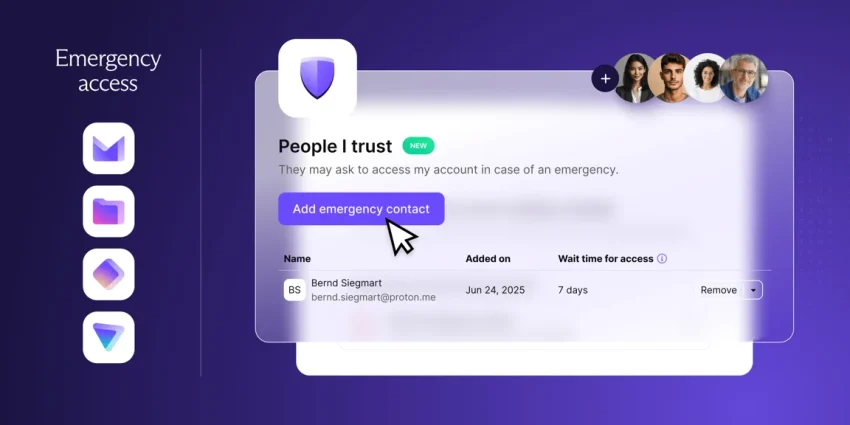
Proton Mail published one example on X recently.

Fake CAPTCHA attacks are on the rise, causing many to fall prey to infostealers injecting malware onto their devices.

Here's how it works, and what you can do to stay safe

👇🧵 1/7 pic.twitter.com/gjwIf2YPnl

— Proton Mail (@ProtonMail) May 2, 2025

The malicious captcha tries to convince unsuspecting users to run a command on their Windows machines.

Here is how it works:

  1. The victim lands on a page with the fake captcha, for instance after clicking on a link in an email or chat.
  2. The captcha displays the usual “I’m not a robot” button.
  3. A click or tap on the button copies a PowerShell command to the operating system’s clipboard.
  4. Victim is instructed to use the shortcut Windows-R to open a run box.
  5. Asked to use Ctrl-V to paste the command and to press Enter to execute it.

Doing so downloads malware from a server on the Internet and runs it on the user’s system. This can be infostealers, malicious software that steals personal information, such as logins, financial documents, or photos.

While most, or even all, experienced users may never fall for that, it is almost a given that inexperienced users may. They may have difficulties getting the run box to open or paste the command, but they probably do not suspect foul play.

How to protect yourself

Protection is quite easy.

No legitimate captcha will ever ask you to execute a command on a local system, or to download a file and run it.

That is pretty much all that you need to protect yourself and your data against this type of attack.

Clearly, you may also want to ask yourself whether you trust the site you are on. Even if you conclude that you do, you should not run anything on the local computer when prompted to do so by a captcha.

Now You: how do you handle captchas on the Internet?

Expect more ads in AI chats soon, courtesy of Google

Posted on May 2, 2025May 2, 2025 by Martin Brinkmann

How do many of the AI startups make money? Many have launched products that are freely available and without ads. There are multiple answers to the question, depending on the business’ strategy. Some want growth at all costs to sell the business later on. Others plan to introduce ads or subscriptions at a later point in time.

Soon, users from all over the world will see more ads in chats with AIs, as Google is expanding its Adsense program to chats.

Bloomberg reports that Google is expanding Adsense to keep its edge in the advertising vertical. Tests with select startups such as iAsk and Liner have begun already reportedly.

New types of AI-powered services spring up virtually everywhere on the Internet. Liner, for example, is an AI-powered search engine, while iAsk promises answers to questions that users may have.

Most services have in common that they are not page-based websites. Blogs or regular websites publish static pages most of the time, whereas interactions with AI are usually dynamic.

While companies may display Adsense on the pages, they were not particularly optimized for the queries of users. This changes with the rollout of the new Adsense format.

Integration means that ads may show up in chats. Where and how depends on the AI service, but users should expect to see an increase in advertisement, especially on AI sites that are not operated by billion Dollar companies.

Good news is that content blockers should be able to deal with those ads, just like they are regarding ads in search or on websites.

Now You: do you use AI services regularly? If so, for what purpose and what do you like or dislike in particular when you compare the AI service to other means of acquiring the information?

Waterfox Private Search engine

Waterfox Private Search: a first look at the privacy-friendly search engine

Posted on May 1, 2025May 1, 2025 by Martin Brinkmann

The developer of the Waterfox web browser announce Waterfox Private Search earlier this week. The new search engine is in open beta currently, which means that you can give it a try if you want to.

Waterfox Private Search pulls data from other search engines privately, unlike Brave Search, which uses its own engine for search results.

Here are the details:

  • Waterfox Private Search is a meta-search engine. Means, it will support several search engines and not just one. During the beta, results come only from Google Search though.
  • A proxy is used for communication with the supported search engines. Means, the search engines won’t see your IP address or other information.
  • The search engine won’t feature any AI content, e.g., AI summaries.
  • There will be two tiers in the long run.
    • An ad-supported tier, that shows “privacy-friendly advertisement” that won’t track users or create user profiles. These will be contextual ads based on the search.
    • A subscription-based tier that removes all advertisement.

You can point your browser to Waterfox Search to give it a go.

The search engine works as expected. You type in a query and get results. These come from Google, but it is refreshing to see that the main focus is on the search results and not added content. While you do get some, such as a “People Also Ask” module, the main focus is clearly on returning web links to the user.

A click on the options menu displays just a few. You can change the location there to get results from a different region and use the domain blocklist to exclude certain websites from the results.

You may also switch search engines, with Bing, Brave, and Mojeek listed, but not yet selectable.

A click on the themes icon in the main interface displays a good dozen or so themes that you can switch between. There should be something for everyone, from very light to dark, colorful and even cyberpunk.

As far as search options are concerned, there are just a few available as menus. A click on the settings icon shows an option to disable autocorrect and to set a specific time period for the search.

You may also switch from web search results to images, videos or news. Other options, including shopping or books are not available.

The loading of search results takes a bit longer, but not too long to be unpleasant. It remains to be seen if the loading time will change when traffic increases.

Initial verdict: Based on a preliminary test, Waterfox Private Search is a refreshingly focused search engine. I did not spot any ads during my tests, but these will come in the future. Privacy-friendly ads are not anything new, but they are more than welcome and if they are implemented in an unobtrusive way, likely not a problem for the majority of Private Search users.

There is certainly the question of sustainability. Ads play a key role here and so does the subscription-based tier. This only works if enough users sign up or see ads when they use the search engine.

Now You: which search engine is your favorite currently and why? Feel free to leave a comment down below to join the discussion.

How to enable Compact Mode in Firefox

Posted on April 29, 2025April 27, 2025 by Martin Brinkmann

Mozilla’s Firefox web browser supports two display densities by default. These determine the size of the toolbar and the elements that are displayed on it.

The two options are normal and touch. Normal is the default value, unless Firefox is used on a touch display.

Firefox supported a third for a very long time officially. Called compact, it reduced the size of the main toolbar to free up room for the display of websites in the browser.

While the mode is not shown anymore by default to users of the web browser, it is still available, albeit officially as “not supported”.

Still, if you are like me, you prefer your browser’s interface as tidy as possible to give website content more room.

Here is a step-by-step guide to enabling compact mode in the Firefox web browser.

Note: This works only in Firefox for the desktop. Also, since the feature is not supported officially, there is a theoretical chance that Mozilla is going to remove it at one time. The interface would revert to the default density in that case though.

Enable Compact Mode in Mozilla Firefox

Firefox Compact Mode

The first step enables the Compact Mode option in the interface, the second sets the interface to the mode.

  1. Load about:config in the address bar.
  2. Confirm the warning page to continue.
  3. Search for browser.compactmode.show.
  4. Click on the toggle icon to set the value of the preference to true.
  5. Select Menu > More Tools > Customize Toolbar.
  6. Locate the “Density” menu at the bottom and click on it to display its options.
  7. Choose “Compact (not supported)” from the available options.

Firefox changes the density of the toolbar and its elements immediately. The toolbar’s height should be a bit smaller than the height of the normal or touch toolbar.

Note that you may undo the change at any time starting at 5) above and switching to Normal or Touch under 7).

Now You: What is your preferred display mode? Smaller, with more space for websites and content, or larger?

About Alphonso: a technology that captures audio samples on mobile devices using the built-in microphone

Posted on April 27, 2025April 27, 2025 by Martin Brinkmann

For advertisers, it may seem like the perfect fit. Integrate a technology into mobile apps, games for the most part, that identifies ads playing on television to push similar ads on mobile, even if the mobile is not used actively.

News about such a system comes just days after LG announced the integration of AI into its televisions to determine the emotions and beliefs of viewers.

The startup Alphonso has apparently created the technology and it is already being used in hundreds of apps and games, some of which are available on Google Play or the Apple App Store.

It works by capturing audio samples using the device’s microphone. These are turned into hashes on the user’s device before they are submitted to a remote server. The hashes are checked against a database of hashes of television ad sound samples to find matches.

A report by The New York Times — you need an account to read it, or archive.is — has additional details.

  • Sound can be recorded even if the mobile phone is in a pocket or if the apps are running in the background.
  • Some of the apps are clearly aimed at children (Alphonso told the NYT that it did not approve of that).

Alphonso told the New York Times that the entire process is highlighted in the application’s description and in the privacy policy. Users need to accept these before the technology can start recording anything.

While technically correct, it is clear that many users do not read the description or privacy policy before hitting the install button in the mobile app stores.

The only way to prevent giving your okay to the recording of audio is to read the description and privacy policy carefully before hitting the install button. A search for Alphonoso may be the quickest option in this regard.

  • Previous
  • 1
  • …
  • 22
  • 23
  • 24
  • 25
  • 26
  • 27
  • 28
  • …
  • 74
  • Next

Support This Site

If you like what I do please support me!

Any tip is appreciated. Thanks!
  • April 20, 2026 by Martin Brinkmann WhatsApp Plus launches: would you pay for these features?
  • April 18, 2026 by Martin Brinkmann Google App for Desktop is now available and it is all about AI
  • April 16, 2026 by Martin Brinkmann Windows 11 Context Menu Manager: remove items with a click
  • April 15, 2026 by Martin Brinkmann One Exploited Zero-Day and Record Numbers: The April 2026 Windows Patch Tuesday Breakdown
  • April 14, 2026 by Martin Brinkmann Brave is getting Container support and the feature has made a big jump recently

About

We talk, write and dream about Technology 24/7 here at Chipp.in. The site, created by Martin Brinkmann in 2023, focuses on well-researched tech news, reviews, guides, help and more.

Legal Notice

Our commitment

Many websites write about tech, but chipp.in is special in several ways. All of our guides are unique, and we will never just rehash news that you find elsewhere.

Read the About page for additional information on the site and its founder and author.

Support Us

We don't run advertisement on this site that tracks users. If you see ads, they are static links. Ads, including affiliate links, never affect our writing on this site.

Here is a link to our privacy policy

©2026 Chipp.in Tech News and Reviews