Chipp.in Tech News and Reviews

Windows, Security & Privacy, Open Source and more

Menu
  • Home
  • Windows
  • Security & Privacy
  • Gaming
  • Guides
  • Windows 11 Book
  • Contact
  • RSS Feed
Menu
Firefox AI Summaries

First Look at Firefox’s new Link Preview feature with AI Summaries

Posted on April 1, 2025April 1, 2025 by Martin Brinkmann

Mozilla is working on introducing link previews in its Firefox web browser. The feature is in testing in the latest Nightly version currently and includes support for local AI summaries.

The main idea behind the feature is to give users a tool at hand to check information about linked resources without visiting them directly.

Here is how it works: You hold down the Shift and Alt-keys on the keyboard and move the mouse cursor over links in the browser’s interface. Firefox displays a popup then that shows a preview image, the page title, and some basic information.

It uses AI, processed locally entirely according to Mozilla, to create key points that are displayed in the popup. This works for English webpages only at the time. Sören Hentzschel notes that you may add additional language support in the advanced configuration, but that the summaries are often in English.

The speed of processing depends entirely on the local system and its capabilities. I tested this on a fairly old computer and the processing took too long to be of use. Still, even without it, link previews worked quickly and reliably already.

How to enable the feature

You need the most recent version of Firefox Nightly, as this is only baked into Nightly at the moment. Note that the feature is in active development and that some features may be missing and that you may experience bugs while using it.

To enable Firefox’s new link preview feature:

  1. Load about:config in the Firefox address bar.
  2. Confirm that you will be careful.
  3. Search for browser.ml.linkPreview.enabled.
  4. Set the experimental preference to True.
  5. Restart Firefox.

Tip: you can add new supported languages to the preference browser.ml.linkPreview.allowedLanguages. Just append them. The default value is en. To add Spanish and Japanese, expand the string so that its value is en,es,jp in the end.

Again, languages other than English may not work overly well at this stage in development.

Closing Words

Firefox supports link previews on mobile already. You can long-press a link to get a preview. On desktop, users need to install extensions for that purpose, unless I’m mistaken (correct me please on this if that is the case).

The shortcut Shift-Alt is not overly elegant, but it works. The preview opens quickly and you get some information that you would not get otherwise, including the page title and a short description.

The AI summary feature did not work well on an older test system, but it may work better on modern hardware.

Now You: do you make use of link previews regularly or click on links right away all the time? Would you use Firefox’s new feature? Feel free to leave a comment down below.

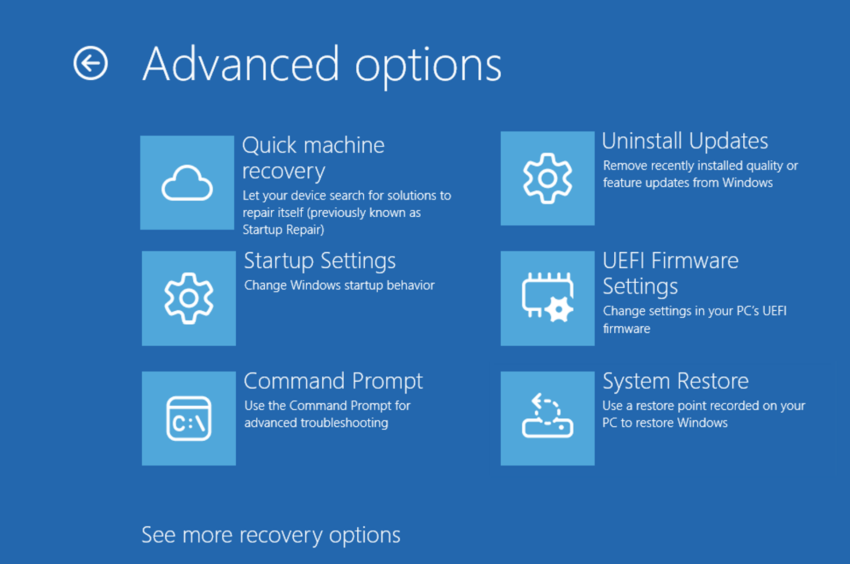
Windows: Quick Machine Recovery feature explained

Posted on March 31, 2025March 31, 2025 by Martin Brinkmann

If you have used Windows long enough, you have probably come into contact with Startup Repair at one point. The feature aims to resolve issues that prevent the operating system from starting up. It is a hit and miss kind of feature for many users though, as it relies solely on local files. All in all, it is not overly reliable.

Quick Machine Recovery extends the functionality to the cloud and Windows Update. The main idea is to improve recovery of Windows systems when boot issues are encountered. Designed primarily for administrators who manage multiple devices, Quick Machine Recovery adds cloud files and data to the recovery process.

The new feature uses a Windows Recovery Environment to “scan Windows Update for remediation options” according to Microsoft. The company says that this “allows devices to be recovered without requiring manual intervention”.

Quick Machine Recovery supports two recovery options:

  • Cloud remediation.
  • Auto remediation.

Cloud remediation

The feature uses Windows Update to fix issues experienced on the device. It requires an Internet connection and may download data from Windows Update to correct issues. If the feature is not enabled, Windows will use the local-only Startup Repair feature instead to attempt to fix the problem.

Auto remediation

This automates the problem solving. Windows will connect to Windows Update automatically to try and fix the issue. It will retry to correct the issue several times automatically.

The Quick Machine Recovery process

The five steps of the Quick Machine Recovery process. Image source: Microsoft.

Five steps make up the remediation process:

  1. Device crashes or fails to boot.
  2. Boot into recovery to start the Quick Machine Recovery process.
  3. Establish a network connection to scan Windows Update for fixes.
  4. Remediation, which attempts to apply fixes found by downloading data from Windows Update.
  5. Reboot to either boot into Windows, if a fix was applied successfully, or to restart the process from step 2.

Default configuration

The default configuration depends on the Windows edition:

  • Windows Home: cloud remediation is enabled by default, auto remediation is disabled by default.
  • Windows Pro, Enterprise: both remediations are disabled by default.

Administrators find instructions on Microsoft’s Learn website that explain how to enable or disable the feature.

Closing Words

Tests will show how well the cloud-based recovery feature will perform. For now, it is only available in test versions of Windows 11.

Now You: what is your take on this new recovery feature? Do you think it will work better than the local-only Startup Repair?

Windows 11 is removing an option to bypass Microsoft account and internet during setup

Windows 11 is removing an option to bypass Microsoft account and internet during setup

Posted on March 29, 2025March 29, 2025 by Ashwin

Microsoft is making a change to the Windows 11 out-of-the-box-experience, also called OOBE. The company has removed a script that lets users skip adding a Microsoft account when setting up Windows.

Normally, when you install a fresh copy of Windows, the set-up process requires you to sign in to your Microsoft account. It even highlights some advantages of connecting an account such as the ability to sync your data across your computers, accessing the Microsoft Store, saving files to OneDrive, Microsoft Office products, etc.

The problem with this process is that it does not offer any option to skip the account sign in. In other words, the set-up does not let you set up the PC with a local account. This annoying requirement has been in place since February 2022.

However, there are a few workarounds using which users can bypass the log-in prompts, allowing them to install Windows sans a Microsoft account.

Naturally, Microsoft does not like it when people resort to such measures. In a bid to curb this, the Redmond company has revealed that it is removing the bypassnro.cmd script from the operating system. This change is already in effect in the latest Windows 11 Insider Preview Build for the Dev Channel, with Build 26200.5516 (KB5054687).

For those unaware, Microsoft is referring to a command that users could run when setting up Windows when you are not connected to the internet. Press Shift + F10 and type OOBE\BYPASSNRO and hit Enter. When you reboot the PC, the “Let’s connect you to a network” screen will display another option, “I don’t have Internet”. Users could use this method to bypass the internet and Microsoft account requirement.

The official explanation regarding the removal of the script is that this move was done to enhance the security and user experience of Windows 11. It also states that users will exit the setup with internet connectivity and a Microsoft Account. The message that it tries to convey is that users have no choice but to sign in to their account, the loophole has been closed. Oh, really! Well, no!

It’s gone, but there is a workaround

There is some good news. Even though it may seem like the option is being removed, you still have other ways to skip the account requirement. Notable Windows Insider and X user, phantomofearth, has revealed that Microsoft has only removed the BypassNRO script. But, you can still bypass the network requirement simply by editing a Windows Registry.

bypass the network requirement

Open Regedit and create a new DWORD under the following location: HKLM\SOFTWARE\Microsoft\Windows\CurrentVersion\OOBE.

Set its value to 1, and reboot your computer. Now, you should see the “I don’t have Internet” option. Select it and proceed to set up your PC without a Microsoft account.

As Martin mentioned on Ghacks, there are a couple of other ways to bypass these annoying requirements, for example, you could use a banned email address like no@thankyou.com or a@a.com which lets you skip the account sign in process. The Rufus tool also lets you disable the online account requirement while setting up a Windows installation media.

Microsoft's Windows Roadmap shows when new features will be available

Microsoft’s Windows Roadmap shows when new features will be available

Posted on March 28, 2025March 28, 2025 by Ashwin

Microsoft has launched a Windows Roadmap to help users discover when new features will be added to Windows. Here’s how you can use it.

It’s not easy to discover when new features are coming to Windows. Sometimes, you may not know what features are being released either. You might suddenly come across a new feature after a Windows Update has been installed on your computer.

This is what the Roadmap addresses, it sort of gives you a heads-up. It’s quite impressive actually, the page lists all upcoming features and improvements that are currently being tested in the Windows Insider Program.

Each listing has a description that explains what a feature does, and links to a relevant article on the Windows Insider Blog that has some additional details, so you can learn more about it. You can also find out the current status of the development, i.e., whether it is in preview, or gradually rolling out, or is generally available to all users.

The Roadmap also gives you an ETA about when we can expect a specific improvement or feature to be available, this is a tentative date.

There is a search bar at the top of the page, which you can use to find something specific. For example, you could type “Explorer”, and the list will filter the results to only show improvements that are heading to File Explorer.

There are some options that are available below the search box. These are filters that allow you to refine the results further. For instance, you can use them to view the features that will be available for a specific version of Windows 11, such as 23H2 or 24H2. Similarly, you can filter results by platform, all PCs or just Copilot+ PCs. You can even filter the results by the status of a feature, and which channel it is currently being tested in.

Now of course, just because something is listed on the Windows Roadmap does not mean that the feature has been finalized. Microsoft could decide to remove something if the feedback that the company received from testers was negative. Or it might delay a feature to make further improvements, and testing.

The announcement on the Redmond company’s blog highlights that the Windows Roadmap could be very useful for IT admins who manage several workstations at the office, as they can use the information to plan ahead. But, it could be handy for regular users too, as it can help them decide whether to defer updates if they perceive some features as annoyances. e.g. Windows Recall

You could skip an upgrade to a major version entirely, but this involves changing a policy or requires a third-party utility like InControl to set your preferred target release. A lot of users are still on Windows 11 23H2, having avoided the upgrade to Windows 11 24H2, due to various bugs that were introduced in the latest version.

For once, Microsoft has done the right thing by launching the Windows Roadmap. But whether users will like the features that it adds to Windows is a completely different story.

Vivaldi browser now comes with Proton VPN built-in

Vivaldi browser now comes with Proton VPN built-in

Posted on March 27, 2025March 27, 2025 by Ashwin

Vivaldi browser has partnered with Proton VPN to allow users to protect the privacy of users. This is not particularly a new innovation, but what matters is the service that is used.

Opera and Brave have integrated their own VPNs in their browsers, as have some apps on Android. Proton is a great choice, as the Switzerland-based non-profit foundation is known for its privacy-oriented services such as Proton Mail, Proton Drive, Proton Pass, etc.

Using a VPN is an easy way to bypass censorship, Geo-restrictions, and access content that is otherwise blocked by your internet service provider.

While it may sound like you don’t need a Proton VPN account to use the security feature, that is not the case. You have two options. One is to sign in with a Proton account directly.

Two, you will need to use your Vivaldi account, and chances are you probably have one if you signed up to sync your browsing data between devices. That being said, you will need to authorize Vivaldi to share your email address with Proton to allow you to use their service, the process is handled by OAuth.

Proton authorization to connect with Vivaldi

How to use Proton VPN in Vivaldi browser

  1. Open Vivaldi on your desktop and click on the “VPN” button in the toolbar (top right corner).
  2. Select Sign in with Vivaldi, or Click on “Already have a Proton Account.”
  3. Click on the Connect button to automatically connect to the nearest Proton VPN server.

That’s it, your browser traffic is now protected by the VPN. You can tweak the service’s settings from the pop-up panel.

Vivaldi Proton VPN Connect

If you do not see the VPN option, try updating your browser to the latest version.

Note: You may want to disable sharing of anonymous usage crash reports under the VPN’s settings.

Built-in feature, or is it?

All that said, it appears that the feature is not truly baked into the browser. What I mean by that, is that Vivaldi doesn’t integrate the VPN in its browser, there are no options that you can manage from the Settings page. That’s because Vivaldi installs the Proton VPN: Fast & Secure extension for the VPN feature. Vivaldi’s announcement does not mention this.

The VPN button does not indicate that it is related to an extension, as the right-click menu does not list options like “Manage Extension” that are available in other add-ons. Vivaldi’s VPN button appears as if it’s a native option, but sadly it’s not. The only unique experience that it seems to offer is the VPN button itself, the icon doesn’t use Proton VPN’s logo. You can still hide it from the toolbar, or even uninstall the extension.

Proton VPN extension installed by Vivaldi

The extension is not installed by default, it only appears when you interact with the VPN button, i.e. when you choose to sign in. You could of course install the extension manually and sign in to it directly with your Proton account, i.e. if you don’t want to use a Vivaldi account. The add-on is available for all major browsers including Firefox, and Chromium-based browsers like Chrome, Edge, Brave, Opera, etc.

It’s not my intention to downplay the feature, I’m just saying a native feature would have been nicer. But, this could be useful too, especially for people who are not familiar with VPN or Proton, or don’t know which extension to download.

Proton VPN in Vivaldi is only available in the desktop version of the browser, i.e. it is not available in the mobile apps for Android and iOS.

Now, this should be obvious to power users, but for those unaware, using Vivaldi’s built-in VPN will only protect your browser traffic. If you want to protect all of your internet traffic, then you should consider using the Proton VPN desktop client, which has a free tier with some limitations, or a different VPN of your choice, like Mullvad.

Read my recent coverage about Vivaldi 7.2, which introduced a faster, more accurate address bar and other improvements.

Opera browser gets Tab Commands powered by AI

Opera browser gets Tab Commands powered by AI

Posted on March 26, 2025March 26, 2025 by Ashwin

Opera has announced a new agentic AI feature for its browser AI, Aria. You can now manage your tabs by using Tab Commands.

The tab management feature supports natural language, so you can just tell it what to do.

How to use Aria AI's Tab Commands in Opera

How to use Aria AI’s Tab Commands in Opera

  1. Open the command line by pressing Ctrl and / hotkey. Mac users will need to use Cmd and /
  2. Type your command. e.g. group my YouTube tabs.
  3. Press Enter.

Note: Opera says that users with a keyboard layout from the Nordics, Germany, France, Italy, Brazil, Spain, Latam and Turkey will need these shortcuts to activate Aria: Ctrl Shift 7 or Cmd Shift 7.

When you execute the command, Aria AI will automatically group all your YouTube tabs together. It will also explain what was changed, and lets you choose whether to keep the results, or undo the changes.

You can also right-click on a tab and select AI Tab Management from the context menu, but this option only appears when you have 5 or more tabs open.

Besides using it to group tabs, you can also ask the AI to pin tabs, close tabs, and to save your session. Opera will create a tab island (tab group) to save your session by bookmarking the tabs.

Here is a YouTube video that demonstrates Tab Commands in action. And here’s a nice graphic that explains how the feature works.

Aria AI's Tab Commands in Opera

Aria processes all tab related features locally, to protect your privacy and security. That’s cool. It can be really useful when you have dozens of tabs open, and you want to close tabs from a specific website, or pin them and close all other tabs. This serves as a useful shortcut which would otherwise require quite a bit of manual effort.

However, the AI-powered tool has some cons too, the main problem is that it is slow to respond. It’s also a bit of a hit-and-miss, i.e. it doesn’t work sometimes. In my tests, it seems to be a case of not identifying the name of websites. For example, it didn’t work with Steam, but it worked with Google, Amazon, YouTube tabs, probably because it was optimized to recognize the domains.

Opera’s AI fails to unpin tabs when you ask it to, and instead closes them, which might sound a bit silly. Pinning and unpinning go hand in hand, as do grouping and ungrouping, closing and reopening tabs. The reason why these commands do not work is because they don’t exist, not yet. Tab Commands are clearly still a work in progress, but it is an impressive feature.

Download Opera One from the official website to try out Tab Commands. This AI feature is not available in Opera Air and Opera GX.

Writing Mode 2.0 and Aria in a Tab

Speaking of Opera Air and GX, these browsers have also been updated. According to the official announcement, Aria AI now has an improved version of Writing Mode, which is called Writing Mode 2.0. You can use it to generate text, or fill in text fields.

Move Aria to a tab in Opera browser

Users can now access Aria directly in a browser tab, as opposed to using the hotkey, or from the sidebar panel. To do this, open Aria from the side panel, click on the panel icon in the top left corner, and then on the pop-out icon (box with an arrow) to move Aria to a tab. These features are also supported in Opera One.

Note: Pay attention to your choices when installing Opera browser on your computer. I also recommend checking the Privacy settings in the app to disable Telemetry options.

Google Drive is now available for Windows on ARM PCs

Google Drive is now available for Windows on ARM PCs

Posted on March 25, 2025March 25, 2025 by Ashwin

Google Drive is now compatible with ARM PCs that run on Windows. Now, users with a Microsoft Surface or a Snapdragon powered Windows device can sync their data to the cloud with the official client.

Microsoft had partnered with Qualcomm and OEMs like HP, Dell, Acer, ASUS, Lenovo and Samsung to help launch computers that were powered by Snapdragon X Elite and X Plus chips. These were the first CoPilot+ PCs, that were designed for AI and promised all–day battery life.

But things didn’t go smoothly as Snapdragon PCs ran into some hurdles, not just in terms of hardware performance or controversies surrounding Windows Recall, but also due to some software support. Many popular apps were not available for ARM64 devices, one notable example of this was the lack of a native version of the Google Drive app.

The Mountain View company had released a beta version of Google Drive for Windows on ARM devices in December 2024, after acknowledging requests from users who had been asking Google to release an official version of the app for ARM PCs. After a successful test phase that lasted a few months, Google has finally announced that it has released the stable version of the app for all users.

Now, you could ask why bother with the app, while you can always access the cloud storage service via a web browser. Well, the Google Drive app offers some useful features for desktop users. You can set it to “Stream Files”, which will allow you to browse files that are stored in the cloud like a local folder via File Explorer, without actually downloading them permanently.

When you want to access a file from the cloud, you can download it to your PC. On the other hand, you may want to use the mirror files option in Google Drive, which saves the files on your computer’s local storage for quick access.

More importantly, the Google Drive app for desktop saves the edits you made to your files and syncs them to the cloud automatically.

The Google Drive app for ARM PCs is only compatible with devices running Windows 11 and Microsoft WebView2. The app is currently rolling out to users, and might take about 15 days before it is available to all users. Existing users on the beta version will automatically be updated to the stable version. You can download the Google Drive app for ARM on Windows from the official website.

Google says that the app will be available for all Workspace customers, Workspace Individual Subscribers, and users with personal Google accounts.

Many people were surprised when Google announced that it would bring its Chrome browser for Windows on ARM, as it is an operating system that is directly competing with its own ChromeOS platform. Google’s support for Windows on ARM is a big win, not just for users, but also for OEMs, Qualcomm, and Microsoft. Of course, Google will benefit from it more, if it manages to attract users to its paid subscriptions such as Google One, YouTube Premium and more.

OneNote for Windows 10 is being discontinued

OneNote for Windows 10 is being discontinued

Posted on March 24, 2025March 24, 2025 by Ashwin

Microsoft is discontinuing yet another of its apps. This time OneNote for Windows 10 is getting the axe.

According to a Microsoft Message Center post (via Neowin), the app will each end of support on October 14, 2025, after which it will no longer receive any bug fixes, security patches, or feature updates. That happens to be the same date when Windows 10 will reach its end of life support as well. That’s not a coincidence, so it may not sound surprising at first. You see, despite its name, OneNote for Windows 10, also works on Windows 11.

Clearly, there are some other reasons why Microsoft wants to shutter the app. The Redmond company is advising users of the OneNote for Windows 10 app to switch to its other note-taking app, OneNote for Windows, which is a part of Microsoft 365.

Microsoft says the older app does not support Microsoft Information Protection (MIP) sensitivity labeling that is used to secure sensitive data, and that the labeled content will be unavailable on OneNote for Windows 10. This may sound odd, but Microsoft says that users on the older version will experience slower sync performance from June 2025, and that this could affect multi-device access and real-time collaboration. It really does sound like the company will deliberately downgrade the experience of the app. Is that even legal?

One more thing that Microsoft highlighted is the fact that that OneNote for Windows has a lot more features, including AI-powered features like Copilot to enhance productivity. Now it makes sense, this could be a just another way to get more users over to Copilot.

OneNote for Windows 10 will display ads asking to switch to the newer app

And it gets worse, the document also reveals that OneNote users will see an in-app banner asking them to switch to OneNote on Windows from July 2025. Of course, it wants to show more ads, that’s what we need.

This is not the first time either, Microsoft already promotes the newer app, take a look at this gigantic banner that asks me to switch to the newer app. There is also a permanent button on the app’s header that serves as a reminder to migrate to the newest version.

Users who plan to move to the new app should take a backup of their data before removing the OneNote for Windows 10 app. You can then use the backup to import the contents of your notes to the new app. Follow Microsoft’s help article for more details about the process.

Alternatively, you could just uninstall the OneNote for Windows app, and access the web version of the note-taking service via your browser.

On the other hand, for users who wish to migrate away, you may want to consider switching to something like Obsidian, Joplin, Standard Notes, NotesNook, etc. All of these are free, open source apps which work offline, and offer an optional sign-up that gives you extra features including cross-platform sync, but there are some limitations that are behind a paywall.

France and Germany launch Docs, an open source alternative for Google Docs

France and Germany launch Docs, an open source alternative for Google Docs

Posted on March 22, 2025March 22, 2025 by Ashwin

France and Germany have announced an open source collaboration tool called Docs. Its description says that Docs was designed to be a secure alternative to Notion, Outline or Confluence.

Well, that definitely applies to Microsoft 365, and Google Docs, because they are the big players on the field.

Docs was developed as a joint initiative by France’s Interministerial Digital Directorate (DINUM), and Germany’s Center for Digital Sovereignty (ZenDiS). Open source tools like Docs will allow users, and businesses to move away from paid services. This may just be the start of many such services. The EuroStack report highlighted the importance of building an independent digital ecosystem for Europe, to address dependencies on foreign technologies and fostering innovation.

Now, you may wonder, what’s with the generic name? Docs, surely they could have done better there. Well, that’s because Docs isn’t just a product, it is a collaborative text editor which is part of a suite which is called “La suite numérique”, you can check the website here to learn more about it. It also has its own GitHub page with repositories for each tool.

Docs will allow users to edit documents and export them into various formats including DOC, ODT, and PDF. It supports markdown, various block types, slash commands, etc. Editors can collaborate on a document in real time. The best part is that you can keep editing the document when you are offline, and your edits will be synced when you’re back online. You can also share documents that you have created using the platform.

And like many modern programs, Docs also has some AI-powered features, these are called AI Actions and allow you to generate content, sum up, correct or translate text.

Docs is built on top of Django Rest Framework, Next.js, BlockNote.js, HocusPocus and Yjs. As a matter of fact, they are also the sponsors of BlockNote and Yjs. The tool uses the MIT license.

You can sign in to Docs using your FranceConnect account. There is a demo page that you can test by signing in using your web browser. Just head over to the official GitHub, scroll down to the getting started section, and you will find the credentials you need to test the app. It has a fairly simple interface, and is quite user-friendly. You can also see the documents that were created by other users in this test environment.

While it is designed as an online collaboration tool, you can download Docs and self-host it if you want to, but keep in mind it’s still a work-in-progress. But, if an offline office suite is what you want, there is a better option, LibreOffice. It is also free, open source, and supports Windows, macOS and Linux.

Did you know that it is also used by Governments? As noted by HowToGeek, Schleswig-Holstein, a state in Germany, switched from Microsoft Office to LibreOffice last year. And they also migrated over 30,000 PCs from Windows to Linux. A lot of people will be doing that later this year, when Windows 10 reaches its end-of-life support date.

Google Photos moves Memories to the Collections tab

Google Photos moves Memories to the Collections tab

Posted on March 21, 2025March 21, 2025 by Ashwin

Google has moved the Memories tab from the Photos app’s home screen. Don’t worry, the feature hasn’t been removed from the app.

Google Photos moves Memories to the Collections tab

For reference, Google had introduced Memories in 2023 to help users to revisit their old photos and videos from years ago, by curating some interesting pictures. Actually, there is a widget in the Photos app, which is also called Memories, it was released in 2021, and it kind of serves the same purpose.

A widget is cool, but it is easier to view Memories via a dedicated page. As I mentioned earlier, you can still access the scrapbook-like feature, but it has been moved to a new place. Memories are now part of Collections in the Google Photos app. The new section appears at the top of your image gallery, but it is no longer called Memories. It has been renamed to Moments.

Here’s something weirder, do you see the carousel at the top of the app’s main screen?, i.e. Photos, well it is called Memories. That’s not confusing at all, right? I’m not entirely sure why this was done, but there it is.

Google Photos Memories is now Moments

You can access your Moments from the Collections tab to add more details to the images and videos, search for something specific, or share them with your loved ones.

The Google Photos home screen on the other hand is now simpler, with just three options on the bottom bar: Photos, Collections and Ask/Search. This is what the Mountain View company was going for, to make the main page more compact. It did the same thing with Google Maps, so at least there is some uniformity in the design.

This change isn’t something that happened out of the blue, Google began pushing this change last year in the Photos app for iOS, before it was introduced in the Android version.

According to 9to5Google, the removal of the Memories tab started in January this year, but it seems to be rolling out on a wider basis with Google Photos version 7.2.0 on Android and iOS. If you don’t see the Moments section on your phone yet, you may want to check the Play Store or the iOS App Store manually to see if an update is available for the app.

Tip: Check out Martin’s article to learn how to use Google Takeout to organize your Photos automatically.

This renaming/redesign may feel like an unnecessary change to some users, and I agree. Memories was a fine name, renaming it was pointless, and now it takes an extra step to access your Moments, that doesn’t make sense either. It’s not like the shortcut was taking up a lot of space on the bar, and phone screens are getting bigger not smaller, resizing the icons to fit more options would be the user-friendlier choice. Burying options under menus and subsections usually result in fewer people using a feature.

Oh well, it’s just one of those Google things! I wouldn’t be surprised if these redesigns were done to make room for adding some AI-powered options in the future.

  • Previous
  • 1
  • …
  • 25
  • 26
  • 27
  • 28
  • 29
  • 30
  • 31
  • …
  • 74
  • Next

Support This Site

If you like what I do please support me!

Any tip is appreciated. Thanks!
  • April 21, 2026 by Martin Brinkmann Microsoft confirms yet another BitLocker Recovery Screen issue in Windows 11
  • April 20, 2026 by Martin Brinkmann WhatsApp Plus launches: would you pay for these features?
  • April 18, 2026 by Martin Brinkmann Google App for Desktop is now available and it is all about AI
  • April 16, 2026 by Martin Brinkmann Windows 11 Context Menu Manager: remove items with a click
  • April 15, 2026 by Martin Brinkmann One Exploited Zero-Day and Record Numbers: The April 2026 Windows Patch Tuesday Breakdown

About

We talk, write and dream about Technology 24/7 here at Chipp.in. The site, created by Martin Brinkmann in 2023, focuses on well-researched tech news, reviews, guides, help and more.

Legal Notice

Our commitment

Many websites write about tech, but chipp.in is special in several ways. All of our guides are unique, and we will never just rehash news that you find elsewhere.

Read the About page for additional information on the site and its founder and author.

Support Us

We don't run advertisement on this site that tracks users. If you see ads, they are static links. Ads, including affiliate links, never affect our writing on this site.

Here is a link to our privacy policy

©2026 Chipp.in Tech News and Reviews