
It usually happens in the first five seconds: you click on a video expecting the familiar, expressive voice of your favorite creator, only to be greeted by the flat, sterile drone of a synthetic narrator. That Japanese video game trailer? Has a voice over that sounds like a bored car salesmen from the Midwest.
If you watch YouTube content in different languages, there is a good chance that you encountered the video hosting site’s auto-dubbing feature before.
The idea is simple: To make content available to a wider audience, YouTube is giving creators access to tools that translate speech into other languages. This, according to YouTube, makes videos more accessible.
However, if you speak multiple languages or prefer to watch videos in the original language, you may have run into the problem that YouTube picked an AI-powered translation for you regardless.
YouTube announced an extension of AI dubbing on the platform recently. The feature is now available to creators worldwide and in eight languages. Expect this to increase further in the coming years.
What you can do about it
Google has implemented two options for YouTube users. One works for individual videos and requires no account, the other for all videos, but requires an account.
Third-party solutions, in the form of extensions, are also available.
The Quick Fix (Per Video)
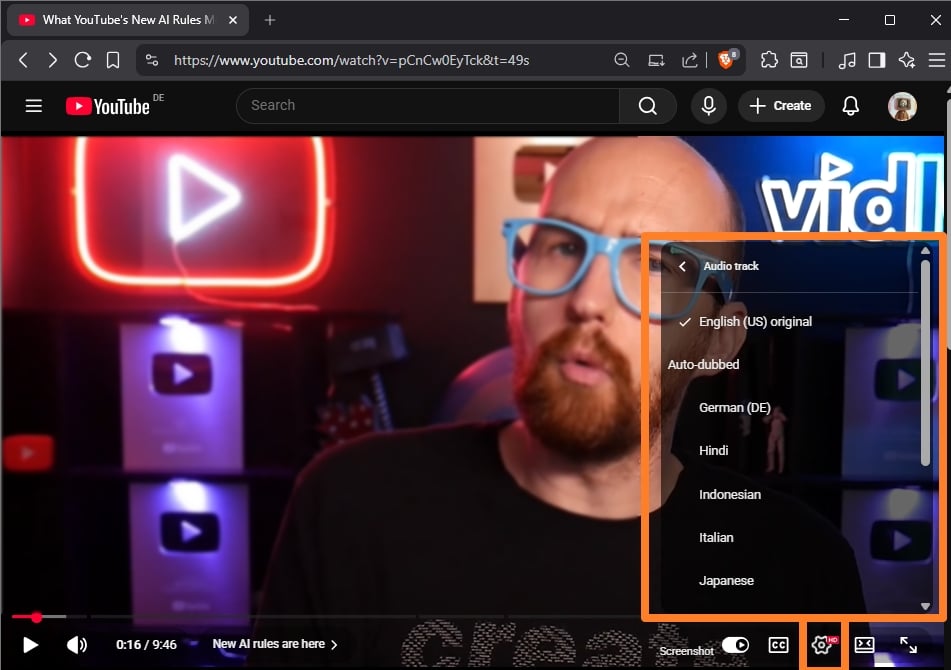
If you are watching a video and hear an AI voice, you can switch back to the original voice immediately.
- Pro: Works without account.
- Con: Needs to be done for each video, preferences are not saved.
Here are the steps:
- Click/Tap the Gear Icon (Settings) on the video player.
- Select Audio Track.
- Choose the option labeled Original (e.g., “English (Original)” or “Japanese (Original)”).
The Permanent Fix (Account Settings)
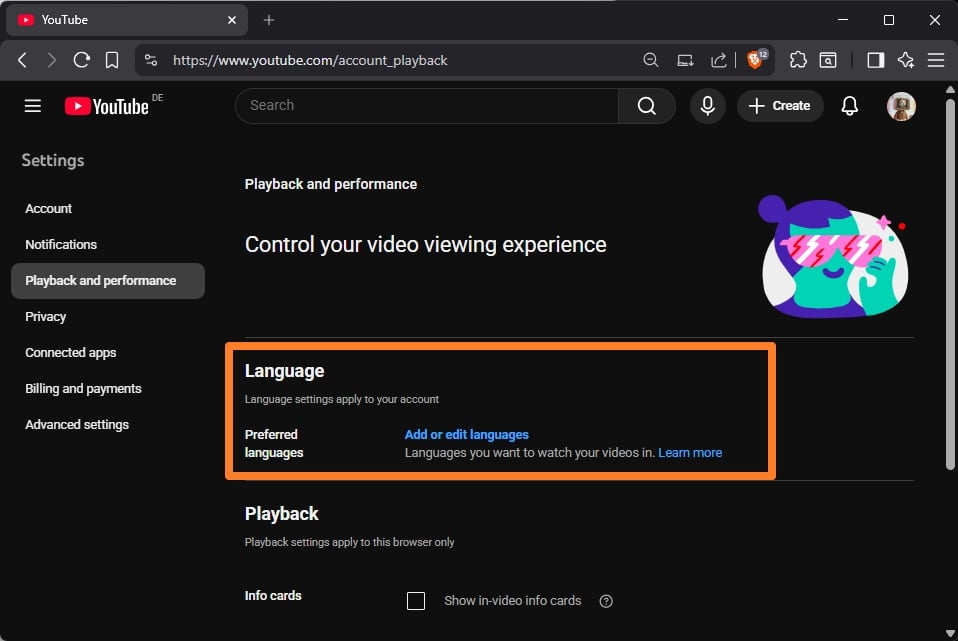
A new YouTube setting enables you to set all languages that you understand (or do not want dubbed).
- Pros: Works for all videos.
- Cons: Not a true “never” option. Requires a YouTube account and using it all the time.
Here are the steps:
- Go to the YouTube Settings.
- Select Playback and performance.
- Look for “Preferred languages“ or “Add or edit languages“.
- Select all the languages you speak/understand/don’t want dubbed.
The browser extensions
Extensions offer best of both worlds: they do not require an account and they work for any video that you encounter. Set once and forget.
Here is a short selection of extensions that you may want to try:
- YouTube Anti Translate (Chrome / Firefox) – The extension disables the automatic translation of YouTube titles, audio, or descriptions using AI. Works automatically, open source extension.
- YouTube Audio Selector (Chrome) — Set preferred languages for YouTube to make sure that they are never AI-translated.
What about you? Did you encounter AI dubbed videos on YouTube before?
I use a dedicated uBO filter found on a page which has several valuable YouTube uBO filters:
[https://www.reddit.com/r/uBlockOrigin/wiki/solutions/youtube/]
Scroll down to the [Remove Auto-Dub] section.
Works perfectly without a YouTube account and even with YouTube cookies blocked, with embedded/iframed videos as well.
Consider duplicating the code with [youtube-nocookie.com] if necessary.
The guy/gal who wrote these 4 lines of code for uBO is a genius.
I am sure somebody will update extensions that disables autodub.