Chipp.in Tech News and Reviews

Windows, Security & Privacy, Open Source and more

Menu
  • Home
  • Windows
  • Security & Privacy
  • Gaming
  • Guides
  • Windows 11 Book
  • Contact
  • RSS Feed
Menu

Category: Windows

Windows 11

Dell: 500 million Windows 10 PCs can’t upgrade to Windows 11

Posted on November 27, 2025 by Martin Brinkmann

How is the last supported Windows operating system doing after Microsoft ended support for its predecessor Windows 10 a month ago? Not so good, at least according to Dell CEO Jeffrey Clarke.

Clarke revealed several information during the company’s latest earnings call. One of them being that Dell believes that there are 500 million Windows 10 PCs out there in the world that can’t be upgraded to Windows 11 officially. While most could be upgraded by bypassing Microsoft’s artificially introduced system requirements, only a small fraction will because of the technical process that is involved and the consequences.

Another 500 million PCs that run Windows 10 can be upgraded, but have not yet. That leaves about 500 million PCs that run Windows 11 already, according to Dell.

However, this is not the only bombshell that Clarke dropped during the call. He also revealed that the transition from Windows 10 to Windows 11 is much slower than the transition from Windows 8 to Windows 10.

The transition is lagging behind, which affects Dell’s growth in the sector. Dell reported a revenue of $12.1 billion for its Client Solutions Group, which bundles commercial client and consumer PC sales. Here, Dell reported a slight uptick in commercial client revenue to $10.1 billion and a declining revenue of $2 billion in consumer PCs.

The Infrastructure Solutions Group made more than up for that though. Its revenue was $14.1 billion, which is a 24 percent increase compared to the last year and the sevenths consecutive quarter with double-digit growth. AI is the main driver of the revenue increase of this group.

To sum it up: Windows 10 users seem to hold on to their PCs, even if they could upgrade them to Windows 10. For now, PCs remain supported with security updates if ESU is enabled for the device.

Now You: Windows 10 or Windows 11, what is your preference? Or something else? Maybe you made the switch to Linux already?

Windows 11 is removing an option to bypass Microsoft account and internet during setup

How Windows 11’s Point-in-time Restore feature differs from System Restore

Posted on November 25, 2025November 25, 2025 by Martin Brinkmann

You may have heard that Microsoft is working on a new restore feature for Windows 11 called Point-in-time Restore.

The backup feature in a sentence: It allows Windows admins to restore the exact previous state of a Windows PC.

The main focus is to offer fast restores to a previous system state to allow the quickest recovery possible using integrated options.

The biggest different to System Restore, therefore, is that it creates a snapshot of the entire Windows system and not just some files and setting, like System Restore.

While that sounds like a great addition to Windows and could make some backup apps unnecessary, this is not the case entirely, as there are downsides to this as well.

Probably the biggest letdown is that it is capped to 72 hours. Means, it won’t help if the issue occurred before that period and was not noticed until then. Microsoft says that this is the maximum and that restore states will be deleted after being kept for the maximum.

The restore points may also be deleted in other circumstances, mostly when storage that is reserved for the restoration feature is reaching the set maximum size or when the device itself is running low on disk space.

Windows 11 creates a restore point every 24 hours by default. Here is a table that shows the main differences between Point-in-time Restore and System Restore, according to Microsoft.

CriteriaPoint-in-time restoreSystem Restore
ConfigurationSystem settingsControl panel
Restore point triggerScheduled frequency (automatic only)Event-triggered or manual
RetentionMax 72 hours per restore pointIndefinite (subject to disk usage/cleanup)
Target scopeFull system stateSystem files and settings; app/user data coverage varies
ManagementWill support remote management*No modern management

Good news is that Point-in-time restore runs locally and while you do need to make sure that enough storage space is available, it could finally be a Windows feature that most Windows 11 users have nothing against.

However, it won’t replace traditional backup software, as these allow you to keep copies indefinitely, something that Point-in-time Restore does not seem to support and probably won’t ever.

Google Drive is now available for Windows on ARM PCs

“We know we have work to do”: Microsoft posts apology, but gets destroyed in the responses

Posted on November 16, 2025November 16, 2025 by Martin Brinkmann

Microsoft’s plan to turn Windows into an agentic operating system has been met with massive backlash online. When the Microsoft President of the Windows and Devices division announced the next Microsoft Ignite developer and professionals conference, AI made up the cornerstone of the announcement.

Windows is evolving into an agentic OS, connecting devices, cloud, and AI to unlock intelligent productivity and secure work anywhere. Join us at #MSIgnite to see how frontier firms are transforming with Windows and what’s next for the platform. We can’t wait to show you!

Users responded in droves and the general tone was very negative. Many asked Microsoft to focus on the features and things that matter, like creating a stable operating system that offers top-tier performance.

The chief of Microsoft’s Windows division limited comments, which drove the discussion elsewhere, but did not seem to turn it down.

Then, after a few days, Davuluri published a reply on Twitter to one developer comment in particular. In the command, Gergely Orosz stated that he could not see any reason for software engineers to pick Windows “with this weird direction they are doubling down on” and an operating system that “doesn’t look like anything a builder who wants OS control could choose”.

In the reply, Davuluri claimed that Microsoft was being swarmed by feedback and that Microsoft was listening and that Microsoft cares deeply about developers.

We know we have work to do on the experience, both on the everyday usability, from inconsistent dialogs to power user experiences. When we meet as a team, we discuss these paint points and others in detail, because we want developers to choose Windows.

We know words aren’t enough, it’s on us to continue improving and shipping

This time, the comments were as brutal as the first time. X user JimBobSquarePant’s comment is representative for the general tone of replies.

It really is hard to believe that to be the case given the disconnect displayed in your previous post upon which you received overwhelmingly negative feedback.

I’ve been a Windows user since I was a small child, I’m a Microsoft MVP and develop almost exclusively on Windows but even I am considering Linux as an alternative. The quality of the software of the OS (and other Microsoft products) is in real, visible decline.

In short, commenters complained that the quality of the Windows operating system is deteriorating, and that Microsoft is not listening nor caring about developers or power users anymore.

Closing Words

Judging from the past ten or so years of Windows development, and especially the past couple of years, I’d be surprised if Microsoft would actually start listening and change course, or at least focus more development resources on improving the stability and performance of the Windows operating system.

What about you? Feel free to leave a comment below.

Windows 11 is removing an option to bypass Microsoft account and internet during setup

Not again! Microsoft confirms another Bitlocker Recovery issue in Windows

Posted on November 5, 2025 by Martin Brinkmann

Windows users who use BitLocker to encrypt their data either willingly or unknowingly may have run into a BitLocker related issue several times in the past.

It is unclear when it all started, but the essence of the bug was always the same: affected Windows PCs would boot into BitLocker Recovery Mode after installation of an update that caused the issue.

The problem here is that to get out of the mode, users needed the recovery key, which many probably did not really know. While it is easy to look it up online, at least when a user uses a Microsoft account to sign in, it still was a hassle in the best case.

Microsoft confirmed another BitLocker Recovery issue on the Microsoft 365 admin center, but not yet as a known issue for regular users who do not have access to the admin portal.

The issue affects the following Windows versions:

  • Windows 10, version 22H2
  • Windows 11, version 24H2
  • Windows 11, version 25H2

The systems are affected, if the October 2025 security updates are installed on the machines.

Microsoft says that the issue affects Windows PCs with Intel processors and Modern Standby mostly. Still, other systems may also be affected.

As usually, Windows users may resolve the issue by entering the BitLocker recovery key when prompted for it.

Closing Words

Microsoft seems to have a hard time fixing the BitLocker bug for good, as it reappeared several times, including in May of 2025 when Microsoft issued another warning about the problem.

Windows 11: Block Windows Search from sending anything to Bing

Posted on November 3, 2025November 3, 2025 by Martin Brinkmann

The integration of Microsoft Bing, or any other online search tool for that matter, in Windows Search is an abomination. The main idea is to run a search online if Windows can’t find anything locally or at least give you the option to run the search.

I’d argue that the vast majority of Windows users does not want this. When you run a search locally, you expect local results. Also, a web browser is just a click away and the more appropriate vessel for running searches online.

Recently I noticed that if you are too fast when the system boots, your searches may end up opening Bing in Microsoft Edge, even if there is a local match. It happens only when you open Start right after the system has booted, start typing and press the Enter-key.

Anyway, it is highly recommended to block Bing entirely in Windows Search, unless you are one of the few users who finds this useful actually (I have yet to meet a single user who does though, let me know..).

Here is how you can end Bing in Windows Search in a matter of seconds (thanks Henk):

  1. Open the Start menu on the Windows machine.
  2. Type Powershell.
  3. Select “run as administrator” to open an elevated PowerShell window.
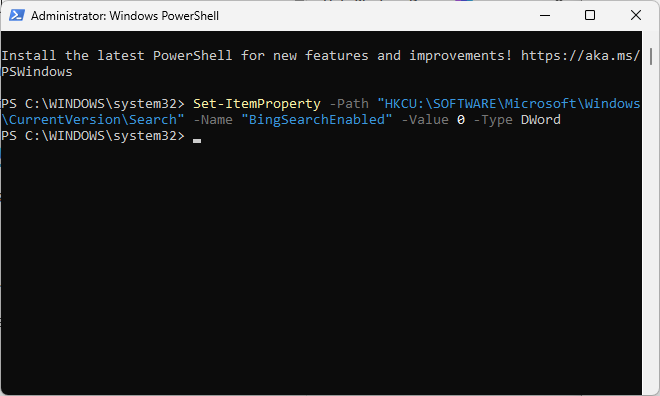
  4. Paste the following code: Set-ItemProperty -Path “HKCU:\SOFTWARE\Microsoft\Windows\CurrentVersion\Search” -Name “BingSearchEnabled” -Value 0 -Type DWord
  5. Press the Enter-key to run it.

That is all there is to it. In case you wonder, this adds the Dword BingSearchEnabled to the Registry. Note that you can add the information manually as well using the Registry Editor, or create a Registry file if you prefer that way.

You can undo the change at any time by setting the value to 1 or deleting the key. I doubt anyone would, but it may happen that Microsoft accidentally resets this. You will notice right away though, as searches may include online content in that case again.

Now You: Do you use the online search feature of Windows Search? Or do you disable it / ignore it instead? Feel free to leave a comment down below.

Greenshot: open source screen capturing app is now also available as a portable version

Posted on November 1, 2025November 1, 2025 by Martin Brinkmann

There is certainly no shortage of options when it comes to capturing screenshots or videos on computer systems. From built-in solutions like Microsoft’s Snipping Tool to excellent third-party apps like my favorite PicPick.

Greenshot is another household name. The open source application has been around for a long time and it is well maintained. It supports various types of screenshot captures, from full screen over windowed to region captures.

While it does lack some of the advanced options, like capturing video or scrolling windows in most programs, it does support a few extras like excellent support for integrating third-party services like Flickr or Dropbox. Other features that it supports include adding annotations and highlights, obfuscating parts of the screenshot, and more.

Greenshot interface

The developer of Greenshot Christian Schulz released a new version of the application just a few days ago. It includes a single fix for file associations not working when the app is running already and a new feature: a portable version.

Good news is that you can run Greenshot now from any location using the portable version. You can put it on a USB flash drive or stick and carry it with you around to use it on any Windows machine you plug the USB device in.

So, if you are using Greenshot already you might switch to the portable version, if you prefer it. You can download the portable version, or the setup version, of Greenshot from its GitHub repository.

Now You: which screenshot tool or tools do you use and why? Feel free to leave your recommendation in the comment section below.

Microsoft announces plan to simplify Windows Update titles

Posted on October 30, 2025October 31, 2025 by Martin Brinkmann

Microsoft announced an upcoming change regarding the titles of Windows Update. Going forward, Microsoft wants to simplify the name of updates so that they are “more intuitive, consistent, and informative”.

The company hopes that this change will make it easier for regular users to understand what an update does that is installing or was installed on the Windows device. Original equipment manufacturers and partners should benefit from this as well, according to Microsoft.

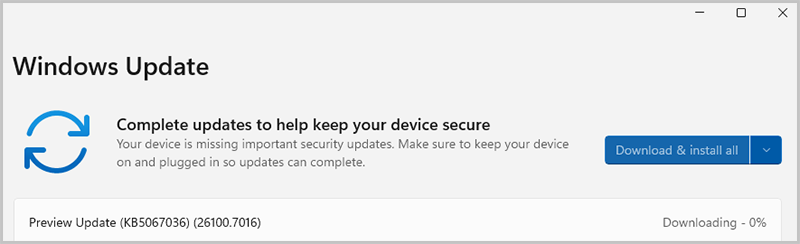
The updated titles follow a simple structure and will focus on the name of the update. Most updates, the exception is a driver update, include the KB ID as before. Windows Updates include the build number furthermore, while drivers the version of the driver.

An example of an update with a new title. Source: Microsoft

Microsoft posted several examples of how driver updates will be named in the future:

  • Monthly or out-of-band security updates: Security Update (KB5034123) (26100.4747)
  • Monthly preview non-security updates: Preview Update (KB5062660) (26100.4770)
  • .NET Framework security updates: .NET Framework Security Update (KB5056579)
  • .NET Framework non-security updates: .NET Framework Preview Update (KB5056579)
  • Driver updates: Logitech Driver Update (123.331.1.0)
  • AI component updates: Phi Silica AI Component Update (KB5064650) (1.2507.793.0)

Generally speaking, the new titles apply to Windows operating system updates, such as monthly cumulative updates, .NET Framework updates, driver updates, AI component updates, and Visual Studio updates.

Windows users will find the new titles under Settings > Windows Update and also in the update history, which can be accessed from the Windows Update page of the Settings. Lastly, it is also shown on the Windows release health website.

Microsoft says that updates that do get deployed via WSUS (Windows Server Update Services) or the Microsoft Update Catalog, won’t reflect the changed titles for the most part. Windows feature update titles will also keep the traditional title.

The new titles may omit the version of Windows the update is for. While that may not affect regular users who install the update on their devices, it could affect users who want a quick overview of the released updates on Microsoft’s website or elsewhere.

Now You: What is your take on this change? Is it for the better?

Who is going to talk to their PC, once Microsoft launches Copilot Voice for Windows?

Posted on October 21, 2025October 21, 2025 by Martin Brinkmann

The main future of PC that Microsoft envisions is giving Windows users more flexibility when it comes to interacting with the PC. Instead of using mouse and keyboard, Microsoft is betting big on AI and the recently announced Copilot Voice feature.

In simple terms, it allows anyone, Microsoft says even users with no-Copilot+ PCs, to talk to the AI using a connected microphone. This allows Windows users to use their voice for searching, getting help, or automating tasks, according to Microsoft.

Many news outlet made it appear that Microsoft wants Windows users to use their voice exclusively when they use the PC. This is not the case, but Microsoft believes that voice will play a much larger role in the future.

There are several uncertainties here, largely because Microsoft did not provide many details on the functionality. Tests have to show how well, or not, the voice feature works and what you can do with it.

  • Is it just for communicating with the AI via voice?
  • Can you use it for other purposes, e.g., dictation?
  • What are the privacy implications? Where is the voice data processed? Is it stored? If so, for how long? Who has access to the data?

Who is going to talk to their PC?

Assuming that the feature works well, the question about who is going to use it needs to be answered as well.

Voice interactions can be beneficial in some contexts, for instance if you need to use your hands for something else, or use a fullscreen app and do not want to switch to the text-based prompt.

However, voice does not work well in some contexts. Imagine talking to your Windows PC during your commute, or in an office with other workers sitting nearby.

The idea of a Star Trek-like communication with a computer system works well, if there is only one person talking to it. Now imagine the whole Enterprise-crew talking to the computer at the same time in the command room. That is utter chaos.

So, this voice feature will be used in private for the most part, which excludes some business use. Still, Microsoft says it is another option that Windows users have, and that is fine, provided that you want to communicate with the AI.

What is your take on this? Do you see yourself talking to an AI in the coming years?

Windows 11 lock screen widgets

Microsoft confirms Windows 11 bug that affects the Windows Recovery Environment (WinRE)

Posted on October 20, 2025October 20, 2025 by Martin Brinkmann

It did not take long for Microsoft to confirm the first few issues after the official release of this year’s feature update, Windows 11 version 25H2.

The latest issue affects the Windows Recovery Environment. It is an essential recovery option of Windows that includes features such as repairing startup, resetting the PC, or uninstalling updates.

The confirmed bug renders USB mice and keyboards inoperable. Means, if the input devices are connected via USB, they won’t function in the Windows Recovery Environment.

For some, it can mean that no selection can be made, unless a non-USB mouse or keyboard is connected to the PC.

The issue affects the following platforms:

  • Windows 11, version 25H2
  • Windows 11, version 24H2
  • Windows Server 2025

Microsoft writes:

After installing the Windows security update released on October 14, 2025 (KB5066835), USB devices, such as keyboards and mice, do not function in the Windows Recovery Environment (WinRE). This issue prevents navigation of any of the recovery options within WinRE.

Microsoft notes that the issue does not impact normal operations. In Windows itself, USB mice and keyboards continue to work.

The company revealed that it plans to release a fix for the issue in the coming days. This was on October 17th, which suggests that a fix should be released very soon.

Until then, you better cross fingers that you won’t need the Recovery Environment or have a non-USB keyboard or mouse ready for accessing it even with the bug present.

The second issue that Microsoft confirmed affected IIS websites. They would fail to load if affected. Microsoft admitted that it fixed the issue using a Known Issues Rollback. This rollback restores previous functionality to resolve bugs.

Note that it is necessary on managed PCs to configure special policies to allow the rollback to take place, as explained here.

Firefox

Mozilla will continue to support Firefox on Windows 10

Posted on October 17, 2025October 17, 2025 by Martin Brinkmann

Now that support for Windows 10 has ended, software developers will make announcements regarding support of their products on the operating system.

Mozilla has just announced that it will continue to support Firefox on Windows 10 devices for “the foreseeable future”. While the organization did not provide a specific, at least “at the minimum until” would be nice, it guarantees that Firefox users on Windows 10 continue to receive updates for the browser.

Mozilla is also one of the few browser makers that supports Windows 7, as it extended support for the operating system several times. Considering that Windows 10 is more widely used, it is likely that support for Firefox on Windows 10 will go on for a long time.

If you remain on Windows 10, you will continue to get the same updates to Firefox you do today, with all of our latest feature improvements and bug fixes. This includes our commitment to resolve security vulnerabilities as rapidly as we can, sometimes in less than 24 hours, with special security updates. Windows 10 remains a primary platform for Firefox users. Unlike older versions of Windows like Windows 7 and 8, where Mozilla is only offering security updates to Firefox, Windows 10 will get the latest and greatest features and bug fixes just like users on Windows 11.

Mozilla recommends that Windows 10 users upgrade to Windows 11, if the PC supports it, or subscribe to Extended Security Updates for Windows 10. The latter would extend support by a year on consumer PCs and for up to three years on business PCs.

Other browser makers, including Google, have not made announcements regarding end of support of their browsers. The official Chrome Support Timelines website lists Chrome’s deprecation release and date for Windows 10 as “not yet scheduled”.

With Windows 10 used on hundreds of million of devices worldwide, even Google can’t afford to lose a sizeable chunk of users overnight, should the company decide to end support as early as it did when Windows 7 support ended.

  • Previous
  • 1
  • 2
  • 3
  • 4
  • 5
  • 6
  • 7
  • …
  • 25
  • Next

Support This Site

If you like what I do please support me!

Any tip is appreciated. Thanks!
  • March 2, 2026 by Martin Brinkmann Don't Bother with Windows 11's new Speedtest feature
  • February 27, 2026 by Martin Brinkmann Warning! That laptop on Amazon? It comes with temporary storage
  • February 26, 2026 by Martin Brinkmann "If your printer works today, it will continue to work": Microsoft corrects previous announcement
  • February 25, 2026 by Martin Brinkmann YouTube Premium Lite subscribers get background playback and downloads with a big "but"
  • February 24, 2026 by Martin Brinkmann Firefox 148.0 is out with its AI kill switch and support for Windows 7 and 8.1 comes to an end

About

We talk, write and dream about Technology 24/7 here at Chipp.in. The site, created by Martin Brinkmann in 2023, focuses on well-researched tech news, reviews, guides, help and more.

Legal Notice

Our commitment

Many websites write about tech, but chipp.in is special in several ways. All of our guides are unique, and we will never just rehash news that you find elsewhere.

Read the About page for additional information on the site and its founder and author.

Support Us

We don't run advertisement on this site that tracks users. If you see ads, they are static links. Ads, including affiliate links, never affect our writing on this site.

Here is a link to our privacy policy

©2026 Chipp.in Tech News and Reviews