
When Microsoft released Windows 11, it became clear quickly that the company’s attempt to fix the often convoluted Explorer context menu backfired. Microsoft’s answer was to introduce a two-tier context menu. The new one, displayed when users right-clicked and the second one, which users could access by holding down Shift or selecting the option to display it after the initial right-click.
The first contained common actions, like copying or format, the second all the entries from third-party apps that had not switched to the new system yet.
Microsoft revealed plans to launch another redesign of the context menu days ago on the official Windows blog. There, the company admitted that the current solution had performance and reliability issues.
The redesign addresses these and gives users more control over what they see and what they don’t require.
For that purpose, Microsoft is introducing new customization options in the Settings app for the context menu. You can enable or disable some of the options displayed there, including which apps are allowed to display entries on the main level and not in a submenu.
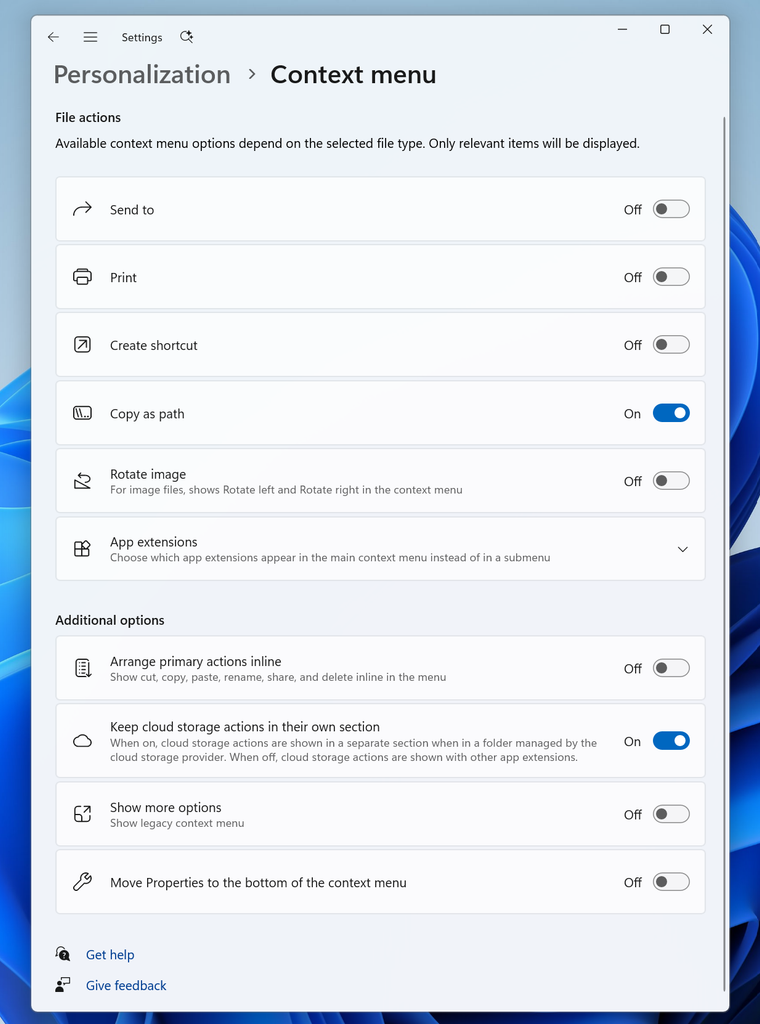
The shared screenshot shows the options that are in testing right now. You can display or hide
- Send to
- Create shortcut
- Copy as path
- Rotate image
- The apps that appear directly.
Additional options let users disable the icon-powered actions at the top (cut, copy, paste, rename, share, delete) in favor of inline options, keep cloud options separate, display properties at the bottom of the menu or display the legacy context menu right away.
Some actions can’t be configured at the time, including setting an image as the wallpaper, adding a file to the favorites, or AI actions.
It remains to be seen whether this new attempt at improving the File Explorer context menu is a successful one, or whether it is going to fail as badly as the initial redesign when Windows 11 launched.
Isn’t it a waste of time? Sounds like it will only add more bloat to the OS. And the current tweaks that are available bring back all the items mentioned in the article. Why is it? MS works on a Start Menu that is obsolete for those savvy enough to use a secure third-party menu; now they want to tweak the Context Menu which doesn’t need tweaking. The legacy menu is great–been using it for years!
WinAero Tweaker [and most likely Ultimate Windows Tweaker] provided a remedy for the new context menu years ago. Even MS has published how to revive the legacy menu; and I am most certain Martin, on gHacks, covered the issue:
https://winaero.com/how-to-enable-full-context-menus-in-windows-11/#Using_Winaero_Tweaker
https://learn.microsoft.com/en-us/answers/questions/2287432/article-restore-old-right-click-context-menu-in-wi
https://gist.github.com/ahembree/d9c7c6b1ea26b010d983c086c04a206a
Yes, precisely what I thought:
https://www.ghacks.net/2021/10/04/how-to-restore-the-classic-file-explorer-context-menu-in-windows-11/
Thanks, Martin—that was back in 2021—five years ago! Whoa!
Seriously? FFS!
I’ve already “edited” my context menu to have “WHAT I WANT!” on it, complete with a cascading Admin PS/Terminal/cmd menu.
Getting “create new > .bmp” off it was a major pain in the arse.
This is sure to fork that all up and at the the least make me do it all over again or worse, make it so I cant! 😡
It’s incredible that Windows 11 has been around for 5 years now, and they still can’t make it fully functional.
Something similar to Window 10, but the changes didn’t affect as much of the general UIX.
I simply enable the classic right mouse click menu for all new PCs for customers. No one complained. It’s complete and rational, unlike Microsofts “modern” versions.
Copy this text below to a notepad file:
Windows Registry Editor Version 5.00
[HKEY_CURRENT_USER\Software\Classes\CLSID\{86ca1aa0-34aa-4e8b-a509-50c905bae2a2}]
@=””
[HKEY_CURRENT_USER\Software\Classes\CLSID\{86ca1aa0-34aa-4e8b-a509-50c905bae2a2}\InprocServer32]
@=””
Once there, save the file as Classic Context Menu.reg (or whatever name you want. Just save it as .reg file
Now, right click on this new .reg file you just created and select Merge (You may have to view more properties in the limited windows context menu) just to find the merge command!
Upon finding it, merge this into your registriy and the old context menu will be permanently there. If it doesn’t show immediately, log off Windows and log back in. It’ll be there!
Think this is a big ol’ virus? Yep, I would too! It ain’t!
Paste the info provided into a search engine and it’ll pop up all over the web. You might even find a few premade .reg files ready to download. I use the one I referenced all the time! Works so far in every version of Windows 11
Ref: https://windowsforum.com/windows-news.4/restore-windows-11-classic-right-click-menu-with-registry.442956/