Chipp.in Tech News and Reviews

Windows, Security & Privacy, Open Source and more

Menu
  • Home
  • Windows
  • Security & Privacy
  • Gaming
  • Guides
  • Windows 11 Book
  • Contact
  • RSS Feed
Menu

Category: Software

How to fully back up Windows with free backup software

Posted on December 24, 2025 by Martin Brinkmann

Microsoft’s Windows operating system comes with several features that enables users to restore the system. While the functionality helps at times, it falls short at other times.

That’s why third-party backup software remains important. The main advantage is that it can be fully independent of the operating system, provided that it supports backup media that you can boot from.

This allows you to run the software and restore the system, even if Windows refuses to boot or load, or when Windows recovery features fail.

There are numerous good and free apps out there that support all of this. My favorite for the past several years has been Paragon’s Backup & Recovery Community Edition.

It is free and supports full system backups as well as scheduled backups. While it lacks some advanced features, such as direct disc cloning or advanced partition tools. However, for the purpose of creating a full system backup, Paragon’s free solution is just fine.

What you need

Here is what you require:

  • Download the latest version of the free backup software from Paragon’s website. Install the software on the Windows PC.
  • An external hard drive or large USB stick. How large depends on the size of the system drive. I suggest several Terabytes, as you may want to store multiple backups on the drive. Otherwise, you’d have to delete old backups to make room.
  • A recordable disc or USB thumb drive for the recovery media.

Launch the backup software after installation and connecting the external drive. You should see the following screen:

Follow these steps to create your very first backup:

  1. Click on “Backup source”. You get the option to backup up the entire computer, disk/volumes, or files/folders.
  2. Select Disk/Volumes. All connected drives are displayed.
  3. Pick the main drive that Windows is installed on. Look for “Local Disk (C:)” when i doubt. Make sure the entire drive is selected and not just a volume by clicking on its name. Confirm with OK.
  4. Click on “Destination” next.
  5. Select the letter of the external drive that you connected. You may alternatively create a folder on it for the backups. Confirm with OK.
  6. Switch to Options once back in the main interface. Here, you have several options that you may want to configure:
    • Password Protection: This blocks access to the backup file unless the password is provided.
    • Backup compression: Set to normal by default. If you pick “Best”, the backup file size may be smaller, but the operation will take longer. If you have enough space, you could also pick “none” or “fast” for quicker backups.
    • Check backup integrity after creation: This verifies that the backup has been created successfully. Will take longer to complete.
  7. Go back to “backup strategy”.
    • Select “is not scheduled” to schedule backups. This can be used to create automatic backups, but the external drive needs to be plugged in.
    • Select “full backups only” to change that. The two other options, “chain of full and incremental backups” and “chain of full and differential backups” reduce the storage requirements, but it takes longer to restore. Here you can also select the retention, which is set to “forever” by default. You could change it to “until storage is full”.
  8. Activate the “back up now” button to start the process.

Once done with the first backup, launch the Settings of the app and activate the “Recovery Media Builder”. Use it to create media to boot when you need to recover a system backup.

The easier option is to pick “Use this Windows image” under creation mode. Note that you need an USB thumb drive or burn the recovery media to disc. This, along with the external drive are required to initiate a recovery process from outside of the Windows operating system.

Now You: do you use a backup software and create backups regularly? If so, which application do you use and how do you store your backups?


Microsoft 365 Premium: here is what the new plan is all about

Posted on December 23, 2025December 23, 2025 by Martin Brinkmann

Up until very recently, home users had two options when it came to Microsoft 365, Microsoft’s cloud-based Office and storage offering: get the personal plan, for a single user, or the family plan, which allowed up to six users to use the service.

Personal, the cheaper option, gave users several benefits, including access to all Office apps on up to five devices, one terabyte of online space, access to Microsoft Copilot, and more. Family increased the user limit to six, and allowed every user to install the apps on up to five devices. Also, each user got 1 terabyte of cloud data for their files.

Now, Microsoft introduced Microsoft 365 Premium. It is a brand new plan for individuals that costs more than twice as much as the personal plan.

For around $200 per year, with an introductory offer of paying just $100 for the first year, home users gain every benefit of the family plan, plus two additional features exclusive to the premium plan:

  • Highest usage limits for select Copilot features
  • Access to Copilot features currently exclusive to Premium

As you can see, premium is all about Microsoft’s Copilot AI. The two main benefits are increased limits and access to features that the cheaper Microsoft 365 plans do not support at all.

In short, Microsoft is combining Microsoft 365 Family with Copilot Pro to form a single subscription: Microsoft 365 Premium.

Here is an overview of what premium plan users get regarding limits and features:

Copilot AI featureMicrosoft 365 PersonalMicrosoft 365 FamilyMicrosoft 365 Premium
Agents15 Deep Research tasks15 Deep Research tasks25 tasks divided between Analyst, Researcher, and Deep Research
Actions (automate tasks)NoneNone10 tasks per month
Audio overview in Notebooks, Podcasts6 users per dayExtensive use Extensive use
Copilot in Microsoft 365 apps (Draft, Rewrite, Summarize, Analyze data (Excel)), Image generation and more60 credits per month60 credits per monthExtensive usage beyond standard credit limits.
Photos AgentNoneNoneExtensive use
Vision10 minutes per day10 minutes per day15 minutes per day
Voice30 minutes per day30 minutes per day60 minutes per day
Exclusive access to Advanced AI featuresNoNoYes

Some notes:

Certain AI features are only available for the account holder. That is bad news for Family plan or Premium plan users who are not, as they may not access these AI features.

Microsoft uses the term “extensive use” several times, but fails to provide specifics. It does not reveal what extensive use means in minutes or tasks.

In another overview, Microsoft reveals that premium plan subscribers gain the highest usage in certain features, including AI image generation. It is again unclear how this differentiates from the limited usage of personal and family plans.

Is Microsoft 365 Premium the right account? It might be, but only if you are heavily interested in AI features, have run into usage limits with a free account or the other two plans, or want access to exclusive features, which gives users access to Copilot Pro and Microsoft 365.

So, if you are subscribed to Copilot Pro already and use Microsoft 365 Personal or Family, you may take advantage of the introductory offer of around $100 for the first year. Note though that this advantage is lost in the second year when the price jumps to $200.

Remove Windows AI takes care of all AI features in Windows 11

Posted on December 21, 2025December 21, 2025 by Martin Brinkmann

Microsoft continues to increase the number of AI-related features in its Windows 11 operating system. The evolution into an agentic operating system has been announced, which means that the next feature update for Windows 11 will surely introduce more AI-related features.

Not all Windows users welcome the change with open arms. While there are not any meaningful polls out there, many appear indifferent to the changes while some oppose them openly.

If you fall into the category, you may have discovered switches and tweaks here and there that deal with certain AI features. Or, you may have used a program like DoNotSpy11 that handles them.

Remove Windows AI is an open source script that promises to disable all AI features in Windows 11.

The script removes the following features

Note that the script is in constant development. The developer reacts to new features and changes that Microsoft makes and introduces. As such, it is recommended that you check out the homepage over on GitHub for an updated listing.

  • Disable Registry Keys
    • Disable Copilot
    • Disable Recall
    • Disable Input Insights and typing data harvesting
    • Copilot in Edge
    • Image Creator in Paint
    • Remove AI Fabric Service
    • Disable AI Actions
    • Disable AI in Paint
    • Disable Voice Access
    • Disable AI Voice Effects
    • Disable AI in Settings Search
  • Prevent Reinstall of AI Packages
    • Installs custom Windows Update package to prevent reinstall of AI packages in the CBS (Component-Based Servicing) store
  • Disable Copilot policies
    • Disables policies related to Copilot and Recall in IntegratedServicesRegionPolicySet.json
  • Remove AI Appx Packages
    • Removes all AI appx packages including Nonremovable packages and WindowsWorkload
  • Remove Recall Optional Feature
  • Remove AI Packages in CBS
    • This will remove hidden and locked AI packages in the CBS (Component-Based Servicing) store
  • Remove AI Files
    • This will do a full system cleanup removing all remaining AI installers, registry keys, and package files
  • Hide AI Components
    • This will hide the settings page AI Components
  • Disable Rewrite AI Feature in Notepad
  • Remove Recall Tasks
    • Forceably removes all instances of Recall’s scheduled tasks

How to use the script on a Windows 11 machine

The Remove Windows AI user interface.
Check or uncheck options in the user interface to customize the output. All AI removal options are enabled by default.

Since this is a PowerShell script, it is necessary to run a command on the Windows machine. Good news is that it will show a user interface with options. This allows you to enable or disable certain features individually.

Recommendation: Create a system backup before you run the script. While I did not run into any issues during testing, it is better to be safe than sorry. Use any Windows backup tool that supports full system backups. My preferred tool is Paragon Backup & Recovery, which is free and excellent, but any other utility will do.

  1. Open the Start menu.
  2. Type PowerShell.
  3. Select “run as administrator” to launch an elevated PowerShell command prompt.
  4. Paste the following line: & ([scriptblock]::Create((irm “https://raw.githubusercontent.com/zoicware/RemoveWindowsAI/main/RemoveWindowsAi.ps1”)))
  5. Press the Enter-key to execute it.

This should launch the user interface. All options are enabled by default, but you can uncheck any that you want to skip. Click on the question mark icon next to an option to get an explanation.

It is recommended to enable backup mode, which is not enabled by default. The developer notes on GitHub that backup mode is the only way to full revert the changes using the script, if the need arises.

Clearly, as is the case with any of these tools that automate the tweaking, you have to trust the developer to a) include all relevant AI bits and b) that the solution is stable. Cautious users may check and edit the script, or turn off AI features in Windows manually instead.

Expect a guide in the near future here on this site.

Now You: have you used AI features in Windows? If so, which and how did it go? Or are you in the disable-camp instead? Feel free to leave a comment down below.

The Microsoft Download Center Archive website

Need old Microsoft downloads? There is an archive for that!

Posted on December 9, 2025December 9, 2025 by Martin Brinkmann

Microsoft has accumulated a wealth of downloads over the last four decades or so. From tools and drivers to Windows versions and standalone applications. While some may not be useful anymore at this day and age, other than for a nostalgic look back at how things were back in the good old days, others are still useful.

However, Microsoft is pruning its archives regularly. Means, downloads may be removed and it is becoming increasingly difficult to find them. While third-party sites may offer them, some may add a pinch of malware on top of the downloads, which is a problem especially for inexperienced users or users in a hurry.

Enter the Microsoft Download Center Archive. It is a free site that offers legacy downloads for Microsoft products. You find downloads between the years 2012 and 2025 in the archive, which Microsoft deleted from its own archives.

Here is a glimpse of what you can expect:

  • PowerToys and Fun Packs for Windows XP.
  • Office Viewers like Word Viewer 2003 or Visio Viewer 2016.
  • Old .NET Framework versions.
  • Microsoft Visual C++ and Visual Basic Redistributables.
  • Windows Help.
  • Microsoft Report Viewer.
  • And much more.

While the focus is on downloads for older versions of Windows, at least some of the downloads are also compatible with Windows 10 or Windows 11. Furthermore, since Windows 10 is near the end of its support, it is possible that Microsoft is going to remove downloads for Windows 10 in the near future.

These will also be added to the archive then, making it a great resource for users who plan to stick to Windows 10.

The site offers a search and a list of common downloads. You can type the name of an operating system to get all downloads for it, or search for the name of a software or tool instead.

Downloads are hosted at the Internet Archive. They start instantly and do not require an account.

Closing Words

The unofficial Microsoft Download Center Archive is a useful website for Windows users who want to download software that Microsoft removed from its official websites.

Windows 11

Dell: 500 million Windows 10 PCs can’t upgrade to Windows 11

Posted on November 27, 2025 by Martin Brinkmann

How is the last supported Windows operating system doing after Microsoft ended support for its predecessor Windows 10 a month ago? Not so good, at least according to Dell CEO Jeffrey Clarke.

Clarke revealed several information during the company’s latest earnings call. One of them being that Dell believes that there are 500 million Windows 10 PCs out there in the world that can’t be upgraded to Windows 11 officially. While most could be upgraded by bypassing Microsoft’s artificially introduced system requirements, only a small fraction will because of the technical process that is involved and the consequences.

Another 500 million PCs that run Windows 10 can be upgraded, but have not yet. That leaves about 500 million PCs that run Windows 11 already, according to Dell.

However, this is not the only bombshell that Clarke dropped during the call. He also revealed that the transition from Windows 10 to Windows 11 is much slower than the transition from Windows 8 to Windows 10.

The transition is lagging behind, which affects Dell’s growth in the sector. Dell reported a revenue of $12.1 billion for its Client Solutions Group, which bundles commercial client and consumer PC sales. Here, Dell reported a slight uptick in commercial client revenue to $10.1 billion and a declining revenue of $2 billion in consumer PCs.

The Infrastructure Solutions Group made more than up for that though. Its revenue was $14.1 billion, which is a 24 percent increase compared to the last year and the sevenths consecutive quarter with double-digit growth. AI is the main driver of the revenue increase of this group.

To sum it up: Windows 10 users seem to hold on to their PCs, even if they could upgrade them to Windows 10. For now, PCs remain supported with security updates if ESU is enabled for the device.

Now You: Windows 10 or Windows 11, what is your preference? Or something else? Maybe you made the switch to Linux already?

Windows 11 is removing an option to bypass Microsoft account and internet during setup

How Windows 11’s Point-in-time Restore feature differs from System Restore

Posted on November 25, 2025November 25, 2025 by Martin Brinkmann

You may have heard that Microsoft is working on a new restore feature for Windows 11 called Point-in-time Restore.

The backup feature in a sentence: It allows Windows admins to restore the exact previous state of a Windows PC.

The main focus is to offer fast restores to a previous system state to allow the quickest recovery possible using integrated options.

The biggest different to System Restore, therefore, is that it creates a snapshot of the entire Windows system and not just some files and setting, like System Restore.

While that sounds like a great addition to Windows and could make some backup apps unnecessary, this is not the case entirely, as there are downsides to this as well.

Probably the biggest letdown is that it is capped to 72 hours. Means, it won’t help if the issue occurred before that period and was not noticed until then. Microsoft says that this is the maximum and that restore states will be deleted after being kept for the maximum.

The restore points may also be deleted in other circumstances, mostly when storage that is reserved for the restoration feature is reaching the set maximum size or when the device itself is running low on disk space.

Windows 11 creates a restore point every 24 hours by default. Here is a table that shows the main differences between Point-in-time Restore and System Restore, according to Microsoft.

CriteriaPoint-in-time restoreSystem Restore
ConfigurationSystem settingsControl panel
Restore point triggerScheduled frequency (automatic only)Event-triggered or manual
RetentionMax 72 hours per restore pointIndefinite (subject to disk usage/cleanup)
Target scopeFull system stateSystem files and settings; app/user data coverage varies
ManagementWill support remote management*No modern management

Good news is that Point-in-time restore runs locally and while you do need to make sure that enough storage space is available, it could finally be a Windows feature that most Windows 11 users have nothing against.

However, it won’t replace traditional backup software, as these allow you to keep copies indefinitely, something that Point-in-time Restore does not seem to support and probably won’t ever.

Google Drive is now available for Windows on ARM PCs

“We know we have work to do”: Microsoft posts apology, but gets destroyed in the responses

Posted on November 16, 2025November 16, 2025 by Martin Brinkmann

Microsoft’s plan to turn Windows into an agentic operating system has been met with massive backlash online. When the Microsoft President of the Windows and Devices division announced the next Microsoft Ignite developer and professionals conference, AI made up the cornerstone of the announcement.

Windows is evolving into an agentic OS, connecting devices, cloud, and AI to unlock intelligent productivity and secure work anywhere. Join us at #MSIgnite to see how frontier firms are transforming with Windows and what’s next for the platform. We can’t wait to show you!

Users responded in droves and the general tone was very negative. Many asked Microsoft to focus on the features and things that matter, like creating a stable operating system that offers top-tier performance.

The chief of Microsoft’s Windows division limited comments, which drove the discussion elsewhere, but did not seem to turn it down.

Then, after a few days, Davuluri published a reply on Twitter to one developer comment in particular. In the command, Gergely Orosz stated that he could not see any reason for software engineers to pick Windows “with this weird direction they are doubling down on” and an operating system that “doesn’t look like anything a builder who wants OS control could choose”.

In the reply, Davuluri claimed that Microsoft was being swarmed by feedback and that Microsoft was listening and that Microsoft cares deeply about developers.

We know we have work to do on the experience, both on the everyday usability, from inconsistent dialogs to power user experiences. When we meet as a team, we discuss these paint points and others in detail, because we want developers to choose Windows.

We know words aren’t enough, it’s on us to continue improving and shipping

This time, the comments were as brutal as the first time. X user JimBobSquarePant’s comment is representative for the general tone of replies.

It really is hard to believe that to be the case given the disconnect displayed in your previous post upon which you received overwhelmingly negative feedback.

I’ve been a Windows user since I was a small child, I’m a Microsoft MVP and develop almost exclusively on Windows but even I am considering Linux as an alternative. The quality of the software of the OS (and other Microsoft products) is in real, visible decline.

In short, commenters complained that the quality of the Windows operating system is deteriorating, and that Microsoft is not listening nor caring about developers or power users anymore.

Closing Words

Judging from the past ten or so years of Windows development, and especially the past couple of years, I’d be surprised if Microsoft would actually start listening and change course, or at least focus more development resources on improving the stability and performance of the Windows operating system.

What about you? Feel free to leave a comment below.

Android

Android is getting an option for experts for sideloading

Posted on November 13, 2025November 13, 2025 by Martin Brinkmann

Google announced plans earlier this year to change a fundamental cornerstone of the Android ecosystem: sideloading. The plan was to force all developers to verify their identity, even those who had no interest in publishing via the Google Play Store.

This was a stark change compared to the status quo. Currently, developers may choose to publish their apps outside Google Play, for instance only on F-Droid, and they can do so unhindered.

Under the new system, they would be forced to verify their identity. Google says that this is for improving security, while third-party stores like F-Droid claim that it is the end of sideloading as we know it.

The main issue, from F-Droid’s perspective, is that Google is dishonest when it states that sideloading is not going away on Android. The reasoning is simple: the definition of sideloading is “the transfer of apps form web sources that are not vendor-approved”. Under the new system, developers need to register an account with Google, pay a fee, provide verification, e.g. with government IDs, accept the terms and conditions, and more.

Google published an update to its plans today on the Android Developers Blog. There, Google explained why it is introducing verification in first place (to keep users safe).

However, Google says that it has listened to feedback and decided to integrate an option for experienced users, students, hobbyists and developers.

It says that it is building “a new advanced flow that allows experienced users to accept the risks of installing software that isn’t verified”. This new flow is designed to ensure that users cannot be forced to bypass the safety checks, even when under pressure from scammers.

Additionally, Google wants to display clear warnings to help users understand the risks involved.

How this is going to work is unclear at this point. Google says that it will share more details in the coming months about this new option.

Still, it could be a good compromise that allows developers and users to install apps from other sources, even if they are not verified by Google.

Now it is your turn. What is your take on this? Is it a good compromise or would you like to see something else entirely? Feel free to leave a comment down below.

Windows 11 is removing an option to bypass Microsoft account and internet during setup

Not again! Microsoft confirms another Bitlocker Recovery issue in Windows

Posted on November 5, 2025 by Martin Brinkmann

Windows users who use BitLocker to encrypt their data either willingly or unknowingly may have run into a BitLocker related issue several times in the past.

It is unclear when it all started, but the essence of the bug was always the same: affected Windows PCs would boot into BitLocker Recovery Mode after installation of an update that caused the issue.

The problem here is that to get out of the mode, users needed the recovery key, which many probably did not really know. While it is easy to look it up online, at least when a user uses a Microsoft account to sign in, it still was a hassle in the best case.

Microsoft confirmed another BitLocker Recovery issue on the Microsoft 365 admin center, but not yet as a known issue for regular users who do not have access to the admin portal.

The issue affects the following Windows versions:

  • Windows 10, version 22H2
  • Windows 11, version 24H2
  • Windows 11, version 25H2

The systems are affected, if the October 2025 security updates are installed on the machines.

Microsoft says that the issue affects Windows PCs with Intel processors and Modern Standby mostly. Still, other systems may also be affected.

As usually, Windows users may resolve the issue by entering the BitLocker recovery key when prompted for it.

Closing Words

Microsoft seems to have a hard time fixing the BitLocker bug for good, as it reappeared several times, including in May of 2025 when Microsoft issued another warning about the problem.

Windows 11: Block Windows Search from sending anything to Bing

Posted on November 3, 2025November 3, 2025 by Martin Brinkmann

The integration of Microsoft Bing, or any other online search tool for that matter, in Windows Search is an abomination. The main idea is to run a search online if Windows can’t find anything locally or at least give you the option to run the search.

I’d argue that the vast majority of Windows users does not want this. When you run a search locally, you expect local results. Also, a web browser is just a click away and the more appropriate vessel for running searches online.

Recently I noticed that if you are too fast when the system boots, your searches may end up opening Bing in Microsoft Edge, even if there is a local match. It happens only when you open Start right after the system has booted, start typing and press the Enter-key.

Anyway, it is highly recommended to block Bing entirely in Windows Search, unless you are one of the few users who finds this useful actually (I have yet to meet a single user who does though, let me know..).

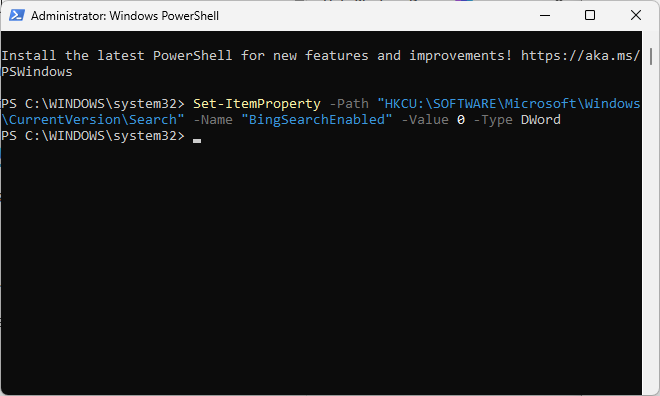
Here is how you can end Bing in Windows Search in a matter of seconds (thanks Henk):

  1. Open the Start menu on the Windows machine.
  2. Type Powershell.
  3. Select “run as administrator” to open an elevated PowerShell window.
  4. Paste the following code: Set-ItemProperty -Path “HKCU:\SOFTWARE\Microsoft\Windows\CurrentVersion\Search” -Name “BingSearchEnabled” -Value 0 -Type DWord
  5. Press the Enter-key to run it.

That is all there is to it. In case you wonder, this adds the Dword BingSearchEnabled to the Registry. Note that you can add the information manually as well using the Registry Editor, or create a Registry file if you prefer that way.

You can undo the change at any time by setting the value to 1 or deleting the key. I doubt anyone would, but it may happen that Microsoft accidentally resets this. You will notice right away though, as searches may include online content in that case again.

Now You: Do you use the online search feature of Windows Search? Or do you disable it / ignore it instead? Feel free to leave a comment down below.

  • Previous
  • 1
  • 2
  • 3
  • 4
  • 5
  • 6
  • 7
  • …
  • 31
  • Next

Support This Site

If you like what I do please support me!

Any tip is appreciated. Thanks!
  • March 2, 2026 by Martin Brinkmann Don't Bother with Windows 11's new Speedtest feature
  • February 27, 2026 by Martin Brinkmann Warning! That laptop on Amazon? It comes with temporary storage
  • February 26, 2026 by Martin Brinkmann "If your printer works today, it will continue to work": Microsoft corrects previous announcement
  • February 25, 2026 by Martin Brinkmann YouTube Premium Lite subscribers get background playback and downloads with a big "but"
  • February 24, 2026 by Martin Brinkmann Firefox 148.0 is out with its AI kill switch and support for Windows 7 and 8.1 comes to an end

About

We talk, write and dream about Technology 24/7 here at Chipp.in. The site, created by Martin Brinkmann in 2023, focuses on well-researched tech news, reviews, guides, help and more.

Legal Notice

Our commitment

Many websites write about tech, but chipp.in is special in several ways. All of our guides are unique, and we will never just rehash news that you find elsewhere.

Read the About page for additional information on the site and its founder and author.

Support Us

We don't run advertisement on this site that tracks users. If you see ads, they are static links. Ads, including affiliate links, never affect our writing on this site.

Here is a link to our privacy policy

©2026 Chipp.in Tech News and Reviews