Chipp.in Tech News and Reviews

Windows, Security & Privacy, Open Source and more

Menu
  • Home
  • Windows
  • Security & Privacy
  • Gaming
  • Guides
  • Windows 11 Book
  • Contact
  • RSS Feed
Menu

Category: Software

Mozilla ends support for Firefox on Windows 7 and 8/8.1

Posted on February 18, 2026February 18, 2026 by Martin Brinkmann

The digital clock has finally run out for holdouts clinging to the past, forcing a critical decision for millions of PC users worldwide.

Mozilla has confirmed that it will officially terminate security updates for Firefox on Windows 7, 8, and 8.1 by the end of February 2026.

The organization is the last major browser maker that still supports the discontinued Windows operating systems.

Windows 7 support ended in January 2020 officially, but Microsoft introduced Extended Security Updates for business customers. These allowed businesses to extend support for up to three years, for a price.

Windows 8 and 8.1 support ended in January 2023, which is also the month that Windows 7 ESU support ended officially.

While Mozilla continued to support Firefox on Windows 7 after January 2023, Microsoft ended support for its Edge browser in the same month. Google followed a month later, when it released Chrome 109, the last official version of the web browser that supported the two operating systems.

Mozilla has now confirmed that it won’t release new updates for Firefox 115 ESR, the last version to support Windows 7 and 8/8.1, after February 2026.

  • Firefox 115 is now the last version supported on Windows 7, 8 and 8.1.
  • Updates will be delivered through the ESR channel until the end of February 2026.

The organization recommends that users upgrade the operating system to a supported version to “continue receiving Firefox security and feature updates”.

However, this could be problematic for a number of reasons, at least when upgrades to newer versions of Windows are considered:

  • The next direct upgrade is Windows 10. Microsoft has ended support and ESU updates are only provided until October 2026 for Home and Pro editions. Mozilla plans to continue supporting Firefox on Windows 10 though.
  • Windows 11 is supported, but it has stricter system requirements. Systems that do not meet the requirements can’t be upgraded as easily, if at all (there are some that can’t be bypassed).

Affected users might consider switching to Linux. It is a daunting task, but things have improved significantly in this regard over the years. Yes, some apps or games are not available directly, others may not run, but the vast majority of apps and games should run on Linux.

Firefox 115 ESR will continue to work after February 2026, but Mozilla won’t release any new updates for the version of the open source browser.

Trading In Your Android? Here Are the Mandatory Steps to Follow

Posted on February 15, 2026February 15, 2026 by Martin Brinkmann

There are few feelings better than unboxing a brand-new smartphone, but that excitement can turn to frustration quickly if your trade-in gets rejected weeks later.

While most people remember to wipe their photos and messages, many overlook the invisible ‘digital locks’—like Factory Reset Protection—that can render a phone useless to a recycler and instantly drop your trade-in value to zero.

Before you seal that shipping box or head to the store, you need to do more than just a quick reset; you need to ensure your Android phone is completely unlocked, secure, and legitimately ready for its next owner.

The Pros and Cons of Trading in your old Android phone

The main benefit of trading in an old smartphone is that you get money for it. This is especially useful if you don’t need the old device anymore. Sometimes, merchants pay you extra when you trade in a device, even if the device is not worth as much anymore.

The downside is that you are giving away a device that you used in the past. Unless you are careful, it may be possible to access personal data or accounts.

Another issue is that you need to make sure that the device is not protected from being reset by the processing company or the new owner. If the trade-in company realizes that the phone is locked, it will reject it.

Here is a quick overview of the pros and cons:

ProsCons
Convenience and safety“Bill Credit” Trap
Inflated prices (sometimes)Low value without special promotions
Instant discountsGrading may sometimes disagree with your assessment
Environmental responsibleDelayed gratification

Note that I assume that you have moved the data from the old device to the new already. A good option for that is to connect both devices via an USB cable and start the transfer process this way.

The mandatory steps before sending the old device in

First, make sure that you back up all important data. This includes photos and videos, files, and anything else. It is a good idea to create a full phone backup, but you can also use internal features to create this backup. This ensures that you can restore the data, if the need arises.

Go to Settings > Google > Backup on the device. Note that this backs up essentials, such as contacts or device settings. The location may be different depending on the device manufacturer. Samsung device owners go to Settings > Accounts and backup, and select “back up data” there.

Backing up photos and videos is another story. You could back them up in the cloud, and Google is very pushy about this, or, and this is what I prefer, store them on a local computer instead.

Second, removing the Google account is essential. If you do not, you won’t disable Factory Reset Protection. This is designed to prevent the theft of devices, as the new owner needs the password of the previous owner to start using it.

Go to Settings > Passwords & accounts (or Users & accounts, or Manage accounts). Locate the Google account there and select the remove option. I suggest you do the same for any other account on the device, as this removes them all. The accounts on the new device are not affected by this.

Third, run a factory reset. This restores the original state of the Android device and removes all personal data from it. Go to Settings > System > Reset Options > Erase all Data. On Samsung, you find the setting under Settings > General management > Reset > Factory data reset.

Finally, remove any SIM-cards, eSIMs, or SD cards from the device.

Recommended Steps (good practice, but not mandatory for trading in)

Here is a quick list of tasks that you might want to consider as well:

  • Unpair any Bluetooth devices.
  • Remove any network connections.
  • De-register from chat services.
  • Save the phone’s IMEI number (dial *#06# to see it on the screen).
  • Charge the battery to at least 50 percent.
  • Document the phone’s condition with photos or video, also write down the information).

Ultimately, the difference between a successful trade-in and a rejected one often comes down to these few minutes of preparation. By ensuring your data is backed up and your Google account is fully removed, you’re not just protecting your privacy—you’re securing your payout.

The One Feature Everyone Missed is Reportedly Coming Back to Windows 11

Posted on February 13, 2026February 13, 2026 by Martin Brinkmann

When Windows 11 launched in 2021, it was defined as much by what was missing as by what was new, with a redesign that inexplicably stripped away the deep customization options power users had relied on for decades.

Microsoft locked and limited the taskbar in Windows 11 to the bottom of the screen. A big downgrade to how things were on the predecessor Windows 10.

Now, nearly five years after that controversial debut, Microsoft is finally preparing to right that wrong. According to new internal reports, the company is actively developing a fully movable and resizable taskbar that will allow users to dock their start menu to the top, left, or right of the screen once again, with the feature slated to arrive in a major update later in 2026.

Windows Central reports that Microsoft is working on bringing the functionality back, citing sources familiar with Microsoft’s plans.

If that sounds familiar, you may think of Mozilla. The Firefox maker started to bring back features and introduce features that Firefox enthusiasts wanted for years recently.

It could reflect how serious the situation is for Microsoft. Mozilla faces a declining user base, as it tries to juggle a user-first approach with the necessity of having the world’s largest advertising company finance operations.

Microsoft’s situation is different. Windows is still the dominating desktop operating system. Yes, there is Apple with macOS, but it does not really seem to be a focus of the company. Linux is gaining, but recent gains come down to a large degree on Valve’s Steam Deck, which runs Linux.

Still, Microsoft’s bet on AI and the first rush of integrating AI into everything seems to have backfired somewhat. It did not help that features such as Recall were not designed properly and seen as threats by many users instead of useful tools to help them in their day-to-day activities when using Windows.

Whether it is able to regain the trust of Windows users remains to be seen. A very good start would be to deal with the looming Windows 10 end of support situation for home users. Come October 2026, millions of Windows 10 devices that can’t be upgraded to Windows 11 officially won’t get any updates anymore.

Extending this to the three years that corporate customers get would show plenty of good will and would certainly help paint Microsoft’s image in a better light.

Windows updates

Six Zero-Days in the Wild: The February 2026 Windows Patch Tuesday Breakdown

Posted on February 11, 2026 by Martin Brinkmann

If January was the warm-up, February is the sprint.

Microsoft’s second Patch Tuesday of 2026 has arrived with significant urgency, addressing 59 vulnerabilities in total. While the total count is manageable, the severity is high, as it contains six zero-day vulnerabilities that are currently being exploited in the wild.

Here is the breakdown of what you need to know, what to patch first, and what might break.

The February 2026 Patch Day overview

Executive Summary

  • Release Date: February 10, 2026
  • Total Vulnerabilities: 59
  • Critical Vulnerabilities: 5
  • Zero-Days (Actively Exploited): 6 (Windows Shell, MSHTML, Word, DWM, RDP, Remote Access Connection Manager)
  • Key Action Item: Administrators must prioritize workstation patching immediately due to three “one-click” security bypasses (Shell, MSHTML, Word) that allow code execution without user confirmation. Simultaneously, restrict and patch RDP servers to prevent the active SYSTEM-level escalation exploit (CVE-2026-21533).

Important Patches

  • CVE-2026-21510 — Windows Shell Security Feature Bypass Vulnerability
  • CVE-2026-21513 — MSHTML Platform Security Feature Bypass Vulnerability
  • CVE-2026-21514 — Microsoft Office Word Security Feature Bypass Vulnerability
  • CVE-2026-21519 — Desktop Window Manager Elevation of Privilege Vulnerability
  • CVE-2026-21533 — Windows Remote Desktop Services Elevation of Privilege Vulnerability

Cumulative Updates

Product, VersionKB ArticleNotes
Windows 10, Version 22H2KB5075912ESU Only. Security updates. Fixes the VSM shutdown/restart bug introduced in January.
Windows 11, Version 23H2KB5075941Security updates.
Windows 11, Version 24H2 / 25H2KB5077181Security updates and non-security changes. Adds “Cross-Device resume” and MIDI 2.0 support.

Deep Dive: The Critical Vulnerabilities

Microsoft confirmed that six already exploited zero-day vulnerabilities are fixed after installing the cumulative updates. Attackers may exploit the issues on unpatched systems to bypass protections and gain system-level access.

Here is the critical overview:

CVE-2026-21510 (Windows Shell Security Feature Bypass)

Allows attackers to craft malicious links or shortcut files to bypass Mark of the Web (MotW) and Windows SmartScreen prompts. As a result, malicious payloads may execute on unpatched systems without the usual “Are you sure” security warnings of SmartScreen.

CVE-2026-21513 (MSHTML Platform Security Feature Bypass):

Allows attackers to bypass security prompts using malicious HTML files, if the Internet Explorer engine (MSHTML) is used for rendering. The threat is similar to the Windows Shell issue described above, as it may be used to skip security screens to run malicious code on target systems.

CVE-2026-21514 (Microsoft Word Security Feature Bypass)

The third of the feature bypasses, this exploits an issue in Object Linking & Embedding (OLE) in Microsoft Office. Attackers may use it to run malicious Word documents and sidestep certain protections designed to block the execution of risky external content.

CVE-2026-21519 (Desktop Window Manager Elevation of Privilege)

The vulnerability is a type confusion flaw in the Desktop Windows Manager (DWM). Attackers need basic access for exploitation, but if they have, they may use the flaw to elevate their privileges to SYSTEM level, which allows them to take control of the system.

CVE-2026-21533 (Windows Remote Desktop Services Elevation of Privilege)

Describes an improper privilege management flaw in Remote Desktop Protocol. Exploitation opens another route to SYSTEM privileges on unpatched system. Especially problematic in Enterprise environments, which usually use RDP a lot.

CVE-2026-21525 (Windows Remote Access Connection Manager Denial of Service)

A null pointer dereference issue in the VPN / Dial-up manager. A local attacker, even with low privileges, may use the issue to crash the service repeatedly.

Significant Changes in the February 2026 updates

  • The Virtual Secure Mode (VSM) restart loop bug is fixed.
  • Cross-Device resume arrives in Windows 11. When a phone is paired with the Windows system, its recent activities are now displayed in Start. You can continue those. Requires the latest Link to Windows app.
  • Native MIDI 2.0 support. The new protocol is now supported, which creators and audio engineers may take advantage of.
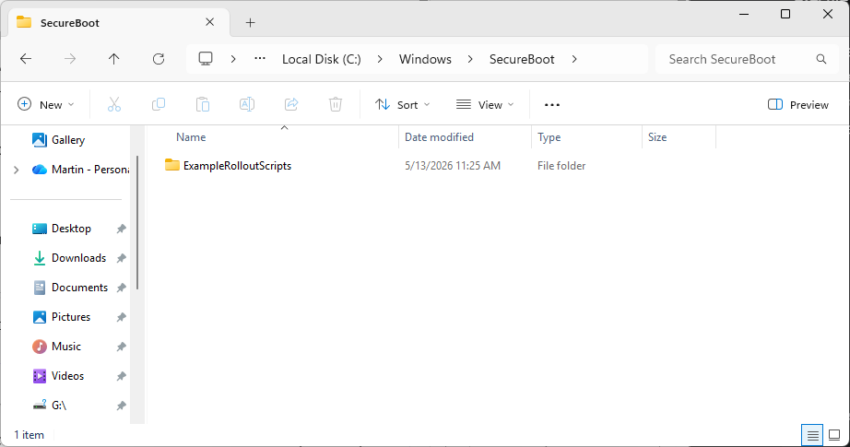
  • The Secure Boot change is entering the targeting phase. In this phase, Windows can determine whether the device’s UEFI is compatible with the upcoming certificate rotation. If it is, it will be queued to receive the actual update in the coming months. No user action required.

First Steps: Your Patch Tuesday Strategy

  1. Patch the six zero-day vulnerabilities immediately. Start with user workstations.
  2. If you paused updates in January because of the VSM restart loop bug, deploy this month’s cumulative update to get it fixed.
Windows 11 is removing an option to bypass Microsoft account and internet during setup

Windows 11’s Mobile Moment: Bringing Smartphone-Style Privacy to the Desktop

Posted on February 10, 2026February 10, 2026 by Martin Brinkmann

Microsoft revealed recently that it plans to regain the trust of its users and focus in areas such as Windows stability and security. Yesterday, the company announced two new initiatives that it says will strengthen “Windows trust and security through user transparency and consent”.

The two features, Windows Baseline Security Mode and User Transparency and Consent, will make Windows more resilient according to Microsoft.

Baseline Security Mode is a new architectural safeguard designed to ensure that every application, regardless of its origin, operates within a set of “safe” boundaries by default. Only “properly signed apps, services and drivers” are allowed to run by default, but users and administrators may override the defaults to run apps, services or drivers that do not meet the new requirements.

User Transparency and Consent shifts the Windows experience toward a mobile-centric privacy model, giving users granular control over what their apps can access. This includes new real-time prompts by apps when they try to access sensitive data, such as the location, camera, or personal files, or install unintended software.

Microsoft plans to roll out the changes “through a phased approach”. It says that it is already working with partners and that the work has begun already. Next step is — probably — the integration in Insider builds for a first round of extended tests before the features will land eventually on stable machines.

It remains to be seen how these features are integrated. Run-time permission prompts sound useful, as they introduce much needed transparency to Windows for users. Baseline security mode could go either way. It might help protect machines, especially in corporate environments, but it could also become a nightmare for users who need to run something that is not signed or meeting Microsoft’s requirements. Especially, if there is no easy option to whitelist apps, drivers, or services.

It does not look as if this is coming soon, as Microsoft seems to have taken a cautious approach to introducing major new features to Windows. Slow, steady and stable could be the mantra of the year for Microsoft, especially after a rather frustrating first patch day in January 2026.

Copilot+ PCs for Gaming? Microsoft’s Controversial Advice

Posted on February 9, 2026February 9, 2026 by Martin Brinkmann

Ask any PC enthusiast what the most critical component for gaming is, and they will almost certainly say “the graphics card” — but Microsoft begs to differ.

In a controversial update to its official Windows Learning Center, the tech giant is now aggressively positioning its AI-centric Copilot+ PCs as the ‘ideal’ hardware for gamers, recommending a staggering 32GB of RAM and a neural processing unit (NPU) as the new standard for high performance.

Is this advice actually about achieving higher frame rates, or is Microsoft simply trying to upsell AI capabilities that most modern games don’t even use yet?

Microsoft’s Offload-Theory

Microsoft argues that the neural processing unit (NPU) is a game-changer. The logic goes something like this: Windows can delegate background AI tasks to the NPU, so that the processor and the graphics card have more resources available for rendering games.

This, according to Microsoft, results in smoother gameplay and higher frame rates compared to traditional Windows PCs without an NPU.

To support this claim, Microsoft has updated the specifications for gaming on Windows.

  • RAM: While 16 GB remains the minimum, Microsoft now strongly recommends 32 GB of RAM as the “sweet spot” for high-performance gaming.
  • Storage: A fast NVMe SSD with at least 512 GB to 1 TB of space to handle modern game file sizes and ensure fast load times.
  • Processor: A CPU with an NPU-chip (like the Snapdragon X series, AMD Ryzen AI 300, or Intel Core Ultra).

The company leans heavily on Auto Super Resolution (Auto SR) to hammer home its argument. It is an upscaling technology that is exclusive to Copilot+ PCs. Like other technologies of its kind, it is promising higher frame rates and thus a smoother gameplay experience.

This technology allows Copilot+ PCs, which are mostly light laptops without dedicated graphics cards, to run demanding games at acceptable frame rates, according to Microsoft.

Here is a critical breakdown of the arguments

Microsoft’s recommendation for 32 GB sounds good on paper, until you realize that Copilot+ PCs usually do not include a dedicated graphics card.

Traditional PCs have system RAM and dedicated video RAM (if they have a dedicated graphics adapter). Most Copilot+ PCs do not have the latter, which means that all components share the system memory.

If a modern game requires 8 GB of video memory, Copilot+ PCs have to use system RAM for that. Selling 32 GB as high performance is misleading therefore.

While offloading some tasks to the NPU may reduce CPU usage somewhat, it is highly doubtful that this is making big impacts on the performance of games.

Finally, Auto SR is a necessary feature as it boosts game resolutions and frames on laptops that would otherwise be too weak for higher resolutions or frame rates.

The feature competes directly against Nvidia DLSS and AMD FSR, two mature technologies that improve systems with dedicated graphics cards. Even mid-range dedicated video cards should provide better and smoother game plays than Auto SR on systems with NPU but no dedicated cards.

Closing Words

Most gamers won’t buy a Copilot+ PC at this time, unless it comes with a dedicated graphics card. Traditional systems with video cards will outperform Copilot+ PCs without one in gaming, there is little doubt about that. This may change once Copilot+ PCs and laptops with dedicated video cards become available on scale. For now, Microsoft is making a recommendation that is not in the best interest of most Windows gamers.

While many games do run on ARM already, there are still holdouts, including many popular multiplayer games that run anti-cheat software on the system.

KB5074105 Changes Storage Settings: Why You Should Go Back to the Legacy Disk Cleanup Tool

Posted on February 8, 2026February 8, 2026 by Martin Brinkmann

If you have installed the preview update (KB5074105) for Windows 11’s February update, you may have noticed that something is amiss. Opening the Storage part in the Settings app fires an UAC prompt now and some options seem to have been removed.

Microsoft says the security prompt is introduced to “ensure that only authorized Windows users can access system files”. An unelevated process scans and displays only the folders that the current user account has permission to see.

The move has four objectives for Microsoft:

  • Preventing the unauthorized enumeration of system files.
  • Reducing accidental system damage, for instance when a user deletes the previous Windows installation, as Windows can’t be rolled back anymore in that case.
  • Reducing local attack vectors.
  • Alignment with the least privilege security model.

Some cleanup options are AWOL

The Temporary files cleaner in Settings / Storage has fewer options after installing the Windows update.

Is it a bug or a feature? While the newly introduced UAC prompt for the Storage part of the Settings app seems to work just fine, users noted that some cleanup options were missing.

Options such as Windows Update Cleanup or Device Driver Packages do not appear anymore when you select the Temporary files option on the Storage page.

Microsoft has not confirmed this as an issue and at this moment, it is unclear whether this is intentional or a bug that will get fixed eventually.

The Disk Cleanup tool has the missing options.

The solution: While Storage in Settings fails to provide users with elevated rights with the proper cleanup options, the legacy Disk Cleanup tool continues to show these options.

Just open the run box with the shortcut Windows-R, type cleanmgr.exe, and press the Enter-key to get started. Make sure you select “clean up system files” after the initial scan to see all options.

Alternatively, you could give third-party programs like BleachBit a try, which support extensive cleanups of temporary files.

Summary: The update didn’t just add a security prompt; it seemingly broke the logic that populates the list in the modern Settings app, forcing users to go back to the old Windows 98-era “Disk Cleanup” tool to do a proper system scrub.

It remains to be seen whether the cumulative updates for Windows 11, which Microsoft will release on February 10, 2026, will correct the issue.

Microsoft lifts biggest Smart App Control hurdle in Windows 11, but should you use it?

Posted on February 4, 2026February 4, 2026 by Martin Brinkmann

When Microsoft announced Smart App Control, a feature designed to make Windows more secure by blocking processes the moment they are started, it limited the feature to new systems. You either had to install Windows 11 from scratch or start with a new PC altogether to even get the feature. Worse, once deactivated, you’d never be able to reactivate it.

This changes with the latest updates for Windows 11. Now, Smart App Control can be turned on or off under Settings > Privacy & Security > Windows Security > App & Browser Control > Smart App Control.

The old Smart App Control interface that told you that you could not activate it without reinstalling Windows.

This change is likely coming in a few days when Microsoft releases the February 2026 cumulative updates for the operating system.

The Registry key that determines whether Smart App Control is on (1) or off (0).

Pro Tip: You can force-enable Smart App Control in the following way:

  1. Open the Start menu.
  2. Type regedit.exe and press the Enter-key.
  3. Confirm the security prompt.
  4. Go to HKEY_LOCAL_MACHINE\SYSTEM\CurrentControlSet\Control\CI\Policy
  5. Double-click on VerifiedAndReputablePolicyState.
  6. Set the value to 1.
  7. Restart the PC.

What is Smart App Control?

Microsoft describes the security feature in the following way:

Smart App Control is an app execution control feature that combines Microsoft’s app intelligence services and Windows’ code integrity features to protect users from untrusted or potentially dangerous code

Here is how it works: when you run an executable file on Windows, Smart App Control checks first with Microsoft’s “intelligent cloud-powered security service” to determine if the app is safe. If Microsoft has no record, Smart App Control checks for a valid digital signature and allows it to run, if it is signed by a trusted developer.

Executable files that are not signed and unknown to the cloud are blocked.

Smart App Control offers some advantages and also some weaknesses in comparison to traditional antivirus solutions and protections. Here is the breakdown.

Smart App Control: The Pros

  • Proactive Defense: Blocks threats before they can run.
  • AI & Cloud Intelligence: Uses data from millions of users and Microsoft’s cloud-based AI to determine the safety of an app in real-time.
  • Lighter Performance: Less resource-intensive than antivirus solutions that scan continuously.
  • Blocks Potentially unwanted Programs.

Smart App Control: The Cons

  • No Exceptions: Smart App Control either runs or it does not. If it makes a decision, that decision is final. There is no “allow anyway” option.
  • Privacy: Windows 11 checks online whether an executable is safe.

To Microsoft’s credit, it is removing the limit to even use the feature with this month’s update, which has been a major con up until now.

While Smart App Control may have its uses, especially on PCs of users who might run into launching executable files that they shouldn’t, it is a nightmare for developers and power users. If Microsoft would introduce a bypass option, that might change.

The Road to Recovery: How Microsoft Plans to Make You Love Windows Again

Posted on January 30, 2026January 30, 2026 by Martin Brinkmann

For years, Windows has felt less like a trusted tool and more like a construction site that never quite cleared the rubble. Whether it’s the lingering inconsistency of the UI, the intrusion of unwanted ads, the performance hiccups, or that many users now expect to experience issues when Microsoft releases an update for the operating system.

Microsoft’s flagship OS has faced a widening trust gap with its most loyal users. Now, in a strategic pivot aimed at 2026, the tech giant is launching an internal “swarming” initiative to prioritize stability and refinement over flashy new AI features.

Swarming, in this context, refers to engineering teams working on core reliability issues, including performance lags, to address major pain points of Windows users.

This year you will see us focus on addressing pain points we hear consistently from customers: improving system performance, reliability, and the overall experience of Windows.

The quote comes from the president of Windows and devices at Microsoft, and it was published by Tom Warren at The Verge on January 29, 2026.

A bad start of the year for Windows users

If anyone needed a refresher of the challenges that Microsoft is facing, they do not need to look far. When Microsoft released the first update for Windows in 2026, it probably did not expect it to cause a considerable number of issues on user computers: from broken Remote Desktop Connections over a shutdown bug to a severe bug affecting Outlook that needed an out-of-band update for fixing.

While it is bad enough that users and organizations feel issues hitting them left and right at times, it is the image of Windows that seems to be starting to worry Microsoft. Up until now, Microsoft pushed what it thought served it best onto Windows. Ads, AI, limited user control, features that barely anyone asked for. Yes, there was the occasional feature that users liked, but most changes were met with a good portion of skepticism at best.

While Microsoft received criticism, most users did not seem to mind as long as the operating system worked. Most features could be turned off or disabled. Yes, some had the nasty habit of being turned on again at times, which was annoying.

Now it appears that Windows is at a critical junction, one that even Microsoft can’t ignore going forward.

The foundation needs to be stabilized before Microsoft can continue to use Windows as a vehicle for selling subscriptions and other products.

It remains to be seen how dedicated Microsoft will be and whether it manages to make a U-turn regarding stability of its operating system. With Linux gaining essential support for PC games, there is not really much that Windows has to offer that is not also possible on Linux.

1 Billion and Counting: Windows 11 Reaches Massive User Milestone Faster Than Windows 10

Posted on January 29, 2026January 29, 2026 by Martin Brinkmann

Microsoft launched its newest operating system Windows 11 back in October 2021 to mixed reviews. Its predecessor, Windows 10, held the top spot firmly at the time while Windows 7 and Windows 8 were reaching the official end of life dates. While companies could extend support of Windows 7 by three years, Microsoft did not give home users such an option.

Microsoft CEO Satya Nadella announced during the company’s FY26 second-quarter earnings call that Windows 11 has officially surpassed one billion monthly active users.

Windows reached a big milestone: One billion Windows 11 users, up over 45% year-over-year.

In about four years, Windows 11 managed to reached the coveted one billion users mark. Windows 10, which was equally criticized when it launched in 2015, took longer to reach the important milestone.

How much longer? Not that much, it turns out. Let us take a look at the official dates that Microsoft provided for Windows 10 and Windows 11 first.

Windows 10Windows 11
Launch DateJuly 29, 2015October 5, 2021
1 Billion Users DateMarch 16, 2020January 2026

Windows 10 reached 1 billion monthly active users 1,706 days after it was released by Microsoft. Windows 11 managed to cross the one billion monthly active users mark in 1,576 days.

That is 130 days faster. While not impressively faster, it is important to note that Windows 11 had a handicap all along: new system requirements prevented a sizeable chunk of Windows 10’s userbase from upgrading directly to Windows 11.

While Microsoft never released numbers, estimates suggest that several hundred million devices can’t be upgraded directly. While a high percentage of these devices can be upgraded by skipping the requirements checks, the technical nature of the process likely prevents this on the vast majority of devices running Windows 10.

For users, it does not really matter how fast or slow an operating system growth, provided that it manages to reach a number of users that is sizeable enough to warrant continued support.

Windows 10 Home and Pro editions will reach end of servicing later this year. It will be interesting to see what the millions of home users will do when that time comes.

  • Previous
  • 1
  • 2
  • 3
  • 4
  • 5
  • 6
  • …
  • 33
  • Next

Support This Site

If you like what I do please support me!

Any tip is appreciated. Thanks!
  • April 16, 2026 by Martin Brinkmann Windows 11 Context Menu Manager: remove items with a click
  • April 15, 2026 by Martin Brinkmann One Exploited Zero-Day and Record Numbers: The April 2026 Windows Patch Tuesday Breakdown
  • April 14, 2026 by Martin Brinkmann Brave is getting Container support and the feature has made a big jump recently
  • April 13, 2026 by Martin Brinkmann A More User-Friendly Way to Pause Windows 11 Updates is Coming
  • April 11, 2026 by Martin Brinkmann Microsoft is Radically Changing the Windows Insider Program

About

We talk, write and dream about Technology 24/7 here at Chipp.in. The site, created by Martin Brinkmann in 2023, focuses on well-researched tech news, reviews, guides, help and more.

Legal Notice

Our commitment

Many websites write about tech, but chipp.in is special in several ways. All of our guides are unique, and we will never just rehash news that you find elsewhere.

Read the About page for additional information on the site and its founder and author.

Support Us

We don't run advertisement on this site that tracks users. If you see ads, they are static links. Ads, including affiliate links, never affect our writing on this site.

Here is a link to our privacy policy

©2026 Chipp.in Tech News and Reviews