Chipp.in Tech News and Reviews

Windows, Security & Privacy, Open Source and more

Menu
  • Home
  • Windows
  • Security & Privacy
  • Gaming
  • Guides
  • Windows 11 Book
  • Contact
  • RSS Feed
Menu

Category: Software

Another Windows Issue: Microsoft Defender Antivirus is turned off notification, but it is actually enabled

Posted on August 29, 2026August 29, 2026 by Martin Brinkmann

The latest optional update for Windows 11 may cause several issues. Microsoft had to admit earlier that the update could cause certain games to become unresponsive. Two days ago, Microsoft admitted that users might also experience a gigantic mouse cursor instead of custom ones.

Yesterday, the company confirmed that the built-in security tool Microsoft Defender Antivirus might cause a notification to be displayed that is untrue.

The app might show the notification “Microsoft Defender Antivirus is turned off” even when it is enabled and working correctly.

Microsoft writes:

After installing the latest updates for Microsoft Defender Antivirus, notifications might appear stating that “Microsoft Defender Antivirus is turned off,” even though the antivirus is functioning correctly and all settings show it as active. These notifications can appear when Windows starts and intermittently afterward. They persist even if notification settings are turned off.

The issue may occur in any version of Windows and Windows Server with Microsoft Antivirus running. Microsoft says that it is investigating the issue and plans to release a fix in a future Microsoft Defender Antivirus update.

For now, there is no workaround or other option to resolve the issue. Affected users may want to ignore the notification until the issue gets fixed by Microsoft engineers.

Note that the optional update should be considered a beta release. The three confirmed issues show why. Most Windows users may want to skip them entirely, as the changes are usually included in the upcoming month’s security update for the operating system.

Whether the issues are resolved then remains to be seen. At least the RGB issue is resolved and should not affect Windows users installing the September 2026 security updates.

Microsoft confirms: Latest .NET updates may cause printing issues

Posted on August 25, 2026August 25, 2026 by Martin Brinkmann

Microsoft released security updates for .Net on August 11 to address six unique vulnerabilities. After installing the update on supported systems, users may notice printing issues.

Microsoft confirmed the issue in the release notes for the update. There, the company notes that “some WPF applications may fail with a System.IO.FileFormatException when printing or generating PDF/XPS content that uses certain fonts, including Calibri” after installing the update.

WPS refers to Windows Presentation Foundation, “UI framework that’s resolution-independent and uses a vector-based rendering engine, built to take advantage of modern graphics hardware.”

The issue is under investigation currently and there is no workaround for users at the time. App developers, who use WPF, may make use of a workaround to mitigate the issue.

Doing so will “disable security productions introduced in the August 2026 update”, which may increase the exposure to the addressed vulnerabilities.

Uninstalling the update could also restore printing functionality, but I have not tested this as I could not replicate the issue on my devices. Considering that disabling the security fixes is a recommended workaround by Microsoft, I’d say there is a good chance that this could work.

Microsoft is worsening classic Media Player to get users to upgrade

Posted on August 23, 2026August 23, 2026 by Martin Brinkmann

Microsoft is once again using a tried strategy of its “getting customers to upgrade” playbook. This time it is removing features from the classic app Windows Media Player in order to make the modern Windows Media Player look better on first glance.

The change was observed in the latest experimental builds of the Windows operating system. According to the report by Windows detective Xeno on X, Windows Media Player Legacy lost the ability to display subtitles, captions and lyrics.

Windows Media Player Legacy has been nerfed slightly in build 29648.
It is no longer possible to enable "Lyrics, captions, and subtitles". Attempting to do so will tell you to go use the modern Media Player.
The menu has also been nerfed pic.twitter.com/OToXhpJBRK

— Xeno (@XenoPanther) August 18, 2026

Windows Media Player Legacy has been nerfed slightly in build 29648.
It is no longer possible to enable “Lyrics, captions, and subtitles”. Attempting to do so will tell you to go use the modern Media Player. The menu has also been nerfed

There are better media players out there in most cases, including the free VLC Media Player. It is unclear whether Microsoft will go ahead with the feature deprecation in the legacy Windows Media Player, but it is certainly not too far fetched that it will roll the change out in stable versions of Windows 11 in the future.

Microsoft pushing customers to migrate to certain products

Microsoft has a long history of employing aggressive tactics to move users from legacy applications to newer versions. Instead of simply letting the old app exist unsupported, they frequently implement forced redirects, server cutoffs, or feature stripping to make the “classic” app unusable.

Here are some examples:

Mail & Calendar / Classic Outlook > “New Outlook”

Microsoft is currently replacing the native Windows Mail & Calendar app and the classic Win32 Outlook desktop app with a web-wrapper called “New Outlook”.

How they degraded the classic experience: Microsoft added a persistent “Try the new Outlook” toggle to the classic apps. If a user clicks it, the classic app disappears. For users of the built-in Windows 10/11 Mail app, Microsoft eventually hard-coded the app to forcibly redirect to New Outlook upon launch. If users found workarounds to open the classic Mail app, Microsoft began disabling its ability to send and receive emails, rendering it entirely useless to force the transition

Classic Teams > New Teams

Microsoft rebuilt Teams from the ground up to improve performance, moving from an Electron framework to WebView2/React.

How they degraded the classic experience: Instead of letting the older version slowly phase out, Microsoft announced an “End of Availability” date. After July 2024 (and mid-2025 for certain enterprise environments), the classic Teams app completely stopped connecting to servers. If a user tried to launch it, they were met with a hard-blocking screen stating the app was no longer available, forcing an immediate download of the new version or a redirect to the web browser.

Skype Classic (v7) > Skype 8

When Microsoft redesigned Skype from a native peer-to-peer desktop app into a cloud-based application, the new version was widely criticized for missing features, a confusing mobile-first UI, and heavy resource usage.

How they degraded the classic experience: Because users refused to upgrade, Microsoft simply pulled the plug on the backend servers for Skype v7. Even if you had the classic program installed and it worked perfectly the day before, it abruptly refused to log in, displaying a mandatory upgrade prompt.

Internet Explorer 11 > Microsoft Edge

Microsoft wanted to kill off Internet Explorer in favor of their Chromium-based Edge browser.

How they degraded the classic experience: Before they officially removed IE11 from Windows, Microsoft installed a Browser Helper Object (BHO). If a user tried to navigate to a “modern” website (like YouTube, Twitter, or Instagram) using IE11, the browser would intentionally refuse to load the page. Instead, it would forcibly close the tab and automatically launch Microsoft Edge to open the URL. Eventually, Microsoft pushed a Windows Update that made clicking the iexplore.exe shortcut simply launch Edge.

Other examples:

  • Classic Control Panel migration to Settings app (ongoing since 2015). Removing legacy apples, redirecting to Settings, sometimes with inferior options.
  • Windows Live Messenger (MSN) to Skype. Microsoft shut down the Messenger protocol servers to force the migration. Messenger displayed a notification that a new version was available, which lead to the downloading of Skype and the removal of the classic app.

Tools

Windows 11: Microsoft is working on another context menu redesign

Posted on August 21, 2026 by Martin Brinkmann

When Microsoft released Windows 11, it became clear quickly that the company’s attempt to fix the often convoluted Explorer context menu backfired. Microsoft’s answer was to introduce a two-tier context menu. The new one, displayed when users right-clicked and the second one, which users could access by holding down Shift or selecting the option to display it after the initial right-click.

The first contained common actions, like copying or format, the second all the entries from third-party apps that had not switched to the new system yet.

Microsoft revealed plans to launch another redesign of the context menu days ago on the official Windows blog. There, the company admitted that the current solution had performance and reliability issues.

The redesign addresses these and gives users more control over what they see and what they don’t require.

For that purpose, Microsoft is introducing new customization options in the Settings app for the context menu. You can enable or disable some of the options displayed there, including which apps are allowed to display entries on the main level and not in a submenu.

The shared screenshot shows the options that are in testing right now. You can display or hide

  • Send to
  • Print
  • Create shortcut
  • Copy as path
  • Rotate image
  • The apps that appear directly.

Additional options let users disable the icon-powered actions at the top (cut, copy, paste, rename, share, delete) in favor of inline options, keep cloud options separate, display properties at the bottom of the menu or display the legacy context menu right away.

Some actions can’t be configured at the time, including setting an image as the wallpaper, adding a file to the favorites, or AI actions.

It remains to be seen whether this new attempt at improving the File Explorer context menu is a successful one, or whether it is going to fail as badly as the initial redesign when Windows 11 launched.

Windows 11 is removing an option to bypass Microsoft account and internet during setup

Windows 11: September release preview brings back old features and more

Posted on August 16, 2026August 16, 2026 by Martin Brinkmann

Microsoft published a new release preview build for its Windows 11 operating system on August 14, 2026. The changes in these builds will find their way into the previews for the September 2026 update for the operating system. Most users will receive them on September 8 or later, as rollouts to stable systems begin on that date.

The big new feature, or should I say old feature, of the release brings back some of the taskbar customizations that Microsoft removed when it released Windows 11 about five years ago.

Windows 11 users who install the update on their device will regain the option to snap the taskbar to any screen edge. Up until now, Windows 11 limited this to the bottom position on the screen. Third-party workarounds and hacks offered options to bypass this restriction, but sometimes at the expense of stability.

The second taskbar related change introduces the option to make the entire taskbar slimmer to free up a few pixels for other content on the screen.

To manage these, do the following once the feature becomes available:

  • Taskbar position: Settings > Personalization > Taskbar > Taskbar behaviors > Taskbar position.
  • Taskbar size: Settings > Personalization > Taskbar > Taskbar behaviors > Taskbar size.

The update includes several other changes that are noteworthy:

  • Start menu: pick between a large and small Start menu under Settings > Personalization > Start > Start menu size.
  • Start menu Recommended: is renamed to Recent.
  • Hide the name and profile picture in Start under Settings > Personalization > Start > Hide your name and profile picture on Start.
  • Hide or show Pinned, Recent and All individually.
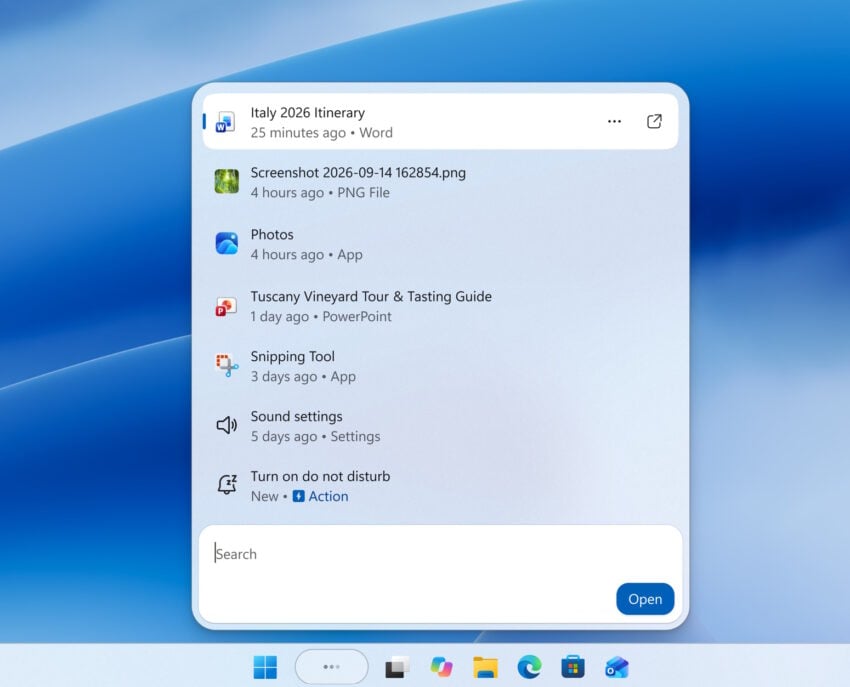
  • Windows Search offers better hints about the type of result, e.g., app, setting, files, or web results.
  • Option to disable Web and Microsoft Store suggestions in Windows Search under Settings > Privacy & security > Search.
  • Windows indexes the most used folders automatically, which you can stop under Settings > Privacy & security > Search > Automatically find additional relevant locations.
  • File Explorer Home should launch faster and is more responsive.
  • Update progress indicators are shown throughout Windows for a “more consistent and modern experience”.
  • Administrator Protection is introduced to “protect free-floating admin rights for administrators”.
  • Switching between virtual desktops is now “smoother and more responsive”.
  • Reliability improvements.

You can check out the full list here.

The official Windows Weather App is using too much RAM

Posted on August 10, 2026August 10, 2026 by Martin Brinkmann

If you use the official Weather app for Windows, you may have noticed that it is quite hungry when it comes to memory. The app uses between 500 and 600 megabytes right when you open it.

This goes down a bit when it is in the background and up again when you use it actively. Some features, like the weather radar, may shot up RAM usage to 1 gigabyte or more.

Still, even at idle, using hundreds of megabytes of RAM suggests that the app is anything but optimized.

Windows users who want a weather app but prefer one that does not use as much RAM, may want to look at third-party solutions that offer just that and often much more.

Here are a few suggestions:

  • Fluent Weather: uses less than 60 megabytes, is open source, has no ads or tracking, lacks some of the advanced features, such as the weather radar or adding locations to the favorites.
  • Skyline Weather: open source Windows store app, supports multiple locations, uses about 50 megabytes.
  • TrayWeather: open source app, displays weather information in the system tray, less than 30 megabytes of RAM usage.
  • WeatherWidget: another standalone open source app that displays weather information for up to five locations. Less than 30 megabytes of RAM usage.

While all lack some of the advanced features of the native Windows app, all use a fraction of the RAM of the official app.

Windows 11

Windows 11: How to shrink hiberfil.sys or delete it entirely

Posted on August 6, 2026August 6, 2026 by Martin Brinkmann

When you are hunting for big files on your Windows PC, you may come upon several large system files. One of them may be hiberfil.sys, which Windows uses for its hibernation feature and some other features.

The file has a size that is roughly 40 percent of the system RAM. If you have a PC with 16 gigabytes of RAM, it should have a size of about 6,4 gigabytes. This climbs to more than 12 gigabytes on a 32 GB system.

The file hiberfil.sys is found in the root location of the c: drive on Windows PCs by default.

The main hiberfil.sys functions

1. Hibernation

Windows creates a snapshot of the RAM, including open apps, documents and browser tabs, and writes the data directly to the hibernation file hiberfil.sys.

Once it is saved, Windows shuts down completely and doesn’t need electricity anymore. When the PC is turned on again, Windows reads the file and loads the snapshot back in memory, so that the previous session is restored.

2. Fast Startup (Fast Boot)

Introduced in Windows 8 and active by default in Windows 10 and 11, Fast Startup speeds up the time it takes for a PC to turn on.

When shut down is selected, Windows logs out the user and closes any app that is open. It saves the core Windows system and loaded drivers into the hiberfil.sys file.

The next time Windows is powered on, the operating system loads the file from the drive into RAM, which improves the time it takes to start the system, especially on devices with older or slow hard drives.

3. Hybrid Sleep

This feature is primarily used on desktop computers. When a desktop goes to “Sleep,” it enters a low-power state that keeps the RAM active for instant wake-ups. However, as a safety measure, Windows simultaneously writes a copy of the RAM to hiberfil.sys.

If the PC loses power, Windows can restore the state so that uncompleted work is not lost.

Why you may consider shrinking the file

While hiberfil.sys provides useful power and startup functions, there are several practical reasons users—especially desktop power users and gamers—choose to shrink it or delete it entirely.

1. Reclaiming Significant Storage Space

This is the main reason for most users. You can reclaim gigabytes of storage space by shrinking or eliminating the hiberfil.sys on your system. While that is not a problem on systems with plenty of disk space, every gigabyte counts on systems with 128 GB or, god beware, 64 GB of hard drive space.

  • High-RAM Systems: On a PC with 32 GB, 64 GB, or 128 GB of RAM, hiberfil.sys can use two-digit gigabytes of space on the main OS drive (C:), even if Hibernation is never used.
  • Small SSDs: For users running Windows on smaller boot drives (such as 128 GB or 256 GB SSDs), reclaiming that space can make a massive difference in keeping the system running smoothly.

2. Reducing Unnecessary Write Wear on SSDs

Solid-State Drives (SSDs) have a finite lifespan determined by Terabytes Written (TBW). Every time a system hibernates or undergoes Fast Startup shutdowns, Windows dumps gigabytes of data onto the drive.

  • Disabling or reducing hiberfil.sys eliminates continuous large-file write cycles.
  • While modern NVMe drives are quite durable, minimizing redundant writes helps maximize drive longevity.

3. Fast SSDs Render “Fast Startup” Obsolete

Windows Fast Startup was designed during the era of slow, mechanical HDDs to speed up boot times.

  • On modern NVMe SSDs, a cold boot from a completely turned-off state takes just a few seconds.
  • Because the speed improvement from Fast Startup is practically imperceptible on modern drives, many users prefer to turn it off completely and get their disk space back.

4. Fixing System Bugs & Driver Issues

Fast Startup doesn’t actually shut down Windows—it saves a kernel session state. Over time, this can lead to system instability:

  • Stale Drivers & Memory Leaks: Unstable device drivers or memory leaks can persist across reboots because the system kernel never truly gets refreshed.
  • Troubleshooting: System administrators often disable hibernation to force Windows to execute clean full reboots every time.

How to shrink or disable hiberfil.sys on Windows 11

  1. Press the Windows-key.
  2. Type cmd.
  3. Select “run as administrator” to open an elevated terminal window.
  4. Click “yes” when asked for permission.

To completely disable hiberfil.sys on the system, type:

  • powercfg -h off

To shrink hiberfil.sys instead, type:

  • powercfg /h /type reduced

To undo the change at any time, type:

  • powercfg /h /type full

Shrinking vs. disabling: the differences

When deciding how to manage hiberfil.sys, the choice ultimately comes down to one question: Do you still want to use Windows’ “Fast Startup” feature?

Here is exactly how the two options compare:

Feature / ImpactShrinking (type reduced)Disabling (off)
File StatusKept, but shrinks to ~20% of your total RAMCompletely deleted (0 bytes)
Fast StartupRemains activeDisabled (PC performs a true “cold boot”)
Hibernation (App state)DisabledDisabled
Hybrid SleepDisabledDisabled
Space ReclaimedModerate (frees ~50-80% of the file’s original size)Maximum (frees 100% of the file’s footprint)

Which should you choose?

Choose “Shrinking” if:

  • You have a slower drive: If you are running Windows on a mechanical hard drive (HDD) or an older SATA SSD, Fast Startup noticeably improves your boot times.
  • You want a compromise: You want to reclaim a few gigabytes of space but don’t want to sacrifice the quick boot speeds you are used to.

Choose “Disabling” if:

  • You have a modern NVMe SSD: On fast modern drives, a traditional “cold boot” only takes a few seconds longer than Fast Startup. The massive storage savings are usually worth the 3-second longer boot time.
  • You want a “Clean Slate” shutdown: Because Fast Startup saves the system kernel to the drive, bugs, memory leaks, and driver issues can persist across reboots. Disabling the file forces Windows to load fresh every time you turn on the PC.
  • You Dual-Boot: If you run Linux alongside Windows, Fast Startup leaves the Windows drive in a locked state. Disabling the file ensures you can safely access your Windows files from your Linux partition.

Microsoft reportedly auto-installing OneDrive Photos app on Windows 11 devices

Posted on August 4, 2026August 4, 2026 by Martin Brinkmann

If you run a recent version of Windows 11 on your PC you may have noticed — or not — that Microsoft installed a new application automatically on the device. Called OneDrive Photos, it brings OneDrive’s gallery view to the operating system. To make things worse, reports suggest that Microsoft is pushing the app to non-managed and managed devices.

As always, Microsoft has not confirmed any of that at the time. However, there are multiple reports on sites like Reddit that confirm the installation of the app on devices. Some Windows administrators have created scripts that remove the app from devices, which shows up as Beta for some.

To make matters even worse, it seems that the app installs itself again after it has been removed. Windows Latest suggests that it is linked to the synchronization of OneDrive, but this has not been confirmed yet.

You can check in Settings > Apps whether the extra OneDrive app is installed, or use other means, such as winget to find out. You could also check the following two locations for the actual app that Microsoft pushed to the system:

  • %userprofile%\AppData\Local\Microsoft\OneDrive\OneDrive.App.exe
  • C:\Program Files\Microsoft OneDrive\OneDrive.App.exe

So what can you do about it? If you do not use OneDrive, you could remove the app entirely and be done with it. If you do, you might be able to replace it with a dummy file in the directory and write protect it. I did not test this, as I’m still running Windows 10 on my main PC.

Just when you thought that Microsoft might have finally understood what users want, it is falling back to old habits. Seems the company never really learns.

Windows 11 is getting options to move and resize the taskbar

Posted on August 3, 2026August 3, 2026 by Martin Brinkmann

It took Microsoft five years to correct a course that it set when it released the Windows 11 operating system. Back then, Microsoft more or less crippled the taskbar functionality by limiting it to the bottom. Users who were used to displaying the taskbar at the sides or top were left with little options, other than relying on working but sometimes unstable third-party solutions.

This year, Microsoft revealed plans to do better. To focus on quality and to a degree what users of the operating system really want. Turns out, it is not really more AI, but a stable system that gives them the freedom to do whatever they please.

After launching taskbar improvements in the experimental Insider channel earlier this year, Microsoft has now moved the improvements to the beta channel.

The changes allow Windows 11 users to move the taskbar to any edge of the screen, just like it was the case on Windows 10 and earlier versions of Windows. Furthermore, Microsoft is introducing an option to free up more space by changing the taskbar’s size to compact mode.

Microsoft writes:

You can now change the position of taskbar on your screen. In Settings > Personalization > Taskbar > Taskbar Behaviors, you can select the side of the screen you want your taskbar on: bottom, top, left, or right. In these other positions, tooltips, flyouts, and animations will still come from the taskbar, and most customization settings like never combine taskbar icons will work with all locations.

We’re introducing a smaller taskbar for users who want to maximize screen space, especially on smaller devices. While the default taskbar remains unchanged, this setting provides a more compact experience with smaller icons and a reduced taskbar height, giving you more room for your apps. Core elements like Start, Search, and the system tray scale appropriately to stay aligned and consistent.

While the move to Beta is the next step in a wider rollout to all users, Microsoft notes that some features are not finished yet.

Support for touch gestures, Search box, and Ask Copilot in alternate locations is in progress. Auto-hidden taskbar and touch optimized taskbar are not currently supported. Smaller taskbar is currently supported only for top and bottom positions.

It seems likely that these issues will get fixed before the final release. Once you have it, you find the new options under Settings > Personalization > Taskbar > Taskbar Behaviors.

Microsoft is optimizing Windows 11 for 8 GB RAM systems

Posted on August 2, 2026 by Martin Brinkmann

How much RAM should a Windows 11 PC have? Microsoft set the bare minimum to 4 GB of RAM in the official system requirements. Clearly, that is far from ideal and specifically set for ultra-low cost devices.

When Microsoft launched the Copilot+ PC label, it set the minimum to 16 GB of RAM. Now, with exploding memory prices, Microsoft announced plans to optimize the Windows 11 operating system for PCs with 8 GB of RAM and above.

Windows head Pavan Davuluri published a new article on the Windows blog to reiterate Microsoft’s plan to improve Windows quality. Most of the post looks at what Microsoft achieved already, but the final part highlights upcoming changes to the operating system.

Here is the important bit:

Memory optimization for 8GB and above. Reducing Windows memory footprint to deliver a fast and responsive Windows experience across the PCs customers use every day.

Davuluri does not reveal directly how Microsoft plans to reduce the memory footprint of the operating system. However, here is what the company outlined elsewhere:

  • More Efficient Memory Allocator: Microsoft is updating the core OS memory allocator to lower administrative overhead and manage RAM allocation across system processes and applications more efficiently.
  • WinUI 3 Optimization & Migration: WinUI 3 (the modern user interface framework) is being tuned to consume less RAM by design. Additionally, Microsoft is rewriting more legacy/hybrid shell elements using WinUI 3—including the Widgets board, the Run dialog, and file/folder properties windows—to improve both RAM efficiency and UI latency.
  • WebView2 & Chromium Efficiency: Embedded web-based interfaces across Windows 11 rely on WebView2 (Chromium engine), which can be memory-heavy due to background process creation. Microsoft is directly targeting these components to reduce their process count and memory footprint.
  • Reducing Idle Baseline Consumption: The team is targeting how much RAM the OS claims at initial system startup before any third-party applications (like browsers or game launchers) are opened.

Microsoft has not published exact information about the RAM that it hopes to free up this way nor when the optimizations will find their way into stable versions of the operating system.

  • 1
  • 2
  • 3
  • 4
  • …
  • 36
  • Next

Support This Site

If you like what I do please support me!

Any tip is appreciated. Thanks!
  • August 29, 2026 by Martin Brinkmann Another Windows Issue: Microsoft Defender Antivirus is turned off notification, but it is actually enabled
  • August 28, 2026 by Martin Brinkmann Brave Accounts and Email Aliases launch
  • August 25, 2026 by Martin Brinkmann Microsoft confirms: Latest .NET updates may cause printing issues
  • August 24, 2026 by Martin Brinkmann The Chrome Web Store has a fake VPN extensions problem
  • August 23, 2026 by Martin Brinkmann Microsoft is worsening classic Media Player to get users to upgrade

About

We talk, write and dream about Technology 24/7 here at Chipp.in. The site, created by Martin Brinkmann in 2023, focuses on well-researched tech news, reviews, guides, help and more.

Legal Notice

Our commitment

Many websites write about tech, but chipp.in is special in several ways. All of our guides are unique, and we will never just rehash news that you find elsewhere.

Read the About page for additional information on the site and its founder and author.

Support Us

We don't run advertisement on this site that tracks users. If you see ads, they are static links. Ads, including affiliate links, never affect our writing on this site.

Here is a link to our privacy policy

©2026 Chipp.in Tech News and Reviews