Chipp.in Tech News and Reviews

Windows, Security & Privacy, Open Source and more

Menu
  • Home
  • Windows
  • Security & Privacy
  • Gaming
  • Guides
  • Windows 11 Book
  • Contact
  • RSS Feed
Menu

Category: Reviews

Browser extension filters pseudo-brands on Amazon

Posted on July 11, 2026July 12, 2026 by Martin Brinkmann

If you shop at Amazon, you may have noticed a rising number of sellers that sound like a very bad draw at Scrabble. Try searching for common items such as powerbanks, USB cables, or dog beds.

You find the usual assortment of known brands and also plenty of offers from sellers that you may have a hard time pronouncing.

Enter the Knockoff extension: it is designed to filter these sellers on Amazon. The developer of the open source extension explains its purpose in the following way:

Amazon is flooded with trademark-squat “brands” (SZHLUX, HORUSDY, LATTOOK, DOZAWA…): random strings registered at the USPTO purely to unlock Amazon Brand Registry, selling commodity goods with no company, no warranty, and no reputation behind them. Knockoff detects those listings and hides, dims, or labels them, right in the search results.

The extension runs locally in the browser. It comes with a seed list of “notorious pseudo-brands” and two other lists — “established Chinese-owned brands” and “established brands”, that you can enable or disable based on your preferences. It uses name heuristics on top of that and can also identify brand-less offers. You may also add companies to your own allowlist or blocklist.

The extension goes through all lists, starting with the allowlist and blocklist, to resolve each product listing on Amazon. Furthermore, you can set filter levels from relaxed to strict, which determine what is getting filtered:

LevelFilters
RelaxedKnown pseudo-brands + your blocklist
Standard (default)+ suspect-looking names + unbranded listings
Strict+ anything not on a known-brands list (allowlist-only)

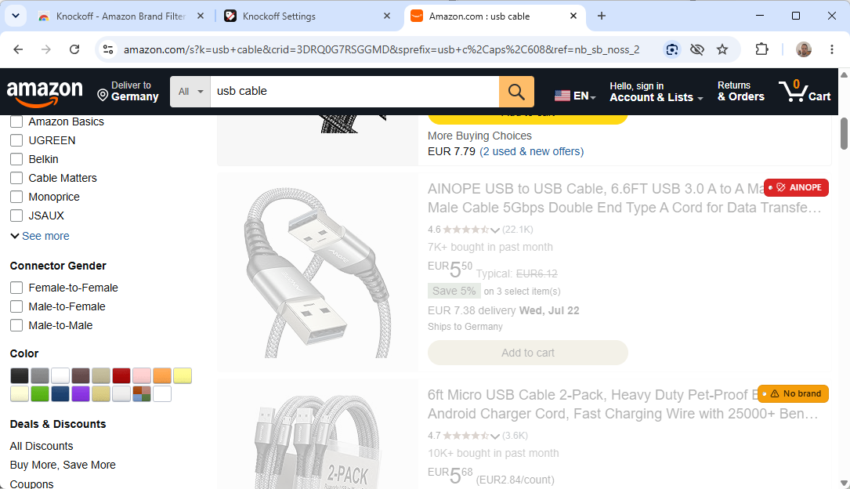
The extension runs automatically on Amazon after it is installed in the browser. When you search for a product or browse Amazon, you will notice that certain results are dimmed by default. You can change that to hiding them entirely in the options. This won’t display more results on the page, but it will hide every product that matches the filters so that you can better focus on the remaining products on the page.

Tip: I recommend keeping the dimmed option enabled for a while, as you may notice brands being filtered out that you might not call “knockoff” or unknown. This gives you the time to add these brands to the allowlist.

You may also hide sponsored listings on Amazon as a bonus, but need to enable the feature manually in the preferences.

The extension should work on all regional Amazon sites. I tested it on the US and German sites and it worked as advertised.
Looking up businesses on Google Maps in Germany? Echtstern reveals their true rating

Posted on June 3, 2026June 3, 2026 by Martin Brinkmann

Google introduced a change in its map application Google Maps recently. The update shows, whether businesses have been activate at getting low ratings removed from their Google Maps scores. The behavior seems to be widespread in Germany only, as Google introduced this new option only in Germany.

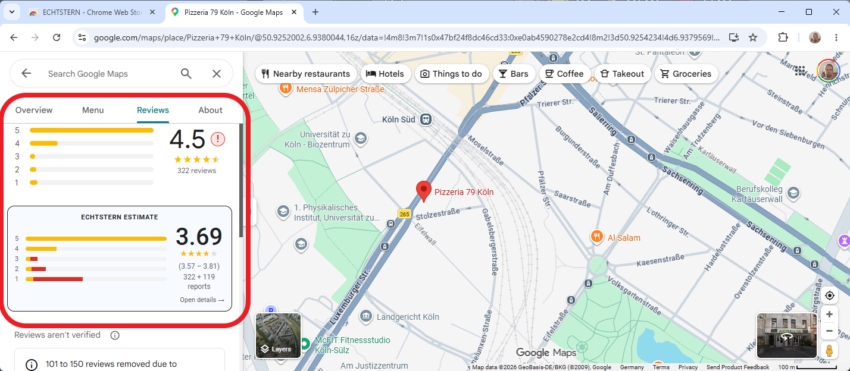
Whenever you open the profile page of a Google Maps business in Germany, Google reveals if the business had ratings removed from its listing. Google does not give you an exact count, but a range on the reviews tab. It is a useful indicator, as it tells you that the rating that Google Maps shows is likely not the true rating, if all customer ratings would be included.

Users who know are cautious when it comes to these businesses. While the information that Google displays is useful, it is bare bones. That is where the extension Echtstern comes into play.

It is an open source extension for Firefox and Chromium-based browsers. For Firefox, only an Android version appears to be available right now. For Chromium-based browsers, a desktop version is also provided.

The extension works automatically on Google Maps. Just look up a business and switch to the review tab. It displays the corrected score and information below the rating that Google displays.

If you prefer a web service, as it does not require installing an extension, then you could check out Review Proof. The service focuses on the different regions in Germany, but you can use a search to find out a specific restaurant or business.

In closing, both services are useful as they reveal which businesses have removed ratings from customers from Google Maps. However, it should be noted that there are legitimate reasons for removing ratings. While that is the case, a large number of removed ratings is more often than not a good indicator that the rating that Google shows on Maps does not reflect its true rating.

Windscribe

A look at WindScribe’s Build your own VPN plan

Posted on May 26, 2025May 26, 2025 by Martin Brinkmann

VPN services are mighty useful additions in this day and age. They protect your data and privacy, and may also help you bypass geo-restrictions. There are numerous VPN services out there that serve different purposes.

Many charge a lot for monthly plans and give you huge discounts if you sign up for a year or more. Some, like NordVPN, seem to offer discounts all the time.

I reviewed WindScribe years ago when the VPN service gave free users 50 gigabytes of data. Currently, free users can still sign up and get 10 or so gigabytes per month for free. Connections are also limited some

I stumbled upon the Build your own VPN plan recently. It sounds interesting. Instead of getting a range of features and server locations, you simply select what you need. The price is then based on that.

Here is how it works. Once you have set up a Windscribe account or signed in to one, you may select the Build your own VPN option from the paid plans section.

Here you make two core choices that determine the plan:

  • Select whether you want unlimited bandwidth (adds $1 to the plan).
  • Pick at least two regions that you want to connect to (each region adds $1).

So, if you just need connectivity to one or two regions, you end up paying $3 per month for the plan. While that limits connectivity, it does not really matter if you do not require access to servers in other regions.

Also, you can edit the plan to add or remove locations from it. The regular plans costs $9 per month or $5.75 per month when paid yearly. They offer a handful of advantages besides unlimited regional connectivity:

  • Only 10 custom rules for the R.O.B.E.R.T. add-on, instead of 1000.
  • No ephemereal port forwarding.
  • Static IP only if you get the unlimited bandwidth option.

It does not really make sense to push the custom plan beyond the price charged for the regular plans, as you get access to all server locations in those. The main advantage is that you pay less, if you limit regional availability to two or three locations.

While $3 may still pale compared to the discounts that companies like NordVPN throw around all year round, it may still be better than the $5.75 that you pay for a regular plan at Windscribe.

My main recommendation regarding a VPN remains Mullvad though. While it costs $5 per month, it is as private as it gets. May not be for everyone, especially if you have different requirements.

Now You: do you use a VPN service? If so, which do you use and why? How much do you per per month or year for the service?

This small tool tames ads in Windows 11

Posted on May 3, 2024May 3, 2024 by Martin Brinkmann

With ads starting to appear in numerous places in Windows 11, users are trying to find ways to stop these on their devices.

Microsoft does not call these integrations ads most of the time. The company prefers terms such as promotions, experiences, or tips instead.

Recent integrations include ads for apps in the Start menu, advertisement on the Settings homepage, ads for Microsoft services like OneDrive in various sections, including when clicking on the profile icon in the Start menu or Explorer.

Users face several issues when it comes to these changes:

  • Only some of the features can be disabled on non-managed devices.
  • Settings are all over the place to make the changes.

OFGB (Oh Frick Go Back) — disable ads on Windows 11

The open source tool OFGB is a relatively new program for Windows 11 to disable ads and experiences.

The program has an easy to use interface. It displays the available options, most checked and applied automatically when it is run.

Here is the list of available preferences:

  • Disable File Explorer Ads
  • Disable Lock Screen Tips and Ads
  • Disable Settings Ads
  • Disable General Tips and Ads
  • Disable “Welcome Experience” Ads
  • Disable Personalized Ads
  • Disable “Tailored Experiences”
  • Disable Start Menu Ads.

Note: it may be necessary to run the application with elevated rights, especially if you sign in with a regular account and not an administrator account.

Second note: the program requires the .NET 8.0 Desktop Runtime, which you can download here.

Closing words

The program is for users who prefer graphical user interfaces over Registry files. It is trivial to create a Registry file that makes the same changes. If you are interested, let me know and I will create it.

The program’s UI is bare bones. It has no apply or reset option, which the developer should consider adding to improve its user friendliness.

All in all though, it offers a quick option to disable ads on Windows 11 devices.

Now it is necessary to keep up with the changes that Microsoft introduces to release updates that reflect these changes. You can check out Winaero Tweaker as well, which offers similar tweaks and many more.

What is your take on ads in operating systems? Do you use tools or programs to disable them?

Firefox AdBlitz extension

Trying AdBlitz, another YouTube advertisement skipper

Posted on April 28, 2024April 28, 2024 by Martin Brinkmann

While Google is intensifying its fight against adblockers on YouTube, developers of adblocking solutions are pushing back.

A recent development introduced a new category of tools that improve the user experience on YouTube: so-called ad skippers.

Unlike adblockers, which block advertisement using filter lists or AI, ad skippers either skip ads, hence the name, or fast forward them.

This new type of extension is designed specifically for video ads.

AdBlitz

AdBlitz is a browser extension for Firefox and Chromium-based browsers such as Google Chrome or Microsoft Edge. It is an open source extension; you can check out its source on GitHub.

One downside to using the extension currently is that it is not available in the official extension stores. While it is doubtful if it ever will make its way to the Chrome Web Store, it could one day land on Mozilla’s add-ons store.

Since it is not available there yet, it is necessary to install the extension using development options.

First Step in all browsers:

  1. Download the extension from the official website. Just click on the icon of your browser to do so.
  2. Extract the downloaded archive.

Firefox:

  1. Load about:debugging in the address bar.
  2. Switch to “This Firefox”.
  3. Select “Load Temporary Add-on”.
  4. Browse to the folder you extracted the archive to and select the manifest.json file.
  5. Confirm the installation of the extensions.

Google Chrome and other Chromium browsers:

  1. Load chrome://extensions in the browser’s address bar.
  2. Toggle Developer Mode on the page.
  3. Select “Load unpacked”.
  4. Navigate to the directory you extracted the archive to.
  5. Confirm the installation of the extension.

Using the extension on YouTube

Firefox AdBlitz extension

AdBlitz works only on YouTube at the time of writing. Depending on the browser, you may need to allow it to run on YouTube.

In Firefox, you’d click on the general extension icon in the browser’s toolbar and select the preferences icon of the installed extension. Here you select the “always allow” option while on YouTube.

The extension works automatically from that moment on. In other words:

  • Some ads are skipped entirely.
  • Other ads are fast forwarded (16x).

While the second option still shows some of the ad, it usually means that the entire ad block is done in a second or two.

The extension works with single video ads and multiple ads that YouTube plays one after the other.

Closing Words

Content blockers like uBlock Origin work well at the time of writing. Ad skippers offer an alternative that may continue to work when Google decides to play hardball.

My advice: keep on using uBlock Origin or other content blockers that work at the time of writing. These are a must-have anyway on today’s Internet.

It is a good idea to keep an eye on ad skippers and their development, just in case.

What about you? Have you tried ad skippers?

YT Channel Downloader review

Posted on April 14, 2024April 14, 2024 by Martin Brinkmann

YT Channel Downloader is an open source downloader for YouTube videos. It supports downloading individual videos and also entire channels or playlists. You can download it from its GitHub repository. It is available for Windows, Linux, and macOS devices.

The program is based on yt-dlp, scrapetube, and pytube, but much easier to use.

The main interface is almost barebones. It features an URL field at the top. Paste YouTube URLs into the field and hit Fetch afterwards to get a list of found videos returned. Fetching may take a few seconds to complete.

Videos are listed with their name and link only. Other information, such as playtime or maximum resolution, are not shown.

From here, it takes two additional clicks to download all videos to the local system. Activate the “select all” button to check all videos, and hit the download button next to start the process.

You may also select individual videos to download only them, or enable audio conversions in the settings.

YT Channel Downloader

Before you start using the program, you may want to open File > Settings. Here you find just a few options:

  • Change the local download folder.
  • Enable conversion to audio files.
  • Set the preferred video format and quality.
  • Set the preferred audio format and quality.

Once set, the program runs almost on autopilot. It is a great way of quickly downloading videos for offline viewing. Ideal before you make a long trip, but also for safekeeping.

Tip: here is a method to download age-restricted YouTube videos without account.

Closing Words

YT Channel Download is an easy to use program. It makes the downloading of videos from YouTube channels or playlists almost effortlessly.

While that is great for getting things done quickly, it lacks options that other downloaders may support. There is no option to download subtitles or process videos in any way after download (other than converting them to audio).

Not everyone needs these options. If you just want a reliable mass downloader that is easy to use, this may be it.

The program worked reliably during tests. Fetching may take a while. It seems to depend on the channel or playlist that you want analyzed.

Limit: Set daily Time Limits for distracting websites in Chrome

Posted on April 5, 2024April 5, 2024 by Martin Brinkmann

Browser extension Limit promises to keep you focused on important tasks by setting time limits for distracting websites.

We have all been there probably: you need to focus on “something” important on your electronic devices but are distracted all the time. Notifications, chat messages, a quick browse on YouTube, checking your social media feed, or something else. The Internet is full of distractions.

Not everyone has the focus of a Shaolin Monk who keep focused no matter what. Extensions like Limit promise to help you out.

Limit – daily time limits for distracting websites

Limit interface

Limit is a browser extension for Google Chrome and also other Chromium-based browsers. It worked well in Microsoft Edge, Brave, Opera, and Vivaldi during tests.

The core idea behind the extension is to set access limits for certain websites. In other words: you may access the sites for the set limit only on any given day.

The extension is developed by the makers of Freedom. Freedom is the big brother of Limit. It runs system-wide, which means that it can also block distracting apps on supported systems.

Limit comes with a list of preset sites. These include some of the worst offenders when it comes to distractions, including YouTube, Netflix, Reddit, and Facebook. These sites can be removed from the configuration.

There is also an option to add any website. Just open the Settings of the extension, type the domain name, e.g., chipp.in, and activate the “add website” button.

Limit Website Access

Limit displays a notification when a time-limited website is opened. It reminds you of the time limit. Hover over the extension icon in the browser’s interface to get detailed information on the time spent and time left.

Limit blocks access to the website once you reach the set time limit.

Limit reached

Caveats

Limit is provided as a browser extension. It works therefore only in select browsers. While that may be sufficient if you just need a little push in the right direction to remain focused, it is quite easy to bypass the limits.

Apart from changing the daily time limit for the site to get more play time, using another browser is also an option to bypass the restriction.

If that is not enough, there are plenty of additional options available. Access the site using its IP address, use a proxy service, or a screenshot service.

Obviously, since you are in control, you may also uninstall the extension at any time or disable it.

Closing Words

Limit’s main goal of reducing the time spent on distracting websites depends entirely on the user. If you just need a little push, it may work well to keep you focused. If you need a bulletproof option, Limit is not the right extension for you. Freedom might work better, but it is a subscription-based service.

Now You: how do you handle distractions while working?

Under New Management: Chrome extension checks if extension owner has changed

Posted on March 7, 2024March 7, 2024 by Martin Brinkmann

Under New Management is a new extension for Google Chrome and Chromium-based browsers. Its main purpose is to notify users when the owner of installed extensions changes.

Here is why that is important: an entire ecosystem of companies exist that buy extensions to, usually, exploit the userbase and extract as much money as possible from it.

Popular extensions may sell for five or even six figures. This is mostly based on the userbase, but factors such as the rating, comments, or track record play a role as well.

When an extension gets sold, the new owners may implement money making functions. These cross borders often, for instance, by tracking users and selling data, or by changing ads on the screen or affiliate links.

The main problem for users is that ownership changes are not announced by the browser. It would be simple, but no browser does that at the moment.

Under New Management

Under New Management alert

Under New Management adds checks and notifications to Chrome and other Chromium-based browsers.

The developer describes how the extension works on its GitHub repository site:

Intermittenty checks your installed extensions to see if the developer information listed on the Chrome Web Store has changed. If anything is different, the extension icon will display a red badge, alerting you to the change.

The extension checks the Chrome Web Store for changes and warns users if it detects any.

It checks the following parameters:

  • Developer name
  • Developer website
  • Extension name
  • Offered by name
  • Developer email
  • Extension ID

If any of these change, it will notify you about it. All it takes is to install the extension in a Chromium-based browser.

Note: there is a chance that an extension may get sold but that the information is not changed.

Blocking automatic extension updates in Google Chrome

Another option that you have is to block automatic extension updates. Google Chrome and most Chromium-based browsers do not offer any Setting in this regard, however.

The idea here is to verify extension updates before allowing them.

As a side note, Mozilla Firefox does. Load about:addons in the browser’s address bar, activate the settings icon on the page and uncheck “pdate Add-ons Automatically” with a click on the entry.

Block automatic extension updates

Extensions won’t auto-update from that moment up, but you may still update them.

The only option for Chrome and most Chromium-based browsers is a bit complicated. It requires that you enable Developer Mode in the browser and load the extension in its unpacked state. Note that I have not tried this extensively.

Unpacked extensions do not get updated automatically, as they are loaded from the local system. It gives you control, but it means that you have to update these extensions manually each time.

Now You: how many and which extensions do you use?

video

Vividl: download videos from hundreds of sites on Windows

Posted on January 28, 2024January 28, 2024 by Martin Brinkmann

Vividl – Video Downloader is an open source tool for Microsoft Windows devices to download videos from hundreds of websites. The app uses the popular downloader youtube-dl / yt-dlp in the background. It supports downloads of video or audio files from hundreds of sites.

Most video streaming sites do not want you to download videos. Prime reason for this is monetization as offline videos cannot be monetized. Some services support video downloads, but often only as premium features. Google’s YouTube, for example, supports downloads, but restricts them to YouTube Premium subscribers.

There are quite a few reasons why you may want to download videos. Here is a short list:

  • To watch the video (later) when there is no Internet connection or no reliable Internet connection.
  • To watch a higher quality version of the video, which the Internet connection is incapable of streaming.
  • To watch videos without ads. Tip: you may bypass YouTube video ads without adblockers.
  • To listen to the audio of a video only.
  • For backup purposes.

Vividl: the basics

Vividl Video Downloader interface

You may download the latest version of the video downloader from its GitHub project website. The app runs on Windows 7 and newer versions of the operating system.

The developer lists two dependencies: .NET Framework 4.8 or higher, and Microsoft Visual C++ 2010 Redistributable Package. Downloads for both are linked on the project website, if needed.

Windows may throw a SmartScreen error when you try to install it. The app checked out fine on Virustotal, which suggests that this is thrown only because it is a new version.

The main program interface looks basic, but that is not necessarily a bad thing. Add a video by pasting its URL into the interface or through drag & drop. An auto import from Clipboard option is provided.

Vividl picks it up and displays information about it after a brief moment.

The main interface acts as the download queue but also download list. There is no option to separate these, which would help manage larger lists of videos.

Downloading videos

Vividl video and audio quality

All videos added to the video downloader are listed in the queue by default. Several download-related options are displayed there.

The default output format is mp4 video and a default quality is selected. Both options are customizable. Vividl supports webm, avi and mkv formats on the video site next to mp4.

A click on the tool icon, which is adjacent to the format button, displays all available video and audio qualities. Here you may select the desired output format and quality manually. You may need to scroll to find specific options, as the lists are not necessarily sorted by size or resolution.

There are options to download video and audio files separately, or just one of the two formats.

The downloading happens in the background. Vividl downloads three files simultaneously by default. You can change this in the program settings.

The settings list several interesting options, some of which automate the experience. Here is a short list of important options:

  • Change the default video resolution and video format. The defaults are mp4 and 1080p.
  • Always download the best quality.
  • Enable GPU acceleration for video encoding, if supported.
  • Instead of overwriting existing media, skip it or rename it.

Verdict

Vividl is a straightforward video downloader for Windows. It supports hundreds of video sites and works really well. Both manual and automatic options work reliable.

To conclude, if you need a well-designed video downloader, this is a program that you may want to test. I still prefer Internet Download Manager, but this is a commercial program that supports video downloads and also other file downloads.

Glow

Glow: open source Windows system analysis software

Posted on January 27, 2024January 27, 2024 by Martin Brinkmann

Glow is an open source program for Microsoft Windows devices that displays a wealth of information about the system it is run on.

What are the features that it offers and how does it compare to popular alternatives such as Speccy? Read on to find out.

Glow: a system analyzer

Glow Windows System information

Windows displays some information about a system’s hardware and software. The information is scattered all over the place. Even the System Information tool lacks some information that third-party tools offer.

Glow is a free portable app hosted on GitHub. You may run it right after extracting the ZIP archive on the local system. The developer says that it is compatible with Windows 10 and 11 only. The app does require the .NET Framework 4.8.1, which should be installed on most devices.

The left pane of the program lists the various sections, the right pane the information. Operating system information displays important information about the Windows system. This ranges from the operating system build and architecture to the user account, Windows edition and lots more. Scroll down to find information about the system’s uptime, last shutdown time and date, or the system and boot partitions.

Select another section on the left, e.g., motherboard, processor or graphics card, and Glow displays information about immediately.

To name just a few important bits of information: motherboard model and BIOS version, whether a TPM chip is available, the model of the graphics card and the driver date, the RAM type and amount, number of RAM slots, and information about all connected hard drives.

There is a lot to explore, especially for users new to these kind of tools. The sections function as entry points. There is no search, which might help find information quickly.

Glow supports exporting information to txt or html files. The tools section lists a few options:

Other Tools

  • SFC and DISM Automation Tool — this uses built-in Windows tools to find and repair corrupt system files. Microsoft plans to introduce a Windows Update repair feature in future versions of Windows.
  • Cache Cleanup Tool — clean several memory caches to free up RAM.
  • TRIM Audit Tool — this tool checks the TRIM status, on or off, and allows users to enable TRIM if off. TRIM is used to free blocks on Solid State Drives, which opens them up for writing.
  • System Software Tool — links to 10 system tools, including Autoruns, Display Driver Uninstaller, and graphics cards driver download repositories.

How Glow compares to Speccy

The free version of Speccy displays information about the system. There is a professional version, which includes automatic updates and priority support.

Speccy needs to be installed before it is ready for use. There used to be an official portable version, but it has been removed by the developer.

Speccy displays information about the computer’s hardware on launch. This includes key information, but some is missing. As an example; while Speccy lists the operating system and edition, it does not list the build number. The tool focuses on hardware and devices only. Glow, on the other hand, displays installed drivers. Temperature readings are supported by Speccy, but not by Glow.

In closing, both programs offer features that the other does not support. Speaking of support, the developer of Glow announced that Glow is feature complete. There won’t be any future updates of the app anymore. It is possible that the project gets forked, as it is open source, but it is unclear at this point.

Verdict

Glow is a powerful system information tool for Windows. It is excellent for looking up information, e.g., to find out if you can put more RAM into the system or can replace the existing graphics card with a new one.

Summing up, there is little not to like about the tool. The missing temperature information is probably the main feature missing from it. Consequently, it is an excellent program for Windows users to look up system information. Nevertheless, the end of development announcement may cause issues in the future.

Now You: do you use system information tools?

  • 1
  • 2
  • Next

Support This Site

If you like what I do please support me!

Any tip is appreciated. Thanks!
  • July 16, 2026 by Martin Brinkmann Windows Tweaker ShutUp10 updated with new options to disable AI and other potentially unwanted content
  • July 14, 2026 by Martin Brinkmann Microsoft promises improved Windows Search Box and the removal of ads
  • July 13, 2026 by Martin Brinkmann Mozilla moves Firefox to a 2-week release cycle in September
  • July 11, 2026 by Martin Brinkmann Browser extension filters pseudo-brands on Amazon
  • July 10, 2026 by Martin Brinkmann The Tables Have Turned: Why Sony’s All-Digital Future Could Be Microsoft’s Perfect Revenge

About

We talk, write and dream about Technology 24/7 here at Chipp.in. The site, created by Martin Brinkmann in 2023, focuses on well-researched tech news, reviews, guides, help and more.

Legal Notice

Our commitment

Many websites write about tech, but chipp.in is special in several ways. All of our guides are unique, and we will never just rehash news that you find elsewhere.

Read the About page for additional information on the site and its founder and author.

Support Us

We don't run advertisement on this site that tracks users. If you see ads, they are static links. Ads, including affiliate links, never affect our writing on this site.

Here is a link to our privacy policy

©2026 Chipp.in Tech News and Reviews