Chipp.in Tech News and Reviews

Windows, Security & Privacy, Open Source and more

Menu
  • Home
  • Windows
  • Security & Privacy
  • Gaming
  • Guides
  • Windows 11 Book
  • Contact
  • RSS Feed
Menu

Tag: windows 11

Microsoft announces plan to simplify Windows Update titles

Posted on October 30, 2025October 31, 2025 by Martin Brinkmann

Microsoft announced an upcoming change regarding the titles of Windows Update. Going forward, Microsoft wants to simplify the name of updates so that they are “more intuitive, consistent, and informative”.

The company hopes that this change will make it easier for regular users to understand what an update does that is installing or was installed on the Windows device. Original equipment manufacturers and partners should benefit from this as well, according to Microsoft.

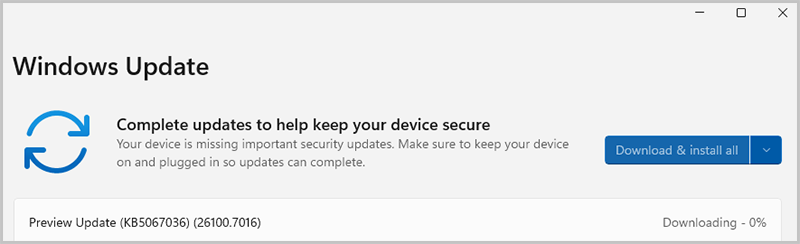
The updated titles follow a simple structure and will focus on the name of the update. Most updates, the exception is a driver update, include the KB ID as before. Windows Updates include the build number furthermore, while drivers the version of the driver.

An example of an update with a new title. Source: Microsoft

Microsoft posted several examples of how driver updates will be named in the future:

  • Monthly or out-of-band security updates: Security Update (KB5034123) (26100.4747)
  • Monthly preview non-security updates: Preview Update (KB5062660) (26100.4770)
  • .NET Framework security updates: .NET Framework Security Update (KB5056579)
  • .NET Framework non-security updates: .NET Framework Preview Update (KB5056579)
  • Driver updates: Logitech Driver Update (123.331.1.0)
  • AI component updates: Phi Silica AI Component Update (KB5064650) (1.2507.793.0)

Generally speaking, the new titles apply to Windows operating system updates, such as monthly cumulative updates, .NET Framework updates, driver updates, AI component updates, and Visual Studio updates.

Windows users will find the new titles under Settings > Windows Update and also in the update history, which can be accessed from the Windows Update page of the Settings. Lastly, it is also shown on the Windows release health website.

Microsoft says that updates that do get deployed via WSUS (Windows Server Update Services) or the Microsoft Update Catalog, won’t reflect the changed titles for the most part. Windows feature update titles will also keep the traditional title.

The new titles may omit the version of Windows the update is for. While that may not affect regular users who install the update on their devices, it could affect users who want a quick overview of the released updates on Microsoft’s website or elsewhere.

Now You: What is your take on this change? Is it for the better?

Who is going to talk to their PC, once Microsoft launches Copilot Voice for Windows?

Posted on October 21, 2025October 21, 2025 by Martin Brinkmann

The main future of PC that Microsoft envisions is giving Windows users more flexibility when it comes to interacting with the PC. Instead of using mouse and keyboard, Microsoft is betting big on AI and the recently announced Copilot Voice feature.

In simple terms, it allows anyone, Microsoft says even users with no-Copilot+ PCs, to talk to the AI using a connected microphone. This allows Windows users to use their voice for searching, getting help, or automating tasks, according to Microsoft.

Many news outlet made it appear that Microsoft wants Windows users to use their voice exclusively when they use the PC. This is not the case, but Microsoft believes that voice will play a much larger role in the future.

There are several uncertainties here, largely because Microsoft did not provide many details on the functionality. Tests have to show how well, or not, the voice feature works and what you can do with it.

  • Is it just for communicating with the AI via voice?
  • Can you use it for other purposes, e.g., dictation?
  • What are the privacy implications? Where is the voice data processed? Is it stored? If so, for how long? Who has access to the data?

Who is going to talk to their PC?

Assuming that the feature works well, the question about who is going to use it needs to be answered as well.

Voice interactions can be beneficial in some contexts, for instance if you need to use your hands for something else, or use a fullscreen app and do not want to switch to the text-based prompt.

However, voice does not work well in some contexts. Imagine talking to your Windows PC during your commute, or in an office with other workers sitting nearby.

The idea of a Star Trek-like communication with a computer system works well, if there is only one person talking to it. Now imagine the whole Enterprise-crew talking to the computer at the same time in the command room. That is utter chaos.

So, this voice feature will be used in private for the most part, which excludes some business use. Still, Microsoft says it is another option that Windows users have, and that is fine, provided that you want to communicate with the AI.

What is your take on this? Do you see yourself talking to an AI in the coming years?

Windows 11 lock screen widgets

Microsoft confirms Windows 11 bug that affects the Windows Recovery Environment (WinRE)

Posted on October 20, 2025October 20, 2025 by Martin Brinkmann

It did not take long for Microsoft to confirm the first few issues after the official release of this year’s feature update, Windows 11 version 25H2.

The latest issue affects the Windows Recovery Environment. It is an essential recovery option of Windows that includes features such as repairing startup, resetting the PC, or uninstalling updates.

The confirmed bug renders USB mice and keyboards inoperable. Means, if the input devices are connected via USB, they won’t function in the Windows Recovery Environment.

For some, it can mean that no selection can be made, unless a non-USB mouse or keyboard is connected to the PC.

The issue affects the following platforms:

  • Windows 11, version 25H2
  • Windows 11, version 24H2
  • Windows Server 2025

Microsoft writes:

After installing the Windows security update released on October 14, 2025 (KB5066835), USB devices, such as keyboards and mice, do not function in the Windows Recovery Environment (WinRE). This issue prevents navigation of any of the recovery options within WinRE.

Microsoft notes that the issue does not impact normal operations. In Windows itself, USB mice and keyboards continue to work.

The company revealed that it plans to release a fix for the issue in the coming days. This was on October 17th, which suggests that a fix should be released very soon.

Until then, you better cross fingers that you won’t need the Recovery Environment or have a non-USB keyboard or mouse ready for accessing it even with the bug present.

The second issue that Microsoft confirmed affected IIS websites. They would fail to load if affected. Microsoft admitted that it fixed the issue using a Known Issues Rollback. This rollback restores previous functionality to resolve bugs.

Note that it is necessary on managed PCs to configure special policies to allow the rollback to take place, as explained here.

Windows 11 is removing an option to bypass Microsoft account and internet during setup

Windows 11, Version 23H2 Home and Pro will stop getting updates starting next month

Posted on October 12, 2025October 12, 2025 by Martin Brinkmann

If you still run a device with the Home or Pro editions of Windows 11, version 23H2, then you may want to consider upgrading it to a newer version of Windows 11. Microsoft published a reminder that the particular version of the operating system is reaching end of life in November 2025 for consumer devices.

The details:

  • Affects Windows 11, version 23H2 Home and Pro editions.
  • Support ends after November 11, 2025.

Microsoft writes on its website:

Windows 11 Home and Pro, version 23H2 will reach the end of updates on November 11, 2025. This version was released in October of 2023.

This edition will no longer receive security updates after November 11, 2025. Customers who contact Microsoft Support after this date will be directed to update their device to the latest version of Windows 11 to remain supported.

Microsoft released the operating system in 2023. It is supporting specific consumer versions of its Windows 11 operating system for 24 months. Business customers get an additional 12 months worth of support for specific versions of the operating system.

Tip: use the two keys Windows-key and R to open the runbox. Type winver and hit the Enter-key. This displays the version that is installed on a device currently.

The solution

Most home devices should support Windows 11, version 24H2 or this month’s Windows 11, version 25H2. Both upgrades won’t install too quickly, unlike the upgrade from 24H2 to 25H2. Expect multiple reboots during the upgrade process.

Should you upgrade to 24H2 or 25H2? New Windows versions are better to be avoided in the first months after release. While 25H2 is a smallish release, it should not be a problem to upgrade to Windows 11, version 24H2 first. The upgrade to 25H2 should not take long once you feel ready to install it.

Most devices should upgrade fine via Windows Update in the Settings app. Just open it, maybe hit the check for updates button, and you should see a new version offered to you.

This may not be the case if you bypassed system requirement checks during installation of Windows 11, or if a safeguard hold is in place. You can check out my guide on upgrading Windows 11 on systems that do not meet all requirements.

Why Not Win 11 App

Test your PC’s Windows 11 compatibility with free WhyNotWin11

Posted on October 10, 2025October 10, 2025 by Martin Brinkmann

While Microsoft has its own tool for checking if a PC meets the system requirements of its Windows 11 operating system, it is generally considered rather heavy and not overly useful.

If you have come to the same conclusion, you may prefer an open source alternative that is both free and lightweight.

WhyNotWin11 is developed by serial developer Roby C. Mahel, whom you may know for his work on MSEdgeRedirect and other open source apps already.

The main purpose of WhyNotWin11 is simple: check, if your PC meets the system requirements to find out if you can upgrade without hassles.

All you need to do is download the app and run it. No installation, no ads, nothing that is considered bloat.

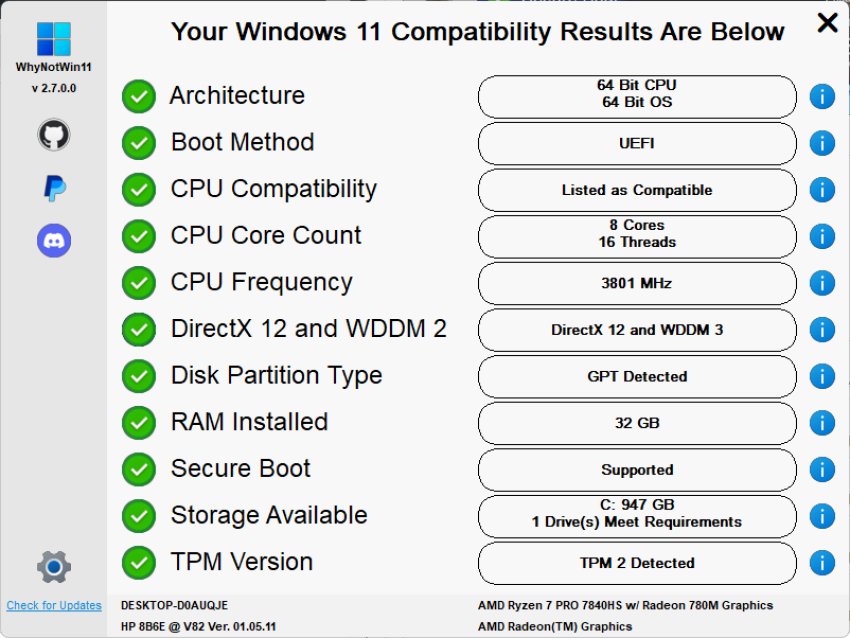
The app runs its checks on start automatically and presents its findings to you in its interface after a short moment.

Note that you can run the app on Windows 11 as well. Handy, if you installed the operating system and used bypasses for certain requirements.

The program color codes results. Green checkmark tell you that everything is fine, but you will also known if a component does not meet Windows 11’s minimum requirements.

WhyNotWin11 does not prioritize certain components over others, which could improve usability. Arguably, some checks are more important than others. For instance, the CPU or TPM version checks, while others, like CPU frequency, may not be as important, at least not for making upgrade decisions.

Still, it is easy enough and you see at a glance if your system fails to meet requirements. You can hover over the i-icon next to an entry to find out more about it.

WhyNotWin11 does not provide suggestions or tips to resolve compatibility issues. You find a few help guides in settings though. These explain how to enable secure boot or the TPM. There is also a link to the official Windows 11 requirements and to skipping some of the checks.

All guides open websites though.

Closing Words

WhyNotWin11 is a handy open source tool to quickly check the Windows 11 compatibility of a PC. It is a portable app, which means that you can run it without installation. Ideal for placing it on a USB tools collection and carrying it around whenever you do some troubleshooting work.

Now You: do you use lightweight open source tools like WhyNotWin11 regularly? Feel free to highlight apps that you recommend in the comments below.

Microsoft breaks more Windows 11 local account creation options

Posted on October 7, 2025October 7, 2025 by Martin Brinkmann

It is clear that Microsoft is pushing Windows 11 users towards using a Microsoft account. While using one has advantages, part of the user base prefers local accounts because they are not tied to a Microsoft account, offer more privacy, and there is no risk of accounts being banned by Microsoft.

Up until now, workarounds existed to create local accounts in Windows 11. These required a bit of magic during setup, but they let users create a local account immediately.

Going forward, it appears that Microsoft is tinkering with Windows setup to make these bypasses go away.

In a recent Insider build, it posted the following announcement:

We are removing known mechanisms for creating a local account in the Windows Setup experience (OOBE). While these mechanisms were often used to bypass Microsoft account setup, they also inadvertently skip critical setup screens, potentially causing users to exit OOBE with a device that is not fully configured for use. 

The consequence, according to Microsoft? “Users will need to complete OOBE with internet and a Microsoft account, to ensure device is setup correctly.”

In other words, Microsoft is forcing users to go through the process of setting up their device and system with a Microsoft account. Even users who have no interest in using one are required to use one during setup.

They can still create a local account after setup ended and remove the Microsoft account, but this requires even more work on their part to set up the operating system.

Microsoft says that it is doing so because setting up using local accounts bypasses “critical setup screens”. The company does not reveal which, but if your first thought is upsells, you are probably not too far off the mark here.

Using a Microsoft account is the first step towards signing up for Microsoft 365 — you need Office and more online space right — or a Game Pass — you play games, right — or towards using Copilot, Edge or other company products.

Bypasses continue to exist, but they require tweaking Windows installation media, something that most users may not be willing to do. It may also lead to more downloads of installation media from third-party sources, which is also increasing the risk of malware infections.

Another option, at least for now, is to set up Windows 11 using an older image. This should work but may require extended upgrades to make sure the system is supported.

Now You: what is your take on this? Should Microsoft give users clear options to use local accounts or a Microsoft account? Feel free to leave a comment down below.

PSA: If you use Windows 11 and Microsoft 365, new apps will be installed automatically starting next month

Posted on September 29, 2025September 29, 2025 by Martin Brinkmann

Nothing is more exciting than new apps that do get installed automatically on your devices, right? That’s probably Microsoft’s official argument for starting to force-install new Microsoft 365 companion apps on Windows 11 devices from next month onward.

Microsoft confirmed the decision to Microsoft 365 administrators, but it has not informed regular customers of its Microsoft 365 service about it to my knowledge.

Here is what is going to happen: Starting in “early October 2025”, Microsoft will install the Companion apps People, Files, and Calendar on any Windows 11 device, provided that Microsoft 365 desktop client apps are installed.

Wonder what those do?

  • People app: Extends search functionality for contacts, option to send messages and start chats, use Copilot, view profile cards and availability.
  • File app: Find cloud and local files, preview file content, share with colleagues, filter using new filters, e.g., by activity, and use Copilot.
  • Calendar app: view agendas or days, open meeting details, find events, edit meetings, use Copilot.

These apps will appear in the Start menu by default. What they have in common is that they introduce even more Copilot AI functionality on the Windows system. The integration focuses on app-specific tasks, for instance to find out what a specific user is working on at the time or drafting a new message to catch up.

Microsoft gives system administrators options to disable the rollout. Means, the apps won’t get installed automatically on managed devices, if the administrator does not allow it.

Home users, on the other hand, are once again kept in the dark by Microsoft. Users may uninstall the apps after they have been installed, according to Microsoft.

While there is a chance that Microsoft is making last-minute changes to its plans, for instance by making the apps install manually only, nothing of the kind has been confirmed officially at this point.

Now You: what is your stance on auto-installing apps on your devices? Feel free to leave a comment down below.

Resume Android app on Windows 11

Windows 11: Resuming apps from Android is coming, again

Posted on August 24, 2025 by Martin Brinkmann

Microsoft released a new Windows 11 test build this week that is bringing the Dev channel version to 26200.5761. With it comes a new option to “seamlessly resume apps from Android phone on PC”, at least for some users, as Microsoft has the habit of split testing features even in developer builds.

Microsoft admits that this initial version of the feature works only with the Spotify app. If you have Spotify installed on your Android device and on your Windows 11 PC, you may resume listening on PC to whatever you listened to on your phone.

Still requires you to click on the resume notification that Windows 11 displays and have the Android phone and the Windows 11 PC linked as well.

Microsoft reveals that the notification will also display if Spotify is not installed on the PC. In that case, a 1-click installation of the app from the Microsoft Store will be started and the installed application will be launched. However, you are still required to sign in to the same Spotify account before you can resume the playback.

Microsoft encourages other app developers to integrate resume functionality into their apps. Media streaming apps seem the main target for this at this point, but it could also include apps to call or maybe even some games. However, this requires that an app is available for Windows and Android, which limits the reach.

Closing Words

How useful is that feature? I have to admit that I do not have any use for it, but then, I’m probably not the target demographic for this anyway. I can see some use for users who commute to work and work on a PC there, but is it really more comfortable than just launching the app manually or even automatically on PC to continue using it? Considering that you need to go through some hoops to set up the link between the Android device and the PC in first place, it is probably going to stay pretty niche.

Now You: what is your take on this? Would you use it, if it would be launched by Microsoft? Which apps or games would you like to see supported? Feel free to leave a comment down below.

Windows 11 is removing an option to bypass Microsoft account and internet during setup

Microsoft confirms reset and recovery issue in Windows 10 and 11

Posted on August 19, 2025August 19, 2025 by Martin Brinkmann

When Microsoft released the August 2025 security updates for Windows, it listed not a single known issue for any of the supported operating systems. Now, a week later, Microsoft had to confirm several issues already.

The latest to be added to the growing list is that reset and recovery operations may fail on some older versions of Windows.

Microsoft confirmed the issue for the latest version of Windows 10, which is version 22H2, and for Windows 11, version 23H2 and earlier. Only client operating systems are affected, according to Microsoft.

​Client: Windows 11, version 23H2; Windows 11, version 22H2; Windows 10, version 22H2; Windows 10 Enterprise LTSC 2021 and Windows 10 IoT Enterprise LTSC 2021; Windows 10 Enterprise LTSC 2019 and Windows 10 IoT Enterprise LTSC 2019

If you still run one of these and have the latest security updates installed for the operating systems, you may run into issues when you try to reset or recover the PC.

Microsoft says that three processes are affected by the issue:

  • System >Recovery > Reset my PC
  • System > Recovery > Fix problems using Windows Update
  • RemoteWipe CSP

Run any of those, and the reset or recovery operation may fail, provided that the most recent update is installed. To get around this, you could uninstall the security update before running reset or recovery actions on the Windows PC.

Microsoft confirmed that it is working on a resolution and that it plans to release an out-of-band patch for affected versions of Windows to address the issue. The company plans to release the update “in the coming days” according to the confirmation on the Release Health website for affected Windows editions.

Windows 11

Windows 11 finally overtakes Windows 10 as the most popular desktop operating system

Posted on August 4, 2025August 4, 2025 by Martin Brinkmann

Microsoft’s newest — if you consider four years new – has finally done it. It has passed Windows 10 as the most popular desktop operating system last month.

The consumer versions of Windows 10 have less than three months of support left. While you can extend that by a year, the end is inevitable at this point.

Statcounter reports that Windows 11 made a big jump to more than 53 percent usage share while Windows 10 dropped to a still respectable 43 percent share.

It appears that users are finally moving from Windows 10 to 11, either by upgrading compatible devices to the new version of Windows or by buying new PCs with Windows 11. There is also a third possibility. Since Statcounter does not reveal totals, Windows 10 devices could just have been taken offline by their respective owners or users.

Is the change in leadership the big win that Microsoft hoped Windows 11 would become? Or just born out of necessity, considering that Microsoft will end support for Windows 10 in a short while?

It seems likely that the trend will continue in the following months. Windows 10 will drop, Windows 11 will rise as a consequence.

It is interesting to note that Windows 10 managed to keep the lead until last month. Almost half of all desktop devices ran the operating system and users have started to migrate mere weeks before the official end of support.

In related news, Windows 7 still holds about 2 percent of the desktop market, more than two years after Microsoft ended the ESU program and more than five years since support ended officially.

Windows 8 and 8.1 are also listed, with a combined share of about 1 percent of the desktop market. May not sound like much, but if you assume more than 1 billion desktop PCs, you end up with 10 million Windows 8 and 8.1 devices still in use.

As far as desktop operating systems are concerned, Windows continues to have a commanding lead of more than 71 percent of the market. Unknown, meaning device with unidentifiable operating systems, macOS and Linux follow behind, each with less than 10 percent of the usage share.

Now You: do you run Windows on your devices or another operating system? Let me know in the comments below.

  • Previous
  • 1
  • …
  • 5
  • 6
  • 7
  • 8
  • 9
  • 10
  • 11
  • …
  • 22
  • Next

Support This Site

If you like what I do please support me!

Any tip is appreciated. Thanks!
  • August 29, 2026 by Martin Brinkmann Another Windows Issue: Microsoft Defender Antivirus is turned off notification, but it is actually enabled
  • August 28, 2026 by Martin Brinkmann Brave Accounts and Email Aliases launch
  • August 25, 2026 by Martin Brinkmann Microsoft confirms: Latest .NET updates may cause printing issues
  • August 24, 2026 by Martin Brinkmann The Chrome Web Store has a fake VPN extensions problem
  • August 23, 2026 by Martin Brinkmann Microsoft is worsening classic Media Player to get users to upgrade

About

We talk, write and dream about Technology 24/7 here at Chipp.in. The site, created by Martin Brinkmann in 2023, focuses on well-researched tech news, reviews, guides, help and more.

Legal Notice

Our commitment

Many websites write about tech, but chipp.in is special in several ways. All of our guides are unique, and we will never just rehash news that you find elsewhere.

Read the About page for additional information on the site and its founder and author.

Support Us

We don't run advertisement on this site that tracks users. If you see ads, they are static links. Ads, including affiliate links, never affect our writing on this site.

Here is a link to our privacy policy

©2026 Chipp.in Tech News and Reviews