Chipp.in Tech News and Reviews

Windows, Security & Privacy, Open Source and more

Menu
  • Home
  • Windows
  • Security & Privacy
  • Gaming
  • Guides
  • Windows 11 Book
  • Contact
  • RSS Feed
Menu

Tag: windows 11

Windows 11 is removing an option to bypass Microsoft account and internet during setup

Windows 11, Version 23H2 Home and Pro will stop getting updates starting next month

Posted on October 12, 2025October 12, 2025 by Martin Brinkmann

If you still run a device with the Home or Pro editions of Windows 11, version 23H2, then you may want to consider upgrading it to a newer version of Windows 11. Microsoft published a reminder that the particular version of the operating system is reaching end of life in November 2025 for consumer devices.

The details:

  • Affects Windows 11, version 23H2 Home and Pro editions.
  • Support ends after November 11, 2025.

Microsoft writes on its website:

Windows 11 Home and Pro, version 23H2 will reach the end of updates on November 11, 2025. This version was released in October of 2023.

This edition will no longer receive security updates after November 11, 2025. Customers who contact Microsoft Support after this date will be directed to update their device to the latest version of Windows 11 to remain supported.

Microsoft released the operating system in 2023. It is supporting specific consumer versions of its Windows 11 operating system for 24 months. Business customers get an additional 12 months worth of support for specific versions of the operating system.

Tip: use the two keys Windows-key and R to open the runbox. Type winver and hit the Enter-key. This displays the version that is installed on a device currently.

The solution

Most home devices should support Windows 11, version 24H2 or this month’s Windows 11, version 25H2. Both upgrades won’t install too quickly, unlike the upgrade from 24H2 to 25H2. Expect multiple reboots during the upgrade process.

Should you upgrade to 24H2 or 25H2? New Windows versions are better to be avoided in the first months after release. While 25H2 is a smallish release, it should not be a problem to upgrade to Windows 11, version 24H2 first. The upgrade to 25H2 should not take long once you feel ready to install it.

Most devices should upgrade fine via Windows Update in the Settings app. Just open it, maybe hit the check for updates button, and you should see a new version offered to you.

This may not be the case if you bypassed system requirement checks during installation of Windows 11, or if a safeguard hold is in place. You can check out my guide on upgrading Windows 11 on systems that do not meet all requirements.
Why Not Win 11 App

Test your PC’s Windows 11 compatibility with free WhyNotWin11

Posted on October 10, 2025October 10, 2025 by Martin Brinkmann

While Microsoft has its own tool for checking if a PC meets the system requirements of its Windows 11 operating system, it is generally considered rather heavy and not overly useful.

If you have come to the same conclusion, you may prefer an open source alternative that is both free and lightweight.

WhyNotWin11 is developed by serial developer Roby C. Mahel, whom you may know for his work on MSEdgeRedirect and other open source apps already.

The main purpose of WhyNotWin11 is simple: check, if your PC meets the system requirements to find out if you can upgrade without hassles.

All you need to do is download the app and run it. No installation, no ads, nothing that is considered bloat.

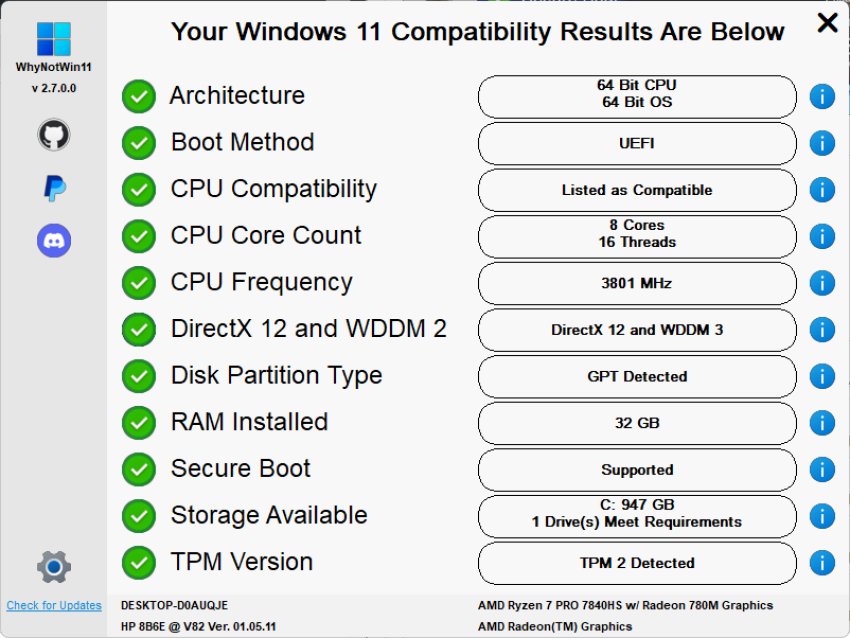
The app runs its checks on start automatically and presents its findings to you in its interface after a short moment.

Note that you can run the app on Windows 11 as well. Handy, if you installed the operating system and used bypasses for certain requirements.

The program color codes results. Green checkmark tell you that everything is fine, but you will also known if a component does not meet Windows 11’s minimum requirements.

WhyNotWin11 does not prioritize certain components over others, which could improve usability. Arguably, some checks are more important than others. For instance, the CPU or TPM version checks, while others, like CPU frequency, may not be as important, at least not for making upgrade decisions.

Still, it is easy enough and you see at a glance if your system fails to meet requirements. You can hover over the i-icon next to an entry to find out more about it.

WhyNotWin11 does not provide suggestions or tips to resolve compatibility issues. You find a few help guides in settings though. These explain how to enable secure boot or the TPM. There is also a link to the official Windows 11 requirements and to skipping some of the checks.

All guides open websites though.

Closing Words

WhyNotWin11 is a handy open source tool to quickly check the Windows 11 compatibility of a PC. It is a portable app, which means that you can run it without installation. Ideal for placing it on a USB tools collection and carrying it around whenever you do some troubleshooting work.

Now You: do you use lightweight open source tools like WhyNotWin11 regularly? Feel free to highlight apps that you recommend in the comments below.

Microsoft breaks more Windows 11 local account creation options

Posted on October 7, 2025October 7, 2025 by Martin Brinkmann

It is clear that Microsoft is pushing Windows 11 users towards using a Microsoft account. While using one has advantages, part of the user base prefers local accounts because they are not tied to a Microsoft account, offer more privacy, and there is no risk of accounts being banned by Microsoft.

Up until now, workarounds existed to create local accounts in Windows 11. These required a bit of magic during setup, but they let users create a local account immediately.

Going forward, it appears that Microsoft is tinkering with Windows setup to make these bypasses go away.

In a recent Insider build, it posted the following announcement:

We are removing known mechanisms for creating a local account in the Windows Setup experience (OOBE). While these mechanisms were often used to bypass Microsoft account setup, they also inadvertently skip critical setup screens, potentially causing users to exit OOBE with a device that is not fully configured for use. 

The consequence, according to Microsoft? “Users will need to complete OOBE with internet and a Microsoft account, to ensure device is setup correctly.”

In other words, Microsoft is forcing users to go through the process of setting up their device and system with a Microsoft account. Even users who have no interest in using one are required to use one during setup.

They can still create a local account after setup ended and remove the Microsoft account, but this requires even more work on their part to set up the operating system.

Microsoft says that it is doing so because setting up using local accounts bypasses “critical setup screens”. The company does not reveal which, but if your first thought is upsells, you are probably not too far off the mark here.

Using a Microsoft account is the first step towards signing up for Microsoft 365 — you need Office and more online space right — or a Game Pass — you play games, right — or towards using Copilot, Edge or other company products.

Bypasses continue to exist, but they require tweaking Windows installation media, something that most users may not be willing to do. It may also lead to more downloads of installation media from third-party sources, which is also increasing the risk of malware infections.

Another option, at least for now, is to set up Windows 11 using an older image. This should work but may require extended upgrades to make sure the system is supported.

Now You: what is your take on this? Should Microsoft give users clear options to use local accounts or a Microsoft account? Feel free to leave a comment down below.

PSA: If you use Windows 11 and Microsoft 365, new apps will be installed automatically starting next month

Posted on September 29, 2025September 29, 2025 by Martin Brinkmann

Nothing is more exciting than new apps that do get installed automatically on your devices, right? That’s probably Microsoft’s official argument for starting to force-install new Microsoft 365 companion apps on Windows 11 devices from next month onward.

Microsoft confirmed the decision to Microsoft 365 administrators, but it has not informed regular customers of its Microsoft 365 service about it to my knowledge.

Here is what is going to happen: Starting in “early October 2025”, Microsoft will install the Companion apps People, Files, and Calendar on any Windows 11 device, provided that Microsoft 365 desktop client apps are installed.

Wonder what those do?

  • People app: Extends search functionality for contacts, option to send messages and start chats, use Copilot, view profile cards and availability.
  • File app: Find cloud and local files, preview file content, share with colleagues, filter using new filters, e.g., by activity, and use Copilot.
  • Calendar app: view agendas or days, open meeting details, find events, edit meetings, use Copilot.

These apps will appear in the Start menu by default. What they have in common is that they introduce even more Copilot AI functionality on the Windows system. The integration focuses on app-specific tasks, for instance to find out what a specific user is working on at the time or drafting a new message to catch up.

Microsoft gives system administrators options to disable the rollout. Means, the apps won’t get installed automatically on managed devices, if the administrator does not allow it.

Home users, on the other hand, are once again kept in the dark by Microsoft. Users may uninstall the apps after they have been installed, according to Microsoft.

While there is a chance that Microsoft is making last-minute changes to its plans, for instance by making the apps install manually only, nothing of the kind has been confirmed officially at this point.

Now You: what is your stance on auto-installing apps on your devices? Feel free to leave a comment down below.

Resume Android app on Windows 11

Windows 11: Resuming apps from Android is coming, again

Posted on August 24, 2025 by Martin Brinkmann

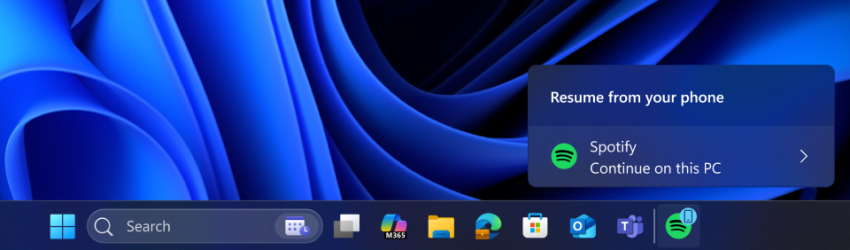
Microsoft released a new Windows 11 test build this week that is bringing the Dev channel version to 26200.5761. With it comes a new option to “seamlessly resume apps from Android phone on PC”, at least for some users, as Microsoft has the habit of split testing features even in developer builds.

Microsoft admits that this initial version of the feature works only with the Spotify app. If you have Spotify installed on your Android device and on your Windows 11 PC, you may resume listening on PC to whatever you listened to on your phone.

Still requires you to click on the resume notification that Windows 11 displays and have the Android phone and the Windows 11 PC linked as well.

Microsoft reveals that the notification will also display if Spotify is not installed on the PC. In that case, a 1-click installation of the app from the Microsoft Store will be started and the installed application will be launched. However, you are still required to sign in to the same Spotify account before you can resume the playback.

Microsoft encourages other app developers to integrate resume functionality into their apps. Media streaming apps seem the main target for this at this point, but it could also include apps to call or maybe even some games. However, this requires that an app is available for Windows and Android, which limits the reach.

Closing Words

How useful is that feature? I have to admit that I do not have any use for it, but then, I’m probably not the target demographic for this anyway. I can see some use for users who commute to work and work on a PC there, but is it really more comfortable than just launching the app manually or even automatically on PC to continue using it? Considering that you need to go through some hoops to set up the link between the Android device and the PC in first place, it is probably going to stay pretty niche.

Now You: what is your take on this? Would you use it, if it would be launched by Microsoft? Which apps or games would you like to see supported? Feel free to leave a comment down below.

Windows 11 is removing an option to bypass Microsoft account and internet during setup

Microsoft confirms reset and recovery issue in Windows 10 and 11

Posted on August 19, 2025August 19, 2025 by Martin Brinkmann

When Microsoft released the August 2025 security updates for Windows, it listed not a single known issue for any of the supported operating systems. Now, a week later, Microsoft had to confirm several issues already.

The latest to be added to the growing list is that reset and recovery operations may fail on some older versions of Windows.

Microsoft confirmed the issue for the latest version of Windows 10, which is version 22H2, and for Windows 11, version 23H2 and earlier. Only client operating systems are affected, according to Microsoft.

​Client: Windows 11, version 23H2; Windows 11, version 22H2; Windows 10, version 22H2; Windows 10 Enterprise LTSC 2021 and Windows 10 IoT Enterprise LTSC 2021; Windows 10 Enterprise LTSC 2019 and Windows 10 IoT Enterprise LTSC 2019

If you still run one of these and have the latest security updates installed for the operating systems, you may run into issues when you try to reset or recover the PC.

Microsoft says that three processes are affected by the issue:

  • System >Recovery > Reset my PC
  • System > Recovery > Fix problems using Windows Update
  • RemoteWipe CSP

Run any of those, and the reset or recovery operation may fail, provided that the most recent update is installed. To get around this, you could uninstall the security update before running reset or recovery actions on the Windows PC.

Microsoft confirmed that it is working on a resolution and that it plans to release an out-of-band patch for affected versions of Windows to address the issue. The company plans to release the update “in the coming days” according to the confirmation on the Release Health website for affected Windows editions.

Windows 11

Windows 11 finally overtakes Windows 10 as the most popular desktop operating system

Posted on August 4, 2025August 4, 2025 by Martin Brinkmann

Microsoft’s newest — if you consider four years new – has finally done it. It has passed Windows 10 as the most popular desktop operating system last month.

The consumer versions of Windows 10 have less than three months of support left. While you can extend that by a year, the end is inevitable at this point.

Statcounter reports that Windows 11 made a big jump to more than 53 percent usage share while Windows 10 dropped to a still respectable 43 percent share.

It appears that users are finally moving from Windows 10 to 11, either by upgrading compatible devices to the new version of Windows or by buying new PCs with Windows 11. There is also a third possibility. Since Statcounter does not reveal totals, Windows 10 devices could just have been taken offline by their respective owners or users.

Is the change in leadership the big win that Microsoft hoped Windows 11 would become? Or just born out of necessity, considering that Microsoft will end support for Windows 10 in a short while?

It seems likely that the trend will continue in the following months. Windows 10 will drop, Windows 11 will rise as a consequence.

It is interesting to note that Windows 10 managed to keep the lead until last month. Almost half of all desktop devices ran the operating system and users have started to migrate mere weeks before the official end of support.

In related news, Windows 7 still holds about 2 percent of the desktop market, more than two years after Microsoft ended the ESU program and more than five years since support ended officially.

Windows 8 and 8.1 are also listed, with a combined share of about 1 percent of the desktop market. May not sound like much, but if you assume more than 1 billion desktop PCs, you end up with 10 million Windows 8 and 8.1 devices still in use.

As far as desktop operating systems are concerned, Windows continues to have a commanding lead of more than 71 percent of the market. Unknown, meaning device with unidentifiable operating systems, macOS and Linux follow behind, each with less than 10 percent of the usage share.

Now You: do you run Windows on your devices or another operating system? Let me know in the comments below.

Windows 11 is removing an option to bypass Microsoft account and internet during setup

Windows 11, version 23H2: Support ends this year as well

Posted on July 28, 2025July 28, 2025 by Martin Brinkmann

While Windows 10’s official end of support later this year is the big Windows-topic of 2025, an earlier version of Windows 11 is also put to rest by Microsoft on the same day.

Windows 11, version 23H2, released almost two years ago, will reach end of support in November 2025 shortly after Windows 10 reaches its end of support.

To be clear, the end of support affects the Home and Pro editions of the operating systems only. Microsoft supports Home and Pro editions of Windows 11 for two years (24 months), while Enterprise and Education editions get an extra year of support.

So, if you have not upgraded a Windows 11, version 23H2 Home or Pro device to version 24H2 yet, you may want to consider doing so to keep it supported.

Systems that meet the official system requirements should get the upgrade offer in Settings > Windows Update > Check for updates. Potential upgrade blockers could prevent the upgrade offer via Windows Update, but only a few confirmed issues remain.

If the upgrade to version 24H2 is not offered, you could try Microsoft’s official Installation Assistant. It can start the upgrade, even if it is not offered via Windows Update.

If that fails as well, your best bet is to use third-party tools like Rufus or FlyOobe (formerly known as Flyby11), which can also be used to bypass most of the system requirements of Windows 11.

Here is the list of Windows versions and editions, and their upcoming end of support later this year.

  • Windows 10, version 22H2 (latest) — Home and Pro : October 14, 2025.
  • Windows 11, version 22H2 — Enterprise and Education: October 14, 2025
  • Windows 11, version 23H3 — Home and Pro: November 11, 2025

Now You: do you run any of these? Let us know in the comments below.

Backup App: Here is what you need to know about the transfer to a new PC option

Posted on July 22, 2025July 23, 2025 by Martin Brinkmann

Microsoft has updated the official Backup app of the Windows operating system recently with PC transfer functionality. It is designed to move files and data from an older PC, e.g., a Windows 10 device, to a newer PC.

The new option addresses a common issue that users face when they buy or a build a new PC: how do you get your files, data and settings from the old system to the new?

Microsoft’s transfer option sounds like a good option, as it is baked into the operating system. While it can be useful indeed, it is important to understand that it has limitations.

What is transferred? Microsoft says that you can use the option to transfer “all files”, settings and preferences from one PC to another.

What is excluded? System and operating system files, OneDrive files, installed applications, saved passwords and credentials, encrypted drives with BitLocker.

Are there other limitations? There are three. First, you need a Microsoft account and use it to sign in to both PCs. Second, while you can run the Backup app on Windows 10 and 11 devices, you can only use it to transfer data to a PC with Windows 11, version 24H2 or newer. Also, ARM-based PCs are not supported currently. Third, both PCs need to be connected to the same network.

In other words, you can use it to move files, such as documents or photos, from the older PC to the new system. You may also use it to move settings and preferences, such as your wallpapers, to the new system, provided that it runs the latest version of Windows 11 and is not ARM-based.

Installed applications are not transferred, which is probably the biggest shortcoming. This means, that you will have to install your favorite apps manually and configure them manually as well, unless they offer imports of settings from another device or do so via the cloud.

Some Windows users may find the tool useful, despite its obvious limitations. You can check out a detailed tutorial on how to use the tool on the Microsoft Support website.

Now You: how do you handle migrations from one system to another? Do you use tools for that or a manual approach?

Microsoft trials Adaptive Energy Saver, to enable saving mode on devices with plenty of battery left

Posted on July 15, 2025July 14, 2025 by Martin Brinkmann

Mobile devices like Windows 11 laptops use batteries for power. Keeping an eye on the remaining battery is essential to avoid unexpected system shutdowns due to a lack of power.

Modern mobile devices support battery saving modes. These are designed to save battery while the device is idle or in use. Common tweaks include reducing the screen brightness, powering down devices, or limiting background activity.

Up until now, Windows’ energy saver mode was either turned on or off. Microsoft has started a trial to change that.

What is the adaptive energy saver? It is a new, opt-in mode, for Windows 11 devices that have a battery. The feature enables energy saving automatically to conserve energy, even while the battery is not particularly low.

This happens without changing the brightness of the screen and is based “on the power state of the device and the current system load”. So, I assume this means that if the load is light, Windows 11 might turn on energy saving mode for a bit to save energy. Once more resources are required, it may turn off energy saving mode again.

How this actually works remains to be seen. Since this feature is introduced in test builds. expect some tweaking and testing to find out how well it works.

The feature is disabled by default and in testing in the latest insider builds of Windows 11 only (where it may be enabled for some for testing). You find it under Settings > System > Power & battery. There, under Energy saver, set “always use energy saver” to adaptive to use it.

Both Android and iOS support adaptive power or battery options. Some Android devices support adaptive power saving, which dynamically adjusts power-settings like the screen brightness based on user behavior. Apple introduced adaptive power in iOS 26, which makes slight performance adjustments to extend battery life.

  • Previous
  • 1
  • 2
  • 3
  • 4
  • 5
  • 6
  • 7
  • 8
  • …
  • 19
  • Next

Support This Site

If you like what I do please support me!

Any tip is appreciated. Thanks!
  • April 2, 2026 by Martin Brinkmann Would you trust AI to handle your email inbox?
  • April 1, 2026 by Martin Brinkmann Google Chrome update patches another 0-day vulnerability
  • March 31, 2026 by Martin Brinkmann A new Windows team promises to bring native apps to the operating system
  • March 30, 2026 by Martin Brinkmann Google outlines the new flow for sideloading Android apps
  • March 29, 2026 by Martin Brinkmann Microsoft pauses update KB5079391 for Windows 11 to investigate an issue

About

We talk, write and dream about Technology 24/7 here at Chipp.in. The site, created by Martin Brinkmann in 2023, focuses on well-researched tech news, reviews, guides, help and more.

Legal Notice

Our commitment

Many websites write about tech, but chipp.in is special in several ways. All of our guides are unique, and we will never just rehash news that you find elsewhere.

Read the About page for additional information on the site and its founder and author.

Support Us

We don't run advertisement on this site that tracks users. If you see ads, they are static links. Ads, including affiliate links, never affect our writing on this site.

Here is a link to our privacy policy

©2026 Chipp.in Tech News and Reviews