Last year, Google announced that it would change the behavior of its Chrome browser regarding HTTP websites. The company said that it would enable “always use secure connections” in Chrome 154.
The browser is out now, but the change has not come yet on my test devices. It is likely that Google is using rollouts for this to monitor feedback.
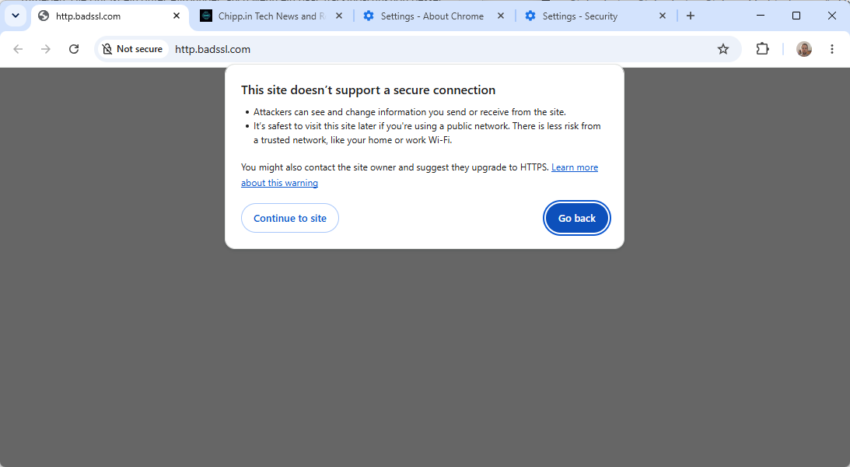
What it does: When Google Chrome encounters a public site that uses HTTP, it displays the warning “This site doesn’t support a secure connection” instead of connecting to the site as it did previously.
The prompt displays an option to go back or to continue to site. Going back cancels the navigation request, the continue option attempts to load the HTTP site.
It is noteworthy that the feature impacts redirects as well, even if the actual target website uses HTTPS. Something that webmasters may want to keep in mind as well and address.
Chrome remembers the choice to visit the site and won’t display the security prompt for the next 15 days. Any visit in that time refreshes the period, so that the browser won’t terrorize you with security prompts when you visit a HTTP website often.
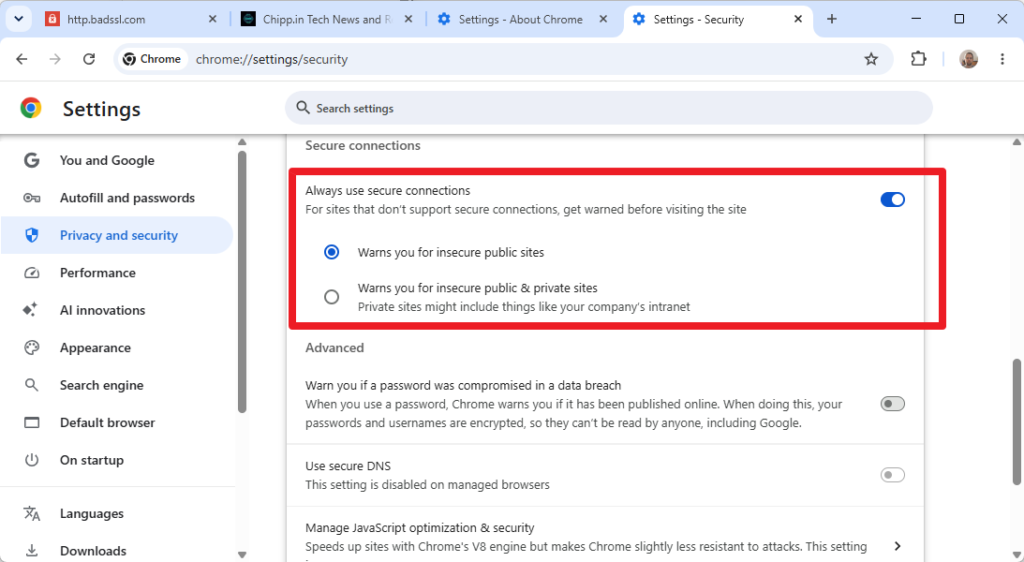
Private sites are exempt by default. There is an option under chrome://settings/security to enable the warning for private sites, e.g. Intranet sites or a router’s administrative frontend, as well.
An option to disable the warning altogether exists right now, but it is unclear for how long it remains available to users.
Security researchers at Socket have uncovered a large impersonation and browser traffic redirection campaign in the Chrome Web Store.
According to a news post on the official website, the campaign uploaded 737 VPN extensions to the Chrome Web Store and managed to lure more than 75,000 users to installing them on their devices.
The extensions impersonated 66 legitimate privacy and VPN brands—such as NordVPN, Proton VPN, and Surfshark—to deceive users into downloading them.
Core Threat Behaviors
Traffic Interception: Once activated, the extensions route the victim’s entire browser session through a SOCKS5 proxy controlled by a single threat actor. This places the attacker in a position to read and monitor all browser traffic.
Subscription Fraud: The extensions funnel users toward a paid subscription tier that promises premium server locations (such as Japan, Canada, and Australia). However, Socket found that none of these premium servers actually exist.
Deceptive Tactics & Evasion
DNS-over-HTTPS Evasion: The extensions use Cloudflare and Google’s DNS-over-HTTPS to silently resolve proxy IPs, preventing the victim’s machine from emitting plaintext DNS queries that security software might flag.
Store Review Gaming: The developers submitted false justifications to Chrome Web Store reviewers and used post-approval code substitution to sneak in the malicious proxy behaviors.
Hidden Domains: An internal developer manual accidentally left inside one of the extensions revealed explicit instructions to staff to never hardcode the actual domains into the extension, ensuring they stay hidden from automated scanners.
The campaign specifically targets Russian-speaking users who are trying to bypass internet censorship to access blocked services like YouTube, Instagram, and ChatGPT. By impersonating trusted anti-censorship tools, the attackers successfully tricked thousands of users into handing over full visibility of their web browsing activity to a threat actor based in Russia.
Back in May 2026, some users of Google’s Chrome web browser discovered a jump in used storage space on their devices. The culprit at the time was an AI model that the browser downloaded automatically to user devices for on-device artificial intelligence processing.
The main idea here is to allow some AI tasks to run locally only, meaning that no interaction with a Google server is needed to make use of the functionality. The whole download felt forced to some users, who had no say in the matter whatsoever.
Now, Google and also Microsoft have increased the local storage requirements for AI significantly. Instead of 4 gigabytes of free disk space, Google requires a whooping 20 gigabytes as the bare minimum.
Google says that the model is only downloaded if Chrome runs on a device with supported hardware capabilities, but fails to specify what that means.
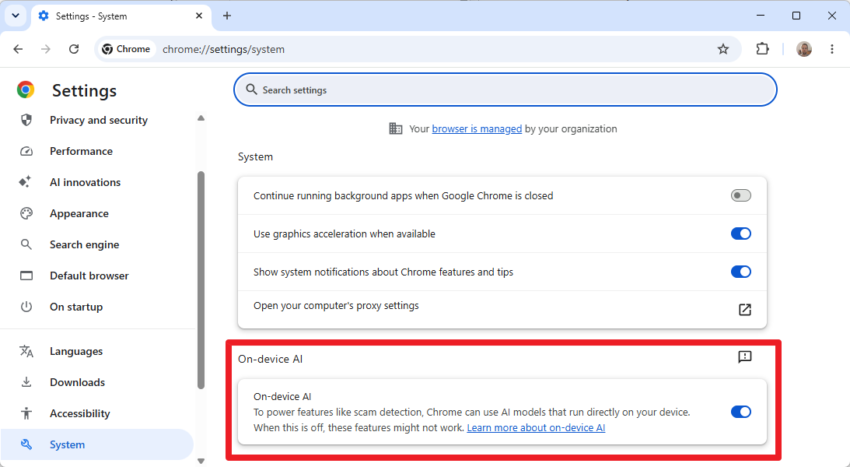
The best way to check whether your device is eligible is to load chrome://settings/system in the browser’s address bar and check the “On-device AI” setting there.
If it is turned on, the device has the requirements apparently and there is a good chance that a gigabyte-sized AI model has been downloaded to the system.
The model is downloaded to this folder: %LOCALAPPDATA%\Google\Chrome\User Data\OptGuideOnDeviceModel
The AI file is not downloaded in all cases, even with the On-device AI feature enabled. I checked on a test system that had the toggle set to on but no such file on the local hard drive.
You can turn off the functionality, which has three consequences according to Google:
Any AI model downloaded automatically to the local system is removed.
Chrome won’t download AI models.
Features that rely on the functionality won’t work.
The main features that are not available when you turn off local AI are:
Help with writing or rephrasing text
Warn you about scams
Summarize web pages
Organize your tabs
While local AI processing is without a doubt beneficial to privacy, companies like Google should consider giving their customers a clear choice before they start downloading gigabyte-sized files to their devices.
If you run Google Chrome on your computer systems or mobile, then you better make sure that the latest update is installed. Google released a new security update for Google Chrome this week, and it fixes a whooping 74 unique vulnerabilities. Not even near the massive 429 security fixes of last week’s update, but still a sizeable number.
Google lists 17 critical security issues that got fixed in the update on the official release notes page. Even more pressing is one of the high-rated security issues is actively exploited in the wild. As always, Google does not reveal much about this:
Google is aware that an exploit for CVE-2026-11645 exists in the wild.
It is an out of bounds memory access in V8, the JavaScript engine of the Chrome browser. Specifics are not revealed at this stage. It is unclear, therefore, how attackers may exploit the issue and more importantly, how easy it is to exploit it.
Chrome users should upgrade the browser asap, especially if they use it actively on their devices. Even if it is installed only, I’d recommend upgrading it as soon as possible to protect it against the large number of potential attack vectors and issues.
Most non-managed devices should receive the update automatically, thanks to the built-in updating functionality of the web browser. You can speed up the process by selecting Help > About Chrome from the main menu. Windows users may also run winget upgrade google.chrome.exe from Terminal.
As far as versions are concerned, Chrome should display one of the following versions after the update has been installed.
Mobile devices and web browsers support the sharing of the current location. This gives apps, websites and services access to a user’s location in the world. Ideally, to provide custom information, such as zooming to that location on a map, showing businesses nearby, providing directions, or loading specific information on a website.
While useful in that regard, location does reveal information about the user. The feature is usually locked behind a permission, but some apps may not start at all without it or block access to features.
Google announced on its official The Keyword blog that it is introducing approximate location sharing in Chrome. The feature lands in Chrome for Android first before it will also be introduced in the desktop versions of the browser.
Here is what it does: Google Chrome’s new Approximate Location Sharing feature enhances privacy by giving users a third option when websites request their whereabouts: sharing a general regional area rather than the exact coordinates. While users can still grant precise location access for tasks that genuinely need it—such as getting turn-by-turn navigation, placing a delivery order, or finding a nearby ATM—everyday browsing activities like checking local weather or reading regional news can now function perfectly well with just a neighborhood or city-level location.
In other words, websites and apps get information about a region a user is in and not the precise location. This new permission is intended for services that do not require accurate information and for users who do not want to share their exact location.
When a location prompt pops up on the mobile, users can now pick between “precise” and “approximate” and the usual options to “never allow”, “allow this time”, or “allow while visiting the site” options. Google says that the feature will land on desktop in Chrome in the coming months as well. For now, it is only available in Chrome for Android.
How useful is it for privacy? It can be used to share less-exact information about ones location. That is useful, especially for services that do not require it to function. If you want to get local news or weather, it does not really matter if the service that is providing the information knows the exact location or not. In that regard, it is a useful addition for users who share location but prefer it to be less exact whenever possible.
Google released a security update for its Chrome web browser that fixes 21 distinct security issues, including a 0-day issue that is exploited in the wild.
You know the drill: If you run Chrome or have it installed, update asap to close the vulnerabilities and protect your systems from potential attacks.
My preferred way of updating the browser is to run winget upgrade google.chrome.exe from the command line. You can also start it, select Menu > Help > About Google Chrome.
The 21 vulnerabilities have a severity of high or medium. The 0-day vulnerability is CVE-2026-5281, which Google describes as a “Use after free in Dawn”.
Use after free describes memory corruption vulnerabilities that occurs when a program attempts to access sections of computer memory that have already been released back to the system.
Dawn is a WebGPU implementation.
The official description of the vulnerability is the following:
Use after free in Dawn in Google Chrome prior to 146.0.7680.178 allowed a remote attacker who had compromised the renderer process to execute arbitrary code via a crafted HTML page.
The new versions of the browser after installation of the update:
Chrome for Windows: 146.0.7680.177 or 146.0.7680.178
It is this time of the week again. Google has just released a security update for its Chrome web browser to patch two security issues with known attacks in the wild.
The update, which is available for Chrome on all desktop platforms and for Android, addresses two security issues. Google rates both with a severity rating of high.
The first issue is an out of bounds write in Skia, the specialized 2D graphics engine that is responsible for nearly everything that you see on the screen. It draws shapes, renders text, or displays images.
The second vulnerability is an inappropriate implementation in V8, another core component of all Chromium-based browsers. It is Google’s open source JavaScript and WebAssembly engine.
Google writes:
[N/A][491421267] High CVE-2026-3909: Out of bounds write in Skia. Reported by Google on 2026-03-10
[N/A][491410818] High CVE-2026-3910: Inappropriate implementation in V8. Reported by Google on 2026-03-10
Google is aware that exploits for both CVE-2026-3909 & CVE-2026-3910 exist in the wild.
Most unmanaged Chrome installations should receive the update automatically. You can speed it up by loading chrome://settings/help, if Chrome is open. Windows users may also run winget upgrade google.chrome.exe from the command line to upgrade the browser without opening it.
Expect upgrades for other Chromium-based browsers in the coming hours and days as well, as all use the very same components.
Google updates the stable version of its Chrome web browser every week right now. It gets one major version bump, for instance from version 145 to 146, and three point updates. The big update introduces new features and changes plus security updates, the point updates usually only security fixes and major bug fixes.
Google announced a major change to the browser’s release cycle today on the official Chrome for Developers blog. “Starting September 2026, Chrome will move to a two-week release cycle”, writes Google on the blog.
Google continues:
The new release cycle means that a new beta and stable version of Chrome will ship every two weeks, starting from the stable release of Chrome 153 on September 8th. This applies to all platforms—Desktop, Android, and iOS. There will be no changes to the Dev and the Canary channels.
The company explains that this is done to “match the demands of a modern web” by providing developers and users with “immediate access to the latest performance improvements, fixes and new capabilities”. It may also help Google reclaim the (major) browser rank with the highest version, a coveted rank that it lost recently to Mozilla’s Firefox web browser.
The changes apply to stable Chrome on all platforms only. The Extended Stable release is not affected by this. It has a different schedule, as it is updated on an eight-week cycle. Similarly, Beta and Canary channels are also not affected by the change.
While the change may not look like big, as Google retains the number of Chrome releases in a month, it is far from small either. Security updates install without major problems usually, but this can’t be said for a browser release that introduces changes or new features.
With two coming each month, users have to keep a good eye on the changes and better increase the number of backups that they make before installing new software to account for potential issues arising from this.
While I won’t cover all Chrome releases here on Chipp, you can expect me to cover those that are causing major issues.
Google announced three new features for its Chrome web browser on its official The Keyword blog recently. The new features — split view, save to Drive, and annotate — improve the productivity of Chrome users according to Google.
Users of several other browsers may not find the features as exciting as Google, as at least some of the features have been supported by other browsers for some time.
Split View is coming to Chrome
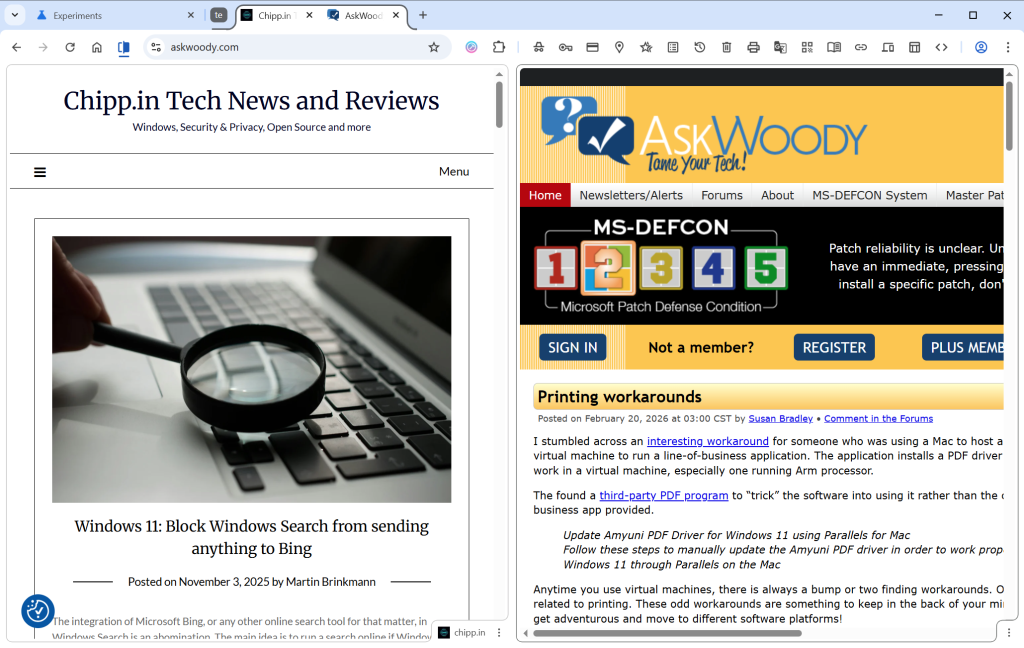
Split View is a typical example of such a feature. It allows you to display two websites next to each other in a single tab. Instead of displaying the two sites in two browser windows next to each other, you may display them in a single window.
This has some advantages, like easier handling as you interact with a single window only. However, there are also some disadvantages, including that only one address is shown in the address bar at a time.
Split View is not a new feature. In fact, Google is late to the party. Microsoft Edge, Vivaldi, Opera or Brave Browser support the mode already. Mozilla has also launched the feature in its Firefox web browser, but it is experimental at the time of writing.
How to use Split View in Chrome
Simply right-click on a tab in the web browser and select “Add tab to new Split View”. Chrome splits the space in half, with the right side empty in the beginning. Just select an open tab, which Chrome displays, type an address or pick a bookmark to load it in the second half.
Chrome displays both open websites in the same tab, but only the URL of the active tab in the address bar.
PDF annotations
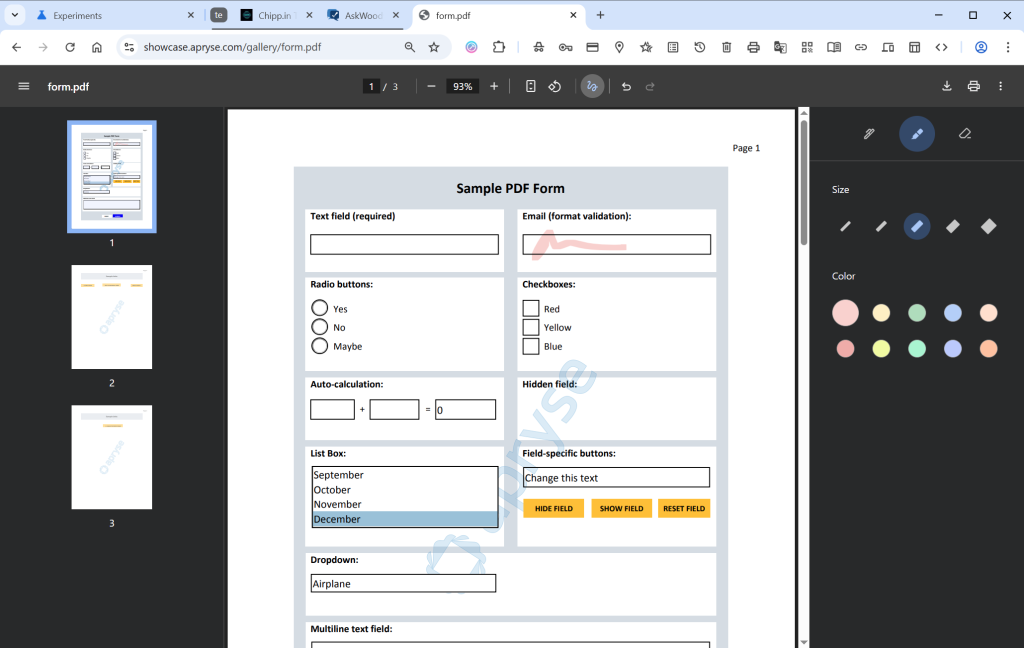
If you open PDF documents in Chrome, you can now “highlight text and add notes” to it right in the browser. Google says that this eliminates the need to use a separate application for that.
This is not exactly a new feature either, as both Microsoft Edge and Mozilla Firefox have supported the feature for quite some time.
To use it, open a PDF document in Chrome and click on the draw icon in the toolbar once it is displayed. Here you find the new options to annotate directly to the PDF file.
Save to Drive
This is probably the strangest edition in this feature update. Google is reaching feature parity with Split View and PDF annotations, which is a good reason to introduce the features.
However, Save to Drive is the outlier. It enables you to save PDF documents that you view in Chrome to Google Drive. Google says this keeps important documents backed up in the cloud.
It is not as if this was not possible before already, at least in many cases. If you run Google Drive on your system, you could simply put the file into the Drive folder to store it locally and online. I guess it helps if you do not run the software and want to save PDFs to Drive directly. Saves the step of saving the document locally first before uploading it.
Now You: what is your take on the new features? Something that would make you switch to Google’s browser?
Google has issued an urgent security update for the Chrome desktop browser following the discovery of a high-severity vulnerability being actively exploited in the wild.
The update, which brings the Stable channel to version 145.0.7632.75 or 145.0.7632.76 for Windows and Mac, and 144.0.7559.75 for Linux, specifically addresses a “use after free” flaw within the browser’s CSS engine.
Identified as CVE-2026-2441, the bug was reported by security researcher Shaheen Fazim just days prior, prompting an accelerated rollout to protect users from potential attacks that leverage this exploit to compromise system memory.
Here are the key points from the update:
New Versions: The Stable channel has been updated to 145.0.7632.75/76 for Windows and macOS, and 144.0.7559.75 for Linux.
Zero-Day Patch: The update addresses CVE-2026-2441, a high-severity security flaw classified as a “Use after free” vulnerability in CSS.
Active Threat: Google has confirmed that they are aware of an exploit for this specific vulnerability existing in the wild.
Rapid Response: The bug was reported by researcher Shaheen Fazim on February 11, 2026, just two days before the release of this patch.
Rollout: The update will continue to become available to all users over the coming days and weeks.
How to install the Chrome update
Most unmanaged Chrome installations should receive the update automatically. The browser is configured to install updates automatically by default. Since this does not happen immediately, it is recommended to run a manual check for updates to speed up the process.
Open Google Chrome and select Menu > Help > About Google Chrome to do so. The browser should begin downloading and installing the security update immediately.
Windows users may also run winget upgrade google.chrome.exe to install the update from the command line without opening Chrome at all.
Note that it is highly recommended to upgrade the browser, even if it is not the main browser on the system. In short, if the browser is installed, upgrade it to protect it from potential exploits.