In a move that confirms privacy advocates’ long-held fears, Microsoft has reportedly handed over BitLocker encryption keys to the FBI, allowing federal agents to unlock the laptops of suspects in a fraud investigation without their consent.
The disclosure reveals a critical issue in how modern Windows devices handle security: convenience often comes at the cost of privacy. While BitLocker is designed to make your data unreadable to third-parties, the default settings on millions of Windows 11 PCs automatically upload the recovery key to Microsoft’s servers—creating a lawful “loophole” when served with a valid warrant.
For the suspects, this meant their encrypted hard drives were an open book. But for the average user, it serves as a grim reminder: if your recovery key lives in the cloud, Microsoft holds the master key to your digital life. Anyone else who may gain access, think malicious hackers, may also.
The good news? You can revoke their access today—if you know where to look.
Checking the status
If you do use computers with Windows 11 and a Microsoft account, chance is that BitLocker is used on the device and that the encryption keys are synced to the connected cloud storage.
The best way to find out if that is the case already is the following:
- Open a web browser on your computer.
- Navigate to https://account.microsoft.com/devices/recoverykey.
- Sign-in to your Microsoft account (the same that you use to sign-in to Windows)
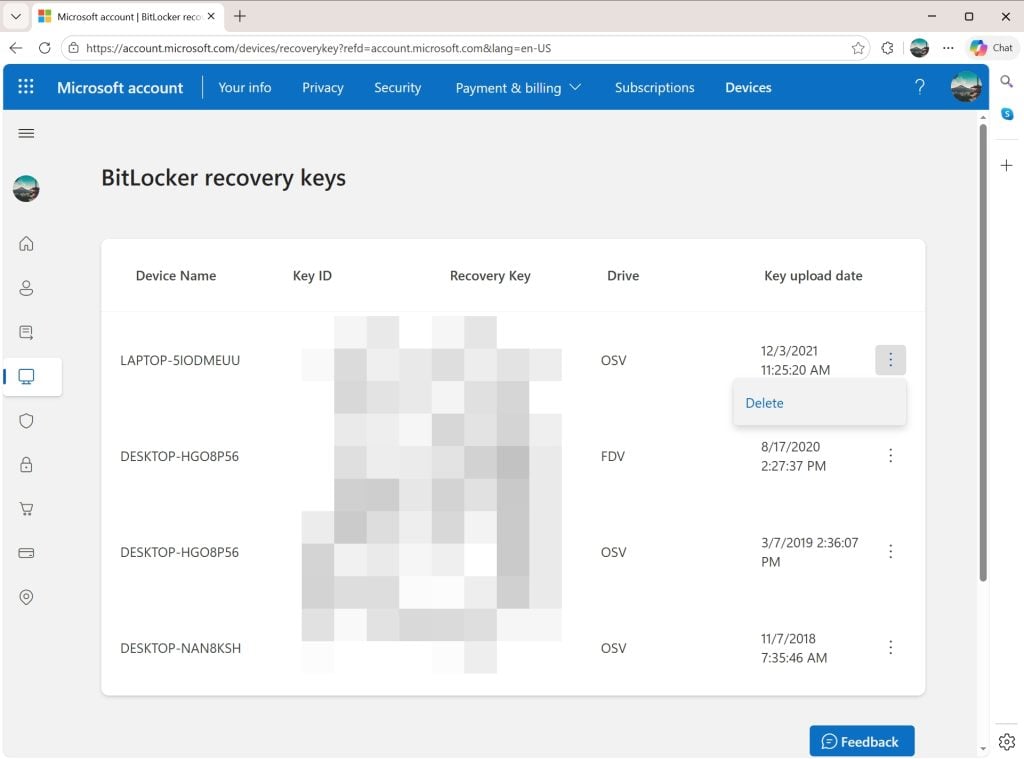
The page that opens displays all connected devices, dates, and the Bitlocker recovery key. These keys can be used to decrypt hard drives encrypted by BitLocker.
Tip: You can delete any instance here with a click on the menu icon next to an item and the selection of delete.
You can also check the status of the active computer in the following way:
- Open Start.
- Type CMD.
- Select “run as administrator” while Command Prompt is selected.
- Paste or write manage-bde -status and press the Enter-key.
Check the conversion status to find out if a drive of the computer is encrypted.
Prevent the upload of recovery keys

The easiest option, by far, is to rely solely on local accounts on Windows 11. Since local accounts are not linked to a Microsoft account, they do not sync data to the cloud. However, it is necessary to make sure that the local account is created during the initial setup.
Another option is to avoid BitLocker altogether and use a third-party — trusted — encryption software, such as VeraCrypt instead.
For that, you have to disable BitLocker on each Windows machine. Here is how you disable it on the active machine.
Notes:
- Turning off will take some time. Windows begins decrypting the selected hard drive. It can take minutes to hours, depending on the size of the drive / partition and the speed of the PC.
- You can keep using the computer. While Windows decrypts the drive in the background, you can keep on using it. It may be a bit slower than usual though.
- Keep the PC turned on during the entire process. Ideally, you keep the PC on until the decryption of the drive completes. Keep the Control Panel open or check the notification area for status updates.
- If “turn off” is not available, you are either not logged in as an administrator or there is a policy in place that prevents you from making changes.
Method 1:
- Open the Start menu and click on the Settings icon.
- Select Privacy & security in the Settings app.
- Look for Device encryption.
- If you do not see the option, skip the process and check method 2 below.
- Click on Device Encryption.
- Toggle the feature to Off.
- Confirm the choice by selecting turn off again.
Method 2:
- Press the Start button.
- Type Manage BitLocker and select the result.
- Check all drives listed on the Control Panel page that opens.
- If you see “BitLocker Off” next to a drive, the encryption is disabled.
- Select “Turn off BitLocker” for each drive with “BitLocker on”.
- Confirm your choice by selecting “Turn off BitLocker” again.
Method 3: The Pro-method
- Right-click on the Start menu, select Terminal (Admin).
- Type the command manage-bde -off C: and press the Enter-key.
- Note: replace C: with the drive letter that you want to disable BitLocker for
“Since local accounts are not linked to a Microsoft account, they do not sync data to the cloud”
How do we actually know this?
Indeed. Maybe may we consider that not synchronizing data does not mean not tracking which may imply data theft.
Nowadays, be it an OS (Microsoft in particular maybe though I know nothing of Apple devices), be it browsers, Websites, administration, businesses … the obsession for inspecting our lives is phenomenal.
Hmmm . . . me thinketh–one, I have never had a MS account per se; I tried to access any uploaded keys, but MS doesn’t have my email address; second, I would be infinitely more subtle, secure, discreet, informed, secure, etc. if I were involved in any activity that would eventually bring the Feds to my door and computer. But even with the highest level of disc encryption, there is most likely a way to decrypt; third, blockchain technology may be best for those involved in extracurricular activities.
Ya know, settings has a search box. R-Click the start button, choose settings, in the box at the top type “bit”. You’ll see “Manage BitLocker” in the popup list.
@Anonymous: The only way to be 100% sure is don’t hook it to the internet.
This is nothing new or scary, and it’s easy to mitigate even without a Local Account.
For most users, the risk of losing their password greatly outweighs the odds of a 3-letter-agency wanting to read their top-secret old love letters. That’s why this default “recovery key” system exists.
If you want to keep using BL but don’t want to switch to a Local Account:
In gpedit.msc, navigate to: Computer Configuration > Administrative Templates > Windows Components > BitLocker Drive Encryption > Operating System Drives
Enable: “Choose how BitLocker-protected operating system drives can be recovered”
Uncheck: “Save BitLocker recovery information to Azure Active Directory”
Ensure “Do not enable BitLocker until recovery information is stored to AD DS for operating system drives” is set to Disabled or Not Configured.
Then sign in to your MS a/c and delete your old keys. Oh, and remember to back up your keys somewhere else where “The Man” can’t find them.
There’s a way to do this from the command line, too.
Depending on your threat model, another way to deal with this is may be to keep the default BL setup for full drive encryption, and use another level of encryption – VeraCrypt, or PicoCrypt or whatever you trust – to secure just your high-risk files or folders.
Me, I’ve always used a Local Account from the minute I activated my machines, so this is a non-issue.
It maybe an unpopular opinion, but if Judge issued warrant in criminal investigation, Microsoft should comply and so Apple. Of cause it should be reasonably serious crime. Not a small drug offense or stupid comment on X.
Sure, a court order is a court order. Still, I think that Windows users need to be aware that an extra key to their secrets may be stored in the cloud. While the chance that the keys are handed over to authorities seems slim to non-existent for most Windows users, you can still decide what to do about it.
Absolutely. Especially for journalists (mainstream and citizens). If I were a journalist I would brush up on my tech skills and use only private tools from independent companies. But in case of imminent terror threat or large crime ring investigations law should have access to data with Court order. There must be some medium between safety and privacy. If FBI wants to break underage prostitution ring, it should be able too. I understand people want perfect privacy, but there there must be exceptions if people lives in imminent danger.
The same way people do not accept AI cameras anywhere. Some places like extremely high crime areas, sensitive military installations, country borders, places of warship, abortion clinics and so on should have some surveillance because they are likely targets of attacks by different groups. I am not for AI cameras everywhere, but few places should have them.
Agreed. The headline makes it sound like Microsoft freely hands out keys like candy to anyone who asks for it, when in reality the US government forced Microsoft to do it, less they be punished for not complying with a court order.
I’d still suggests anyone who is out protesting to delete their online keys, especially when they’re anti-capitalist.
The major problem with BitLocker and Windows Home “drive encryption” is when Data Recovery is required to recover from a corrupted drive…
If the recovery key or the Microsoft Account details are “lost” then ALL the data is lost… And most people do not backup their data to an external device 🙁
I have seen ways too many instances of this occurring – most notably with the Home Edition drive encryption – where the computer owner had no idea that their computer’s drive was encrypted…
Yes, that is a big problem and cloud uploading certainly is a convenience feature that helped users before. Just think of the Bitlocker Recovery Environment booting issues of the past.