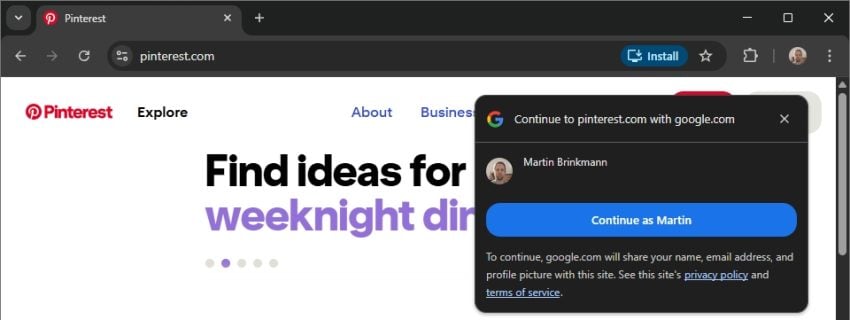
If you are using Chrome and are signed-in to a Google account, you may have received a fair share of requests to sign-in with your account on third-party websites, provided that you do not have an account there already.
The main idea is to make sign ups on third-party sites easier and more secure by using the Google account. Google provides the site with information to set up the account and you decide much of what you want to share and what not. The user password is never provided by Google, which is an advantage.
There are disadvantages: using one account for multiple sites and Google knowing which sites you create accounts on.
The prompts appear on site load and at least some users find them highly annoying. Not everyone wants to (or can) use Chrome without being signed in or switch to another browser. There is another option, but it is hidden deep in the Chrome settings.
How to stop Chrome from showing “Continue As” prompts
Here are the required steps for desktop Chrome:
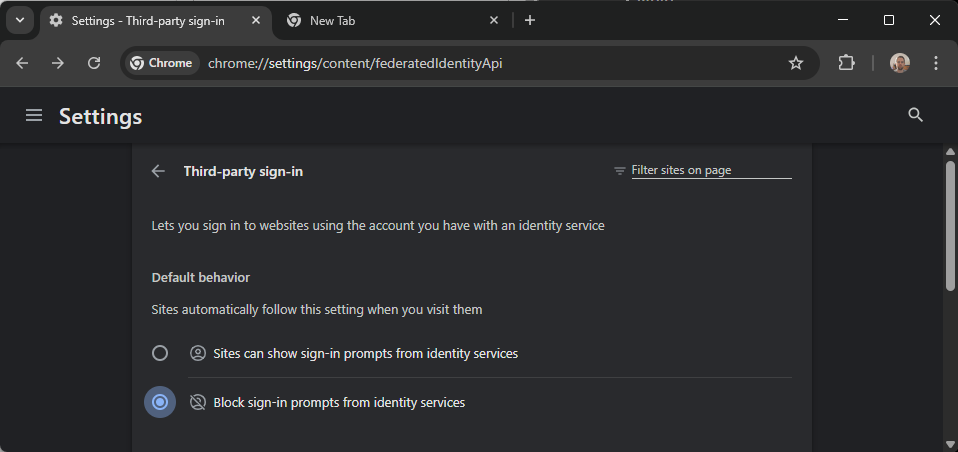
- Load chrome://settings/content/federatedIdentityApi in the browser’s address bar.
- Enable “Block sign-in prompts from identity services” under Default Behavior.
This takes care of the prompts. You can add sites to the allow-list, but this is only useful if you want to create an account on the website using your Google information.
Here are the required steps for mobile Chrome:
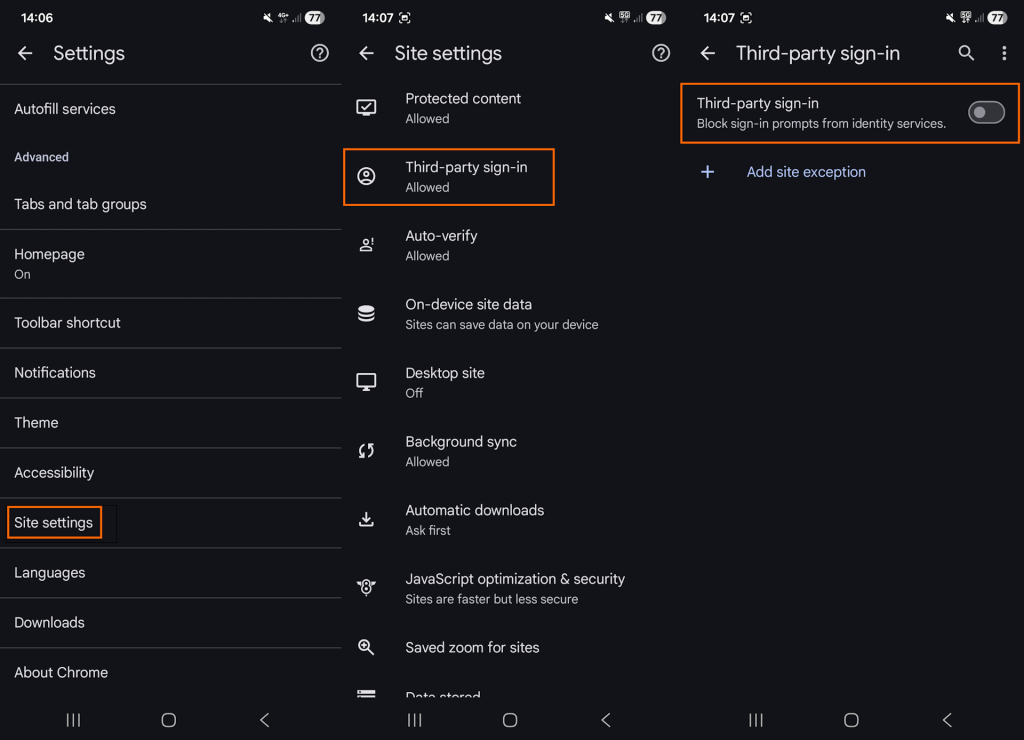
- Open the Settings.
- Go to Site Settings.
- Tap on Third-party sign-in.
- Toggle “Third-party sign-in” so that it is off.
This blocks all future attempts in mobile versions of the Chrome web browser.
Manage existing connections
Google’s support page provides information on managing existing connections. You can review all connections on the third-party connections page on Google’s website.
Switch to the “Sign-In with Google” tab first. Google lists all connections and you may click on the “>” icon to display details. There you may remove it by selecting “Stop using Sign in with Google ” and confirm the decision.
Note that this severs the connection only, but it does not affect the data that the third-party site has accumulated.
What you may do instead
While the option to use your Google account on third-party sites may be convenient, most users may benefit from separating accounts.
Apart from providing Google and the third-party site with additional information, any successful account breach gives the attacker access to not only Google but all other sites with connections.
My suggestion: stick to the one site, one unique account rule, and turn off the prompts, if you do use Chrome and want to stay signed in. (source: Caschys Blog)
Okay, but how to block the annoyance on Firefox–seems like nearly every site!
Make sure I am signed out of Chrome, even though I’m not actively using the browser?
If you use uBlock, enable the Annoyances filter.
Thank you for this! I do use Firefox. I do use uBlock. And the “annoyances” filter has been enabled.
“Sign-In with Google”, but also with Facebook.
Subscription is and must stay IMO a private, confidential process. Easiness seems to be the leader of decisions for many of us even when privacy not to mention security (both are quite often tied anyway) is concerned.
Being free (“free” is the word) of a Google account has an associated advantage: no temptation for easiness in the face of Google. Just avoid the company. Alternatives exist.
My advice? Never sign into a browser.
Security is the opposite of convenience. Anything you do to make it “easier” is making it less secure.
What is the point of signing in to the browser? Where is convenience? If I need to log in to some service, I have a password manager for that. Also, I use two browsers: Brave and Mullvad. Neither of them ever prompted me to sign in.
My friend uses Firefox, and she has a tiny yellow button warning that she is not signed in. If she does not pay attention to it, nothing happens. No popups.
Signing in to a browser? Yeah, get the idea of advantages but certainly see the major security disadvantages. Chrome is not welcome on my personal machine. Brave and Firefox are while Edge has been removed via the registry and even in the repository area.
Third party usage – I use randomized email addresses in tiers of importance. Many are throwaway but accessible while others are genuine and are handled more formally e.g. thunderbird, outlook or mailchimp. Guessing its not reasonable to place all eggs in one basket but still want to have pre-logged in access to sites and locations with minimum hassle at login.
Ublock Origin in Chrome handles some of this. Yes its still very possible to install it within Chrome but since Google’s fooling with it and attempting to turn it into Safari for extension and addon purposes, why bother with it when there are better alternatives?