Chipp.in Tech News and Reviews

Windows, Security & Privacy, Open Source and more

Menu
  • Home
  • Windows
  • Security & Privacy
  • Gaming
  • Guides
  • Windows 11 Book
  • Contact
  • RSS Feed
Menu

Copilot+ PCs for Gaming? Microsoft’s Controversial Advice

Posted on February 9, 2026February 9, 2026 by Martin Brinkmann

Ask any PC enthusiast what the most critical component for gaming is, and they will almost certainly say “the graphics card” — but Microsoft begs to differ.

In a controversial update to its official Windows Learning Center, the tech giant is now aggressively positioning its AI-centric Copilot+ PCs as the ‘ideal’ hardware for gamers, recommending a staggering 32GB of RAM and a neural processing unit (NPU) as the new standard for high performance.

Is this advice actually about achieving higher frame rates, or is Microsoft simply trying to upsell AI capabilities that most modern games don’t even use yet?

Microsoft’s Offload-Theory

Microsoft argues that the neural processing unit (NPU) is a game-changer. The logic goes something like this: Windows can delegate background AI tasks to the NPU, so that the processor and the graphics card have more resources available for rendering games.

This, according to Microsoft, results in smoother gameplay and higher frame rates compared to traditional Windows PCs without an NPU.

To support this claim, Microsoft has updated the specifications for gaming on Windows.

  • RAM: While 16 GB remains the minimum, Microsoft now strongly recommends 32 GB of RAM as the “sweet spot” for high-performance gaming.
  • Storage: A fast NVMe SSD with at least 512 GB to 1 TB of space to handle modern game file sizes and ensure fast load times.
  • Processor: A CPU with an NPU-chip (like the Snapdragon X series, AMD Ryzen AI 300, or Intel Core Ultra).

The company leans heavily on Auto Super Resolution (Auto SR) to hammer home its argument. It is an upscaling technology that is exclusive to Copilot+ PCs. Like other technologies of its kind, it is promising higher frame rates and thus a smoother gameplay experience.

This technology allows Copilot+ PCs, which are mostly light laptops without dedicated graphics cards, to run demanding games at acceptable frame rates, according to Microsoft.

Here is a critical breakdown of the arguments

Microsoft’s recommendation for 32 GB sounds good on paper, until you realize that Copilot+ PCs usually do not include a dedicated graphics card.

Traditional PCs have system RAM and dedicated video RAM (if they have a dedicated graphics adapter). Most Copilot+ PCs do not have the latter, which means that all components share the system memory.

If a modern game requires 8 GB of video memory, Copilot+ PCs have to use system RAM for that. Selling 32 GB as high performance is misleading therefore.

While offloading some tasks to the NPU may reduce CPU usage somewhat, it is highly doubtful that this is making big impacts on the performance of games.

Finally, Auto SR is a necessary feature as it boosts game resolutions and frames on laptops that would otherwise be too weak for higher resolutions or frame rates.

The feature competes directly against Nvidia DLSS and AMD FSR, two mature technologies that improve systems with dedicated graphics cards. Even mid-range dedicated video cards should provide better and smoother game plays than Auto SR on systems with NPU but no dedicated cards.

Closing Words

Most gamers won’t buy a Copilot+ PC at this time, unless it comes with a dedicated graphics card. Traditional systems with video cards will outperform Copilot+ PCs without one in gaming, there is little doubt about that. This may change once Copilot+ PCs and laptops with dedicated video cards become available on scale. For now, Microsoft is making a recommendation that is not in the best interest of most Windows gamers.

While many games do run on ARM already, there are still holdouts, including many popular multiplayer games that run anti-cheat software on the system.

KB5074105 Changes Storage Settings: Why You Should Go Back to the Legacy Disk Cleanup Tool

Posted on February 8, 2026February 8, 2026 by Martin Brinkmann

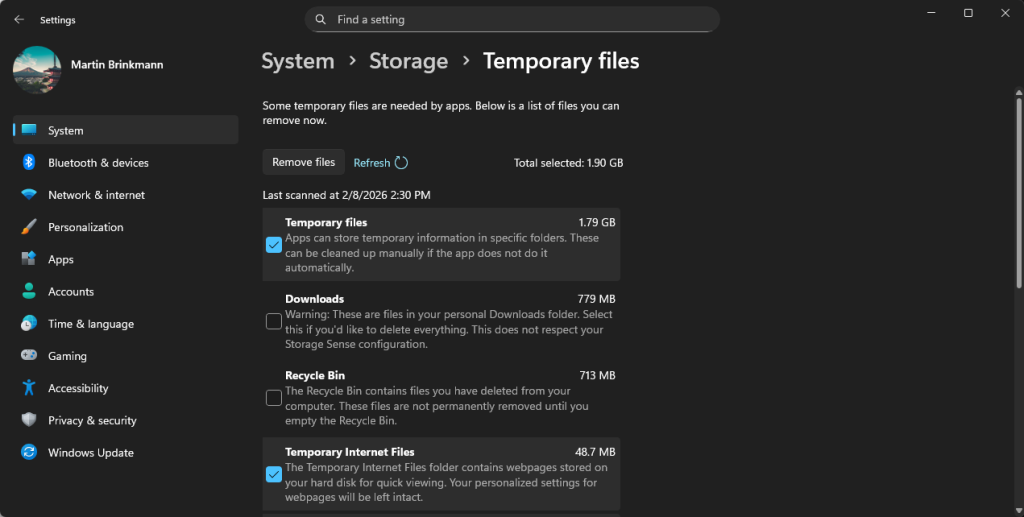
If you have installed the preview update (KB5074105) for Windows 11’s February update, you may have noticed that something is amiss. Opening the Storage part in the Settings app fires an UAC prompt now and some options seem to have been removed.

Microsoft says the security prompt is introduced to “ensure that only authorized Windows users can access system files”. An unelevated process scans and displays only the folders that the current user account has permission to see.

The move has four objectives for Microsoft:

  • Preventing the unauthorized enumeration of system files.
  • Reducing accidental system damage, for instance when a user deletes the previous Windows installation, as Windows can’t be rolled back anymore in that case.
  • Reducing local attack vectors.
  • Alignment with the least privilege security model.

Some cleanup options are AWOL

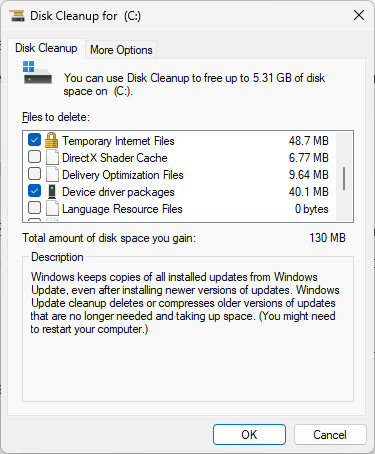
The Temporary files cleaner in Settings / Storage has fewer options after installing the Windows update.

Is it a bug or a feature? While the newly introduced UAC prompt for the Storage part of the Settings app seems to work just fine, users noted that some cleanup options were missing.

Options such as Windows Update Cleanup or Device Driver Packages do not appear anymore when you select the Temporary files option on the Storage page.

Microsoft has not confirmed this as an issue and at this moment, it is unclear whether this is intentional or a bug that will get fixed eventually.

The Disk Cleanup tool has the missing options.

The solution: While Storage in Settings fails to provide users with elevated rights with the proper cleanup options, the legacy Disk Cleanup tool continues to show these options.

Just open the run box with the shortcut Windows-R, type cleanmgr.exe, and press the Enter-key to get started. Make sure you select “clean up system files” after the initial scan to see all options.

Alternatively, you could give third-party programs like BleachBit a try, which support extensive cleanups of temporary files.

Summary: The update didn’t just add a security prompt; it seemingly broke the logic that populates the list in the modern Settings app, forcing users to go back to the old Windows 98-era “Disk Cleanup” tool to do a proper system scrub.

It remains to be seen whether the cumulative updates for Windows 11, which Microsoft will release on February 10, 2026, will correct the issue.

Block Google “Continue As” prompts on third-party websites

Posted on February 7, 2026February 7, 2026 by Martin Brinkmann

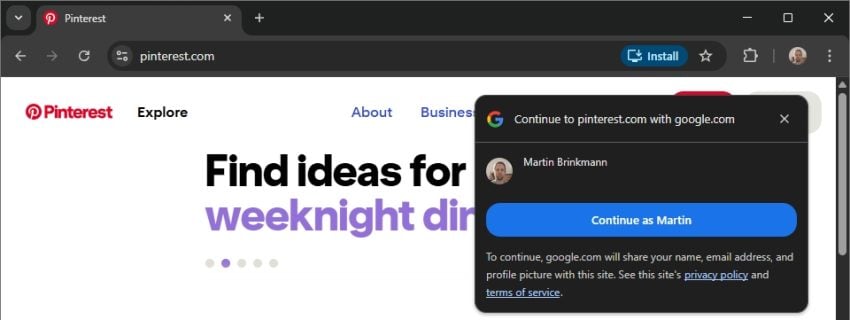
If you are using Chrome and are signed-in to a Google account, you may have received a fair share of requests to sign-in with your account on third-party websites, provided that you do not have an account there already.

The main idea is to make sign ups on third-party sites easier and more secure by using the Google account. Google provides the site with information to set up the account and you decide much of what you want to share and what not. The user password is never provided by Google, which is an advantage.

There are disadvantages: using one account for multiple sites and Google knowing which sites you create accounts on.

The prompts appear on site load and at least some users find them highly annoying. Not everyone wants to (or can) use Chrome without being signed in or switch to another browser. There is another option, but it is hidden deep in the Chrome settings.

How to stop Chrome from showing “Continue As” prompts

Here are the required steps for desktop Chrome:

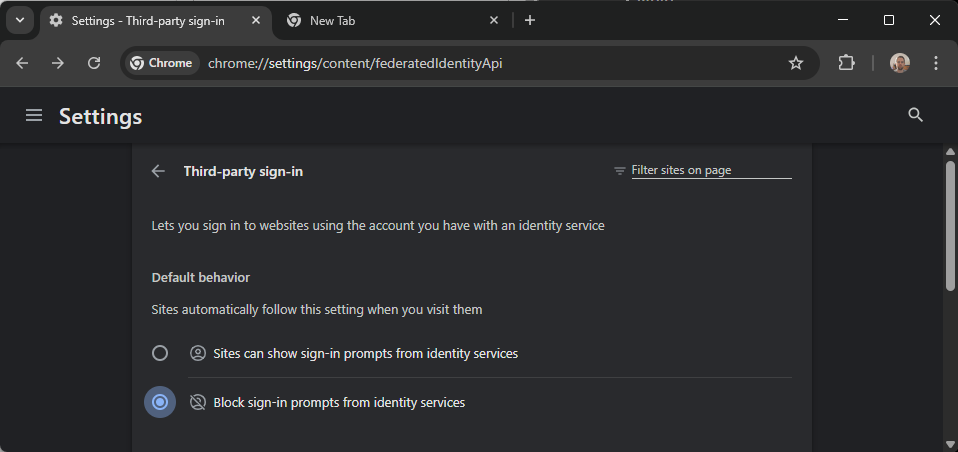
Enable the block option in the Settings to prevent continue-as-prompts in the future.
  1. Load chrome://settings/content/federatedIdentityApi in the browser’s address bar.
  2. Enable “Block sign-in prompts from identity services” under Default Behavior.

This takes care of the prompts. You can add sites to the allow-list, but this is only useful if you want to create an account on the website using your Google information.

Here are the required steps for mobile Chrome:

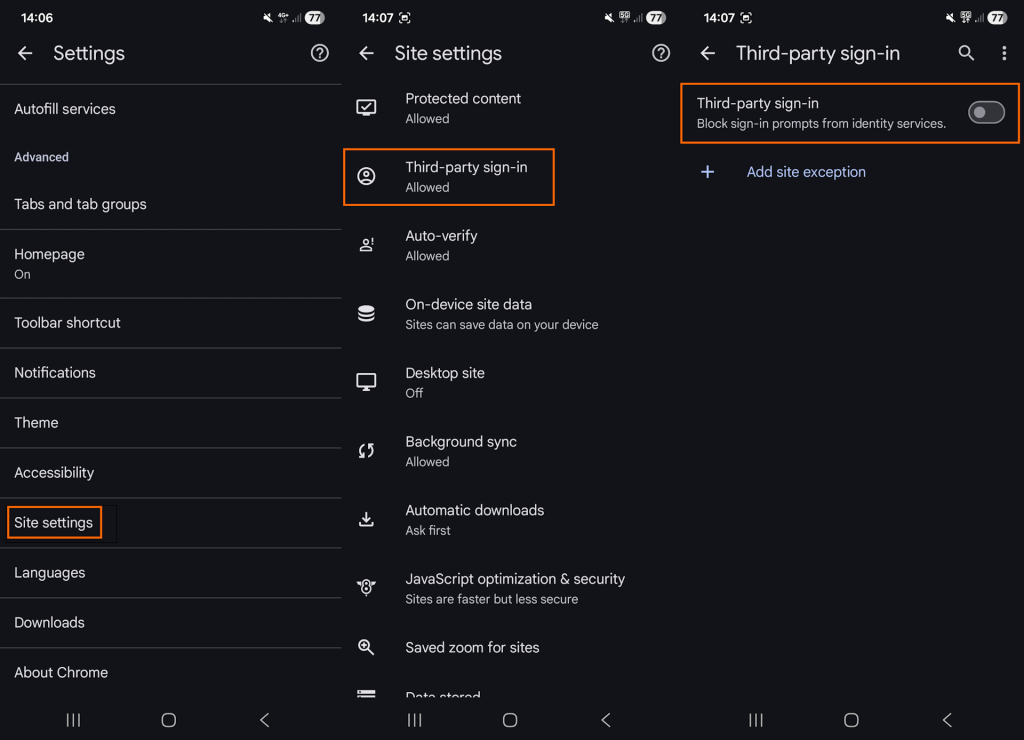
In mobile Chrome, you need to open the setting manually.
  1. Open the Settings.
  2. Go to Site Settings.
  3. Tap on Third-party sign-in.
  4. Toggle “Third-party sign-in” so that it is off.

This blocks all future attempts in mobile versions of the Chrome web browser.

Manage existing connections

Google’s support page provides information on managing existing connections. You can review all connections on the third-party connections page on Google’s website.

Switch to the “Sign-In with Google” tab first. Google lists all connections and you may click on the “>” icon to display details. There you may remove it by selecting “Stop using Sign in with Google ” and confirm the decision.

Note that this severs the connection only, but it does not affect the data that the third-party site has accumulated.

What you may do instead

While the option to use your Google account on third-party sites may be convenient, most users may benefit from separating accounts.

Apart from providing Google and the third-party site with additional information, any successful account breach gives the attacker access to not only Google but all other sites with connections.

My suggestion: stick to the one site, one unique account rule, and turn off the prompts, if you do use Chrome and want to stay signed in. (source: Caschys Blog)

Are we finally going to see 100TB+ hard drives?

Posted on February 6, 2026February 6, 2026 by Martin Brinkmann

In a few years, hard drives could cross the 100 TB barrier, but at what cost?

Western Digital, now rebranded as WD, lifted the veil on a roadmap that it hopes will shatter the 100 terabyte storage barrier by 2029. Announced at its Innovation Day 2026, the strategy leverages a dual-path approach using both Heat-Assisted Magnetic Recording (HAMR) and Enhanced Perpendicular Magnetic Recording (ePMR) to meet the growing demands of AI.

With 40TB UltraSMR drives already entering customer qualification and a clear engineering path to 100TB+, the industry is finally moving past the incremental gains of the last decade toward a future where massive, high-performance capacity is no longer the bottleneck of innovation.

The next step, 40 TB UltraSMR hard drives, are actually already being tested by two customers according to WD. The company plans to mass produce the hard drives in the second half of 2026.

Engineers run test on the Heat-Assisted Magnetic Recording (HAMR) drive technology, which could see first hard drives on the market in 2027.

WD plans to extend Energy-assisted Perpendicular Magnetic Recording (ePMR) drives to 60 TB and scale HAMR to 100 TB by 2029. Both types of drives are built on common architecture according to WD, which enables “greater manufacturing efficiencies, yields, and a smoother customer product transition”.

The real kicker is that WD says that two new technologies that improve HDD performance significantly and support “workloads previously considered flash-only”.

The company writes:

  • High Bandwidth Drive Technology enables simultaneous reading and writing from multiple heads on multiple tracks delivering up to 2x the bandwidth of conventional HDDs without power penalties. The technology has a clear path to scale up to 8x bandwidth gains and is already in customer hands for validation.
  • Dual Pivot Technology adds a second set of independently operating actuators on a separate pivot and will deliver up to 2x sequential IO gain within a 3.5-inch drive. This differs from previous dual actuator designs that sacrificed capacity and required extensive customer software changes. Dual Pivot enables reduced spacing between disks, allowing for more platters per drive and higher overall capacity.

WD says that the technologies combined increase sequential IO to 4x overall. The company expects that HDDs with Dual Pivot Technology will become available in 2028.

Closing Words

These drives are largely built for use in data centers and not at home. However, it is likely that consumers will also benefit from an increase in storage. WD did not reveal pricing information but it is clear that these drives won’t be cheap and probably too expensive for the majority of home users out there.

Lost in Translation: YouTube doubles-down on AI dubbing – what you can do about it

Posted on February 5, 2026February 5, 2026 by Martin Brinkmann

It usually happens in the first five seconds: you click on a video expecting the familiar, expressive voice of your favorite creator, only to be greeted by the flat, sterile drone of a synthetic narrator. That Japanese video game trailer? Has a voice over that sounds like a bored car salesmen from the Midwest.

If you watch YouTube content in different languages, there is a good chance that you encountered the video hosting site’s auto-dubbing feature before.

The idea is simple: To make content available to a wider audience, YouTube is giving creators access to tools that translate speech into other languages. This, according to YouTube, makes videos more accessible.

However, if you speak multiple languages or prefer to watch videos in the original language, you may have run into the problem that YouTube picked an AI-powered translation for you regardless.

YouTube announced an extension of AI dubbing on the platform recently. The feature is now available to creators worldwide and in eight languages. Expect this to increase further in the coming years.

What you can do about it

Google has implemented two options for YouTube users. One works for individual videos and requires no account, the other for all videos, but requires an account.

Third-party solutions, in the form of extensions, are also available.

The Quick Fix (Per Video)

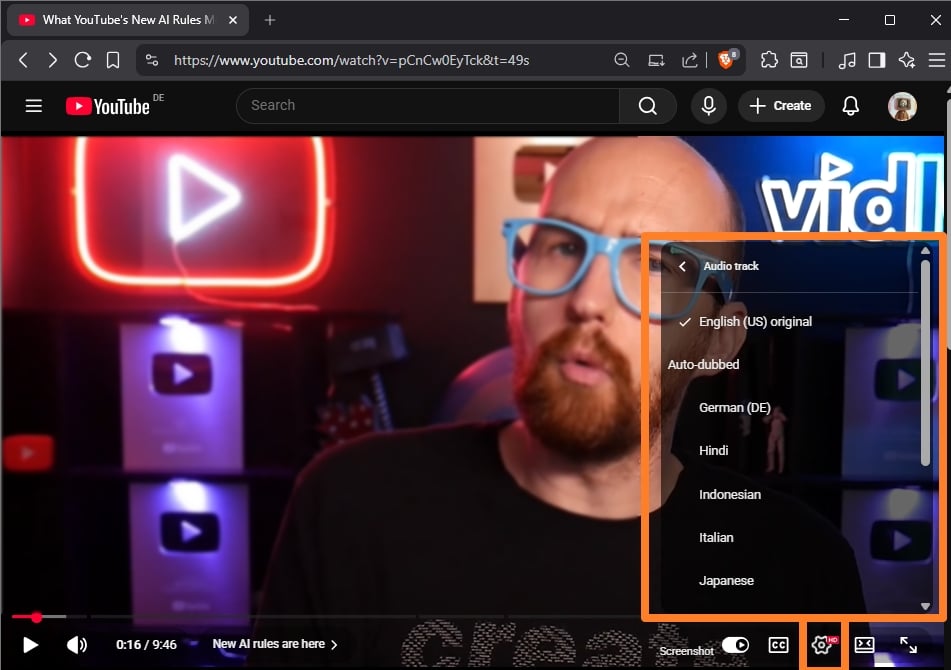
YouTube shows the original language and all dubbed languages when you open the Audio Track setting. (Image Source: vidlQ / YouTube)

If you are watching a video and hear an AI voice, you can switch back to the original voice immediately.

  • Pro: Works without account.
  • Con: Needs to be done for each video, preferences are not saved.

Here are the steps:

  1. Click/Tap the Gear Icon (Settings) on the video player.
  2. Select Audio Track.
  3. Choose the option labeled Original (e.g., “English (Original)” or “Japanese (Original)”).

The Permanent Fix (Account Settings)

If you are signed in, add languages that you never want YouTube to dub using AI.

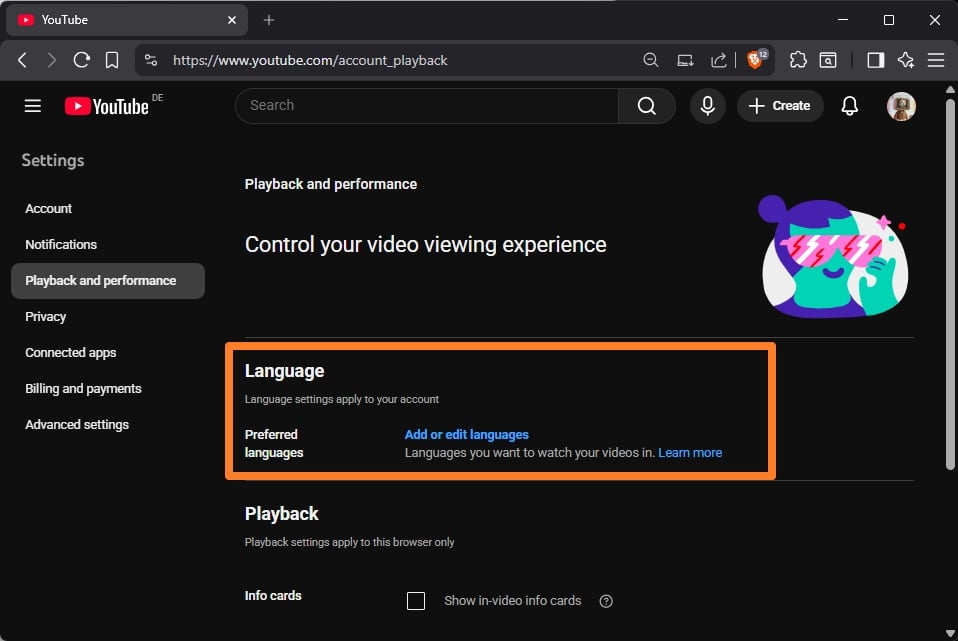
A new YouTube setting enables you to set all languages that you understand (or do not want dubbed).

  • Pros: Works for all videos.
  • Cons: Not a true “never” option. Requires a YouTube account and using it all the time.

Here are the steps:

  • Go to the YouTube Settings.
  • Select Playback and performance.
  • Look for “Preferred languages“ or “Add or edit languages“.
  • Select all the languages you speak/understand/don’t want dubbed.

The browser extensions

Extensions offer best of both worlds: they do not require an account and they work for any video that you encounter. Set once and forget.

Here is a short selection of extensions that you may want to try:

  • YouTube Anti Translate (Chrome / Firefox) – The extension disables the automatic translation of YouTube titles, audio, or descriptions using AI. Works automatically, open source extension.
  • YouTube Audio Selector (Chrome) — Set preferred languages for YouTube to make sure that they are never AI-translated.

What about you? Did you encounter AI dubbed videos on YouTube before?

Is It Worth It? How to Turn eBay Into Your Personal Appraisal Tool

Posted on February 5, 2026February 5, 2026 by Martin Brinkmann

The eBay marketplace offers a treasure trove of sales data, readily available for everyone. It is a great option to find out if your first-press record is worth next to nothing or a fortune.

Most Internet users know that they can search on eBay for items and they get a list of sellers that sell that item. While that search is not always accurate, as you may get items listed that are not exactly what you are looking for, it reveals the minimum and maximum price that sellers are asking for the item at the time.

That is useful information, but it is not based on actual data, not a reflection of real-world value. Anyone can sell a pencil for a million bucks on eBay, but the chance that someone will buy it for the price is slim.

However, eBay includes tools to look up past sales off that item. Good news is that this information is publicly available. You do not need an account or a subscription for that. It is free and available on all eBay sites.

Note: Sellers on ebay may access the company’s Terapeak that offers several advantages, including a 3-year price history instead of the 90-days that anyone gets and average sold price data.

Checking prices on eBay

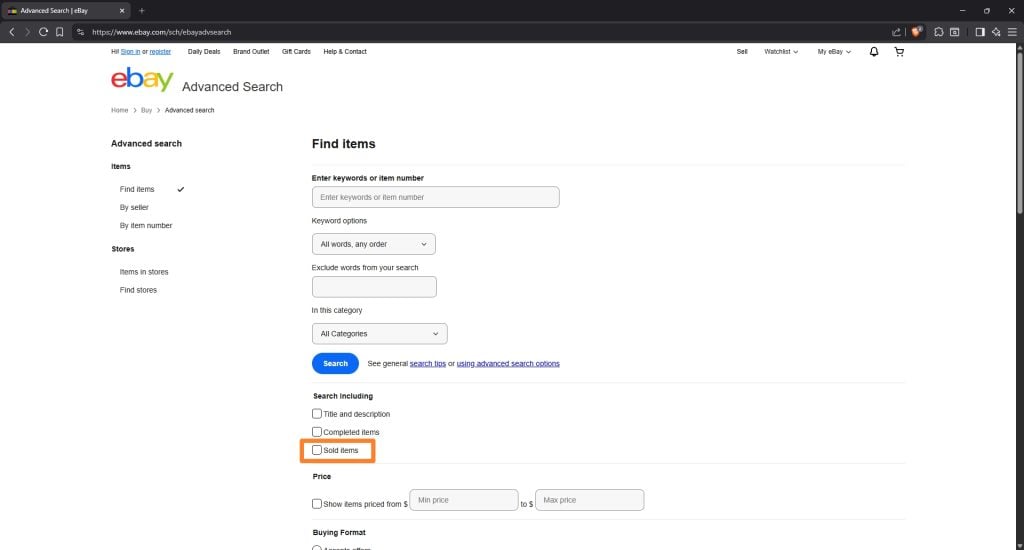
Do not forget to check the “sold” box to look up past sales on eBay.

Lets say you want to find out how much your Samsung Galaxy A55 5G 128GB mobile phone is worth.

  1. Open the eBay website on a desktop system.
  2. Type the name of the product in the search field and click on search to get active offers.
  3. Click on the Advanced link at the top.
  4. Check “sold items”
  5. Click on search on the page.

The eBay mobile apps offer this as well. Run the search, activate the filter option at the top of the search results page, expand “show more” and toggle “sold items” there. Hit the results button afterwards to get the list of sold items.

Now you get matching mobile phones that were actually sold on eBay. The list is sorted chronologically, with the most recent sales at the top.

You can use the filters to narrow it down further. If your device is used, check it under condition. You can also sort by lowest price ever, but this is often not recommended, as the price may change over time. For mobile phones, it usually goes down with time, but for other items, like many Lego sets, it may actually go up.

Tip: you can open the Advanced Search directly as well, if you prefer that.

Here is a pros and cons list of using eBay to determine prices.

The Pros: Why It’s the Gold Standard

  • Actual Sales vs. Asking Price: Active listings only show what people want. Sold listings show what people are actually willing to pay, which is the only true metric of market value.
  • High Volume Data: For common items (like electronics or popular toys), the sheer volume of sales provides a very accurate “average” price point.
  • Supply and Demand Insights: By looking at “Completed” vs. “Sold” listings, you can calculate the sell-through rate. If 100 items ended but only 5 sold, you know the item is a “slow mover,” regardless of the price.
  • Niche Precision: eBay is often the only place with enough data to value obscure collectibles or vintage parts that don’t appear in traditional price guides.
  • Keyword & Photo Research: You can see which specific keywords (e.g., “MCM,” “Rare,” “Tested”) or photo styles led to the highest sale prices.

The Cons: Where it Can Mislead You

  • The “Best Offer” Trap: In a standard search, if an item sold via “Best Offer,” eBay often displays the original asking price with a strikethrough. You don’t actually see the final negotiated price (which could be 50% lower).
  • The 90-Day Cliff: Standard searches only show the last 90 days of data. For rare items that only sell once or twice a year, 90 days of history might show “zero results,” leading you to think the item is worthless when it’s actually just rare.
  • Condition Discrepancies: A “Mint” version of an item might sell for $100, while a “Good” version sells for $20. If you aren’t careful to match the condition of the sold items to yours, your estimate will be way off.
  • Shipping & Fees: The “Sold” price doesn’t account for the fees the seller might have paid or the shipping costs they might have eaten.
  • Outlier/Fake Sales: Occasionally, “Sold” listings are the result of non-paying bidders or shill bidding (fake accounts bidding to drive up perceived value). One massive price spike among dozens of lower sales is usually an outlier to be ignored.

Why not just sell for $1 in an auction?

Selling items for $1 works well in some cases, especially if a category has a lot of traffic. Many Games or popular mobile phones will almost always reach the average sales price, provided that you do not let the auction run out in the middle of the night or on a public holiday.

However, items that are not that sought after, including rare items, may be sold for a lower price.

I’m currently selling part of my vast CD collection on eBay. I first thought of selling each item for $1 in an auction, or in bulk packages, say 50 CDs for $50. That is less time consuming than researching prices.

The problem here is that you will make less money, guaranteed. Some rarer CDs will sell for less. That is why I decided to research each CD, beat the competition by a few cents to be the lowest seller on eBay at the time, and include shipping costs in the price as well.

Yes, takes an awful long time, but it is well worth it once you realize that some rarer CDs sell for $10 or more.

Microsoft lifts biggest Smart App Control hurdle in Windows 11, but should you use it?

Posted on February 4, 2026February 4, 2026 by Martin Brinkmann

When Microsoft announced Smart App Control, a feature designed to make Windows more secure by blocking processes the moment they are started, it limited the feature to new systems. You either had to install Windows 11 from scratch or start with a new PC altogether to even get the feature. Worse, once deactivated, you’d never be able to reactivate it.

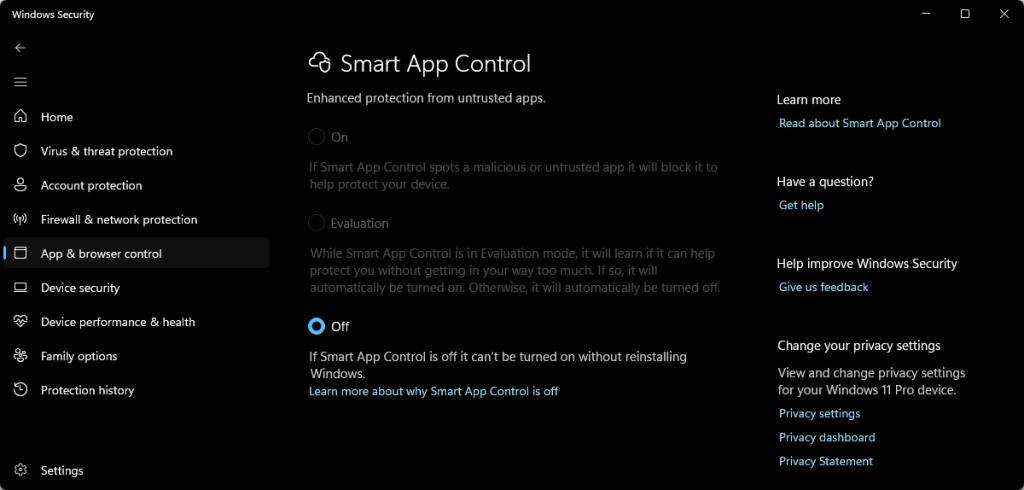
This changes with the latest updates for Windows 11. Now, Smart App Control can be turned on or off under Settings > Privacy & Security > Windows Security > App & Browser Control > Smart App Control.

The old Smart App Control interface that told you that you could not activate it without reinstalling Windows.

This change is likely coming in a few days when Microsoft releases the February 2026 cumulative updates for the operating system.

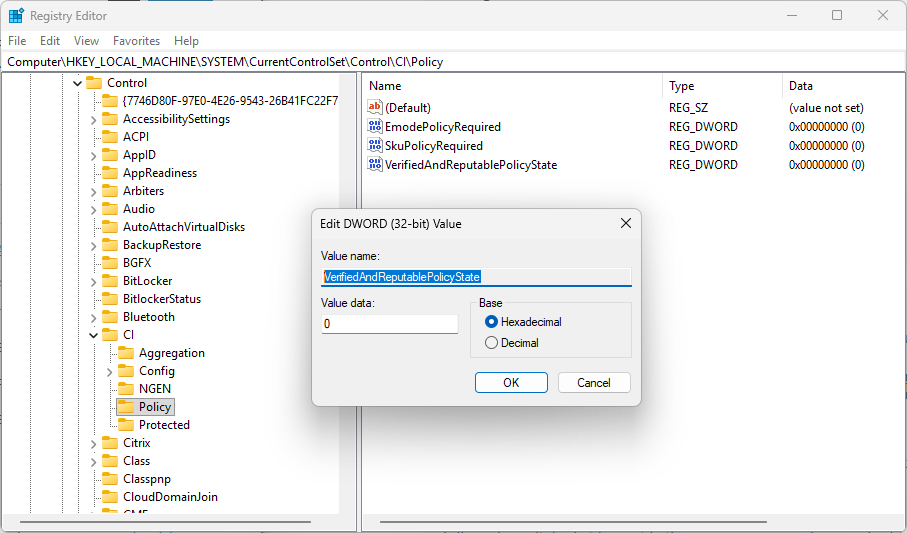
The Registry key that determines whether Smart App Control is on (1) or off (0).

Pro Tip: You can force-enable Smart App Control in the following way:

  1. Open the Start menu.
  2. Type regedit.exe and press the Enter-key.
  3. Confirm the security prompt.
  4. Go to HKEY_LOCAL_MACHINE\SYSTEM\CurrentControlSet\Control\CI\Policy
  5. Double-click on VerifiedAndReputablePolicyState.
  6. Set the value to 1.
  7. Restart the PC.

What is Smart App Control?

Microsoft describes the security feature in the following way:

Smart App Control is an app execution control feature that combines Microsoft’s app intelligence services and Windows’ code integrity features to protect users from untrusted or potentially dangerous code

Here is how it works: when you run an executable file on Windows, Smart App Control checks first with Microsoft’s “intelligent cloud-powered security service” to determine if the app is safe. If Microsoft has no record, Smart App Control checks for a valid digital signature and allows it to run, if it is signed by a trusted developer.

Executable files that are not signed and unknown to the cloud are blocked.

Smart App Control offers some advantages and also some weaknesses in comparison to traditional antivirus solutions and protections. Here is the breakdown.

Smart App Control: The Pros

  • Proactive Defense: Blocks threats before they can run.
  • AI & Cloud Intelligence: Uses data from millions of users and Microsoft’s cloud-based AI to determine the safety of an app in real-time.
  • Lighter Performance: Less resource-intensive than antivirus solutions that scan continuously.
  • Blocks Potentially unwanted Programs.

Smart App Control: The Cons

  • No Exceptions: Smart App Control either runs or it does not. If it makes a decision, that decision is final. There is no “allow anyway” option.
  • Privacy: Windows 11 checks online whether an executable is safe.

To Microsoft’s credit, it is removing the limit to even use the feature with this month’s update, which has been a major con up until now.

While Smart App Control may have its uses, especially on PCs of users who might run into launching executable files that they shouldn’t, it is a nightmare for developers and power users. If Microsoft would introduce a bypass option, that might change.

No More Free Background Play: Google Patches one of YouTube’s Biggest Mobile Loophole

Posted on February 3, 2026February 3, 2026 by Martin Brinkmann

Google is tightening its grip on one of YouTube Premium’s most coveted feature, officially patching a long-standing loophole that allowed Android users to enjoy background playback through third-party browsers without a subscription.

By implementing new technical restrictions, the search giant tries to neutralize workarounds in popular browsers like Brave and Vivaldi that previously bypassed the paywall by tricking the site into playing audio while the screen was off or the app minimized.

This latest crackdown draws a firm line in the sand: if you want to keep the music playing while you multitask on mobile, Google expects you to pay for the privilege. After trying to hinder content-blockers for years and blocking vital extensions in Chrome for Android, the company seems to have found another target for its thumbscrew tactics.

Google made several features exclusive to paying YouTube Premium subscribers when it launched the plan. Premium subscribers get several benefits, including an ad-free experience on the site. Another benefit is background playback on Android.

Google tries to block background play workarounds

Give it a try. Open YouTube in Chrome for Android, play any video, and switch to another app or turn off the screen. The effect? Video playback stops. Not great, considering that many devices turn off the display automatically after a short period of inactivity. Listening to a video while napping? Forget it.

That is where third-party browsers and other tools came into play. Fire up Brave, Vivaldi or several other browsers, and you will notice that video playback continued, even while the YouTube tab was in the background.

This loophole is reportedly being closed. I tested several browsers and found some to be working — Brave — and others not at the time — Vivaldi — but that does not mean that you will experience the same.

Google, clearly, is after Premium subscribers only. If your favorite way of listening to YouTube videos no longer works, you might buy Premium after all to regain the function. Some users might try and find other workarounds, like downloading videos first to play them locally. This works, but it requires more steps before a video can be played.

Google seems to have confirmed the change to various news outlets, including Android Authority. This is the statement from a Google spokesperson according to the site:

Background playback is a feature intended to be exclusive for YouTube Premium members. While some non-Premium users may have previously been able to access this through mobile web browsers in certain scenarios, we have updated the experience to ensure consistency across all our platforms.

There you go. If you can’t play YouTube videos in the background anymore on Android, it is Google that you need to blame. There is a good chance that this is the start of yet another cat-and-mouse game. Browsers and tools might find ways around this, which are then closed or torpedoed by Google again.

Why You Need to Update Notepad++ Immediately

Posted on February 2, 2026February 2, 2026 by Martin Brinkmann

The popular open source plain text editor has become the target of state-sponsored hackers, according to a blog post. The Notepad++ developer released a detailed post-mortem on a severe supply chain attack that occurred between June and December 2025.

By compromising the application’s hosting provider, state-sponsored hackers were able to redirect update traffic to serve malicious files to users of the text editor.

It all started in 2025

When the developer of Notepad++ put out a security warning in December 2025, it was immediately clear that something critical happened. The blog post confirmed that a vulnerability of the updating process had been exploited for some time. Traffic “was occasionally redirected to malicious servers”, which resulted “in the download of compromised executables” according to the message.

The developer released Notepad++ 8.8.9 to address the issue. That version had been hardened according to the report by adding verification steps to the update process. In other words, Notepad++ checks whether the signature and the certificate of the downloaded installer (the new version) check out. If they do not, updating is aborted.

New information comes to light

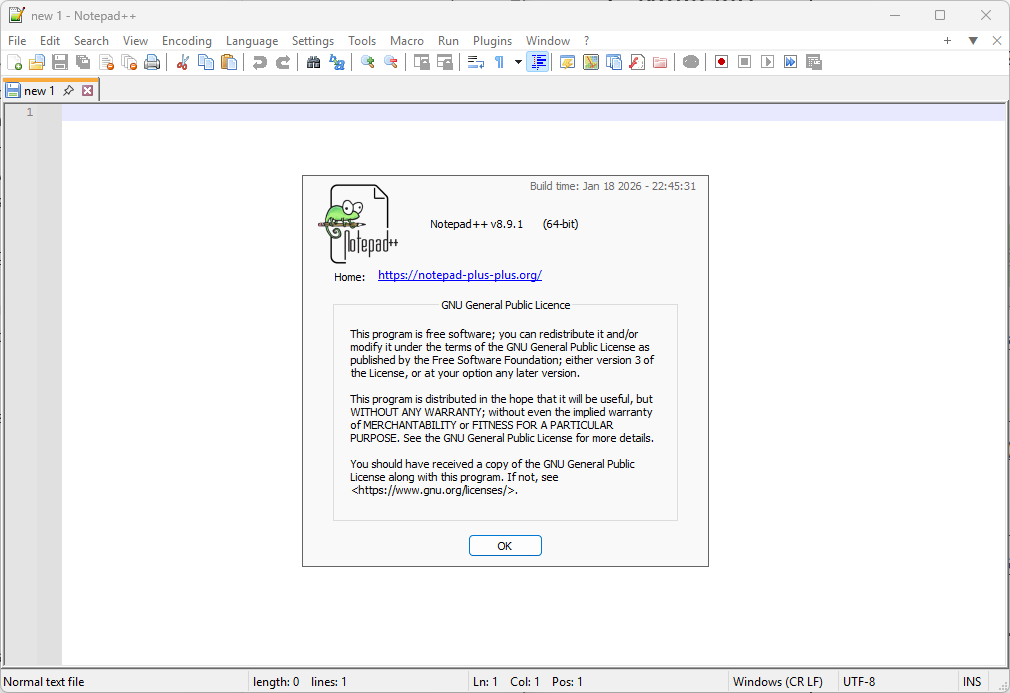
The latest version of Notepad++ is 8.9.1 at the time of writing.

Today, a new blog post was published that provides detailed information on the incident. Here are the details:

  • The Breach Method: The attack was not a vulnerability in the Notepad++ code itself, but a compromise of its hosting provider’s infrastructure.
  • The Timeline: The hijacking occurred over a six-month period, starting in June 2025 and lasting until it was discovered and shut down on December 2, 2025.
  • State-Sponsored Attribution: Security researchers (including those from HarfangLab and ESET) linked the activity to “Taidoor,” a malware strain associated with Chinese state-sponsored threat actors.
  • Targeted Delivery: The attackers used a “Man-in-the-Middle” tactic via the WinGUp updater; however, they did not target every user, instead selectively delivering malicious updates to specific IP addresses or regions.
  • Infrastructure Migration: In response, Notepad++ has completely abandoned its previous hosting provider and migrated all binaries and update manifests to a new, more secure infrastructure.
  • Enhanced Security Measures: To prevent future incidents, new versions include mandatory signature verification and certificate pinning for all automated updates.
  • User Action Required: Users are urged to ensure they are running the latest version of Notepad++ and to be wary of any version installed or updated between the June and December window.

The latest version is Notepad 8.9.1. You can download it from the official website to make sure that a potentially compromised version is replaced.

You can check the installed version by opening Notepad++ and selecting ? > About Notepad++, or by pressing F1.

It’s Change Your Password Day (again): Here is Why You Should Probably Do Nothing

Posted on February 1, 2026February 2, 2026 by Martin Brinkmann

Today is officially “Change Your Password Day”, a special day designed to put cybersecurity top of mind. But before you rush to update your logins, pause for a moment: experts now warn that changing your password simply for the sake of the calendar might actually hurt your security more than it helps.

The idea behind the day is simple: Every year, go through your list of accounts and passwords, and change them. Why? The original logic behind the day dates back to a time when modern threat detection and additional layers of account protections did not exist.

Changing passwords frequently could disrupt brute force attempts, silent breaches, or accidental leaks. While that did make sense in some cases back in the days, it is seen as hurting more than it helps in most cases today. Even back then, it caused all kinds of inconveniences, for instance, when on the next day of work, employees starting to make calls to the IT department, because they could not get into their accounts anymore.

In fact, experts suggest that password should only be changed in very specific circumstances, such as:

  • Re-use of passwords across multiple sites, as it goes against the “one site, one unique password” recommendation.
  • Weak passwords, as todays computers can break into these in seconds or minutes.
  • Breached passwords, which is self-explanatory
  • When someone else might have access.

However, it is recommended to act immediately instead of waiting for password-day to come along.

This day, at best, is a reminder for users to look at their passwords and start changing the weak, leaked, or re-used ones immediately. While at it, it is recommended to set up another layer of protection, for instance two-factor authentication, for important accounts.

Here is why most security experts advise against frequent password changes: In many cases users pick easy to remember passwords, especially in organizations. The reason is simple: lack of a password manager requires that users remember the passwords. With frequent changes, this becomes a nuisance. Employees started to iterate passwords to help their memory, while others wrote them down to avoid having to contact the IT department to get the password reset ever so often.

The Modern Security Checklist

  • Run a check for data breaches. Go to HaveIBeenPwned.com (or use your password manager’s security dashboard) to see if your email or passwords have appeared in a known data leak. Change only the compromised ones immediately, including on other sites if the password was re-used.
  • Audit your passwords: Check for the following:
    • Password length: Too short means weak. Aim for at least 16 characters.
    • Password re-use: All passwords should be unique. If one gets breached, hackers only gain access to one account, not several.
    • Remove the ghosts: If you do not use an account anymore, close it.
    • Second layer: Consider Adding two-factor authentication or other means of protection to important accounts.
    • Check recovery options: Make sure email addresses or phone numbers are set correctly, backup codes stored securely, in case of an emergency account recovery.

The era of Tr0ub4dor&3 is over. In 2026, the best gift you can give your digital self is length, uniqueness, and a second layer of defense. So, celebrate “Change Your Password Day” the modern way: upgrade your security once, do it right, and then go enjoy the rest of your Sunday knowing your digital life is locked tight.

  • Previous
  • 1
  • 2
  • 3
  • 4
  • 5
  • 6
  • …
  • 70
  • Next

Support This Site

If you like what I do please support me!

Any tip is appreciated. Thanks!
  • March 4, 2026 by Martin Brinkmann The March 2026 Android Security update is here and you should install it asap (if you can)
  • March 3, 2026 by Martin Brinkmann Google to release two Chrome Stable releases per month
  • March 2, 2026 by Martin Brinkmann Don't Bother with Windows 11's new Speedtest feature
  • February 27, 2026 by Martin Brinkmann Warning! That laptop on Amazon? It comes with temporary storage
  • February 26, 2026 by Martin Brinkmann "If your printer works today, it will continue to work": Microsoft corrects previous announcement

About

We talk, write and dream about Technology 24/7 here at Chipp.in. The site, created by Martin Brinkmann in 2023, focuses on well-researched tech news, reviews, guides, help and more.

Legal Notice

Our commitment

Many websites write about tech, but chipp.in is special in several ways. All of our guides are unique, and we will never just rehash news that you find elsewhere.

Read the About page for additional information on the site and its founder and author.

Support Us

We don't run advertisement on this site that tracks users. If you see ads, they are static links. Ads, including affiliate links, never affect our writing on this site.

Here is a link to our privacy policy

©2026 Chipp.in Tech News and Reviews