Chipp.in Tech News and Reviews

Windows, Security & Privacy, Open Source and more

Menu
  • Home
  • Windows
  • Security & Privacy
  • Gaming
  • Guides
  • Windows 11 Book
  • Contact
  • RSS Feed
Menu

Category: Uncategorized

Windows 11 is removing an option to bypass Microsoft account and internet during setup

A More User-Friendly Way to Pause Windows 11 Updates is Coming

Posted on April 13, 2026April 13, 2026 by Martin Brinkmann

Say goodbye to the rigid weak week-timers that have long dictated your PC’s maintenance schedule. Microsoft is currently testing a significant overhaul to its update system in the latest Windows 11 Insider builds, replacing the clunky dropdown menu with a user-friendly calendar picker.

First spotted by researcher PhantomOfEarth, this new feature allows users to select a specific date to resume updates. A much needed improvement as it is giving Windows users granular control when they machines reboot and install updates for the operating system.

First look at changes coming to Windows 11's pause updates option!

The button/dropdown menu are being replaced with a button for a calendar view, which lets you choose a specific date to pause until (instead of 1 week, 2 weeks, etc. and having to manually resume early). pic.twitter.com/mv6yw76cNL

— phantomofearth 🌳 (@phantomofearth) April 11, 2026

The Pause Updates feature of the Settings app is not the only option that Windows administrators have regarding updates, but it is the most visible.

Here is a quick overview of what is available:

1. The Standard Settings Method (Temporary)

The most common way is through the built-in settings, though it currently lacks the granular “pick a date” flexibility coming in the update.

  • How to do it: Go to Settings > Windows Update and look for Pause updates.
  • The Limitation: Currently, you can only choose from preset increments (1 week, 2 weeks, etc.) up to a maximum of 5 weeks. Once that time expires, you must install the pending updates before you can pause again.

2. Set as “Metered Connection” (Passive Pause)

Windows will not automatically download most updates if it thinks you are on a data-capped connection.

  • How to do it: Go to Settings > Network & internet > Wi-Fi (or Ethernet), select your network properties, and toggle Metered connection to “On.”
  • Effect: This delays large updates indefinitely, though critical security patches may still bypass this setting.

3. Disable the Windows Update Service (Semi-Permanent)

You can stop the background service that checks for updates entirely.

  • How to do it: Press Win + R, type services.msc, and find Windows Update. Right-click it, select Properties, set the “Startup type” to Disabled, and click Stop.
  • Note: Windows may eventually restart this service on its own during system maintenance.

4. Group Policy Editor (For Pro & Enterprise Users)

If you have a Pro or Enterprise version of Windows, you can use the Group Policy Editor for more control.

  • How to do it: Press Win + R, type gpedit.msc, and navigate to:Computer Configuration > Administrative Templates > Windows Components > Windows Update > Manage end user experience.
  • The Fix: Double-click Configure Automatic Updates and set it to Disabled. This stops the automatic check entirely until you turn it back on.

5. Registry Editor (The “Home” Edition Workaround)

Since Home users don’t have the Group Policy Editor, they can achieve the same result via the Registry.

  • How to do it: Navigate to HKEY_LOCAL_MACHINE\SOFTWARE\Policies\Microsoft\Windows.
  • The Fix: Create a new key called WindowsUpdate, then a sub-key named AU. Inside AU, create a DWORD (32-bit) value named NoAutoUpdate and set its value to 1.

6. Third-Party Tools

There are several lightweight, community-trusted tools designed specifically to “kill” Windows updates with one click, such as Windows Update Blocker (WUB) or WuMgr. These are popular for users who want to prevent updates without digging through system menus.

LANIPScanner

LANIPScanner: new Nirsoft tool to quickly scan network devices on Windows

Posted on September 23, 2025September 23, 2025 by Martin Brinkmann

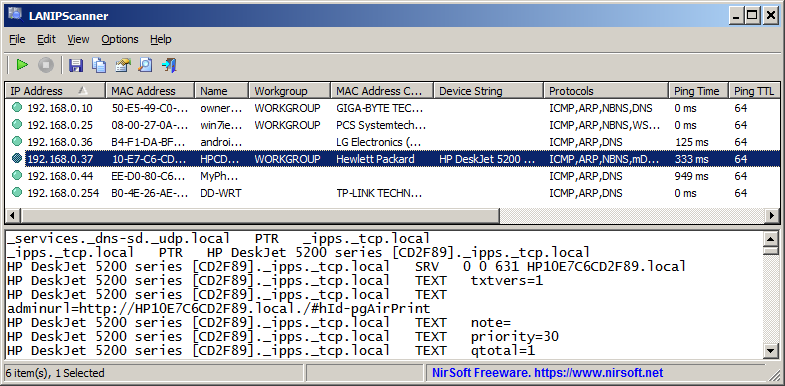
LANIPScanner is a new free and portable network scanner for Windows by one of my favorite developers NirSoft. The main idea is simple: quickly scan which devices are connected to the same network as the Windows PC that you run the program on.

As is the case with all Nirsoft apps, it is a portable program that you can run right after you have extracted its archive. Windows may object — as usual – with its SmartScreen warning, which you can safely bypass to run the app.

From there, it is just the matter of clicking on the scan button to get the list of connected computers and devices.

Each device is listed with its IP addres and other information, including, if available, workgroup, device string, supported protocols, ping time and more.

The application supports several network protocols, which makes it versatile. It supports ICMP (ping), ARP, mDNS, DNS, NBNS, SSDP, ensuring that it can pick up a wide range of different devices that are connected.

The raw data of devices that respond to SSDP or mDNS protocols are also displayed in the lower pane of the application.

LANIPScanner comes with the usual assortment of Nirsoft features, including the option to generate reports and save the data to various formats.

Support-wise, it will run on Windows XP and all newer versions of Windows, including the latest version of Windows, Windows 11.

The new tool may look similarly to Nirsoft’s Wireless Network Watcher application on first glance, but there are differences. Notable ones include support for several different network protocols, recognition of devices on another subnet, if they respond to ping queries, and less reliance on a device’s MAC address for identification and features.

Closing Words

LANIPScanner is a lightweight network scanner for Windows that is easy to use. It returns a list of devices connected currently, which you may find useful for a number of purposes, including spotting devices that should not be connected.

Think smart TVs or other gadgets that may be connected, even though you might prefer them not to.

Now You: do you scan your networks regularly for devices? If so, which program(s )do you use for that?

Microsoft Recall continues to record data that it should not

Posted on August 6, 2025August 6, 2025 by Martin Brinkmann

When Microsoft announced Recall, the prime AI feature of its upcoming Copilot+ PC device type, it must have realized the flaws of Recall pretty quickly.

Recall consists of two parts. A screen capturing part that is taking snapshots of the computer screen every five seconds, and the AI that scans and analyzes the screenshots, so that the user may interact with it and retrieve information.

The AI can provide information for requests such as “what did I do on August 25, 2024”, “what car did I look at last month” or “give me an overview of the money that I spend online in the past three months”.

While that sounded useful to the ears of Microsoft executives, it sounded like a privacy nightmare to happen for security experts, rights advocates groups, system administrators and home Windows users.

The initial version lacked proper security mechanisms to protect the database against unauthorized access. To make matters worse, Microsoft designed the initial Copilot to be opt-out. This meant that the AI feature would run by default and take snapshots of user screens from the moment the system was started.

Microsoft apologized and promised to do better. It went back to the drawing board and announced an updated version of Recall some time later. And Microsoft did indeed address some of the major points of criticism. It made Recall opt-in and integrated protections that would prevent direct unauthorized access to a user’s database. Admittedly, Microsoft displays a screen during the initial setup of the system that informs users about Recall and can be used to enable it. It is easy enough to enable it in passing, for instance when you are in a hurry to start using the system for the first time.

Another problem with Recall is that its filters are not working all the time. Microsoft created filters to block screenshots from being taken under certain conditions. Launch a private browsing mode window and Recall will not capture it, according to Microsoft. The same is true for sensitive information, such as credit card numbers or passwords.

The Register tested the latest version of Recall and concluded that the filtering is “good, but not good enough”. Recall did not capture most of the screens and data that it should not, but the tester managed to get the feature to take snapshots of sensitive data with a little bit of trickery involved.

Another test tried to gain access to the Recall database. It could become a high value target for cybercriminals, considering that it contains much of a user’s activity online and offline. Even if there is no passwords or credit card numbers to be found, users may have activities recorded that they’d prefer to stay private; a treasure trove for ransomware gangs.

While Recall protects access with Windows Hello, it is not blocking access if remote desktop software is used. Authentication is still required though.

All in all, it is fair to say that Microsoft is making progress and that Recall continues to remain a work in progress. Unless you really, really have a valid use case for using Recall as a user, you probably might want to keep it off.

Support This Site

If you like what I do please support me!

Any tip is appreciated. Thanks!
  • April 16, 2026 by Martin Brinkmann Windows 11 Context Menu Manager: remove items with a click
  • April 15, 2026 by Martin Brinkmann One Exploited Zero-Day and Record Numbers: The April 2026 Windows Patch Tuesday Breakdown
  • April 14, 2026 by Martin Brinkmann Brave is getting Container support and the feature has made a big jump recently
  • April 13, 2026 by Martin Brinkmann A More User-Friendly Way to Pause Windows 11 Updates is Coming
  • April 11, 2026 by Martin Brinkmann Microsoft is Radically Changing the Windows Insider Program

About

We talk, write and dream about Technology 24/7 here at Chipp.in. The site, created by Martin Brinkmann in 2023, focuses on well-researched tech news, reviews, guides, help and more.

Legal Notice

Our commitment

Many websites write about tech, but chipp.in is special in several ways. All of our guides are unique, and we will never just rehash news that you find elsewhere.

Read the About page for additional information on the site and its founder and author.

Support Us

We don't run advertisement on this site that tracks users. If you see ads, they are static links. Ads, including affiliate links, never affect our writing on this site.

Here is a link to our privacy policy

©2026 Chipp.in Tech News and Reviews