Chipp.in Tech News and Reviews

Windows, Security & Privacy, Open Source and more

Menu
  • Home
  • Windows
  • Security & Privacy
  • Gaming
  • Guides
  • Windows 11 Book
  • Contact
  • RSS Feed
Menu

Category: Windows

Microsoft changes popular option to block Microsoft Store application updates, makes it worse

Posted on August 17, 2025August 17, 2025 by Martin Brinkmann

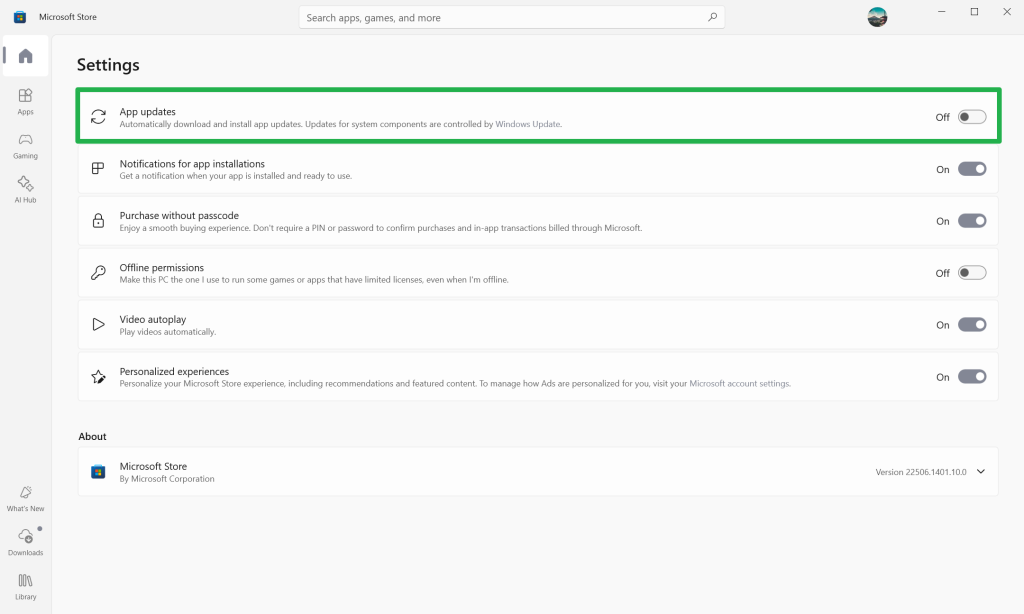
Up until now, if you did not want Microsoft to update the installed default apps of the Windows operating system via the Microsoft Store, you had to disable the “App Updates” option of the store. Once set, it would prevent the automatic updating of Microsoft Store applications on the system.

This option is being removed, according to tests conducted by Deskmodder. While the option is still there, flipping it to off displays a new prompt now that gives you the choice to block app updates for one to five weeks only.

Afterwards, application updates will get enabled again automatically. This option may remind you of the pause Windows updates functionality that Microsoft introduced a long time ago. It too does not let you disable updates indefinitely, but only for a certain period.

Here is how the screen looks like on Windows 10 currently.
To make matters worse, the corresponding Registry entry will also be temporary in nature according to Deskmodder.

This leaves the Group Policy option as the only one left for blocking automatic Microsoft Store updates.

Here is how it works:

  1. Open the Start menu.
  2. Type gpedit.msc and press the Enter-key.
  3. Navigate to Computer Configuration > Administrative Templates > Windows Components > Store
  4. Double-click on “Turn off Automatic Download and Install of updates”.
  5. Set the status to Enabled.
  6. Click on the ok-button.
  7. Restart the computer.

Now, if you do not have access to the Group Policy Editor, which means that you are running a Windows Home edition, then you may make the changes in the Registry directly.

  1. Open the Start menu.
  2. Type regedit.exe and press the Enter-key.
  3. Navigate to HKEY_LOCAL_MACHINE\SOFTWARE\Policies\Microsoft\WindowsStore
    • Note: If one of the keys do not exist, right-click on the previous one that still exists and select New > Key. Name it accordingly to create the structure.
  4. Right-click on WindowsStore and select New > Dword (32-bit) value.
  5. Name it AutoDownload.
  6. Double-click on AutoDownload and set its value to 2.
  7. Close the Registry Editor.
  8. Restart the PC.

Closing Words

Microsoft has not documented the change anywhere to my knowledge. It is unclear, therefore, why it is being made. Maybe Microsoft wants that most Windows users run the latest versions of the integrated applications on their devices.

However, considering that this is the default, Microsoft is taking away an option that Windows customers have set deliberately. Those who have set automatic updates to off have done so for a specific reason though.

Now You: What is your take on this? Good thing that the majority of users will run the latest version of the pre-installed apps on Windows soon? Feel free to leave a comment down below.

Windows 11

Windows 11 finally overtakes Windows 10 as the most popular desktop operating system

Posted on August 4, 2025August 4, 2025 by Martin Brinkmann

Microsoft’s newest — if you consider four years new – has finally done it. It has passed Windows 10 as the most popular desktop operating system last month.

The consumer versions of Windows 10 have less than three months of support left. While you can extend that by a year, the end is inevitable at this point.

Statcounter reports that Windows 11 made a big jump to more than 53 percent usage share while Windows 10 dropped to a still respectable 43 percent share.

It appears that users are finally moving from Windows 10 to 11, either by upgrading compatible devices to the new version of Windows or by buying new PCs with Windows 11. There is also a third possibility. Since Statcounter does not reveal totals, Windows 10 devices could just have been taken offline by their respective owners or users.

Is the change in leadership the big win that Microsoft hoped Windows 11 would become? Or just born out of necessity, considering that Microsoft will end support for Windows 10 in a short while?

It seems likely that the trend will continue in the following months. Windows 10 will drop, Windows 11 will rise as a consequence.

It is interesting to note that Windows 10 managed to keep the lead until last month. Almost half of all desktop devices ran the operating system and users have started to migrate mere weeks before the official end of support.

In related news, Windows 7 still holds about 2 percent of the desktop market, more than two years after Microsoft ended the ESU program and more than five years since support ended officially.

Windows 8 and 8.1 are also listed, with a combined share of about 1 percent of the desktop market. May not sound like much, but if you assume more than 1 billion desktop PCs, you end up with 10 million Windows 8 and 8.1 devices still in use.

As far as desktop operating systems are concerned, Windows continues to have a commanding lead of more than 71 percent of the market. Unknown, meaning device with unidentifiable operating systems, macOS and Linux follow behind, each with less than 10 percent of the usage share.

Now You: do you run Windows on your devices or another operating system? Let me know in the comments below.

Windows 11 is removing an option to bypass Microsoft account and internet during setup

Windows 11, version 23H2: Support ends this year as well

Posted on July 28, 2025July 28, 2025 by Martin Brinkmann

While Windows 10’s official end of support later this year is the big Windows-topic of 2025, an earlier version of Windows 11 is also put to rest by Microsoft on the same day.

Windows 11, version 23H2, released almost two years ago, will reach end of support in November 2025 shortly after Windows 10 reaches its end of support.

To be clear, the end of support affects the Home and Pro editions of the operating systems only. Microsoft supports Home and Pro editions of Windows 11 for two years (24 months), while Enterprise and Education editions get an extra year of support.

So, if you have not upgraded a Windows 11, version 23H2 Home or Pro device to version 24H2 yet, you may want to consider doing so to keep it supported.

Systems that meet the official system requirements should get the upgrade offer in Settings > Windows Update > Check for updates. Potential upgrade blockers could prevent the upgrade offer via Windows Update, but only a few confirmed issues remain.

If the upgrade to version 24H2 is not offered, you could try Microsoft’s official Installation Assistant. It can start the upgrade, even if it is not offered via Windows Update.

If that fails as well, your best bet is to use third-party tools like Rufus or FlyOobe (formerly known as Flyby11), which can also be used to bypass most of the system requirements of Windows 11.

Here is the list of Windows versions and editions, and their upcoming end of support later this year.

  • Windows 10, version 22H2 (latest) — Home and Pro : October 14, 2025.
  • Windows 11, version 22H2 — Enterprise and Education: October 14, 2025
  • Windows 11, version 23H3 — Home and Pro: November 11, 2025

Now You: do you run any of these? Let us know in the comments below.

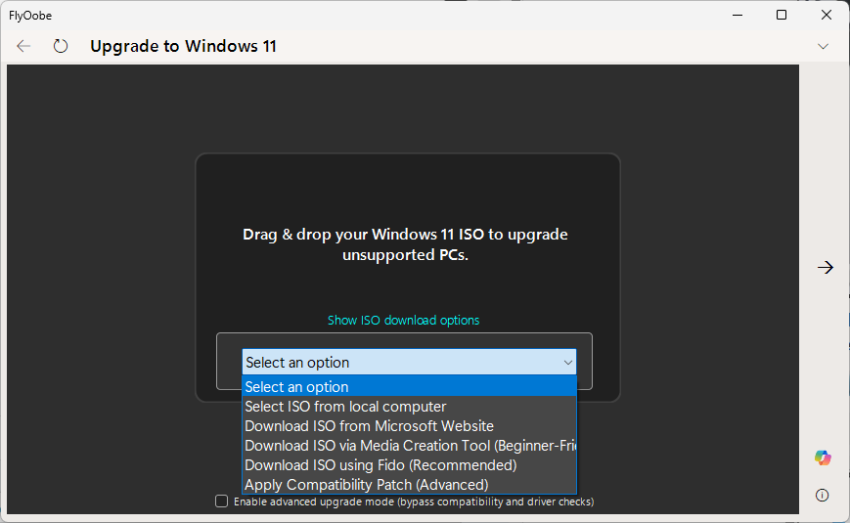
Windows-11-Upgrader Flyby11 renamed to FlyOobe: new features in the pipeline

Posted on July 26, 2025July 26, 2025 by Martin Brinkmann

He has done it again. The developer of several useful open source tools, Belim, has changed the name of another of his applications. The useful open source Windows-11-Upgrader Flyby11 is now known as FlyOobe.

The program itself makes it easier to upgrade Windows 10 systems to Windows 11, especially if the computer does not meet major system requirements of Windows 11. While you can bypass most requirements manually, using FlyOobe simplifies the process significantly as it requires just a few clicks to start the upgrade.

The new name reflects the nature of the program better, according to the developer. Thankfully, that is not all that is new. The latest version includes a few changes already, like improved upgrade logic or automatic compatibility checks before selection of the ISO.

Here is the full changelog:

Improved upgrade logic for bypassing Windows 11 requirements
Automatic compatibility checks before ISO selection
New hybrid UI with dark main window and a light sidebar. Drop a comment: full dark, back to light, or keep the hybrid look?
More intelligent handling of setups with and without Internet
Hundreds of fixes, cleanups, and refinements under the hood
Clippy was killed. Again.
The old FAQ was removed (a new one will appear in the repo soon)
Localizations are currently offline because they no longer fit with the core features. I still need to figure out how to move forward with this

More interesting than that is what is coming next. The developer is working in integrating ISO preparations and bypass patching directly from ISO images into the application.

Means, it is future proofing the program to make sure that it continues to work, even when Microsoft decides to disable the existing bypass options.

With Windows 10 going out of support in two months, it will be interesting to see if the downloads of tools like this will explode. While users may be able to sign up for extended security updates, this is delaying the death by just a year. Enough time for some, but there will be millions of perfectly working Windows 10 PCs in October 2026 that could be used for years or even decades, if their owners would get some help migrating to Windows 11 or Linux, or another option.

Chrome PlayReady DRM

Google Chrome is getting PlayReady DRM support in Windows 11

Posted on July 24, 2025July 24, 2025 by Martin Brinkmann

Most web browsers support some form of digital rights management (DRM), which is used to play DRM-protected content on the Internet. Services like Netflix, Disney+, and most paid ones use DRM,

The functionality provided by a service may depend on the DRM technology that is supported by the browser. Microsoft’s PlayReady DRM, for example, supports 4K playback at Netflix and other popular streaming services.

Google’s PlayReady DRM, on the other hand, does not. That’s probably the main reason why Google is working on adding support for PlayReady DRM to its Chrome web browser. With it, Chrome users can play up to 4K video streams at services such as Netflix or Disney+.

It may be a welcome addition for users who watch streaming services in the browser, use Windows 11 and have the device connected to a display that supports the higher resolution.

Good news is that you may enable the new feature already, provided that you run the latest stable version of the browser, Chrome 138.

Here is how you do it:

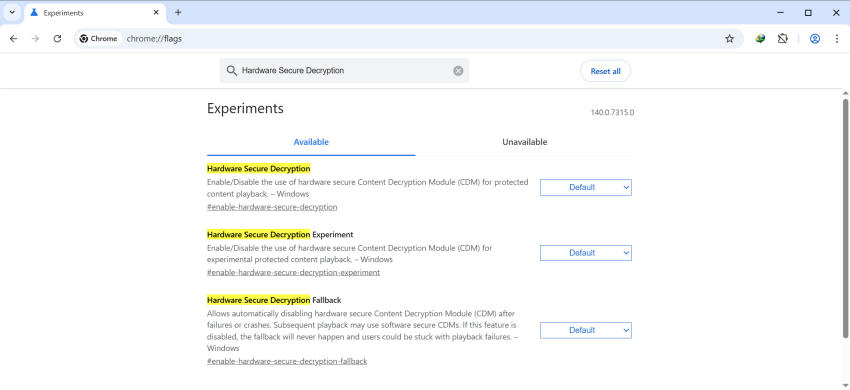
  • Load chrome://flags/#enable-hardware-secure-decryption in the Chrome address bar.
  • Set the flag to Enabled.
  • Restart Google Chrome.

The feature should be supported after the restart. Note that this is still in testing and that you may run into issues after enabling the feature. If you do, try disabling the flag again to resolve those issues. You could also disable it manually, if you do not want to make use of it.

This seems to be coming to Chromium-based browsers in general. If you use a different flavor of Chromium, you may also be getting this new feature, provided that the change is introduced.

Backup App: Here is what you need to know about the transfer to a new PC option

Posted on July 22, 2025July 23, 2025 by Martin Brinkmann

Microsoft has updated the official Backup app of the Windows operating system recently with PC transfer functionality. It is designed to move files and data from an older PC, e.g., a Windows 10 device, to a newer PC.

The new option addresses a common issue that users face when they buy or a build a new PC: how do you get your files, data and settings from the old system to the new?

Microsoft’s transfer option sounds like a good option, as it is baked into the operating system. While it can be useful indeed, it is important to understand that it has limitations.

What is transferred? Microsoft says that you can use the option to transfer “all files”, settings and preferences from one PC to another.

What is excluded? System and operating system files, OneDrive files, installed applications, saved passwords and credentials, encrypted drives with BitLocker.

Are there other limitations? There are three. First, you need a Microsoft account and use it to sign in to both PCs. Second, while you can run the Backup app on Windows 10 and 11 devices, you can only use it to transfer data to a PC with Windows 11, version 24H2 or newer. Also, ARM-based PCs are not supported currently. Third, both PCs need to be connected to the same network.

In other words, you can use it to move files, such as documents or photos, from the older PC to the new system. You may also use it to move settings and preferences, such as your wallpapers, to the new system, provided that it runs the latest version of Windows 11 and is not ARM-based.

Installed applications are not transferred, which is probably the biggest shortcoming. This means, that you will have to install your favorite apps manually and configure them manually as well, unless they offer imports of settings from another device or do so via the cloud.

Some Windows users may find the tool useful, despite its obvious limitations. You can check out a detailed tutorial on how to use the tool on the Microsoft Support website.

Now You: how do you handle migrations from one system to another? Do you use tools for that or a manual approach?

Microsoft trials Adaptive Energy Saver, to enable saving mode on devices with plenty of battery left

Posted on July 15, 2025July 14, 2025 by Martin Brinkmann

Mobile devices like Windows 11 laptops use batteries for power. Keeping an eye on the remaining battery is essential to avoid unexpected system shutdowns due to a lack of power.

Modern mobile devices support battery saving modes. These are designed to save battery while the device is idle or in use. Common tweaks include reducing the screen brightness, powering down devices, or limiting background activity.

Up until now, Windows’ energy saver mode was either turned on or off. Microsoft has started a trial to change that.

What is the adaptive energy saver? It is a new, opt-in mode, for Windows 11 devices that have a battery. The feature enables energy saving automatically to conserve energy, even while the battery is not particularly low.

This happens without changing the brightness of the screen and is based “on the power state of the device and the current system load”. So, I assume this means that if the load is light, Windows 11 might turn on energy saving mode for a bit to save energy. Once more resources are required, it may turn off energy saving mode again.

How this actually works remains to be seen. Since this feature is introduced in test builds. expect some tweaking and testing to find out how well it works.

The feature is disabled by default and in testing in the latest insider builds of Windows 11 only (where it may be enabled for some for testing). You find it under Settings > System > Power & battery. There, under Energy saver, set “always use energy saver” to adaptive to use it.

Both Android and iOS support adaptive power or battery options. Some Android devices support adaptive power saving, which dynamically adjusts power-settings like the screen brightness based on user behavior. Apple introduced adaptive power in iOS 26, which makes slight performance adjustments to extend battery life.

Windows 11 Quick Machine Recovery

Quick Machine Recovery: automatic Windows 11 device repairs

Posted on July 14, 2025July 14, 2025 by Martin Brinkmann

Quick Machine Recovery is a relatively new feature of Windows 11 that promises speedier troubleshooting of system failures. Announced earlier this year, the feature has now landed in a recent Windows Insider test build of the Canary channel.

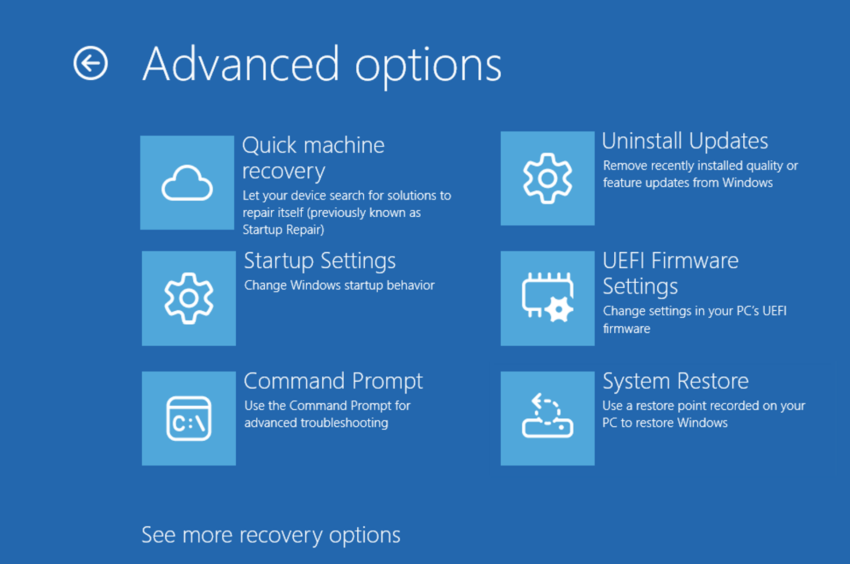
What is Quick Machine Recovery? Microsoft describes it as an automated recovery feature that is designed to detect and fix “widespread issues” on devices running Windows 11. Think of it as an automatic repair option baked into the operating system that, Microsoft claims, is fixing issues faster than you.

How does it work? Microsoft says that Quick Machine Recovery kicks in automatically “if a device experiences a widespread boot issue”. It will enter “WinRE”, the Windows Recovery Environment, and connect to the Internet so that “Microsoft can deliver a targeted fix through Windows Update”.

A blog post on the Tech Community website offers deeper insight on how the feature works:

  • Device enters recovery mode: If a Windows 11, version 24H2 device encounters a critical failure preventing normal boot, it enters Windows RE.
  • Network connection established: Windows RE connects to the network using ethernet or Wi-Fi protected access (WPA), ensuring the device can communicate with Microsoft’s recovery services. Future updates will introduce additional networking configurations for broader support.
  • Incident analysis: Microsoft analyzes crash data from affected devices to identify patterns and pinpoint the root cause. If a widespread outage is detected, an internal response team is activated to develop, validate, and prepare a targeted remediation.
  • Remediation rollout: In this initial release, Microsoft will deliver the remediation via Windows Update, adhering to the update policies configured on the device. Microsoft will safely rollout the remediation.

Microsoft claims that the feature is reducing downtime and the need to fix issues manually. According to the initial announcement, Quick Machine Recovery will be enabled automatically on Windows 11 Home devices, once they install the update that introduces the feature.

System administrators may enable the recovery feature on all other editions of Windows 11, including Windows 11 Pro, Education, and Enterprise. Local admins find the setting under System > Recovery > Quick Machine Recovery.

The feature will send crash data to Microsoft when it triggers, which is certainly something to consider before enabling the feature.

Now You: what is your take on this? Useful feature to get Windows 11 devices faster back on track? Feel free to leave a comment down below.
KeePass 2.59 Password Manager supports Arm64 on Windows now

Posted on July 10, 2025July 10, 2025 by Martin Brinkmann

KeePass is one password manager that I’m using regularly on Windows machines for password-related activities. It is a well-designed app that runs locally, but you can extend it with all kinds of plugins and install compatible programs and apps for other operating systems.

A new version of the password manager is now available. KeePass 2.59 is the second release of the year 2025 and it introduces quite a few welcome improvements and changes. First and foremost, if you run Windows on an ARM64 device, like the latest Microsoft Surface Pro devices, then you may install and use the password manager on that device now as well. KeePass 2.59 is therefore the first version of the password manager that supports all architectures that Windows supports.

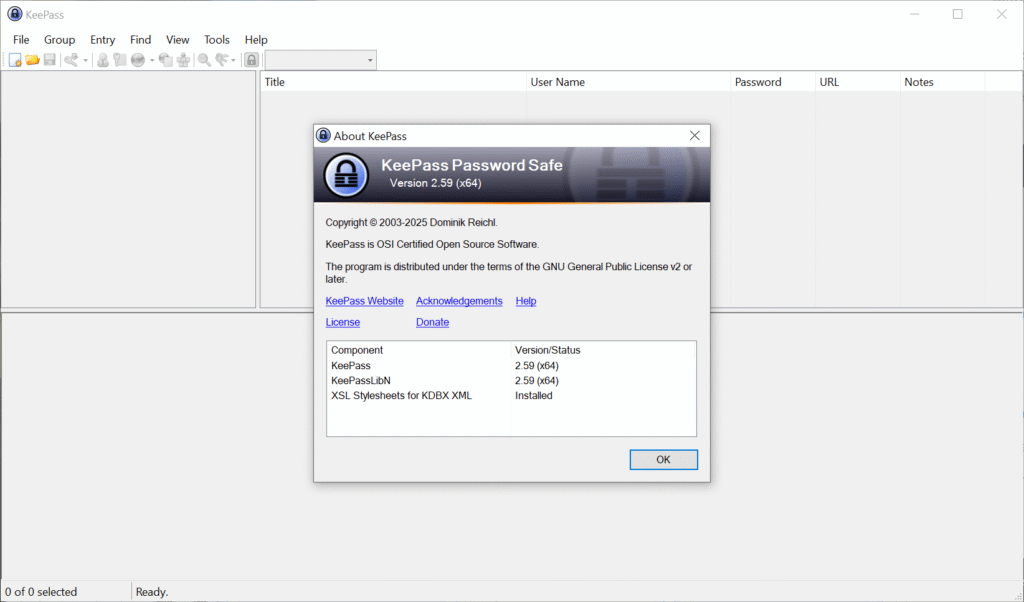
KeePass 2.59 interface

KeePass 2.59 introduces native implementations of AES-KDF and Argon2 on Windows systems, promising a breathtaking 30-50 times speed increase on systems on which the native support library was not available or disabled. Encrypting and decrypting databases that use the AES algorithm should now also be faster.

Another new feature is a new import and export module for the KeePass KDB-database on Arm64 and Unix-like systems. You find the new option under File > Export in the main KeePass interface. Exports support the default user name and database color now. The root group is now also exported, according to the release notes.

Other than that, support for opening URLs from within KeePass now supports the private modes of the browsers Maxton, SeaMonkey and Yandex, next to the already supported browsers. Also new is that some links are now clickable on Unix-like systems, which may improve handling of them, as you no longer have to use copy and paste for that anymore.

You can check out the remaining changes on the official website. They include several improvements and optimizations for the most part.

Existing users may run the installer to update KeePass to the latest version. A new KeePass 2.59 portable edition is also available for those who prefer it.

Now You: which password manager do you use and why? Feel free to share your thoughts on it in the comment section below.

7-Zip 25.000

7-Zip 25.00 improves performance and fixes security issues

Posted on July 7, 2025July 7, 2025 by Martin Brinkmann

7-Zip is a popular cross-platform open source program to pack files and to unpack archives. It is a lightweight alternative to heavier archiving programs and the built-in Windows functionality, that is significantly slower in all benchmarks.

7-Zip 25.00 is now available. You can download the latest version from the official project website or from its Sourceforge repository. As always, just install the new version over the other to upgrade the installation to the latest version.

Tip: check the installed version by starting 7z-Zip on your system and selecting Help > About 7-Zip from the menu at the top.

This is the first release of 2025. The changelog lists several performance improvements for various supported tasks.

Here is the overview:

  • The bzip2 compression speed was increased by 15-40%
  • The deflate (zip/gz) compression speed was increased by 1-3%.

The Windows version of 7-Zip supports more than 64 CPU threads now furthermore for “compression
to zip/7z/xz archives and for the 7-Zip benchmark”. This could improve the performance on Windows systems.

Apart from the mentioned performance improvements, the changelog lists that “some vulnerabilities” were fixed in the latest version. The changelog does not provide any details on those vulnerabilities. Since it is unclear how severe the fixed vulnerabilities are, it is recommended to upgrade to the new version of 7-Zip immediately to protect your system from potential attacks.

  • Previous
  • 1
  • …
  • 3
  • 4
  • 5
  • 6
  • 7
  • 8
  • 9
  • …
  • 25
  • Next

Support This Site

If you like what I do please support me!

Any tip is appreciated. Thanks!
  • March 2, 2026 by Martin Brinkmann Don't Bother with Windows 11's new Speedtest feature
  • February 27, 2026 by Martin Brinkmann Warning! That laptop on Amazon? It comes with temporary storage
  • February 26, 2026 by Martin Brinkmann "If your printer works today, it will continue to work": Microsoft corrects previous announcement
  • February 25, 2026 by Martin Brinkmann YouTube Premium Lite subscribers get background playback and downloads with a big "but"
  • February 24, 2026 by Martin Brinkmann Firefox 148.0 is out with its AI kill switch and support for Windows 7 and 8.1 comes to an end

About

We talk, write and dream about Technology 24/7 here at Chipp.in. The site, created by Martin Brinkmann in 2023, focuses on well-researched tech news, reviews, guides, help and more.

Legal Notice

Our commitment

Many websites write about tech, but chipp.in is special in several ways. All of our guides are unique, and we will never just rehash news that you find elsewhere.

Read the About page for additional information on the site and its founder and author.

Support Us

We don't run advertisement on this site that tracks users. If you see ads, they are static links. Ads, including affiliate links, never affect our writing on this site.

Here is a link to our privacy policy

©2026 Chipp.in Tech News and Reviews