
Windows has this interesting feature that enables OEMs to push software to user devices. This installs the apps automatically on unmanaged devices and supposedly helps get the most out of certain devices, such as monitors or printers.
While that sounds useful in theory, this feature has been abused in the past. The most recent example is LG installing its Monitor App on Windows PCs and using it to display advertisement for McAfee products.
Since this is unwanted by the vast majority of users, it is fair to say that this falls into the misuse of power category.
You can use Win11Debloat, a popular Windows tweaker, to get rid of the app and block LG from installing it again. Or, you could do it manually.
Here are the steps:
Remove the existing LG Monitor App
Because this is packaged as a standard modern Windows app, it can be uninstalled normally without needing to scrub your registry:
- Open Windows Settings (Win + I).
- Navigate to Apps > Installed apps.
- Search for LG Monitor App Installer (or just “LG”).
- Click the three dots (…) next to it and select Uninstall.
Prevent Windows from Auto-Installing Device Apps
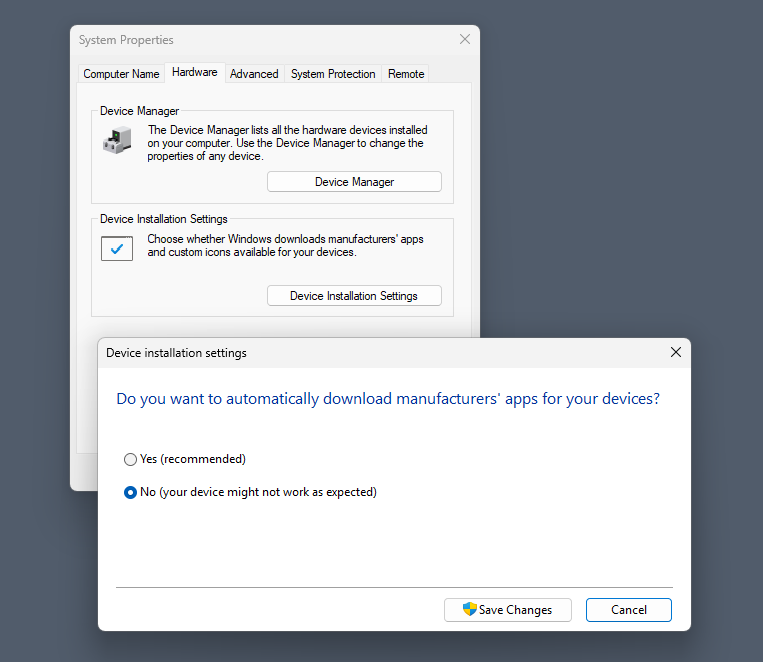
Windows automatically downloads these OEM companion apps using a feature called “Device Metadata Retrieval.” You can disable this natively in the GUI:
- Open System Properties: Press Win + R, type sysdm.cpl, and press Enter.
- Navigate to Device Installation Settings:Select the Hardware tab, then click the Device Installation Settings button.
- Disable Automatic Downloads:This stops all manufacturer companion apps.Select “No” (your device might not work as expected).
- Save Changes:Click Save Changes and restart your PC.
Note that you can also make the change in the Registry or using the Group Policy.
Registry:
- Press Win + R, type regedit, and press Enter.
- Go to HKEY_LOCAL_MACHINE\SOFTWARE\Microsoft\Windows\CurrentVersion\Device Metadata
- Find the DWORD named PreventDeviceMetadataFromNetwork. If it’s missing, right-click an empty space > New > DWORD (32-bit) Value and name it exactly that.
- Double-click the key and change its Value data from 0 to 1. Click OK and restart your computer.
Group Policy:
- Press Win + R, type gpedit.msc, and press Enter.
- Navigate to: Computer Configuration > Administrative Templates > System > Device Installation.
- Double-click Prevent device metadata retrieval from the Internet (or Prevent automatic download of applications associated with metadata, depending on your exact Windows build).
- Set it to Enabled, click Apply, and restart.
Here is the effect
By disabling this feature, you are shutting the door on all OEMs. This blocks automatic, silent installations of software from ASUS (Armoury Crate), Razer (Razer Synapse), Dell (Alienware Command Center), HP, Logitech, and others.
Importantly, this will not break your hardware. Windows will still automatically load the basic, essential drivers required to make the device function.
Disabling this setting only stops the automatic background installations triggered by Windows. You retain complete control to install whatever you want, whenever you want.
If you decide you actually need an OEM companion app—for example, to configure mouse macros, change RGB lighting, or update hardware firmware—you can easily bypass the restriction manually:
- Download directly from the manufacturer: Go to the official support page for your specific hardware (e.g., LG or Razer’s website) and download the driver package or software suite yourself.
- Install via the Microsoft Store: Many of these OEM control panels are hosted on the Microsoft Store. You can simply search for the app by name and click install.
Turning off automatic metadata retrieval is highly recommended for keeping a clean OS. It shifts control from Windows back to you, ensuring you only install the companion apps you actually plan to use.
Nvidia is taking this type of crap up a notch, keeping the full capabilities of it’s GPU’s unavailable to owners not willing to install thier “app”. 🤬
How do you suggest we change settings of our hardware then? Telepathy?
Nvidia has been the enemy within for a very long time. They were one of the first to push spyware and label it as telemetry within their drivers.
Nvidia the some company run by a jackass that pushes AI for obvious reasons and to the detriment of society. Slop merchant and professional scumbag.
Peddling AI like the rest of his fellow scumbags attempting to normalize it so we can feed the beast, train it so they can ultimately weaponize it against us all in every manner possible.
I am not even confident their GPU’s will not spontaneously catch fire due to their ill thought out power adapter which regularly melts down on their wildly overpriced GPU.
In short, just another company that has become far too big for their boots and openly working in a corrupt manner. He’s in good company. His circle jerk of friends are all that is wrong with the world today. Harnessing all the worst traits human beings have to offer.
With any luck all of these people will be dead within 2 to 10 years time and their legacy deservedly in the gutter where it belongs. This is not limited to tech bros but also government officials.
Tried these. A few months ago I ran Chris Titus windows reconfiguration app it seems it already took care of these items. Cool!
Is anyone really surprised that LG is using Microsoft and indeed the MS Store as a conduit for its garbage. The majority of stuff that is available through the MS store is garbage and anything else that isn’t is just built by a lazy developer or someone that maintains multiple versions of their software for maximum exposure that you are better off getting elsewhere.
It’s worth mentioning that apps from the MS store come packed with telemetry just like your garbage google play store and is a sorry attempt by microsoft to mimic their competitors and to maintain and create a monopoly within windows.