Chipp.in Tech News and Reviews

Windows, Security & Privacy, Open Source and more

Menu
  • Home
  • Windows
  • Security & Privacy
  • Gaming
  • Guides
  • Windows 11 Book
  • Contact
  • RSS Feed
Menu

Total Opt-Out: How to Use Firefox 148’s New Master Switch to Block All AI Features

Posted on January 31, 2026January 31, 2026 by Martin Brinkmann

In an era where tech giants are racing to weave artificial intelligence into every corner of the browsing experience, Mozilla is handing the controls back to the user.

In a few weeks, the organization plans to launch Firefox 148 to the stable channel. It will include the “AI kill switch” that Mozilla executives hinted at earlier. With it, users of Firefox may block existing and new AI features in the browser either entirely or selectively.

Support of AI features

Firefox supports several AI features at the time off writing. This includes the option to interact with AI chatbots in the sidebar, get link preview summaries and tab suggestions, or help with tab group labeling.

In summary (as of Firefox 147):

  • Translations
  • Image alt text in Nightly PDF viewer
  • Tab group suggestions
  • Key points in link previews
  • Chatbot providers in sidebar

Not all features are available for all Firefox users. Some are limited to users who use the open source browser in English.

A detailed look at Firefox’s AI Kill Switch
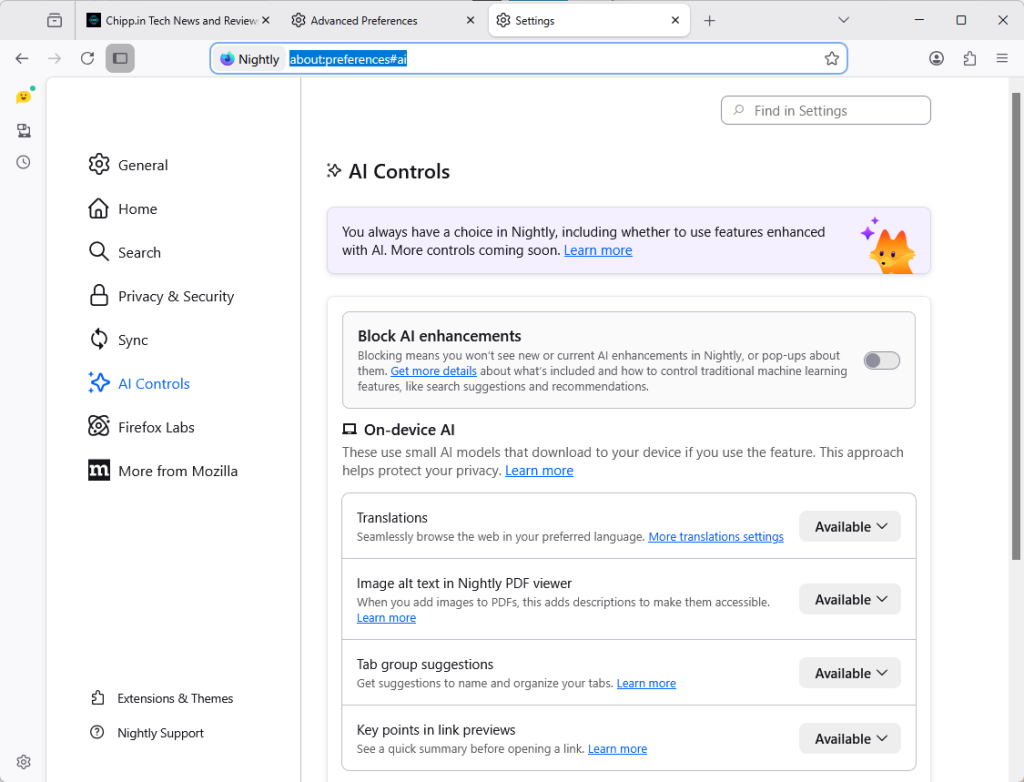
The new AI Controls page of the Firefox Settings.

Starting in Firefox 148, out next month and available as a preview already, Firefox will include the option to block AI functions.

Mozilla added an AI Controls section to the preferences of the browser. You can launch Menu > Settings > AI Controls, or load about:preferences#ai directly to manage AI features in the browser.

Note: The preference browser.preferences.aiControls controls the entry in the preferences. Toggle it to True to enable it, or to False to disable it. This impacts only the display in Settings.
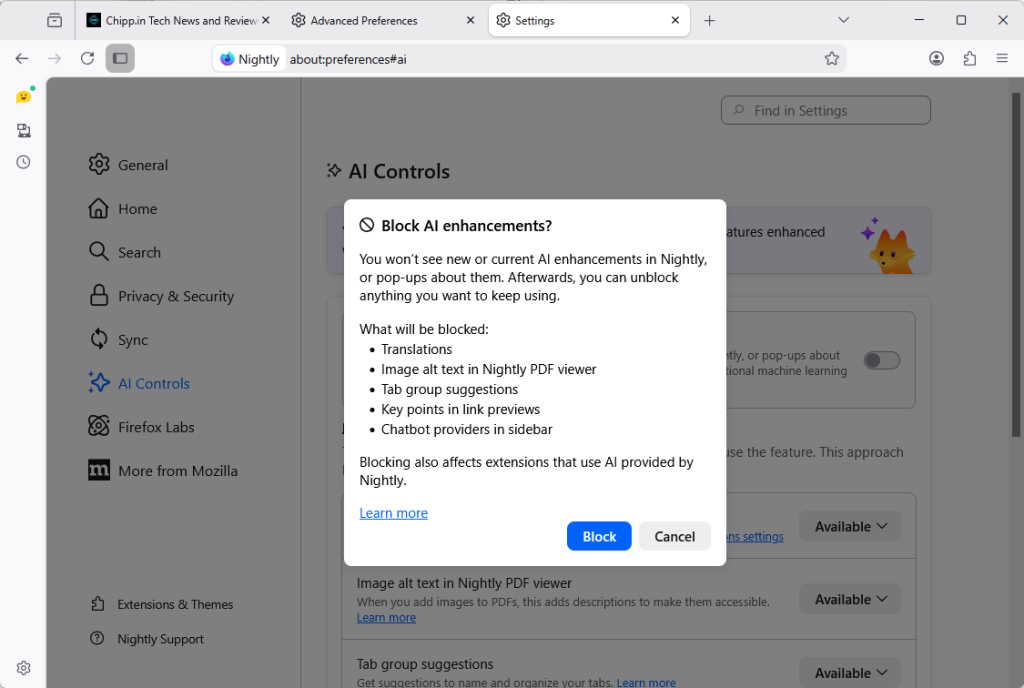
Firefox includes an option to disable all AI features with a single preference.

How to disable all AI in Firefox? Just toggle “Block AI enhancements” to Off. You get a prompt that explains what is going to happen. Activate “block” here to disable all AI features in the browser.

Instead of blocking everything, Firefox users may also block specific features only.

The AI Controls page divides the functions into two sections: On-device AI and AI chatbot providers in sidebar.

Each AI feature is listed with its name, a short description, and an action button. You can switch a feature from “Available” or “Enabled” to “Blocked”.

  • Available means that it can be used, but has not been up until now.
  • Enabled means that the user opted-in to use the AI feature.
  • Blocked that it is not active in the Firefox browser.

Here are the features that you can manage individually right now:

  • Translations
  • Image alt text in Nightly PDF viewer
  • Tab group suggestions
  • Key points in link previews
  • Chatbot in sidebar

Closing Words

Ultimately, Mozilla’s introduction of a global block toggle for all AI features highlights the organization’s awareness of the deep-seated skepticism toward AI among its user base. With it, it is giving Firefox users control over AI. Those who do not want it can make sure that it is disabled entirely in the browser, while everyone else may keep some or even all AI features enabled to make use of them.

By providing a clear, centralized way to opt out of AI—and ensuring that local data is purged when those features are disabled—Firefox 148 sets a high standard for how browser developers should respect individual choice. (source: Sören Hentzschel)

The Road to Recovery: How Microsoft Plans to Make You Love Windows Again

Posted on January 30, 2026January 30, 2026 by Martin Brinkmann

For years, Windows has felt less like a trusted tool and more like a construction site that never quite cleared the rubble. Whether it’s the lingering inconsistency of the UI, the intrusion of unwanted ads, the performance hiccups, or that many users now expect to experience issues when Microsoft releases an update for the operating system.

Microsoft’s flagship OS has faced a widening trust gap with its most loyal users. Now, in a strategic pivot aimed at 2026, the tech giant is launching an internal “swarming” initiative to prioritize stability and refinement over flashy new AI features.

Swarming, in this context, refers to engineering teams working on core reliability issues, including performance lags, to address major pain points of Windows users.

This year you will see us focus on addressing pain points we hear consistently from customers: improving system performance, reliability, and the overall experience of Windows.

The quote comes from the president of Windows and devices at Microsoft, and it was published by Tom Warren at The Verge on January 29, 2026.

A bad start of the year for Windows users

If anyone needed a refresher of the challenges that Microsoft is facing, they do not need to look far. When Microsoft released the first update for Windows in 2026, it probably did not expect it to cause a considerable number of issues on user computers: from broken Remote Desktop Connections over a shutdown bug to a severe bug affecting Outlook that needed an out-of-band update for fixing.

While it is bad enough that users and organizations feel issues hitting them left and right at times, it is the image of Windows that seems to be starting to worry Microsoft. Up until now, Microsoft pushed what it thought served it best onto Windows. Ads, AI, limited user control, features that barely anyone asked for. Yes, there was the occasional feature that users liked, but most changes were met with a good portion of skepticism at best.

While Microsoft received criticism, most users did not seem to mind as long as the operating system worked. Most features could be turned off or disabled. Yes, some had the nasty habit of being turned on again at times, which was annoying.

Now it appears that Windows is at a critical junction, one that even Microsoft can’t ignore going forward.

The foundation needs to be stabilized before Microsoft can continue to use Windows as a vehicle for selling subscriptions and other products.

It remains to be seen how dedicated Microsoft will be and whether it manages to make a U-turn regarding stability of its operating system. With Linux gaining essential support for PC games, there is not really much that Windows has to offer that is not also possible on Linux.

Google Chrome Gets a Major Upgrade with Gemini 3 and Auto-Browse

Posted on January 30, 2026January 30, 2026 by Martin Brinkmann

Google is officially transforming the web browser from a static tool into an active personal agent with the launch of Gemini 3 and “Auto-Browse” in Chrome, and the push into a personalized AI experience.

Announced yesterday for desktop users, with the exception of Chrome for Linux, this major update integrates Google’s most advanced AI model directly into the browser to handle complex, multi-step tasks.

Google is pushing Gemini with the help of its Chrome browser

Lookout OpenAI, Gemini could get a massive user boost thanks to the integration in the world’s biggest browser.

Here is an overview of the features that Google announced:

Auto-Browse (Agentic Browsing): The flagship feature for AI Pro and Ultra subscribers in the U.S. that performs multi-step “chores” on your behalf. It can research travel costs across dates, fill out complex online forms, file expense reports, or add specific items to a shopping cart based on an image.

Gemini Side Panel: A persistent area in Chrome that supports interactions with the AI without losing focus. It supports the usual AI-features, such as summarizing a page, comparing features across several tabs, or finding time in your calendar.

Integrated “Nano Banana”: The latest version of Google’s image generator is integrated into the browser. Also accessible from the side panel, you can use text prompts for creative tasks, such as turning research data into infographics or manipulating images open in the browser.

Connected Apps Integration: Deeper connectivity with the Google ecosystem, allowing Gemini to pull information from Gmail, Calendar, Maps, and Google Flights to execute workflows (e.g., finding a flight based on an event invitation in your email).

Personal Intelligence: A proactive feature that remembers context from past conversations to provide tailored answers. It learns user preferences over time to transform the browser into a “trusted partner” rather than a general-purpose tool.

Universal Commerce Protocol (UCP) Support: Integration with a new open standard (co-developed with brands like Shopify and Wayfair) that allows AI agents to navigate checkout processes and take commercial actions across different retail sites securely.

Enhanced Security & “Pause and Confirm”: New defenses designed for agentic AI, including a safety mechanism where Auto-Browse must pause and ask for explicit user confirmation before completing sensitive actions.

Closing Words

It is clear that Gemini will get a huge user boost from this. Even if Google limits exposure to certain regions or subscription models at first, it is clear that it will expose as many users as possible to Gemini in Chrome in the long run.

Why? Because it is giving Google an edge over the competition. Plus, when users run into usage limits, they may become paying subscribers, which seems to be on the preferred options right now to increase revenue and compensate expenses.

The benefit for users invested in Google’s ecosystem is there, especially if you connect the AI to other Google services. Whether you really want that, an all-knowing AI that may know more about your desires, life and plans than your closest friends, is up for you to decide.

I see the benefits, but also the dangers. While I do use AI tools for some tasks, such as creating a teaser image for an article here or the weekly newsletter, I do not really see a benefit in letting AI do the shopping for me, even with all safeguards in place.

1 Billion and Counting: Windows 11 Reaches Massive User Milestone Faster Than Windows 10

Posted on January 29, 2026January 29, 2026 by Martin Brinkmann

Microsoft launched its newest operating system Windows 11 back in October 2021 to mixed reviews. Its predecessor, Windows 10, held the top spot firmly at the time while Windows 7 and Windows 8 were reaching the official end of life dates. While companies could extend support of Windows 7 by three years, Microsoft did not give home users such an option.

Microsoft CEO Satya Nadella announced during the company’s FY26 second-quarter earnings call that Windows 11 has officially surpassed one billion monthly active users.

Windows reached a big milestone: One billion Windows 11 users, up over 45% year-over-year.

In about four years, Windows 11 managed to reached the coveted one billion users mark. Windows 10, which was equally criticized when it launched in 2015, took longer to reach the important milestone.

How much longer? Not that much, it turns out. Let us take a look at the official dates that Microsoft provided for Windows 10 and Windows 11 first.

Windows 10Windows 11
Launch DateJuly 29, 2015October 5, 2021
1 Billion Users DateMarch 16, 2020January 2026

Windows 10 reached 1 billion monthly active users 1,706 days after it was released by Microsoft. Windows 11 managed to cross the one billion monthly active users mark in 1,576 days.

That is 130 days faster. While not impressively faster, it is important to note that Windows 11 had a handicap all along: new system requirements prevented a sizeable chunk of Windows 10’s userbase from upgrading directly to Windows 11.

While Microsoft never released numbers, estimates suggest that several hundred million devices can’t be upgraded directly. While a high percentage of these devices can be upgraded by skipping the requirements checks, the technical nature of the process likely prevents this on the vast majority of devices running Windows 10.

For users, it does not really matter how fast or slow an operating system growth, provided that it manages to reach a number of users that is sizeable enough to warrant continued support.

Windows 10 Home and Pro editions will reach end of servicing later this year. It will be interesting to see what the millions of home users will do when that time comes.

The Long Tail of CVE-2025-8088: How One WinRAR Flaw Outlived Its Patch

Posted on January 28, 2026January 28, 2026 by Martin Brinkmann

It has been over six months since Rarlab released a fix for the critical WinRAR vulnerability known as CVE-2025-8088, but attacks continue to target it as if the patch was released just days ago.

Despite a patch being available since August 2025, Google Threat Intelligence reports that state-sponsored actors and financially motivated hackers are still finding immense success targeting users who have neglected to hit the update button.

This “long tail” of exploitation serves as a stark reminder that a vulnerability doesn’t disappear just because a solution exists.

Key Information:

DetailUpdated Information
Vulnerability IDCVE-2025-8088
Patch StatusAvailable for 6+ months
Primary ThreatState-sponsored and financially motivated actors
Action RequiredEnsure WinRAR is updated to the latest version

When Rarlab released WinRar 7.13 to patch the security vulnerability back in July 2025, barely anyone thought that this security issue would remain a problem six months later.

A report by Google security researchers suggests that the issue is still exploited actively. It appears that a percentage of WinRar users have not patched the archiving software yet.

Google found out that attacks originate from several countries, including Russia and China. To exploit the issue, attackers need to create a specially prepared RAR archive. When a victim unpacks the archive, malicious files are moved to the autostart of the system for execution.

Google writes:

CVE-2025-8088 is a high-severity path traversal vulnerability in WinRAR that attackers exploit by leveraging Alternate Data Streams (ADS). Adversaries can craft malicious RAR archives which, when opened by a vulnerable version of WinRAR, can write files to arbitrary locations on the system.

The issue affects WinRar and also related apps and files, including unrar.dll. However, the issue affects RAR on Windows only. Other operating systems with RAR apps, including Linux and Android, are not affected by the issue.

How to protect your systems

It is necessary to update WinRar or any of the other Rar tools affected by the issue, to the latest version. Windows users need to install WinRar 7.13 to protect their devices. Downloads are provided on the official Rarlab website.

Just download the latest release and run the installer to update the application. Installation of WinRar 7.20 Beta will also resolve the issue, but since it is a beta release, it is not recommended to run it on most PCs.

The OLE Overlook: High-Stakes Security Bypass in Microsoft Office (CVE-2026-21509)

Posted on January 27, 2026January 27, 2026 by Martin Brinkmann

The “trust but verify” era of document security has been blindsided by a sophisticated new threat that turns Microsoft’s own integration features against the user.

This week, Microsoft disclosed a critical zero-day vulnerability, CVE-2026-21509, which allows attackers to bypass core Object Linking and Embedding (OLE) security mitigations within the Microsoft Office Suite.

The flaw is actively exploited in the wild, affects most versions of Office, and allows malicious actors to execute unauthorized code when a victim opens a compromised file.

The essentials

  • Name of vulnerability: Microsoft Office Security Feature Bypass Vulnerability
  • Severity: Important
  • ID: CVE-2026-21509
  • Affected Software: Office 2016, Office 2019, Office LTSC 2021, Office LTSC 2024, Microsoft 365 Apps for Enterprise

Microsoft has a solution for the issue that is applied automatically in some cases and requires an update in others.

In short: If Office 2016 or 2019 is used, an update is required to patch the vulnerability. All newer versions of Office do not require an update, as Microsoft is adding the protection using a service-side change. However, Office needs to be restarted before this protection is applied.

Downloads, if necessary, are provided on the official Update Guide website linked above (under ID).

Microsoft published mitigations as well, but these are not really required, unless updates can’t be installed immediately. The mitigations require Registry edits and as such a restart before they protect the application from potential exploits.

WhatsApp Premium? New Leak Reveals Meta’s Plan to Launch Ad-Free Subscriptions

Posted on January 26, 2026January 26, 2026 by Martin Brinkmann

Ever since its inception, the world’s most popular messaging app has retained the status of an ad-free, then almost ad-free experience, but that “free” ride is officially reaching a fork in the road. WhatsApp is reportedly preparing to launch a paid membership tier this year starting with users in Europe to allow them to bypass the advertisements currently rolling out across the platform.

As Meta looks to monetize the “Updates” tab, this new ad-free subscription marks the first time in history that users may have to pay to keep their messaging experience clean.

This move is not happening in a vacuum. WhatsApp, owned by Meta, is following the exact strategy that Meta deployed for Facebook and Instagram across Europe. Under the model, users are asked to make the following choice: either allow Meta to track their activity for personalized advertisement or pay a monthly fee to keep the feed clean.

While Meta is copying the base strategy directly from Facebook and Instagram, WhatsApp’s personal chats remain ad-free, at least for now. This means that users pay Meta to keep the Status and Channels sections ad-free and stop creating an advertising profile of users who pay the premium.

What happens if you don’t pay?

Personal chats remain free of advertisement, at least for now. This is something that Meta has shied away from as it would like drive users towards competitors like Signal or Telegram.

Users who do not subscribe will continue to see sponsored content in the “Updates” tab.

The Verdict: Is WhatsApp Premium Worth It?

ProsCons
Clean Interface: Removes intrusive banners and sponsored posts from the Status and Channels tabs.New Monthly Expense: Adds to “subscription fatigue” for an app that has been free for over a decade.
Data Privacy: Meta may not create a profile for advertising, since there are not any ads to show.Partial Solution: Early reports suggest ads remain in “Channels” you don’t follow, so it may not be 100% ad-free.
Early Access: Potential for premium-only features, such as larger file sharing or advanced chat organization.Limited: Meta may limit the ability to pay to avoid ads to certain countries, similarly to how it handles this on Facebook and Instagram.

As the line between personal messaging and social media continues to blur, WhatsApp’s transition into a “freemium” service feels like the end of an era. For now, the core of WhatsApp, private conversations between users, remains untouched and ad-free.

However, now that the infrastructure is in place, Meta might consider pushing ads more aggressively on WhatsApp.

Microsoft Issues Urgent Out-of-Band Fix for Critical Windows 11 and 10 Bug

Posted on January 25, 2026 by Martin Brinkmann

Microsoft has just released another, “out-of-band” series of updates—including KB5078127 and KB5078132—to address a critical system issue currently impacting Windows 11 (versions 25H2, 24H2, and 23H2) and Windows 10 (22H2) users worldwide.

Unlike standard monthly patches, this emergency rollout was triggered to immediately resolve a high-priority bug that was causing load and save issues for files stored in the cloud. It is the second out-of-band update of January 2026, after last week’s emergency patch to fix broken Remote Desktop Connections.

The patches are distributed automatically to all non-managed Windows PCs via Windows Update.

Essential information

  • Windows 11, versions 25H2 and 24H2: KB5078127
  • Windows 11, version 23H2: KB5078132
  • Windows 10, version 22H2 (ESU-only): KB5078129
  • Windows Server 2019: KB5078131
  • Windows Server 2022: KB5078136
  • Windows Server 2025: KB5078135

The issue occurred after installing the January 2026 cumulative updates for client and server versions of Windows.

Microsoft admits that users of Outlook were especially affected by the issue, provided that the Outlook PST files were stored in the cloud and not on the local machine.

Outlook users might notice hangs or issues when reopening Outlook. Other issues that users might experience included noticing that sent items were missing or that previously downloaded emails were downloaded again.

Windows users who use Outlook and store the PST files in the cloud should install the update immediately. Microsoft does not mention any other changes in the update, which means that users of unaffected systems can ignore it for now. It will be included in the February 2026 cumulative update.

How to check your Windows Version

To find your version, press Win + R, type winver, and hit Enter. Once you know your version, look for the corresponding update in Settings > Windows Update.

Windows VersionUpdate ID (KB)New OS Build
Windows 11, version 25H2KB507812726200.7628
Windows 11, version 24H2KB507812726200.7628
Windows 11, version 23H2KB507813222631.6495
Windows 10, version 22H2KB507813719045.6812

While these frequent “out-of-band” patches can feel like a game of digital whack-a-mole, they serve as a reminder that updates do not only fix issues but may also introduce them.

As such, it is highly recommended to take necessary precautions, such as backing up the system partition before installing updates.

Microsoft Hands BitLocker Keys to FBI: How to Stop Windows From Uploading Yours

Posted on January 24, 2026January 24, 2026 by Martin Brinkmann

In a move that confirms privacy advocates’ long-held fears, Microsoft has reportedly handed over BitLocker encryption keys to the FBI, allowing federal agents to unlock the laptops of suspects in a fraud investigation without their consent.

The disclosure reveals a critical issue in how modern Windows devices handle security: convenience often comes at the cost of privacy. While BitLocker is designed to make your data unreadable to third-parties, the default settings on millions of Windows 11 PCs automatically upload the recovery key to Microsoft’s servers—creating a lawful “loophole” when served with a valid warrant.

For the suspects, this meant their encrypted hard drives were an open book. But for the average user, it serves as a grim reminder: if your recovery key lives in the cloud, Microsoft holds the master key to your digital life. Anyone else who may gain access, think malicious hackers, may also.

The good news? You can revoke their access today—if you know where to look.

Checking the status

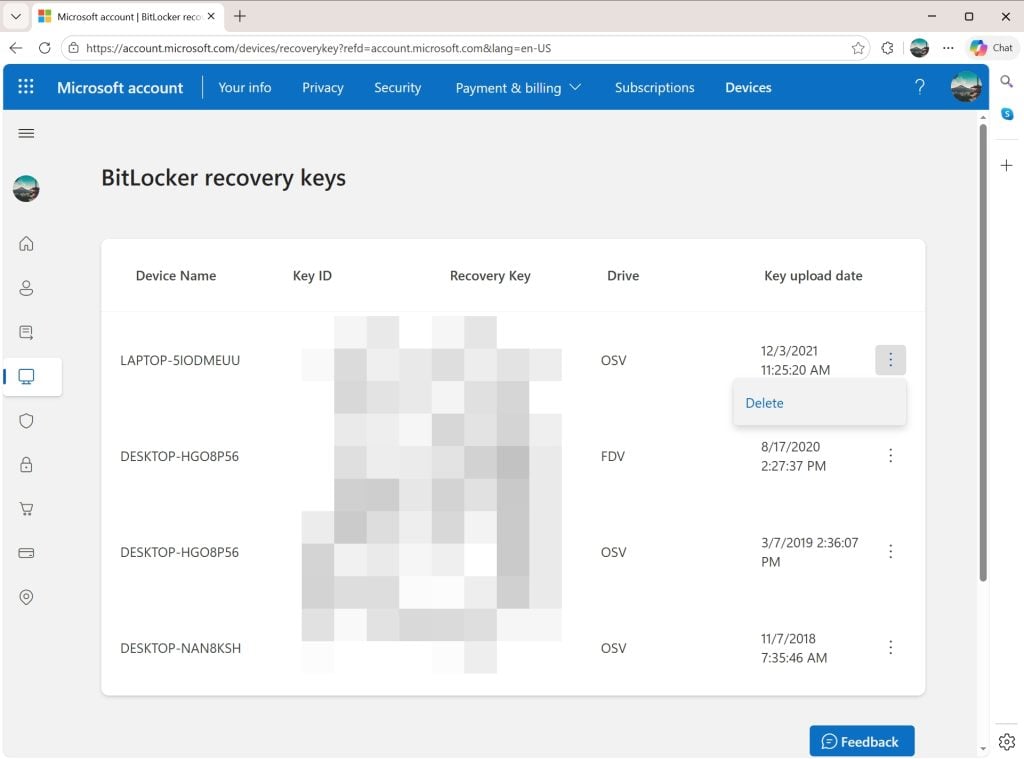
The Microsoft online website lists all BitLocker recovery keys uploaded to the cloud, even for devices that you may not use anymore.

If you do use computers with Windows 11 and a Microsoft account, chance is that BitLocker is used on the device and that the encryption keys are synced to the connected cloud storage.

The best way to find out if that is the case already is the following:

  1. Open a web browser on your computer.
  2. Navigate to https://account.microsoft.com/devices/recoverykey.
  3. Sign-in to your Microsoft account (the same that you use to sign-in to Windows)

The page that opens displays all connected devices, dates, and the Bitlocker recovery key. These keys can be used to decrypt hard drives encrypted by BitLocker.

Tip: You can delete any instance here with a click on the menu icon next to an item and the selection of delete.

You can also check the status of the active computer in the following way:

  1. Open Start.
  2. Type CMD.
  3. Select “run as administrator” while Command Prompt is selected.
  4. Paste or write manage-bde -status and press the Enter-key.

Check the conversion status to find out if a drive of the computer is encrypted.

Prevent the upload of recovery keys

The Control Panel applet reveals the status of BitLocker on each drive.

The easiest option, by far, is to rely solely on local accounts on Windows 11. Since local accounts are not linked to a Microsoft account, they do not sync data to the cloud. However, it is necessary to make sure that the local account is created during the initial setup.

Another option is to avoid BitLocker altogether and use a third-party — trusted — encryption software, such as VeraCrypt instead.

For that, you have to disable BitLocker on each Windows machine. Here is how you disable it on the active machine.

Notes:

  • Turning off will take some time. Windows begins decrypting the selected hard drive. It can take minutes to hours, depending on the size of the drive / partition and the speed of the PC.
  • You can keep using the computer. While Windows decrypts the drive in the background, you can keep on using it. It may be a bit slower than usual though.
  • Keep the PC turned on during the entire process. Ideally, you keep the PC on until the decryption of the drive completes. Keep the Control Panel open or check the notification area for status updates.
  • If “turn off” is not available, you are either not logged in as an administrator or there is a policy in place that prevents you from making changes.

Method 1:

  1. Open the Start menu and click on the Settings icon.
  2. Select Privacy & security in the Settings app.
  3. Look for Device encryption.
    • If you do not see the option, skip the process and check method 2 below.
  4. Click on Device Encryption.
  5. Toggle the feature to Off.
  6. Confirm the choice by selecting turn off again.

Method 2:

  1. Press the Start button.
  2. Type Manage BitLocker and select the result.
  3. Check all drives listed on the Control Panel page that opens.
    • If you see “BitLocker Off” next to a drive, the encryption is disabled.
  4. Select “Turn off BitLocker” for each drive with “BitLocker on”.
  5. Confirm your choice by selecting “Turn off BitLocker” again.

Method 3: The Pro-method

  1. Right-click on the Start menu, select Terminal (Admin).
  2. Type the command manage-bde -off C: and press the Enter-key.
  3. Note: replace C: with the drive letter that you want to disable BitLocker for

Google wants to personalize your search experience even more, but needs your data for that

Posted on January 23, 2026January 23, 2026 by Martin Brinkmann

Imagine if Google Search didn’t just know the internet, but actually understood your context. Scary? Wonderful?

Google is making this a reality for AI Pro and Ultra subscribers with the launch of Personal Intelligence in AI Mode, a new feature that lets you securely connect Gmail and Google Photos directly to your search results.

This update is designed to save your time by transforming — often — generic search queries into personalized answers while ensuring your personal data remains private, opt-in, and strictly under your control, according to Google.

Announced yesterday, Google continues to push a personal angle into its products. Last week, Google introduced Personal Intelligence that connects its Gemini AI with Gmail, YouTube and some other company services.

This week’s announcement extends Personal Intelligence to Google Search. More precisely, to AI Mode of Google Search.

Personal Intelligence in AI Mode for Search

What it does: It connects Gmail and Google Photos to the AI Mode of Google Search. This allows Gemini to cross-reference information from emails or photos with general search information to provide answers that are specific to the user.

For example, if you ask for an itinerary, it may look up flight or accommodation information in Gmail as well as what you liked to do in past holidays on Google Photos to suggest an itinerary that is personalized.

Who gets it: The feature is rolling out as a Labs experiment. It is only available for Google AI Pro and AI Ultra subscribers in the United States who search in English.

What about privacy? The feature is strictly opt-in. Google claims that it is not using any personal data for training and users may disconnect the feature from Search at any time to end it.

Google’s ultimate goal is to bridge the gap between a search engine that knows “the world” and its users. For some, it is a new level of convenience that makes searching on Google better and faster. For others, it is a nightmare come true.

However, since the feature is opt-in and limited to Google AI Pro and Ultra subscribers, the latter camp is likely very small at this point. This could change with a general rollout to non-paying Google Search users.

The success of the feature will ultimately hinge on trust, not so much on the technology and its effectiveness. While Google implemented important guardrails, including making the feature opt-in and promising that personal emails or photos won’t be used for training, handing over the keys to private memories and information requires a huge leap of faith, especially considering that Google’s main line of business is advertisement.

  • Previous
  • 1
  • 2
  • 3
  • 4
  • 5
  • 6
  • 7
  • …
  • 70
  • Next

Support This Site

If you like what I do please support me!

Any tip is appreciated. Thanks!
  • March 4, 2026 by Martin Brinkmann The March 2026 Android Security update is here and you should install it asap (if you can)
  • March 3, 2026 by Martin Brinkmann Google to release two Chrome Stable releases per month
  • March 2, 2026 by Martin Brinkmann Don't Bother with Windows 11's new Speedtest feature
  • February 27, 2026 by Martin Brinkmann Warning! That laptop on Amazon? It comes with temporary storage
  • February 26, 2026 by Martin Brinkmann "If your printer works today, it will continue to work": Microsoft corrects previous announcement

About

We talk, write and dream about Technology 24/7 here at Chipp.in. The site, created by Martin Brinkmann in 2023, focuses on well-researched tech news, reviews, guides, help and more.

Legal Notice

Our commitment

Many websites write about tech, but chipp.in is special in several ways. All of our guides are unique, and we will never just rehash news that you find elsewhere.

Read the About page for additional information on the site and its founder and author.

Support Us

We don't run advertisement on this site that tracks users. If you see ads, they are static links. Ads, including affiliate links, never affect our writing on this site.

Here is a link to our privacy policy

©2026 Chipp.in Tech News and Reviews