For years, Windows has felt less like a trusted tool and more like a construction site that never quite cleared the rubble. Whether it’s the lingering inconsistency of the UI, the intrusion of unwanted ads, the performance hiccups, or that many users now expect to experience issues when Microsoft releases an update for the operating system.
Microsoft’s flagship OS has faced a widening trust gap with its most loyal users. Now, in a strategic pivot aimed at 2026, the tech giant is launching an internal “swarming” initiative to prioritize stability and refinement over flashy new AI features.
Swarming, in this context, refers to engineering teams working on core reliability issues, including performance lags, to address major pain points of Windows users.
This year you will see us focus on addressing pain points we hear consistently from customers: improving system performance, reliability, and the overall experience of Windows.
The quote comes from the president of Windows and devices at Microsoft, and it was published by Tom Warren at The Verge on January 29, 2026.
While it is bad enough that users and organizations feel issues hitting them left and right at times, it is the image of Windows that seems to be starting to worry Microsoft. Up until now, Microsoft pushed what it thought served it best onto Windows. Ads, AI, limited user control, features that barely anyone asked for. Yes, there was the occasional feature that users liked, but most changes were met with a good portion of skepticism at best.
While Microsoft received criticism, most users did not seem to mind as long as the operating system worked. Most features could be turned off or disabled. Yes, some had the nasty habit of being turned on again at times, which was annoying.
Now it appears that Windows is at a critical junction, one that even Microsoft can’t ignore going forward.
The foundation needs to be stabilized before Microsoft can continue to use Windows as a vehicle for selling subscriptions and other products.
It remains to be seen how dedicated Microsoft will be and whether it manages to make a U-turn regarding stability of its operating system. With Linux gaining essential support for PC games, there is not really much that Windows has to offer that is not also possible on Linux.
Microsoft launched its newest operating system Windows 11 back in October 2021 to mixed reviews. Its predecessor, Windows 10, held the top spot firmly at the time while Windows 7 and Windows 8 were reaching the official end of life dates. While companies could extend support of Windows 7 by three years, Microsoft did not give home users such an option.
Microsoft CEO Satya Nadella announced during the company’s FY26 second-quarter earnings call that Windows 11 has officially surpassed one billion monthly active users.
Windows reached a big milestone: One billion Windows 11 users, up over 45% year-over-year.
In about four years, Windows 11 managed to reached the coveted one billion users mark. Windows 10, which was equally criticized when it launched in 2015, took longer to reach the important milestone.
How much longer? Not that much, it turns out. Let us take a look at the official dates that Microsoft provided for Windows 10 and Windows 11 first.
Windows 10
Windows 11
Launch Date
July 29, 2015
October 5, 2021
1 Billion Users Date
March 16, 2020
January 2026
Windows 10 reached 1 billion monthly active users 1,706 days after it was released by Microsoft. Windows 11 managed to cross the one billion monthly active users mark in 1,576 days.
That is 130 days faster. While not impressively faster, it is important to note that Windows 11 had a handicap all along: new system requirements prevented a sizeable chunk of Windows 10’s userbase from upgrading directly to Windows 11.
While Microsoft never released numbers, estimates suggest that several hundred million devices can’t be upgraded directly. While a high percentage of these devices can be upgraded by skipping the requirements checks, the technical nature of the process likely prevents this on the vast majority of devices running Windows 10.
For users, it does not really matter how fast or slow an operating system growth, provided that it manages to reach a number of users that is sizeable enough to warrant continued support.
Windows 10 Home and Pro editions will reach end of servicing later this year. It will be interesting to see what the millions of home users will do when that time comes.
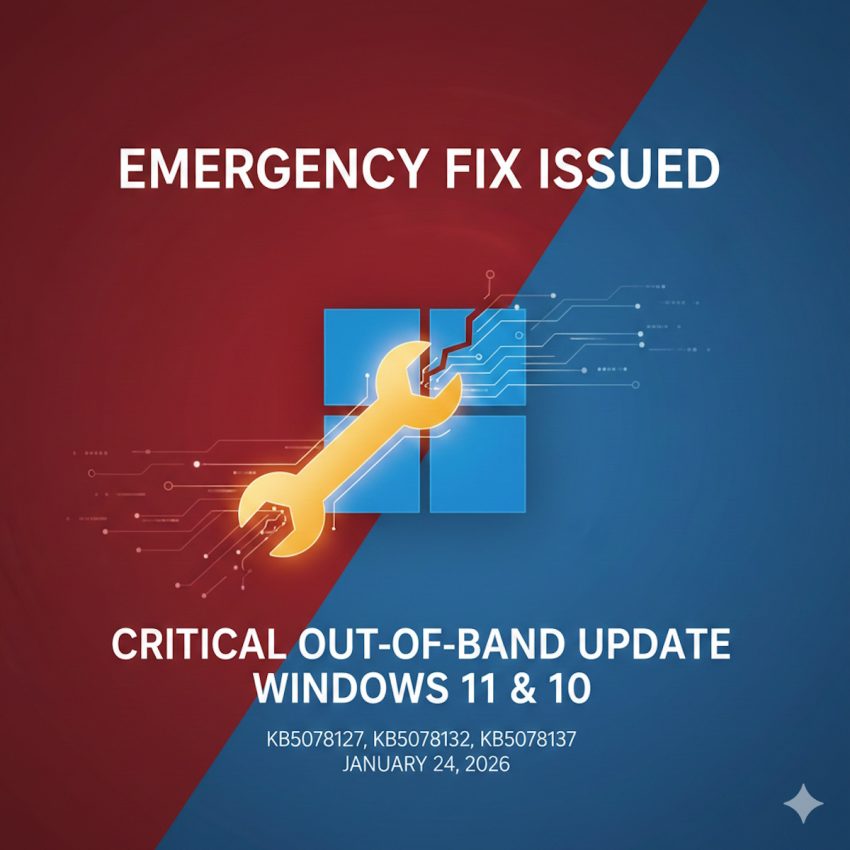
Microsoft has just released another, “out-of-band” series of updates—including KB5078127 and KB5078132—to address a critical system issue currently impacting Windows 11 (versions 25H2, 24H2, and 23H2) and Windows 10 (22H2) users worldwide.
The issue occurred after installing the January 2026 cumulative updates for client and server versions of Windows.
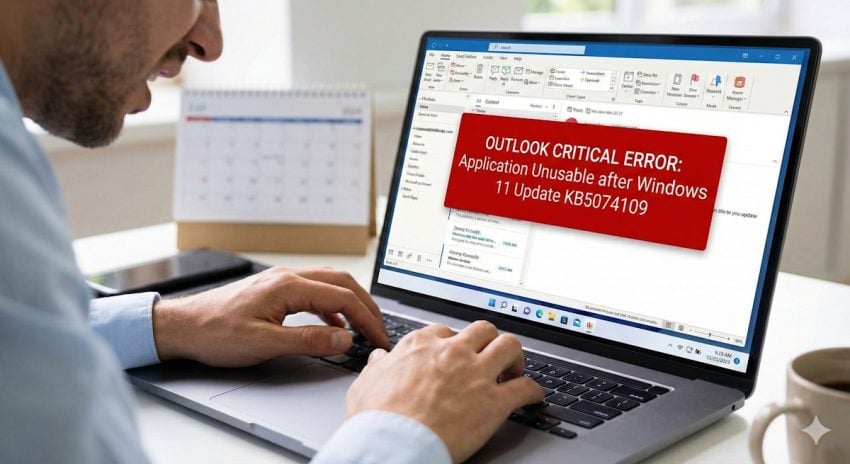
Microsoft admits that users of Outlook were especially affected by the issue, provided that the Outlook PST files were stored in the cloud and not on the local machine.
Outlook users might notice hangs or issues when reopening Outlook. Other issues that users might experience included noticing that sent items were missing or that previously downloaded emails were downloaded again.
Windows users who use Outlook and store the PST files in the cloud should install the update immediately. Microsoft does not mention any other changes in the update, which means that users of unaffected systems can ignore it for now. It will be included in the February 2026 cumulative update.
How to check your Windows Version
To find your version, press Win + R, type winver, and hit Enter. Once you know your version, look for the corresponding update in Settings > Windows Update.
Windows Version
Update ID (KB)
New OS Build
Windows 11, version 25H2
KB5078127
26200.7628
Windows 11, version 24H2
KB5078127
26200.7628
Windows 11, version 23H2
KB5078132
22631.6495
Windows 10, version 22H2
KB5078137
19045.6812
While these frequent “out-of-band” patches can feel like a game of digital whack-a-mole, they serve as a reminder that updates do not only fix issues but may also introduce them.
As such, it is highly recommended to take necessary precautions, such as backing up the system partition before installing updates.
In a move that confirms privacy advocates’ long-held fears, Microsoft has reportedly handed over BitLocker encryption keys to the FBI, allowing federal agents to unlock the laptops of suspects in a fraud investigation without their consent.
The disclosure reveals a critical issue in how modern Windows devices handle security: convenience often comes at the cost of privacy. While BitLocker is designed to make your data unreadable to third-parties, the default settings on millions of Windows 11 PCs automatically upload the recovery key to Microsoft’s servers—creating a lawful “loophole” when served with a valid warrant.
For the suspects, this meant their encrypted hard drives were an open book. But for the average user, it serves as a grim reminder: if your recovery key lives in the cloud, Microsoft holds the master key to your digital life. Anyone else who may gain access, think malicious hackers, may also.
The good news? You can revoke their access today—if you know where to look.
Checking the status
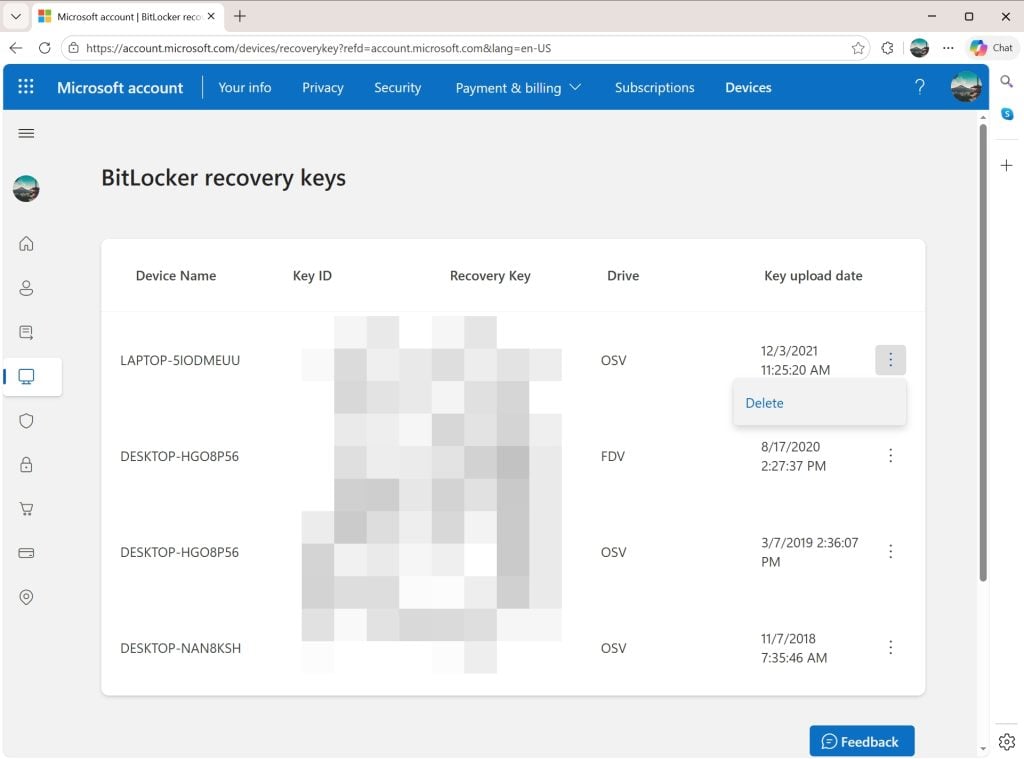
The Microsoft online website lists all BitLocker recovery keys uploaded to the cloud, even for devices that you may not use anymore.
If you do use computers with Windows 11 and a Microsoft account, chance is that BitLocker is used on the device and that the encryption keys are synced to the connected cloud storage.
The best way to find out if that is the case already is the following:
Open a web browser on your computer.
Navigate to https://account.microsoft.com/devices/recoverykey.
Sign-in to your Microsoft account (the same that you use to sign-in to Windows)
The page that opens displays all connected devices, dates, and the Bitlocker recovery key. These keys can be used to decrypt hard drives encrypted by BitLocker.
Tip: You can delete any instance here with a click on the menu icon next to an item and the selection of delete.
You can also check the status of the active computer in the following way:
Open Start.
Type CMD.
Select “run as administrator” while Command Prompt is selected.
Paste or write manage-bde -status and press the Enter-key.
Check the conversion status to find out if a drive of the computer is encrypted.
Prevent the upload of recovery keys
The Control Panel applet reveals the status of BitLocker on each drive.
The easiest option, by far, is to rely solely on local accounts on Windows 11. Since local accounts are not linked to a Microsoft account, they do not sync data to the cloud. However, it is necessary to make sure that the local account is created during the initial setup.
Another option is to avoid BitLocker altogether and use a third-party — trusted — encryption software, such as VeraCrypt instead.
For that, you have to disable BitLocker on each Windows machine. Here is how you disable it on the active machine.
Notes:
Turning off will take some time. Windows begins decrypting the selected hard drive. It can take minutes to hours, depending on the size of the drive / partition and the speed of the PC.
You can keep using the computer. While Windows decrypts the drive in the background, you can keep on using it. It may be a bit slower than usual though.
Keep the PC turned on during the entire process. Ideally, you keep the PC on until the decryption of the drive completes. Keep the Control Panel open or check the notification area for status updates.
If “turn off” is not available, you are either not logged in as an administrator or there is a policy in place that prevents you from making changes.
Method 1:
Open the Start menu and click on the Settings icon.
Select Privacy & security in the Settings app.
Look for Device encryption.
If you do not see the option, skip the process and check method 2 below.
Click on Device Encryption.
Toggle the feature to Off.
Confirm the choice by selecting turn off again.
Method 2:
Press the Start button.
Type Manage BitLocker and select the result.
Check all drives listed on the Control Panel page that opens.
If you see “BitLocker Off” next to a drive, the encryption is disabled.
Select “Turn off BitLocker” for each drive with “BitLocker on”.
Confirm your choice by selecting “Turn off BitLocker” again.
Method 3: The Pro-method
Right-click on the Start menu, select Terminal (Admin).
Type the command manage-bde -off C: and press the Enter-key.
Note: replace C: with the drive letter that you want to disable BitLocker for
Imagine this: You’ve just finished a critical document or a long email, you hit “Save,” and suddenly—nothing. Your screen freezes, the cursor spins endlessly, and your application enters the dreaded state of “Not Responding.”
If this sounds like your week, you aren’t alone. A frustrating new bug in the latest Windows 11 update is causing freezes for users relying on cloud storage.
Enterprise: Windows 10 LTSC 2021, Windows 10 LTSC 2019
Server: Windows Server 2019, Windows Server 2022, Windows Server 23H2, Windows Server 2025
Microsoft admits that the bug affects file operations, such as load or save, when cloud-storage is involved. Attempts to save files to OneDrive, Dropbox or other cloud storage services may trigger the issue. Similarly, opening files from cloud locations may also cause the freezes.
Microsoft writes:
For example, in some configurations of Outlook that store PST files on OneDrive, Outlook might become unresponsive and fail to reopen unless its process is terminated in Task Manager, or the system is restarted. In addition, sent emails might not appear in the Sent Items folder, and previously downloaded might be downloaded again.
The company says that it is working on a resolution. It does not have a universal workaround for affected users at the time of writing. While it has published a workaround for users who load Outlook PST files from cloud storage, it simply states that users should contact the application developer to learn about other access options.
I will update this article once there is a fix or a universal workaround. Keep you posted.
Microsoft’s January 2026 Patch Tuesday update (KB5074109) is causing classic Outlook to hang, freeze, and fail to restart. Find out if your system is affected and how to restore functionality.
What is affected: Outlook classic on Windows does not play with POP accounts currently.
The symptoms: Microsoft mentions hangs and freezes, and also that Outlook won’t restart once it has been closed. The company admits that it does not “have all the symptoms yet”.
Official fix or workaround: None at the time of writing.
Uninstalling the latest cumulative update for Windows 11 resolve the issue according to reports. However, doing so leaves the system open to attacks. One of the patches included in this month’s security update addressed a 0-day issue that is actively exploited.
Go to Settings > Windows Update.
Click on Update history.
Scroll down and select Uninstall updates.
Locate KB5074109 in the list.
Click Uninstall and restart your computer.
Note: You may need to pause updates for a week to prevent Windows from automatically reinstalling it immediately.
If you do so, I recommend that you check the support page for updates to find out when the issue is fixed so that you may install the security update on the Windows machine again.
Other options include using different Outlook apps. Since Microsoft refers to classic Outlook as being broken, the new Outlook app and the Outlook mobile app for Android should continue to work as usually. Both support POP3, but require that the mail account is added to the program.
If switching from POP3 to IMAP is an option, this should also resolve the issue.
Just days after Microsoft released the first security updates for Windows, it is rushing out an out-of-bounds update to fix sign-in failures during Remote Desktop connections
It wouldn’t be a true Patch Tuesday if something didn’t break immediately after. If you spend the last days trying to figure out why Remote Desktop connection suddenly refuse to authenticate, you may be glad to hear that Microsoft acknowledged the issue yesterday.
Even better, the company released an out-of-bounds update on Saturday that addresses the issue.
Essential information
The issue: Microsoft notes that some Windows users “experienced sign-in failures during Remote Desktop connections”. The issue affected several Remote Desktop apps, including the Windows app.
Affected systems: Microsoft released updates for Windows 10 (KB5077796) and Windows 11, versions 24H2 and 25H2 (KB5077744)
Availability: Microsoft releases the update via Windows Update, Microsoft Update, and the Microsoft Update Catalog.
Administrators need to install the out-of-bounds update to fix the issue.
AI component updates included
While the main purpose of the update is to restore Remote Desktop connectivity, Microsoft has added several updated AI components to the update.
This affects the Windows 11 update only, as Windows 10 support is limited. Here is the list of components that are also updated when the patch is installed on a Windows 11 machine.
AI Component
Version
Image Search
1.2511.1224.0
Content Extraction
1.2511.1224.0
Semantic Analysis
1.2511.1224.0
Settings Model
1.2511.1224.0
Closing Words
The RDP issue is not the only one that Microsoft confirmed after the release of the January 2026 updates. Some Enterprise systems running Windows 11, version 23H2 were plagued by a shutdown bug that prevented the systems from shutting down properly.
Microsoft published a workaround — running the shutdown command from run or a command prompt — but no final fix for the issue at the time of writing.
Yesterday, Microsoft acknowledged that some Windows 11 devices are unable to power down after installing the KB5073455 security update.
When users try to shut down or hibernate affected machines, the devices simply restart instead.
Overview: The Secure Launch Shutdown Bug
Who is affected?
Operating system: Windows 11, version 23H2.
Target audience: Mostly Enterprise and IoT editions, as Home and Pro editions are no longer support. The Enterprise editions of Windows 11, version 23H2 will reach end of servicing this November.
Specific hardware: The bug is triggered only on devices with Secure Launch (System Guard Secure Launch) enabled.
Most home users and small to medium-sized businesses should not be affected by the issue.
The workaround
While Microsoft is fixing the underlying issue, it has published a workaround to fix the issue on affected systems.
Users who want to shut down the computer may run the following command from the command prompt: shutdown /s /t 0
Here are the steps:
Open the Start menu.
Type cmd.
Launch the Command Prompt from the search results by selecting it.
Paste shutdown /s /t 0 and press the Enter-key to execute.
Microsoft notes that it has no workaround currently for entering hibernation. The company recommends that users save all work regularly to avoid that work is lost when devices run out of power.
Windows and its Shut Down bugs: a trip down memory lane
Windows had a fair share of shut down related bugs over the years. The most notorious is a bug that plagued Windows users for nearly a decade before Microsoft finally fixed it in late 2025.
When users selected the update and shut down option from the Start menu, Windows would instead restart the system and load the login screen again. PCs would remain turned on until the user recognized the error.
Microsoft explained that the issue was caused by a race condition in the Windows Servicing Stack that caused the shutdown command to get “forgotten” during the update process.
Fast Start woes
Microsoft introduced Fast Start, also known as hybrid boot, in Windows 8. This new feature was designed to make the PC start up faster by using hibernation.
The problem was that older systems did not support this new hybrid state. This caused blue screens on some systems. The systems would reboot automatically to recover and this looked to the user as if shut down was broken.
This is no longer an issue on modern PCs, but on older PCs, system administrators could disable Fast Startup to resolve the issue.
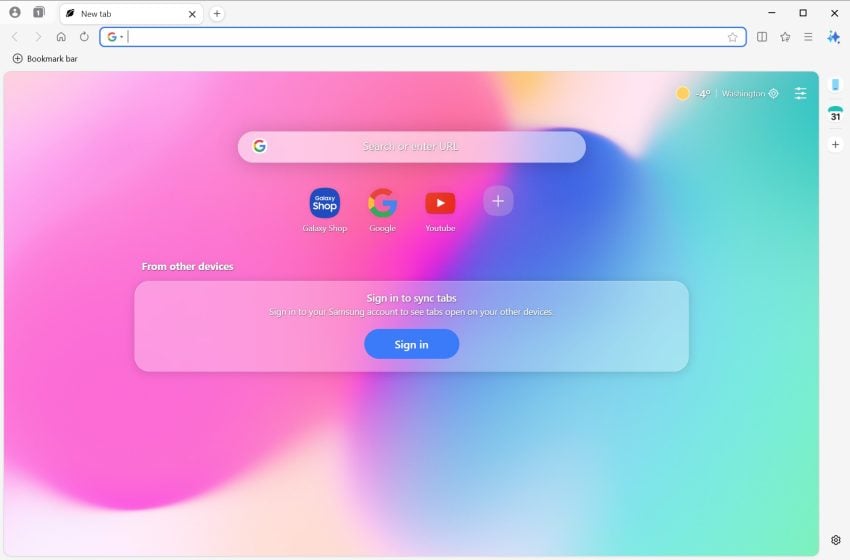
Samsung Internet for Windows is now available without regional restrictions. Here is an overview of the browser and my personal take on it.
Samsung Internet is a long-standing mobile browser that is installed by default on Samsung mobile devices. Samsung announced some time ago that it would expand the browser to the Windows operating system. First launched as a limited beta, it can now be downloaded by anyone.
What is Samsung Internet? The desktop version for Windows is a Chromium-based browser. This means that it shares the foundation with Google Chrome, Microsoft Edge, and many other browsers.
For Samsung, it is an attempt to bridge the gap between Samsung Galaxy mobile devices and Windows PCs. Without support for Windows, Galaxy users had to find another browser to sync data, such as passwords, between their mobile devices and desktop systems.
Since it is based on Chromium, it shares many traits with Google Chrome. It offers similar performance levels and web compatibility, and supports the installation of Chrome extensions from the official web store.
Samsung Internet: unique and noteworthy features
Here is an overview of the browser’s standout features. It should not come as a surprise that most are Samsung-specific.
Integrated ad-blocker and smart anti-tracking functionality.
Samsung account integration, including Samsung Pass. This syncs important data, such as passwords or biometric login data, between devices.
Galaxy AI feature support. The two main features that Samsung Internet for Windows supports right now are the creation of summaries and translations.
A design that mimics the One UI design of the Galaxy phones and tablets.
Is it your next browser (aka, who is it for?)
Samsung Internet offers better out-of-the-box privacy protections than Google Chrome. Users can enable ad-blocking and privacy protections right on start, which gives the browser an edge. Chrome users have to install a content blocker extension to get a similar level of protection.
The explanation for this is simple: Google is an advertising company primarily. It depends on advertising revenue and shipping Chrome with an integrated content blocker would torpedo its business significantly. This is the main reason why Chrome for mobile does not support extensions.
Samsung is a hardware company primarily. It makes money from devices and components that it sells and its focus is to keep users in its ecosystem. Users who are satisfied with the products are more likely to remain customers, that is why Samsung is using privacy as a premium feature in its browser.
Who is it for? Samsung Internet for Windows is designed for Samsung users. Users who already use the mobile version of the browser and work on Windows PCs as well. They benefit from the integration, as they may sync data directly to their Windows devices with the browser without relying on third-party browsers or software.
The browser is a hard sell for anyone else. While it does come with content blocking advantages over Chrome or Edge, it is easy enough to install a content blocker. it is also noteworthy that other browsers, including Vivaldi, Brave and Opera, do come with native content blockers as well.
If you were hoping for a quiet start to the new year, Microsoft has other plans.
The January 2026 Patch Tuesday is here, and it marks a heavy start to the year for system administrators. Microsoft has addressed a massive 114 vulnerabilities across its ecosystem, including eight critical flaws and a zero-day that require immediate attention.
While Microsoft released a large number of patches for its operating systems and services, it is CVE-2026-20805 that requires immediate attention. It is an actively exploited zero-day vulnerability in the Desktop Windows Manager (DWM) that is being used by threat actors to bypass security controls.
Add to that a “no-click” remote code execution flaw in Microsoft Office that is triggered by using the preview pane, it is clear that administrators have their hands full in the coming days to address these and others.
Beyond the security fixes, this month also brings some significant housekeeping: Microsoft is officially purging legacy Agere modem drivers from Windows images, marking the end of the road for decades-old hardware dependencies.
Key Action Item: Administrators should prioritize patching CVE-2026-20805 (DWM) immediately, as it is being used in the wild to bypass security controls.
Important Patches
CVE-2026-20805 — Desktop Window Manager Information Disclosure Vulnerability
Security updates and non-security changes. Removes old modem drivers (Agere).
Deep Dive: The Critical Vulnerabilities
While the total count of vulnerabilities is high, administrators may want to focus their attention on three specific issues: a zero-day vulnerability that is exploited in the wild, “no-click” Microsoft Office exploits, and a major issue affecting in Secure Boot.
The Zero-Day: CVE-2026-20805 (actively exploited)
CVE-2026-20805 is an Information Disclosure vulnerability that allows a threat actor to read specific memory addresses from remote ALPC ports. While this does not allow the actors to run malicious code directly, attackers may exploit the vulnerability to bypass Address Space Layout Randomization (ASLR).
This may enable them to create other remote code execution exploits that target system components directly.
The “No-Click” Microsoft Office issue
CVE-2026-20952 and CVE-2026-20953 are use-after-free vulnerabilities that allow remote code execution. The danger comes from the fact that they do not require user interaction for execution.
They rely on preview panes, either in File Explorer or Outlook, to trigger exploits. An attacker would have to get a specially crafted Office document on the user’s computer. When a user views the file in a preview area, for example by selecting it in File Explorer, the exploit triggers.
The Secure Boot bypass
CVE-2026-21265 describes a Secure Boot issue. It is not a bug in code that can be exploited, but a cryptographic expiration issue. Secure Boot certificates issued in 2011 are set to expire later this year.
Installation of this update rotates the certificates ensuring that devices will continue to boot and won’t fail to boot once the old certificates expire.
Significant changes
Microsoft removes drivers for legacy Agere modems from Windows with this update. The modems have not been manufactured for a long time and the main reason for removal is a vulnerability CVE-2023-31096. Instead of patching the driver, Microsoft decided to remove the driver from Windows instead.
The removal affects Enterprise and industrial users for the most part. It can affect point-of-sale terminals or legacy fax servers that rely on Agere modem chipsets. These will no longer work when the update is applied.
A quick check of the Device Manager should reveal whether “Agere Systems” or “LSI” models are used.
WDS Hardening enters first phase
This is only relevant if Windows Deployyment Services (WDS) is used. Microsoft is hardening WDS. The company introduces new event logging and Registry controls to block unauthenticated deployment requests.
Starting this month, logging is enabled. Administrators may enforce the block, but it is not enabled by default. From April 2026 onward, Microsoft plans to enable “block by default”.
Companies that rely on unauthenticated imaging have until April 2026 to switch to authenticated deployment. There is also a new AllowHandsFreeFunctionality Registry key, which enables the old status quo.
First Steps: Your Patch Tuesday Strategy
Patch the Zero-Day issue that is exploited in the wild immediately.
Deploy updates to mitigate the “no-click” vulnerability in Microsoft Office.
Make sure legacy modem hardware is not in use anymore.
Ensure that boot loaders are updated before certificates expire.