Just days after Microsoft released the first security updates for Windows, it is rushing out an out-of-bounds update to fix sign-in failures during Remote Desktop connections
It wouldn’t be a true Patch Tuesday if something didn’t break immediately after. If you spend the last days trying to figure out why Remote Desktop connection suddenly refuse to authenticate, you may be glad to hear that Microsoft acknowledged the issue yesterday.
Even better, the company released an out-of-bounds update on Saturday that addresses the issue.
Essential information
The issue: Microsoft notes that some Windows users “experienced sign-in failures during Remote Desktop connections”. The issue affected several Remote Desktop apps, including the Windows app.
Affected systems: Microsoft released updates for Windows 10 (KB5077796) and Windows 11, versions 24H2 and 25H2 (KB5077744)
Availability: Microsoft releases the update via Windows Update, Microsoft Update, and the Microsoft Update Catalog.
Administrators need to install the out-of-bounds update to fix the issue.
AI component updates included
While the main purpose of the update is to restore Remote Desktop connectivity, Microsoft has added several updated AI components to the update.
This affects the Windows 11 update only, as Windows 10 support is limited. Here is the list of components that are also updated when the patch is installed on a Windows 11 machine.
AI Component
Version
Image Search
1.2511.1224.0
Content Extraction
1.2511.1224.0
Semantic Analysis
1.2511.1224.0
Settings Model
1.2511.1224.0
Closing Words
The RDP issue is not the only one that Microsoft confirmed after the release of the January 2026 updates. Some Enterprise systems running Windows 11, version 23H2 were plagued by a shutdown bug that prevented the systems from shutting down properly.
Microsoft published a workaround — running the shutdown command from run or a command prompt — but no final fix for the issue at the time of writing.
Yesterday, Microsoft acknowledged that some Windows 11 devices are unable to power down after installing the KB5073455 security update.
When users try to shut down or hibernate affected machines, the devices simply restart instead.
Overview: The Secure Launch Shutdown Bug
Who is affected?
Operating system: Windows 11, version 23H2.
Target audience: Mostly Enterprise and IoT editions, as Home and Pro editions are no longer support. The Enterprise editions of Windows 11, version 23H2 will reach end of servicing this November.
Specific hardware: The bug is triggered only on devices with Secure Launch (System Guard Secure Launch) enabled.
Most home users and small to medium-sized businesses should not be affected by the issue.
The workaround
While Microsoft is fixing the underlying issue, it has published a workaround to fix the issue on affected systems.
Users who want to shut down the computer may run the following command from the command prompt: shutdown /s /t 0
Here are the steps:
Open the Start menu.
Type cmd.
Launch the Command Prompt from the search results by selecting it.
Paste shutdown /s /t 0 and press the Enter-key to execute.
Microsoft notes that it has no workaround currently for entering hibernation. The company recommends that users save all work regularly to avoid that work is lost when devices run out of power.
Windows and its Shut Down bugs: a trip down memory lane
Windows had a fair share of shut down related bugs over the years. The most notorious is a bug that plagued Windows users for nearly a decade before Microsoft finally fixed it in late 2025.
When users selected the update and shut down option from the Start menu, Windows would instead restart the system and load the login screen again. PCs would remain turned on until the user recognized the error.
Microsoft explained that the issue was caused by a race condition in the Windows Servicing Stack that caused the shutdown command to get “forgotten” during the update process.
Fast Start woes
Microsoft introduced Fast Start, also known as hybrid boot, in Windows 8. This new feature was designed to make the PC start up faster by using hibernation.
The problem was that older systems did not support this new hybrid state. This caused blue screens on some systems. The systems would reboot automatically to recover and this looked to the user as if shut down was broken.
This is no longer an issue on modern PCs, but on older PCs, system administrators could disable Fast Startup to resolve the issue.
If you were hoping for a quiet start to the new year, Microsoft has other plans.
The January 2026 Patch Tuesday is here, and it marks a heavy start to the year for system administrators. Microsoft has addressed a massive 114 vulnerabilities across its ecosystem, including eight critical flaws and a zero-day that require immediate attention.
While Microsoft released a large number of patches for its operating systems and services, it is CVE-2026-20805 that requires immediate attention. It is an actively exploited zero-day vulnerability in the Desktop Windows Manager (DWM) that is being used by threat actors to bypass security controls.
Add to that a “no-click” remote code execution flaw in Microsoft Office that is triggered by using the preview pane, it is clear that administrators have their hands full in the coming days to address these and others.
Beyond the security fixes, this month also brings some significant housekeeping: Microsoft is officially purging legacy Agere modem drivers from Windows images, marking the end of the road for decades-old hardware dependencies.
Key Action Item: Administrators should prioritize patching CVE-2026-20805 (DWM) immediately, as it is being used in the wild to bypass security controls.
Important Patches
CVE-2026-20805 — Desktop Window Manager Information Disclosure Vulnerability
Security updates and non-security changes. Removes old modem drivers (Agere).
Deep Dive: The Critical Vulnerabilities
While the total count of vulnerabilities is high, administrators may want to focus their attention on three specific issues: a zero-day vulnerability that is exploited in the wild, “no-click” Microsoft Office exploits, and a major issue affecting in Secure Boot.
The Zero-Day: CVE-2026-20805 (actively exploited)
CVE-2026-20805 is an Information Disclosure vulnerability that allows a threat actor to read specific memory addresses from remote ALPC ports. While this does not allow the actors to run malicious code directly, attackers may exploit the vulnerability to bypass Address Space Layout Randomization (ASLR).
This may enable them to create other remote code execution exploits that target system components directly.
The “No-Click” Microsoft Office issue
CVE-2026-20952 and CVE-2026-20953 are use-after-free vulnerabilities that allow remote code execution. The danger comes from the fact that they do not require user interaction for execution.
They rely on preview panes, either in File Explorer or Outlook, to trigger exploits. An attacker would have to get a specially crafted Office document on the user’s computer. When a user views the file in a preview area, for example by selecting it in File Explorer, the exploit triggers.
The Secure Boot bypass
CVE-2026-21265 describes a Secure Boot issue. It is not a bug in code that can be exploited, but a cryptographic expiration issue. Secure Boot certificates issued in 2011 are set to expire later this year.
Installation of this update rotates the certificates ensuring that devices will continue to boot and won’t fail to boot once the old certificates expire.
Significant changes
Microsoft removes drivers for legacy Agere modems from Windows with this update. The modems have not been manufactured for a long time and the main reason for removal is a vulnerability CVE-2023-31096. Instead of patching the driver, Microsoft decided to remove the driver from Windows instead.
The removal affects Enterprise and industrial users for the most part. It can affect point-of-sale terminals or legacy fax servers that rely on Agere modem chipsets. These will no longer work when the update is applied.
A quick check of the Device Manager should reveal whether “Agere Systems” or “LSI” models are used.
WDS Hardening enters first phase
This is only relevant if Windows Deployyment Services (WDS) is used. Microsoft is hardening WDS. The company introduces new event logging and Registry controls to block unauthenticated deployment requests.
Starting this month, logging is enabled. Administrators may enforce the block, but it is not enabled by default. From April 2026 onward, Microsoft plans to enable “block by default”.
Companies that rely on unauthenticated imaging have until April 2026 to switch to authenticated deployment. There is also a new AllowHandsFreeFunctionality Registry key, which enables the old status quo.
First Steps: Your Patch Tuesday Strategy
Patch the Zero-Day issue that is exploited in the wild immediately.
Deploy updates to mitigate the “no-click” vulnerability in Microsoft Office.
Make sure legacy modem hardware is not in use anymore.
Ensure that boot loaders are updated before certificates expire.
When Microsoft CEO Satya Nadella argued that the discussion surrounding AI should move beyond “slop vs sophistication”, he probably did not have developers in mind that could take this literally.
Fun fact: The dictionary Merriam-Webster coined Slop the word of the year 2025.
Serial developer Belim, known for open source tools such as FlyBy11 or CrapFixer, created WinSlop as a direct response to Nadella’s plea.
What is it? WinSlop is a free open source program for Windows that removes “unnecessary, low-value system components” from the operating system that “consume resources, and reduce user control without providing meaningful benefit” according to the developer’s own description.
If you have used the developers other tools, you know what to expect. WinSlop is a lightweight tweaker for Windows that can turn off unwanted features among other things.
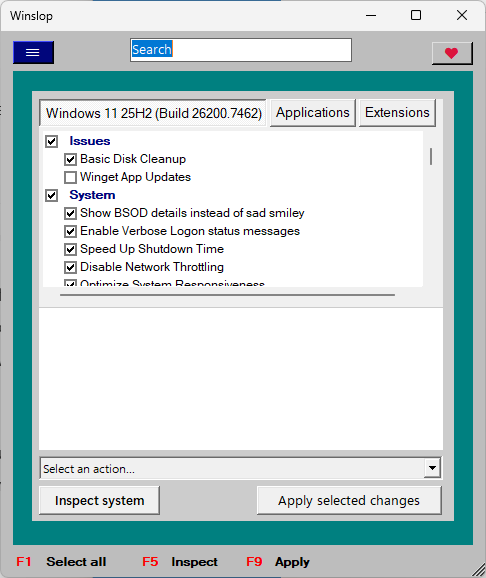
A screenshot of the WinSlop application running on Windows 11.
The tiny program launches directly when you execute it. It separates tweaks into three main tabs. The first displays components of Windows that you may disable by checking and unchecking boxes.
While AI components are a focus, it does not stop there. You can also use it to disable ads in certain places, tame Microsoft Edge, or remove unwanted features from the user interface.
The list is long and you may use the built-in search to find specific options faster.
One interesting option here is the ability to run a system check. This checks all 50 tweaks currently integrated to see whether they have been applied already. To enable a tweak, check the box in front of it. If you do not want a tweak to be applied, make sure its box is unchecked before you hit the “apply selected changes” button or press F9.
Most tweak titles are self-explanatory, but some may require a bit of research. The program lacks tooltips and does not provide additional information on the tweaks.
While it is clear what “Disable Bing Search” does, not all users may know what “Disable Hibernation” or “Optimize System Responsiveness” do. Detailed information would improve the app significantly in this regard. Experienced users may also want to know the exact tweaks that go into the system optimization.
Switching to the apps tab, you are prompted to run a system inspection. WinSlop checks for installed apps and lists apps that it considers bloatware. You may check apps individually to remove them from the system with a click on apply.
The Extensions tab, last but not least, can be used to load the Chris Titus app Windows Toolbox. It offers even more options, such as installing popular apps, tweaking Windows or enabling features such as the Subsystem for Linux. It is a separate app, which I guess is handy to have, but does not really add to the program itself.
Closing words
WinSlop is a handy tweaker for Windows that may get some publicity because its developer references the slop-quote of Microsoft’s CEO directly. However, it does not really add much to the world of tweaking programs that has not been there before.
Yes, it is easy to use and the system checker is nice, but that is about it. Still, if you have not used a tweaker on Windows yet, it is a good program to get started.
When Microsoft released its Windows 10 operating system, it introduced a number of under-the-hood changes. One of these changed how updates were provided to Windows 10 PCs.
Up until the release of Windows 10, Microsoft released individual updates for its systems. While that gave administrators excellent control over the updates, as they could pick the ones that they wanted to install, it meant that a large number of updates had to be installed when an operating system like Windows 7 was installed after a number of years.
Microsoft tried to limit this with the release of Service Packs. These could be installed instead of all earlier updates, which improved the speed and stability of the installation process.
Cumulative updates entered the Windows world in 2015
Microsoft introduced cumulative updates with Windows 10 in 2015. It later introduced the system to earlier operating systems.
The idea was simple: instead of releasing individual updates, Microsoft would release updates that included all previous updates.
Instead of having to install dozens of updates, in some cases hundreds, Windows administrators would simply install the latest cumulative update and they would be done with the updating for the most part.
A new problem emerged: Cumulative updates reduced the number of updates that needed to be installed. However, since they included all previous updates, they grew in size over time.
Surprisingly though, this did not mean that systems downloaded full sized updates each month. Microsoft used a technique called differential downloads, or express updates, to deliver updates to Windows 10 systems.
This meant, that Windows Update downloaded only the update bits that were new. Everything that was installed already was skipped, which increased the updating speed.
The cumulative update model caused four major issues:
While computers only downloaded the update bits they needed, they had to compute which updates they were missing and do a lot of unpacking, verifiying and merging.
Fresh installs or factory resets take a long time. Computers had to download a massive update in the beginning, which would take long to install.
The system caused the WinSxS folder to bloat over time, which could result in storage problems on the main drive.
Storage was still a problem for, mostly, Enterprise customers who hosted and distributed updates from company servers.
Checkpoint updates come to the rescue
Microsoft introduced checkpoint updates in Windows 11, version 24H2. The main idea was to introduce updates regularly that would reset the cumulative updates.
They take a cue from service packs by creating new start points for cumulative updates. This addressed the major issues that Microsoft identified, e.g., instead of computing changes from the very release of the operating system, the processor would only have to do so from the last checkpoint update release.
Updates should install faster on recent versions of Windows 11 because of this. They also deal with the other problems mentioned, by reducing WinSxS storage or providing smaller, less CPU-taxing updates during fresh installs or resets.
Do customers want these AI features or care about them? It is certainly too early to conclude how this will all play out. Do companies spend billions on AI research, infrastructure and products that they will never recoup because the audience is not big enough?
Dell admitted something interesting in an interview with PC Games recently during CES 2026. The company revealed that it moved away from putting AI PCs front and center in marketing stating that the message that it tried to deliver with its products instead was “not AI first”.
Dell realized that consumers were, by large, not really interested in AI PCs. They were interested in PCs, but whether these were equipped with NPUs and capable of running AI operations locally or not, was apparently not something that the majority of Dell customers prioritized.
We’re very focused on delivering upon the AI capabilities of a device—in fact everything that we’re announcing has an NPU in it—but what we’ve learned over the course of this year, especially from a consumer perspective, is they’re not buying based on AI,” Terwilliger says bluntly. “In fact I think AI probably confuses them more than it helps them understand a specific outcome.
While all recent Dell devices come with NPUs and AI PC capabilities, the company is not focusing its marketing efforts on that.
It seems likely that other PC manufacturers are experiencing the same. While none has come forward that openly yet, there seems to be a clear divider between the interests of companies that push AI and the people that buy PC products with AI capabilities.
Most AI features that Microsoft introduced in Windows 11 do not appear overly useful to the majority of Windows users. Many mimic features that every AI chat on the Internet supports. This could change the moment Microsoft introduces something truly useful, like an AI that reacts to support requests by fixing the issues automatically. Whether something like this is coming this year remains to be seen.
For now, expect to be continued to be bombarded with AI announcements and integrations in products and services. Whether this are truly useful, annoying or even obnoxious is up for every user to decide.
Microsoft confirmed that Windows 11 SE is on its way out. The operating system will reach end of support in October 2026 and won’t receive updates anymore after that month’s Patch Day. It is one of several Microsoft products that reach end of support or life in 2026.
What is Windows 11 SE? Windows 11 SE is a limited version of Windows 11 that is cloud-first and specifically designed for the education market, which requires cheap, secure, and easy to manage devices.
Microsoft created the operating system as a way to compete directly with Google’s Chromebook, regain lost grounds and increase the reach of its Microsoft 365 ecosystem.
Windows 11 SE offered a simplified interface, better offline capabilities than Chrome, and manageability via Microsoft Intune for Education. Critics found Windows 11 SE to be considerably heavier than Chrome OS. Additionally, availability was limited and users could not install apps on their devices.
Windows 11 SE: the countdown to end of support
Microsoft confirms that Windows 11 SE will no longer be supported after October 2026. This does not come as a total surprise, as Microsoft announced last year already that it would not release another feature update for Windows 11 SE.
The last feature update is Windows 11, version 24H2. From October 2026, Microsoft won’t release software updates or security fixes, and won’t offer technical assistance either.
Devices will continue to work, according to Microsoft. However, Windows 11 SE devices were low-spec devices. Microsoft’s own reference device came with an Intel Celeron N4020 or N4120 processor, 4 or 8 GB of DDR4 RAM, and either 64 GB or 128 GB of eMMC storage.
Third-party manufacturers, including Dell, Lenovo and HP, created custom devices, but they all had in common that components were not designed for speed of performance.
While it may be possible to install a different operating system on the devices, it would be ironic if Chrome OS would be installed on those devices. A clean install of windows 11 may also be an option, at least on some devices. However, this will likely lead to performance issues due to the low-power processor and bare minimum storage for running Windows 11.
It seems unlikely that Microsoft is working on Windows 12 SE. Microsoft recommends that customers migrate to devices that run Windows 11, but does not seem to offer any discounts to affected customers at this point.
Windows 11, version 22H2 support ended just a few months ago for business customers and version 23H2 support ended for consumers as well. Additionally, Microsoft Office 2016 and 2019 reached end of support.
Looking forward, 2026 will be another interesting year. Consumers who run Windows 10 PCs with ESU will no longer get updates from Microsoft after the one-year extension has run its course.
But that is not the only change. Windows 11, version 24H2 reaches end of support as well. Business customers have to upgrade Windows 11, version 23H2 to ensure that their devices remain supported with updates.
Here is the list of products that reach end of support or life in 2026. Note that this may not be complete, as Microsoft does not provide an easily accessible list for all of its products.
Inspiration was taken from the list over at Deskmodder, but I have fine-tuned it somewhat.
Microsoft Windows
Windows 10 2016 LTSB / IoT Enterprise LTSB 2016 reach end of ESU on October 13th, 2026
Windows 11, version 23H2 Enterprise/Education/IoT Enterprise editions reach end of support on November 10th, 2026.
Windows 11, version 24H2 Home/Pro editions reach end of support on October 13th, 2026.
Windows 11 SE, reaches end of support in October 2026.
Windows Server 2012 and 2012 R2 reaches end of ESU on October 13th, 2026.
Windows Server 2022 reaches end of mainstream support on October 14th, 2026. ESU available.
Microsoft Office
Microsoft Office 2021 reaches end of support on October 13th, 2026.
Office LTSC 2021 and Office LTSC 2021 for Mac reach end of mainstream support on October 13th, 2026.
Other Microsoft products
Microsoft .NET 8 (LTS) reaches end of support on November 10th, 2026.
Microsoft .NET 9 reaches end of support on November 10th, 2026
PowerShell 7.4 (LTS) reaches end of support on November 10th, 2026.
SQL Server 2016 reaches end of extended support on July 14th, 2026.
Generally speaking, Microsoft is supporting Windows 11 Home and Pro editions for two years, while business and Enterprise editions get three years of support.
Now You: Do you use a product or service that is reaching end of support this year? What are your plans dealing with this? Feel free to leave a comment down below.
Microsoft released the 2025 feature update for Windows 11 in late September 2025. It was a smaller update that installs like a regular update instead of a bigger feature update. That is probably the main reason why Microsoft enabled broad distribution of the update shortly after its release.
The update should install automatically on most Windows 11 devices, provided that version 24H2 — last year’s feature update — is installed.
However, I noticed on one of my machines that Microsoft was not offering the new feature update via Windows Update.
First thing you may want to do in that case is to check if Microsoft has so-called Safeguard Holds in place.
Good to known: A Safeguard Hold blocks updates from machines, if certain issues are known that affect them. Microsoft uses the system to prevent larger issues on PCs that may be caused by updates.
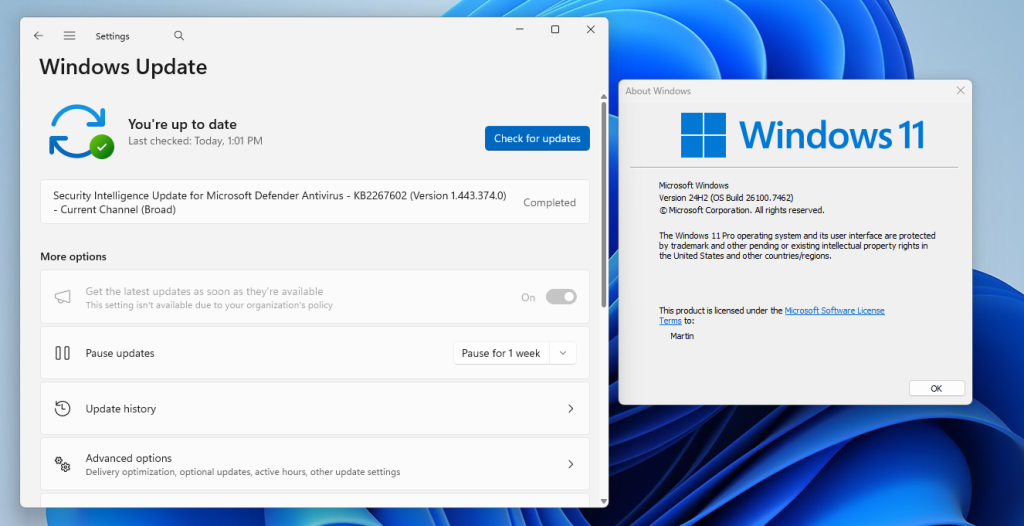
Windows Update does not offer Windows 11, version 25H2 on a fully patched Windows 11, version 24H2 system.
Windows 11, version 25H2 has just three known issues listed on the official Windows 11 health dashboard. Two of these are listed as resolved, one as mitigated.
You may notice that your system is not affected by any of them. This was the case for the machine in question that I tried to upgrade.
Here are a few extra verification steps:
Make sure you have all updates installed that are offered via Windows Update. Go to Settings > Windows Update and activate the “check for updates” button.
Check the “get the latest updates as soon as they’re available” box.
Make sure the main drive has enough free storage space for the update. If it is low, say less than 20 gigabytes, you may want to consider freeing up space.
How to upgrade to Windows 11, version 25H2
Windows administrators who are in the same position have a few options. The easiest is to install a small enablement package, which upgrades the system to the latest feature update release.
There is a problem: Microsoft is not hosting the update file on its Microsoft Update Catalog website. This means that the download has to come from a third-party website, which needs to be trusted.
My recommendation is to download the package from Deskmodder, a German website with an impeccable record.
Download Windows11.0-KB5054156-x64.msu from the website (or another, if you prefer that).
Double-click on the update file to run the upgrade.
If things go well, Windows 11 should be upgraded to version 25H2.
Microsoft’s Windows operating system comes with several features that enables users to restore the system. While the functionality helps at times, it falls short at other times.
That’s why third-party backup software remains important. The main advantage is that it can be fully independent of the operating system, provided that it supports backup media that you can boot from.
This allows you to run the software and restore the system, even if Windows refuses to boot or load, or when Windows recovery features fail.
There are numerous good and free apps out there that support all of this. My favorite for the past several years has been Paragon’s Backup & Recovery Community Edition.
It is free and supports full system backups as well as scheduled backups. While it lacks some advanced features, such as direct disc cloning or advanced partition tools. However, for the purpose of creating a full system backup, Paragon’s free solution is just fine.
What you need
Here is what you require:
Download the latest version of the free backup software from Paragon’s website. Install the software on the Windows PC.
An external hard drive or large USB stick. How large depends on the size of the system drive. I suggest several Terabytes, as you may want to store multiple backups on the drive. Otherwise, you’d have to delete old backups to make room.
A recordable disc or USB thumb drive for the recovery media.
Launch the backup software after installation and connecting the external drive. You should see the following screen:
Follow these steps to create your very first backup:
Click on “Backup source”. You get the option to backup up the entire computer, disk/volumes, or files/folders.
Select Disk/Volumes. All connected drives are displayed.
Pick the main drive that Windows is installed on. Look for “Local Disk (C:)” when i doubt. Make sure the entire drive is selected and not just a volume by clicking on its name. Confirm with OK.
Click on “Destination” next.
Select the letter of the external drive that you connected. You may alternatively create a folder on it for the backups. Confirm with OK.
Switch to Options once back in the main interface. Here, you have several options that you may want to configure:
Password Protection: This blocks access to the backup file unless the password is provided.
Backup compression: Set to normal by default. If you pick “Best”, the backup file size may be smaller, but the operation will take longer. If you have enough space, you could also pick “none” or “fast” for quicker backups.
Check backup integrity after creation: This verifies that the backup has been created successfully. Will take longer to complete.
Go back to “backup strategy”.
Select “is not scheduled” to schedule backups. This can be used to create automatic backups, but the external drive needs to be plugged in.
Select “full backups only” to change that. The two other options, “chain of full and incremental backups” and “chain of full and differential backups” reduce the storage requirements, but it takes longer to restore. Here you can also select the retention, which is set to “forever” by default. You could change it to “until storage is full”.
Activate the “back up now” button to start the process.
Once done with the first backup, launch the Settings of the app and activate the “Recovery Media Builder”. Use it to create media to boot when you need to recover a system backup.
The easier option is to pick “Use this Windows image” under creation mode. Note that you need an USB thumb drive or burn the recovery media to disc. This, along with the external drive are required to initiate a recovery process from outside of the Windows operating system.
Now You: do you use a backup software and create backups regularly? If so, which application do you use and how do you store your backups?