Chipp.in Tech News and Reviews

Windows, Security & Privacy, Open Source and more

Menu
  • Home
  • Windows
  • Security & Privacy
  • Gaming
  • Guides
  • Windows 11 Book
  • Contact
  • RSS Feed
Menu

Tag: windows 10

How to fully back up Windows with free backup software

Posted on December 24, 2025 by Martin Brinkmann

Microsoft’s Windows operating system comes with several features that enables users to restore the system. While the functionality helps at times, it falls short at other times.

That’s why third-party backup software remains important. The main advantage is that it can be fully independent of the operating system, provided that it supports backup media that you can boot from.

This allows you to run the software and restore the system, even if Windows refuses to boot or load, or when Windows recovery features fail.

There are numerous good and free apps out there that support all of this. My favorite for the past several years has been Paragon’s Backup & Recovery Community Edition.

It is free and supports full system backups as well as scheduled backups. While it lacks some advanced features, such as direct disc cloning or advanced partition tools. However, for the purpose of creating a full system backup, Paragon’s free solution is just fine.

What you need

Here is what you require:

  • Download the latest version of the free backup software from Paragon’s website. Install the software on the Windows PC.
  • An external hard drive or large USB stick. How large depends on the size of the system drive. I suggest several Terabytes, as you may want to store multiple backups on the drive. Otherwise, you’d have to delete old backups to make room.
  • A recordable disc or USB thumb drive for the recovery media.

Launch the backup software after installation and connecting the external drive. You should see the following screen:

Follow these steps to create your very first backup:

  1. Click on “Backup source”. You get the option to backup up the entire computer, disk/volumes, or files/folders.
  2. Select Disk/Volumes. All connected drives are displayed.
  3. Pick the main drive that Windows is installed on. Look for “Local Disk (C:)” when i doubt. Make sure the entire drive is selected and not just a volume by clicking on its name. Confirm with OK.
  4. Click on “Destination” next.
  5. Select the letter of the external drive that you connected. You may alternatively create a folder on it for the backups. Confirm with OK.
  6. Switch to Options once back in the main interface. Here, you have several options that you may want to configure:
    • Password Protection: This blocks access to the backup file unless the password is provided.
    • Backup compression: Set to normal by default. If you pick “Best”, the backup file size may be smaller, but the operation will take longer. If you have enough space, you could also pick “none” or “fast” for quicker backups.
    • Check backup integrity after creation: This verifies that the backup has been created successfully. Will take longer to complete.
  7. Go back to “backup strategy”.
    • Select “is not scheduled” to schedule backups. This can be used to create automatic backups, but the external drive needs to be plugged in.
    • Select “full backups only” to change that. The two other options, “chain of full and incremental backups” and “chain of full and differential backups” reduce the storage requirements, but it takes longer to restore. Here you can also select the retention, which is set to “forever” by default. You could change it to “until storage is full”.
  8. Activate the “back up now” button to start the process.

Once done with the first backup, launch the Settings of the app and activate the “Recovery Media Builder”. Use it to create media to boot when you need to recover a system backup.

The easier option is to pick “Use this Windows image” under creation mode. Note that you need an USB thumb drive or burn the recovery media to disc. This, along with the external drive are required to initiate a recovery process from outside of the Windows operating system.

Now You: do you use a backup software and create backups regularly? If so, which application do you use and how do you store your backups?

The Microsoft Download Center Archive website

Need old Microsoft downloads? There is an archive for that!

Posted on December 9, 2025December 9, 2025 by Martin Brinkmann

Microsoft has accumulated a wealth of downloads over the last four decades or so. From tools and drivers to Windows versions and standalone applications. While some may not be useful anymore at this day and age, other than for a nostalgic look back at how things were back in the good old days, others are still useful.

However, Microsoft is pruning its archives regularly. Means, downloads may be removed and it is becoming increasingly difficult to find them. While third-party sites may offer them, some may add a pinch of malware on top of the downloads, which is a problem especially for inexperienced users or users in a hurry.

Enter the Microsoft Download Center Archive. It is a free site that offers legacy downloads for Microsoft products. You find downloads between the years 2012 and 2025 in the archive, which Microsoft deleted from its own archives.

Here is a glimpse of what you can expect:

  • PowerToys and Fun Packs for Windows XP.
  • Office Viewers like Word Viewer 2003 or Visio Viewer 2016.
  • Old .NET Framework versions.
  • Microsoft Visual C++ and Visual Basic Redistributables.
  • Windows Help.
  • Microsoft Report Viewer.
  • And much more.

While the focus is on downloads for older versions of Windows, at least some of the downloads are also compatible with Windows 10 or Windows 11. Furthermore, since Windows 10 is near the end of its support, it is possible that Microsoft is going to remove downloads for Windows 10 in the near future.

These will also be added to the archive then, making it a great resource for users who plan to stick to Windows 10.

The site offers a search and a list of common downloads. You can type the name of an operating system to get all downloads for it, or search for the name of a software or tool instead.

Downloads are hosted at the Internet Archive. They start instantly and do not require an account.

Closing Words

The unofficial Microsoft Download Center Archive is a useful website for Windows users who want to download software that Microsoft removed from its official websites.

Windows 11

Dell: 500 million Windows 10 PCs can’t upgrade to Windows 11

Posted on November 27, 2025 by Martin Brinkmann

How is the last supported Windows operating system doing after Microsoft ended support for its predecessor Windows 10 a month ago? Not so good, at least according to Dell CEO Jeffrey Clarke.

Clarke revealed several information during the company’s latest earnings call. One of them being that Dell believes that there are 500 million Windows 10 PCs out there in the world that can’t be upgraded to Windows 11 officially. While most could be upgraded by bypassing Microsoft’s artificially introduced system requirements, only a small fraction will because of the technical process that is involved and the consequences.

Another 500 million PCs that run Windows 10 can be upgraded, but have not yet. That leaves about 500 million PCs that run Windows 11 already, according to Dell.

However, this is not the only bombshell that Clarke dropped during the call. He also revealed that the transition from Windows 10 to Windows 11 is much slower than the transition from Windows 8 to Windows 10.

The transition is lagging behind, which affects Dell’s growth in the sector. Dell reported a revenue of $12.1 billion for its Client Solutions Group, which bundles commercial client and consumer PC sales. Here, Dell reported a slight uptick in commercial client revenue to $10.1 billion and a declining revenue of $2 billion in consumer PCs.

The Infrastructure Solutions Group made more than up for that though. Its revenue was $14.1 billion, which is a 24 percent increase compared to the last year and the sevenths consecutive quarter with double-digit growth. AI is the main driver of the revenue increase of this group.

To sum it up: Windows 10 users seem to hold on to their PCs, even if they could upgrade them to Windows 10. For now, PCs remain supported with security updates if ESU is enabled for the device.

Now You: Windows 10 or Windows 11, what is your preference? Or something else? Maybe you made the switch to Linux already?

Windows 11 is removing an option to bypass Microsoft account and internet during setup

Not again! Microsoft confirms another Bitlocker Recovery issue in Windows

Posted on November 5, 2025 by Martin Brinkmann

Windows users who use BitLocker to encrypt their data either willingly or unknowingly may have run into a BitLocker related issue several times in the past.

It is unclear when it all started, but the essence of the bug was always the same: affected Windows PCs would boot into BitLocker Recovery Mode after installation of an update that caused the issue.

The problem here is that to get out of the mode, users needed the recovery key, which many probably did not really know. While it is easy to look it up online, at least when a user uses a Microsoft account to sign in, it still was a hassle in the best case.

Microsoft confirmed another BitLocker Recovery issue on the Microsoft 365 admin center, but not yet as a known issue for regular users who do not have access to the admin portal.

The issue affects the following Windows versions:

  • Windows 10, version 22H2
  • Windows 11, version 24H2
  • Windows 11, version 25H2

The systems are affected, if the October 2025 security updates are installed on the machines.

Microsoft says that the issue affects Windows PCs with Intel processors and Modern Standby mostly. Still, other systems may also be affected.

As usually, Windows users may resolve the issue by entering the BitLocker recovery key when prompted for it.

Closing Words

Microsoft seems to have a hard time fixing the BitLocker bug for good, as it reappeared several times, including in May of 2025 when Microsoft issued another warning about the problem.

Firefox

Mozilla will continue to support Firefox on Windows 10

Posted on October 17, 2025October 17, 2025 by Martin Brinkmann

Now that support for Windows 10 has ended, software developers will make announcements regarding support of their products on the operating system.

Mozilla has just announced that it will continue to support Firefox on Windows 10 devices for “the foreseeable future”. While the organization did not provide a specific, at least “at the minimum until” would be nice, it guarantees that Firefox users on Windows 10 continue to receive updates for the browser.

Mozilla is also one of the few browser makers that supports Windows 7, as it extended support for the operating system several times. Considering that Windows 10 is more widely used, it is likely that support for Firefox on Windows 10 will go on for a long time.

If you remain on Windows 10, you will continue to get the same updates to Firefox you do today, with all of our latest feature improvements and bug fixes. This includes our commitment to resolve security vulnerabilities as rapidly as we can, sometimes in less than 24 hours, with special security updates. Windows 10 remains a primary platform for Firefox users. Unlike older versions of Windows like Windows 7 and 8, where Mozilla is only offering security updates to Firefox, Windows 10 will get the latest and greatest features and bug fixes just like users on Windows 11.

Mozilla recommends that Windows 10 users upgrade to Windows 11, if the PC supports it, or subscribe to Extended Security Updates for Windows 10. The latter would extend support by a year on consumer PCs and for up to three years on business PCs.

Other browser makers, including Google, have not made announcements regarding end of support of their browsers. The official Chrome Support Timelines website lists Chrome’s deprecation release and date for Windows 10 as “not yet scheduled”.

With Windows 10 used on hundreds of million of devices worldwide, even Google can’t afford to lose a sizeable chunk of users overnight, should the company decide to end support as early as it did when Windows 7 support ended.

Why Not Win 11 App

Test your PC’s Windows 11 compatibility with free WhyNotWin11

Posted on October 10, 2025October 10, 2025 by Martin Brinkmann

While Microsoft has its own tool for checking if a PC meets the system requirements of its Windows 11 operating system, it is generally considered rather heavy and not overly useful.

If you have come to the same conclusion, you may prefer an open source alternative that is both free and lightweight.

WhyNotWin11 is developed by serial developer Roby C. Mahel, whom you may know for his work on MSEdgeRedirect and other open source apps already.

The main purpose of WhyNotWin11 is simple: check, if your PC meets the system requirements to find out if you can upgrade without hassles.

All you need to do is download the app and run it. No installation, no ads, nothing that is considered bloat.

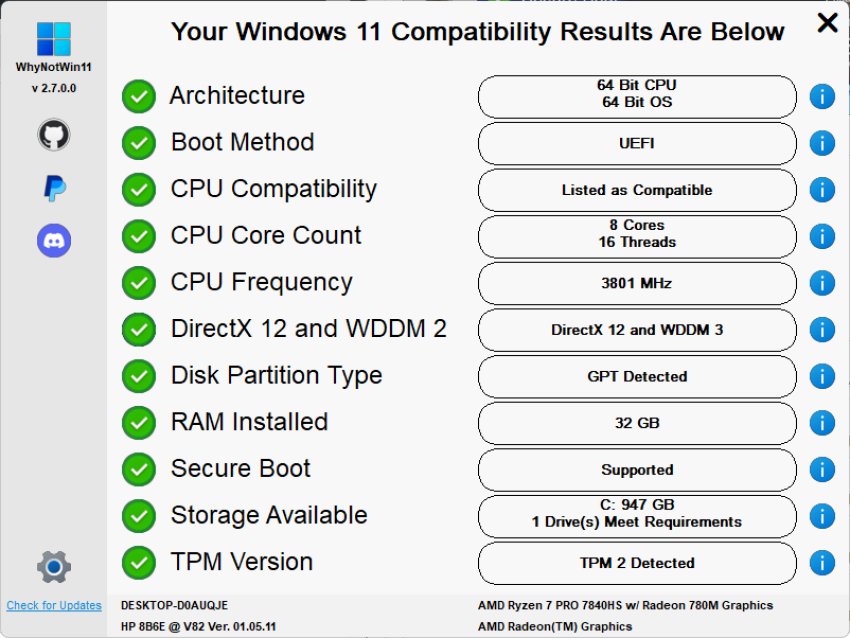
The app runs its checks on start automatically and presents its findings to you in its interface after a short moment.

Note that you can run the app on Windows 11 as well. Handy, if you installed the operating system and used bypasses for certain requirements.

The program color codes results. Green checkmark tell you that everything is fine, but you will also known if a component does not meet Windows 11’s minimum requirements.

WhyNotWin11 does not prioritize certain components over others, which could improve usability. Arguably, some checks are more important than others. For instance, the CPU or TPM version checks, while others, like CPU frequency, may not be as important, at least not for making upgrade decisions.

Still, it is easy enough and you see at a glance if your system fails to meet requirements. You can hover over the i-icon next to an entry to find out more about it.

WhyNotWin11 does not provide suggestions or tips to resolve compatibility issues. You find a few help guides in settings though. These explain how to enable secure boot or the TPM. There is also a link to the official Windows 11 requirements and to skipping some of the checks.

All guides open websites though.

Closing Words

WhyNotWin11 is a handy open source tool to quickly check the Windows 11 compatibility of a PC. It is a portable app, which means that you can run it without installation. Ideal for placing it on a USB tools collection and carrying it around whenever you do some troubleshooting work.

Now You: do you use lightweight open source tools like WhyNotWin11 regularly? Feel free to highlight apps that you recommend in the comments below.

Free Windows 10 ESU has a catch: it auto-expires every 60 days

Posted on September 26, 2025September 26, 2025 by Martin Brinkmann

Many Windows 10 users are eying the Extended Security Updates program for the operating system to extend support by a year. Microsoft announced the program for home users for the first time, and while it decided to limit it to a single year, it may be enough to buy users some time or help them keep on using their trusted PCs.

Microsoft revealed that users had three options to join the ESU program on Windows 10:

  • Pay about $30 to receive updates for another year.
  • Pay with Microsoft Rewards points.
  • Enable the cloud backup functionality of Windows Backup.

While two of the three options do not require any money to change hand, you’d still have to either pay with accumulated points or allow Microsoft to transfer some files to the cloud.

Microsoft announced a new option this week. This one only for users from the EEA region, which includes all EU member states, Norway, Liechtenstein, and Iceland. Microsoft said that users from these countries could join ESU for Windows 10 without completing any of the three options that users from any other region in the world had at their disposal.

This sounded like a great deal on paper for users from the region. However, Microsoft has added another requirement. Users need to sign in with a Microsoft account regularly to stay subscribed.

Here are the details:

  • You need to sign in with a Microsoft account for an opportunity to join ESU and start receiving security updates after October 2025.
  • You need to do this every 60 days. Microsoft stops delivering ESU-updates to a machine, if no Microsoft account sign-in was recorded in that period.
  • Windows 10 users may rejoin ESU by signing in with a Microsoft account again.

This affects Windows 10 users who sign in with local accounts. They need to make sure that they sign in with a Microsoft account every other month to keep on getting the extended security updates.

Microsoft plans to end the program for home users on October 13, 2026. There is a slim possibility that Microsoft might get pressured into extending the program, at least in some regions, but I would not hold my breath.

Now You: Are you using PCs with Windows 10? What is your plan going forward?

0Patch promises to keep Microsoft Office 2016 and 2019 secure after official end of support

Posted on August 27, 2025August 27, 2025 by Martin Brinkmann

Windows 10 is not the only Microsoft product that is reaching end of support in October 2025. Microsoft Office 2016 and 2019 will also reach end of support in that month. The two Office products do not get an option for extended security updates, unlike Windows 10.

Windows 10 home users may extend support by a year only, through one of three options, but it is better than nothing. The best option is to run a free open source script, which makes the entire process effortless.

With Office 2016 and Office 2019, Microsoft made it clear that it won’t offer the same option. In other words: Come October 2025, both products will not receive future updates, at least not from Microsoft.

Microsoft suggests that customers either buy the latest Office 2024 application or subscribe to Microsoft 365 instead. This can be expensive. A standard edition license costs about $150, and it will run out of support in five years since its release. A Microsoft 365 subscription costs about $100 per year currently, but discounts are available from time to time. Businesses and Enterprises pay considerably more.

While both Office products will continue to work, they will be affected by security issues that Microsoft will only fix in newer versions of Office.

However, not all is lost. Micro-patching service 0Patch announced that it will add both Office products to the list of supported applications.

The company promises to deliver critical security updates for both Office versions for at least three years. Means, the worst critical issues will be fixed until at least October 2028.

An 0Patch subscription for consumers costs about $30 per year. Good news is that a subscription includes other Microsoft products, including Windows 10, version 22H2, as well.

So, if you run Windows 10 and either Office version, you get security updates for both products for the price of one.

Granted, there is also the option to switch to a free Office suite, such as LibreOffice, instead. It is free, but it may take a bit of adjusting and there is no 100% compatibility.

Windows 11 is removing an option to bypass Microsoft account and internet during setup

Microsoft confirms reset and recovery issue in Windows 10 and 11

Posted on August 19, 2025August 19, 2025 by Martin Brinkmann

When Microsoft released the August 2025 security updates for Windows, it listed not a single known issue for any of the supported operating systems. Now, a week later, Microsoft had to confirm several issues already.

The latest to be added to the growing list is that reset and recovery operations may fail on some older versions of Windows.

Microsoft confirmed the issue for the latest version of Windows 10, which is version 22H2, and for Windows 11, version 23H2 and earlier. Only client operating systems are affected, according to Microsoft.

​Client: Windows 11, version 23H2; Windows 11, version 22H2; Windows 10, version 22H2; Windows 10 Enterprise LTSC 2021 and Windows 10 IoT Enterprise LTSC 2021; Windows 10 Enterprise LTSC 2019 and Windows 10 IoT Enterprise LTSC 2019

If you still run one of these and have the latest security updates installed for the operating systems, you may run into issues when you try to reset or recover the PC.

Microsoft says that three processes are affected by the issue:

  • System >Recovery > Reset my PC
  • System > Recovery > Fix problems using Windows Update
  • RemoteWipe CSP

Run any of those, and the reset or recovery operation may fail, provided that the most recent update is installed. To get around this, you could uninstall the security update before running reset or recovery actions on the Windows PC.

Microsoft confirmed that it is working on a resolution and that it plans to release an out-of-band patch for affected versions of Windows to address the issue. The company plans to release the update “in the coming days” according to the confirmation on the Release Health website for affected Windows editions.

Windows updates

Windows 10: script to join ESU (Extended Security Updates) without Microsoft account

Posted on August 18, 2025August 18, 2025 by Martin Brinkmann

If you still run Windows 10 on one or multiple of your PCs, you may be aware that Microsoft is ending support for the operating system in about two months.

Come October 2025, Microsoft won’t release updates for the consumer editions of Windows 10 anymore. Windows 10 users may join the Extended Security Updates program to receive another year of support, but this requires becoming active.

If you do not do anything, you won’t receive any updates anymore for the operating system after October 2025.

Joining ESU is a simple process, but you still need to pick one of the available “payment” options: pay with Microsoft Rewards points, enable cloud backups, or pay with money.

Consumer ESU Enrollment is a new script for Windows that simplifies the process. It does require an administrative account and Internet connectivity, but that is about it.

When you run it without parameters, it will enroll using the free backup option and use a Microsoft account or a local account for that, depending on which you used to sign in to the operating system.

Here is what the developer Abbodi says about the order on GitHub (via Deskmodder):

By default, the script will run in the following order, if a step failed, the next is executed:

  • Enroll using Microsoft account currently logged-in as Windows user.
  • Enroll using Microsoft account currently logged-in with Microsoft Store.
  • Enroll using current Local account.
  • Acquire Consumer ESU license manually as last resort.

You may run the script using optional parameters to force one of the available options. If you use a local account, you can run .\Consumer_ESU_Enrollment.ps1 -Local to make sure that you are enrolled using the local account and not a Microsoft account.

Note that you may need to run Set-ExecutionPolicy Bypass -Scope Process -Force prior to that to allow the execution of unsigned scripts temporarily.

While you may enroll manually as well, using the script may speed up things significantly, especially if you use a local account to sign in to Windows.

Now You: do you still run Windows 10 on a device that you use regularly? Did you join ESU? Feel free to leave a comment down below.

  • Previous
  • 1
  • 2
  • 3
  • 4
  • 5
  • …
  • 8
  • Next

Support This Site

If you like what I do please support me!

Any tip is appreciated. Thanks!
  • March 2, 2026 by Martin Brinkmann Don't Bother with Windows 11's new Speedtest feature
  • February 27, 2026 by Martin Brinkmann Warning! That laptop on Amazon? It comes with temporary storage
  • February 26, 2026 by Martin Brinkmann "If your printer works today, it will continue to work": Microsoft corrects previous announcement
  • February 25, 2026 by Martin Brinkmann YouTube Premium Lite subscribers get background playback and downloads with a big "but"
  • February 24, 2026 by Martin Brinkmann Firefox 148.0 is out with its AI kill switch and support for Windows 7 and 8.1 comes to an end

About

We talk, write and dream about Technology 24/7 here at Chipp.in. The site, created by Martin Brinkmann in 2023, focuses on well-researched tech news, reviews, guides, help and more.

Legal Notice

Our commitment

Many websites write about tech, but chipp.in is special in several ways. All of our guides are unique, and we will never just rehash news that you find elsewhere.

Read the About page for additional information on the site and its founder and author.

Support Us

We don't run advertisement on this site that tracks users. If you see ads, they are static links. Ads, including affiliate links, never affect our writing on this site.

Here is a link to our privacy policy

©2026 Chipp.in Tech News and Reviews