Chipp.in Tech News and Reviews

Windows, Security & Privacy, Open Source and more

Menu
  • Home
  • Windows
  • Security & Privacy
  • Gaming
  • Guides
  • Windows 11 Book
  • Contact
  • RSS Feed
Menu

Tag: chrome

Google teases three new Chrome features that sound familiar

Posted on February 20, 2026February 20, 2026 by Martin Brinkmann

Google announced three new features for its Chrome web browser on its official The Keyword blog recently. The new features — split view, save to Drive, and annotate — improve the productivity of Chrome users according to Google.

Users of several other browsers may not find the features as exciting as Google, as at least some of the features have been supported by other browsers for some time.

Split View is coming to Chrome

Split View is a typical example of such a feature. It allows you to display two websites next to each other in a single tab. Instead of displaying the two sites in two browser windows next to each other, you may display them in a single window.

This has some advantages, like easier handling as you interact with a single window only. However, there are also some disadvantages, including that only one address is shown in the address bar at a time.

Split View is not a new feature. In fact, Google is late to the party. Microsoft Edge, Vivaldi, Opera or Brave Browser support the mode already. Mozilla has also launched the feature in its Firefox web browser, but it is experimental at the time of writing.

How to use Split View in Chrome
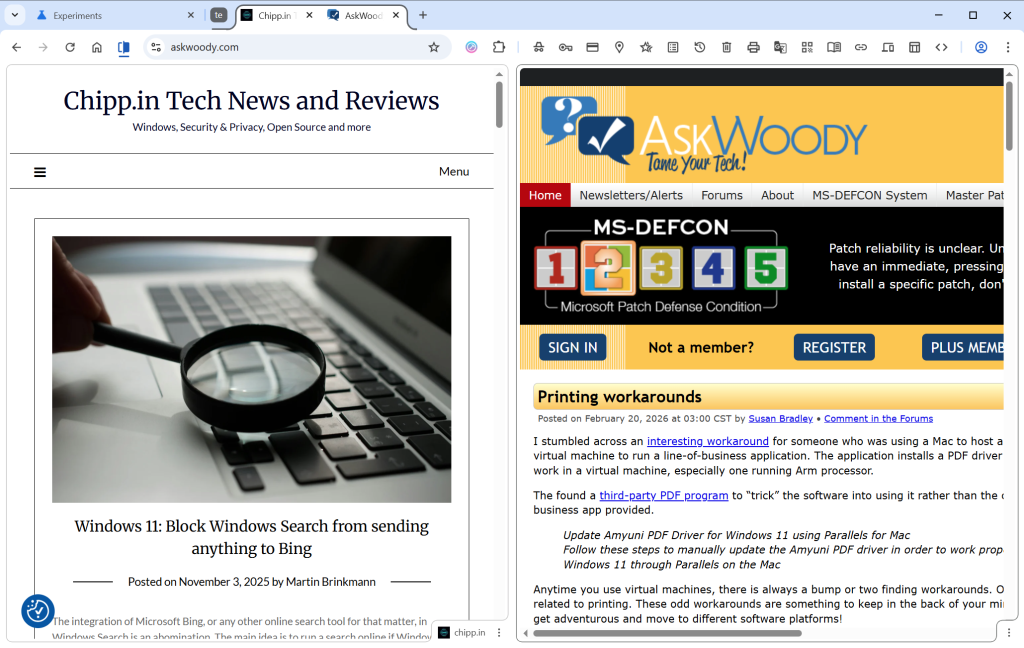
Simply right-click on a tab in the web browser and select “Add tab to new Split View”. Chrome splits the space in half, with the right side empty in the beginning. Just select an open tab, which Chrome displays, type an address or pick a bookmark to load it in the second half.

Chrome displays both open websites in the same tab, but only the URL of the active tab in the address bar.

PDF annotations
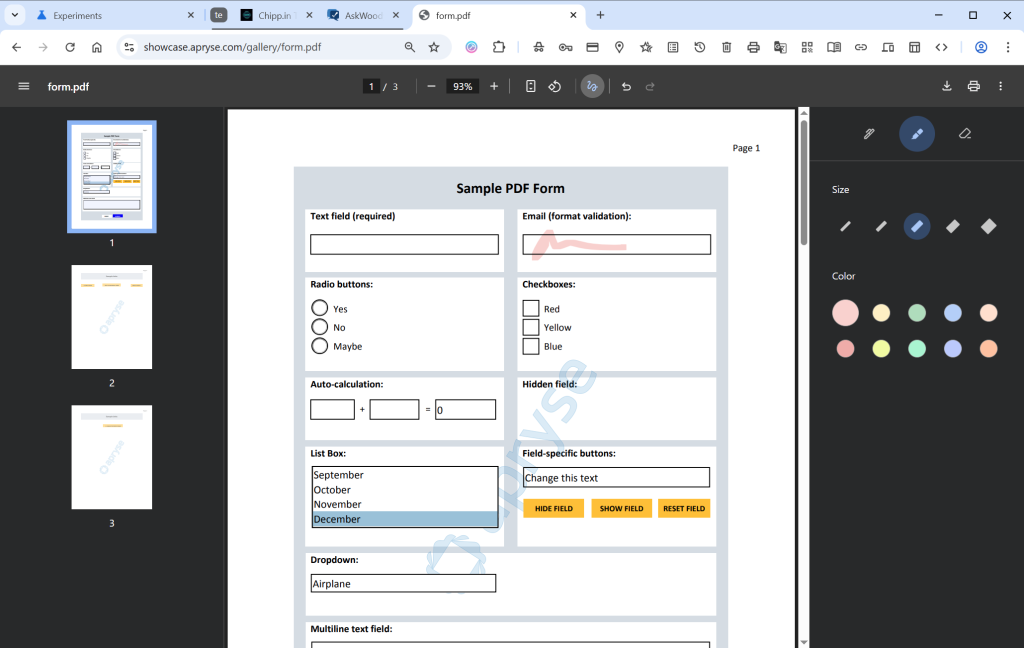
If you open PDF documents in Chrome, you can now “highlight text and add notes” to it right in the browser. Google says that this eliminates the need to use a separate application for that.

This is not exactly a new feature either, as both Microsoft Edge and Mozilla Firefox have supported the feature for quite some time.

To use it, open a PDF document in Chrome and click on the draw icon in the toolbar once it is displayed. Here you find the new options to annotate directly to the PDF file.

Save to Drive

This is probably the strangest edition in this feature update. Google is reaching feature parity with Split View and PDF annotations, which is a good reason to introduce the features.

However, Save to Drive is the outlier. It enables you to save PDF documents that you view in Chrome to Google Drive. Google says this keeps important documents backed up in the cloud.

It is not as if this was not possible before already, at least in many cases. If you run Google Drive on your system, you could simply put the file into the Drive folder to store it locally and online. I guess it helps if you do not run the software and want to save PDFs to Drive directly. Saves the step of saving the document locally first before uploading it.

Now You: what is your take on the new features? Something that would make you switch to Google’s browser?

Chrome Stable Channel Update: Emergency Fix for Active CSS Exploit

Posted on February 17, 2026 by Martin Brinkmann

Google has issued an urgent security update for the Chrome desktop browser following the discovery of a high-severity vulnerability being actively exploited in the wild.

The update, which brings the Stable channel to version 145.0.7632.75 or 145.0.7632.76 for Windows and Mac, and 144.0.7559.75 for Linux, specifically addresses a “use after free” flaw within the browser’s CSS engine.

Identified as CVE-2026-2441, the bug was reported by security researcher Shaheen Fazim just days prior, prompting an accelerated rollout to protect users from potential attacks that leverage this exploit to compromise system memory.

Here are the key points from the update:

  • New Versions: The Stable channel has been updated to 145.0.7632.75/76 for Windows and macOS, and 144.0.7559.75 for Linux.
  • Zero-Day Patch: The update addresses CVE-2026-2441, a high-severity security flaw classified as a “Use after free” vulnerability in CSS.
  • Active Threat: Google has confirmed that they are aware of an exploit for this specific vulnerability existing in the wild.
  • Rapid Response: The bug was reported by researcher Shaheen Fazim on February 11, 2026, just two days before the release of this patch.
  • Rollout: The update will continue to become available to all users over the coming days and weeks.

How to install the Chrome update

Most unmanaged Chrome installations should receive the update automatically. The browser is configured to install updates automatically by default. Since this does not happen immediately, it is recommended to run a manual check for updates to speed up the process.

Open Google Chrome and select Menu > Help > About Google Chrome to do so. The browser should begin downloading and installing the security update immediately.

Windows users may also run winget upgrade google.chrome.exe to install the update from the command line without opening Chrome at all.

Note that it is highly recommended to upgrade the browser, even if it is not the main browser on the system. In short, if the browser is installed, upgrade it to protect it from potential exploits.

Block Google “Continue As” prompts on third-party websites

Posted on February 7, 2026February 7, 2026 by Martin Brinkmann

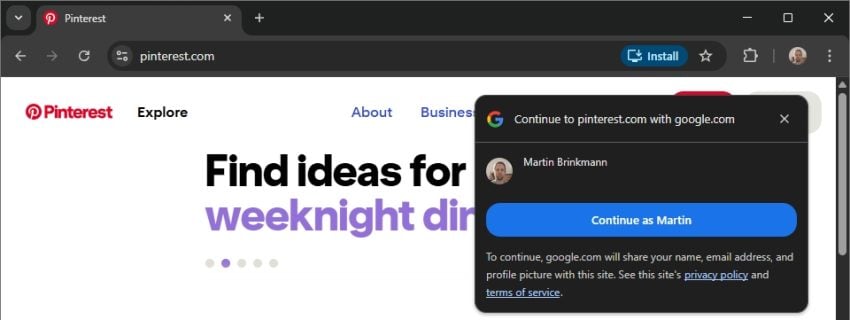
If you are using Chrome and are signed-in to a Google account, you may have received a fair share of requests to sign-in with your account on third-party websites, provided that you do not have an account there already.

The main idea is to make sign ups on third-party sites easier and more secure by using the Google account. Google provides the site with information to set up the account and you decide much of what you want to share and what not. The user password is never provided by Google, which is an advantage.

There are disadvantages: using one account for multiple sites and Google knowing which sites you create accounts on.

The prompts appear on site load and at least some users find them highly annoying. Not everyone wants to (or can) use Chrome without being signed in or switch to another browser. There is another option, but it is hidden deep in the Chrome settings.

How to stop Chrome from showing “Continue As” prompts

Here are the required steps for desktop Chrome:

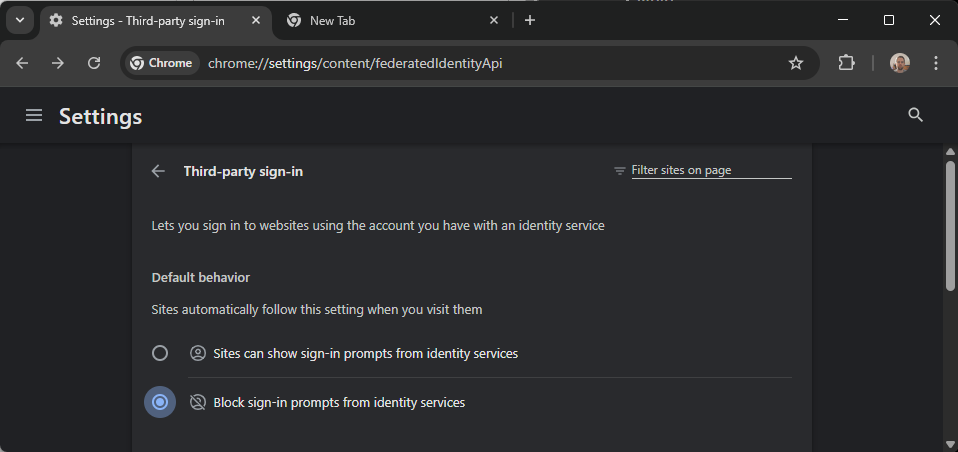
Enable the block option in the Settings to prevent continue-as-prompts in the future.
  1. Load chrome://settings/content/federatedIdentityApi in the browser’s address bar.
  2. Enable “Block sign-in prompts from identity services” under Default Behavior.

This takes care of the prompts. You can add sites to the allow-list, but this is only useful if you want to create an account on the website using your Google information.

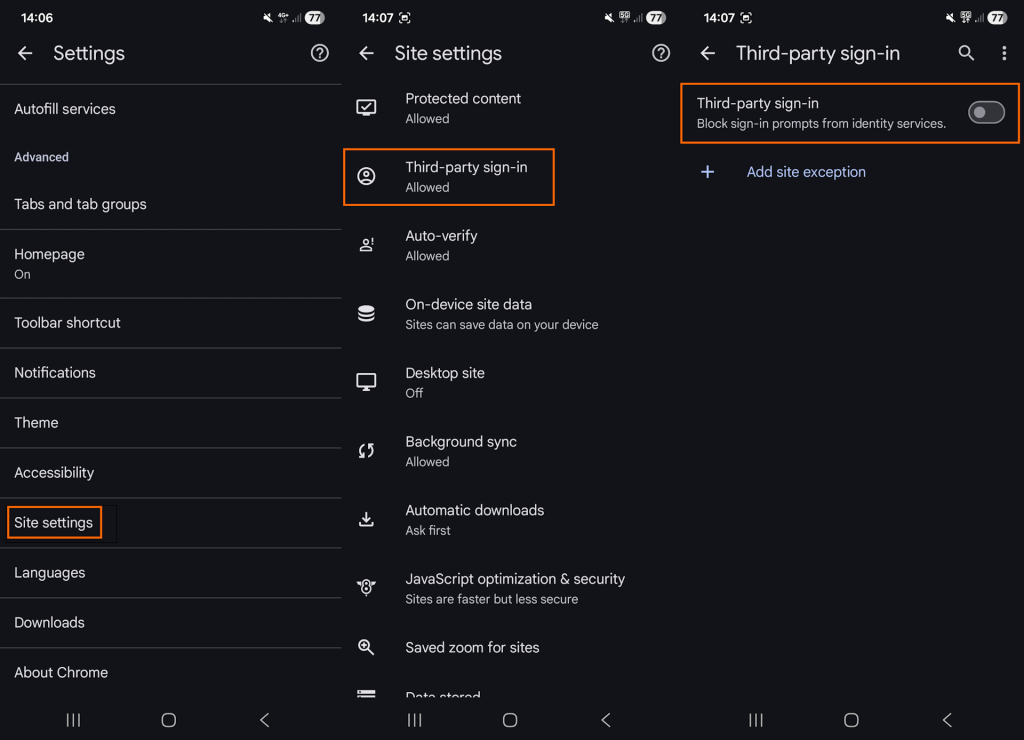
Here are the required steps for mobile Chrome:

In mobile Chrome, you need to open the setting manually.
  1. Open the Settings.
  2. Go to Site Settings.
  3. Tap on Third-party sign-in.
  4. Toggle “Third-party sign-in” so that it is off.

This blocks all future attempts in mobile versions of the Chrome web browser.

Manage existing connections

Google’s support page provides information on managing existing connections. You can review all connections on the third-party connections page on Google’s website.

Switch to the “Sign-In with Google” tab first. Google lists all connections and you may click on the “>” icon to display details. There you may remove it by selecting “Stop using Sign in with Google ” and confirm the decision.

Note that this severs the connection only, but it does not affect the data that the third-party site has accumulated.

What you may do instead

While the option to use your Google account on third-party sites may be convenient, most users may benefit from separating accounts.

Apart from providing Google and the third-party site with additional information, any successful account breach gives the attacker access to not only Google but all other sites with connections.

My suggestion: stick to the one site, one unique account rule, and turn off the prompts, if you do use Chrome and want to stay signed in. (source: Caschys Blog)

Google Chrome Gets a Major Upgrade with Gemini 3 and Auto-Browse

Posted on January 30, 2026January 30, 2026 by Martin Brinkmann

Google is officially transforming the web browser from a static tool into an active personal agent with the launch of Gemini 3 and “Auto-Browse” in Chrome, and the push into a personalized AI experience.

Announced yesterday for desktop users, with the exception of Chrome for Linux, this major update integrates Google’s most advanced AI model directly into the browser to handle complex, multi-step tasks.

Google is pushing Gemini with the help of its Chrome browser

Lookout OpenAI, Gemini could get a massive user boost thanks to the integration in the world’s biggest browser.

Here is an overview of the features that Google announced:

Auto-Browse (Agentic Browsing): The flagship feature for AI Pro and Ultra subscribers in the U.S. that performs multi-step “chores” on your behalf. It can research travel costs across dates, fill out complex online forms, file expense reports, or add specific items to a shopping cart based on an image.

Gemini Side Panel: A persistent area in Chrome that supports interactions with the AI without losing focus. It supports the usual AI-features, such as summarizing a page, comparing features across several tabs, or finding time in your calendar.

Integrated “Nano Banana”: The latest version of Google’s image generator is integrated into the browser. Also accessible from the side panel, you can use text prompts for creative tasks, such as turning research data into infographics or manipulating images open in the browser.

Connected Apps Integration: Deeper connectivity with the Google ecosystem, allowing Gemini to pull information from Gmail, Calendar, Maps, and Google Flights to execute workflows (e.g., finding a flight based on an event invitation in your email).

Personal Intelligence: A proactive feature that remembers context from past conversations to provide tailored answers. It learns user preferences over time to transform the browser into a “trusted partner” rather than a general-purpose tool.

Universal Commerce Protocol (UCP) Support: Integration with a new open standard (co-developed with brands like Shopify and Wayfair) that allows AI agents to navigate checkout processes and take commercial actions across different retail sites securely.

Enhanced Security & “Pause and Confirm”: New defenses designed for agentic AI, including a safety mechanism where Auto-Browse must pause and ask for explicit user confirmation before completing sensitive actions.

Closing Words

It is clear that Gemini will get a huge user boost from this. Even if Google limits exposure to certain regions or subscription models at first, it is clear that it will expose as many users as possible to Gemini in Chrome in the long run.

Why? Because it is giving Google an edge over the competition. Plus, when users run into usage limits, they may become paying subscribers, which seems to be on the preferred options right now to increase revenue and compensate expenses.

The benefit for users invested in Google’s ecosystem is there, especially if you connect the AI to other Google services. Whether you really want that, an all-knowing AI that may know more about your desires, life and plans than your closest friends, is up for you to decide.

I see the benefits, but also the dangers. While I do use AI tools for some tasks, such as creating a teaser image for an article here or the weekly newsletter, I do not really see a benefit in letting AI do the shopping for me, even with all safeguards in place.

Featured Chrome extension with millions of users caught harvesting AI interactions

Posted on December 21, 2025December 21, 2025 by Martin Brinkmann

Several Chrome and Microsoft Edge extensions, designed to protect users online, were discovered to include AI harvesting code that captured, among other things, every AI prompt and response made in the browser it was installed in.

This is the second major discovery by security researchers at KOI. In July, the company discovered 18 malicious Chrome extensions with millions of installations that ran malicious tasks in the background.

Security researchers at KOI discovered Urban VPN Proxy by chance. The Chrome extension had over 6 million users, a 4.7 star rating at the Chrome web store, and a featured badge by Google.

Featured meant that Google reviewed the extension manually to ensure that it follows “technical best practices” and meets “a high standard of user experience and design”.

The makers of the extension, which was also installed by over 1.3 million Microsoft Edge users via Microsoft’s own extensions store, promised unhindered access to any website and the unblocking of content.

According to KOI, the extension did not always have AI harvesting functionality baked into it. This started on July 9, 2025 with the release of version 5.5.0. It shipped with AI harvesting enabled by default.

This meant that AI interactions of any user who updated the extension to the new version or installed it anew were collected.

KOI says the following gets captured:

  • Every prompt you send to the AI
  • Every response you receive
  • Conversation identifiers and timestamps
  • Session metadata
  • The specific AI platform and model used

The extension supports ten major AI platforms, including ChatGPT, Gemini, Claude, Microsoft Copilot, Grok, Meta AI, Perplexity, and DeepSeek, according to KOI.

It injects scripts into the AI platform’s website whenever a supported site is loaded in the browser. From there, it manipulates browser functions to route all network requests through itself. These requests get parsed and then exfiltrated by a background service worker.

A quick search for extensions that use the same code revealed three additional extensions, available on both the Chrome and the Microsoft Edge web store.

These are 1ClickVPNProxy, Urban Browser Guard, and Urban Ad Blocker. All eight extensions have an accumulated user count of over 8 million.

How could this have been prevented?

Unlike Mozilla, which reviews the updates of featured extensions for Firefox as well, neither Google nor Microsoft seem to do that. This is a loophole that gets exploited over and over again: create or buy a harmless extension that is useful, get the feature badge by passing the manual review, and release an update with malware code later on, as (some?) updates seem to be accepted automatically.

So, if you use extensions, Firefox is the safer bet, but only for featured extensions. This has downsides of its own, including that it takes longer before updates become available.

Google Chrome Split View

Google is rolling out Split View for Chrome Tabs and is late to the party

Posted on November 4, 2025November 4, 2025 by Martin Brinkmann

Google released Chrome 142 to the stable channel recently with just a few changes that it revealed publicly. Noteworthy is a new permission that regulates access to local resources. Basically, users will see a prompt going forward, if a website or application attempts to access a resource on the local network.

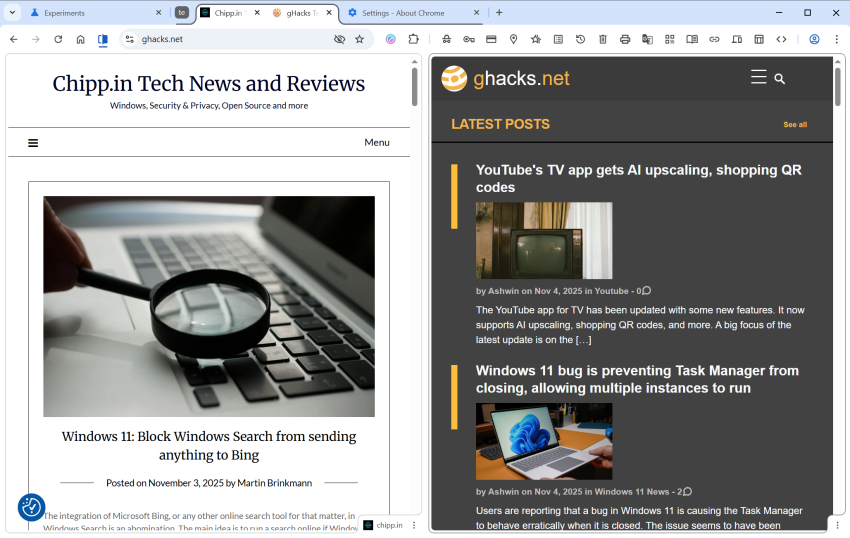
It turns out that Google is also rolling out a new tab feature gradually to all users. Split View allows users to display two websites or apps in Chrome side by side in the same browser window.

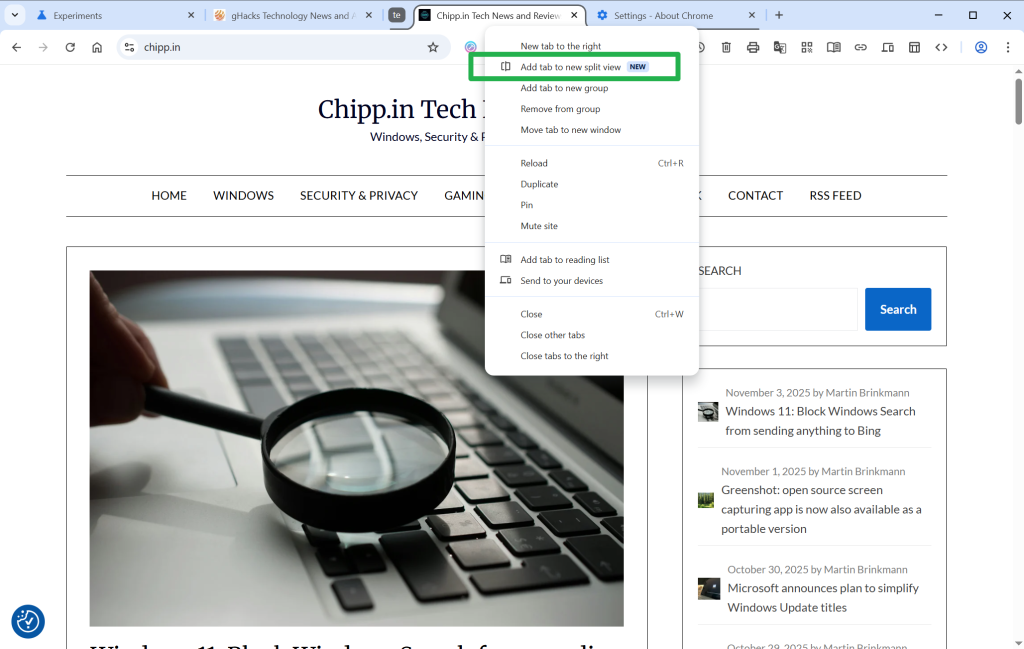
All you need to do for that is to right-click on the first tab and select the option “move tab into split view”. If you want, you can also select to move it to the left or right location in split view directly.

Google Chrome Split View

Google Chrome then displays the list of other tabs open in the browser, so that you can pick one for the other half.

Tip: You can enable the feature right away in Chrome, if you like. Just load chrome://flags/#side-by-side in the Chrome address bar and change the status of the feature to Enabled. Restart Chrome, and the new context menu option becomes available when you right-click on tabs.

Split View: pros and cons

So what is the advantage of Split View compared to using two browser windows? The main advantage is that both websites are displayed in a single browser. You can display, move, hide, or close them at once, while you would have to juggle with two windows if you’d display the two websites in two Chrome instances. You can be sure also that both windows are always visible, when the browser window is active.

However, there are also some disadvantages. You can only see one of the URLs at the same time in the Chrome window. It changes when you activate the website in the inactive half, but it is still worth considering that you don’t see the address all the time.

Google is late to the party

Split View is not a particularly new feature. Vivaldi, for instance, has supported it for years and even gives users multiple layout options that go beyond displaying two sites side-by-side or split horizontally.

Even Microsoft tested the Split View feature in Edge in 2023 already. Mozilla is also working on integrating a split view feature in its Firefox web browser.

Now You: do you use split view already or do you have no use for the feature? Feel free to leave a comment down below.

Chrome error prompt on non-HTTPS sites

Google makes HTTPS the default in Chrome from next year on

Posted on October 29, 2025October 29, 2025 by Martin Brinkmann

Most web browsers display warning messages when you attempt to load a website that does not use HTTPS, the secure version of the HTTP protocol, or when a site has misconfigured HTTPS.

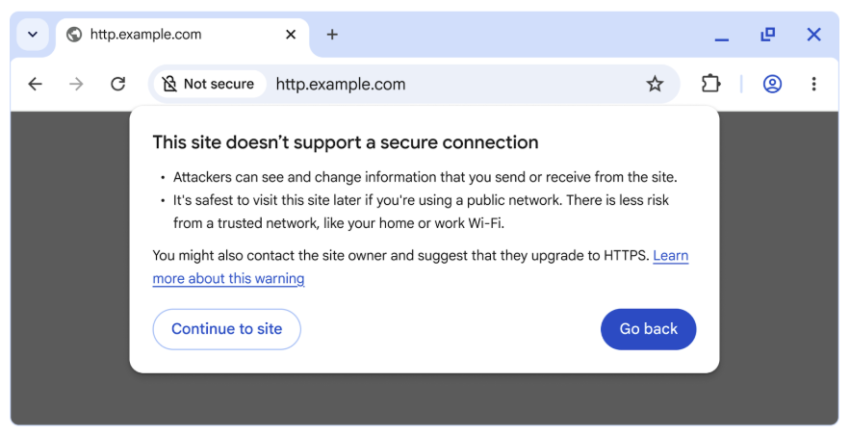
Starting in October 2026, Chrome will make HTTPS the default for all connections in the browser. Means, whenever you visit a site that does not use it or has configuration issues, you will get a prompt.

“This site doesn’t support a secure connection” is displayed in that case. The prompt includes quite a bit of text explaining why that is bad. However, Chrome displays two options to the user in that case.

The first, “go back” returns to the previous site or the new tab page, depending where you started your request. The second, “continue to site” still allows you to visit the site in question.

The planned change makes the optional feature “always use secure connections” mandatory once it lands next year. Since the feature is available already, albeit as an optional preference, it is possible to enable it right away to see what it does. Ideal for testing purposes.

Here is how you enable it (or disable it again):

The always use secure connection preference in Google Chrome
  1. Load chrome://settings/security in the browser’s address bar. You can also select Menu > Settings > Privacy and Security manually, if you prefer that.
  2. Scroll down to the Secure connections section.
  3. Toggle “Always use secure connections” here to enable or disable the feature.

When you enforce HTTPS, you will receive security prompts whenever something is loaded in Chrome that does not use HTTPS.

Google says that non-HTTPS traffic has dropped significantly, but that HTTPS has plateaued at about 95% of all sites. The main driver for insecure traffic, according to Google, is navigations to private sites that are insecure. While less risky than navigations to insecure public sites, attackers may exploit them either way.

Google predicts that the actual warning volume in Chrome will get lower once it lands the change in the browser and sites start moving towards HTTPS even more than before.

It will certainly make it more difficult for users to access sites that do not use HTTPS and do not plan on migrating, for whatever reason.

Now You: have you visited sites that do not use HTTPS in the recent past, or have all of your sites that you visit switched to HTTPS already? Feel free to leave a comment down below.

Chrome

Ecosia latest to make an offer for Chrome, sort-of

Posted on August 22, 2025August 22, 2025 by Martin Brinkmann

Google is battling it out with the United States Department of Justice currently. If things go really bad for Google, the company could be forced to sell its web browser Google Chrome or make other changes to its business.

Plenty of companies announced interest in Google Chrome already. Perplexity made a bid, Yahoo is eying the acquisition, and now it is Ecosia that also made a suggestion, according to TechCrunch.

Ecosia is a non-profit organization that is probably best known for its search engine. It is free to use and will spend its earnings on planting trees.

Unlike Perplexity, which bid $34.5 billion in cash, Ecosia is suggesting that it is getting control of Google Chrome for free. Google would retain ownership and the rights to Chrome under the proposal. Google Search would remain the standard search engine and Google would keep all intellectual properties. Ecosia would gain operational control of Chrome and development of the browser in that time.

The non-profit suggests a revenue split furthermore, with 40% of the earnings going to Google. The remaining 60% would be spend on climate projects that align with Ecosia’s general mission.

While Ecosia’s proposal may be a long shot, it would ensure that Google retains all rights and gets constant revenue from the browser.

However, whether Google will indeed be forced to sell Chrome or split it in some way from the company remains to be seen. Until then, it seems highly unlikely that Google will react to any of the offers made or comment on the offers publicly.

Chrome PlayReady DRM

Google Chrome is getting PlayReady DRM support in Windows 11

Posted on July 24, 2025July 24, 2025 by Martin Brinkmann

Most web browsers support some form of digital rights management (DRM), which is used to play DRM-protected content on the Internet. Services like Netflix, Disney+, and most paid ones use DRM,

The functionality provided by a service may depend on the DRM technology that is supported by the browser. Microsoft’s PlayReady DRM, for example, supports 4K playback at Netflix and other popular streaming services.

Google’s PlayReady DRM, on the other hand, does not. That’s probably the main reason why Google is working on adding support for PlayReady DRM to its Chrome web browser. With it, Chrome users can play up to 4K video streams at services such as Netflix or Disney+.

It may be a welcome addition for users who watch streaming services in the browser, use Windows 11 and have the device connected to a display that supports the higher resolution.

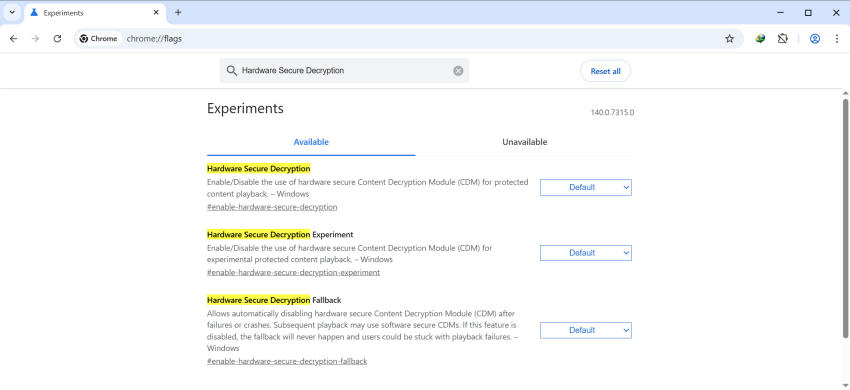
Good news is that you may enable the new feature already, provided that you run the latest stable version of the browser, Chrome 138.

Here is how you do it:

  • Load chrome://flags/#enable-hardware-secure-decryption in the Chrome address bar.
  • Set the flag to Enabled.
  • Restart Google Chrome.

The feature should be supported after the restart. Note that this is still in testing and that you may run into issues after enabling the feature. If you do, try disabling the flag again to resolve those issues. You could also disable it manually, if you do not want to make use of it.

This seems to be coming to Chromium-based browsers in general. If you use a different flavor of Chromium, you may also be getting this new feature, provided that the change is introduced.

Chrome

Security researchers discovered malicious Chrome extensions with more than 2.3 million combined installs

Posted on July 8, 2025July 8, 2025 by Martin Brinkmann

Browser extensions can be very useful. They may help you block ads and other unwanted content, download content from websites, enhance online services, or introduce AI features that you really want to use in the browser.

However, reports about malicious extensions for Google Chrome, and thus all other Chromium-based browsers, appear online in regular intervals. Security is not perfect and users may fall pray to malicious extensions not only on third-party sites but also when they browse the Chrome Web Store.

Security researchers at Koi Security discovered a coordinated malware campaign of 18 extensions for Google Chrome, Microsoft Edge, and other Chromium-based browsers that had over 2.3 million users.

The extensions, among them Color Picker, Eyedropper — Geco colorpick, Free Weather Forecast, or Unlock TikTok, were fully functional according to the developers. These were not “thrown together in a weekend” and obiously scam, but “carefully crafted trojan horses”.

Color Picker, for example, provided color picking functionality. It must have done an okay-job at that, as it had a rating of 4.2 of 5 on the Chrome Web Store, over 800 ratings, and more than 100,000 users.

Interestingly enough, several of the extensions were listed as “featured” on the store, which meant that Google promoted them to users who visited the Store. It is very likely that this gave the featured extensions a significant boost, more eyes on them, more downloads.

A Reddit developer observed an increase of impressions of almost 300 percent after the extension got the coveted featured badge on the Chrome Web Store. While the percentage may vary, it is without a doubt pushing installs.

Browser Hijacking

The extensions provide users with functionality that they claim, but they also run malicious tasks in the background according to Koi Security.

The malware monitors every page you visit, submits it to a remote server along with your unique tracking ID, and may receive redirect URLs from the server.

The malware group introduced the malicious code sometime after the extensions were launched on the Chrome Web Store. The fact that browser extensions are designed to update automatically most of the time helped them. Users did not have to click on anything or fall pray to a sophisticated phishing or social engineering attack to get the malware on their devices.

All they did in the beginning was install a perfectly harmless and working extension for the browser. The malware came later.

Koi Security reported the malware extensions to Google. At the time of writing, some are still available on the Store.

Here are the names and unique IDs, so that you can check them against the installed extensions:

Chrome:

kgmeffmlnkfnjpgmdndccklfigfhajen — [Emoji keyboard online — copy&past your emoji.]
dpdibkjjgbaadnnjhkmmnenkmbnhpobj — [Free Weather Forecast]
gaiceihehajjahakcglkhmdbbdclbnlf — [Video Speed Controller — Video manager]
mlgbkfnjdmaoldgagamcnommbbnhfnhf — [Unlock Discord — VPN Proxy to Unblock Discord Anywhere]
eckokfcjbjbgjifpcbdmengnabecdakp — [Dark Theme — Dark Reader for Chrome]
mgbhdehiapbjamfgekfpebmhmnmcmemg — [Volume Max — Ultimate Sound Booster]
cbajickflblmpjodnjoldpiicfmecmif — [Unblock TikTok — Seamless Access with One-Click Proxy]
pdbfcnhlobhoahcamoefbfodpmklgmjm — [Unlock YouTube VPN]
eokjikchkppnkdipbiggnmlkahcdkikp — [Color Picker, Eyedropper — Geco colorpick]
ihbiedpeaicgipncdnnkikeehnjiddck — [Weather]

Edge:

jjdajogomggcjifnjgkpghcijgkbcjdi — [Unlock TikTok]
mmcnmppeeghenglmidpmjkaiamcacmgm — [Volume Booster — Increase your sound]
ojdkklpgpacpicaobnhankbalkkgaafp — [Web Sound Equalizer]
lodeighbngipjjedfelnboplhgediclp — [Header Value]
hkjagicdaogfgdifaklcgajmgefjllmd — [Flash Player — games emulator]
gflkbgebojohihfnnplhbdakoipdbpdm — [Youtube Unblocked]
kpilmncnoafddjpnbhepaiilgkdcieaf — [SearchGPT — ChatGPT for Search Engine]
caibdnkmpnjhjdfnomfhijhmebigcelo — [Unlock Discord]

  • 1
  • 2
  • 3
  • 4
  • 5
  • Next

Support This Site

If you like what I do please support me!

Any tip is appreciated. Thanks!
  • March 2, 2026 by Martin Brinkmann Don't Bother with Windows 11's new Speedtest feature
  • February 27, 2026 by Martin Brinkmann Warning! That laptop on Amazon? It comes with temporary storage
  • February 26, 2026 by Martin Brinkmann "If your printer works today, it will continue to work": Microsoft corrects previous announcement
  • February 25, 2026 by Martin Brinkmann YouTube Premium Lite subscribers get background playback and downloads with a big "but"
  • February 24, 2026 by Martin Brinkmann Firefox 148.0 is out with its AI kill switch and support for Windows 7 and 8.1 comes to an end

About

We talk, write and dream about Technology 24/7 here at Chipp.in. The site, created by Martin Brinkmann in 2023, focuses on well-researched tech news, reviews, guides, help and more.

Legal Notice

Our commitment

Many websites write about tech, but chipp.in is special in several ways. All of our guides are unique, and we will never just rehash news that you find elsewhere.

Read the About page for additional information on the site and its founder and author.

Support Us

We don't run advertisement on this site that tracks users. If you see ads, they are static links. Ads, including affiliate links, never affect our writing on this site.

Here is a link to our privacy policy

©2026 Chipp.in Tech News and Reviews