
Have you ever heard of the Userchoice Protection Driver (UCPD.sys) that Microsoft added to its Windows 10 and Windows 11 operating systems in 2024? It is a protective driver designed to prevent third-party applications or scripts from making changes to Registry keys that fall into the UserChoice category. This includes system defaults, such as the web browser, PDF viewer, or widgets.
Before the introduction, apps or scripts could make changes to default settings on Windows by editing certain keys in the Registry directly. With UCPD active, Microsoft implemented a check that allows or disallows changes to these keys.
If the change comes from a legitimate Microsoft process, it is allowed. If the change comes from a non-Microsoft process,, it is not allowed.
So, using the Settings application works, while using a script to make the changes does not.
While Microsoft has not revealed much about the motivation behind the introduction of the driver, it was at least partially introduced to make hijacking of important user settings difficult.
Granted, this had the added effect that it would be harder for competitors to change the defaults, even when users wanted it to happen.
The Impact
Most users may never notice that Microsoft introduced the feature in the first place. Changing defaults via the Settings app is not prevented and so is not a direct edit to the Registry using the Registry Editor.
However, for system administrators and some advanced users, UCDP has been a major headache as it broke command line tools and scripts.
How to check if the driver is running
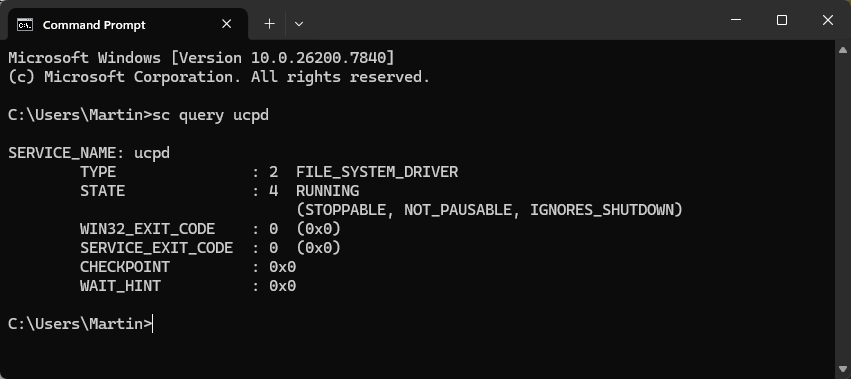
Here is one easy method to check if the driver is active on your Windows PC:
- Open the Start menu.
- Type cmd and press the Enter-key to load the Command Prompt.
- Type sc query ucpd.
If you see running next to state, then you have confirmation that the service is active.
Can you do something about it? (Should you?)
The short answer: yes, you can turn this off, but it is not as straightforward as you might want it to be.
Here are the required steps:
- Run sc config UCPD start= disabled from an elevated command prompt window.
- Open Task Scheduler, navigate to \Microsoft\Windows\AppxDeploymentClient, and disable the UCDP velocity task so that it does not turn the driver back on.
- Reboot the system.
I suggest you check whether UCDP is running using the command prompt again to make sure.
Should you disable the feature? My advice: if you did not notice any issues so far, you might not need to disable it. If you have run into problems recently running scripts or apps, then you could consider it, especially if you run them regularly.
Keep in mind though that this is also blocking malicious scripts and apps from making those changes.
Not sure this driver is “protecting” me. The only thing I ever catch changing my defaults unasked, or preventing me from setting defaults the way I want, seems to be MS upgrades.
Yes, it’s running, but I’ve never run into issues setting default apps or uninstalling apps/programs I no longer use. Maybe because I don’t use the multitudinous number of scripts being propagated by AI and then placed on GitHub as genuine, developer developed scripts.
Nor do I use scripts, almost period–far too many wanna-be developers produce “garbage” and then place a “run at your own risk” clause.
There’s been more than one “well-advertised by tech blogs” script that has trashed my computer. It’s too bad; it creates a distrust I’ve never had before AI.
Interesting, it is running on my pc.
My OS is heavily modified but I’ve never ran into this before so apparently it’s quietly doing what it’s supposed to. That’s odd isn’t it? LOL
MANY THANKS TO YOU, MARTIN!!!
But wouldn’t changes be flagged by User Account Control if a third party attempted making changes which would be detrimental to the system, Martin?
By the way, you appear to be running Windows 11 25h2 (version 10.0.26200.7840) which is vulnerable to a race condition in HTTP.sys according to https://vulnerabilities.ncsc.nl/vulnerability.html?id=2026/cve-2026-21240 (it’s a Dutch site, but link fix is written in English)