Chipp.in Tech News and Reviews

Windows, Security & Privacy, Open Source and more

Menu
  • Home
  • Windows
  • Security & Privacy
  • Gaming
  • Guides
  • Windows 11 Book
  • Contact
  • RSS Feed
Menu

Category: News

Google Chrome Split View

Google is rolling out Split View for Chrome Tabs and is late to the party

Posted on November 4, 2025November 4, 2025 by Martin Brinkmann

Google released Chrome 142 to the stable channel recently with just a few changes that it revealed publicly. Noteworthy is a new permission that regulates access to local resources. Basically, users will see a prompt going forward, if a website or application attempts to access a resource on the local network.

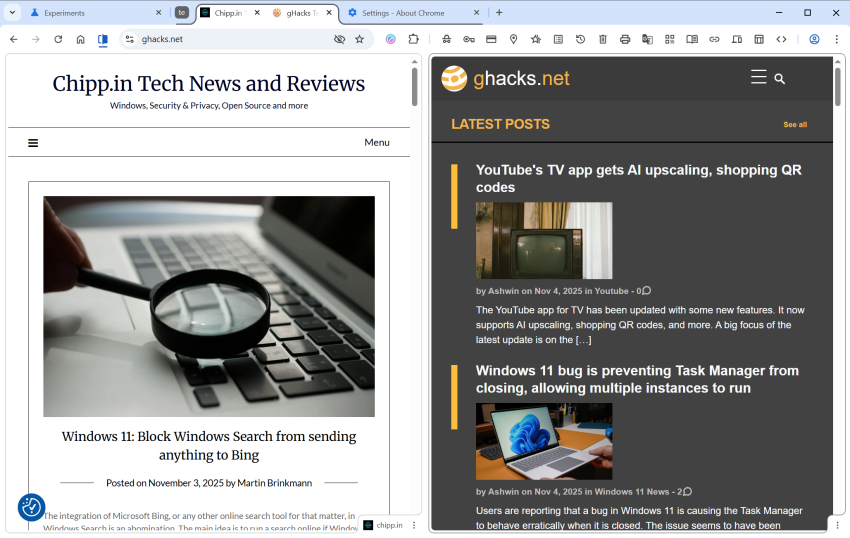
It turns out that Google is also rolling out a new tab feature gradually to all users. Split View allows users to display two websites or apps in Chrome side by side in the same browser window.

All you need to do for that is to right-click on the first tab and select the option “move tab into split view”. If you want, you can also select to move it to the left or right location in split view directly.
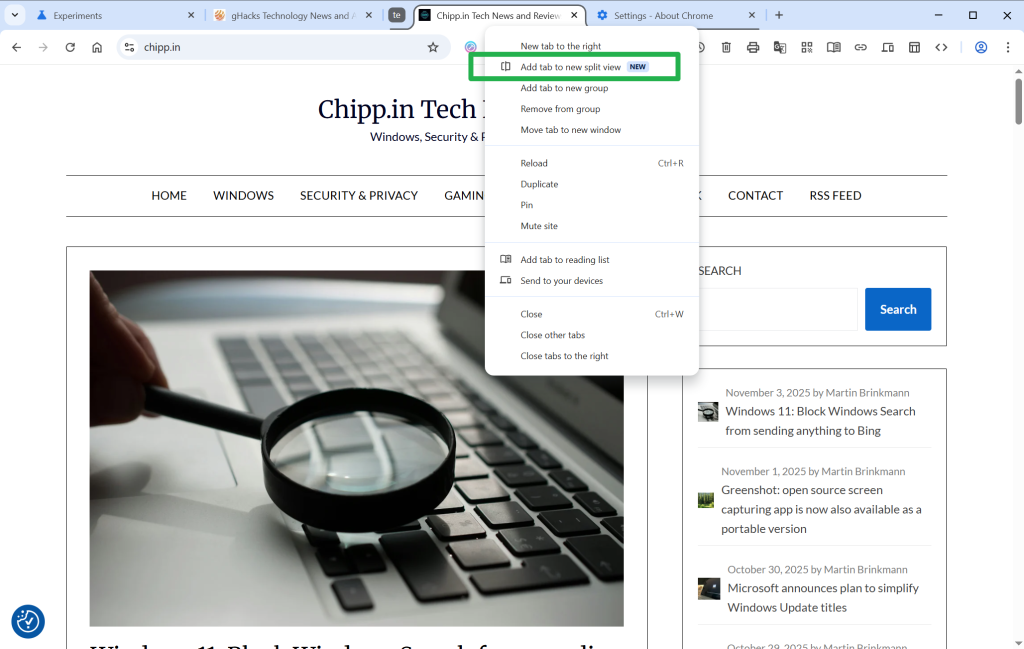
Google Chrome Split View

Google Chrome then displays the list of other tabs open in the browser, so that you can pick one for the other half.

Tip: You can enable the feature right away in Chrome, if you like. Just load chrome://flags/#side-by-side in the Chrome address bar and change the status of the feature to Enabled. Restart Chrome, and the new context menu option becomes available when you right-click on tabs.

Split View: pros and cons

So what is the advantage of Split View compared to using two browser windows? The main advantage is that both websites are displayed in a single browser. You can display, move, hide, or close them at once, while you would have to juggle with two windows if you’d display the two websites in two Chrome instances. You can be sure also that both windows are always visible, when the browser window is active.

However, there are also some disadvantages. You can only see one of the URLs at the same time in the Chrome window. It changes when you activate the website in the inactive half, but it is still worth considering that you don’t see the address all the time.

Google is late to the party

Split View is not a particularly new feature. Vivaldi, for instance, has supported it for years and even gives users multiple layout options that go beyond displaying two sites side-by-side or split horizontally.

Even Microsoft tested the Split View feature in Edge in 2023 already. Mozilla is also working on integrating a split view feature in its Firefox web browser.

Now You: do you use split view already or do you have no use for the feature? Feel free to leave a comment down below.
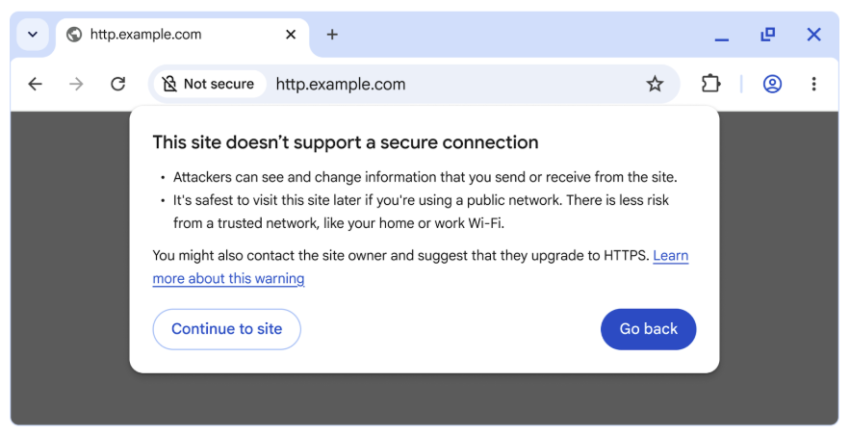
Chrome error prompt on non-HTTPS sites

Google makes HTTPS the default in Chrome from next year on

Posted on October 29, 2025October 29, 2025 by Martin Brinkmann

Most web browsers display warning messages when you attempt to load a website that does not use HTTPS, the secure version of the HTTP protocol, or when a site has misconfigured HTTPS.

Starting in October 2026, Chrome will make HTTPS the default for all connections in the browser. Means, whenever you visit a site that does not use it or has configuration issues, you will get a prompt.

“This site doesn’t support a secure connection” is displayed in that case. The prompt includes quite a bit of text explaining why that is bad. However, Chrome displays two options to the user in that case.

The first, “go back” returns to the previous site or the new tab page, depending where you started your request. The second, “continue to site” still allows you to visit the site in question.

The planned change makes the optional feature “always use secure connections” mandatory once it lands next year. Since the feature is available already, albeit as an optional preference, it is possible to enable it right away to see what it does. Ideal for testing purposes.

Here is how you enable it (or disable it again):

The always use secure connection preference in Google Chrome
  1. Load chrome://settings/security in the browser’s address bar. You can also select Menu > Settings > Privacy and Security manually, if you prefer that.
  2. Scroll down to the Secure connections section.
  3. Toggle “Always use secure connections” here to enable or disable the feature.

When you enforce HTTPS, you will receive security prompts whenever something is loaded in Chrome that does not use HTTPS.

Google says that non-HTTPS traffic has dropped significantly, but that HTTPS has plateaued at about 95% of all sites. The main driver for insecure traffic, according to Google, is navigations to private sites that are insecure. While less risky than navigations to insecure public sites, attackers may exploit them either way.

Google predicts that the actual warning volume in Chrome will get lower once it lands the change in the browser and sites start moving towards HTTPS even more than before.

It will certainly make it more difficult for users to access sites that do not use HTTPS and do not plan on migrating, for whatever reason.

Now You: have you visited sites that do not use HTTPS in the recent past, or have all of your sites that you visit switched to HTTPS already? Feel free to leave a comment down below.

Microsoft plans to give Outlook an AI infusion, make AI the user’s body double

Posted on October 26, 2025October 26, 2025 by Martin Brinkmann

I have to admit that I never really used Outlook as my main email driver. While I do have an Outlook account and used it sporadically, mostly for testing purposes, I stuck to the likes of Eudora and Thunderbird.

Recently, Microsoft has given Outlook an overhaul that was not received too well by many of its users. Basically, Microsoft turned Outlook from a classic desktop app into a web-based version that is pretty much just a wrapper. In some years, Microsoft plans to replace the Office-included version of Outlook with that new version.

According to Tom Warren at The Verge, Microsoft has shuffled leadership around and Outlook’s team appears to be under new leadership now to lead it into the AI era.

The new leader is Gaurav Sareen, corporate vice president of global experiences and platform at Microsoft. In a memo to the team, Sareen shared his vision for the future of Outlook. It should not come as a surprise that AI is at the forefront of everything.

Think of Outlook as your body double, there for you, so work feels less overwhelming and more doable because you are not facing it alone. With Copilot, this body double becomes even more powerful. Copilot turns Outlook from a set of tools into a partner that acts.

In other words, Outlook will introduce AI that reads your emails, helps you organize them, writes email drafts for you, and, Microsoft hopes, will help users spend less time doing tasks that they dislike or think are a waste of time.

The big question is, does the majority of Outlook users want this? Will they use the AI features in Outlook? It probably depends to a large degree on how well they are integrated and how useful they are. Privacy is another topic, which Microsoft fails to address regularly to a degree that answers all the main questions sufficiently:

  • What data may the AI access.
  • How and where does it process the data?
  • Who can access the data?
  • Is the data used for anything other than the user’s personal AI tasks?
  • Can the AI report data to Microsoft?

Microsoft won’t convince most privacy-conscious users to give it a try even, but most probably do not use Outlook to begin with unless required to.

Now you: would you start using AI features in your email client, if it supported them? Which would you like to see, if any?

Did you know that Amazon sells Smart Beds? They did not work during the AWS outage

Posted on October 22, 2025October 22, 2025 by Martin Brinkmann

Companies plaster “smart” on everything these days. While that is a generalization, it is clearly a trend that is getting more traction as the years go by only to be overshadowed by the use of AI. From smart hairbrushes to AI-powered toasters, companies come up with incredible ideas to justify premium pricing for their products. Not always do the products benefit from smart functionality.

Amazon offers a range of smart devices. You probably think of Alexa-powered devices, like the Amazon Echo, first. Did you know that Amazon sells Smart Beds as well?

At $2000 and more, beds of Amazon’s Eight Sleep brand are not exactly cheap, but they can control the temperature of different regions individually, support elevation, and come with sound-functionality.

However, to function properly, Amazon’s Smart Beds require cloud connectivity. Without it, they apparently become non-functional, as in, dead weight. With no manual overrides available, users are up for a hellish-experience when connectivity breaks.

The AWS outage exemplified this, according to a post by Dextero. When AWS went down, owners of the bed lost connectivity and could not use the app anymore to control their bed. This left them stuck with the last setting that was active, according to the report.

Even worse, some beds overheated apparently while the cooling stopped in others entirely. One user reported that his bed locked itself at a temperature level that was nine degrees above room temperature, stating that it felt like “sleeping in a sauna”. Others claimed that the bed was stuck in a position that they could not change anymore.

No offline mode

Amazon’s Smart Beds have no offline mode at the moment, which is more than puzzling. Even if the company thought that an AWS outage was very unlikely, it must have considered the possibility of local Internet outages that would then also impact a user’s control?

Should not something like this, a manual override for core features, be at the forefront of one’s thoughts when designing a smart product?

Now You: do you own smart devices? If so, which and for what purpose?

Firefox

Firefox: how to delete files download in private browsing automatically

Posted on October 16, 2025October 16, 2025 by Martin Brinkmann

The private browsing mode of web browsers is quite useful, albeit not for the task that developers like Google or Mozilla advertise it for. While the companies make it sound like a good way to improve privacy, it is just that in one very specific use case: if someone else has access to the device, your user account and browser.

If that is not the case, it won’t really help you much, as most of the tracking happens online.

Still, it is great for accessing sites without having to worry about deleting it manually from history, accessing sites without being signed in to an account, or avoiding some tracking, as the private browsing data is separate from the regular browsing data.

Mozilla added a new option recently that deals with downloaded files. When you download files in private browsing modes, they land in the same download folder as regular downloads.

While that is wanted at times, some users might prefer the traces of downloads being deleted automatically. It is that option that is now available in the Firefox browser.

Here is how you configure it:

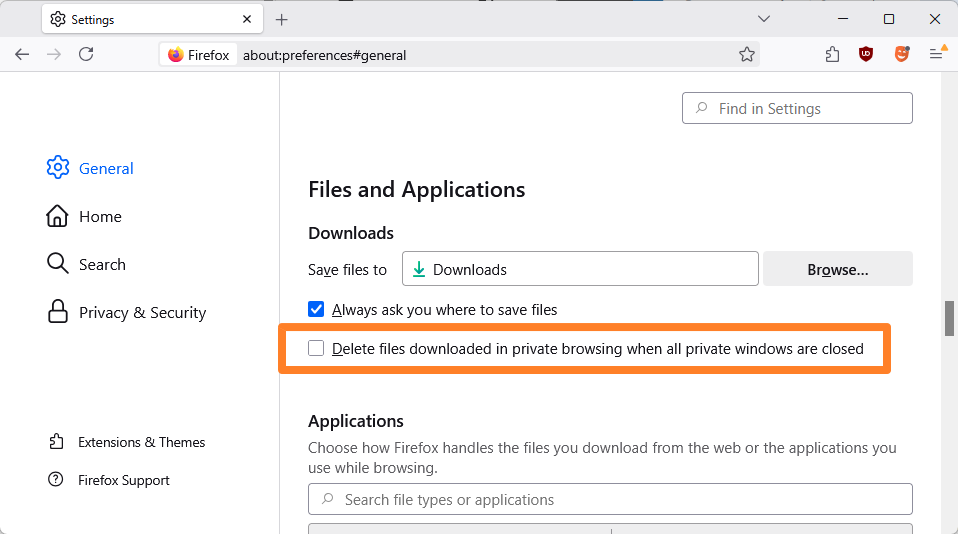
  1. Load about:preferences#general in the browser’s address bar.
  2. Scroll down to the Files and Applications section on the page.
  3. Check “Delete files downloaded in private browsing when all private windows are closed”.

This deletes downloaded files automatically once you close the last private browsing window.

Is it a useful feature? I do not know. It may help users who share accounts, as it removes any trace of a download from the system. Whether that makes sense depends on the use case. I’d say, it can also lead to confusion, as files get deleted automatically when the feature is enabled. That is probably the main reason why Mozilla decided to make it opt-in.

Firefox 143.0.4 fixes Google connection problems

Posted on October 5, 2025October 5, 2025 by Martin Brinkmann

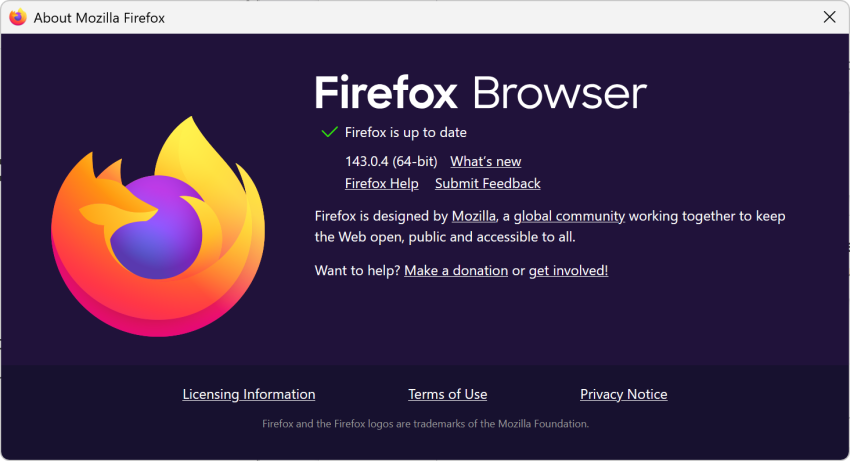
If you use Firefox and have had issues connecting to some Google-owned properties and services, then you may have experienced an issue that Mozilla fixed in Firefox 143.0.4.

The fourth point update for Firefox 143 addresses a single issue. While it is not uncommon for Mozilla to release point updates — smaller updates that fix pressing matters or security issues — it is rarer to see a single issue release.

It has been less than a week that Mozilla released Firefox 143.0.3 to address bugs and security issues in the browser.

Mozilla notes that the release improves “Firefox’ connection fallback behavior to mitigate sporadic slow/failed loads on some Google sites”. The issue affected devices with Firefox with certain third-party software installed.

The release notes do not provide any details, but the bug report over at Bugzilla does.

According to it, users started to note the behavior on Google Drive. Tests with other browsers confirmed that the issue was Firefox-specific. The investigation revealed that HTTP/3 connections were blocked, which forced Firefox to fallback to HTTP/2, but a bug caused these connections to fail to be created.

The update fixes the issue. Firefox users who use the browser to connect to Google services and noticed issues connecting to them should install it right away to fix the issue. Everyone else shouldn’t feel any hurry to install it.

The new version is available already. You can force the installation by selecting Menu > Help > About Firefox in the main menu. This should trigger the download and upgrade.

The next major Firefox release is scheduled for October 14, 2025. It is the same day that Microsoft is ending support for Windows 10 on officially.

You can now try Perplexity’s Comet AI browser for free

Posted on October 3, 2025 by Martin Brinkmann

After launching its Comet AI web browser exclusively for paying subscribers, Perplexity has now made it downloadable for everyone. You can download the browser from the official website for testing, even if you do not have a Perplexity account.

However, Perplexity limits functionality of the browser in that case. First, Comet is a Chromium-based browser. That is good on the one hand, as it offers similar performance and compatibility as Google Chrome. It also means that you can install browser extensions that are compatible with Chrome in the desktop version.

You can import your last browsing session from most other browsers on first start, but can skip it as well. Afterwards, Perplexity displays a few options to you, which most users may want to disable. This includes autostarting the browser with the operating system, making it the default browser, or sending telemetry data to Perplexity.

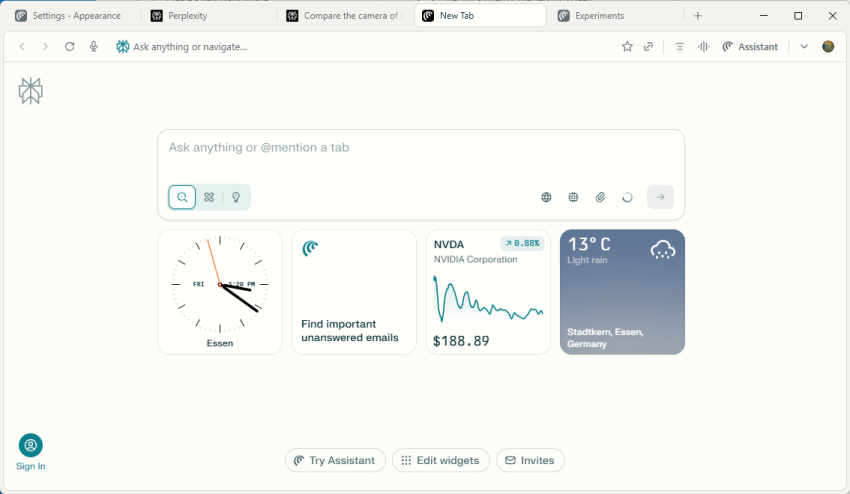
The browser opens and it looks like Chrome for the most part. That is to be expected, as all Chromium-based browsers look pretty much the same. The new tab page displays a few widgets, like the time or Nvidia’s stock price. The star of the show is the text prompt at the top. You may use it to interact with Perplexity’s AI.

Comet Assistant displays a few suggestions when you activate the text field, such as “Find emails from the last 7 days that require replies and draft responses”, or “find top rated noise-cancelling headphones under $300 and open product pages from three major retailers with the lowest prices”.

So, it is basically an AI chat, but this AI has agentic capabilities. It is rather limited for free users, as pro searches and several other features are not available in that case.

The browser displays its results on Perplexity’s website. In fact, you may get similar results when you use the company’s website directly to interact with the AI.

You may also notice that you get constant requests to sign in, if you do not. Open a new tab page, get a request. Similarly, prompts may be displayed on the results page.

If you do not sign-in, you get access to base AI features only. You can’t, for example, change the AI model that the browser uses to process queries. There is also no option to upload files or photos for processing, or run deeper queries.

However, results looked fine in quick tests, even non-Pro searches. Whether the information is accurate is another topic. As is the case with all AI, you should verify important information before you act on it.

Perplexity is Chromium-based. Which is good. You can open chrome://flags to tinker with advanced preferences, and get most of the settings of the browser as well.

Now the big question that I still have regarding all these AI browsers is about the “why” and whether that why warrants paying a monthly subscription fee. Why should I use such a browser? I do not really see the killer-application for it right now. Yes, it can run deep research tasks for you or perform some tasks for you, but how useful is that really, especially if you prefer to stay in control the whole time?

Anyway, you can give Perplexity a try, if you want.

Search image with Google Lens

Firefox is getting visual search capabilities powered by Google Lens

Posted on September 28, 2025September 28, 2025 by Martin Brinkmann

Mozilla is rolling out a new feature in recent versions of the Firefox web browser that introduces visual search functionality. This allows users to run visual searches by right-clicking on images.

Mozilla lists several main applications for the new feature on its Connect website.

  • Find similar products, places, or objects.
  • Copy, translate, or search text from images.
  • Get inspiration for learning, travel, or shopping.

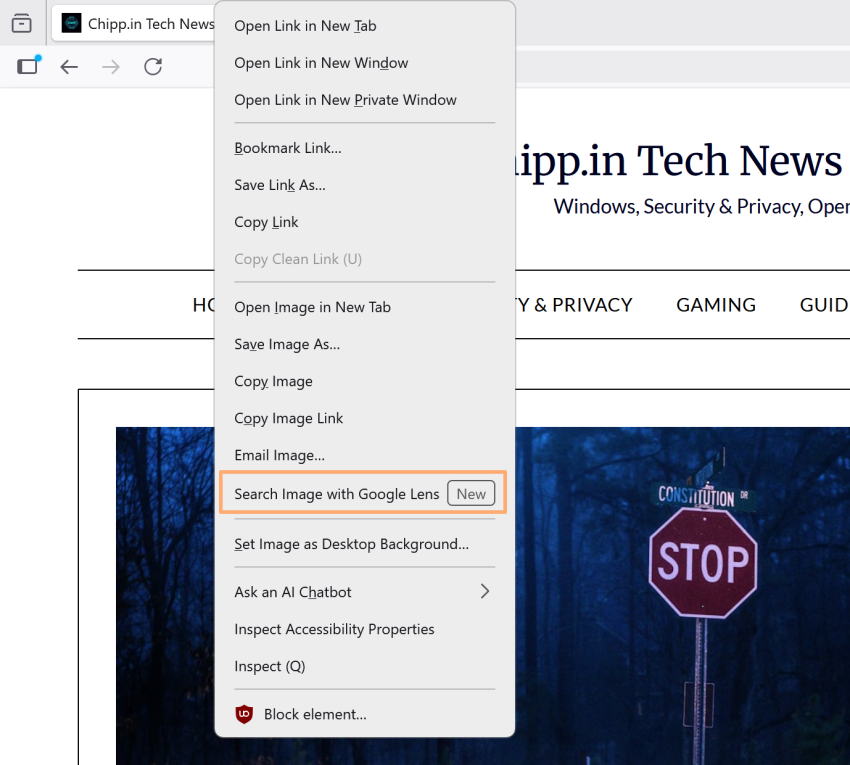
Right-click on any image displayed in the browser and select the new “Search Image with Google Lens” option to start a new search.

The feature is limited to Firefox on the desktop currently and it is rolling out worldwide. Most Firefox users won’t see it right away, but it can be enabled via about:config.

Here is how that is done:

  1. Load about:config in the browser’s address bar.
  2. Search for browser.search.visualSearch.featureGate.
  3. Click on the toggle icon to set the feature to True.
  4. Restart Firefox.

This enables the feature. You can test it by right-clicking on an image in Firefox and selecting the new Google Lens visual search option from the context menu.

Tip: you can turn off the feature at any time by setting the experimental flag to false in about:config. This removes the context menu entry in Firefox.

Here is what happens when you select the option: Firefox redirects the search request to the official Google Lens website. From there it is all Google and you should see similar images and information about the image among other things.

The feature addition will likely see mixed receptions. Some Firefox users may like the ability to run visual searches quicker through the browser’s context menu. Before that, they had to go save and upload the image to Google Lens manually or install a browser extension such as Search on Google Lens.

Others may dislike the additional entry in the context menu, for instance in fear or accidentally sending an image they view in the browser to Google Lens.

To be honest, it is unclear why Mozilla would introduce the feature natively in Firefox if an open source browser extension is already available

Now You: what is your take on this? Useful addition in Firefox or something that you have no use for?

Chrome

Ecosia latest to make an offer for Chrome, sort-of

Posted on August 22, 2025August 22, 2025 by Martin Brinkmann

Google is battling it out with the United States Department of Justice currently. If things go really bad for Google, the company could be forced to sell its web browser Google Chrome or make other changes to its business.

Plenty of companies announced interest in Google Chrome already. Perplexity made a bid, Yahoo is eying the acquisition, and now it is Ecosia that also made a suggestion, according to TechCrunch.

Ecosia is a non-profit organization that is probably best known for its search engine. It is free to use and will spend its earnings on planting trees.

Unlike Perplexity, which bid $34.5 billion in cash, Ecosia is suggesting that it is getting control of Google Chrome for free. Google would retain ownership and the rights to Chrome under the proposal. Google Search would remain the standard search engine and Google would keep all intellectual properties. Ecosia would gain operational control of Chrome and development of the browser in that time.

The non-profit suggests a revenue split furthermore, with 40% of the earnings going to Google. The remaining 60% would be spend on climate projects that align with Ecosia’s general mission.

While Ecosia’s proposal may be a long shot, it would ensure that Google retains all rights and gets constant revenue from the browser.

However, whether Google will indeed be forced to sell Chrome or split it in some way from the company remains to be seen. Until then, it seems highly unlikely that Google will react to any of the offers made or comment on the offers publicly.

AOL discontinues Dial-Up Internet and software

Posted on August 12, 2025August 12, 2025 by Martin Brinkmann

AOL announced the discontinuation of its dial-up Internet plan, AOL Dialer software and AOL Shield browser, in a brief support page on its help website.

There, AOL writes:

AOL routinely evaluates its products and services and has decided to discontinue Dial-up Internet. This service will no longer be available in AOL plans. As a result, on September 30, 2025 this service and the associated software, the AOL Dialer software and AOL Shield browser, which are optimized for older operating systems and dial-up internet connections, will be discontinued.

From September 30, 2025 onward, AOL customers may no longer use dial-up Internet provided by the company. AOL is also discontinuing the accompanying applications, AOL Dialer and AOL Shield.

AOL says that the change does not impact any other benefits that users may have in their AOL plan, including AOL email. The company does not reveal the number of customers that are affected by the change.

Estimates suggest that about 150,000 US-Americans still use dial-up in 2025. Not all of them rely on AOL for Internet though, but those who do need to find a different dial-up Internet provider or different connection option, such as cable, fiber optic, wireless Internet, DSL, or Internet via satellite.

As for dial-up Internet, Microsoft still seems to offer dial-up access to the Internet. For about $180 per year, subscribers may sign up for MSN Dial-Up Internet access according to this page on the Microsoft website:

Subscribe to MSN Dial-up Internet Access and get Internet access and MSN Internet Software which includes: computer wide security software, advanced phishing filter technology, pop-up guard and multiple e-mail accounts.

Can you imagine using a connection that has a speed between 56 kbit/s and 128 kbit/s?

  • Previous
  • 1
  • 2
  • 3
  • 4
  • 5
  • …
  • 16
  • Next

Support This Site

If you like what I do please support me!

Any tip is appreciated. Thanks!
  • March 2, 2026 by Martin Brinkmann Don't Bother with Windows 11's new Speedtest feature
  • February 27, 2026 by Martin Brinkmann Warning! That laptop on Amazon? It comes with temporary storage
  • February 26, 2026 by Martin Brinkmann "If your printer works today, it will continue to work": Microsoft corrects previous announcement
  • February 25, 2026 by Martin Brinkmann YouTube Premium Lite subscribers get background playback and downloads with a big "but"
  • February 24, 2026 by Martin Brinkmann Firefox 148.0 is out with its AI kill switch and support for Windows 7 and 8.1 comes to an end

About

We talk, write and dream about Technology 24/7 here at Chipp.in. The site, created by Martin Brinkmann in 2023, focuses on well-researched tech news, reviews, guides, help and more.

Legal Notice

Our commitment

Many websites write about tech, but chipp.in is special in several ways. All of our guides are unique, and we will never just rehash news that you find elsewhere.

Read the About page for additional information on the site and its founder and author.

Support Us

We don't run advertisement on this site that tracks users. If you see ads, they are static links. Ads, including affiliate links, never affect our writing on this site.

Here is a link to our privacy policy

©2026 Chipp.in Tech News and Reviews