Chipp.in Tech News and Reviews

Windows, Security & Privacy, Open Source and more

Menu
  • Home
  • Windows
  • Security & Privacy
  • Gaming
  • Guides
  • Windows 11 Book
  • Contact
  • RSS Feed
Menu

Category: Knowledge

Is It Worth It? How to Turn eBay Into Your Personal Appraisal Tool

Posted on February 5, 2026February 5, 2026 by Martin Brinkmann

The eBay marketplace offers a treasure trove of sales data, readily available for everyone. It is a great option to find out if your first-press record is worth next to nothing or a fortune.

Most Internet users know that they can search on eBay for items and they get a list of sellers that sell that item. While that search is not always accurate, as you may get items listed that are not exactly what you are looking for, it reveals the minimum and maximum price that sellers are asking for the item at the time.

That is useful information, but it is not based on actual data, not a reflection of real-world value. Anyone can sell a pencil for a million bucks on eBay, but the chance that someone will buy it for the price is slim.

However, eBay includes tools to look up past sales off that item. Good news is that this information is publicly available. You do not need an account or a subscription for that. It is free and available on all eBay sites.

Note: Sellers on ebay may access the company’s Terapeak that offers several advantages, including a 3-year price history instead of the 90-days that anyone gets and average sold price data.

Checking prices on eBay
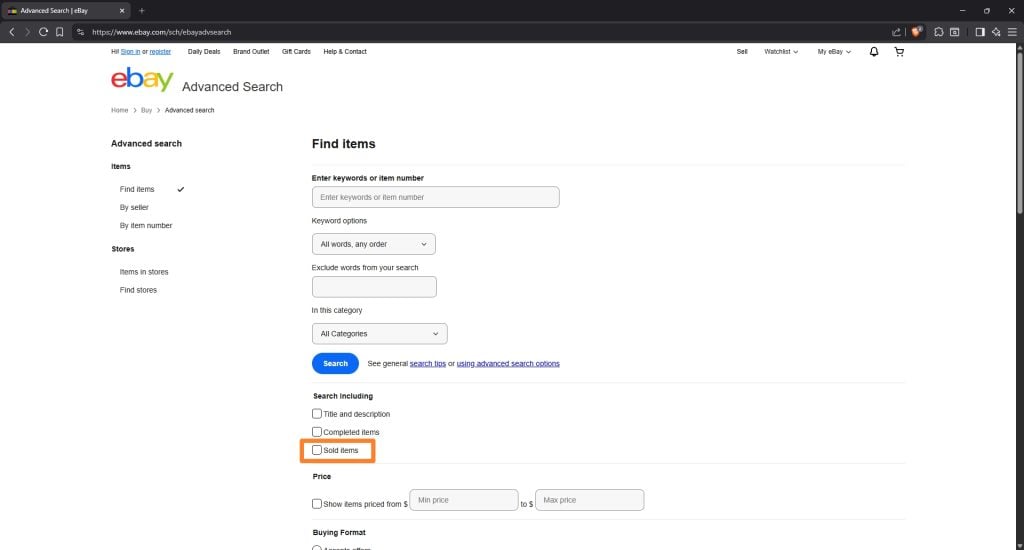
Do not forget to check the “sold” box to look up past sales on eBay.

Lets say you want to find out how much your Samsung Galaxy A55 5G 128GB mobile phone is worth.

  1. Open the eBay website on a desktop system.
  2. Type the name of the product in the search field and click on search to get active offers.
  3. Click on the Advanced link at the top.
  4. Check “sold items”
  5. Click on search on the page.

The eBay mobile apps offer this as well. Run the search, activate the filter option at the top of the search results page, expand “show more” and toggle “sold items” there. Hit the results button afterwards to get the list of sold items.

Now you get matching mobile phones that were actually sold on eBay. The list is sorted chronologically, with the most recent sales at the top.

You can use the filters to narrow it down further. If your device is used, check it under condition. You can also sort by lowest price ever, but this is often not recommended, as the price may change over time. For mobile phones, it usually goes down with time, but for other items, like many Lego sets, it may actually go up.

Tip: you can open the Advanced Search directly as well, if you prefer that.

Here is a pros and cons list of using eBay to determine prices.

The Pros: Why It’s the Gold Standard

  • Actual Sales vs. Asking Price: Active listings only show what people want. Sold listings show what people are actually willing to pay, which is the only true metric of market value.
  • High Volume Data: For common items (like electronics or popular toys), the sheer volume of sales provides a very accurate “average” price point.
  • Supply and Demand Insights: By looking at “Completed” vs. “Sold” listings, you can calculate the sell-through rate. If 100 items ended but only 5 sold, you know the item is a “slow mover,” regardless of the price.
  • Niche Precision: eBay is often the only place with enough data to value obscure collectibles or vintage parts that don’t appear in traditional price guides.
  • Keyword & Photo Research: You can see which specific keywords (e.g., “MCM,” “Rare,” “Tested”) or photo styles led to the highest sale prices.

The Cons: Where it Can Mislead You

  • The “Best Offer” Trap: In a standard search, if an item sold via “Best Offer,” eBay often displays the original asking price with a strikethrough. You don’t actually see the final negotiated price (which could be 50% lower).
  • The 90-Day Cliff: Standard searches only show the last 90 days of data. For rare items that only sell once or twice a year, 90 days of history might show “zero results,” leading you to think the item is worthless when it’s actually just rare.
  • Condition Discrepancies: A “Mint” version of an item might sell for $100, while a “Good” version sells for $20. If you aren’t careful to match the condition of the sold items to yours, your estimate will be way off.
  • Shipping & Fees: The “Sold” price doesn’t account for the fees the seller might have paid or the shipping costs they might have eaten.
  • Outlier/Fake Sales: Occasionally, “Sold” listings are the result of non-paying bidders or shill bidding (fake accounts bidding to drive up perceived value). One massive price spike among dozens of lower sales is usually an outlier to be ignored.

Why not just sell for $1 in an auction?

Selling items for $1 works well in some cases, especially if a category has a lot of traffic. Many Games or popular mobile phones will almost always reach the average sales price, provided that you do not let the auction run out in the middle of the night or on a public holiday.

However, items that are not that sought after, including rare items, may be sold for a lower price.

I’m currently selling part of my vast CD collection on eBay. I first thought of selling each item for $1 in an auction, or in bulk packages, say 50 CDs for $50. That is less time consuming than researching prices.

The problem here is that you will make less money, guaranteed. Some rarer CDs will sell for less. That is why I decided to research each CD, beat the competition by a few cents to be the lowest seller on eBay at the time, and include shipping costs in the price as well.

Yes, takes an awful long time, but it is well worth it once you realize that some rarer CDs sell for $10 or more.

Slimming Down: How Checkpoint Updates Are Making Windows 11 Faster

Posted on January 11, 2026January 11, 2026 by Martin Brinkmann

When Microsoft released its Windows 10 operating system, it introduced a number of under-the-hood changes. One of these changed how updates were provided to Windows 10 PCs.

Up until the release of Windows 10, Microsoft released individual updates for its systems. While that gave administrators excellent control over the updates, as they could pick the ones that they wanted to install, it meant that a large number of updates had to be installed when an operating system like Windows 7 was installed after a number of years.

Microsoft tried to limit this with the release of Service Packs. These could be installed instead of all earlier updates, which improved the speed and stability of the installation process.

Cumulative updates entered the Windows world in 2015

Microsoft introduced cumulative updates with Windows 10 in 2015. It later introduced the system to earlier operating systems.

The idea was simple: instead of releasing individual updates, Microsoft would release updates that included all previous updates.

Instead of having to install dozens of updates, in some cases hundreds, Windows administrators would simply install the latest cumulative update and they would be done with the updating for the most part.

A new problem emerged: Cumulative updates reduced the number of updates that needed to be installed. However, since they included all previous updates, they grew in size over time.

Surprisingly though, this did not mean that systems downloaded full sized updates each month. Microsoft used a technique called differential downloads, or express updates, to deliver updates to Windows 10 systems.

This meant, that Windows Update downloaded only the update bits that were new. Everything that was installed already was skipped, which increased the updating speed.

The cumulative update model caused four major issues:

  • While computers only downloaded the update bits they needed, they had to compute which updates they were missing and do a lot of unpacking, verifiying and merging.
  • Fresh installs or factory resets take a long time. Computers had to download a massive update in the beginning, which would take long to install.
  • The system caused the WinSxS folder to bloat over time, which could result in storage problems on the main drive.
  • Storage was still a problem for, mostly, Enterprise customers who hosted and distributed updates from company servers.

Checkpoint updates come to the rescue

Microsoft introduced checkpoint updates in Windows 11, version 24H2. The main idea was to introduce updates regularly that would reset the cumulative updates.

They take a cue from service packs by creating new start points for cumulative updates. This addressed the major issues that Microsoft identified, e.g., instead of computing changes from the very release of the operating system, the processor would only have to do so from the last checkpoint update release.

Updates should install faster on recent versions of Windows 11 because of this. They also deal with the other problems mentioned, by reducing WinSxS storage or providing smaller, less CPU-taxing updates during fresh installs or resets.

Why is the first drive in Windows always labeled C by default?

Posted on January 10, 2026January 10, 2026 by Martin Brinkmann

When you check File Explorer on a freshly installed copy of Windows, you will likely notice that the main drive, the Windows drive, has the label C:. Why not A: or B:?

Computer users who grew up in the age of floppy disks and drives know the answer. Back in the days when computers shipped with floppy disks as the main storage system, drive A: and drive B: were reserved for these.

The first floppy drive got the A: label and it was used as the boot drive. You would insert a MS-DOS or Windows startup disk and the computer would load the operating system from the drive.

The second floppy drive, if the computer had one, got the B: label. Two floppy drives were useful, as it meant that you could copy data from one floppy disk to another easily, and also needed to swap disks less often.

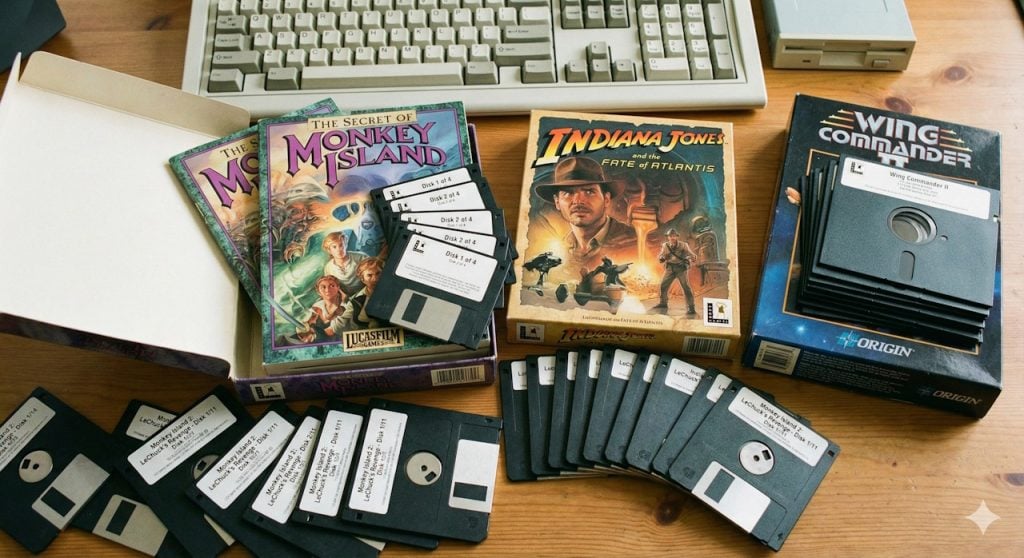
Games with lots of floppy disks. Image generated by Gemini.

However, some games came on more than ten floppy disks. Even if you had two disk drives, you still had to swap disks a lot. While you could connect more than two floppy drives to computers, barely any computer user had more than two floppy drives.

The age of the hard drive

Computer hard drives became more affordable in the mid to late 1980s. Floppy drives were still common, and since it would mean utter chaos to change the default order of assigning the first two drive letters to floppy disk drives, the first hard drive of the computer got C: assigned as the next available letter after A and B.

Drive C:, a hard drive with an astonishing amount of storage space — 20 or 40 megabytes– in the late 80s, became the standard drive for the operating system.

Fun fact: The first 1 gigabyte hard drive cost about $5,000 in 1991.

A computer with two hard drives would assign the drive letters C: and D: to the two drives by default.

CD-ROM drives enter the world

Disk drives increased in storage capacity rapidly, and so did requirements of operating systems, software, and games. Games and apps started to become that big, that they could not be delivered on floppy disks anymore.

CD-ROM became the new standard for delivering software and games. These optical drives were often assigned the label D:, on a computer with just a single hard drive, or the letter E:, on a computer with two hard drives or mapped partitions.

Why has not Microsoft moved to using A: for the system drive?

Floppy disks and drives are hard to come by these days. This has not changed the fact that the drive letters A and B are still not used by Windows for the main system drive.

The main reason why Microsoft has not changed the default mapping is backwards compatibility. Doing so could break countless older programs, scripts and shortcuts that reference hard-coded file paths on drive C:.

Technically speaking, it is possible to use the drives A: and B: on Windows. You can, for example, assign a hard drive or USB flash drive to the drive letters, and they will work. However, Windows will never map new drives or partitions to the first two drive letters.

Hacks even allow knowledgeable users to install Windows on A: or B: instead of C:, but it may lead to instabilities and most users might want to refrain from doing so because of that.

Support This Site

If you like what I do please support me!

Any tip is appreciated. Thanks!
  • March 2, 2026 by Martin Brinkmann Don't Bother with Windows 11's new Speedtest feature
  • February 27, 2026 by Martin Brinkmann Warning! That laptop on Amazon? It comes with temporary storage
  • February 26, 2026 by Martin Brinkmann "If your printer works today, it will continue to work": Microsoft corrects previous announcement
  • February 25, 2026 by Martin Brinkmann YouTube Premium Lite subscribers get background playback and downloads with a big "but"
  • February 24, 2026 by Martin Brinkmann Firefox 148.0 is out with its AI kill switch and support for Windows 7 and 8.1 comes to an end

About

We talk, write and dream about Technology 24/7 here at Chipp.in. The site, created by Martin Brinkmann in 2023, focuses on well-researched tech news, reviews, guides, help and more.

Legal Notice

Our commitment

Many websites write about tech, but chipp.in is special in several ways. All of our guides are unique, and we will never just rehash news that you find elsewhere.

Read the About page for additional information on the site and its founder and author.

Support Us

We don't run advertisement on this site that tracks users. If you see ads, they are static links. Ads, including affiliate links, never affect our writing on this site.

Here is a link to our privacy policy

©2026 Chipp.in Tech News and Reviews