Chipp.in Tech News and Reviews

Windows, Security & Privacy, Open Source and more

Menu
  • Home
  • Windows
  • Security & Privacy
  • Gaming
  • Guides
  • Windows 11 Book
  • Contact
  • RSS Feed
Menu

Tag: samsung

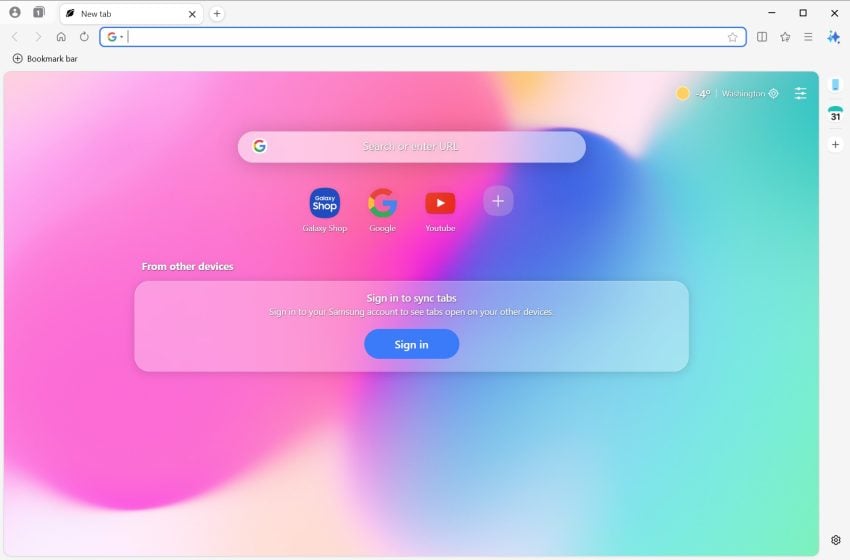
Samsung’s Internet browser for Windows is now available worldwide, but should you get it?

Posted on January 16, 2026 by Martin Brinkmann

Samsung Internet for Windows is now available without regional restrictions. Here is an overview of the browser and my personal take on it.

Samsung Internet is a long-standing mobile browser that is installed by default on Samsung mobile devices. Samsung announced some time ago that it would expand the browser to the Windows operating system. First launched as a limited beta, it can now be downloaded by anyone.

What is Samsung Internet? The desktop version for Windows is a Chromium-based browser. This means that it shares the foundation with Google Chrome, Microsoft Edge, and many other browsers.

For Samsung, it is an attempt to bridge the gap between Samsung Galaxy mobile devices and Windows PCs. Without support for Windows, Galaxy users had to find another browser to sync data, such as passwords, between their mobile devices and desktop systems.

Since it is based on Chromium, it shares many traits with Google Chrome. It offers similar performance levels and web compatibility, and supports the installation of Chrome extensions from the official web store.

Samsung Internet: unique and noteworthy features

Here is an overview of the browser’s standout features. It should not come as a surprise that most are Samsung-specific.

  • Integrated ad-blocker and smart anti-tracking functionality.
  • Samsung account integration, including Samsung Pass. This syncs important data, such as passwords or biometric login data, between devices.
  • Galaxy AI feature support. The two main features that Samsung Internet for Windows supports right now are the creation of summaries and translations.
  • A design that mimics the One UI design of the Galaxy phones and tablets.

Is it your next browser (aka, who is it for?)

Samsung Internet offers better out-of-the-box privacy protections than Google Chrome. Users can enable ad-blocking and privacy protections right on start, which gives the browser an edge. Chrome users have to install a content blocker extension to get a similar level of protection.

The explanation for this is simple: Google is an advertising company primarily. It depends on advertising revenue and shipping Chrome with an integrated content blocker would torpedo its business significantly. This is the main reason why Chrome for mobile does not support extensions.

Samsung is a hardware company primarily. It makes money from devices and components that it sells and its focus is to keep users in its ecosystem. Users who are satisfied with the products are more likely to remain customers, that is why Samsung is using privacy as a premium feature in its browser.

Who is it for? Samsung Internet for Windows is designed for Samsung users. Users who already use the mobile version of the browser and work on Windows PCs as well. They benefit from the integration, as they may sync data directly to their Windows devices with the browser without relying on third-party browsers or software.

The browser is a hard sell for anyone else. While it does come with content blocking advantages over Chrome or Edge, it is easy enough to install a content blocker. it is also noteworthy that other browsers, including Vivaldi, Brave and Opera, do come with native content blockers as well.
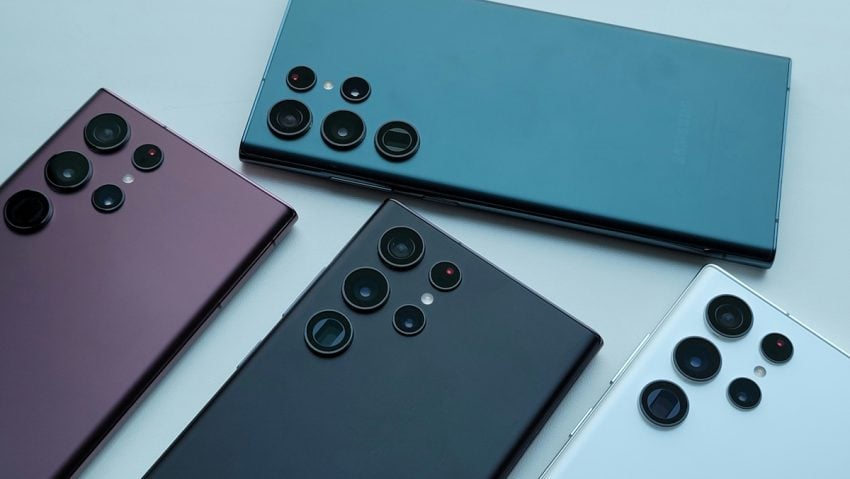
If you have a Samsung phone, look out for the next security update, it is massive

Posted on January 7, 2026January 7, 2026 by Martin Brinkmann

Android phone and tablet owners know the drill. Google releases monthly security updates for Android and pushes them to supported Pixel devices quickly. Other manufacturers, Samsung, Xiaomi or Sony, to name a few, create patches for their devices and push them to these devices as well.

Depending on how much you paid for the device and its status in the support lifecycle, your devices may also receive monthly security updates. Some devices receive delayed updates, which makes them vulnerable to potential attacks.

Samsung has just posted information about the January 2026 Patch Day, and it is a massive one. The company has corrected a total of 55 security issues.

Here are the highlights:

  • The update includes a fix for a critical vulnerability, and 28 vulnerabilities rated high.
  • 23 of the included patches are provided by Google (with two not applying to Samsung devices).
  • The remaining 34 vulnerabilities come from Samsung Semiconductors (4) and Samsung Mobile (30).

Select Settings > About Phone > Software Update to check manually for the update. Samsung delivers updates on a monthly, quarterly, or biannual schedule.

Samsung’s security model

Samsung releases monthly security updates for Flagship- and Enterprise-devices only. You find Galaxy Fold and Galaxy S supported here mostly. In fact, the only non-Enterprise A-series model is the Galaxy A 56 5G device.

Most non-Flagship devices receive quarterly updates only. This is a problem from a security point of view, as Samsung collects security updates for these devices to release them once every quarter. If you have any A-series device other than the latest A5x, your devices will receive quarterly updates only, unless it is an Enterprise-device.

While Samsung has extended updates support in recent time, only its Flagship devices offer a monthly update frequency.

How to use Modes and Routines on Samsung devices

Posted on December 12, 2023December 12, 2023 by Martin Brinkmann

Remember IFTTT (If This Then That?. The service allowed you to create rules to automate certain tasks. From basic tasks, such as getting the weather forecast every day at 8:00 AM to parking your autonomic mower if the weather forecast foresees frost or heavy rain.

Samsung’s Modes and Routines feature for its Galaxy series of devices promises something similar. You may use it to create automated tasks on your devices.

Modes describes certain situations, e.g., where you are or what you are doing. The feature includes preset modes, for example sleep, driving or exercise, and the option to create custom modes.

Routines are rules that you may combine with modes or other features of the device. You can create routines to enable sleep mode every day at 10 PM and change certain configurations on the device at the same time.

Routines and Modes can be configured individually or in combination.

Setting up Modes and Routines

Samsung Modes and Routines Android

You find Modes and Routines in the Settings on the device. Note that it is not available on all Samsung devices, phones and tablets, at the time of writing. Samsung’s support page lists all recent Samsung Galaxy S devices, The Note10 and Note20, Z Fold, Z Flip and the A52 as supported.

One easy way to access the feature is to display the quick settings on the device and activate the settings icon that is displayed there. This opens the Settings and Modes and Routines should be displayed there.

Modes explained

Samsung Modes

All modes use the same basic template. You may select a preset or create custom modes. Each mode has a name, icon and color associated with it. You specify its duration and when it turns on. This may happen manually on user request or automatically.

Automatic options include when a specific app is opened, at a specific place, a time period, when a Bluetooth device connects or disconnects, or other custom parameters. The feature supports a whole range of custom options, including Android Auto, Wi-Fi, when games are played, calls are made or media is played.

Once you have set up these parameters, you may set the desired actions. This includes enabling staying focused to avoid distractions and plenty of other options. You may enable dark or power saving mode, change the volume, and change dozens of other settings or features of the device.

You may configure multiple actions that are enabled automatically when the mode is turned on.

When a mode is active, it may also change the appearance of the lock screen and the home screen.

Routines explained

Samsung Routines

Routines are the second big cornerstone. They may also be used for automation on the device. Routines always come in the format “if” and “then”. If describes triggers that execute the “then” actions.

If a mode is active, do this. If Wi-Fi Network strength drops beyond a certain point, switch to another network. If your location is X, do that. If Android Auto is connected, enable Do Not Disturb mode.

Closing Words

Modes and routines are powerful options to automate certain tasks and actions on Samsung devices. It may take a while to fully understand what you can do with the feature, as there is so much to explore and check out.

It takes just a minute or so to set up a new automated routine on the device, but there is no limit regarding complexity. You may create easy automations, like enabling sleep mode every day at 10 PM and enabling power saving mode, eye comfort shield and dim the wallpaper at the same time.

You may also create actions that involve location rather than time. Maybe enable Do Not Disturb whenever you are at work, school or at the cinema. Lots of options to configure, which is the feature’s greatest strength but may also make others shy away from it.

Now You: do you use automation on your devices?

About Samsung’s Temporary Cloud Backup

Posted on October 27, 2023October 27, 2023 by Martin Brinkmann

Temporary Cloud Backup is a new service by Samsung. It is rolling out to Samsung Galaxy smartphones and tablets with One UI 6 or later.

The backup solution looks like many other cloud-based backup services on first glance. Samsung users may use it to back up data on cloud servers. What makes this different is that the storage is temporary.

The data is stored for up to 30 days in the cloud. Samsung claims that there are not any storage size restrictions. The only limitation, in fact, is that individual files may not be larger than 100 Gigabytes, which most users should not run into.

All the backing up and transferring happens on the user’s device. A second device, for instance a PC, is not required.

The backup feature is ideal for securing data before handing devices over to others, for instance for repairs.

The idea behind the feature

Samsung explains that the service is ideal for securing data before replacements or repairs. Devices that need to be repaired are often inaccessible for a period of time.

If they need to be send in, there is a slim but existing chance that the package gets lost during transit.

Temporary Cloud Backup is integrated into Maintenance Mode. Samsung introduced Maintenance Mode in the Samsung Galaxy S22. It protects personal data and information when activated.

When users activate the mode, a separate user account is created that others may access when repairing Samsung devices. Samsung users find the mode under Settings > Battery and Device Care > Maintenance Mode.

Samsung explains:

Maintenance mode protects your privacy while someone else is using your phone, such as when you’re sending it for repairs.

Personal data, including a user’s photos, documents and messages, is restricted in Maintenance Mode. User-installed apps become unavailable as well. While apps may be downloaded and installed in the mode, they are removed from the device along with any “data or accounts” when the owner of the device exits Maintenance Mode.

Temporary Cloud Backup complements Maintenance Mode. It pushes a backup of the user’s personal data to the Samsung cloud. From there, it can be retrieved at any time during the 30-day period.

Temporary Cloud Backup

Temporary Cloud Backup by Samsung

The new backup feature serves several purposes. Repair and maintenance are two of the main applications, but it is also helpful for new devices.

The integrated Setup Wizard of Samsung devices includes an option to restore data backed up at Samsung’s Cloud using the temporary backup feature. Users may use it to move their files between devices.

The feature is attached to Maintenance Mode and the device’s Reset function.

The backup app displays the available options. These include backing up apps, calls and contacts, messages, secure folder data, settings and more.

The process requires an active wireless connection. Samsung’s device displays the transfer progress during the operation.

Samsung informs owners of the data before the 30-day limit is reached. This should give them enough time to restore the data before it is deleted automatically.

Closing Words

The full rollout is starting this fall for all Samsung Galaxy smartphones and tablets with One UI 6. The first devices will be the Galaxy S and Z series in Korea.

Temporary Cloud Backup and Maintenance Mode are two useful features. Maintenance Mode blocks access to personal data during repairs and maintenance operations. Cloud backup saves the data so that it can be restored at a later point; this is also useful when sending in devices.

Now You: how do you handle data on your devices during repairs?

Support This Site

If you like what I do please support me!

Any tip is appreciated. Thanks!
  • March 2, 2026 by Martin Brinkmann Don't Bother with Windows 11's new Speedtest feature
  • February 27, 2026 by Martin Brinkmann Warning! That laptop on Amazon? It comes with temporary storage
  • February 26, 2026 by Martin Brinkmann "If your printer works today, it will continue to work": Microsoft corrects previous announcement
  • February 25, 2026 by Martin Brinkmann YouTube Premium Lite subscribers get background playback and downloads with a big "but"
  • February 24, 2026 by Martin Brinkmann Firefox 148.0 is out with its AI kill switch and support for Windows 7 and 8.1 comes to an end

About

We talk, write and dream about Technology 24/7 here at Chipp.in. The site, created by Martin Brinkmann in 2023, focuses on well-researched tech news, reviews, guides, help and more.

Legal Notice

Our commitment

Many websites write about tech, but chipp.in is special in several ways. All of our guides are unique, and we will never just rehash news that you find elsewhere.

Read the About page for additional information on the site and its founder and author.

Support Us

We don't run advertisement on this site that tracks users. If you see ads, they are static links. Ads, including affiliate links, never affect our writing on this site.

Here is a link to our privacy policy

©2026 Chipp.in Tech News and Reviews