Chipp.in Tech News and Reviews

Windows, Security & Privacy, Open Source and more

Menu
  • Home
  • Windows
  • Security & Privacy
  • Gaming
  • Guides
  • Windows 11 Book
  • Contact
  • RSS Feed
Menu

Tag: android

Trading In Your Android? Here Are the Mandatory Steps to Follow

Posted on February 15, 2026February 15, 2026 by Martin Brinkmann

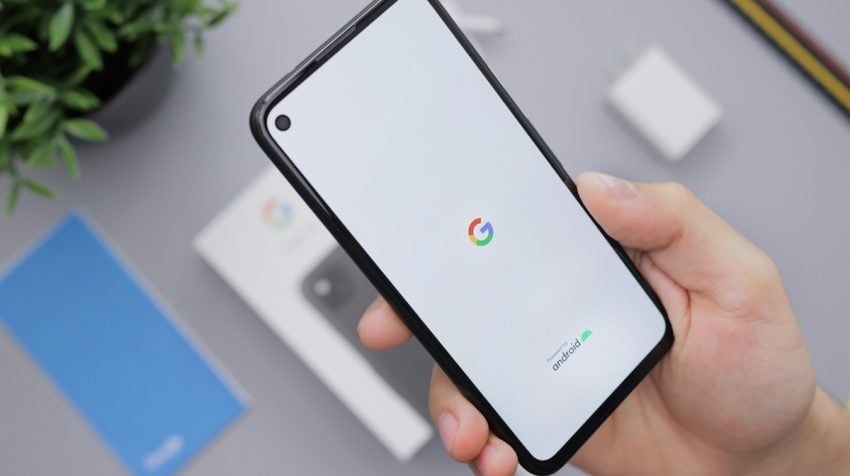
There are few feelings better than unboxing a brand-new smartphone, but that excitement can turn to frustration quickly if your trade-in gets rejected weeks later.

While most people remember to wipe their photos and messages, many overlook the invisible ‘digital locks’—like Factory Reset Protection—that can render a phone useless to a recycler and instantly drop your trade-in value to zero.

Before you seal that shipping box or head to the store, you need to do more than just a quick reset; you need to ensure your Android phone is completely unlocked, secure, and legitimately ready for its next owner.

The Pros and Cons of Trading in your old Android phone

The main benefit of trading in an old smartphone is that you get money for it. This is especially useful if you don’t need the old device anymore. Sometimes, merchants pay you extra when you trade in a device, even if the device is not worth as much anymore.

The downside is that you are giving away a device that you used in the past. Unless you are careful, it may be possible to access personal data or accounts.

Another issue is that you need to make sure that the device is not protected from being reset by the processing company or the new owner. If the trade-in company realizes that the phone is locked, it will reject it.

Here is a quick overview of the pros and cons:

ProsCons
Convenience and safety“Bill Credit” Trap
Inflated prices (sometimes)Low value without special promotions
Instant discountsGrading may sometimes disagree with your assessment
Environmental responsibleDelayed gratification

Note that I assume that you have moved the data from the old device to the new already. A good option for that is to connect both devices via an USB cable and start the transfer process this way.

The mandatory steps before sending the old device in

First, make sure that you back up all important data. This includes photos and videos, files, and anything else. It is a good idea to create a full phone backup, but you can also use internal features to create this backup. This ensures that you can restore the data, if the need arises.

Go to Settings > Google > Backup on the device. Note that this backs up essentials, such as contacts or device settings. The location may be different depending on the device manufacturer. Samsung device owners go to Settings > Accounts and backup, and select “back up data” there.

Backing up photos and videos is another story. You could back them up in the cloud, and Google is very pushy about this, or, and this is what I prefer, store them on a local computer instead.

Second, removing the Google account is essential. If you do not, you won’t disable Factory Reset Protection. This is designed to prevent the theft of devices, as the new owner needs the password of the previous owner to start using it.

Go to Settings > Passwords & accounts (or Users & accounts, or Manage accounts). Locate the Google account there and select the remove option. I suggest you do the same for any other account on the device, as this removes them all. The accounts on the new device are not affected by this.

Third, run a factory reset. This restores the original state of the Android device and removes all personal data from it. Go to Settings > System > Reset Options > Erase all Data. On Samsung, you find the setting under Settings > General management > Reset > Factory data reset.

Finally, remove any SIM-cards, eSIMs, or SD cards from the device.

Recommended Steps (good practice, but not mandatory for trading in)

Here is a quick list of tasks that you might want to consider as well:

  • Unpair any Bluetooth devices.
  • Remove any network connections.
  • De-register from chat services.
  • Save the phone’s IMEI number (dial *#06# to see it on the screen).
  • Charge the battery to at least 50 percent.
  • Document the phone’s condition with photos or video, also write down the information).

Ultimately, the difference between a successful trade-in and a rejected one often comes down to these few minutes of preparation. By ensuring your data is backed up and your Google account is fully removed, you’re not just protecting your privacy—you’re securing your payout.

Android

Starting next year, all Android apps need to be registered by verified developers, even sideloaded ones

Posted on August 26, 2025August 26, 2025 by Martin Brinkmann

Android users have two main options to install apps on their devices. Through Google Play, if the marketplace for apps is installed, or through sideloading. Up until now, releasing apps through Google Play required a verified developer account. This meant that the developer had to verify their identity before apps could be published.

Starting in 2026, developers who do not publish their apps through Google Play will also be required to verify their identity, if they want their apps to be installed on certified Android devices. A certified Android device, in a nutshell is any device with installed Google services.

Google says that it won’t check apps that are registered through the new program but not made available through Google Play. However, developers are required to use a new special Android Developer Console for sideloading.

Furthermore, the verification process requires that developers provide Google with personal information, including their name, address, email, and phone number, and verification of their identity, for instance by providing Google with documentation that confirms the identity.

Google plans to invite select developers of applications from October 2025 onward and enable free registrations from March 2026 on.

The sideloading of apps by unverified developers will be blocked in the countries Brazil, Indonesia, Singapore, and Thailand from September 2026 on. More countries are added to the list starting in 2027.

Google claims that the new process is designed to “better protect users from repeat bad actors”, as it will make it harder for malware actors to quickly release new malicious apps after Google has taken down an app from a developer.

The change will make it difficult for malware creators, as they need a certificate to distribute their malicious apps outside of Google Play. However, it is also giving Google access to additional data and ends the anonymous development and distribution of apps.

Now You: what is your take on this? Good decision by Google to stop malware and threat actors in their tracks, or a move to gain access to even more data and control?

Google Pixel 9a

Google Pixel 9a announced for $499

Posted on March 20, 2025March 20, 2025 by Ashwin

Google has launched the Pixel 9a. The mid-range phone runs on Android 15 out of the box, with an update policy of 7 years of OS, security and Pixel drop updates.

Google Pixel 9a

As one might expect, the Pixel 9a ships with Gemini built-in, but it doesn’t include a subscription for Gemini Advanced.

The phone is powered by an in-house Google Tensor G4 processor, with 8 GB of RAM and 128/256 GB of storage. It has a Titan M2 security coprocessor, an optical fingerprint scanner, to protect user data which is end-to-end encrypted locally.

There is no camera island across the device’s rear panel, the dual cameras are instead housed in a regular array. The primary lens is a 48 megapixels wide angle camera that supports Optical Image Stabilization, Electronic Image Stabilization, and can record 4k videos at 60 frames-per-second. The other camera is a 13 megapixels ultra-wide angle lens.

The Pixel 9a is capable of AI-powered photography features like Add Me which combines group photos), Best Take which blends facial expressions from multiple photos, and Magic Editor that can reframe your photo, suggest best crop, auto-expand the scene, add effects, etc. In addition to these the Pixel 9a also supports various editing features such as Magic Eraser, Audio Magic Eraser, Night Sight, Astrophotography, Panorama with Night Sight, Photo Unblur.

Moving to the front, the Pixel 9a has a 13 megapixels wide angle camera for selfies, which is housed at the top of the screen. As for the design, the phone has thick bezels running around the edges. The screen is a 6.3-inches Actua Display, and it supports 120 Hz adaptive refresh rate, HDR, and is protected by Corning Gorilla Glass 3.

Google has managed to fit in a chunky 5,100 mAh battery in the phone, which it says will offer 30+ hours of battery life. The handset is IP68 certified for dust and water resistance. More interestingly, Google claims that the Pixel 9a has drop protection, which should make it durable.

Google Pixel 9a tech specs

  • Processor: Google Tensor G4
  • Security: Titan M2 security coprocessor, Fingerprint Unlock, Face Unlock
  • Memory: 8 GB RAM
  • Storage: 128 GB / 256 GB
  • Screen: 6.3-inches Actua Display, 120 Hz adaptive refresh rate, 20:9 aspect ratio, Corning Gorilla Glass 3, 1,000,000:1 contrast ratio, HDR, 2,700 nits brightness
  • Operating System: Android 15
  • Front Camera: 13 MP f/2.2 aperture, 96.1° FoV, 4k video @ 30 fps
  • Rear Cameras: 48 MP Wide f/1.6 aperture, 82° FoV, OIS + EIS, 0.5x and 1x optical zoom, Super Res Zoom – up to 8x, 4K video capture @ 30/60 fps, 5x digital zoom + 13 MP Ultra-wide angle f/2.2 aperture, 120° FoV
  • Battery: 5,100 mAh, Fast Charging, Qi Wireless Charging
  • Port: USB Type-C 3.2
  • Audio: Stereo speakers, 2 microphones
  • Connectivity: Dual SIM (Single Nano SIM and eSIM), 4G LTE, 5G Sub 6GHz, Wi-Fi 6E with 2.4GHz+5GHz+6GHz, 2×2 MIMO, Bluetooth v5.3, NFC, Google Cast, Dual Band GNSS, GPS, GLONASS, Galileo, Beidou, QZSS, NavIC
  • Sensors: Proximity sensor, Ambient light sensor, Accelerometer, Gyrometer, Magnetometer, Barometer
  • Update policy: 7 years of OS, security and Pixel drop updates
  • Rating: IP68 water and dust resistance
  • Dimensions: 154.7 mm x 73.3 mm x 8.9 mm
  • Weight: 185.9 g

Google Pixel 9a price and availability

The Pixel 9a starts at $499 for the 128 GB model, while the 256 GB version costs $599. The device will be available at the Google Store and retail partners beginning in April. The Pixel 9a comes in 3 colors: Obsidian, Porcelain and Iris.

5 Takeaways from NSA’s Best Practices for Mobile Devices

Posted on November 17, 2024November 17, 2024 by Martin Brinkmann

Mobile devices are seemingly everywhere. Many people carry them around all day. This makes them a valuable target for attacks.

The NSA published a document earlier this year in which it highlights best practices for mobile devices. It is a simple document, that divides suggestions into the labels avoid, disable, do, and don’t.

Some suggestions appear very basic for experienced users. Like, making sure that the operating system and apps are up to date, not opening attachments or links from untrusted sources, or not having sensitive conversations on personal devices..

Related content:

Nord Security launches File Checker online tool

A few of the suggestions may be new advice, even for experienced users. Or, it may be known but not practiced.

Here are five takeaways that I found interesting

  • You should reboot the device at least once a week.
  • Do not have sensitive conversations in the vicinity of the mobile device.
  • Use a protective case that “drowns the microphone” and block the camera when it is not used.
  • Disable Bluetooth, Location, and Wi-Fi when it is not used. Never connect to public Wi-Fi networks.
  • Use a protective case that “drowns the microphone”. Also block the camera when it is not in use.

Some of these make using mobile devices cumbersome and that is likely one of the main reasons why most mobile users are probably not restarting their device once a week or turning of Wi-Fi.

You can check out the full list of suggestions here.

What is your take on this? Do you restart your device regularly or follow some or all of the other suggestions? Feel free to leave a comment down below.

Google is adding anti-theft protections to Android

Posted on October 6, 2024October 6, 2024 by Martin Brinkmann

Google announced a new set of features designed to protect Android devices against theft in May. At least some of these features are now rolling out on first devices.

The following anti-theft protections are implemented:

  • Require device or Google account credentials to set up an Android device after factory reset.
  • Private area on the device that may be locked with a separate pin.
  • More authentication prompts for changes of sensitive settings.
  • Option to require enhanced authentication for certain features.

Good to know: Factory reset protection and private space is included in Android 15. The enhanced protections “will be released to select devices” this year, according to Google.

Related content

How to turn your Android device into an Internet hotspot

Let’s take a closer look at the features.

Factor reset upgrade prevents a reset by a thief

One options that thieves had until now was to factory reset the phone before selling it on the blackmarket.

Google wants to make this more difficult by requiring credentials before the device can be set up again.

Private area with extra protection

The private area feature enables Android users to lock sensitive apps behind another pin. This prevents direct access to the selected apps. Besides finance and health apps, you may also secure other apps or games, for instance social or messaging apps.

Additional authentication prompts for sensitive settings

Last but not least, Google is adding more protections for sensitive settings. Changing these requires the pin, password or biometric authentication.

The main purpose is to keep unauthorized users, e.g., a thief, from making changes that disable security settings such as Find My Device.

There is also a new option to require additional authentication for sensitive settings. Google mentions viewing or editing “critical Google account and device settings”. These require biometric authentication.

Closing Words

Some of the features are rolling out already to Android users in the United States, according to a post by Mishall Rahman on Threads. Most Android users are probably still waiting for Android 15 on their devices.

You can read Google’s announcement here.

What is your take on the new security features? Will you use them when they become available? Feel free to let us know in the comments below.

Android

Android: Google plans to remove substandard apps from Google Play

Posted on July 20, 2024July 20, 2024 by Martin Brinkmann

Google is updating the Android spam and minimum functionality policy to weed out low-quality apps in the Google Play store.

Here are the details:

  • Starting September 1, 2024, existing substandard apps will be removed from the Google Play Store.
  • New apps that Google determines as low-quality will not be allowed in the Google Play Store from that day forward.

Google lists several examples of app types that it considers substandard:

  • Static apps, for example apps that display text only. (new)
  • Apps with “very little” content, for instance “single wallpaper apps”. (new)
  • Apps that have no function or do nothing.
  • Apps that do not install.
  • Apps that do install, but do not load.
  • Apps that load, but are not responsive.

In other words: Google is expanding the classification of substandard Android apps to include static apps and apps that do little or nothing.

The company reasons that these types of apps are “not consistent with a functional and engaging user experience” and therefore “are not allowed on Google Play”.

Expect these apps to be removed from Google Play in the coming months.

Closing Words

It is understandable that apps that do not load or crash offer a bad user experience. Clearly, the developers of such apps need to get back to the drawing board to sort out these major issues before offering them in the Play Store.

While apps that do very little are not harmful, they may be used to swarm the Store with similar types of apps.

Imagine a single wallpaper app that is copied thousands of times to show a different wallpaper in each of the apps. The developer could target different keywords with each of the apps, thus flooding the Store.

Still, this could have been dealt with in other ways probably.

What is your take on this? Do you download and install Android apps frequently? Have you encountered substandard apps in the past? Feel free to leave a comment down below.

Speedcheck on mobile phone

How to turn your Android device into an Internet hotspot

Posted on July 19, 2024July 19, 2024 by Martin Brinkmann

Lately, we have been having some problems with our local Internet provider. Internet goes down unannounced at times or it is barely usable.

That is a big issue if you need the Internet to make a living. For some time now, I have been using Android’s mobile hotspot feature to regain access to the Internet.

Good news is, it is really easy to set up and use. Before we look at that, I’d like to list where a mobile hotspot may be useful.

  • When the local Internet connection is down or unstable.
  • To avoid public Wi-Fi.
  • To replace the local Internet connection entirely.
  • In locations without Internet, but mobile connectivity.

Word of warning: Using the Android device as a mobile hotspot uses-up your monthly data. Not a problem if you are on an unlimited plan, but very much so a problem if your monthly data allocation is rather low.

Using your Android phone for Internet

Android configuring mobile hotspots on a Samsung Galaxy A55

The main idea is to turn the Android device into a mobile hotspot. Other devices may then use Wi-Fi to connect to the Android device in question.

This requires a few things:

  • Both devices need to be in range.
  • The Internet quality is determined by the mobile connection of the Android device.
  • I’m using a Samsung Galaxy A55 for the guide, but the experience should be very similar on other Android devices.

Here is a step-by-step guide to set this up:

  1. Swipe down twice to display the full Quick Settings panel.
  2. Locate Mobile Hotspot and tap on the feature.
  3. If Wi-Fi is turned on, you get a prompt to turn it off. Select the Turn off option to continue.

The mobile hotspot is now enabled and you should see the Android device when you check for wireless access points.

To check name and password, it is necessary to do the following:

  1. Swipe down twice again to bring up all Quick Settings.
  2. Tap and hold the mobile hotspot icon until the configuration menu opens.

There you find the name, password, and band information, which you can change here by tapping on the information.

  • Change the wireless access spot’s name.
  • Change the password that you need to type to connect to the Android device’s hotspot.
  • Switch the band from 2.4 GHz to 5 GHz, or vice versa.
  • Make changes to the security (WPA).

You can furthermore make plenty of other configuration options. This includes enabling Wi-Fi 6 support, setting up a one-time password for guests, or change auto-turn off preferences.

Closing Words

Mobile hotspots provided by your Android device (Apple has a similar feature) are helpful in many situations. They may improve security and get you over periods where the regular Internet connection may not be available at all or unstable.

Have you tried the mobile hotspot feature of your mobile device? When do you use it, or when would you use it? Feel free to leave a comment below.

Windows 11 Start Menu Companion Phone Link

You may soon manage mobile phones from Windows 11’s Start Menu

Posted on June 22, 2024June 22, 2024 by Martin Brinkmann

You may have heard that Microsoft is working on extending the Windows 11 Start Menu. Called Start Menu Companions for now, it is showing additional information and management options.

Good to know: Microsoft showcased several Companions already, including one that showed information from Windows Widgets there.

Microsoft released a new Insider build to the Beta channel that showcases the feature. This particular one adds Android phone management options to the Start Menu. Microsoft says that iOS support is coming at a later stage.

The feature extends the Phone Link feature of the Windows operating system. Phone link supports the following features at the time of writing:

  • Read chat messages and respond to them.
  • Call contacts, check the call history, and search contacts.
  • Check, dismiss, or pin notifications.
  • Share photos (Android only).

Phone Link functionality in the Start Menu

The Phone Link companion displays just a few information right now. The top lists the device’s name and status information. Below that are links to Messages, Calls, and Photos. These open messages, calls, and photos directly from the Start menu.

The bottom displays recent activity, including new messages, missed calls, or new photos.

Microsoft says the feature is rolling out gradually to users. It can be managed via Settings > Personalization > Start and requires a paired mobile device.

Closing Words

Windows users who use the Phone Link app may enable or disable the functionality in the Start menu. Everyone else won’t see it, unless Microsoft decides to advertise it.

There are a number of uncertainties that Microsoft has not addressed yet:

  • Can you link more than one phone?
  • Is it possible to display multiple Start menu companions at the same time?
  • Will there be multiple companions to choose from? If so, which?

For now, I’m not sold totally on the feature. Is it adding something that is not accessible elsewhere or does it improve usability significantly? How often do users open the Start menu in Windows?

My count has gone down significantly ever since Microsoft introduced the pinning of apps to the taskbar.

What is your take on the companion feature? Good addition or superfluous?

AntennaPod interface

Podcast Player AntennaPod 3.4 launches with massive performance gains

Posted on May 29, 2024May 29, 2024 by Martin Brinkmann

The end of Google’s Podcast application and the attempt to push users to the mediocre alternative YouTube Music has pushed some users to other podcasting apps.

AntennaPod is an open source podcast player and manager that is updated regularly. Core features include:

  • No ads.
  • Option to subscribe to podcasts using online podcast directories.
  • Download podcast episodes manually or automatically.
  • Modify settings per-podcast, e.g., playback speed or auto-skipping.
  • Supports authentication.
  • Lots of customization options.

AntennaPod 3.4.0

The latest update improved the application’s efficiency in several key areas. The developers note in the release note that this update completes the modernization of the apps’ code structure. The process began three years ago.

AntennaPod 3.4.0 improves the refreshing of subscriptions by up to three times compared to the previous performance. This improvement is especially noticeable if a user has subscribed to a lot of podcasts.

The release notes mention at least 1000 episodes. While that sounds like a lot, it depends on the subscribed podcasts.

The second improvement speeds up the deletion of podcasts subscription. This process is improved by up to the factor 10.

The new version includes other improvements:

  • An option to back up the database automatically is now available. You find it under Settings > Import/Export > Automatic database export. It saves the database every three days when activated and keeps the last 5 backups.
  • Add a sleep timer to AntennaPod notifications. This option is found under Settings > User Interface > Set notification buttons.
  • Skip Silence can now be configured per subscription.
  • An option to reorder sections on the homepage is now also available.

While there are other excellent apps out there, AntennaPod is certainly among them when it comes to functionality and the overall experience.

What about you? Do you listen to podcasts? If so, which app or service do you use?

Android buttons navigation bar

Android: how to switch between buttons and swipe gesture navigation

Posted on April 30, 2024April 30, 2024 by Martin Brinkmann

Depending on the Android phone that you use, you may either use a navigation bar at the bottom of the screen or swipe gestures to navigate.

Google Pixel devices, for instance, use swipe gestures by default. Most, if not all, Android devices let you switch between the two options. If you prefer one over the other, you may make the change in the settings.

Good to know: the navigation bar takes up permanent space on the screen. This is the main reason why manufacturers such as Google or Apple have switched to gesture-based navigations.

Not all Android users may know that they can switch between the two options. This guide helps those users.

How to switch the navigation bar option on Android

Note: the path to the preference may differ slightly depending on the Android device. Try searching for the option if you cannot find it on your device.

Here is what you need to do:

  1. Open the Settings on the Android device.
  2. Switch to Display.
  3. Find Navigation bar on the page that opens.
  4. Switch between Buttons and Swipe gestures on the page to change the method. Tip: you may change the order of buttons under “more options”.

The change takes effect immediately. You can repeat the steps to switch back to the previous method.

Closing Words

I dislike swiping to navigate with a passion. My wife had this on here Google Pixel device and it never really worked reliable enough. While the navigation bar takes away space for other content, I have to say that I prefer it. My wife is also a lot happier now after I changed the option to buttons again in the preferences.

But maybe it is the other way for you. Maybe you prefer swiping because of the extra bit of space on the screen you get.

Which method of navigation do you prefer on your mobile devices? Buttons or swipe gestures? Feel free to leave a comment down below.

  • 1
  • 2
  • Next

Support This Site

If you like what I do please support me!

Any tip is appreciated. Thanks!
  • March 2, 2026 by Martin Brinkmann Don't Bother with Windows 11's new Speedtest feature
  • February 27, 2026 by Martin Brinkmann Warning! That laptop on Amazon? It comes with temporary storage
  • February 26, 2026 by Martin Brinkmann "If your printer works today, it will continue to work": Microsoft corrects previous announcement
  • February 25, 2026 by Martin Brinkmann YouTube Premium Lite subscribers get background playback and downloads with a big "but"
  • February 24, 2026 by Martin Brinkmann Firefox 148.0 is out with its AI kill switch and support for Windows 7 and 8.1 comes to an end

About

We talk, write and dream about Technology 24/7 here at Chipp.in. The site, created by Martin Brinkmann in 2023, focuses on well-researched tech news, reviews, guides, help and more.

Legal Notice

Our commitment

Many websites write about tech, but chipp.in is special in several ways. All of our guides are unique, and we will never just rehash news that you find elsewhere.

Read the About page for additional information on the site and its founder and author.

Support Us

We don't run advertisement on this site that tracks users. If you see ads, they are static links. Ads, including affiliate links, never affect our writing on this site.

Here is a link to our privacy policy

©2026 Chipp.in Tech News and Reviews