
When Microsoft CEO Satya Nadella argued that the discussion surrounding AI should move beyond “slop vs sophistication”, he probably did not have developers in mind that could take this literally.
Fun fact: The dictionary Merriam-Webster coined Slop the word of the year 2025.
Serial developer Belim, known for open source tools such as FlyBy11 or CrapFixer, created WinSlop as a direct response to Nadella’s plea.
What is it? WinSlop is a free open source program for Windows that removes “unnecessary, low-value system components” from the operating system that “consume resources, and reduce user control without providing meaningful benefit” according to the developer’s own description.
If you have used the developers other tools, you know what to expect. WinSlop is a lightweight tweaker for Windows that can turn off unwanted features among other things.
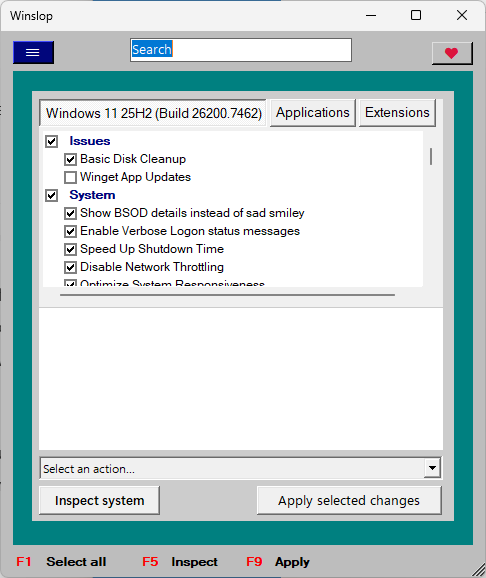
The tiny program launches directly when you execute it. It separates tweaks into three main tabs. The first displays components of Windows that you may disable by checking and unchecking boxes.
While AI components are a focus, it does not stop there. You can also use it to disable ads in certain places, tame Microsoft Edge, or remove unwanted features from the user interface.
The list is long and you may use the built-in search to find specific options faster.
One interesting option here is the ability to run a system check. This checks all 50 tweaks currently integrated to see whether they have been applied already. To enable a tweak, check the box in front of it. If you do not want a tweak to be applied, make sure its box is unchecked before you hit the “apply selected changes” button or press F9.
Most tweak titles are self-explanatory, but some may require a bit of research. The program lacks tooltips and does not provide additional information on the tweaks.
While it is clear what “Disable Bing Search” does, not all users may know what “Disable Hibernation” or “Optimize System Responsiveness” do. Detailed information would improve the app significantly in this regard. Experienced users may also want to know the exact tweaks that go into the system optimization.
Switching to the apps tab, you are prompted to run a system inspection. WinSlop checks for installed apps and lists apps that it considers bloatware. You may check apps individually to remove them from the system with a click on apply.
The Extensions tab, last but not least, can be used to load the Chris Titus app Windows Toolbox. It offers even more options, such as installing popular apps, tweaking Windows or enabling features such as the Subsystem for Linux. It is a separate app, which I guess is handy to have, but does not really add to the program itself.
Closing words
WinSlop is a handy tweaker for Windows that may get some publicity because its developer references the slop-quote of Microsoft’s CEO directly. However, it does not really add much to the world of tweaking programs that has not been there before.
Yes, it is easy to use and the system checker is nice, but that is about it. Still, if you have not used a tweaker on Windows yet, it is a good program to get started.
Does it does anything WinAeroTweaker does not?
Sloppy doesn’t work for me–it means lazy, I don’t respect my audience or myself, I don’t have the time because I want to try something else, etc. I tried some of Belim’s tools, and I wasn’t impressed. I didn’t trust them; sometimes an added extension/script didn’t even work.
But, Optimizer, by hellzerg–I’ve used it several times. Beautiful interface; clear tabs for each category; no error messages. He hasn’t updated the program for over a year, which is too bad. Excellent tool; I may have read about it here or on gHacks. Thanks!
https://github.com/hellzerg/optimizer
If this is by Belim it will be renamed several times and then completely abandoned like everything else.
It doesn’t matter if he strikes at gold he will burn it all down in time.
No offense to him at all but it just gets tiring to try an application that then changes name, then changes GUI, then gets integrated into something else with a different name and different UI and then finally depreciated.
Its a pointless and vicious cycle.
I’m happy with (free) O+O ShutUp for tweaking these days. It can disable/clear/uninstall CoPilot AI, as well as deal with a lot of other Windows crapware. O+O is a real company with a decent track record.
I had to Run as Administrator on my Windows1125H2 Virtual Machine. It worked well.
Thank You.
I downloaded and tried it on a random windows 11 home edition machine laying around in our shop.
Not sure on the verdict. It sorta does what shutup10 does with a few exceptions but you have to intentionally authorize them wherein with shutup10 you can select either the local user account or the machine overall and apply all selected settings or modified ones at once.
Think for now, its Shutup10 for the win. This one just ain’t quite ready for primetime.