Chipp.in Tech News and Reviews

Windows, Security & Privacy, Open Source and more

Menu
  • Home
  • Windows
  • Security & Privacy
  • Gaming
  • Guides
  • Windows 11 Book
  • Contact
  • RSS Feed
Menu

LanguageTool blocks free user access to browser extension: here are the best alternatives

Posted on January 3, 2026January 3, 2026 by Martin Brinkmann

LanguageTool is a popular AI-based grammar checker. It is available as a free — limited — version and a premium version that offers more features for a price.

Free LanguageTool users were limited in several ways since the introduction of the service. It lacked the advanced spell, style and grammar checking capabilities of the premium version. However, up until now, free users could use LanguageTool browser add-ons for deeper integration in web browsers.

This integration is being taken away. When you open the comparison of the free and premium version on the official website, you will notice that Learneo, Inc, the owners of the service, have removed browser add-ons support for free users.

The only integration that remains available is for the open source email client Thunderbird. Support for every browser listed on the page requires a premium subscription now.

Why is LanguageTool making the change? The company does not say, but the main reason is likely to drive subscriptions. Free users who have come to rely on the tool may not want to lose access to it. The only option, if they want to continue using the add-ons, is to pay LanguageTool for the privilege.

LanguageTool users may use copy and paste for the checking of style, spelling, and grammar, but it is cumbersome in comparison.

LanguageTool alternatives

There are two groups that I would like to highlight.

  • The first offers capabilities that are very similar to LanguageTool. These tools rely on server-side checks, like LanguageTool, which makes them convenient to use but not-so-great for privacy.
  • The second group runs locally. This is much better for privacy, but features may be limited because of that or not as powerful.

Best privacy-friendly alternatives

Harper is a free locally-hosted open source grammar checker. That is great for privacy and it does come with browser and services integrations. Since it runs locally, its latency is much lower than that of cloud-based services.

However, the main downside is that Harper supports English only. The developers hinted in the past that other languages would be added in the future, but for now, English and some if its major dialects is all you get.

Self-hosted LanguageTool. It may come as a surprise, but you can actually host a LanguageTool server, if you have the technical know-how to get it up and running. This allows you to continue using the add-ons — I think — and you find starting instructions here. Could be an option for technical users who do not mind setting up their own server and fiddling around with configurations and such.

General alternatives

If you do not mind that your texts are transferred to cloud-based servers for checking, you may find the following tools or services useful.

QuillBot is an all-in-one writing assistant that offers a similar feature set. The free version checks spelling and grammar, comes with a few AI-based features, such as paraphrasing text (up to 125 words), browser extensions (no Firefox apparently), and some other applications and operating systems.

Windows users who use Edge may also check out the free Microsoft Editor of the browser. It offers limited grammar and spell-checking, but lacks deeper functionality.

Grammarly is another popular choice, but it has been criticized heavily in the past for its data collection practices.

Now You: do you use a grammar checker service or something else to make sure that mistakes are kept to a minimum? Feel free to post your suggestions and about your experience with these tools below.


Windows 11 SE: Microsoft confirms the end of the operating system

Posted on January 2, 2026January 2, 2026 by Martin Brinkmann

Microsoft confirmed that Windows 11 SE is on its way out. The operating system will reach end of support in October 2026 and won’t receive updates anymore after that month’s Patch Day. It is one of several Microsoft products that reach end of support or life in 2026.

What is Windows 11 SE? Windows 11 SE is a limited version of Windows 11 that is cloud-first and specifically designed for the education market, which requires cheap, secure, and easy to manage devices.

Microsoft created the operating system as a way to compete directly with Google’s Chromebook, regain lost grounds and increase the reach of its Microsoft 365 ecosystem.

Windows 11 SE offered a simplified interface, better offline capabilities than Chrome, and manageability via Microsoft Intune for Education. Critics found Windows 11 SE to be considerably heavier than Chrome OS. Additionally, availability was limited and users could not install apps on their devices.

Windows 11 SE: the countdown to end of support

Microsoft confirms that Windows 11 SE will no longer be supported after October 2026. This does not come as a total surprise, as Microsoft announced last year already that it would not release another feature update for Windows 11 SE.

The last feature update is Windows 11, version 24H2. From October 2026, Microsoft won’t release software updates or security fixes, and won’t offer technical assistance either.

Devices will continue to work, according to Microsoft. However, Windows 11 SE devices were low-spec devices. Microsoft’s own reference device came with an Intel Celeron N4020 or N4120 processor, 4 or 8 GB of DDR4 RAM, and either 64 GB or 128 GB of eMMC storage.

Third-party manufacturers, including Dell, Lenovo and HP, created custom devices, but they all had in common that components were not designed for speed of performance.

While it may be possible to install a different operating system on the devices, it would be ironic if Chrome OS would be installed on those devices. A clean install of windows 11 may also be an option, at least on some devices. However, this will likely lead to performance issues due to the low-power processor and bare minimum storage for running Windows 11.

It seems unlikely that Microsoft is working on Windows 12 SE. Microsoft recommends that customers migrate to devices that run Windows 11, but does not seem to offer any discounts to affected customers at this point.

These Microsoft products reach end of support or life in 2026

Posted on December 31, 2025January 2, 2026 by Martin Brinkmann

2025 was a tough year for many users of Microsoft products. It was the year that support for Windows 10 ended officially, albeit with the option to extend support by a year for consumers and by up to three years for businesses.

Windows 11, version 22H2 support ended just a few months ago for business customers and version 23H2 support ended for consumers as well. Additionally, Microsoft Office 2016 and 2019 reached end of support.

Looking forward, 2026 will be another interesting year. Consumers who run Windows 10 PCs with ESU will no longer get updates from Microsoft after the one-year extension has run its course.

But that is not the only change. Windows 11, version 24H2 reaches end of support as well. Business customers have to upgrade Windows 11, version 23H2 to ensure that their devices remain supported with updates.

Here is the list of products that reach end of support or life in 2026. Note that this may not be complete, as Microsoft does not provide an easily accessible list for all of its products.

Inspiration was taken from the list over at Deskmodder, but I have fine-tuned it somewhat.

Microsoft Windows

  • Windows 10 2016 LTSB / IoT Enterprise LTSB 2016 reach end of ESU on October 13th, 2026
  • Windows 11, version 23H2 Enterprise/Education/IoT Enterprise editions reach end of support on November 10th, 2026.
  • Windows 11, version 24H2 Home/Pro editions reach end of support on October 13th, 2026.
  • Windows 11 SE, reaches end of support in October 2026.
  • Windows Server 2012 and 2012 R2 reaches end of ESU on October 13th, 2026.
  • Windows Server 2022 reaches end of mainstream support on October 14th, 2026. ESU available.

Microsoft Office

  • Microsoft Office 2021 reaches end of support on October 13th, 2026.
  • Office LTSC 2021 and Office LTSC 2021 for Mac reach end of mainstream support on October 13th, 2026.

Other Microsoft products

  • Microsoft .NET 8 (LTS) reaches end of support on November 10th, 2026.
  • Microsoft .NET 9 reaches end of support on November 10th, 2026
  • PowerShell 7.4 (LTS) reaches end of support on November 10th, 2026.
  • SQL Server 2016 reaches end of extended support on July 14th, 2026.

Generally speaking, Microsoft is supporting Windows 11 Home and Pro editions for two years, while business and Enterprise editions get three years of support.

Now You: Do you use a product or service that is reaching end of support this year? What are your plans dealing with this? Feel free to leave a comment down below.

How to stay relevant in a world filled with AI-generated content

Posted on December 30, 2025December 30, 2025 by Martin Brinkmann

AI content is on the rise. When you search for something on most search engines, you get AI overviews at the very top of the results. The AI takes that content from other sites and processes it for its responses.

While Google is vehemently rejecting the idea of sites getting less visitors from search engines, site owners seem to have a different view on the matter, for the most part at least.

Clearly, a percentage of search engine users won’t click on links that point to sites, if the search engine provided them with the answer to their request. This means, less visitors and the links that Google and others add do not account for the lost traffic, even if you take only the few sites into account that do get links. Additionally, more and more users use AI chats directly instead of search engines.

I do not really think that this trend is reversible, similarly to how other major changes were. As someone who creates content, you have but a few options left to keep doing what you love, provided that it is not just a hobby for you but a job.

It is all about trust

While you cannot really compete with the speed or reach of AI, or major sites out there that still seem to cover every topic imaginable, you have something that AI can’t replicate: the trust of your readers.

While AI can replicate any topic that you write about and provide answers or information, so that many Internet users do not even have to leave the search engine’s website, there can be a level of trust between human writers and their audience that AI can’t replicate.

Even if AI makers would be able to bring down fake answers — they call it hallucinations — to zero, it would still not be the same.

Take the review of a product. If you trust the review, for instance because you were never disappointed by previous reviews from a reviewer, then you may trust any review going forward, unless trust gets broken. With AI, there is no such level of trust. AI uses different sources for its takes on products and it is clear that the AI itself has never tested them.

Another example. Unless a human has reviewed and posted about a software, AI can’t provide you with its own review. It may copy content from the developer’s press release, if there is one, but it can’t review a software on its own.

While all of that may change in the future, it does not change the trust factor, at least not until AI evolves again to the next level.

What that means for this site

Well, it is quite easy. I do not chase search engine rankings anymore. Why should I. As a new and small site, you barely stand a chance anyway against the behemoths out there. Now with AI added as another roadblock, there is even a slimmer chance for driving much traffic from search engines to your site.

My hope, and this may come falling down on my head in the near future, is to focus on quality relationships. Ignore the masses, build a community of likeminded-people who enjoy my content and trust my writings and opinions. No need to always agree on things, but have a level of trust that AI or major sites can’t replicate.

Clearly, this is only sustainable if I find a way to earn enough money from this site to keep it going. I do not want ads and will shut the site down before I start showing generic ads here on this site or ads that track you. All part of the trust relationship.

My intention is to use a tip-system combined with a few carefully selected products that I get affiliate revenue from.

If this works, it would cut the reliance on search engines or any outside source. Grow by word of mouth or references on other likeminded sites or forums.

Well, that is the idea anyway. Would love to hear what you think of it. Feel free to leave a comment down below. Also, if you have an idea, let me know as well.

Google tests Pixel Upgrade Program that always gives customers the newest Pixel

Posted on December 29, 2025December 29, 2025 by Martin Brinkmann

Ah, the yearly phone update. Manufacturers such as Google, Samsung, or Apple release new mobile phones each year. This means that the phone that you buy today is not the hottest piece of hardware after a (maximum) of one year of usage.

That is a problem for users who always want the latest mobile device in their hands.

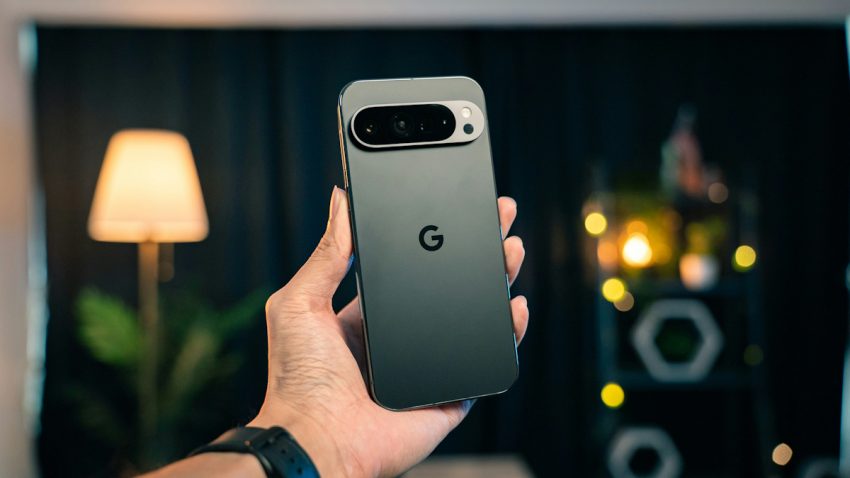
Google is testing what it calls the Pixel Upgrade Program in India. Announced on the official Google India blog, it sounds like a good deal on first glance: buy a new Pixel device, meet some requirements, and get future Pixel devices automatically while sending back your old devices.

This ensures, according to Google, that you have the latest and greatest Pixel device in your possession at all times.

Is there a catch? Yes, there is one. Google explains how the program works, and here are the caveats:

  • It is only available for no-cost 24-month EMI (Equated Monthly Installments) plans.
  • You need to buy the phone using credit cards from Google’s official partners Bajaj Finance or HDFC Bank.
  • You start a new EMI plan for each new Pixel device you get.

Between the ninth and fifteenth EMI, Pixel-users become eligible to upgrade. They need to trade the current Pixel device through Google’s partner Cashify. Provided that it “powers on and is free of unauthorized repairs”, an amount equal to the remaining loan balance is credited to the user’s bank account. This can be used to close the original loan.

From there, users need to start a new 24-month plan for the brand-new Pixel device.

ProsCons
Always have the latest Pixel device.Long-term renting, owning only if you make all 24 payments.
Predictable costs.Paying premium for (potentially) underwhelming upgrades
Bonus, e.g., free periods for Google AI Pro or YouTube Premium, restart with each phone.Limited to EMI and two banks.

Whenever a customer trades the old device in, the cycle begins anew. It is identical to a never-ending rent, with the benefit of getting the newest Pixel device each year.

Would I use it, if it would be rolled out worldwide? No, I would not. I do not buy in installments or on credit, and do not need the latest device each year. It may be different for others, who want or need the latest all the time.

What about you? Would you be tempted to join such a program to get the latest Pixel device each year? Feel free to leave a comment down below.

How to upgrade to Windows 11, version 25H2, if the upgrade is not offered via Windows Update

Posted on December 28, 2025December 28, 2025 by Martin Brinkmann

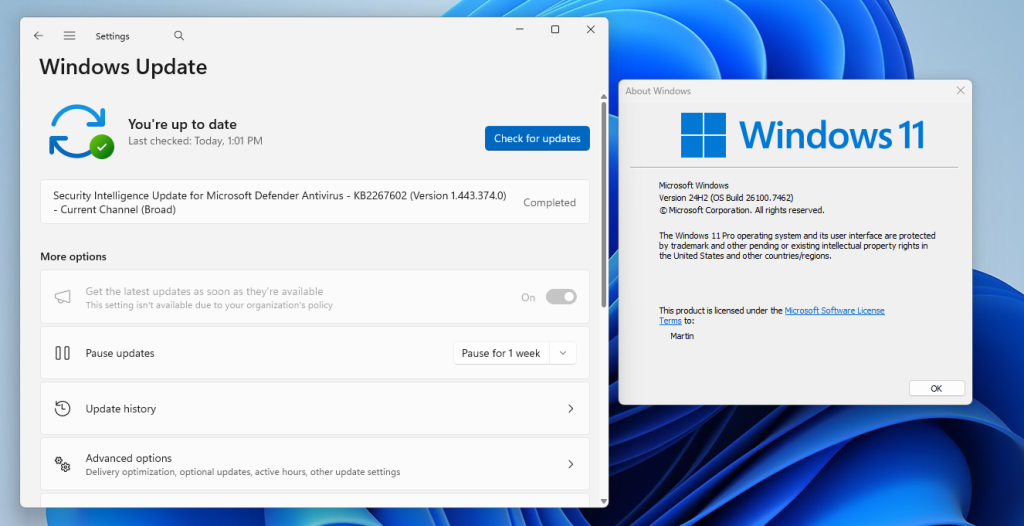
Microsoft released the 2025 feature update for Windows 11 in late September 2025. It was a smaller update that installs like a regular update instead of a bigger feature update. That is probably the main reason why Microsoft enabled broad distribution of the update shortly after its release.

The update should install automatically on most Windows 11 devices, provided that version 24H2 — last year’s feature update — is installed.

However, I noticed on one of my machines that Microsoft was not offering the new feature update via Windows Update.

First thing you may want to do in that case is to check if Microsoft has so-called Safeguard Holds in place.

Good to known: A Safeguard Hold blocks updates from machines, if certain issues are known that affect them. Microsoft uses the system to prevent larger issues on PCs that may be caused by updates.

Windows Update does not offer Windows 11, version 25H2 on a fully patched Windows 11, version 24H2 system.

Windows 11, version 25H2 has just three known issues listed on the official Windows 11 health dashboard. Two of these are listed as resolved, one as mitigated.

You may notice that your system is not affected by any of them. This was the case for the machine in question that I tried to upgrade.

Here are a few extra verification steps:

  • Make sure you have all updates installed that are offered via Windows Update. Go to Settings > Windows Update and activate the “check for updates” button.
  • Check the “get the latest updates as soon as they’re available” box.
  • Make sure the main drive has enough free storage space for the update. If it is low, say less than 20 gigabytes, you may want to consider freeing up space.

How to upgrade to Windows 11, version 25H2

Windows administrators who are in the same position have a few options. The easiest is to install a small enablement package, which upgrades the system to the latest feature update release.

There is a problem: Microsoft is not hosting the update file on its Microsoft Update Catalog website. This means that the download has to come from a third-party website, which needs to be trusted.

My recommendation is to download the package from Deskmodder, a German website with an impeccable record.

  1. Download Windows11.0-KB5054156-x64.msu from the website (or another, if you prefer that).
  2. Double-click on the update file to run the upgrade.

If things go well, Windows 11 should be upgraded to version 25H2.

Cookies

Brave: Quick Tip if websites do not react to input when you load them

Posted on December 26, 2025December 26, 2025 by Martin Brinkmann

Brave Browser includes several convenience features, mostly linked to the built-in content blocker. One of the features deals with cookie prompts automatically.

This works well most of the time. Whenever a cookie prompt appears, it is handled immediately by the browser in the most privacy-respecting manner.

Announced in 2022, it has been a feature of the browser ever since and is enabled for all users since mid-2023.

Here is how Brave describes the feature:

One approach (which Brave uses) is to block cookie banners, and to hide and to modify pages to remove any additional annoyance such systems include (such as overlays, preventing scrolling, etc.). Other Web-privacy tools (such as uBlock Origin) can be configured to use this same approach. This approach provides the strongest privacy guarantees: it doesn’t require trusting that the cookie consent systems will respect your choice, and prevents your browser from needing to communicate with consent-tracking systems at all.

Brave blocks cookie banners and deals with any nuisances related to them, including overlays.

However, while that works well most of the time, you may come upon websites that do not seem to work at all. You do not see a cookie prompt, but you can’t interact with the site. No scrolling, clicking on links, copying text. Nothing works.

This may be related to the script that deals with the cookie banners. It is possible that the site changed its code or that Brave does not support the specific cookie prompt the site uses. Brave’s solution relies on EasyList, a community managed list, which means that it works only when sites use one of the identifiers of the list.

Reloading does not resolve the issue, as the site will get stuck again. In fact, the only option that is working is to allow the cookie banner script to display and deal with it manually.

Sidenote: You could dig in the code and find the references to block them manually. May be worth a short, if you visit the site regularly.

The quick solution: Reject everything, deal with the cookie banner manually, and enable the script-blocking of the browser again for the site.

Granted, this is not ideal, as you allow the site to run all of its scripts and such. You could try and allow certain scripts to run only, which is the better approach, if you have the time to adjust this manually, as you will limit scripts this way.

If you are in a hurry though, you may use the method described above to quickly gain access to the site.

Once you have dealt with the cookie banner script, you should be able to use the site in question normally.

You may soon be able to change your Gmail address

Posted on December 25, 2025December 25, 2025 by Martin Brinkmann

Up until very recently, setting up a Gmail account meant that you’d be stuck with the selected email address. Google did not offer any option to change the address. In fact, the only option available was to create an entirely new account to pick a new email address.

This meant that you would lose access to preferences, emails, data and everything else associated with the account.

This seems to be changing, as Google revealed on a support page that address changing is coming to Gmail.

However, the news needs to be taken with a grain of salt. The help page is in Hindi only, which could mean that Google is making the change exclusive to a subset of users.

There, Google writes the following (auto-translated):

Changing the email address of your Google account

Your Google account email address is the address you use, lets you sign in to Google’s services. This email address lets you and others identify your account. If you prefer, your Google account’s email address whose last part is gmail.com can be changed. It could be replaced with a new email address with gmail.com last.

In other words, Google is rolling out a change that lets users change their Gmail address.

What about the old address then, you may ask? It is retained as well to avoid that someone else snags it up and gains access to your emails.

Google reveals that the process can be used once every 12 months at the most. Once a new email has been set, it, or the old, can be used to sign in to Google services.

When is it coming? The functionality is rolling out gradually, as usual. If this is indeed rolling out worldwide, expect weeks or even months before you see the functionality in your account.

Closing Words

The new process makes it easier to switch to a new email address by Gmail. Since you retain access to the old email, you effectively create a second account that you may use from that moment on, without losing access to the first.

Data seems to be shared though, so that your preferences and data are retained, regardless of the account that you use to sign-in.

Now You: do you have and use a Gmail account? Would you change its address name to a new one, if the feature lands? Feel free to leave a comment down below.

How to fully back up Windows with free backup software

Posted on December 24, 2025 by Martin Brinkmann

Microsoft’s Windows operating system comes with several features that enables users to restore the system. While the functionality helps at times, it falls short at other times.

That’s why third-party backup software remains important. The main advantage is that it can be fully independent of the operating system, provided that it supports backup media that you can boot from.

This allows you to run the software and restore the system, even if Windows refuses to boot or load, or when Windows recovery features fail.

There are numerous good and free apps out there that support all of this. My favorite for the past several years has been Paragon’s Backup & Recovery Community Edition.

It is free and supports full system backups as well as scheduled backups. While it lacks some advanced features, such as direct disc cloning or advanced partition tools. However, for the purpose of creating a full system backup, Paragon’s free solution is just fine.

What you need

Here is what you require:

  • Download the latest version of the free backup software from Paragon’s website. Install the software on the Windows PC.
  • An external hard drive or large USB stick. How large depends on the size of the system drive. I suggest several Terabytes, as you may want to store multiple backups on the drive. Otherwise, you’d have to delete old backups to make room.
  • A recordable disc or USB thumb drive for the recovery media.

Launch the backup software after installation and connecting the external drive. You should see the following screen:

Follow these steps to create your very first backup:

  1. Click on “Backup source”. You get the option to backup up the entire computer, disk/volumes, or files/folders.
  2. Select Disk/Volumes. All connected drives are displayed.
  3. Pick the main drive that Windows is installed on. Look for “Local Disk (C:)” when i doubt. Make sure the entire drive is selected and not just a volume by clicking on its name. Confirm with OK.
  4. Click on “Destination” next.
  5. Select the letter of the external drive that you connected. You may alternatively create a folder on it for the backups. Confirm with OK.
  6. Switch to Options once back in the main interface. Here, you have several options that you may want to configure:
    • Password Protection: This blocks access to the backup file unless the password is provided.
    • Backup compression: Set to normal by default. If you pick “Best”, the backup file size may be smaller, but the operation will take longer. If you have enough space, you could also pick “none” or “fast” for quicker backups.
    • Check backup integrity after creation: This verifies that the backup has been created successfully. Will take longer to complete.
  7. Go back to “backup strategy”.
    • Select “is not scheduled” to schedule backups. This can be used to create automatic backups, but the external drive needs to be plugged in.
    • Select “full backups only” to change that. The two other options, “chain of full and incremental backups” and “chain of full and differential backups” reduce the storage requirements, but it takes longer to restore. Here you can also select the retention, which is set to “forever” by default. You could change it to “until storage is full”.
  8. Activate the “back up now” button to start the process.

Once done with the first backup, launch the Settings of the app and activate the “Recovery Media Builder”. Use it to create media to boot when you need to recover a system backup.

The easier option is to pick “Use this Windows image” under creation mode. Note that you need an USB thumb drive or burn the recovery media to disc. This, along with the external drive are required to initiate a recovery process from outside of the Windows operating system.

Now You: do you use a backup software and create backups regularly? If so, which application do you use and how do you store your backups?

Microsoft 365 Premium: here is what the new plan is all about

Posted on December 23, 2025December 23, 2025 by Martin Brinkmann

Up until very recently, home users had two options when it came to Microsoft 365, Microsoft’s cloud-based Office and storage offering: get the personal plan, for a single user, or the family plan, which allowed up to six users to use the service.

Personal, the cheaper option, gave users several benefits, including access to all Office apps on up to five devices, one terabyte of online space, access to Microsoft Copilot, and more. Family increased the user limit to six, and allowed every user to install the apps on up to five devices. Also, each user got 1 terabyte of cloud data for their files.

Now, Microsoft introduced Microsoft 365 Premium. It is a brand new plan for individuals that costs more than twice as much as the personal plan.

For around $200 per year, with an introductory offer of paying just $100 for the first year, home users gain every benefit of the family plan, plus two additional features exclusive to the premium plan:

  • Highest usage limits for select Copilot features
  • Access to Copilot features currently exclusive to Premium

As you can see, premium is all about Microsoft’s Copilot AI. The two main benefits are increased limits and access to features that the cheaper Microsoft 365 plans do not support at all.

In short, Microsoft is combining Microsoft 365 Family with Copilot Pro to form a single subscription: Microsoft 365 Premium.

Here is an overview of what premium plan users get regarding limits and features:

Copilot AI featureMicrosoft 365 PersonalMicrosoft 365 FamilyMicrosoft 365 Premium
Agents15 Deep Research tasks15 Deep Research tasks25 tasks divided between Analyst, Researcher, and Deep Research
Actions (automate tasks)NoneNone10 tasks per month
Audio overview in Notebooks, Podcasts6 users per dayExtensive use Extensive use
Copilot in Microsoft 365 apps (Draft, Rewrite, Summarize, Analyze data (Excel)), Image generation and more60 credits per month60 credits per monthExtensive usage beyond standard credit limits.
Photos AgentNoneNoneExtensive use
Vision10 minutes per day10 minutes per day15 minutes per day
Voice30 minutes per day30 minutes per day60 minutes per day
Exclusive access to Advanced AI featuresNoNoYes

Some notes:

Certain AI features are only available for the account holder. That is bad news for Family plan or Premium plan users who are not, as they may not access these AI features.

Microsoft uses the term “extensive use” several times, but fails to provide specifics. It does not reveal what extensive use means in minutes or tasks.

In another overview, Microsoft reveals that premium plan subscribers gain the highest usage in certain features, including AI image generation. It is again unclear how this differentiates from the limited usage of personal and family plans.

Is Microsoft 365 Premium the right account? It might be, but only if you are heavily interested in AI features, have run into usage limits with a free account or the other two plans, or want access to exclusive features, which gives users access to Copilot Pro and Microsoft 365.

So, if you are subscribed to Copilot Pro already and use Microsoft 365 Personal or Family, you may take advantage of the introductory offer of around $100 for the first year. Note though that this advantage is lost in the second year when the price jumps to $200.

  • Previous
  • 1
  • …
  • 4
  • 5
  • 6
  • 7
  • 8
  • 9
  • 10
  • …
  • 70
  • Next

Support This Site

If you like what I do please support me!

Any tip is appreciated. Thanks!
  • March 4, 2026 by Martin Brinkmann The March 2026 Android Security update is here and you should install it asap (if you can)
  • March 3, 2026 by Martin Brinkmann Google to release two Chrome Stable releases per month
  • March 2, 2026 by Martin Brinkmann Don't Bother with Windows 11's new Speedtest feature
  • February 27, 2026 by Martin Brinkmann Warning! That laptop on Amazon? It comes with temporary storage
  • February 26, 2026 by Martin Brinkmann "If your printer works today, it will continue to work": Microsoft corrects previous announcement

About

We talk, write and dream about Technology 24/7 here at Chipp.in. The site, created by Martin Brinkmann in 2023, focuses on well-researched tech news, reviews, guides, help and more.

Legal Notice

Our commitment

Many websites write about tech, but chipp.in is special in several ways. All of our guides are unique, and we will never just rehash news that you find elsewhere.

Read the About page for additional information on the site and its founder and author.

Support Us

We don't run advertisement on this site that tracks users. If you see ads, they are static links. Ads, including affiliate links, never affect our writing on this site.

Here is a link to our privacy policy

©2026 Chipp.in Tech News and Reviews